Categories
macOS Swift SwiftUI

Sidebar layout on macOS in SwiftUI

A common UI layout on macOS has a sidebar and detail view side by side. The sidebar contains a list of items, where the selected item is displayed on the right and displays details of it. One would expect that creating such a view hierarchy in SwiftUI should be pretty easy to set up. In this post, we’ll take a look at how to create a basic view with sidebar which supports selection.

Building the layout

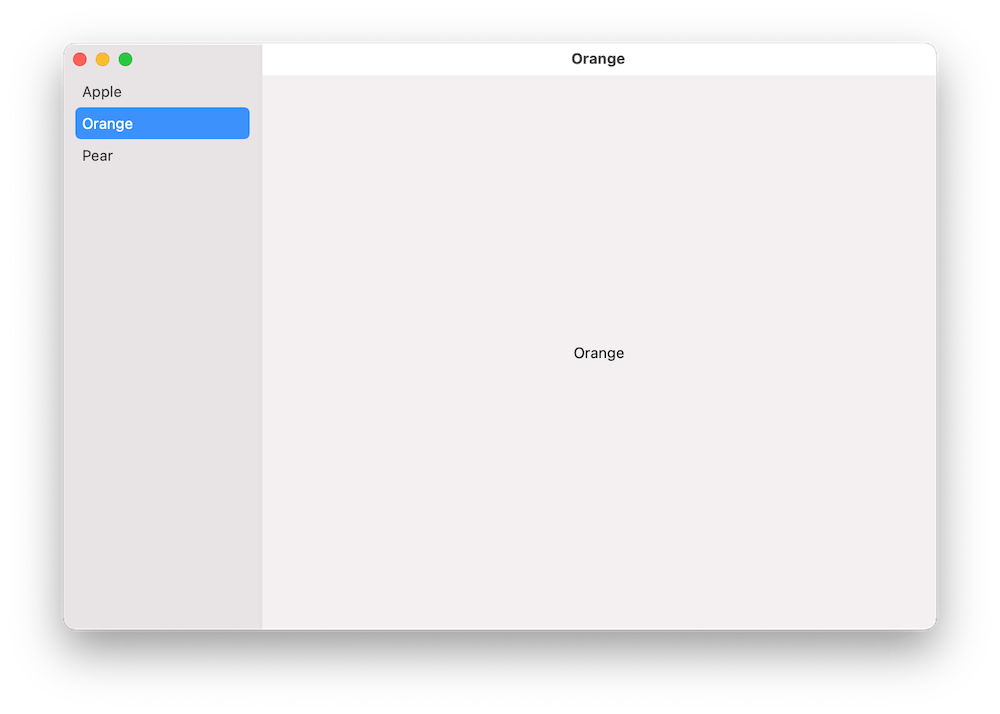
We’ll build a simple sample app which shows a list of fruits in the sidebar and when clicking on any of the fruits, the right pane displays the name of the fruit. Therefore, we’ll need a struct representing a fruit, a view model for storing the list of fruits, and a property for storing the selected fruit in the sidebar.

struct Fruit: Identifiable {
let id = UUID().uuidString
let name: String
}
final class ViewModel: ObservableObject {
init(fruits: [Fruit] = ViewModel.defaultFruits) {
self.fruits = fruits
self.selectedId = fruits[1].id
}
@Published var fruits: [Fruit]
@Published var selectedId: String?
static let defaultFruits: [Fruit] = ["Apple", "Orange", "Pear"].map({ Fruit(name: $0) })
}

We can create the layout with NavigationView and NavigationLink. Inside the NavigationView we’ll first add a List where each of the item in the list is represented by a NavigationLink. One of the NavigationLink initializers takes a title, tag, and selection binding. Tag is used for identifying items in the list and setting one of the tag values to the selection binding will make the sidebar to select the item programmatically. Also, we’ll need to set the list style to “sidebar” which adds the appropriate styling to it. Finally, we’ll add a Text element, which acts as a placeholder view when there is no selection. And that is all what we need to do to get going with a view with sidebar and detail pane.
struct ContentView: View {
@StateObject var viewModel = ViewModel()
var body: some View {
NavigationView {
List {
ForEach(viewModel.fruits) { item in
NavigationLink(item.name, tag: item.id, selection: $viewModel.selectedId) {
Text(item.name)
.navigationTitle(item.name)
}
}
}
.listStyle(.sidebar)
Text("No selection")
}
}
}
A sample app with sidebar on the left showing 3 items and detail view on the right displaying the name of the selected item.
The final sample app with a sidebar.

Summary

We used NavigationView and NavigationLink to create a common layout for macOS apps, which features a sidebar with list of items and detailed view on the right. With only a bit of code, we were able to set it up.

If this was helpful, please let me know on Mastodon@toomasvahter or Twitter @toomasvahter. Feel free to subscribe to RSS feed. Thank you for reading.

Categories
iOS Swift SwiftUI

Picker and segmented control in SwiftUI on iOS

Picker is used for presenting a selection consisting of multiple options. UISegmentedControl which is known from UIKit is just a different picker style in SwiftUI. Let’s take a quick look on how to create a form with two items: picker with default style and picker with segmented style.

Creating a from

Form should be typically presented in a NavigationView which enables picker to present a list of items on a separate view in the navigation stack. Using the code below, we can create a form view which has a familiar visual style.

var body: some View {
NavigationView {
Form {
Section {
makeFruitPicker()
makePlanetPicker()
}.navigationBarTitle("Pickers")
}
}.navigationViewStyle(StackNavigationViewStyle())
}
Form view in navigation view for enabling navigation stack.
Example app presenting a form with pickers.

Setting up a picker and providing data with enum

Creating a picker requires specifying a title, a binding for selection, and function for providing a content. In the example below, we are using ForEach for creating views on demand. The number of options is defined by the number of items in the array. Each string is also used as identification of the view provided by the ForEach.

@State private var selectedPlanet = ""
let planets = ["Mercury", "Venus", "Earth", "Mars", "Jupiter", "Saturn", "Neptune", "Uranus"]
func makePlanetPicker() -> some View {
Picker("Planets", selection: $selectedPlanet) {
ForEach(planets, id: \.self) { planet in
Text(planet)
}.navigationBarTitle("Planets")
}
}
Creating a picker with a list of items.

Picker with SegmentedPickerStyle

An enum which is conforming to CaseIterable protocol is a convenient way for defining data for a picker. In the example below, data is identified by enum case’s rawValue and each view has a tag equal to enum’s case. Without a tag, selection would not be displayed because there would not be a connection between the selection binding and the view returned by ForEach.

enum Fruit: String, CaseIterable {
case apple, orange, pear
}
func makeFruitPicker() -> some View {
Picker("Fruits", selection: $selectedFruit) {
ForEach(Fruit.allCases, id: \.rawValue) { fruit in
Text(fruit.rawValue).tag(fruit)
}
}.pickerStyle(SegmentedPickerStyle())
}
Picker displayed with segmented control style.

Summary

Creating a form view which uses the familiar style from iOS requires only a little bit of code in SwiftUI. Adding pickers and segmented controls, which are used a lot in forms, are pretty easy to set up.

If this was helpful, please let me know on Mastodon@toomasvahter or Twitter @toomasvahter. Feel free to subscribe to RSS feed. Thank you for reading.

Categories
Swift SwiftUI

NavigationLink and presentationMode environment value property for dismissing a view in SwiftUI

How to navigate to a new view in SwiftUI and then dismissing it? Let’s set up a main view in NavigationView and NavigationLink for opening detail view. NavigationLink is a button triggering a navigation to a specified view. Detail view will contain a button for navigating back to the first view. But how do we dismiss presented detail view?

Reading environment and dismissing the detail view

SwiftUI provides a dynamic view property named Environment. It can be used for reading values from the view’s environment. Presentation mode is one of those values we can read. This is how we get access to PresentationMode structure what has isPresented property and function for dismissing the view. Therefore, we need to add dynamic view property to our detail view and then calling dismiss() when the button is tapped

import SwiftUI
struct ContentView: View {
var body: some View {
NavigationView {
VStack(spacing: 8) {
Text("Hello World")
NavigationLink("Go to Detail View", destination: DetailView())
}.navigationBarTitle(Text("View 1"))
}
}
}
Content shown in navigation view
import SwiftUI
struct DetailView: View {
@Environment(\.presentationMode) var presentationMode
var body: some View {
VStack(spacing: 8) {
Text("Detail view")
Button("Go Back", action: {
self.presentationMode.wrappedValue.dismiss()
})
}
}
}
Detail view with button for navigation back to the content view

Summary

SwiftUI has a dynamic view property Environment what we can use for getting more knowledge about the environment view is presented (locale, displayScale etc). One of the environment values is PresentationMode what we can use for dismissing the detail view.

If this was helpful, please let me know on Mastodon@toomasvahter or Twitter @toomasvahter. Feel free to subscribe to RSS feed. Thank you for reading.
