Categories
iOS Swift SwiftUI

Animating with keyframe animator in SwiftUI

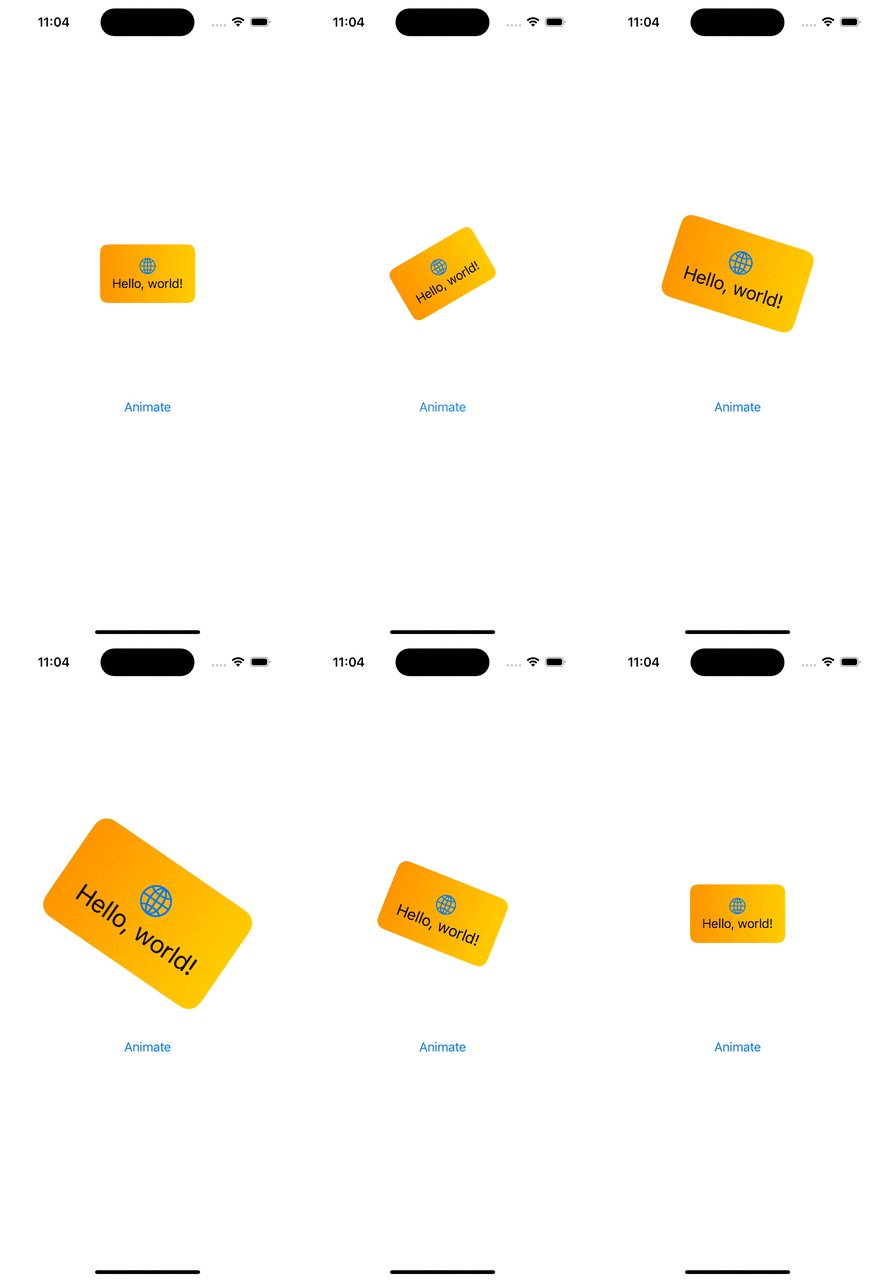
In the previous blog post, we discussed how to use the new phase animator in SwiftUI. Today, we’ll dive into KeyframeAnimator which gives us much more control of the animation. The phase animator worked by specifying different states (e.g. scale, offset etc), and the phase animator animated from one state to another. KeyframeAnimator on the other hand, allows specifying different animation tracks, where each of the track animates a property conforming to the Animatable protocol independently. The value of the property is applied to the view with the content closure of the animator. Each of the animated property is stored by a struct passed into the animator’s initialValues argument. Therefore, the very first thing to start with keyframe animations is creating a new struct which holds animated values and defines initial values. Let’s just animate rotation and scale in our example. Therefore, we can create a struct BannerAnimationValues with rotation and scale properties.

struct BannerAnimationValues {
var rotation: Angle = .zero
var scale = 1.0
}

Secondly, we use keyframeAnimator(initialValue:trigger:content:keyframes:) view modifier on the view. The view modifier defines how these values are applied to the view and when and how exactly the values are animated and interpolated.

BannerView()
.keyframeAnimator(initialValue: BannerAnimationValues(),
trigger: counter,
content: { view, value in
view
.scaleEffect(value.scale)
.rotationEffect(value.rotation)
},
keyframes: { value in
KeyframeTrack(\.scale) {
LinearKeyframe(1.0, duration: 0.5)
SpringKeyframe(2.0, duration: 0.4, spring: .snappy)
CubicKeyframe(1.0, duration: 0.6)
}
KeyframeTrack(\.rotation) {
SpringKeyframe(.degrees(-35), duration: 0.4, spring: .smooth)
SpringKeyframe(.degrees(35), duration: 0.8, spring: .smooth)
LinearKeyframe(.degrees(0), duration: 0.3)
}
})

The first argument is initialValue and we pass our struct with initial values to it. SwiftUI will then modify values of the struct based on the keyframes closure’s KeyframeTracks and keeps calling the content closure to apply new values. In the example above, we can see that the content closure applies scale and rotation effect based on the current animation values. The keyframes closure contains two tracks, since we animate two properties. The first keyframe track defines how the scale property is changed of the BannerAnimationValues struct. Here we keep the scale at 1.0 for 0.5 seconds, then animate the scale value to 2.0 with spring timing function, and finally, setting the scale back to 1.0 using cubic curve timing function. SwiftUI will handle the changes of velocities between different timing functions to keep the animation smooth. The rotation is similar, we use a spring function for setting the rotation to -35 degrees, then to 35 degrees and finally a linear timing for animating the rotation back to 0 degrees.

Some things to keep in mind with keyframe animations is that these animations should not be interrupted or changed in the middle of the animation. This is because we set exact values of the animation, and therefore it can’t retarget to a new set of values and interpolate to new values nicely. Also, the view is updated on every frame, therefore we need to keep in mind performance and not doing any expensive work while the animation is running.
If this was helpful, please let me know on Mastodon@toomasvahter or Twitter @toomasvahter. Feel free to subscribe to RSS feed. Thank you for reading.

Categories
iOS macOS Swift SwiftUI

Animating a custom wave shape in SwiftUI

Shape protocol in SwiftUI is used for defining views which render custom shapes. Shapes have one required method which takes in a rect and returns a Path. In addition to view protocol, shape conforms to Animatable protocol as well. Therefore we can quite easily make our custom shape to animate from one state to another. We’ll use two parameters for defining our Wave shape: amplitude and frequency. Amplitude dictates the height of the wave and frequency the distance between wave peaks.

Animating wave shape by changing amplitude and frequency
Animating wave shape.

SwiftUI view displaying an animatable wave shape

Let’s take a look on an example view which displays custom Wave shape. We’ll use @State property wrappers for storing amplitude and frequency because we want to change those values when running the app. Those properties are updated with random values when pressing a button. The wave has blue fill color, fixed height, and basic easeInOut animation. The animation is used when amplitude and/or frequency change.

struct ContentView: View {
@State private var amplitude = 10.0
@State private var frequency = 0.1
var body: some View {
ZStack {
Wave(amplitude: amplitude, frequency: frequency)
.fill(Color.blue)
.frame(height: 300.0)
.animation(.easeInOut(duration: 3))
Button(action: toggleAnimation, label: {
Text("Animate")
})
.padding(4)
.background(Color.red)
.cornerRadius(8)
.foregroundColor(.white)
}
}
func toggleAnimation() {
amplitude = amplitude <= 15.0 ? Double.random(in: 30.0…60.0) : Double.random(in: 5.0…15.0)
frequency = frequency <= 0.2 ? Double.random(in: 0.2…0.4) : Double.random(in: 0.05…0.2)
}
}
Content view rendering a wave shape with a button starting an animation.

Animatable wave shape

Like mentioned in the introduction, the Shape protocol defines a required method which has a rect argument and returns a Path. The path starts from the top left edge. Sine function is used for calculating y coordinates for every x coordinate with a 1 point step. Right, bottom and left edges are just straight lines.

Animatable protocol defines an animatableData property and because we have two parameters (amplitude and frequency) we’ll need to use AnimatablePair type. If there would be more parameters then AnimatablePair should contain one or more AnimatablePair types (and so on). Note that values in animatableData must conform to VectorArithmetic protocol which Double type already does.

When animation is running then SwiftUI calculates amplitude and frequency values based on the current animation frame and sets it to the animatableData property. Then new Path value is calculated and rendered.

struct Wave: Shape {
var amplitude: Double
var frequency: Double
func path(in rect: CGRect) -> Path {
let sinCenterY = amplitude
let path = CGMutablePath()
path.move(to: CGPoint(x: 0, y: sinCenterY))
let width = Double(rect.width)
for x in stride(from: 0, through: width, by: 1) {
let y = sinCenterY + amplitude * sin(frequency * x)
path.addLine(to: CGPoint(x: x, y: y))
}
path.addLine(to: CGPoint(x: rect.maxX, y: rect.maxY))
path.addLine(to: CGPoint(x: rect.minX, y: rect.maxY))
path.addLine(to: CGPoint(x: Double(rect.minX), y: sinCenterY))
return Path(path)
}
var animatableData: AnimatablePair<Double, Double> {
get {
return AnimatablePair(amplitude, frequency)
}
set {
amplitude = newValue.first
frequency = newValue.second
}
}
}
view raw Wave.swift hosted with ❤ by GitHub
Animatable Wave shape.

Summary

We took a look at the Shape protocol and created a wave shape. In addition, we made the wave to animate from one amplitude and frequency state to a new state.

If this was helpful, please let me know on Mastodon@toomasvahter or Twitter @toomasvahter. Feel free to subscribe to RSS feed. Thank you for reading.