In the previous post we looked into how to separate code with local Swift packages within a project. This time let’s create a Swift package, publish it on GitHub, and add it to a separate project. We’ll create a package which extends UIImage and enables calculating color contrast ratios. Color contrast is important factor for keeping text readable in apps.
Creating a Swift package
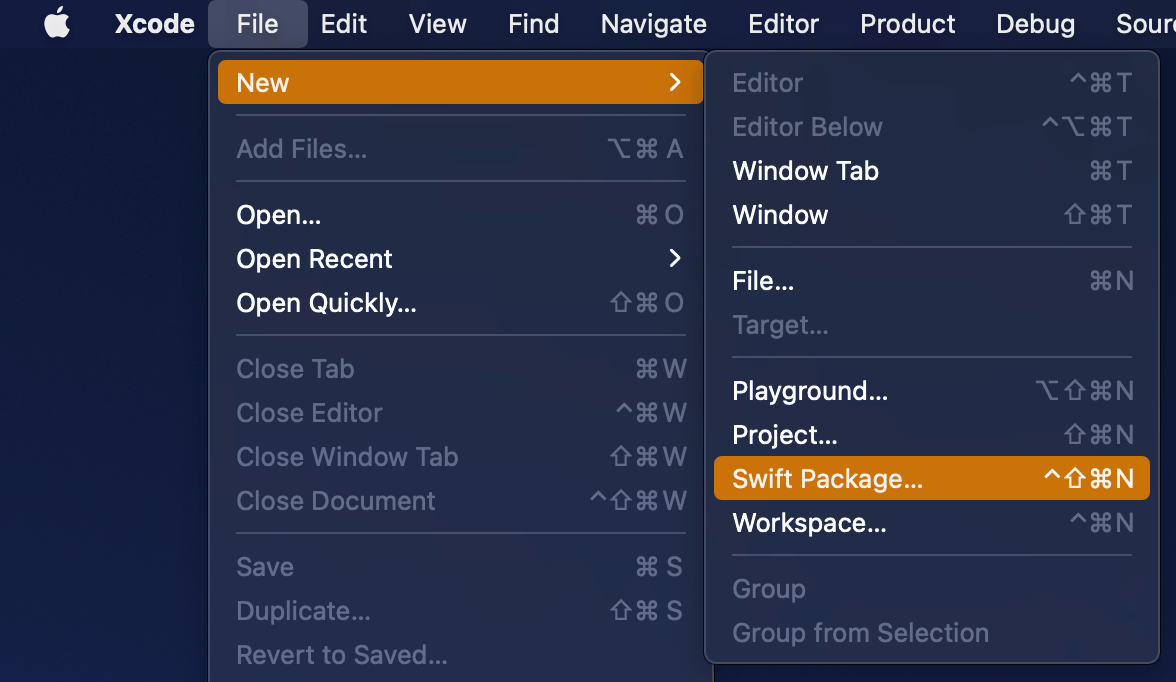
Open Xcode and select “Swift Package” item from the File > New menu. We’ll set the name of the package to “ColorContrastRatio”.
Selecting a new Swift Package.
Saving a new Swift package.
Xcode’s template of new Swift packages is configured to have a basic hello world example with an unit-test. Before we change the package’s implementation, we’ll add minimum platform versions to the Package.swift file, in other words, minimum deployment target.
This file contains hidden or bidirectional Unicode text that may be interpreted or compiled differently than what appears below. To review, open the file in an editor that reveals hidden Unicode characters.
Learn more about bidirectional Unicode characters
Next step is to implement functionality of the package. We’ll keep the package simple and make it UIKit only which can be built for iOS and macCatalyst apps. Package is adding an UIColor extension and providing functionality for calculating relative luminance and contrast ratio. Functionality is set, next step is to publish it.
This file contains hidden or bidirectional Unicode text that may be interpreted or compiled differently than what appears below. To review, open the file in an editor that reveals hidden Unicode characters.
Learn more about bidirectional Unicode characters
First step is to go to GitHub and adding a new repository. I chose to include an automatically created license file, cloned the repository on my mac and then moved the code we added in the previous step to that checkout, then committed and pushed. Alternative is to add a remote to your local git repository. Either way is fine as long as our project ends up on GitHub. In addition, will add a tag which will mark the first release 0.1.0. Tags can be added by running those commands in Terminal:
Adding the published Swift package to another project
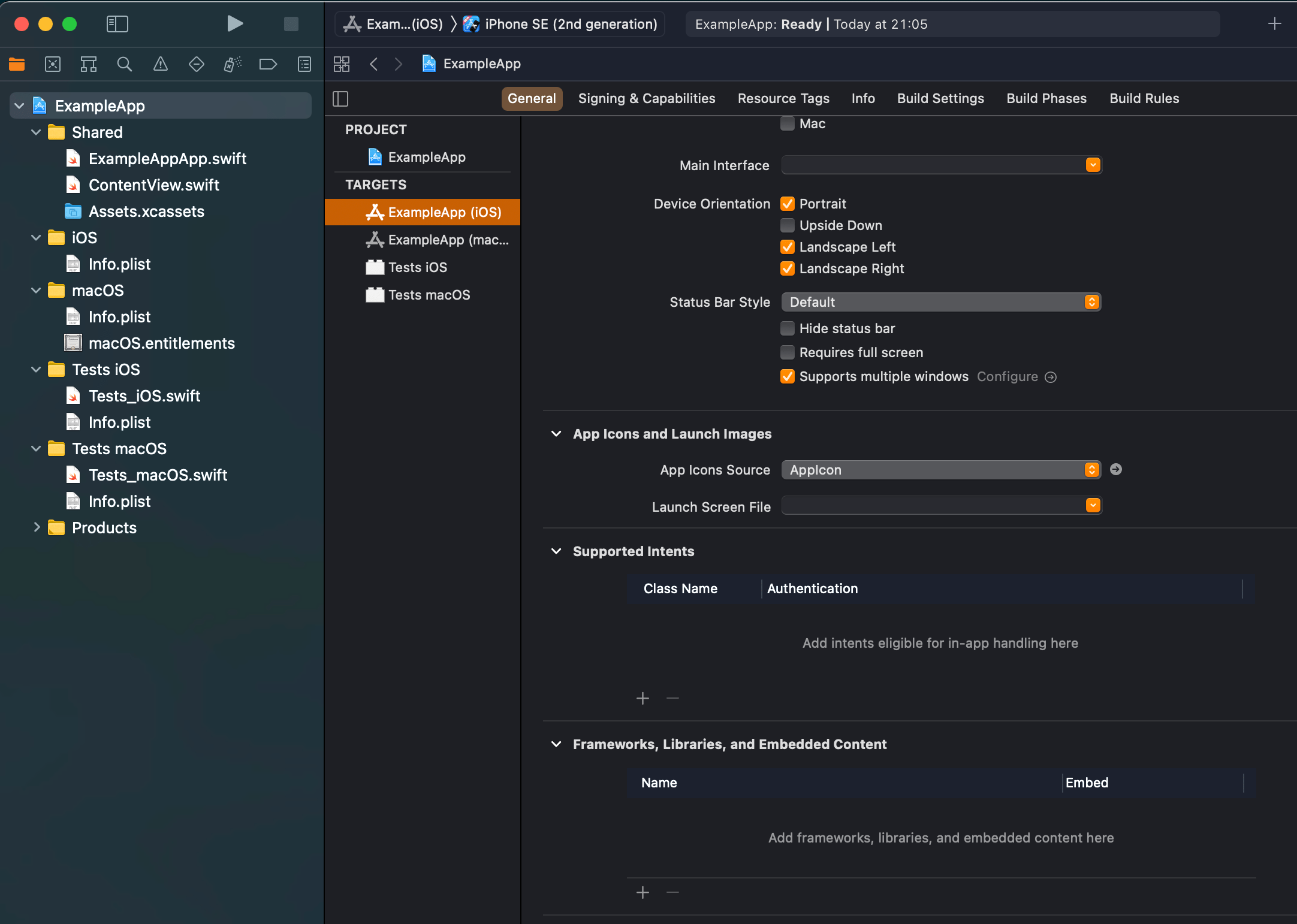
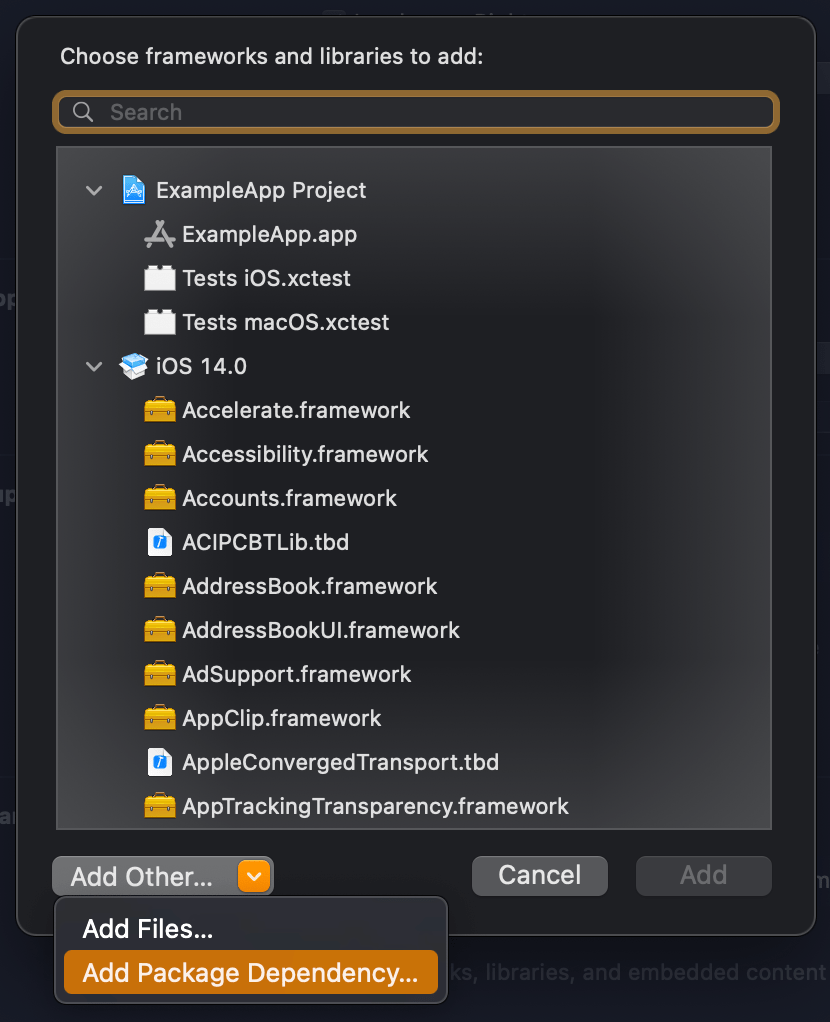
We published our package on GitHub and it requires only a few steps for adding it to an existing project. In an existing project, open the target settings and click on the plus button in the “Frameworks, Libraries, and Embedded Content”. In the opened view, click on the “Add Other” and select “Add Package Dependency”. Then we can paste the package’s GitHub url (https://github.com/laevandus/ColorContrastRatio) to the search field and complete the flow. From then on, it is just a matter of importing the new package and using it in the main project. Described steps are shown below:
Selecting the target where to the package is added.Selecting “Add Package Dependency” which allows adding Swift package.Searching for the Swift package by url.Setting the package update rule.Choosing products from the package.Finished example application using the Swift package’s color contrast ratio function.
This file contains hidden or bidirectional Unicode text that may be interpreted or compiled differently than what appears below. To review, open the file in an editor that reveals hidden Unicode characters.
Learn more about bidirectional Unicode characters
We created a Swift package and a repository on GitHub. Then we proceed with making the first release by adding a git tag. After that, we went ahead and added the package to another example project.




 Augmented Code