
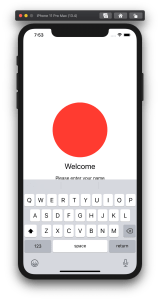
By default SwiftUI view content gets behind a keyboard when editing text. Therefore let’s create a view modifier which can be easily added to any SwiftUI view and enables revealing content behind the keyboard with animation. In the end we will fix this broken looking view where TextField is behind the keyboard.
Observing keyboard notifications
I wrote about keyboard notifications a while ago in “Observing keyboard visibility on iOS”. We’ll also create a class named KeyboardObserver and its responsibility is to observe keyboardWillChangeFrameNotification, keyboardWillShowNotification and keyboardWillHideNotification and extracting values from the notification’s userInfo. In addition, we’ll add Info struct which holds animation duration, curve and end frame. Note that user info contains more values but we are only interested in those. With this set, we can subscribe to KeyboardObserver and get notified when keyboard changes. Next step is to use those values and reserving space for keyboard in SwiftUI view.
fileprivate final class KeyboardObserver: ObservableObject {
    struct Info {
        let curve: UIView.AnimationCurve
        let duration: TimeInterval
        let endFrame: CGRect
    }

    private var observers = [NSObjectProtocol]()

    init() {
        let handler: (Notification) -> Void = { [weak self] notification in
            self?.keyboardInfo = Info(notification: notification)
        }
        let names: [Notification.Name] = [
            UIResponder.keyboardWillShowNotification,
            UIResponder.keyboardWillHideNotification,
            UIResponder.keyboardWillChangeFrameNotification
        ]
        observers = names.map({ name in
            NotificationCenter.default.addObserver(forName: name,
                                                   object: nil,
                                                   queue: .main,
                                                   using: handler)
        })
    }

    @Published var keyboardInfo = Info(curve: .linear, duration: 0, endFrame: .zero)
}

fileprivate extension KeyboardObserver.Info {
    init(notification: Notification) {
        guard let userInfo = notification.userInfo else { fatalError() }
        curve = {
            let rawValue = userInfo[UIResponder.keyboardAnimationCurveUserInfoKey] as! Int
            return UIView.AnimationCurve(rawValue: rawValue)!
        }()
        duration = userInfo[UIResponder.keyboardAnimationDurationUserInfoKey] as! TimeInterval
        endFrame = userInfo[UIResponder.keyboardFrameEndUserInfoKey] as! CGRect
    }
}
Creating view modifier
View modifiers in SwiftUI transform the original view and return a new version of the original view. In the view modifier we’ll observe KeyboardObserver and add bottom padding to the original view based on the keyboard height and current safeAreaInsets. In addition, we’ll wrap it into animation block which tells SwiftUI to animate changes.
struct KeyboardVisibility: ViewModifier {
    @ObservedObject fileprivate var keyboardObserver = KeyboardObserver()

    func body(content: Content) -> some View {
        GeometryReader { geometry in
            withAnimation() {
                content.padding(.bottom, max(0, self.keyboardObserver.keyboardInfo.endFrame.height - geometry.safeAreaInsets.bottom))
                    .animation(Animation(keyboardInfo: self.keyboardObserver.keyboardInfo))
            }
        }
    }
}

fileprivate extension Animation {
    init(keyboardInfo: KeyboardObserver.Info) {
        switch keyboardInfo.curve {
        case .easeInOut:
            self = .easeInOut(duration: keyboardInfo.duration)
        case .easeIn:
            self = .easeIn(duration: keyboardInfo.duration)
        case .easeOut:
            self = .easeOut(duration: keyboardInfo.duration)
        case .linear:
            self = .linear(duration: keyboardInfo.duration)
        @unknown default:
            self = .easeInOut(duration: keyboardInfo.duration)
        }
    }
}
The view modifier uses GeometryReader for reading safeAreaInsets. It’s important to take this into account when keyboard is open, otherwise there will be unnecessary spacing.
View modifiers can be added to a view by using modifier function and passing an instance of view modifier to it. We’ll add a convenience method for it.
extension View {
    func keyboardVisibility() -> some View {
        return modifier(KeyboardVisibility())
    }
}
Using view modifier
Next step is to adding the view modifier to a content view. The view modifier should be added to the root view and it is recommended to use ScrollView for making sure all the content is viewable when keyboard is open. It’s time to fix the view mentioned in the beginning of the post. We’ll add keyboardVisibility view modifier to the root view.
struct ContentView: View {
    @State private var text: String = ""

    var body: some View {
        VStack(spacing: 16) {
            Spacer()
            Ellipse().foregroundColor(.red)
                .aspectRatio(contentMode: .fit)
                .frame(height: 200)
            Text("Welcome").font(.title)
            Text("Please enter your name")
            TextField("Name", text: $text)
                .textFieldStyle(RoundedBorderTextFieldStyle())
                .padding()
            Spacer()
        }.keyboardVisibility()
    }
}
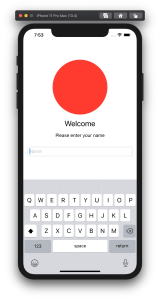
KeyboardVisibility view modifier will make sure the content view has bottom spacing equal to keyboard height and the end result looks like this.
Summary
We created a view modifier which is easy to add to existing views. It observers keyboard notifications and animates the content view along with keyboard.
If this was helpful, please let me know on Mastodon@toomasvahter or Twitter @toomasvahter. Feel free to subscribe to RSS feed. Thank you for reading.
Example project
SwiftUIKeyboardObserver (Xcode 11.4 beta 3)


 Augmented Code