Categories
Generics iOS Swift UIKit

Navigating using flow controllers and responder chain on iOS

Every app consists of different flows for achieving a specific goal. For example, there is a sequence of views for sign up. When sign up flow ends, we need to move to so called main view what represents the main functionality of the app. There are definitely a lot of different ways how to handle app navigation and each of the approach have their own pros and cons. With this in mind, the approach I am going to demonstrate this time, is how to use flow controllers and using responder chain to connect flows to each other.

Navigating from flow to flow

Flow controller is a UIResponder coordinating a single flow in an app. It handles showing views, injecting dependencies and storing intermediate values required to pass from one view controller to another. Navigation from one flow to another happens using responder chain. This also enables us to use sending actions to nil first responder in story boards and xib files. Using responder chain adds extra flexibility when restructuring an app or changing flows a lot. There is only a little code needed to set up new flows. It is a kind of lightweight approach to coordinator pattern where delegation is replaced with responder chain.

Setting up protocols

As a first step we define two protocols: one for defining entry points and the second one for accessing flow controllers from any responder in responder chain. Flow controllers are going to conform to specialised presenting protocol and responders (typically view controller), which trigger navigation, conform to one of the controlling protocols. FlowPresenting protocol is going to define a single function what is used for presenting a first view in the flow. I find examples to be the best way of learning new approaches, therefore let’s build a sample app with three flows: app, login and main flow.

protocol FlowControlling {}
protocol FlowPresenting {
func showInitialView()
}

Controlling app flow

AppFlowController is the controller handling presenting new flows. It conforms to AppFlowPresenting protocol what defines entry points to all the different flows. In addition, it handles inserting active flow to responder chain which enables easy access to flow controller from any presented view controller. Finding a flow controller from responder chain is implemented using a generic function. This enables implementing new getters for other flow controllers with just one line.

protocol AppFlowControlling: FlowControlling {
var appFlowController: AppFlowPresenting { get }
}
protocol AppFlowPresenting: FlowPresenting {
func showMainView()
}
extension AppFlowControlling where Self: UIResponder {
var appFlowController: AppFlowPresenting {
return flowController()
}
}
extension UIResponder {
func flowController<T>() -> T {
var current: UIResponder? = self
repeat {
if let presenter = current as? T {
return presenter
}
current = current?.next
} while current != nil
fatalError()
}
}

In the current sample app, AppFlowController is going to handle representing all of the flows in the app. This is because all the current flows are consisting of one branch in a so called tree of flows. If we would have a more complex application, other flow controllers would handle their own subset of flows and would insert those flows into responder chain (like AppFlowController is inserting LoginFlowController and MainFlowController into responder chain). This kind of architecture allows creating a tree like structure of flows and separating them from each other – there is not going to be a single controller handling all the flows.

final class AppFlowController: UIResponder, AppFlowPresenting {
private let dependencyManager: DependencyManager
private let window: UIWindow
init(window: UIWindow, dependencyManager: DependencyManager) {
self.dependencyManager = dependencyManager
self.window = window
}
// MARK: Presenting Flows
func showInitialView() {
let controller = LoginFlowController(window: window)
controller.showInitialView()
activeFlow = controller
}
func showMainView() {
let controller = MainFlowController(window: window, dependencyManager: dependencyManager)
controller.showInitialView()
activeFlow = controller
}
// MARK: Managing the Responder Chain
var activeFlow: FlowPresenting? = nil
override var next: UIResponder? {
return activeFlow as? UIResponder
}
}

In the example app we do not use storyboard for initialising the first view (“Main Interface” field in target settings is empty). Instead, we set up a window ourself and use AppFlowController for presenting the first view. In addition, we inject a manager storing a set of dependencies view controllers might require. Having approach like this, we do not need singletons and instead, flow controllers insert dependencies into view controllers. Using dependency injection keeps the overall dependency graph nice and clean.

final class AppDelegate: UIResponder, UIApplicationDelegate {
var window: UIWindow?
private var appFlowController: AppFlowController?
private let dependencyManager = DependencyManager()
func application(_ application: UIApplication, didFinishLaunchingWithOptions launchOptions: [UIApplication.LaunchOptionsKey: Any]?) -> Bool {
let window = UIWindow(frame: UIScreen.main.bounds)
window.rootViewController = UINavigationController()
self.window = window
appFlowController = AppFlowController(window: window, dependencyManager: dependencyManager)
appFlowController?.showInitialView()
window.makeKeyAndVisible()
return true
}
override var next: UIResponder? {
return appFlowController
}
}

Creating login flow controller

LoginFlowController has similar set up as AppFlowController with exception of not inserting a subsequent flow into responder chain. In the sample app, login flow does not branch into several other login related flows. At the end of login flow, AppFlowController is used to present main content view. Due to generic function we added to UIResponder extension, login flow controller accessor consists of a single line.

final class LoginFlowController: UIResponder, LoginFlowPresenting {
let window: UIWindow
init(window: UIWindow) {
self.window = window
}
func showInitialView() {
let viewController = UIStoryboard.main.instantiateViewController(withIdentifier: "login")
(window.rootViewController as? UINavigationController)?.setViewControllers([viewController], animated: false)
}
func showSignUp() {
let viewController = SignUpViewController()
(window.rootViewController as? UINavigationController)?.pushViewController(viewController, animated: true)
}
func showAccountDetails() {
let viewController = UIStoryboard.main.instantiateViewController(withIdentifier: "accountdetails")
(window.rootViewController as? UINavigationController)?.pushViewController(viewController, animated: true)
}
}
protocol LoginFlowPresenting: FlowPresenting {
func showAccountDetails()
func showSignUp()
}
protocol LoginFlowControlling: FlowControlling {
var loginFlowController: LoginFlowPresenting { get }
}
extension LoginFlowControlling where Self: UIResponder {
var loginFlowController: LoginFlowPresenting {
return flowController()
}
}

Let’s see how view controllers in the login flow trigger navigation. LoginViewController conforms to LoginFlowControlling. This makes loginFlowController accessor available and we can use it for triggering navigation. It should be noted that loginFlowController accessor returns an object conforming to LoginFlowPresenting and does not explicitly declare the type of LoginFlowController. This means that LoginViewController does not know about LoginFlowController, instead, it just knows that the returned object implements methods listed in LoginFlowPresenting protocol. Less coupling makes it easier to test and restructure app in the future.
Another important point to note here is that it is so easy to add navigation capability to any other view controller. Flow controller does not need to be injected and in the end, we just need to make two changes in the whole view controller – protocol extension takes care of adding getter to the interface and triggering navigation is just a single line of code.

final class LoginViewController: UIViewController, LoginFlowControlling {
@IBAction func createAccount(_ sender: Any) {
loginFlowController.showSignUp()
}
}

Navigating from login to main view

AccountDetailsViewController is the last view controller in the login flow and it should trigger navigation to the main flow. As seen in previous paragraph, triggering navigation requires only two changes. This is also the case here.

final class AccountDetailsViewController: UIViewController, AppFlowControlling {
@IBAction func goToFirst(_ sender: Any) {
appFlowController.showMainView()
}
}

Summary

This time we took a look on how to use flow controllers and responder chain to easily manage navigation from one view to another. In the end we implemented a scalable architecture where adding navigation trigger points just require a few changes. Scalability comes from the fact that flows can be arranged into tree like structure and there is no requirement to have a single object managing all the flows. Moreover, we added a dependency injection capability to flow controllers which make it so much easier to test components separately and not worrying about singletons.

If this was helpful, please let me know on Mastodon@toomasvahter or Twitter @toomasvahter. Feel free to subscribe to RSS feed. Thank you for reading.

Example Project

FlowController (GitHub) Xcode 10.1, Swift 4.2.1

References

Using Responders and the Responder Chain to Handle Events (Apple)
Generics (Swift)
Tree (data structure) (Wikipedia)

Categories
iOS Swift UIKit

Text input in UITableView

This time we are going to take a look on how to create a form with text input using UITableView. Displaying static text in UITableView is easy but for enabling text input in UITableView and propagating the change back to a model object requires a couple of steps.

Introduction

In this example project we are going to create a table view what consists of several rows with text input. The content of the table view is defined by an object Form. Form’s responsibility is to define the items table view displays and also propagating changes back to a model object. In the end we will have a table view where user can edit properties of a model object.

Creating a model object

Model object what we are going to use is an object representing a note. It just has two properties: topic and title. Whenever topic or title changes, it is logged to the console which is enough for verifying updates to model.

final class Note {
init(topic: String, text: String) {
self.topic = topic
self.text = text
}
var topic: String = "" {
didSet {
print("Topic changed to \(topic).")
}
}
var text: String = "" {
didSet {
print("Text changed to \(text).")
}
}
}
view raw Note.swift hosted with ❤ by GitHub

Creating a Form

Like mentioned before, form is going to dictate the content of the table view by defining sections and items. In this simple case, we just have one section with two rows.

final class Form {
let sections: [FormSection]
init(sections: [FormSection]) {
self.sections = sections
}
}
final class FormSection {
let items: [FormItem]
init(items: [FormItem]) {
self.items = items
}
}
protocol FormItem {}
view raw Form.swift hosted with ❤ by GitHub

TextInputFormItem represents a single row with editable text field. It defines text, placeholder and change handler. Text is used as initial value and if there is no text, table view cell will display placeholder string instead. When user changes the text in the table view row, change handler is called with the new value. This is where we are going to update the model object with a new value.

struct TextInputFormItem: FormItem {
let text: String
let placeholder: String
let didChange: (String) -> ()
}

Setting up table view

FormViewController is a UITableViewController subclass and it glues Form and table view together. It uses Form for determining how many sections and items table view has. In addition, based on the item type, it chooses appropriate table view cell for it. In this simple project, we only have items of one type but it is simple to expand it further to support more cell types.

final class FormViewController: UITableViewController {
// MARK: Creating a Form View
let form: Form
init(form: Form) {
self.form = form
super.init(style: .grouped)
}
required init?(coder aDecoder: NSCoder) {
fatalError("init(coder:) has not been implemented")
}
// MARK: Managing the View
private enum ReuseIdentifiers: String {
case textInput
}
override func viewDidLoad() {
super.viewDidLoad()
tableView.rowHeight = 44
tableView.register(TextInputTableViewCell.self, forCellReuseIdentifier: ReuseIdentifiers.textInput.rawValue)
}
// MARK: Providing Table View Content
private func model(at indexPath: IndexPath) -> FormItem {
return form.sections[indexPath.section].items[indexPath.item]
}
override func numberOfSections(in tableView: UITableView) -> Int {
return form.sections.count
}
override func tableView(_ tableView: UITableView, numberOfRowsInSection section: Int) -> Int {
return form.sections[section].items.count
}
override func tableView(_ tableView: UITableView, cellForRowAt indexPath: IndexPath) -> UITableViewCell {
let object = model(at: indexPath)
if let textRow = object as? TextInputFormItem {
let cell = tableView.dequeueReusableCell(withIdentifier: ReuseIdentifiers.textInput.rawValue, for: indexPath) as! TextInputTableViewCell
cell.configure(for: textRow)
return cell
}
else {
fatalError("Unknown model \(object).")
}
}
}

Adding editable text field to UITableViewCell

For text input we are going to use a custom cell. This cell adds an editable text field to its contentView. Secondly, it handles touches began event for moving the first responder to the editable text field when users taps on the row and finally calls change handler when text in the editable text field changes.

final class TextInputTableViewCell: UITableViewCell {
// MARK: Initializing a Cell
override init(style: UITableViewCell.CellStyle, reuseIdentifier: String?) {
super.init(style: style, reuseIdentifier: reuseIdentifier)
contentView.addSubview(editableTextField)
NSLayoutConstraint.activate([
editableTextField.centerYAnchor.constraint(equalTo: contentView.centerYAnchor),
editableTextField.leadingAnchor.constraint(equalTo: contentView.layoutMarginsGuide.leadingAnchor),
editableTextField.trailingAnchor.constraint(equalTo: contentView.layoutMarginsGuide.trailingAnchor)
])
}
required init?(coder aDecoder: NSCoder) {
fatalError("init(coder:) has not been implemented")
}
// MARK: Reusing Cells
override func prepareForReuse() {
super.prepareForReuse()
changeHandler = { _ in }
}
// MARK: Managing the Content
func configure(for model: TextInputFormItem) {
editableTextField.text = model.text
editableTextField.placeholder = model.placeholder
changeHandler = model.didChange
}
lazy private var editableTextField: UITextField = {
let textField = UITextField(frame: .zero)
textField.translatesAutoresizingMaskIntoConstraints = false
textField.addTarget(self, action: #selector(TextInputTableViewCell.textDidChange), for: .editingChanged)
return textField
}()
// MARK: Handling Text Input
override func touchesBegan(_ touches: Set<UITouch>, with event: UIEvent?) {
editableTextField.becomeFirstResponder()
}
private var changeHandler: (String) -> () = { _ in }
@objc private func textDidChange() {
changeHandler(editableTextField.text ?? "")
}
}

Creating form for model object

Finally it is time to create a Form. We’ll just have one section with two items: one item for Note’s topic and the other one for Note’s text. Whenever text is edited in table view, we’ll get the change callback and then we can propagate the change back to the Note.

extension FormViewController {
convenience init(note: Note) {
let form = Form(sections: [
FormSection(items: [
TextInputFormItem(text: note.topic,
placeholder: "Add title",
didChange: { text in
note.text = text
}),
TextInputFormItem(text: note.text,
placeholder: "Add description",
didChange: { text in
note.text = text
})
])
])
self.init(form: form)
}
}

Summary

We created a table view with editable text field by subclassing UITableViewCell and adding UITextField to it. Then we created Form and used it to decouple model object from table view. Form’s items provide content for table view cells and handle propagating changes back to the model object.
editing_form_final

If this was helpful, please let me know on Twitter @toomasvahter. Thank you for reading.

Example Project

UITableViewCellTextInput (GitHub) Xcode 10.1, Swift 4.2.1

References

UITableViewCell (Apple)
UITableViewController (Apple)

Categories
iOS Swift UIKit

Creating persistent data store on iOS

Storing data persistently on iOS is something what is needed quite often. In this post, we are going to look into how to build a persistent data store and how to store image data.

Initialising the persistent data store

Persistent data store is an object managing a folder on disk. It allows writing and reading data asynchronously.
Firstly, we need to create a folder where to store all the files. As every instance of the data store should manage its own folder, we will add an argument name to the initialiser. Then we can create a folder in user’s documents folder with that name. As writing and reading data is an expensive operation, we are going to offload the work to a concurrent DispatchQueue. Concurrent dispatch queue allows us to read multiple files at the same time (more about it a bit later).

final class PersistentDataStore {
let name: String
private let dataStoreURL: URL
private let queue: DispatchQueue
init(name: String) throws {
self.name = name
queue = DispatchQueue(label: "com.augmentedcode.persistentdatastore", qos: .userInitiated, attributes: .concurrent, autoreleaseFrequency: .workItem)
let documentsURL = try FileManager.default.url(for: .documentDirectory, in: .userDomainMask, appropriateFor: nil, create: false)
dataStoreURL = documentsURL.appendingPathComponent(name, isDirectory: true)
try FileManager.default.createDirectory(at: dataStoreURL, withIntermediateDirectories: true, attributes: nil)
}
}

Storing data asynchronously

Method for storing data on disk consists of closure, identifier and completion handler. This allows us to create a closure what transforms object to data. For example, it could transform UIImage to Data. Secondly, this transformation, possibly slow operation, can be offloaded to the same thread writing the data into a file. Using closure gives us a flexible API what we can extend with convenience methods.

typealias Identifier = String
enum Result {
case failed(Error)
case noData
case success(Identifier)
}
func storeData(_ dataProvider: @escaping () -> (Data?), identifier: Identifier = UUID().uuidString, completionHandler block: @escaping (Result) -> ()) {
queue.async(flags: .barrier) {
let url = self.url(forIdentifier: identifier)
guard let data = dataProvider(), !data.isEmpty else {
DispatchQueue.main.async {
block(.noData)
}
return
}
do {
try data.write(to: url, options: .atomic)
DispatchQueue.main.async {
block(.success(identifier))
}
}
catch {
DispatchQueue.main.async {
block(.failed(error))
}
}
}
}
// Example (adding data to data store with unique identifier):
persistentStore.storeData({ () -> (Data?) in
return image.jpegData(compressionQuality: 1.0)
}) { (result) in
switch result {
case .success(let identifier):
print("Stored data successfully with identifier \(identifier).")
case .noData:
print("No data to store.")
case .failed(let error):
print("Failed storing data with error \(error)")
}
}

Identifier is internally used as a filename and default implementation creates unique identifier. Therefore, when data store consumer would like to replace the current file, it can supply an identifier, otherwise new file is created.
Completion handler contains a Result enum type. Result enum consists of three cases: success, transformation failure and data writing failure. Success’ associated value is identifier, failure contains error object and transformation failure is equal to noData.
Important to note here is that the work item has barrier specified. Barrier means that when DispatchQueue starts to handle the work item, it will wait until all the previous work items have finished running. Meaning, we will never try to update a file on disk when some other request is busy reading it.

Loading data asynchronously

Load data is generic method allowing the data transformation closure to return a specific type (e.g. transforming Data to UIImage). Shortly, load data reads file from disk and transforms it into a different type. As transformation can be a lengthy task, it is yet again running on the background thread and will not cause any hiccups in the UI.

func loadData<T>(forIdentifier identifier: Identifier, dataTransformer: @escaping (Data) -> (T?), completionHandler block: @escaping (T?) -> ()) {
queue.async {
let url = self.url(forIdentifier: identifier)
guard FileManager.default.fileExists(atPath: url.path) else {
DispatchQueue.main.async {
block(nil)
}
return
}
do {
let data = try Data(contentsOf: url, options: .mappedIfSafe)
let object = dataTransformer(data)
DispatchQueue.main.async {
block(object)
}
}
catch {
print("Failed reading data at URL \(url).")
DispatchQueue.main.async {
block(nil)
}
}
}
}
// Example
persistentStore.loadData(forIdentifier: "my_identifier", dataTransformer: { UIImage(data: $0) }) { (image) in
guard let image = image else {
print("Failed loading image.")
return
}
print(image)
}

Removing data asynchronously

Removing a single file or all of the files is pretty straight-forward. As we are modifying files on disk, we will use barrier again and then FileManager’s removeItem(at:) together with contentsOfDirectory(at:includingPropertiesForKeys:options:).

func removeData(forIdentifier identifier: Identifier) {
queue.async(flags: .barrier) {
let url = self.url(forIdentifier: identifier)
guard FileManager.default.fileExists(atPath: url.path) else { return }
do {
try FileManager.default.removeItem(at: url)
}
catch {
print("Failed removing file at URL \(url) with error \(error).")
}
}
}
func removeAll() {
queue.async(flags: .barrier) {
do {
let urls = try FileManager.default.contentsOfDirectory(at: self.dataStoreURL, includingPropertiesForKeys: nil, options: [])
try urls.forEach({ try FileManager.default.removeItem(at: $0) })
}
catch {
print("Failed removing all files with error \(error).")
}
}
}

Extension for storing images

It is easy to extend the PersistentDataStore with convenience methods for storing a specific type of data. This allows us to hide the technical details of transforming image to data and vice-versa. Moreover, calling the method gets easier to read as data transformation closure is not visible anymore.

extension PersistentDataStore {
func loadImage(forIdentifier identifier: Identifier, completionHandler block: @escaping (UIImage?) -> (Void)) {
loadData(forIdentifier: identifier, dataTransformer: { UIImage(data: $0) }, completionHandler: block)
}
func storeImage(_ image: UIImage, identifier: String = UUID().uuidString, completionHandler handler: @escaping (Result) -> ()) {
storeData({ image.jpegData(compressionQuality: 1.0) }, identifier: identifier, completionHandler: handler)
}
}
// Examples:
persistentStore.storeImage(image) { (result) in
print(result)
}
persistentStore.loadImage(forIdentifier: "my_identifier") { (image) -> (Void) in
guard let image = image else {
print("Failed loading image.")
return
}
print(image)
}

Summary

We created a persistent data store what is performant and has a flexible API. API can be extended easily to support any other data transformation. In addition, it uses thread-safe techniques for making sure data never gets corrupted.

Playground

PersistentDataStore (GitHub) Xcode 10, Swift 4.2

References

DispatchQueues (Apple)
dispatch_barrier_async (Apple)

Categories
iOS Swift

Random unification in Swift 4.2

In the beginning of this year I blogged about how to generate random float and integers. Meanwhile, SE-0202 “Random Unification” got implemented in Swift 4.2 making my additions unnecessary. Let’s take a look how to use new API for getting random numbers.

Random integers, floats and booleans

In my own implementation I was extending range with a function named random(). Swift 4.2 took different path. Instead, it adds functions like static func random(in range: Range, using generator: inout T) -> UInt64 where T : RandomNumberGenerator to FixedWidthInteger, BinaryFloatingPoint and Bool. By default, SystemRandomNumberGenerator with cryptographically secure implementation is used as a generator. But for example if it is required to seed the generator, custom type needs to be created. This might be useful in testing where every execution should produce the same results.
In addition to getting random numbers, there is now API for shuffling a collection or getting a random element. As collections can be empty, the randomElement() function returns optional.

let double = Double.random(in: -1.2...4.5)
let integer = Int.random(in: .min ... .max)
let unsignedInteger = UInt.random(in: 4...9)
let bool = Bool.random()
var generator = SystemRandomNumberGenerator()
let double2 = Double.random(in: 1.0..<4.2, using: &generator)
let array = ["Cat", "Cow", "Dog", "Sheep"]
if let element = array.randomElement() {
print(element) // e.g Dog
}
let shuffled = array.shuffled()
print(array, shuffled) // e.g ["Cat", "Cow", "Dog", "Sheep"] ["Dog", "Cow", "Sheep", "Cat"]

Seeded random number generator

As I mentioned before, sometimes it is needed to seed random number generator. Creating a generator what uses a seed is quite simple. First, we need a random number function what supports seeding. Therefore arcrandom() and arcrandom_uniform() are not usable in this use case. What we can use is srand48() for seeding and drand48() for getting a random double in range of 0 to 1. Using this, we can implement the required method in the RandomNumberGenerator protocol.

struct SeededRandomNumberGenerator: RandomNumberGenerator {
init(seed: Int) {
srand48(seed)
}
func next() -> UInt64 {
return UInt64(drand48() * Double(UInt64.max))
}
}
var seededGenerator = SeededRandomNumberGenerator(seed: 5)
let random = Int.random(in: -5...5, using: &seededGenerator)

Summary

We took a look at convenient and flexible APIs for getting and using random numbers in Swift 4.2. In addition, we created a seeded random number generator what might be useful in testing.

Playground

RandomUnification (GitHub) Xcode 10, Swift 4.2

References

SE-0202 (Apple)
RandomNumberGenerator (Apple)
srand48 (linux man pages)

Categories
iOS Swift

Taking photos on iOS

This time we will take a look on how to take photos and browse them on iOS.

Using UIImagePickerController

Creating user interface for taking photos consists of presenting an instance of UIImagePickerController. Controller needs a delegate and source type what defines if we are going to take a photo or pick a photo from the library. But even before creating the controller it is required to call isSourceTypeAvailable(_:) class method and verifying if the source type is available. For example, it returns false if picker’s sourceType is set to UIImagePickerController.SourceType.photoLibrary and the library is empty. Makes sense, as there are no photos to pick from.

@IBAction func takePhoto(_ sender: Any) {
openPhotoPicker(withSource: .camera)
}
@IBAction func choosePhoto(_ sender: Any) {
openPhotoPicker(withSource: .photoLibrary)
}
@discardableResult private func openPhotoPicker(withSource source: UIImagePickerController.SourceType) -> Bool {
guard UIImagePickerController.isSourceTypeAvailable(source) else { return false }
let picker: UIImagePickerController = {
let picker = UIImagePickerController()
picker.delegate = self
picker.sourceType = source
return picker
}()
present(picker, animated: true, completion:nil)
return true
}

UIImagePickerControllerDelegate contains two methods we need to implement for handling interactions in image picker. Firstly, consuming taken or picked images and secondly, dismissing the picker. Info dictionary in imagePickerController(_:didFinishPickingMediaWithInfo:) contains quite a many values from images to metadata. All the possible keys can be seen here. As a bare minimum we need to handle editedImage and originalImage keys. If it is required to add the image to photo library, then this can be done by calling UIImageWriteToSavedPhotosAlbum(). This starts an asynchronous operation for adding the image to library. And if needed, it is possible to specify callback when this operation finishes.

extension ViewController: UIImagePickerControllerDelegate, UINavigationControllerDelegate {
func imagePickerController(_ picker: UIImagePickerController, didFinishPickingMediaWithInfo info: [UIImagePickerController.InfoKey : Any]) {
let handleImage: (UIImage?) -> () = { (image) in
self.imageView.image = image
self.imageView.isHidden = (image == nil)
if let image = image {
UIImageWriteToSavedPhotosAlbum(image, nil, nil, nil)
}
}
if let image = info[.editedImage] as? UIImage {
handleImage(image)
}
else if let image = info[.originalImage] as? UIImage {
handleImage(image)
}
else {
handleImage(nil)
}
dismiss(animated: true, completion: nil)
}
func imagePickerControllerDidCancel(_ picker: UIImagePickerController) {
dismiss(animated: true, completion: nil)
}
}

Privacy statements

Before going ahead and presenting the image picker it is required to add privacy statements to info.plist. Privacy - Camera Usage Description (NSCameraUsageDescription) is required for using the camera and Privacy - Photo Library Additions Usage Description (NSPhotoLibraryUsageDescription) when using UIImageWriteToSavedPhotosAlbum() for storing photos. Values of those keys are localised descriptions which are shown when app requests to use the camera or when adding the photo to the library.

Summary

Setting up user interface for taking photos is quite easy thanks to UIImagePickerController. All in all it was a three step process: configure picker, add privacy statements and handle images.

Sample app

PhotoTaker (GitHub) Xcode 10, Swift 4.2

References

UIImagePickerControllerDelegate (Apple)
NSCameraUsageDescription
NSPhotoLibraryUsageDescription

Categories
CoreAnimation iOS Swift UIKit

Custom non-interactive transition in iOS

In iOS view transitions can be interactive and non-interactive. In this post we are going to take a look on how to implement a custom non-interactive transition.

Setting up a custom transition

For setting up a custom non-interactive transition it is needed to create an animator object defining the transition and feeding it into UIKit. Before view controller is presented, we’ll need to change the UIModalPresentationStyle to custom, set delegate and with delegate method providing the custom animator to UIKit.

final class ViewController: UIViewController, UIViewControllerTransitioningDelegate {
@objc func showView() {
let presentedViewController = PresentedViewController()
presentedViewController.modalPresentationStyle = .custom
presentedViewController.transitioningDelegate = self
present(presentedViewController, animated: true, completion: nil)
}
private let transition = CustomTransition()
func animationController(forPresented presented: UIViewController, presenting: UIViewController, source: UIViewController) -> UIViewControllerAnimatedTransitioning? {
return transition
}
}

Custom animator

Custom animator object needs to conform to UIViewControllerContextTransitioning. It is required to implement a method defining the duration of the transition and method performing the transition. UIKit calls those methods and provides a UIViewControllerContextTransitioning object what gives contextual information about the transition (e.g. view controllers related to the transition). It is important to check isAnimated property for seeing if the transition should be animated at all. Secondly, it is required to call completeTransition() when transition has finished.
Let’s take a look on an example implementation of custom transition. In this particular case Core Animation is used for implementing animations. Several animations run in an animation group, and when it finishes, completeTransition() is called. Core Animation is used because of the need to rotate the presented view which is easy to do with CABasicAnimation. Just for keeping in mind that most of the simpler animations might be easier just to implement with UIView’s animate(withDuration:delay:options:animations:completion:).

final class CustomTransition: NSObject, CAAnimationDelegate, UIViewControllerAnimatedTransitioning {
func transitionDuration(using transitionContext: UIViewControllerContextTransitioning?) -> TimeInterval {
return 1.0
}
func animateTransition(using transitionContext: UIViewControllerContextTransitioning) {
guard let toViewController = transitionContext.viewController(forKey: .to) else { return }
transitionContext.containerView.addSubview(toViewController.view)
if transitionContext.isAnimated {
toViewController.view.frame = transitionContext.finalFrame(for: toViewController)
let opacity: CABasicAnimation = {
let animation = CABasicAnimation(keyPath: "opacity")
animation.duration = transitionDuration(using: transitionContext)
animation.fromValue = 0.0
animation.timingFunction = CAMediaTimingFunction(name: .easeIn)
animation.toValue = 1.0
return animation
}()
let rotation: CABasicAnimation = {
let animation = CABasicAnimation(keyPath: "transform.rotation")
animation.duration = transitionDuration(using: transitionContext)
animation.fromValue = 0.0
animation.toValue = 2.0 * 2.0 * Double.pi
animation.timingFunction = CAMediaTimingFunction(name: .easeIn)
return animation
}()
let scale: CABasicAnimation = {
let animation = CABasicAnimation(keyPath: "transform.scale")
animation.duration = transitionDuration(using: transitionContext)
animation.fromValue = 0.1
animation.toValue = 1.0
animation.timingFunction = CAMediaTimingFunction(name: .easeInEaseOut)
return animation
}()
let group: CAAnimationGroup = {
let group = CAAnimationGroup()
group.animations = [opacity, rotation, scale]
group.delegate = self
group.duration = transitionDuration(using: transitionContext)
return group
}()
self.transitionContext = transitionContext
toViewController.view.layer.add(group, forKey: "rotateScaleGroup")
}
else {
toViewController.view.frame = transitionContext.finalFrame(for: toViewController)
transitionContext.completeTransition(true)
}
}
private var transitionContext: UIViewControllerContextTransitioning? = nil
func animationDidStop(_ animation: CAAnimation, finished isFinished: Bool) {
transitionContext?.completeTransition(isFinished)
transitionContext = nil
}
}

Here is the end result.
CustomViewTransitionExample

Summary

In this blog post we took a look on how to use custom transitions when presenting a view controller. It was a matter of setting presentation style to custom and creating and providing an animator object to UIKit using a delegate.

Playground

CustomViewTransition (GitHub) Xcode 10, Swift 4.2

References

UIViewControllerContextTransitioning (Apple)

Categories
Generics Swift

Singly linked list with generics in Swift

In this post we will go over basic usage of generics in Swift by building a simple singly linked list.

Introduction to generics

Generic code is code where the functionality is described without using specific types. Meaning, the code can use any types what match with constraints (if there are any). It’s best to take a look on an example. See how separate functions can be replaced with a single implementation.

// non-generic functions
func someFunctionInt(_ values: [Int]) {}
func someFunctionString(_ values: [String]) {}
// generic
func someFunction<T>(_ values: [T]) {}
// non-generic functions
someFunctionInt([1, 2, 3])
someFunctionString(["a", "b", "c"])
// generic
someFunction([1, 2, 3])
someFunction(["a", "b", "c"])
// Type constraint
func someSortFunction<T: Comparable>(_ values: [T]) -> [T] {
return values.sorted()
}
let sorted = someSortFunction([3, 7, 5, 1])
print(sorted) // [1, 3, 5, 7]

Generic implementation defines a placeholder for a type (in angle brackets), in those examples T was used (can be something else but it is the most common placeholder). If multiple type placeholders are needed, placeholders are separated with commas. In addition, it is possible to constrain the type, for example, requiring the type to conform to comparable protocol allowing to use comparisons in the generic function’s implementation. It’s the bare minimal knowledge required for getting started with generics. There is a lot more about it.

Singly linked list

Singly linked list is a data structure where every node knows about the next node, but not about the preceding node. The benefit of such data structure is efficiency when inserting and removing nodes. On the other hand it does not allow random access of nodes.
Defining a generic linked list is quite easy. First we need a LinkedList struct storing the first node. Node stores a value and the next node. When inserting or removing nodes from the list, next property is updated. Therefore node needs to have reference semantics for making sure all the objects are pointing at the correct next object (in value semantics new instances would be created when mutating the next property and it would break the continuity of the list).

struct LinkedList<T> {
final class Node<T> {
let value: T
init(_ value: T, next: Node<T>? = nil) {
self.value = value
self.next = next
}
var next: Node<T>? = nil
}
var first: Node<T>? = nil
}

As said before, inserting and removing nodes is just a matter of updating the next properties. Therefore when inserting a node, its next node is the current node’s next node and the current node’s next node is the inserted node.

extension LinkedList {
@discardableResult func insert<T>(_ node: Node<T>, after: Node<T>) -> Node<T> {
node.next = after.next
after.next = node
return node
}
@discardableResult mutating func prepend(_ node: Node<T>) -> Node<T> {
node.next = first
self.first = node
return node
}
@discardableResult func remove(after node: LinkedList<T>.Node<T>) -> LinkedList<T>.Node<T>? {
let removed = node.next
node.next = node.next?.next
return removed
}
}

And finally, using generic linked list.

print("Populating parking lot.")
var parkingLot = LinkedList<String>()
parkingLot.prepend(LinkedList.Node("Car"))
let truck = parkingLot.prepend(LinkedList.Node("Truck"))
parkingLot.insert(LinkedList.Node("Chopper"), after: truck)
parkingLot.forEach(body: { print($0.value) })
print("Empty: \(parkingLot.isEmpty)")
/*
Populating parking lot.
Truck
Chopper
Car
Empty: false
*/
print("Rearranging parking lot.")
parkingLot.remove(after: truck)
parkingLot.forEach(body: { print($0.value) })
/*
Rearranging parking lot.
Truck
Car
*/
print("Populating numbers.")
var numbers = LinkedList<Int>()
let first = numbers.prepend(LinkedList.Node(1))
numbers.insert(LinkedList.Node(2), after: first)
numbers.forEach(body: { print($0.value) })
/*
Populating numbers.
1
2
*/

Summary

In this post we took a quick look at how to write generic code and applied that knowledge on generic version of singly linked list. It should be noted that here we used only the basics of generics and for example the linked list implementation could also benefit from associated types allowing to replace Node with for example, Element.

Playground

SinglyLinkedList (GitHub)

References

Generics in Swift (Apple)
Linked lists (Wikipedia)

Categories
iOS Swift

Sharing UI code with protocol extension

In this blog post we are going to look into how to share UI code between view controllers using protocol extension.

Problem setup

Let’s say we have two view controllers: one showing a list of items and another one showing items in a collection view. In iOS development it is common to use UITableViewController and UICollectionViewController subclasses for implementing the functionality.

final class TableViewController: UITableViewController {}
final class CollectionViewController: UICollectionViewController {}
view raw Views.swift hosted with ❤ by GitHub

What if both views do not have any items, then it would be nice to show a label indicating there is no content to show instead of a blank view. How to share code with both view controllers? Although there are multiple ways, in this case, let’s go for protocol extension.

Protocols and protocol extensions

Protocol is a set of methods, properties, and other requirements for enabling a particular functionality. In Swift, it is possible to provide a default implementation for methods and properties in a protocol. Meaning, whenever an object conforms to a protocol, it will gain an implementation of that method automatically. Otherwise the object itself must implement the method or property. This difference is presented in two code snippets where in the first one Car and Truck conform to InteriorLighting protocol and implement the interiorLightColor property themselves. In the second example the protocol is extended to have a default implementation of the property. It should be noted that both Car and Truck can still override default implementation themselves if needed.

import UIKit
protocol InteriorLighting {
var interiorLightColor: UIColor { get }
}
struct Car: InteriorLighting {
var interiorLightColor: UIColor {
return .white
}
}
struct Truck: InteriorLighting {
var interiorLightColor: UIColor {
return .white
}
}
print(Car().interiorLightColor) // UIExtendedGrayColorSpace 1 1
print(Truck().interiorLightColor) // UIExtendedGrayColorSpace 1 1

import UIKit
protocol InteriorLighting {
var interiorLightColor: UIColor { get }
}
extension InteriorLighting {
var interiorLightColor: UIColor {
return .white
}
}
struct Car: InteriorLighting {}
struct Truck: InteriorLighting {}
print(Car().interiorLightColor) // UIExtendedGrayColorSpace 1 1
print(Truck().interiorLightColor) // UIExtendedGrayColorSpace 1 1

Adding banner view when there is no content

Let’s now go back to TableViewController and CollectionViewController and add a banner view for both of those view controllers with protocol extension. Firstly, it is needed to define the protocol. Let’s name it as EmptyViewBanner. It has two properties: one for defining the string what to show and the other one for providing a container view for the banner as the protocol itself does not know anything about the view controllers. This protocol has a setter what mutates the conforming object. Therefore, let’s restrict the protocol to class only for requiring the conforming type to have reference semantics.

protocol EmptyViewBanner: AnyObject {
var bannerContainerView: UIView { get }
var emptyViewText: String { get set }
}

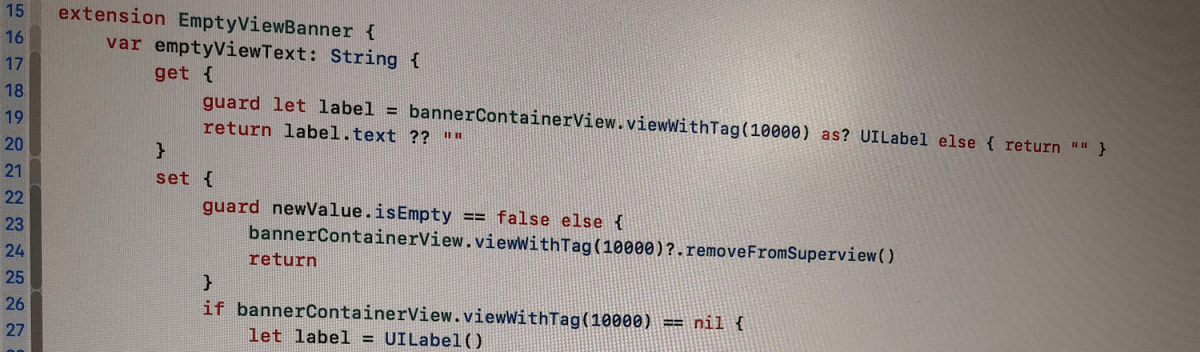
Next step is to provide a default implementation for the emptyViewText property. Its implementation will add a label to view hierarchy for showing the text. As protocol can’t have stored properties, it needs to use some other way for keeping a reference to the label. Having a tag and looking up by it will suffice.

extension EmptyViewBanner {
var emptyViewText: String {
get {
guard let label = bannerContainerView.viewWithTag(10000) as? UILabel else { return "" }
return label.text ?? ""
}
set {
guard newValue.isEmpty == false else {
bannerContainerView.viewWithTag(10000)?.removeFromSuperview()
return
}
if bannerContainerView.viewWithTag(10000) == nil {
let label = UILabel()
label.numberOfLines = 0
label.tag = 10000
label.textAlignment = .center
label.translatesAutoresizingMaskIntoConstraints = false
bannerContainerView.addSubview(label)
label.leadingAnchor.constraint(equalToSystemSpacingAfter: bannerContainerView.safeAreaLayoutGuide.leadingAnchor, multiplier: 1.0).isActive = true
bannerContainerView.safeAreaLayoutGuide.trailingAnchor.constraint(equalToSystemSpacingAfter: label.trailingAnchor, multiplier: 1.0).isActive = true
label.centerYAnchor.constraint(equalTo: bannerContainerView.safeAreaLayoutGuide.centerYAnchor).isActive = true
}
guard let label = bannerContainerView.viewWithTag(10000) as? UILabel else { fatalError() }
label.text = newValue
}
}
}

Lastly, both view controllers need to conform to EmptyViewBanner protocol and provide container views for the banner.

extension CollectionViewController: EmptyViewBanner {
var bannerContainerView: UIView {
return collectionView
}
}
extension TableViewController: EmptyViewBanner {
var bannerContainerView: UIView {
return tableView
}
}

Now it is possible to set text to both of the view controllers and protocol extension will take care of managing the label.

let contactsViewController: CollectionViewController = …
let historyViewController: TableViewController = …
contactsViewController.emptyViewText = "There are not any contacts"
historyViewController.emptyViewText = "There is no history available"

EmptyBannerView

Summary

In this blog post we looked into how to use protocol extension in Swift for sharing UI code. How to add a label to view hierarchy for showing a banner and how to keep a reference to it without using stored property.
Thank you for reading.

Playground

ProtocolExtensionForAddingUIElements (GitHub)
Xcode 10.0, Swift 4.2

References

Protocols (Swift.org)

Categories
CoreData Swift

Storing data with CoreData

CoreData is a framework for managing object graphs and storing them on disk. It is much more than just offering a persistent storage, therefore the rich API it provides, is meant to be used app-wide. In this blog post we’ll look into how to initialise CoreData storage, store some data in it and fetching it.

Core data model

First step is to add a Core Data model which will describe model objects, their relationships and properties. In Xcode we’ll go to File -> New -> File… and then select Data Model.
adding_core_data_model

We are going to continue working on sample app named Planets (from previous post). It needs an entity named Planet which has 3 properties: name, url and position (defines sort order in the app). By default Core Data will autogenerate a model object for our entity Planet we just defined. Therefore all we need to do is creating an entity and adding three properties to the entity.
core_data_model

Initialising CoreData stack

The simplest way for initialising Core Data stack is to use NSPersistentContainer and initialising it with a name of the Core Data model file we just created in the previous step. After creating the container, it needs to be loaded which will read the Core Data model file and sets up a persistent store.

convenience init(name: String)
func loadPersistentStores(completionHandler block: @escaping (NSPersistentStoreDescription, Error?) -> Void)

In the sample app we are going to use subclass of NSPersistentContainer named CoreDataStore which contains extra methods used in a moment.

Storing data

Adding data contains of two steps: making changes in NSManagedObjectContext and then saving it. NSManagedObjectContext is a scratch pad where to make changes in your object graph. All the changes will be stored in memory until save is called.
For adding a new entity we will use a method in our CoreDataStore.

func insertNewEntity(named name: String) -> NSManagedObject {
return NSEntityDescription.insertNewObject(forEntityName: name, into: viewContext)
}

This will add a new empty entity to managed object context. After that, we’ll fill properties with appropriate values and then call save.
func tryStoringDefaultPlanets() {
// dataStore is an instance of NSPersistentContainer subclass CoreDataStore.
guard dataStore.count(for: "Planet") == 0 else { return }
// Insert new entities into managed object context.
let names = ["Mercury", "Venus", "Earth", "Mars", "Jupiter", "Saturn", "Uranus", "Neptune"]
let paths = ["https://en.wikipedia.org/wiki/Mercury_(planet)&quot;, "https://en.wikipedia.org/wiki/Venus&quot;, "https://en.wikipedia.org/wiki/Earth&quot;, "https://en.wikipedia.org/wiki/Mars&quot;, "https://en.wikipedia.org/wiki/Jupiter&quot;, "https://en.wikipedia.org/wiki/Saturn&quot;, "https://en.wikipedia.org/wiki/Uranus&quot;, "https://en.wikipedia.org/wiki/Neptune"%5D
zip(names, paths).enumerated().forEach { (offset, element) in
guard let planet = dataStore.insertNewEntity(named: "Planet") as? Planet else { return }
planet.position = Int64(offset)
planet.name = element.0
planet.url = URL(string: element.1)
}
// Save changes in the managed object context what at the moment contains added Planets.
dataStore.save()
}

Fetching data

In our sample app, there is a simple table view displaying a list of planets. For displaying data efficiently, Core Data has a class NSFetchedResultsController. It uses NSFetchRequest objects for fetching, sorting and filtering results. Our class CoreDataStore has a convenience method for creating fetched results controller for any type of entities and PlanetManager has a getter for returning controller for Planet entities.

final class CoreDataStore: NSPersistentContainer {
func fetchedResultsController(named name: String, sortDescriptors: [NSSortDescriptor], predicate: NSPredicate? = nil, sectionNameKeyPath: String? = nil) -> NSFetchedResultsController<NSFetchRequestResult> {
let request = NSFetchRequest<NSFetchRequestResult>(entityName: name)
if let predicate = predicate {
request.predicate = predicate
}
request.sortDescriptors = sortDescriptors.isEmpty ? nil : sortDescriptors
return NSFetchedResultsController(fetchRequest: request, managedObjectContext: viewContext, sectionNameKeyPath: sectionNameKeyPath, cacheName: nil)
}
}
final class PlanetManager {
lazy var planetsController: NSFetchedResultsController<Planet> = {
let descriptors = [NSSortDescriptor(key: "position", ascending: true)]
return dataStore.fetchedResultsController(named: "Planet", sortDescriptors: descriptors) as! NSFetchedResultsController<Planet>
}()
}

Let’s see how to hook up fetched results controller to table view controller. Before fetched controller is used for fetching data, it needs to perform a fetch. For a simple list view it is pretty straight-forward: getting count and fetching an object for index path.
private func fetchPlanets() {
do {
try planetsController.performFetch()
tableView.reloadData()
}
catch {
NSLog("Fetching failed with error \(error as NSError).")
}
}
override func numberOfSections(in tableView: UITableView) -> Int {
return 1
}
override func tableView(_ tableView: UITableView, numberOfRowsInSection section: Int) -> Int {
return planetsController.sections?[0].numberOfObjects ?? 0
}
override func tableView(_ tableView: UITableView, cellForRowAt indexPath: IndexPath) -> UITableViewCell {
let cell = tableView.dequeueReusableCell(withIdentifier: "PlanetCellIdentifier", for: indexPath)
cell.accessoryType = .disclosureIndicator
cell.textLabel?.text = planetsController.object(at: indexPath).name
return cell
}
override func tableView(_ tableView: UITableView, didSelectRowAt indexPath: IndexPath) {
scenePresenter?.presentDetailedInfo(for: planetsController.object(at: indexPath))
}

Summary

In this blog post we looked into how to initialise Core Data stack with NSPersistentContainer, storing some data in it with NSManagedObjectContext and fetching results with NSFetchedResultsController. It is the most basic usage of CoreData and covers a tiny bit what Core Data can do. Apple has a pretty good documentation what covers much more compared to what was described here (see links to Core Data classes in the previous sections).

Example

Planets (GitHub)

References

CoreData (Apple)

Categories
iOS Swift UIKit

View coordination with responder chain

When building iOS apps it is important to think about how to structure an app and how to connect all the pieces. A typical app has multiple interaction flows and in this post I am going to represent a way of how to decouple views and how to navigate from one view to another using responder chain.

Coordinating view presentation

Let’s take a look on the example app named “Planets” what has a structure:
Blogi - planets.001
There are a several view controllers and some of them pass information to the next one. In object oriented programming world, it is important to reduce dependencies between objects and having preferably only one responsibility for an object (see separation of concerns and single responsibility principle). Therefore, when a view would like to present another view (e.g. user presses on a button what triggers presenting a new view) it is preferred the view not to know the exact view controller what should be presented and how it should be presented. Instead, it should forward it to a separate entity what deals with loading views, injecting dependencies and presenting them. With that kind of pattern it is possible to forward required information to that entity and only it will know the type of the view controller what to present – reducing coupling between views themselves and giving a more modular architecture to an app.
In the sample app Planets the view presenter’s interface is defined by a protocol ScenePresenting.

protocol ScenePresenting {
func presentDetailedInfo(for planet: Planet)
func presentPlanetList()
func presentURL(_ url: URL)
}

SceneManager conforms to that protocol. It knows how to load views, what dependencies to inject and how to present views. Having presentation logic separated from the views, it is easier to later on change the interaction flows in the app due to reduced dependencies. Compare it with app architecture where view controllers themselves load and present view controllers.
What if app has way more views to represent? The presentation logic might get a quite long. One solution would be to have multiple protocols for different interaction ares of the app and having multiple objects like SceneManager specialised to a specific area.

Tapping into responder chain

Responder chain is a dynamic list of UIResponder objects where events are passed from responder to responder. If this is a new concept for you, then I suggest to quickly read through the overview section of responder chains here.
UIView and UIViewController are subclasses of UIResponder and are part of single or multiple responder chains (the list of responders in any chain are defined by the rules in UIKit). Responder chain always ends up in UIApplication object and if the app’s delegate is also UIResponder, the chain continues to its delegate as well.
This knowledge gives us an opportunity to expand the chain further and inserting SceneManager to the end of the chain allowing us to access it from any of the view controllers currently on screen.
It is required to just override the var next: UIResponder? { get } property in AppDelegate (AppDelegate needs be a subclass of UIResponder) and then returning an object what conforms to the protocol ScenePresenting. In the current case it is going to be an instance of SceneManager.

final class AppDelegate: UIResponder, UIApplicationDelegate {
private var sceneManager: SceneManager? = nil
var window: UIWindow?
func application(_ application: UIApplication, didFinishLaunchingWithOptions launchOptions: [UIApplicationLaunchOptionsKey: Any]?) -> Bool {
guard let window = window else { fatalError() }
sceneManager = SceneManager(window: window)
return true
}
override var next: UIResponder? {
return sceneManager
}
}

With this change, SceneManager is now part of all the responder chains, but accessing it is a bit cumbersome. For solving this it is easy to add a convenience property to UIResponder what just goes through the chain and returns it. SceneManager is now available in all the responders and its type is erased (caller just sees an object conforming to the protocol and does not see the object’s type).
extension UIResponder {
var scenePresenter: ScenePresenting? {
var current: UIResponder? = self
repeat {
if let presenter = current as? ScenePresenting {
return presenter
}
current = current?.next
} while current != nil
return nil
}
}

Using protocol instead of SceneManager allows to hide the implementation details and breaks apart the dependency graph for users of this property. Moreover it allows to replace the SceneManager with any other object conforming to the protocol at any time in the future – separation of concerns.

Presenting new views

Presenting views becomes now much simpler to manage. In addition, the scene presenter object is accessible from any new view controller automatically. Compare it to injecting SceneManager to presented view controllers which requires all the view controllers to have a way of storing a reference to it and a way of injecting it. All this can be left out when it is part of responder chain.

@IBAction func goToList(_ sender: Any) {
scenePresenter?.presentPlanetList()
}
override func tableView(_ tableView: UITableView, didSelectRowAt indexPath: IndexPath) {
scenePresenter?.presentDetailedInfo(for: planets[indexPath.row])
}
@IBAction func show(_ sender: Any) {
scenePresenter?.presentURL(planet.url)
}
view raw Examples.swift hosted with ❤ by GitHub

Summary

We looked into a simple app consisting of several scenes. Having a presentation logic hidden into a separate object allowed us to decouple views from each other what reduces dependency graph for all the views. Inserting an object, responsible of presenting all the scenes, into responder chain gave us a simple, scalable and concise way of triggering view navigation.

Example

Planets (GitHub)

References

Understanding event handling, responders and the responder chain (Apple)
Separation of concerns (Wikipedia)
Single responsibility principle (Wikipedia)