Categories
Combine Foundation iOS Swift SwiftUI

Observing a KVO compatible model in SwiftUI and MVVM

In model-view-view model (MVVM) architecture the view model observes the model and provides data for the view by transforming it when needed. When the user interacts with the view and changes the data in it then the view model’s responsibility is to propagate those mutations back to the model object. Therefore, the important part in MVVM is how to manage data flows between objects. This time we’ll take a look on observing key-value observing (KVO) compatible model objects with Combine framework in SwiftUI view. The example view what we’ll build looks like this:

SwiftUI view with text fields for setting first name, last name, and street address. Under that is a label with recipient, postal address, and package contents descriptions. Under that is a button for adding more items to the package.
SwiftUI view which enables editing package related information and displays a summary of the package.

Model layer

The model object represents a package which contains information about the recipient, the sender, and the contents. The recipient and the sender are represented by a Person object which includes a first name, a last name, and a postal address. The contents is an array of immutable PackageContent objects. In Swift, we can use KVO by specifying @objc and dynamic modifiers on properties. Dynamic means that method dispatch is using objective-c runtime and therefore all the types must be representable in objective-c runtime. This immediately adds restrictions to the types we can use. When writing pure Swift code I do not recommend using KVO but sometimes we just need to use it. One example is NSManagedObject from the CoreData framework. But in this app we are not dealing with NSManagedObject but with a simple NSObject subclass instead.

final class Package: NSObject {
@objc dynamic var recipient = Person()
@objc dynamic var sender = Person()
@objc dynamic var contents = [PackageContent]()
}
final class Person: NSObject {
@objc dynamic var firstName: String = ""
@objc dynamic var lastName: String = ""
@objc dynamic var postalAddress = CNPostalAddress()
}
final class PackageContent: NSObject {
init(title: String, weight: Int) {
self.title = title
self.weight = weight
}
let title: String
let weight: Int
}
KVO compatible model object.

View Layer

The view object is responsible for describing the UI and rendering data represented by the view model. We have a simple form for modifying the recipient’s first name, last name, and the street name (for keeping this UI simple I left out all the other postal address related properties). At the bottom of the view we have a text object which just describes the package and a button for adding new items to the package’s contents. Whenever any of the package’s properties change, the view needs to reload. View reload is done through the @StateObject property wrapper (read mode about observing view models in MVVM in SwiftUI and @StateObject and MVVM in SwiftUI).

struct ContentView: View {
@StateObject var viewModel = ViewModel(package: .makeExample())
var body: some View {
ScrollView {
VStack(spacing: 16) {
Text("Recipient")
.font(.headline)
InputView(title: "First name",
value: $viewModel.recipientFirstName)
InputView(title: "Last name",
value: $viewModel.recipientLastName)
Text("Address")
.font(.headline)
InputView(title: "Street",
placeholder: "e.g. 37 Christie St",
value: viewModel.street)
Text("Summary")
.font(.headline)
Text(viewModel.summary)
.frame(maxWidth: .infinity, alignment: .leading)
Button("Add item", action: viewModel.addRandomItem)
}
.padding()
}
}
}

View Model layer

The view model’s responsibility is to observe the model object and propagating view changes to the model. It acts as a transformation layer where we can transform any data in the model to anything suitable for displaying. In the example below we are reading CNPostalAddress and only returning street name and reading multiple properties and returning a summary string. View models make it easy to contain such logic and also make it more easy to test.

Foundation framework defines a publisher named NSObject.KeyValueObservingPublisher which can be used for observing KVO compatible properties. One of the approaches is to use this publisher and then bind the model changes to the view model’s own property. Combine framework provides a convenient assign operator which takes a target publisher as an argument. Convenient because we can connect it with @Published properties in the view model. @Published properties automatically notify the ObservableObject’s objectWillChange publisher which is observed by a SwiftUI view. As soon as the property changes, SwiftUI view picks up the change and reloads itself. Note that we’ll also need to propagate changes back to the model when user updates the view and therfore the @Published property. This can be achieved by connecting property’s publisher with dropFirst, removeDuplicates and assign publishers where the latter assigns the value to the model object. Drop first is used for ignoring the initial value of the property. One downside is that now we can have the same information both in the view model and in the model. But on the other hand it makes the data streams easy to read and no need to have extra observation for triggering the view reload by manually calling send() on the objectWillChange publisher.

@Published var recipientFirstName: String = ""
// Model -> View Model
package.recipient.publisher(for: \.firstName)
.assign(to: &$recipientFirstName)
// View Model -> Model
$recipientFirstName.dropFirst()
.removeDuplicates()
.assign(to: \.firstName, on: package.recipient)
.store(in: &cancellables)
view raw ViewModel.swift hosted with ❤ by GitHub
Observing model and view changes.

Another approach what we can use is providing properties in the view model which return a Binding. This allows us to write the transformation code inside the get and set closures. This is what we have done with the street property. Note that we’ll still need to observe the model as the model can change at any point. Binding just provides a way of accessing the value. Therefore, we’ll need to set up an observation and calling send() on the objectWillChange publisher.

// Observing changes
package.recipient.publisher(for: \.postalAddress)
.notifyObjectWillChange(objectWillChange)
.store(in: &cancellables)
// Providing a binding for the view
var street: Binding<String> {
let package = self.package
return Binding<String>(
get: {
package.recipient.postalAddress.street
},
set: { newValue in
let postalAddress = package.recipient.postalAddress.mutableCopy() as! CNMutablePostalAddress
postalAddress.street = newValue
package.recipient.postalAddress = postalAddress
}
)
}
extension Publisher where Self.Failure == Never {
public func notifyObjectWillChange(_ objectWillChange: ObservableObjectPublisher) -> AnyCancellable {
return self.sink { _ in
objectWillChange.send()
}
}
}
view raw ViewModel.swift hosted with ❤ by GitHub
Providing a binding for the view.

If we go back to the SwiftUI view and connect all the properties then the full implementation of the view model looks like this:

extension ContentView {
final class ViewModel: ObservableObject {
private let package: Package
private var cancellables = [AnyCancellable]()
init(package: Package) {
self.package = package
// Model -> View Model
package.recipient.publisher(for: \.firstName)
.assign(to: &$recipientFirstName)
package.recipient.publisher(for: \.lastName)
.assign(to: &$recipientLastName)
package.recipient.publisher(for: \.postalAddress)
.notifyObjectWillChange(objectWillChange)
.store(in: &cancellables)
package.publisher(for: \.contents)
.notifyObjectWillChange(objectWillChange)
.store(in: &cancellables)
// View Model -> Model
$recipientFirstName.dropFirst()
.removeDuplicates()
.assign(to: \.firstName, on: package.recipient)
.store(in: &cancellables)
$recipientLastName.dropFirst()
.removeDuplicates()
.assign(to: \.lastName, on: package.recipient)
.store(in: &cancellables)
}
// Example of using published property
@Published var recipientFirstName: String = ""
@Published var recipientLastName: String = ""
// Example of using bindings for propagating values
var street: Binding<String> {
let package = self.package
return Binding<String>(
get: {
package.recipient.postalAddress.street
},
set: { newValue in
let postalAddress = package.recipient.postalAddress.mutableCopy() as! CNMutablePostalAddress
postalAddress.street = newValue
package.recipient.postalAddress = postalAddress
}
)
}
var summary: String {
let contents = package.contents
.map({ "\($0.title) \($0.weight)" })
.joined(separator: ", ")
return """
Recipient: \(package.recipient.firstName) \(package.recipient.lastName)
Postal address: \(CNPostalAddressFormatter().string(from: package.recipient.postalAddress))
Contents: \(contents)
"""
}
func addRandomItem() {
let weight = Int.random(in: 200…300)
let item = PackageContent(title: "Light bulb", weight: weight)
package.contents.append(item)
}
}
}
view raw ViewModel.swift hosted with ❤ by GitHub
View model implementation for the view.

Summary

Key-value observing is getting less and less used after the introduction of Combine and SwiftUI. But there are still times when we need to connect good old KVO compatible NSObject subclasses with a SwiftUI view. Therefore, it is good to know how to handle KVO in SwiftUI views as well.

If this was helpful, please let me know on Mastodon@toomasvahter or Twitter @toomasvahter. Feel free to subscribe to RSS feed. Thank you for reading.

Project

SwiftUIMVVMKVOObserving (GitHub, Xcode 12.1)

Categories
Combine Foundation iOS Swift SwiftUI Xcode

Validating string in TextField with NumberFormatter in SwiftUI

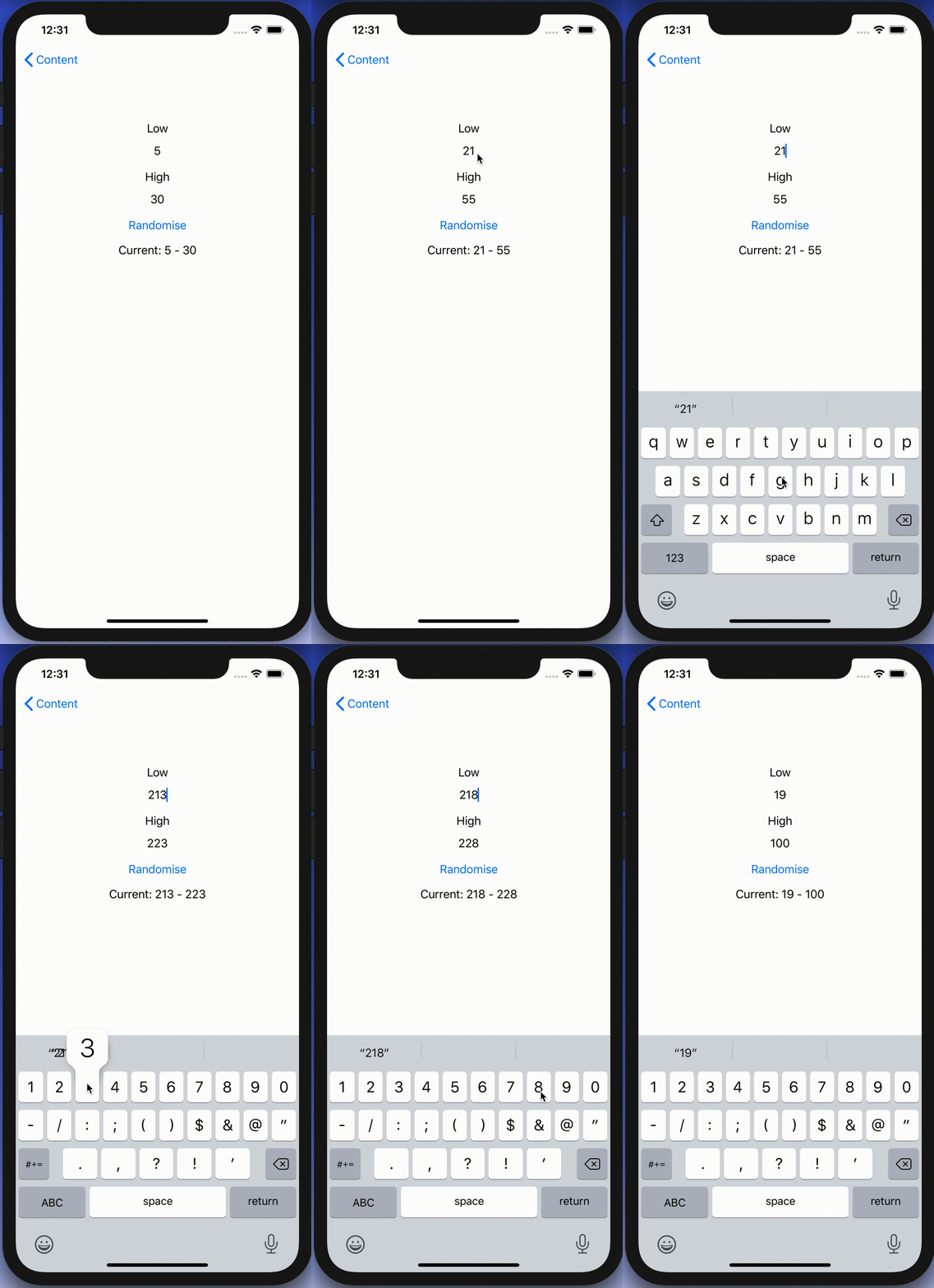
I was looking into creating a view which has TextField with NumberFormatter. Typed text would show up in a separate label and when trying to enter non-numbers, the TextField would reject those characters. Although TextField component in SwiftUI has generic initialiser init(_:value:formatter:onEditingChanged:onCommit:) it does not seem to do what we need. Value binding does not update while typing, non-number characters are not discarded, and string is not reloaded when view reloads with different model data. Therefore, I decided to create a wrapper around TextField which deals with transforming numbers to strings and implements all the before mentioned features.

End result after creating a custom NumberTextField.

Content view with temperature limits

Example use-case is basic view for editing temperature limits where model type will force high value to be at least 10 units higher compared to low value. The model type also have separate properties for getting NSNumber instances what we use later (such conversion could also happen on SwiftUI level).

struct TemperatureLimits {
var low: Int = 5 {
didSet {
let high = max(self.high, low + 10)
guard self.high != high else { return }
self.high = high
}
}
var high: Int = 30 {
didSet {
let low = min(self.low, high – 10)
guard self.low != low else { return }
self.low = low
}
}
var lowNumber: NSNumber {
get { NSNumber(value: low) }
set { low = newValue.intValue }
}
var highNumber: NSNumber {
get { NSNumber(value: high) }
set { high = newValue.intValue }
}
}
Model type storing temperature limits which are forced to have 10 unit difference.

Content view has text fields, button for randomising limits and label for displaying current values. NumberTextField is a custom view which implements all the features what we listed in the beginning of the post.

import Combine
import SwiftUI
struct FormatterView: View {
@State var limits: TemperatureLimits
var body: some View {
VStack(spacing: 16) {
VStack {
Text("Low")
NumberTextField("Low", value: $limits.lowNumber, formatter: NumberFormatter.decimal)
}
VStack {
Text("High")
NumberTextField("High", value: $limits.highNumber, formatter: NumberFormatter.decimal)
}
Button(action: {
self.limits.low = Int.random(in: 0…40)
self.limits.high = Int.random(in: 50…100)
}, label: {
Text("Randomise")
})
Text("Current: \(limits.low) – \(limits.high)")
Spacer()
}.padding()
.multilineTextAlignment(.center)
}
}
extension NumberFormatter {
static var decimal: NumberFormatter {
let formatter = NumberFormatter()
formatter.allowsFloats = false
return formatter
}
}
View with custom NumberTextFields bound to temperature limits.

Creating NumberTextField with NSNumber binding and NumberFormatter

NumberTextField is a wrapper around TextField and internally handles NSNumber to String and String to NSNumber transformations. Transformations happen inside a separate class called StringTransformer which stores editable string in @Published property. @Published property is first populated with string value by transforming NSNumber to String using the formatter. Changes made by user are captured by subscribing to stringValue publisher (@Published properties provide publishers). String to NSNumber transformation is tried when user edits the string: if successful, NSNumber is send back to model using the value binding, if fails, stringValue is set back to previous value. Note that dropFirst skips initial update when setting up sink and receive operator is used for scheduling updates at later time when SwiftUI has finished current layout update cycle.

struct NumberTextField: View {
init(_ title: String, value: Binding<NSNumber>, formatter: NumberFormatter) {
self.title = title
self.stringTransformer = StringTransformer(value, formatter: formatter)
}
private let title: String
@ObservedObject private var stringTransformer: StringTransformer
var body: some View {
TextField(title, text: $stringTransformer.stringValue)
}
}
fileprivate extension NumberTextField {
final class StringTransformer: ObservableObject {
private var cancellable: AnyCancellable?
init(_ value: Binding<NSNumber>, formatter: NumberFormatter) {
// NSNumber -> String
stringValue = formatter.string(from: value.wrappedValue) ?? ""
// String -> NSNumber
cancellable = $stringValue.dropFirst().receive(on: RunLoop.main)
.sink(receiveValue: { [weak self] (editingString) in
if let number = formatter.number(from: editingString) {
value.wrappedValue = number
}
else if !editingString.isEmpty {
// Force current model value when editing value is invalid (invalid value or out of range).
self?.stringValue = formatter.string(from: value.wrappedValue) ?? ""
}
})
}
@Published var stringValue: String = ""
}
}
NumberTextField transforming NSNumber to String using NumberFormatter and vice versa.

Summary

TextField’s formatter initialiser does not seem to be operating as expected and therefore we built a custom view. It handles number to string transformations and refreshes the view when string can’t be transformed to number. Hopefully future SwiftUI iterations will fix the init(_:value:formatter:onEditingChanged:onCommit:) initialiser and NumberTextField is not needed at all.

If this was helpful, please let me know on Mastodon@toomasvahter or Twitter @toomasvahter. Feel free to subscribe to RSS feed. Thank you for reading.

Example project

SwiftUIFormattedTextField (Xcode 11.4.1)

Categories
Combine ImageIO iOS Swift SwiftUI

Animating GIFs and APNGs with CGAnimateImageAtURLWithBlock in SwiftUI

This year Apple added CGAnimateImageAtURLWithBlock and CGAnimateImageDataWithBlock for animating GIFs and APNGs on all the platforms to the ImageIO framework. We can pass in URL or data and get callbacks when animation changes the current frame. In Xcode 11 beta 7 implicit bridging to Swift is disabled for those APIs and therefore we need to create a small wrapper around it in Objective-C.

Creating ImageFrameScheduler for managing CGAnimateImageAtURLWithBlock in Objective-C

Calling CGAnimateImageAtURLWithBlock starts the animation immediately. When animation frame changes, the handler block is called with frame index, current animation frame image and stop argument. When setting stop to YES, we can stop the animation. With this in mind we can create ImageFrameScheduler what takes in URL and has methods for starting and stopping the animation. Then we can expose this class to Swift and use it for managing the animation.

#import <CoreGraphics/CoreGraphics.h>
#import <Foundation/Foundation.h>
NS_ASSUME_NONNULL_BEGIN
@interface ImageFrameScheduler: NSObject
– (instancetype)initWithURL:(NSURL *)imageURL;
@property (readonly) NSURL *imageURL;
– (BOOL)startWithFrameHandler:(void (^)(NSInteger, CGImageRef))handler;
– (void)stop;
@end
NS_ASSUME_NONNULL_END
#import "ImageFrameScheduler.h"
#import "ImageIO/CGImageAnimation.h" // Xcode 11 beta 7 – CGImageAnimation.h is not in umbrella header IOImage.h
@interface ImageFrameScheduler()
@property (readwrite) NSURL *imageURL;
@property (getter=isStopping) BOOL stopping;
@end
@implementation ImageFrameScheduler
– (instancetype)initWithURL:(NSURL *)imageURL {
if (self = [super init]) {
self.imageURL = imageURL;
}
return self;
}
– (BOOL)startWithFrameHandler:(void (^)(NSInteger, CGImageRef))handler {
__weak ImageFrameScheduler *weakSelf = self;
OSStatus status = CGAnimateImageAtURLWithBlock((CFURLRef)self.imageURL, nil, ^(size_t index, CGImageRef _Nonnull image, bool* _Nonnull stop) {
handler(index, image);
*stop = weakSelf.isStopping;
});
// See CGImageAnimationStatus for errors
return status == noErr;
}
– (void)stop {
self.stopping = YES;
}
@end

ImageAnimator conforming to ObservableObject in Swift

When updating views in SwiftUI, we can use ObservableObject protocol and @Published property wrapper what enables SwiftUI to get notified when the ObservableObject changes. This means that we need a model object written in Swift what stores our Objective-C class ImageFrameScheduler and exposes the current animation frame when animation is running. Whenever we update the property internally, property wrapper will take care of notifying SwiftUI to update the view.

import Combine
import UIKit
final class ImageAnimator: ObservableObject {
private let scheduler: ImageFrameScheduler
init(imageURL: URL) {
self.scheduler = ImageFrameScheduler(url: imageURL)
}
@Published var image: CGImage?
func startAnimating() {
let isRunning = scheduler.start { [weak self] (index, image) in
self?.image = image
}
if isRunning == false {
print("Failed animate image at url \(scheduler.imageURL)")
}
}
func stopAnimating() {
scheduler.stop()
}
}

ContentView displaying animation frames in SwiftUI

Integrating ImageAnimator with ContentView is now pretty straight-forward, we check if animation frame image is available and display it. Animation is started when SwiftUI appears and stopped when it disappears.

import SwiftUI
struct ContentView: View {
@ObservedObject var imageAnimator: ImageAnimator
var body: some View {
ZStack {
if imageAnimator.image != nil {
Image(imageAnimator.image!, scale: 1.0, label: Text("Gif"))
}
else {
Text("Paused")
}
}.onAppear {
self.imageAnimator.startAnimating()
}.onDisappear {
self.imageAnimator.stopAnimating()
}
}
}

Summary

Although CGAnimateImageAtURLWithBlock and CGAnimateImageDataWithBlock are not directly usable in Swift, we can get away from it by adding a simple wrapper class in Objective-C. ImageFrameScheduler could be used in non-SwiftUI views by updating UIImageView when frame changes. In SwiftUI, views can use ImageAnimator for storing the current animation frame and using @Published property wrapper for letting SwiftUI view to know when to refresh.

If this was helpful, please let me know on Mastodon@toomasvahter or Twitter @toomasvahter. Feel free to subscribe to RSS feed. Thank you for reading.

Example Project

AnimateImageData (Xcode 11b7)

Categories
Combine iOS Swift SwiftUI

Creating chat view with Combine and SwiftUI

Let’s build a conversation view which shows a list of messages and has input text field with send button. Sent and received messages are managed by Conversation object. Conversation object manages a Session object which is simulating networking stack. This kind of setup allows us to look into how to propagate received messages from Session object to Conversation and then to the list view. We’ll jump into using types Combine and SwiftUI provide therefore if you need more information, definitely watch WWDC videos about Combine and SwiftUI.

Data layer

In the UI we are going to show a list of messages, therefore let’s define a struct for a Message. We’ll make the Message to conform to protocol defined in SwiftUI – Identifiable. We can add conformance by adding id property with type UUID what provides us unique identifier whenever we create a message. Identification is used by SwiftUI to identify messages and finding changes in the messages list.

struct Message: Identifiable {
let id = UUID()
let sender: String
let text: String
}
view raw .swift hosted with ❤ by GitHub

Session is owned by Conversation and simulates a networking stack dealing with sending and receiving messages. This like a place were we could use delegate pattern for forwarding received messages back to the Conversation. Instead of delegation pattern, we can use Combine’s PassthroughSubject. It enables us to publish new messages which we can then collect on the Conversation side. Great, but let’s see how to receive messages which are published by PassthroughSubject.

struct Session {
let messageFeed = PassthroughSubject<Message, Never>()
func send(_ message: Message) {
DispatchQueue.main.asyncAfter(deadline: .now() + .milliseconds(100)) {
self.messageFeed.send(message)
self.simulateReceivingMessages()
}
}
private func simulateReceivingMessages() {
DispatchQueue.main.asyncAfter(deadline: .now() + .milliseconds(200)) {
let receivedMessage = Message(sender: "Person B", text: UUID().uuidString)
self.messageFeed.send(receivedMessage)
}
}
}
view raw .swift hosted with ❤ by GitHub

Conversation is responsible of receiving messages from the Session and keeping the current history: list of messages. For receiving messages published by Session, we can use a subscriber called sink, which just gives access to values flowing through the channel. Subscribers are added directly to publishers, then publisher sends a subscription object back to the subscriber what subscriber can use for communicating with publisher. Here, communicating means requesting values from publisher. To recap: Session owns PassthroughSubject what Conversation starts to listen by attaching subscriber to it.

Conversation conforms to SwiftUI’s ObservableObject. When marking properties with @Published property wrapper, changes in those properties trigger updates in SwiftUI.

final class Conversation: ObservableObject {
private let session = Session()
private var messageSubscriber: AnyCancellable?
init() {
messageSubscriber = session.messageFeed.sink { [weak self] (receivedMessage) in
self?.messages.append(receivedMessage)
}
}
@Published private(set) var messages = [Message]()
func send(_ message: Message) {
session.send(message)
}
}
view raw .swift hosted with ❤ by GitHub

Creating simple list view

In SwiftUI, views are described by value types conforming to View protocol. Every view return their content in the body property. Our UI is simple enough and requires to add navigation view, list and then input view. List is the table view construct which creates new rows whenever it needs to. As we made Message to conform to Identifiable, then we can pass the messages directly to the List.

struct ContentView: View {
@ObjectBinding var conversation: Conversation
var body: some View {
NavigationView {
VStack {
List(self.conversation.messages) { message in
Text(message.text)
}
InputView(conversation: self.conversation)
}.navigationBarTitle(Text("Conversation"))
}
}
}
view raw .swift hosted with ❤ by GitHub

Input view contains text field and button for sending the entered message. Input text is local state owned by the view itself. @State is a property wrapper and internally it creates a separate storage where the input text is stored and read during view updates.

import Combine
import SwiftUI
struct InputView: View {
let conversation: Conversation
@State private var inputText = ""
var body: some View {
HStack {
TextField("", text: $inputText)
.padding(6)
.background(Color.white)
Button(action: sendMessage) {
Text("Send")
}
}.padding(12).background(Color.init(white: 0.75))
}
private func sendMessage() {
self.conversation.send(Message(sender: "PersonA", text: self.inputText))
self.inputText = ""
}
}
view raw .swift hosted with ❤ by GitHub

Now we have a the whole picture put together. Conversation object manages messages and lets SwiftUI know when it changes by using @Published property wrapper. When property wrapper dispatches change to SwiftUI, it compares the changes in the view hierarchy and updates only what is needed.

Summary

We created a basic list view what displays messages in the conversation object. We used simple constructs for passing on the data down from the Session to the SwiftUI layer. The aim of the sample project was to try out some of the ways Combine and SwiftUI allow us to build views.

If this was helpful, please let me know on Mastodon@toomasvahter or Twitter @toomasvahter. Feel free to subscribe to RSS feed. Thank you for reading.

Example

ConversationInSwiftUI (Xcode 11, Swift 5.1)

Resources