Categories
Generics iOS

Making a property observable from outer scope using generic class Observable

We will look into how to make a property observable using a separate class managing the observers. It is an alternative and simple way of observing property changes without using ReactiveSwift, Key-Value Observing or anything else similar. It can be an excellent glue between Model and View Model in MVVM or between View and Presenter when using VIPER architecture.

Creating a class Observable

final class Observable<T> {
init(_ value: T) {
self.value = value
}
var value: T {
didSet {
changeHandlers.forEach({ $0.handler(value) })
}
}
typealias ChangeHandler = ((T) -> Void)
private var changeHandlers: [(identifier: Int, handler: ChangeHandler)] = []
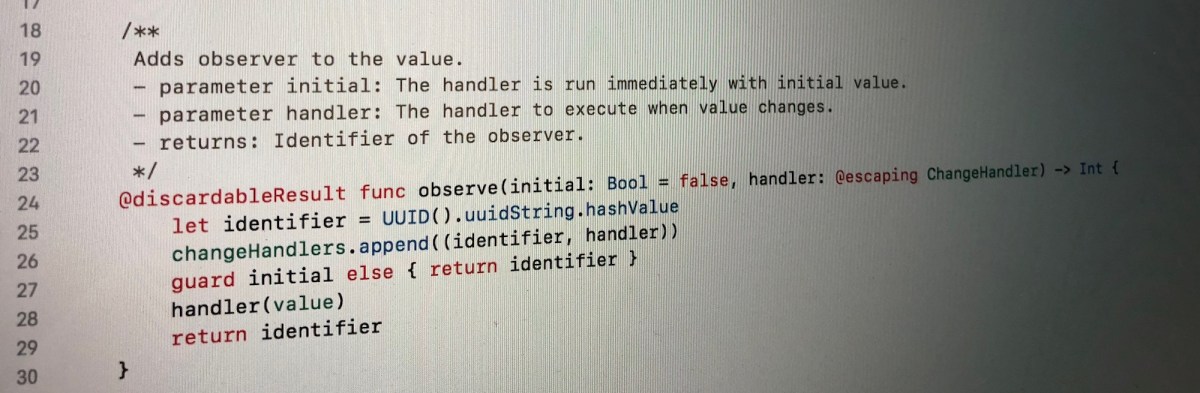
/**
Adds observer to the value.
- parameter initial: The handler is run immediately with initial value.
- parameter handler: The handler to execute when value changes.
- returns: Identifier of the observer.
*/
@discardableResult func observe(initial: Bool = false, handler: @escaping ChangeHandler) -> Int {
let identifier = UUID().uuidString.hashValue
changeHandlers.append((identifier, handler))
guard initial else { return identifier }
handler(value)
return identifier
}
/**
Removes observer to the value.
- parameter observer: The observer to remove.
*/
func removeObserver(_ observer: Int) {
changeHandlers = changeHandlers.filter({ $0.identifier != observer })
}
}

The class Observable holds a value what can be of any type. Now when the value is store by the class itself we can use Swift’s property observer and then calling change handlers. This allows creating an object with observable properties and observing those properties from other objects. Moreover, it is possible to remove any of the added observers.
Let’s take a look on an example of class “Pantry” what has a property holding array of jams. In the example we will add two observers: one reacting to changes and the other one what will also react to the initial value. When one of the observer is removed and the array of jams changes, only one of the observers is triggered.

final class Pantry {
let jams = Observable([Jam(flavour: .apple)])
func add(jam: Jam) {
jams.value.append(jam)
}
}
struct Jam {
enum Flavour: String {
case apple, orange
}
let flavour: Flavour
init(flavour: Flavour) {
self.flavour = flavour
}
}
let pantry = Pantry()
print("Adding count and contents observers.")
let observer = pantry.jams.observe { (jams) in
print("Pantry now has \(jams.count) jars of jam.")
}
pantry.jams.observe(initial: true) { (jams) in
let contents = jams.map({ $0.flavour.rawValue }).joined(separator: ", ")
print("Jams in pantry: \(contents)")
}
print("Adding jam to pantry.")
pantry.add(jam: Jam(flavour: .orange))
print("Removing count observer.")
pantry.jams.removeObserver(observer)
print("Adding jam to pantry.")
pantry.add(jam: Jam(flavour: .apple))
/*
Adding count and contents observers.
Jams in pantry: apple
Adding jam to pantry.
Pantry now has 2 jars of jam.
Jams in pantry: apple, orange
Removing count observer.
Adding jam to pantry.
Jams in pantry: apple, orange, apple
*/

Today we learned how to very easily make a property observable from outer scope of the object owning the property.
Thank you for reading.

Download ObservableProperty playground.

Categories
iOS

RawRepresentable and associated values

RawRepresentable is a protocol in Swift standard library and enables converting from a custom type to raw value type and back. In this post we’ll be looking into how to implement RawRepresentable for enumeration containing an associated value.

Conforming to RawRepresentable

Implementing RawRepresentable requires three steps: firstly, choose RawValue type; secondly, implement initialiser where RawValue type is matched to one of the cases in the enumeration, and thirdly, rawValue getter where enumeration cases are converted into RawValue type.

In the example we’ll be looking into enumeration representing scenes: home, levelSelection and level(Int), where the associated value stores a number of the level. RawValue type is String and without associated values it is quite straight-forward: use switch-case for conversions. When associated values are in the mix, a little bit more processing is needed. Let’s look into level(Int). In the getter returning String we can just compose a string “level” followed by the level number. In the initialiser the string must be matched to that format. First we check if the string starts with prefix “level” (anchored == prefix) and after that try to create an integer from the rest of the string: nice and concise.

enum Scene {
case home
case level(Int)
case levelSelection
}
extension Scene: RawRepresentable {
typealias RawValue = String
init?(rawValue: String) {
switch rawValue {
case "home":
self = .home
case "levelSelection":
self = .levelSelection
default:
guard let range = rawValue.range(of: "level", options: .anchored) else { return nil }
guard let number = Int(rawValue.suffix(from: range.upperBound)) else { return nil }
self = .level(number)
}
}
var rawValue: String {
switch self {
case .home:
return "home"
case .levelSelection:
return "levelSelection"
case .level(let number):
return "level\(number)"
}
}
}
// Examples:
// Scene.home
let home = Scene(rawValue: "home")
// Scene.level(1)
let level1 = Scene(rawValue: "level1")
let paddedLevel1 = Scene(rawValue: "level001")

Categories
iOS

Random float and integer in Swift

Getting a random number within a range is a very common operation. There are multiple ways of extending Swift language to add support for getting random values within a specified range. After experimenting with different implementations like utility functions, integer and float extensions I have found that the most natural way of doing it is to extend ClosedRange. This will allow to write a very readable code:

let randomDouble: Double = (-0.3...0.9).random
let randomCGFloat: CGFloat = (-0.9...0.9).random
let randomInt: Int = (-9...3).random
let randomUInt: UInt = (3...9).random

Random floating point values

extension ClosedRange where Bound: BinaryFloatingPoint {
var random: Bound {
let ratio = Bound(arc4random_uniform(UInt32.max)) / Bound(UInt32.max - 1)
let offset = (upperBound - lowerBound) * ratio
return lowerBound + offset
}
}

1. Get a random value using a max possible range (note that arc4random_uniform excludes the upper bound).
2. Convert the value to percentage.
3. Multiply the range with the percentage.
4. Add offset to the range’s minimum value.

Random integer values

extension ClosedRange where Bound: BinaryInteger {
var random: Bound {
let offset = arc4random_uniform(UInt32(upperBound - lowerBound) + 1)
return lowerBound + Bound(offset)
}
}

1. Get a random value from the allowed range.
2. Add the offset to the range’s minimum value.

Categories
iOS

Clamping numbers in Swift

Clamping a value is an operation of moving the value to a range of allowed values. It can be achieved by comparing the value with allowed minimum and maximum values.

For example I was deforming SKWarpGeometryGrid from the direction of a point outside the grid and needed to constrain angles between grid points and the contact point. Maximum and minimum allowed angles were related to the angle between the contact point and the grid’s center point.

The solution I propose extends FloatingPoint and BinaryInteger protocols and gives a very readable form to this example problem:

let angleToCenter: CGFloat = .pi / 5
let angleToGridPoint: CGFloat = .pi / 3
// 1.0471975511966
let allowedRange = (angleToCenter - .pi / 8)...(angleToCenter + .pi / 8)
let angle = angleToGridPoint.clamped(to: allowedRange)
// 1.02101761241668
view raw Clamp.swift hosted with ❤ by GitHub

Extending FloatingPoint protocol

extension FloatingPoint {
func clamped(to range: ClosedRange<Self>) -> Self {
return max(min(self, range.upperBound), range.lowerBound)
}
}
let clamped = 5.4.clamped(to: 5.6...6.1)
let clamped = 10.5.clamped(to: 5...7)

Extending BinaryInteger protocol

extension BinaryInteger {
func clamped(to range: ClosedRange<Self>) -> Self {
return max(min(self, range.upperBound), range.lowerBound)
}
}
let clamped = 10.clamped(to: 5...7)

Categories
iOS SpriteKit

Drawing gradients in SpriteKit

SpriteKitGradientTexture

I was working on an upcoming game in SpriteKit only to discover that adding a simple gradient is not so straight-forward as one would expect. Therefore I created an extension to SKTexture.

extension SKTexture
{
convenience init(radialGradientWithColors colors: [UIColor], locations: [CGFloat], size: CGSize)
{
let renderer = UIGraphicsImageRenderer(size: size)
let image = renderer.image { (context) in
let colorSpace = context.cgContext.colorSpace ?? CGColorSpaceCreateDeviceRGB()
let cgColors = colors.map({ $0.cgColor }) as CFArray
guard let gradient = CGGradient(colorsSpace: colorSpace, colors: cgColors, locations: UnsafePointer<CGFloat>(locations)) else {
fatalError("Failed creating gradient.")
}
let radius = max(size.width, size.height) / 2.0
let midPoint = CGPoint(x: size.width / 2.0, y: size.height / 2.0)
context.cgContext.drawRadialGradient(gradient, startCenter: midPoint, startRadius: 0, endCenter: midPoint, endRadius: radius, options: [])
}
self.init(image: image)
}
convenience init(linearGradientWithAngle angleInRadians: CGFloat, colors: [UIColor], locations: [CGFloat], size: CGSize)
{
let renderer = UIGraphicsImageRenderer(size: size)
let image = renderer.image { (context) in
let colorSpace = context.cgContext.colorSpace ?? CGColorSpaceCreateDeviceRGB()
let cgColors = colors.map({ $0.cgColor }) as CFArray
guard let gradient = CGGradient(colorsSpace: colorSpace, colors: cgColors, locations: UnsafePointer<CGFloat>(locations)) else {
fatalError("Failed creating gradient.")
}
let angles = [angleInRadians + .pi, angleInRadians]
let radius = (pow(size.width / 2.0, 2.0) + pow(size.height / 2.0, 2.0)).squareRoot()
let points = angles.map { (angle) -> CGPoint in
let dx = radius * cos(-angle) + size.width / 2.0
let dy = radius * sin(-angle) + size.height / 2.0
return CGPoint(x: dx, y: dy)
}
context.cgContext.drawLinearGradient(gradient, start: points[0], end: points[1], options: [])
}
self.init(image: image)
}
}

This extension adds support for creating linear and radial gradients. Linear gradient can be drawn with an angle (in radians) although in most of the cases rotating SKSpriteNode would be enough. Gradients are drawn using core graphics APIs what are a little bit difficult to use but now nicely hidden in the extension. Both initialisers take in array of colors (UIColor) and CGFloat array with values in range of 0 to 1 defining the locations for colors in CGGradient.

For adding linear gradient or radial gradient to a SpriteKit scene we need to create a SKTexture and assign it to a SKSpriteNode. I created an example project SpriteKitGradientTexture for showing gradients in action. In the example project one SKSpriteNode is animating with textures containing linear gradients with different angles and the other SKSpriteNode just displays radial gradient.

final class GameScene: SKScene
{
override func didMove(to view: SKView)
{
let linearGradientSize = size
let linearGradientColors = [UIColor(red: 53.0 / 255.0, green: 92.0 / 255.0, blue: 125.0 / 255.0, alpha: 1.0),
UIColor(red: 108.0 / 255.0, green: 91.0 / 255.0, blue: 123.0 / 255.0, alpha: 1.0),
UIColor(red: 192.0 / 255.0, green: 108.0 / 255.0, blue: 132.0 / 255.0, alpha: 1.0)]
let linearGradientLocations: [CGFloat] = [0, 0.5, 1]
let textureCount = 8
let textures = (0..<textureCount).map { (index) -> SKTexture in
let angle = 2.0 * CGFloat.pi / CGFloat(textureCount) * CGFloat(index)
return SKTexture(linearGradientWithAngle: angle, colors: linearGradientColors, locations: linearGradientLocations, size: linearGradientSize)
}
let linearGradientNode = SKSpriteNode(texture: textures.first)
linearGradientNode.zPosition = 1
addChild(linearGradientNode)
let action = SKAction.animate(with: textures, timePerFrame: 0.5)
linearGradientNode.run(SKAction.repeatForever(action))
let radialGradientSize = CGSize(width: min(size.width, size.height), height: min(size.width, size.height))
let radialGradientColors = [UIColor.yellow, UIColor.orange]
let radialGradientLocations: [CGFloat] = [0, 1]
let radialGradientTexture = SKTexture(radialGradientWithColors: radialGradientColors, locations: radialGradientLocations, size: radialGradientSize)
let radialGradientNode = SKSpriteNode(texture: radialGradientTexture)
radialGradientNode.zPosition = 2
addChild(radialGradientNode)
let pulse = SKAction.sequence([SKAction.fadeIn(withDuration: 3.0), SKAction.fadeOut(withDuration: 1.0)])
radialGradientNode.run(SKAction.repeatForever(pulse))
}
}
view raw GameScene.swift hosted with ❤ by GitHub

If this was helpful, please let me know on Mastodon@toomasvahter or Twitter @toomasvahter. Feel free to subscribe to RSS feed. Thank you for reading.

Example project

SpriteKitGradientTexture (GitHub)

Categories
Metal

Processing data using Metal

Metal framework on Apple devices provides a way of using GPU for running complex computing tasks much faster than on CPU. In this blog post I am giving a quick overview how to set up a Metal compute pipeline and processing data on the GPU.

Metal compute kernel

As a first step we need to create a metal compute kernel which will run on the GPU. In this example project it is going to be very simple and just multiplies input data with a factor of 2.

kernel void processData(const device float *inVector [[ buffer(0) ]], device float *outVector [[ buffer(1) ]], uint id [[ thread_position_in_grid ]])
{
float input = inVector[id];
outVector[id] = input * 2.0;
}
view raw Compute.metal hosted with ❤ by GitHub

Compute kernel is written in Metal shading language. In the current example we first need to give name to the function and then specify arguments where the first argument is a constant float vector and the second argument is output float vector what we are going to mutate. Third argument is a thread’s position in the input vector. When running compute kernel there are multiple threads processing the input data and this tells us which element we should be modifying.

Setting up Metal compute pipeline

For running the created compute kernel on the GPU we need to create a compute pipeline what uses it.

init()
{
guard let device = MTLCreateSystemDefaultDevice() else { fatalError("Metal device is not available.") }
self.device = device
guard let commandQueue = device.makeCommandQueue() else { fatalError("Failed creating Metal command queue.") }
self.commandQueue = commandQueue
guard let library = device.makeDefaultLibrary() else { fatalError("Failed creating Metal library.") }
guard let function = library.makeFunction(name: "processData") else { fatalError("Failed creating Metal function.") }
do
{
computePipelineState = try device.makeComputePipelineState(function: function)
}
catch
{
fatalError("Failed preparing compute pipeline.")
}
}

Note that Apple recommends to create and reuse Metal objects where possible. With that in mind, we first create MTLDevice what represents a single GPU. Followed by MTLCommandQueue what is a serial queue handling command buffers GPU executes (more about that later). The third step is to allocate MTLLibrary, find the MTLFunction representing the created compute kernel and then finally initializing MTLComputePipelineState with that function. Now we have everything set up for using the created compute kernel.

Running Metal compute pipeline

func process(data: ContiguousArray<Float>) -> ContiguousArray<Float>
{
let dataBuffer = data.withUnsafeBytes { (bufferPointer) -> MTLBuffer? in
guard let baseAddress = bufferPointer.baseAddress else { return nil }
return device.makeBuffer(bytes: baseAddress, length: bufferPointer.count, options: .storageModeShared)
}
guard let inputBuffer = dataBuffer else { return [] }
guard let outputBuffer = device.makeBuffer(length: inputBuffer.length, options: .storageModeShared) else { return [] }
guard let commandBuffer = commandQueue.makeCommandBuffer() else { return [] }
guard let commandEncoder = commandBuffer.makeComputeCommandEncoder() else { return [] }
commandEncoder.setComputePipelineState(computePipelineState)
commandEncoder.setBuffer(inputBuffer, offset: 0, index: 0)
commandEncoder.setBuffer(outputBuffer, offset: 0, index: 1)
let threadsPerThreadgroup = MTLSize(width: 10, height: 1, depth: 1)
let threadgroupsPerGrid = MTLSize(width: data.count / threadsPerThreadgroup.width, height: threadsPerThreadgroup.height, depth: threadsPerThreadgroup.depth)
commandEncoder.dispatchThreadgroups(threadgroupsPerGrid, threadsPerThreadgroup: threadsPerThreadgroup)
commandEncoder.endEncoding()
commandBuffer.commit()
commandBuffer.waitUntilCompleted()
let outputPointer = outputBuffer.contents().assumingMemoryBound(to: Float.self)
let outputDataBufferPointer = UnsafeBufferPointer<Float>(start: outputPointer, count: data.count)
return ContiguousArray<Float>(outputDataBufferPointer)
}

Let’s now take a look on the process data function what takes in a contiguous float array and returns an array with values processed by a GPU. Exposing data to GPU is managed by MTLBuffer. ContiguousArray stores its elements in a contiguous region of memory, therefore we can access the contents of memory directly and create an instance of MTLBuffer containing a copy the float array.
Another instance of MTLBuffer is needed for storing the output values.
MTLCommandBuffer is a buffer for containing encoded commands what in turn are executed by the GPU. So in finally we can create a MTLComputeCommandEncoder object referencing input and output data buffer and the compute kernel. This is the object actually defining the work we want to run on the GPU. For that we first set the compute pipeline state what stores the information about our compute kernel, followed by setting data buffers. Note that index 0 is the first buffer in the kernel’s implementation const device float *inVector [[ buffer(0) ]] what defines the input and index 1 is the second buffer device float *outVector [[ buffer(1) ]] for output.
Calculating threadgroup and grid sizes contains a detailed information how to manage the amount of threads processing the data. When this is set, we mark command encoder ready, commit the buffer for GPU to execute and then waiting it to finish. When command buffer has finished we can access the data in the output buffer.

For more detailed information please go to Apple’s documentation for Metal.

Check out the whole sample application written in Swift 4 here: MetalCompute at GitHub. Make sure running it on iOS device, not in simulator.