Categories
iOS Xcode

AnyView is everywhere in Xcode 16

Loved to see this entry in Xcode 16’s release notes:

Xcode 16 brings a new execution engine for Previews that supports a larger range of projects and configurations. Now with shared build products between Build and Run and Previews, switching between the two is instant. Performance between edits in the source code is also improved for many projects, with increases up to 30%.

It has been difficult at times to use SwiftUI previews when they sometimes just stop working with error messages leaving scratch head. Turns out, it comes with a hidden cost of Xcode 16 wrapping views with AnyView in debug builds which takes away performance. If you don’t know it only affects debug builds, one could end up on journey of trying to improve the performance for debug builds and making things worse for release builds. Not sure if this was ever mentioned in any of the WWDC videos, but feels like this kind of change should have been highlighted.

As of Xcode 16, every SwiftUI view is wrapped in an AnyView _in debug builds only_. This speeds switching between previews, simulator, and device, but subverts some List optimizations.

Add this custom build setting to the project to override the new behavior:

`SWIFT_ENABLE_OPAQUE_TYPE_ERASURE=NO`

Wrapping in Equatable is likely to make performance worse as it introduces an extra view in the hierarchy for every row.

Curt Clifton on Mastodon

Fortunately, one can turn off this if this becomes an issue in debug builds.

If this was helpful, please let me know on Mastodon@toomasvahter or Twitter @toomasvahter. Feel free to subscribe to RSS feed. Thank you for reading.

Categories
Swift Xcode

Dark Augmented Code theme for Xcode

After a couple of years, I tend to get tired of looking at the same colour scheme in Xcode. Then I spend quite a bit of time looking for a new theme and then coming back with empty hands. Material default has served me for a while, but it never felt like a perfect colour scheme for me. Therefore, I decided to take on a road of creating a new colour scheme on my own which is going to be named as “Augmented Code (Dark)”.

It is available for Xcode and iTerm 2.

Download it from here: GitHub

If this was helpful, please let me know on Mastodon@toomasvahter or Twitter @toomasvahter. Feel free to subscribe to RSS feed. Thank you for reading.

Categories
Swift Xcode

LLDB print commands for debugging in Xcode

Whoever has used Xcode for debugging has heard about the po command. This command is used for printing object descriptions. Whatever we write after po gets compiled into actual code and is executed in the context where the debugger has stopped. This is done twice, first to get the expression result and then to get the object description. It is actually an alias for the expression command: expression --object-description -- myVariable.

In addition to po, there is also a p command what is an alias to expression myVariable. The main difference is that it compiles and runs the expression once, does a type resolution, and then prints the result.

The third option for printing variables is the v command what is an alias to the frame command. It reads values from memory, does a type resolution (multiple times if, for example, the expression accesses properties) and prints the result. The main difference is that it does not compile and run any code when evaluating the expression, which makes it quick to run.

Based on this knowledge, as a long time po user, I have changed my approach a bit when debugging in Xcode. I start with the v command since it is the quickest to run. If v command does not work, switching to p and then to po.

If this was helpful, please let me know on Mastodon@toomasvahter or Twitter @toomasvahter. Feel free to subscribe to RSS feed. Thank you for reading.
Categories
Swift

Getting started with Benchmark package

There was a blog post on swift.org about a new Swift package called Benchmark at the end of the March. As the name speaks for itself, it is all about measuring the performance of the piece of a code. Since last time I wrote about Merging sorted arrays with duplicates in Swift then it would be useful to know what is the performance of that function.

The function under measurement is just about merging two sorted arrays in a way that it detects duplicates, where the duplicate detection is based on the id.

The function we are going to measure is part of a Swift package. Since Benchmark is a separate package, we’ll need to add a package dependency as the first step. It brings in a couple of additional dependencies as well.

.package(url: "https://github.com/ordo-one/package-benchmark", .upToNextMajor(from: "1.0.0")),

Interestingly, setting up a separate target for the package is really easy.

swift package --allow-writing-to-package-directory Benchmark init MyNewBenchmarkTarget

Which creates a separate target ready for running benchmarks.

swift package benchmark --target MyNewBenchmarkTarget

Before we run, let’s set it up to benchmark our function mentioned before. Firstly, we need to add a dependency to the generated part of the Package.swift. Since my example package has a target “PackageExampleBenchmark” which contains the function we want to measure, then it needs to be a dependency of the benchmark target.

package.targets += [
    .executableTarget(
        name: "MyNewBenchmarkTarget",
        dependencies: [
            .product(name: "Benchmark", package: "package-benchmark"),
            "PackageExampleBenchmark" // <-- added
        ],
        path: "Benchmarks/MyNewBenchmarkTarget",
        plugins: [
            .plugin(name: "BenchmarkPlugin", package: "package-benchmark")
        ]
    ),
]
import Benchmark
import Foundation
import PackageExampleBenchmark

let benchmarks = {
    let original = BenchmarkData.generate(count: 100000, offset: 0)
    let other = BenchmarkData.generate(count: 10, offset: 70000)

    Benchmark("SomeBenchmark") { benchmark in
        for _ in benchmark.scaledIterations {
            blackHole(original.mergeSorted(with: other, areInIncreasingOrder: { $0.date < $1.date }))
        }
    }
}

enum BenchmarkData {
    static let referenceDate = Date(timeIntervalSince1970: 1711282131)

    struct Item: Identifiable {
        let id: String
        let date: Date

    }

    static func generate(count: Int, offset: Int) -> [Item] {
        let ids = (0..<count)
            .map({ $0 + offset })
        return zip(ids.shuffled(), ids).map({
            Item(id: "\($0)",
                 date: Self.referenceDate.addingTimeInterval(TimeInterval($1)))
        })
    }
}

If we now run the benchmark, we’ll get this:

➜  PackageExampleBenchmark swift package benchmark --target MyNewBenchmarkTarget
Building for debugging...
[1/1] Write swift-version--58304C5D6DBC2206.txt
Build complete! (0.18s)
Building for debugging...
[1/1] Write swift-version--58304C5D6DBC2206.txt
Build complete! (0.35s)
Build complete!
Building BenchmarkTool in release mode...
Building benchmark targets in release mode for benchmark run...
Building MyNewBenchmarkTarget

==================
Running Benchmarks
==================

100% [------------------------------------------------------------] ETA: 00:00:00 | MyNewBenchmarkTarget:SomeBenchmark

=======================================================================================================
Baseline 'Current_run'
=======================================================================================================

Host 'MacBook-Air.lan' with 8 'arm64' processors with 24 GB memory, running:
Darwin Kernel Version 23.4.0: Wed Feb 21 21:51:37 PST 2024; root:xnu-10063.101.15~2/RELEASE_ARM64_T8112

====================
MyNewBenchmarkTarget
====================

SomeBenchmark
╒═══════════════════════════════╤═════════╤═════════╤═════════╤═════════╤═════════╤═════════╤═════════╤═════════╕
│ Metric                        │      p0 │     p25 │     p50 │     p75 │     p90 │     p99 │    p100 │ Samples │
╞═══════════════════════════════╪═════════╪═════════╪═════════╪═════════╪═════════╪═════════╪═════════╪═════════╡
│ Malloc (total) (K) *          │      60 │      60 │      60 │      60 │      60 │      60 │      60 │     178 │
├───────────────────────────────┼─────────┼─────────┼─────────┼─────────┼─────────┼─────────┼─────────┼─────────┤
│ Memory (resident peak) (K)    │    9077 │    9871 │    9904 │    9912 │    9912 │    9912 │    9912 │     178 │
├───────────────────────────────┼─────────┼─────────┼─────────┼─────────┼─────────┼─────────┼─────────┼─────────┤
│ Throughput (# / s) (#)        │     188 │     183 │     180 │     178 │     177 │     131 │     113 │     178 │
├───────────────────────────────┼─────────┼─────────┼─────────┼─────────┼─────────┼─────────┼─────────┼─────────┤
│ Time (total CPU) (μs) *       │    5266 │    5423 │    5517 │    5542 │    5616 │    7598 │    8672 │     178 │
├───────────────────────────────┼─────────┼─────────┼─────────┼─────────┼─────────┼─────────┼─────────┼─────────┤
│ Time (wall clock) (μs) *      │    5333 │    5460 │    5562 │    5612 │    5648 │    7623 │    8819 │     178 │
╘═══════════════════════════════╧═════════╧═════════╧═════════╧═════════╧═════════╧═════════╧═════════╧═════════╛

Great, we’ll see how long does it take. In the example above we were merging an array of 10000 elements with an array of 100 where half of them are duplicates. All of this runs under a 1 ms which is an excellent result.

Only a single data point does not give us a full picture. What I would like to know is how does it run when we have 10, 100, 1000, 10000, 100000 elements in the existing array and what happens if we try to merge 10, 100, 1000, 10000, 100000 elements to it.

let benchmarks = {
    Benchmark.defaultConfiguration = .init(
        metrics: [.wallClock]
    )

    let counts = [10, 100, 1000, 10000, 100000]
    let arrays = counts.map({ BenchmarkData.generate(count: $0, offset: 0) })

    for (originalIndex, originalCount) in counts.enumerated() {
        for (incomingIndex, incomingCount) in counts.reversed().enumerated() {
            let originalData = BenchmarkData.generate(count: originalCount, offset: 0)
            let incomingData = BenchmarkData.generate(count: incomingCount, offset: 0)
            Benchmark("\(originalCount) < \(incomingCount)") { benchmark in
                for _ in benchmark.scaledIterations {
                    blackHole(originalData.mergeSorted(with: incomingData, areInIncreasingOrder: { $0.date < $1.date }))
                }
            }
        }
    }
}
10 < 10
╒══════════════════════════╤═════════╤═════════╤═════════╤═════════╤═════════╤═════════╤═════════╤═════════╕
│ Metric                   │      p0 │     p25 │     p50 │     p75 │     p90 │     p99 │    p100 │ Samples │
╞══════════════════════════╪═════════╪═════════╪═════════╪═════════╪═════════╪═════════╪═════════╪═════════╡
│ Time (wall clock) (μs) * │      13 │      13 │      13 │      13 │      13 │      20 │      38 │   10000 │
╘══════════════════════════╧═════════╧═════════╧═════════╧═════════╧═════════╧═════════╧═════════╧═════════╛

10 < 100
╒══════════════════════════╤═════════╤═════════╤═════════╤═════════╤═════════╤═════════╤═════════╤═════════╕
│ Metric                   │      p0 │     p25 │     p50 │     p75 │     p90 │     p99 │    p100 │ Samples │
╞══════════════════════════╪═════════╪═════════╪═════════╪═════════╪═════════╪═════════╪═════════╪═════════╡
│ Time (wall clock) (μs) * │      61 │      61 │      61 │      61 │      64 │      85 │     102 │   10000 │
╘══════════════════════════╧═════════╧═════════╧═════════╧═════════╧═════════╧═════════╧═════════╧═════════╛

10 < 1000
╒══════════════════════════╤═════════╤═════════╤═════════╤═════════╤═════════╤═════════╤═════════╤═════════╕
│ Metric                   │      p0 │     p25 │     p50 │     p75 │     p90 │     p99 │    p100 │ Samples │
╞══════════════════════════╪═════════╪═════════╪═════════╪═════════╪═════════╪═════════╪═════════╪═════════╡
│ Time (wall clock) (μs) * │     500 │     503 │     507 │     525 │     528 │     556 │     629 │    1948 │
╘══════════════════════════╧═════════╧═════════╧═════════╧═════════╧═════════╧═════════╧═════════╧═════════╛

10 < 10000
╒══════════════════════════╤═════════╤═════════╤═════════╤═════════╤═════════╤═════════╤═════════╤═════════╕
│ Metric                   │      p0 │     p25 │     p50 │     p75 │     p90 │     p99 │    p100 │ Samples │
╞══════════════════════════╪═════════╪═════════╪═════════╪═════════╪═════════╪═════════╪═════════╪═════════╡
│ Time (wall clock) (μs) * │    5292 │    5411 │    5444 │    5476 │    5562 │    6304 │    6349 │     183 │
╘══════════════════════════╧═════════╧═════════╧═════════╧═════════╧═════════╧═════════╧═════════╧═════════╛

10 < 100000
╒══════════════════════════╤═════════╤═════════╤═════════╤═════════╤═════════╤═════════╤═════════╤═════════╕
│ Metric                   │      p0 │     p25 │     p50 │     p75 │     p90 │     p99 │    p100 │ Samples │
╞══════════════════════════╪═════════╪═════════╪═════════╪═════════╪═════════╪═════════╪═════════╪═════════╡
│ Time (wall clock) (ms) * │      53 │      54 │      54 │      54 │      54 │      55 │      55 │      19 │
╘══════════════════════════╧═════════╧═════════╧═════════╧═════════╧═════════╧═════════╧═════════╧═════════╛

100 < 10
╒══════════════════════════╤═════════╤═════════╤═════════╤═════════╤═════════╤═════════╤═════════╤═════════╕
│ Metric                   │      p0 │     p25 │     p50 │     p75 │     p90 │     p99 │    p100 │ Samples │
╞══════════════════════════╪═════════╪═════════╪═════════╪═════════╪═════════╪═════════╪═════════╪═════════╡
│ Time (wall clock) (μs) * │      46 │      46 │      46 │      47 │      51 │     111 │    1464 │   10000 │
╘══════════════════════════╧═════════╧═════════╧═════════╧═════════╧═════════╧═════════╧═════════╧═════════╛

100 < 100
╒══════════════════════════╤═════════╤═════════╤═════════╤═════════╤═════════╤═════════╤═════════╤═════════╕
│ Metric                   │      p0 │     p25 │     p50 │     p75 │     p90 │     p99 │    p100 │ Samples │
╞══════════════════════════╪═════════╪═════════╪═════════╪═════════╪═════════╪═════════╪═════════╪═════════╡
│ Time (wall clock) (μs) * │     115 │     116 │     118 │     118 │     126 │     142 │     529 │    8343 │
╘══════════════════════════╧═════════╧═════════╧═════════╧═════════╧═════════╧═════════╧═════════╧═════════╛

100 < 1000
╒══════════════════════════╤═════════╤═════════╤═════════╤═════════╤═════════╤═════════╤═════════╤═════════╕
│ Metric                   │      p0 │     p25 │     p50 │     p75 │     p90 │     p99 │    p100 │ Samples │
╞══════════════════════════╪═════════╪═════════╪═════════╪═════════╪═════════╪═════════╪═════════╪═════════╡
│ Time (wall clock) (μs) * │     543 │     545 │     552 │     568 │     571 │     587 │     677 │    1795 │
╘══════════════════════════╧═════════╧═════════╧═════════╧═════════╧═════════╧═════════╧═════════╧═════════╛

100 < 10000
╒══════════════════════════╤═════════╤═════════╤═════════╤═════════╤═════════╤═════════╤═════════╤═════════╕
│ Metric                   │      p0 │     p25 │     p50 │     p75 │     p90 │     p99 │    p100 │ Samples │
╞══════════════════════════╪═════════╪═════════╪═════════╪═════════╪═════════╪═════════╪═════════╪═════════╡
│ Time (wall clock) (μs) * │    5347 │    5444 │    5472 │    5509 │    5554 │    5693 │    5746 │     183 │
╘══════════════════════════╧═════════╧═════════╧═════════╧═════════╧═════════╧═════════╧═════════╧═════════╛

100 < 100000
╒══════════════════════════╤═════════╤═════════╤═════════╤═════════╤═════════╤═════════╤═════════╤═════════╕
│ Metric                   │      p0 │     p25 │     p50 │     p75 │     p90 │     p99 │    p100 │ Samples │
╞══════════════════════════╪═════════╪═════════╪═════════╪═════════╪═════════╪═════════╪═════════╪═════════╡
│ Time (wall clock) (ms) * │      51 │      51 │      52 │      52 │      52 │      52 │      52 │      20 │
╘══════════════════════════╧═════════╧═════════╧═════════╧═════════╧═════════╧═════════╧═════════╧═════════╛

1000 < 10
╒══════════════════════════╤═════════╤═════════╤═════════╤═════════╤═════════╤═════════╤═════════╤═════════╕
│ Metric                   │      p0 │     p25 │     p50 │     p75 │     p90 │     p99 │    p100 │ Samples │
╞══════════════════════════╪═════════╪═════════╪═════════╪═════════╪═════════╪═════════╪═════════╪═════════╡
│ Time (wall clock) (μs) * │     372 │     384 │     386 │     404 │     409 │     419 │     467 │    2555 │
╘══════════════════════════╧═════════╧═════════╧═════════╧═════════╧═════════╧═════════╧═════════╧═════════╛

1000 < 100
╒══════════════════════════╤═════════╤═════════╤═════════╤═════════╤═════════╤═════════╤═════════╤═════════╕
│ Metric                   │      p0 │     p25 │     p50 │     p75 │     p90 │     p99 │    p100 │ Samples │
╞══════════════════════════╪═════════╪═════════╪═════════╪═════════╪═════════╪═════════╪═════════╪═════════╡
│ Time (wall clock) (μs) * │     444 │     456 │     458 │     473 │     481 │     499 │     542 │    2157 │
╘══════════════════════════╧═════════╧═════════╧═════════╧═════════╧═════════╧═════════╧═════════╧═════════╛

1000 < 1000
╒══════════════════════════╤═════════╤═════════╤═════════╤═════════╤═════════╤═════════╤═════════╤═════════╕
│ Metric                   │      p0 │     p25 │     p50 │     p75 │     p90 │     p99 │    p100 │ Samples │
╞══════════════════════════╪═════════╪═════════╪═════════╪═════════╪═════════╪═════════╪═════════╪═════════╡
│ Time (wall clock) (μs) * │    1144 │    1166 │    1176 │    1188 │    1202 │    1248 │    1307 │     849 │
╘══════════════════════════╧═════════╧═════════╧═════════╧═════════╧═════════╧═════════╧═════════╧═════════╛

1000 < 10000
╒══════════════════════════╤═════════╤═════════╤═════════╤═════════╤═════════╤═════════╤═════════╤═════════╕
│ Metric                   │      p0 │     p25 │     p50 │     p75 │     p90 │     p99 │    p100 │ Samples │
╞══════════════════════════╪═════════╪═════════╪═════════╪═════════╪═════════╪═════════╪═════════╪═════════╡
│ Time (wall clock) (μs) * │    5648 │    5722 │    5743 │    5775 │    5833 │    5939 │    5951 │     174 │
╘══════════════════════════╧═════════╧═════════╧═════════╧═════════╧═════════╧═════════╧═════════╧═════════╛

1000 < 100000
╒══════════════════════════╤═════════╤═════════╤═════════╤═════════╤═════════╤═════════╤═════════╤═════════╕
│ Metric                   │      p0 │     p25 │     p50 │     p75 │     p90 │     p99 │    p100 │ Samples │
╞══════════════════════════╪═════════╪═════════╪═════════╪═════════╪═════════╪═════════╪═════════╪═════════╡
│ Time (wall clock) (ms) * │      53 │      54 │      54 │      54 │      54 │      54 │      54 │      19 │
╘══════════════════════════╧═════════╧═════════╧═════════╧═════════╧═════════╧═════════╧═════════╧═════════╛

10000 < 10
╒══════════════════════════╤═════════╤═════════╤═════════╤═════════╤═════════╤═════════╤═════════╤═════════╕
│ Metric                   │      p0 │     p25 │     p50 │     p75 │     p90 │     p99 │    p100 │ Samples │
╞══════════════════════════╪═════════╪═════════╪═════════╪═════════╪═════════╪═════════╪═════════╪═════════╡
│ Time (wall clock) (μs) * │    3962 │    4039 │    4057 │    4090 │    4119 │    4174 │    4270 │     247 │
╘══════════════════════════╧═════════╧═════════╧═════════╧═════════╧═════════╧═════════╧═════════╧═════════╛

10000 < 100
╒══════════════════════════╤═════════╤═════════╤═════════╤═════════╤═════════╤═════════╤═════════╤═════════╕
│ Metric                   │      p0 │     p25 │     p50 │     p75 │     p90 │     p99 │    p100 │ Samples │
╞══════════════════════════╪═════════╪═════════╪═════════╪═════════╪═════════╪═════════╪═════════╪═════════╡
│ Time (wall clock) (μs) * │    3923 │    4028 │    4059 │    4104 │    4166 │    4502 │    5312 │     245 │
╘══════════════════════════╧═════════╧═════════╧═════════╧═════════╧═════════╧═════════╧═════════╧═════════╛

10000 < 1000
╒══════════════════════════╤═════════╤═════════╤═════════╤═════════╤═════════╤═════════╤═════════╤═════════╕
│ Metric                   │      p0 │     p25 │     p50 │     p75 │     p90 │     p99 │    p100 │ Samples │
╞══════════════════════════╪═════════╪═════════╪═════════╪═════════╪═════════╪═════════╪═════════╪═════════╡
│ Time (wall clock) (μs) * │    4671 │    4784 │    4813 │    4846 │    4887 │    4956 │    4995 │     208 │
╘══════════════════════════╧═════════╧═════════╧═════════╧═════════╧═════════╧═════════╧═════════╧═════════╛

10000 < 10000
╒══════════════════════════╤═════════╤═════════╤═════════╤═════════╤═════════╤═════════╤═════════╤═════════╕
│ Metric                   │      p0 │     p25 │     p50 │     p75 │     p90 │     p99 │    p100 │ Samples │
╞══════════════════════════╪═════════╪═════════╪═════════╪═════════╪═════════╪═════════╪═════════╪═════════╡
│ Time (wall clock) (ms) * │      10 │      10 │      10 │      10 │      10 │      10 │      10 │     100 │
╘══════════════════════════╧═════════╧═════════╧═════════╧═════════╧═════════╧═════════╧═════════╧═════════╛

10000 < 100000
╒══════════════════════════╤═════════╤═════════╤═════════╤═════════╤═════════╤═════════╤═════════╤═════════╕
│ Metric                   │      p0 │     p25 │     p50 │     p75 │     p90 │     p99 │    p100 │ Samples │
╞══════════════════════════╪═════════╪═════════╪═════════╪═════════╪═════════╪═════════╪═════════╪═════════╡
│ Time (wall clock) (ms) * │      57 │      57 │      57 │      58 │      59 │      59 │      59 │      18 │
╘══════════════════════════╧═════════╧═════════╧═════════╧═════════╧═════════╧═════════╧═════════╧═════════╛

100000 < 10
╒══════════════════════════╤═════════╤═════════╤═════════╤═════════╤═════════╤═════════╤═════════╤═════════╕
│ Metric                   │      p0 │     p25 │     p50 │     p75 │     p90 │     p99 │    p100 │ Samples │
╞══════════════════════════╪═════════╪═════════╪═════════╪═════════╪═════════╪═════════╪═════════╪═════════╡
│ Time (wall clock) (ms) * │      40 │      41 │      41 │      41 │      41 │      41 │      41 │      25 │
╘══════════════════════════╧═════════╧═════════╧═════════╧═════════╧═════════╧═════════╧═════════╧═════════╛

100000 < 100
╒══════════════════════════╤═════════╤═════════╤═════════╤═════════╤═════════╤═════════╤═════════╤═════════╕
│ Metric                   │      p0 │     p25 │     p50 │     p75 │     p90 │     p99 │    p100 │ Samples │
╞══════════════════════════╪═════════╪═════════╪═════════╪═════════╪═════════╪═════════╪═════════╪═════════╡
│ Time (wall clock) (ms) * │      39 │      39 │      40 │      40 │      40 │      41 │      41 │      26 │
╘══════════════════════════╧═════════╧═════════╧═════════╧═════════╧═════════╧═════════╧═════════╧═════════╛

100000 < 1000
╒══════════════════════════╤═════════╤═════════╤═════════╤═════════╤═════════╤═════════╤═════════╤═════════╕
│ Metric                   │      p0 │     p25 │     p50 │     p75 │     p90 │     p99 │    p100 │ Samples │
╞══════════════════════════╪═════════╪═════════╪═════════╪═════════╪═════════╪═════════╪═════════╪═════════╡
│ Time (wall clock) (ms) * │      38 │      38 │      38 │      38 │      38 │      39 │      39 │      27 │
╘══════════════════════════╧═════════╧═════════╧═════════╧═════════╧═════════╧═════════╧═════════╧═════════╛

100000 < 10000
╒══════════════════════════╤═════════╤═════════╤═════════╤═════════╤═════════╤═════════╤═════════╤═════════╕
│ Metric                   │      p0 │     p25 │     p50 │     p75 │     p90 │     p99 │    p100 │ Samples │
╞══════════════════════════╪═════════╪═════════╪═════════╪═════════╪═════════╪═════════╪═════════╪═════════╡
│ Time (wall clock) (ms) * │      50 │      51 │      51 │      51 │      51 │      51 │      51 │      20 │
╘══════════════════════════╧═════════╧═════════╧═════════╧═════════╧═════════╧═════════╧═════════╧═════════╛

100000 < 100000
╒══════════════════════════╤═════════╤═════════╤═════════╤═════════╤═════════╤═════════╤═════════╤═════════╕
│ Metric                   │      p0 │     p25 │     p50 │     p75 │     p90 │     p99 │    p100 │ Samples │
╞══════════════════════════╪═════════╪═════════╪═════════╪═════════╪═════════╪═════════╪═════════╪═════════╡
│ Time (wall clock) (ms) * │     110 │     110 │     110 │     111 │     111 │     112 │     112 │      10 │
╘══════════════════════════╧═════════╧═════════╧═════════╧═════════╧═════════╧═════════╧═════════╧═════════╛

All in all, seems like I can be pretty happy with these results since merging 10000 elements to 10000 elements takes around 10 ms. Merging 100 elements on the other hand, takes around 0.5 ms.

If this was helpful, please let me know on Mastodon@toomasvahter or Twitter @toomasvahter. Feel free to subscribe to RSS feed. Thank you for reading.

Categories
Foundation iOS Swift Xcode

Using on-demand resources for securely storing API keys in iOS apps

Many apps use API keys when authenticating network requests. Although there are better ways of authenticating requests like OAuth with PKCE, but it might not always be possible. One thing what we must keep in mind is that it is fairly simple to extract strings from IPA files and therefore, if we store API keys in code, someone else can get access to these. This is of course a security issue. One of the approaches how to avoid it is using Apple’s on-demand resources with prefetching enabled. This means that as soon as we install the app, iOS will download additional resources separately and these resources can contain our API keys. This separation enables not putting any API keys into the IPA file. No one can go and inspect the IPA file any more and try to extract string constants. Let’s see how to set it up.

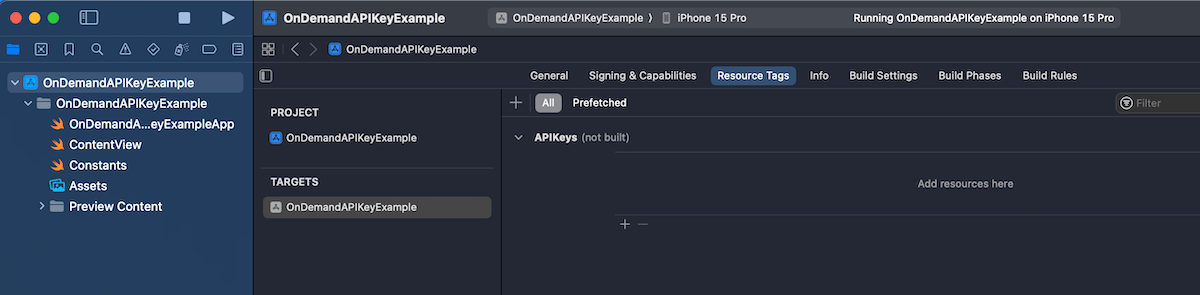
First step is that we create a prefetching enabled tag. Apple uses tags to identify on-demand resources. Open your Xcode project settings, app target and then “Resource Tags” tab. Let’s add a new resource tag named “APIKeys”.

The next step is to attach a resource to the tag. We’ll use a JSON file for our API keys, so go ahead and add a new JSON file for API keys. We’ll just create a key-value pairs in that file and assign a resource tag to the file, which can be found in the utilities area > file inspector tab. In our example, the tag has the same name as the file “APIKeys”.

So far we have created a resource tag and assigned a tag to the JSON file. The default behaviour is that the tag is treated as on-demand resource and only downloaded when it is required by the app. With API keys, it makes sense to download it along with the app binary when the user installs that app. Then on the first launch we can immediately store the API key in keychain for future usage. Prefetching can be enabled in the “Resource Tags” tab. Tap on the “Prefetched” button and drag the “APIKeys” tag under “Initial Install Tags”.

An important thing to note is that even though we have set that tag to be part of initial install tags there is still the possibility that the tag has been purged. This happens when the user installs the app and then waits a long time. In that case, the system needs to go and download it again when we want to access it. Therefore, the code accessing the tag could still take some time. Let’s see a simple function which accesses the JSON file through NSBundleResourceRequest API and makes the API keys available for the app.

enum Constants {
static func loadAPIKeys() async throws {
let request = NSBundleResourceRequest(tags: ["APIKeys"])
try await request.beginAccessingResources()
let url = Bundle.main.url(forResource: "APIKeys", withExtension: "json")!
let data = try Data(contentsOf: url)
// TODO: Store in keychain and skip NSBundleResourceRequest on next launches
APIKeys.storage = try JSONDecoder().decode([String: String].self, from: data)
request.endAccessingResources()
}
enum APIKeys {
static fileprivate(set) var storage = [String: String]()
static var mySecretAPIKey: String { storage["MyServiceX"] ?? "" }
static var mySecretAPIKey2: String { storage["MyServiceY"] ?? "" }
}
}
view raw APIKeys.swift hosted with ❤ by GitHub

With a setup like this, we need to make sure that the loadAPIkeys function is called before we access mySecretAPIKey and mySecretAPIKey2. If we have a centralized place for network requests, let’s say some networking module which wraps URLSession then that could be an excellent place where to run this async code. Another way could be delaying showing the main UI before the function completes. Personally, I would go for the former and integrate it into the networking stack.

OnDemandAPIKeyExample (GitHub, Xcode 15.0.1)

If this was helpful, please let me know on Mastodon@toomasvahter or Twitter @toomasvahter. Feel free to subscribe to RSS feed. Thank you for reading.

Categories
Swift Xcode

Changes to structured logging in Xcode 15

Apps log a lot of information to the debug console in Xcode which at some point might get overwhelming and makes it difficult to understand what is going on. The information of what we are interested in when debugging an app might get overflown with information coming from other parts of the app. Everyone who have worked on apps which log a lot to console are more than happy to learn that Xcode 15 finally supports filtering console logs. No need to launch the Console.app any more if we want to get filtered console logging, we can forget that workaround. Let’s dive in how structured logging works alongside with Xcode 15.

For getting the full benefit of the new Xcode 15 update, we should be using Apple’s structured logging APIs. The logging APIs got an update in iOS 14 with the introduction of a Logger type. Before that, we used to use os_log functions. Here is an example of how to use the Logger type. My personal preference has been extending the Logger type in each of the module (target) with convenient static variables, which enables auto-completion.

import os

extension Logger {
    static let subsystem = Bundle.main.bundleIdentifier!

    static let networking = Logger(subsystem: subsystem, category: "Networking")
    static let presentation = Logger(subsystem: subsystem, category: "Presentation")
}

Let’s add some logging to a view model, which in turn uses a service class to fetch statements. The prepare method is called from view’s task view modifier.

@Observable final class ViewModel {
    let service: StatementService

    init(service: StatementService) {
        self.service = service
    }

    private(set) var statements = [Statement]()

    func prepare() async {
        Logger.networking.debug("Starting to fetch statements")
        do {
            self.statements = try await service.fetchStatements()
            Logger.networking.notice("Successfully fetched statements")
        }
        catch {
            Logger.networking.error("Failed to load statements with error: \(error)")
        }
    }
}

The debug console view in Xcode 15 looks like this by default when running our sample app.

If we want to inspect a single log line then we can click on it and pressing space which opens a quick look window.

Here we can see all the metadata attached to the log. Note the subsystem and category lines, which come from the information passed into the Logger’s initializer.

Often we want to see some of this metadata directly in the debug console view. This can be configured using “Metadata Options” picker.

If we want to jump to the source file and location then we need to hover on the log line and a jump button appears in the bottom right corner – very handy.

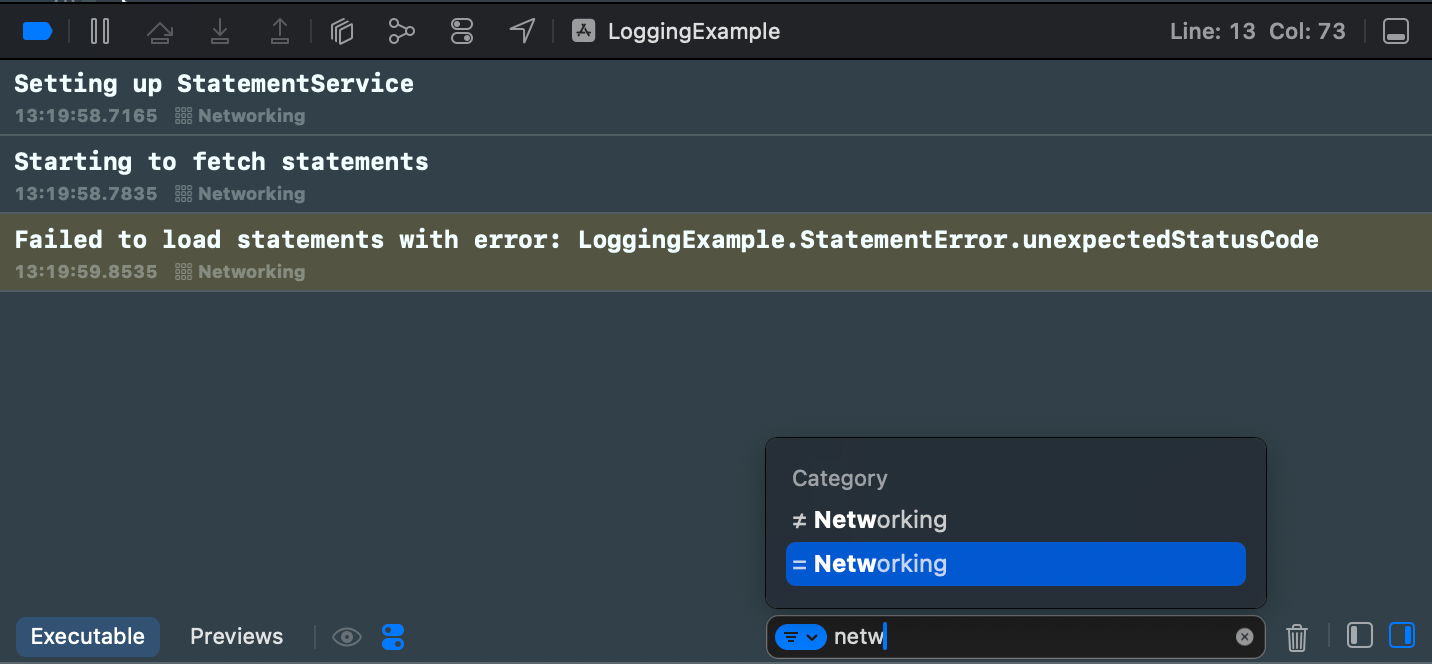
Logs can be filtered using the find bar. The find bar suggests filtering options. If I want to filter to log events which have category set to “Networking” then only thing I need to do is typing “netw” to the find bar, and already it provides me a quick way to apply this filter. Really, really handy.

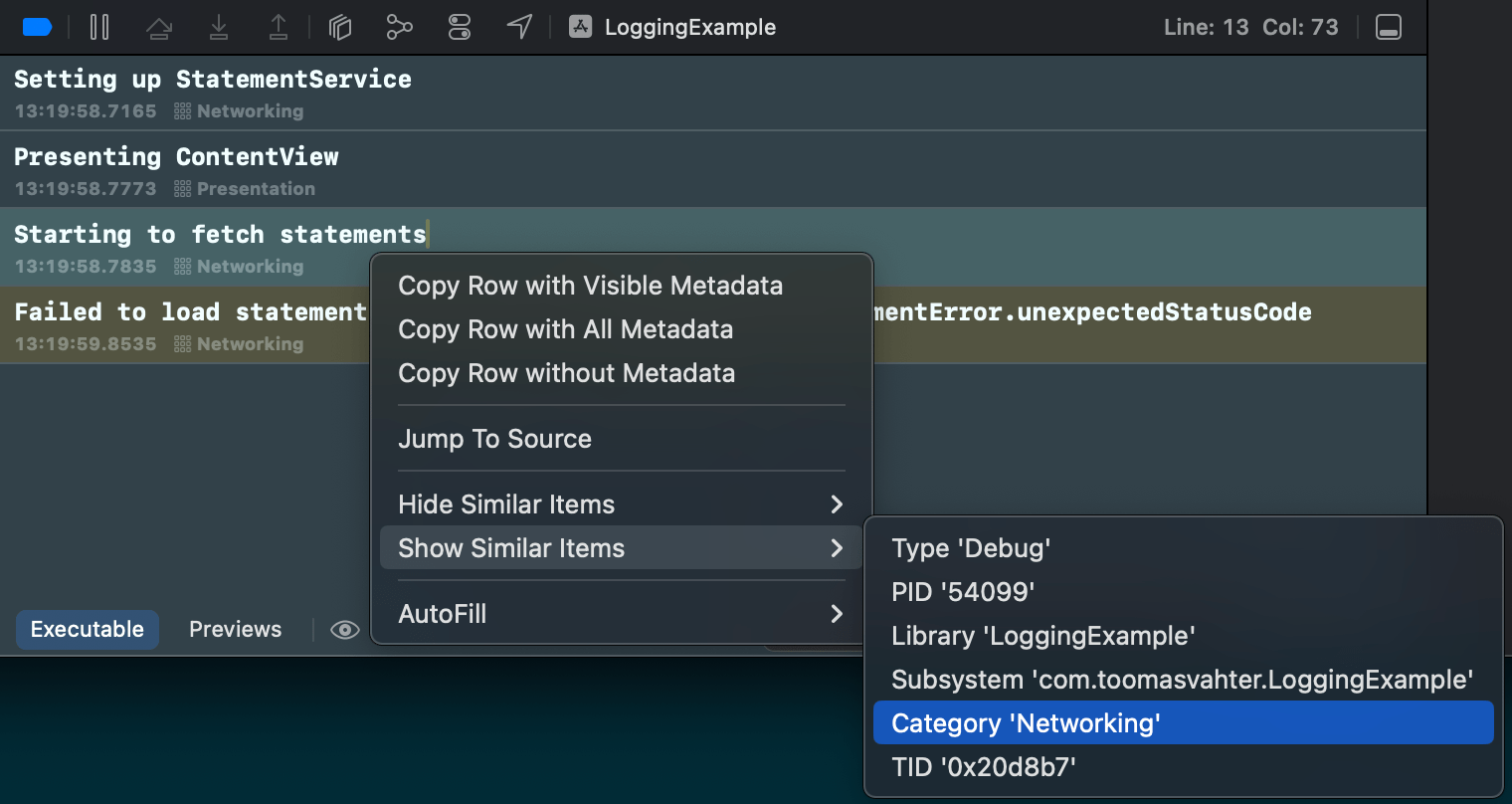
There is also a second way how to achieve the same filtering. Right-clicking a log entry and selecting Show Similar Items > Category ‘Networking’.

If this was helpful, please let me know on Mastodon@toomasvahter or Twitter @toomasvahter. Feel free to subscribe to RSS feed. Thank you for reading.

Categories
iOS Swift SwiftUI Xcode

Discovering #Preview macro in Swift

Previews are snippets of codes for creating a live preview of a view what we can see in Xcode. This enables to quickly iterate your views because we can see right away how the view looks after each of the code change. Previews are compiled alongside with the app, and therefore we can access all the other code and resources like images. If we want to use preview only resource, we can use Xcode’s development assets feature for making the resource only part of the app when rendering previews. Now when we know what previews are in general, let’s move on to creating a preview.

So far we have created a new struct which conforms to a PreviewProvider protocol if we wanted Xcode to render the view for us. Xcode 15 with Swift 5.9’s macro support introduces a #Preview macro, which replaces the old way of creating live previews. The benefit of the new macro is having to write less code to get going with live previews. Let’s compare the both approaches and have a look at an accessory view’s preview.

// Before
struct RatingsView_Previews: PreviewProvider {
static var previews: some View {
VStack {
ForEach(0…5, id: \.self) { value in
RatingsView(value: .constant(value))
}
}
.previewLayout(.sizeThatFits)
}
}
// After
#Preview(traits: .sizeThatFitsLayout) {
VStack {
ForEach(0…5, id: \.self) { value in
RatingsView(value: .constant(value))
}
}
}
view raw Preview.swift hosted with ❤ by GitHub

In the example above, we wanted to apply a trait since this view is a tiny accessory view, and therefore we would like to see it rendered as small as possible. A list of traits what we can use are listed here:

extension PreviewTrait where T == Preview.ViewTraits {
/// Preview with `.device` layout (the default).
public static var defaultLayout: PreviewTrait<Preview.ViewTraits> { get }
public static var sizeThatFitsLayout: PreviewTrait<Preview.ViewTraits> { get }
public static func fixedLayout(width: CGFloat, height: CGFloat) -> PreviewTrait<T>
public static var portrait: PreviewTrait<Preview.ViewTraits> { get }
public static var landscapeLeft: PreviewTrait<Preview.ViewTraits> { get }
public static var landscapeRight: PreviewTrait<Preview.ViewTraits> { get }
public static var portraitUpsideDown: PreviewTrait<Preview.ViewTraits> { get }
}

When working with full screen views, the preview macro can be as simple as this:

#Preview {
OnboardingView()
}

In addition to traits, we can also give a name to the preview which is displayed in the Xcode’s preview canvas. This can be useful if we create multiple previews for the same view.

A view with multiple previews with different names.

Another thing to note is that the preview canvas in Xcode also lists a pin button next to the name of the preview. Pinning previews is useful if we want to navigate to another file to make some changes and keeping the preview running. Maybe we want to change some constants which affects the layout of the view, but these constants are defined somewhere else. Then it is useful to keep the preview running and seeing how changing a constant in another view is reflected by the view using it.

There is another tip to keep in mind. We can run previews on physical devices as well. We just need to pick the physical device instead of a simulator from the device picker.

Preview canvas, which lists a physical device for preview.

Finally, let’s not forget about the great way to see all the colour scheme and dynamic type variants at the same time. There is a separate variants button for that next to the live preview and selectable preview buttons.

If this was helpful, please let me know on Mastodon@toomasvahter or Twitter @toomasvahter. Feel free to subscribe to RSS feed. Thank you for reading.

Categories
iOS Swift

If-else and switch statements as expressions in Swift

Swift 5.9 arrived with Xcode 15 and one of the new additions to the language is if-else and switch statements as expressions. SE-0380 proposed the new language feature, and we can find in depth information about it there. Let’s go through some of the examples where it comes handy.

Firstly, using if-else or switch for returning values in functions, closures or properties. I write quite a lot of code which just turns an enum value into some other type. Now we can omit the return statement which, in my mind, makes the code much more readable. Here we have an example of returning a different background colour based on the current coffee brewing method.

enum BrewMethod {
case espresso, frenchPress, chemex
}
// Before
func backgroundColor(for method: BrewMethod) -> UIColor {
switch method {
case .espresso: return .systemBrown
case .frenchPress: return .systemCyan
case .chemex: return .systemMint
}
}
// After
func backgroundColor(for method: BrewMethod) -> UIColor {
switch method {
case .espresso: .systemBrown
case .frenchPress: .systemCyan
case .chemex: .systemMint
}
}

Secondly, we can use this new feature for initializing variables with more complex logic without needing to create an immediately executing closure. Personally, I tend to do this quite a lot in my projects. Here is an example of assigning a value to the title variable based on the current brewing method. Note that we can omit return and the closure declaration now.

let method: BrewMethod = .espresso
// Before
let title: String = {
switch method {
case .espresso: return "Espresso"
case .frenchPress: return "French Press"
case .chemex: return "Chemex"
}
}()
// After
let title2: String =
switch method {
case .espresso: "Espresso"
case .frenchPress: "French Press"
case .chemex: "Chemex"
}

Here is another example where we use if-else statement for the same purpose. Especially handy to contain some more complex logic.

let method: BrewMethod = …
let hasSelection = …
let bannerText =
if !hasSelection {
"Please select a brewing method"
}
else if method == .chemex {
"Yada yada"
}
else {
"Other yada yada"
}

If this was helpful, please let me know on Mastodon@toomasvahter or Twitter @toomasvahter. Feel free to subscribe to RSS feed. Thank you for reading.

Categories
iOS Swift

Implicit self for weak self captures

Since this week has kept me extremely busy with packing our things, selling furniture, and wrapping up any loose ends before relocating back to Estonia from Japan after 4.5 years, I am going to use this week’s blog post for highlighting a new Swift 5.8 language feature. I welcome this change since how hard I try there still will be cases where I need to capture self in closures.

The language feature we are talking about is of course SE-0365: Allow implicit self for weak self captures, after self is unwrapped. Which means that if we capture self weakly in a closure, use guard let self then there is no need to write self. inside the closure any more.

Let’s take a look at a concrete example from my SignalPath app. It is a tiny change, but I feel like it makes a lot of sense. Especially because I already have explicitly handled weak self with guard let.

// Old
iqDataSource.didChangeSampleCount
.sink { [weak self] sampleCount in
guard let self else { return }
let seriesDelta = self.layout.adjust(to: sampleCount)
guard seriesDelta < 0 else { return }
self.resetTiles(priority: .immediately)
}
.store(in: &cancellables)
// New
iqDataSource.didChangeSampleCount
.sink { [weak self] sampleCount in
guard let self else { return }
let seriesDelta = layout.adjust(to: sampleCount)
guard seriesDelta < 0 else { return }
resetTiles(priority: .immediately)
}
.store(in: &cancellables)
view raw Snippet.swift hosted with ❤ by GitHub

If this was helpful, please let me know on Mastodon@toomasvahter or Twitter @toomasvahter. Feel free to subscribe to RSS feed. Thank you for reading.

Categories
iOS Swift SwiftUI

Bizarre error in SwiftUI preview

The other day, I was playing around with matchedGeometryEffect view modifier in my sample app. I was just planning to show a list of items and then animate moving one item from one HStack to another. Suddenly, my SwiftUI preview stopped working. On the other hand, running exactly the same code on the simulator just worked fine. The code was very simple, consisting of view, view model and an Item model struct.

import SwiftUI
struct ContentView: View {
@StateObject var viewModel = ViewModel()
var body: some View {
VStack {
ForEach(viewModel.items) { item in
Text(verbatim: item.name)
}
}
.padding()
}
}
extension ContentView {
final class ViewModel: ObservableObject {
let items: [Item] = [
Item(name: "first"),
Item(name: "second")
]
func select(_ item: Item) {
// implement
}
}
struct Item: Identifiable {
let name: String
var id: String { name }
}
}
struct ContentView_Previews: PreviewProvider {
static var previews: some View {
ContentView()
}
}

If you try to render SwiftUI preview (I was using Xcode 14.3) then Xcode is giving up with “Failed to launch the app XXX in reasonable time”. But if I try to build and run it on simulator, it just works fine. After some trial and error, it turned out that SwiftUI previews broke as soon as I added the func select(_ item: Item) function. If you pay a close attention, then you can see that the longer type name for Item is ContentView.Item, but within the ContentView.ViewModel type I am using just Item. I do not know why, but SwiftUI previews seems to get confused by it. As soon as I change the function declaration to func select(_ item: ContentView.Item) the preview starts rendering again. Another way is declaring the Item struct outside the ContentView extension.

The learning point is that if SwiftUI previews stop working suddenly, then make sure to check how nested types are used in function declarations.

If this was helpful, please let me know on Mastodon@toomasvahter or Twitter @toomasvahter. Feel free to subscribe to RSS feed. Thank you for reading.