Categories
Combine iOS Swift SwiftUI

Creating chat view with Combine and SwiftUI

Let’s build a conversation view which shows a list of messages and has input text field with send button. Sent and received messages are managed by Conversation object. Conversation object manages a Session object which is simulating networking stack. This kind of setup allows us to look into how to propagate received messages from Session object to Conversation and then to the list view. We’ll jump into using types Combine and SwiftUI provide therefore if you need more information, definitely watch WWDC videos about Combine and SwiftUI.

Data layer

In the UI we are going to show a list of messages, therefore let’s define a struct for a Message. We’ll make the Message to conform to protocol defined in SwiftUI – Identifiable. We can add conformance by adding id property with type UUID what provides us unique identifier whenever we create a message. Identification is used by SwiftUI to identify messages and finding changes in the messages list.

struct Message: Identifiable {
let id = UUID()
let sender: String
let text: String
}
view raw .swift hosted with ❤ by GitHub

Session is owned by Conversation and simulates a networking stack dealing with sending and receiving messages. This like a place were we could use delegate pattern for forwarding received messages back to the Conversation. Instead of delegation pattern, we can use Combine’s PassthroughSubject. It enables us to publish new messages which we can then collect on the Conversation side. Great, but let’s see how to receive messages which are published by PassthroughSubject.

struct Session {
let messageFeed = PassthroughSubject<Message, Never>()
func send(_ message: Message) {
DispatchQueue.main.asyncAfter(deadline: .now() + .milliseconds(100)) {
self.messageFeed.send(message)
self.simulateReceivingMessages()
}
}
private func simulateReceivingMessages() {
DispatchQueue.main.asyncAfter(deadline: .now() + .milliseconds(200)) {
let receivedMessage = Message(sender: "Person B", text: UUID().uuidString)
self.messageFeed.send(receivedMessage)
}
}
}
view raw .swift hosted with ❤ by GitHub

Conversation is responsible of receiving messages from the Session and keeping the current history: list of messages. For receiving messages published by Session, we can use a subscriber called sink, which just gives access to values flowing through the channel. Subscribers are added directly to publishers, then publisher sends a subscription object back to the subscriber what subscriber can use for communicating with publisher. Here, communicating means requesting values from publisher. To recap: Session owns PassthroughSubject what Conversation starts to listen by attaching subscriber to it.

Conversation conforms to SwiftUI’s ObservableObject. When marking properties with @Published property wrapper, changes in those properties trigger updates in SwiftUI.

final class Conversation: ObservableObject {
private let session = Session()
private var messageSubscriber: AnyCancellable?
init() {
messageSubscriber = session.messageFeed.sink { [weak self] (receivedMessage) in
self?.messages.append(receivedMessage)
}
}
@Published private(set) var messages = [Message]()
func send(_ message: Message) {
session.send(message)
}
}
view raw .swift hosted with ❤ by GitHub

Creating simple list view

In SwiftUI, views are described by value types conforming to View protocol. Every view return their content in the body property. Our UI is simple enough and requires to add navigation view, list and then input view. List is the table view construct which creates new rows whenever it needs to. As we made Message to conform to Identifiable, then we can pass the messages directly to the List.

struct ContentView: View {
@ObjectBinding var conversation: Conversation
var body: some View {
NavigationView {
VStack {
List(self.conversation.messages) { message in
Text(message.text)
}
InputView(conversation: self.conversation)
}.navigationBarTitle(Text("Conversation"))
}
}
}
view raw .swift hosted with ❤ by GitHub

Input view contains text field and button for sending the entered message. Input text is local state owned by the view itself. @State is a property wrapper and internally it creates a separate storage where the input text is stored and read during view updates.

import Combine
import SwiftUI
struct InputView: View {
let conversation: Conversation
@State private var inputText = ""
var body: some View {
HStack {
TextField("", text: $inputText)
.padding(6)
.background(Color.white)
Button(action: sendMessage) {
Text("Send")
}
}.padding(12).background(Color.init(white: 0.75))
}
private func sendMessage() {
self.conversation.send(Message(sender: "PersonA", text: self.inputText))
self.inputText = ""
}
}
view raw .swift hosted with ❤ by GitHub

Now we have a the whole picture put together. Conversation object manages messages and lets SwiftUI know when it changes by using @Published property wrapper. When property wrapper dispatches change to SwiftUI, it compares the changes in the view hierarchy and updates only what is needed.

Summary

We created a basic list view what displays messages in the conversation object. We used simple constructs for passing on the data down from the Session to the SwiftUI layer. The aim of the sample project was to try out some of the ways Combine and SwiftUI allow us to build views.

If this was helpful, please let me know on Mastodon@toomasvahter or Twitter @toomasvahter. Feel free to subscribe to RSS feed. Thank you for reading.

Example

ConversationInSwiftUI (Xcode 11, Swift 5.1)

Resources

Categories
iOS Swift

Hashing data using CryptoKit

So far we have been using CommonCrypto when it has come to creating hashes of data. I even wrote about it some time ago and presented a thin layer on top of it making it more convenient to use. In WWDC’19 Apple presented a new framework called CryptoKit. And of course, it contains functions for hashing data.

SHA512, SHA384, SHA256, SHA1 and MD5

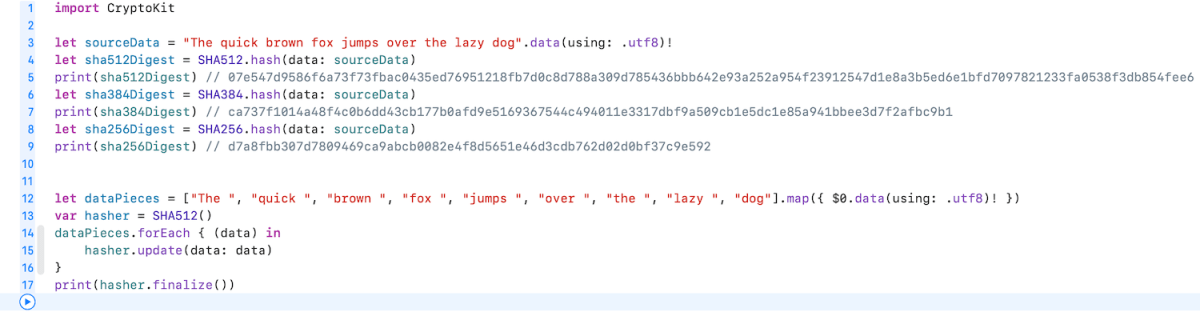
CryptoKit contains separate types for SHA512, SHA384 and SHA256. In addition, there are MD5 and SHA1 but those are considered to be insecure and available only because of backwards compatibility reasons. With CryptoKit, hashing data becomes one line of code.

import CryptoKit
let sourceData = "The quick brown fox jumps over the lazy dog".data(using: .utf8)!
let sha512Digest = SHA512.hash(data: sourceData)
print(sha512Digest) // 07e547d9586f6a73f73fbac0435ed76951218fb7d0c8d788a309d785436bbb642e93a252a954f23912547d1e8a3b5ed6e1bfd7097821233fa0538f3db854fee6
let sha384Digest = SHA384.hash(data: sourceData)
print(sha384Digest) // ca737f1014a48f4c0b6dd43cb177b0afd9e5169367544c494011e3317dbf9a509cb1e5dc1e85a941bbee3d7f2afbc9b1
let sha256Digest = SHA256.hash(data: sourceData)
print(sha256Digest) // d7a8fbb307d7809469ca9abcb0082e4f8d5651e46d3cdb762d02d0bf37c9e592
view raw .swift hosted with ❤ by GitHub

In case we do not have the whole data available in memory (e.g. really huge file), new types support creating hash by feeding data in piece by piece (just highlighting here how to use the hasher with incremental data).

let dataPieces = ["The ", "quick ", "brown ", "fox ", "jumps ", "over ", "the ", "lazy ", "dog"].map({ $0.data(using: .utf8)! })
var hasher = SHA512()
dataPieces.forEach { (data) in
hasher.update(data: data)
}
print(hasher.finalize()) // 07e547d9586f6a73f73fbac0435ed76951218fb7d0c8d788a309d785436bbb642e93a252a954f23912547d1e8a3b5ed6e1bfd7097821233fa0538f3db854fee6
view raw .swift hosted with ❤ by GitHub

Apple has an excellent playground describing the common operations developers need when using CryptoKit. Highly recommend to check it out if you need something more than just creating hashes.

Summary

CryptoKit is long waited framework what is easy to use and does not require managing raw pointers what was needed to when using CommonCrypto. It now just takes some time when we can bump deployment targets and forget CommonCrypto.

If this was helpful, please let me know on Mastodon@toomasvahter or Twitter @toomasvahter. Feel free to subscribe to RSS feed. Thank you for reading.

Categories
Generics iOS Swift UIKit

Testing networking code with custom URLProtocol on iOS

Testing networking code might sound tricky at first but in reality, it just means using custom URLProtocol what returns data we would like to. This allows testing the networking module without mocking URLSession. Using this approach we could do so much more, even integrating a third party networking library.

Networking class wrapping URLSession

Firstly, let’s set up a simple WebClient class what uses URLSession for initiating networking requests. It has a fetch method for loading URLRequest and transforming the response to expected payload type using Codable. As payload can be any type, we use generics here. Note that we need to pass in the payload type as a variable because we need the exact type when decoding the JSON data. How can we test this as URLSession would try to send an actual request to designated URL? As unit tests should behave exactly the same all the time and should not depend on external factors, then using a separate test server is not preferred. Instead, we can intercept the request and provide the response with custom URLProtocol.

final class WebClient {
private let urlSession: URLSession
init(urlSession: URLSession) {
self.urlSession = urlSession
}
func fetch<T: Decodable>(_ request: URLRequest, requestDataType: T.Type, completionHandler: @escaping (Result<T, FetchError>) -> Void) {
let dataTask = urlSession.dataTask(with: request) { (data, urlResponse, error) in
if let error = error {
DispatchQueue.main.async {
completionHandler(.failure(.connection(error)))
}
return
}
guard let urlResponse = urlResponse as? HTTPURLResponse else {
DispatchQueue.main.async {
completionHandler(.failure(.unknown))
}
return
}
switch urlResponse.statusCode {
case 200..<300:
do {
let payload = try JSONDecoder().decode(requestDataType, from: data ?? Data())
DispatchQueue.main.async {
completionHandler(.success(payload))
}
}
catch let jsonError {
DispatchQueue.main.async {
completionHandler(.failure(.invalidData(jsonError)))
}
}
default:
DispatchQueue.main.async {
completionHandler(.failure(.response(urlResponse.statusCode)))
}
}
}
dataTask.resume()
}
}
extension WebClient {
enum FetchError: Error {
case response(Int)
case invalidData(Error)
case connection(Error)
case unknown
}
}
view raw WebClient.swift hosted with ❤ by GitHub

Creating custom URLProtocol for unit tests

URLProtocol is meant to be overridden. Firstly, we’ll need to override canInit(with:) and return true here allowing URLSession to use this protocol for any URL request. Secondly, it is required to override canonicalRequest(for:) where we can just return the same request. Thirdly, startLoading, where we have the loading logic which uses class property for returning appropriate response. This allows us to set this property in unit tests and then returning the result when URLSession handles the fetch request. Finally, URLProtocol also needs to define stopLoading method what we can just leave empty as this protocol is not asynchronous.

final class TestURLProtocol: URLProtocol {
override class func canInit(with request: URLRequest) -> Bool {
return true
}
override class func canonicalRequest(for request: URLRequest) -> URLRequest {
return request
}
static var loadingHandler: ((URLRequest) -> (HTTPURLResponse, Data?, Error?))?
override func startLoading() {
guard let handler = TestURLProtocol.loadingHandler else {
XCTFail("Loading handler is not set.")
return
}
let (response, data, error) = handler(request)
if let data = data {
client?.urlProtocol(self, didReceive: response, cacheStoragePolicy: .notAllowed)
client?.urlProtocol(self, didLoad: data)
client?.urlProtocolDidFinishLoading(self)
}
else {
client?.urlProtocol(self, didFailWithError: error!)
}
}
override func stopLoading() {}
}

Using TestURLProtocol for mocking network requests in unit tests

Setting up a unit test requires to set the TestURLProtocol’s loadingHandler and returning the data we would like to. Then we create URLSessionConfiguration and set our TestURLProtocol to protocolClasses. After that we can use this configuration for initialising URLSession and using this session in our WebClient which handles fetch requests. That is pretty much all we need to do for testing networking requests.

final class WebClientTests: XCTestCase {
override func tearDown() {
TestURLProtocol.loadingHandler = nil
}
struct TestPayload: Codable, Equatable {
let country: String
}
func testFetchingDataSuccessfully() {
let expected = TestPayload(country: "Estonia")
let request = URLRequest(url: URL(string: "https://www.example.com&quot;)!)
let responseJSONData = try! JSONEncoder().encode(expected)
TestURLProtocol.loadingHandler = { request in
let response = HTTPURLResponse(url: request.url!, statusCode: 200, httpVersion: nil, headerFields: nil)!
return (response, responseJSONData, nil)
}
let expectation = XCTestExpectation(description: "Loading")
let configuration = URLSessionConfiguration.ephemeral
configuration.protocolClasses = [TestURLProtocol.self]
let client = WebClient(urlSession: URLSession(configuration: configuration))
client.fetch(request, requestDataType: TestPayload.self) { (result) in
switch result {
case .failure(let error):
XCTFail("Request was not successful: \(error.localizedDescription)")
case .success(let payload):
XCTAssertEqual(payload, expected)
}
expectation.fulfill()
}
wait(for: [expectation], timeout: 1)
}
}

Summary

Testing networking code at first might sound daunting. But actually it just boils down to using custom URLProtocol and providing response we need to in our test.

If this was helpful, please let me know on Mastodon@toomasvahter or Twitter @toomasvahter. Feel free to subscribe to RSS feed. Thank you for reading.

Example project

TestingNetworkRequests (Xcode 5.0, Xcode 10.2.1)

Resources

Categories
iOS Swift UIKit

Storing struct in UserDefaults

Structs can’t be directly stored in UserDefaults because UserDefaults does not know how to serialize it. As UserDefaults is backed by plist files, struct needs to be converted representation supported by it. The core idea boils down to the question, how to convert struct into Dictionary.

Converting struct to Dictionary

The most straight-forward way would be to manually create dictionary by adding all the properties one by one. Depending on the struct, it might get pretty long and also requires maintenance when changing the struct. Therefore, let’s take a look on a way of converting struct into JSON representation instead. This can be achieved by conforming to Encodable and using JSONEncoder and JSONSerialization. In the same way, we can convert Dictionary back to struct with JSONSerialization, JSONDecoder and conforming to Decodable. When conforming struct to Encodable and Decodable, Swift compiler will take care of generating default implementations for methods in those protocols. JSONEncoder and JSONDecoder use those methods for converting struct to Data and back. It should be noted that we could just store data in user defaults. But as data is not human-readable, let’s convert it to Dictionary instead.

struct Context: Codable {
let duration: TimeInterval
let view: String
}
struct SearchInfo: Codable {
let query: String
let numberOfMatches: Int
let context: Context
}
let searchInfos = [SearchInfo(query: "query1", numberOfMatches: 1, context: Context(duration: 1.0, view: "view1")),
SearchInfo(query: "query2", numberOfMatches: 2, context: Context(duration: 2.0, view: "view2"))]
// Converting to dictionary
extension SearchInfo {
var dictionaryRepresentation: [String: Any] {
let data = try! JSONEncoder().encode(self)
return try! JSONSerialization.jsonObject(with: data, options: []) as! [String : Any]
}
}
// Converting back to struct
extension SearchInfo {
init?(dictionary: [String: Any]) {
guard let data = try? JSONSerialization.data(withJSONObject: dictionary, options: []) else { return nil }
guard let info = try? JSONDecoder().decode(SearchInfo.self, from: data) else { return nil }
self = info
}
}
let defaults = UserDefaults()
// [Struct] -> [Dictionary]
let searchInfoDictionaries = searchInfos.map({ $0.dictionaryRepresentation })
// [Dictionary] to UserDefaults
defaults.set(searchInfoDictionaries, forKey: "Searches")
// [Dictionary] from UserDefaults
let dictionariesFromUserDefaults = defaults.array(forKey: "Searches")! as! [[String: Any]]
// [Dictionary] -> [Struct]
let convertedSearchInfos = dictionariesFromUserDefaults.compactMap({ SearchInfo(dictionary: $0) })

Adding DictionaryConvertible and DictionaryDecodable

This implementation can be made a bit more usable by using protocols and protocol extensions for providing default implementations. This makes it extremely easy to adopt this to any objects.

protocol DictionaryConvertible {
var dictionaryRepresentation: [String: Any] { get }
}
protocol DictionaryDecodable {
init?(dictionary: [String: Any])
}
typealias DictionaryRepresentable = DictionaryConvertible & DictionaryDecodable
extension DictionaryConvertible where Self: Encodable {
var dictionaryRepresentation: [String: Any] {
let data = try! JSONEncoder().encode(self)
return try! JSONSerialization.jsonObject(with: data, options: []) as! [String : Any]
}
}
extension DictionaryDecodable where Self: Decodable {
init?(dictionary: [String: Any]) {
guard let data = try? JSONSerialization.data(withJSONObject: dictionary, options: []) else { return nil }
guard let info = try? JSONDecoder().decode(Self.self, from: data) else { return nil }
self = info
}
}
struct AutocompleteResult: Codable, DictionaryRepresentable {
let text: String
let suggestions: [String]
}

Summary

Using Swift’s Codable together with JSONEncoder, JSONDecoder and JSONSerialization we can skip writing code for converting data into different types and instead, providing a concise implementation for turning structs into dictionaries. We only talked about structs but this approach can be applied to classes as well.

If this was helpful, please let me know on Mastodon@toomasvahter or Twitter @toomasvahter. Feel free to subscribe to RSS feed. Thank you for reading.

Playground

StoringStructInUserDefaults (Xcode 10.2.1, Swift 5.0)

Categories
iOS Swift UIKit

Interactive animation with UIViewPropertyAnimator on iOS

UIViewPropertyAnimator enables configuring animations which can be modified when running. Animations can be paused and progress can be changed allowing to build interactive animations. UIViewPropertyAnimations are in stopped state by default. If we want to run the animation immediately, we can use class method runningPropertyAnimator(withDuration:delay:options:animations:completion:). UIViewPropertyAnimator gives us a lot of flexibility when it comes to composing animations and controlling them. Therefore let’s build an animation consisting of rotating and moving a view out of the visible rect.

Adding a view to animate

Firstly, we need to add a view which we are going to animate using UIViewPropertyAnimator. View is a UIView subclass which just overrides layerClass and returns CAGradientLayer instead. View is positioned into initial place using auto layout.

private lazy var animatingView: UIView = {
let view = GradientView(frame: .zero)
view.gradientLayer.colors = (1…3).map({ "Gradient\($0)" }).map({ UIColor(named: $0)!.cgColor })
view.translatesAutoresizingMaskIntoConstraints = false
return view
}()
override func viewDidLoad() {
super.viewDidLoad()
view.backgroundColor = .darkGray
view.addGestureRecognizer(gestureRecognizer)
view.addSubview(animatingView)
NSLayoutConstraint.activate([
animatingView.leadingAnchor.constraint(equalTo: view.leadingAnchor, constant: 72),
animatingView.trailingAnchor.constraint(equalTo: view.trailingAnchor, constant: -72),
animatingView.topAnchor.constraint(equalTo: view.topAnchor, constant: 72),
animatingView.bottomAnchor.constraint(equalTo: view.bottomAnchor, constant: -72)
])
}

Creating animations with UIViewPropertyAnimator

UIViewPropertyAnimator has several initialisers allowing to control the used timing function. In this example we’ll just use built-in ease in and ease out timing. This just means animation pace increases in the beginning and slows down at the end of the animation. In addition to mentioned UICubicTimingParameters (ease in and ease out), there is support for UISpringTimingParameters as well. Both timing parameters can be passed in using the convenience initialiser init(duration:timingParameters:). The animation is configured to rotate the view by 90 degrees and move the view following a spline created by current point of the view and two other points. When animation ends, we reset the transform and tell auto layout to update the layout which will just move the view back to the initial position.

private func makeAnimator() -> UIViewPropertyAnimator {
let animator = UIViewPropertyAnimator(duration: 2.0, curve: .easeInOut)
let bounds = view.bounds
animator.addAnimations { [weak animatingView] in
guard let animatingView = animatingView else { return }
animatingView.transform = CGAffineTransform(rotationAngle: CGFloat.pi / 2.0)
UIView.animateKeyframes(withDuration: 2.0, delay: 0.0, options: .calculationModeCubic, animations: {
UIView.addKeyframe(withRelativeStartTime: 0.0, relativeDuration: 0.4, animations: {
animatingView.center = CGPoint(x: bounds.width * 0.8, y: bounds.height * 0.85)
})
UIView.addKeyframe(withRelativeStartTime: 0.4, relativeDuration: 0.6, animations: {
animatingView.center = CGPoint(x: bounds.width + animatingView.bounds.height, y: bounds.height * 0.6)
})
})
}
animator.addCompletion({ [weak self] (_) in
guard let self = self else { return }
self.animatingView.transform = CGAffineTransform(rotationAngle: 0.0)
self.animator = nil
self.view.setNeedsLayout()
self.view.layoutIfNeeded()
})
return animator
}
view raw Animator.swift hosted with ❤ by GitHub

Interrupting animation with UIPanGestureRecognizer

UIPanGestureRecognizer is used for interrupting the animation. When user starts dragging a finger on the screen, we capture the current animation progress and the initial point of the touch. Then, we can update the animation progress when dragging the finger to the left or right. When moving the finger back and forth, we can move the animation forward or backwards. As soon as letting the finger go, we start the animation which continues the animation from the update fractionComplete. The constant 300 is just a value defining the amount user needs to move the finger to be able to change the fractionComplete from 0.0 to 1.0.

private lazy var gestureRecognizer: UIPanGestureRecognizer = {
let recognizer = UIPanGestureRecognizer(target: self, action: #selector(updateProgress(_:)))
recognizer.maximumNumberOfTouches = 1
return recognizer
}()
@objc private func updateProgress(_ recognizer: UIPanGestureRecognizer) {
if animator == nil {
animator = makeAnimator()
}
guard let animator = animator else { return }
switch recognizer.state {
case .began:
animator.pauseAnimation()
fractionCompletedStart = animator.fractionComplete
dragStartPosition = recognizer.location(in: view)
case .changed:
animator.pauseAnimation()
let delta = recognizer.location(in: view).x – dragStartPosition.x
animator.fractionComplete = max(0.0, min(1.0, fractionCompletedStart + delta / 300.0))
case .ended:
animator.startAnimation()
default:
break
}
}

Summary

With UIViewPropertyAnimator we can build interactive animations with a very little code. Its API allows controlling the flow of the animations by pausing the animation and controlling the progress of the animation dynamically.

If this was helpful, please let me know on Mastodon@toomasvahter or Twitter @toomasvahter. Feel free to subscribe to RSS feed. Thank you for reading.

Example project

InteractiveAnimation (Xcode 10.2, Swift 5)

Resources

Categories
iOS Swift UIKit

UICollectionViewFlowLayout and auto layout on iOS

UICollectionViewFlowLayout is layout object supplied by UIKit and enables showing items in grid. It allows customising spacings and supports fixed size cells and cells with different sizes. This time I am going to show how to build a collection view containing items with different sizes where sizes are defined by auto layout constraints.

Cell sizes in UICollectionViewFlowLayout

By default UICollectionViewFlowLayout uses itemSize property for defining the sizes of the cells. Another way is to use UICollectionViewDelegateFlowLayout and supplying item sizes by implementing collectionView(_:layout:sizeForItemAt:). Third way is to let auto layout for defining the size of the cell. This is what I am going to build this time.

Enabling auto layout based cell sizes

When setting UICollectionViewFlowLayout’s estimatedItemSize to UICollectionViewFlowLayout.automaticSize enables layout object to use auto layout.

final class CollectionViewController: UICollectionViewController {
let content: [String]
init(content: [String]) {
self.content = content
let layout = UICollectionViewFlowLayout()
layout.estimatedItemSize = UICollectionViewFlowLayout.automaticSize
super.init(collectionViewLayout: layout)
}
}

Setting up collection view cell with auto-layout constraints

When layout object is configured, second step is to create a cell. In the current prototype it is going to be a simple cell with a label and border around the label. Constraints are set up to have a 8 points space around the label. Constraints together with label’s intrinsicContentSize define the minimum size for the cell. If text is longer, intrinsicContentSize is wider.

final class TextCollectionViewCell: UICollectionViewCell {
let textLabel: UILabel
override init(frame: CGRect) {
textLabel = {
let label = UILabel(frame: .zero)
label.adjustsFontForContentSizeCategory = true
label.font = UIFont.preferredFont(forTextStyle: .body)
label.translatesAutoresizingMaskIntoConstraints = false
return label
}()
super.init(frame: frame)
contentView.addSubview(textLabel)
NSLayoutConstraint.activate([
textLabel.leadingAnchor.constraint(equalTo: leadingAnchor, constant: 8),
textLabel.trailingAnchor.constraint(equalTo: trailingAnchor, constant: -8),
textLabel.topAnchor.constraint(equalTo: topAnchor, constant: 8),
textLabel.bottomAnchor.constraint(equalTo: bottomAnchor, constant: -8)
])
contentView.layer.borderColor = UIColor.darkGray.cgColor
contentView.layer.borderWidth = 1
contentView.layer.cornerRadius = 4
}
required init?(coder aDecoder: NSCoder) {
fatalError("init(coder:) has not been implemented")
}
}

When putting all the things together, the end result is a collection view where every cell has its own size. Moreover, it supports dynamic type and cells will grow if user changes default text sizes.

Summary

UICollectionViewFlowLayout’s estimatedItemSize enables using auto-layout for defining cell sizes. Therefore creating cells where text defines the size of the cell is simple to do on iOS.

If this was helpful, please let me know on Mastodon@toomasvahter or Twitter @toomasvahter. Feel free to subscribe to RSS feed. Thank you for reading.

Example project

FittingCellsInCollectionViewFlowLayout Xcode 10.2, Swift 5.0

Resources

Categories
Generics iOS Swift UIKit

Instantiating view controllers from UIStoryboard on iOS

There are several ways how to create user interfaces on iOS: programmatically, xib per view or using storyboard for multiple views. Personally I tend to use xibs and programmatically created layouts more but sometimes I also use UIStoryboard – depends on the situation on hand. Therefore I like to present two small additions to UIStoryboard API what makes instantiating view controllers more compact and convenient to use.

let storyboard = UIStoryboard(name: "Main", bundle: nil)
let viewController = storyboard.instantiateViewController(withIdentifier: "contacts") as! ContactsViewController

The approach I would like to present is a generic instantiate view controller method. It implies that in storyboard, the view controller’s identifier is set to the name of the view controller class.

When Storyboard ID for the view controller is set to the class name, it is now easy to derive the identifier from a type. It should be noted that in Swift, NSStringFromClass returns string with format <module name>.<class name>. Therefore it required to parse the returned string and taking only the class name part.

extension UIStoryboard {
func instantiateViewController<T: UIViewController>(withType type: T.Type) -> T {
let className = NSStringFromClass(type).split(separator: ".").last!
return instantiateViewController(withIdentifier: String(className)) as! T
}
}

In addition, with convenience method for getting storyboard, we can get to end result which is more compact and also avoids having identifier strings in the code.

extension UIStoryboard {
class var main: UIStoryboard {
return UIStoryboard(name: "Main", bundle: nil)
}
}
let viewController = UIStoryboard.main.instantiateViewController(withType: ContactsViewController.self)

If this was helpful, please let me know on Mastodon@toomasvahter or Twitter @toomasvahter. Feel free to subscribe to RSS feed. Thank you for reading.

Categories
Swift UIKit

Supporting dynamic type on iOS

Dynamic type is a feature on iOS what allows users to customise size of the text on screen. Supporting dynamic type enables users with low vision condition to still use your app. It defines a set of APIs for getting font sizes matching with users text size choice in the settings. There are two ways of changing the default text size: Settings > Display & Brightness > Text Size and Settings > General > Accessibility > Larger Text. In accessibility settings it is possible to enable larger accessibility sizes what then makes the total count of text size to 12.

Text styles and custom fonts

UIKit defines a list of text styles which are used for getting preferred font for style. Setting the font to a label and turning on adjustsFontForContentSizeCategory on UILabel enables automatic font updates when user changes text size.

extension UIFont.TextStyle {
public static let largeTitle: UIFont.TextStyle
public static let title1: UIFont.TextStyle
public static let title2: UIFont.TextStyle
public static let title3: UIFont.TextStyle
public static let headline: UIFont.TextStyle
public static let subheadline: UIFont.TextStyle
public static let body: UIFont.TextStyle
public static let callout: UIFont.TextStyle
public static let footnote: UIFont.TextStyle
public static let caption1: UIFont.TextStyle
public static let caption2: UIFont.TextStyle
}
let font = UIFont.preferredFont(forTextStyle: style)
// Automatically update font size when user changes preferred text size or accessibility text sizes.
label.adjustsFontForContentSizeCategory = true
label.font = font
// And the same behavior with buttons without attributed title.
button.titleLabel?.adjustsFontForContentSizeCategory = true
button.titleLabel?.font = font

Using custom fonts is not much different, we just need to use UIFontMetrics for getting a scaled font and turning on adjustsFontForContentSizeCategory.

var customFont = UIFont(name: "Futura-medium", size: 15)!
customFont = UIFontMetrics.default.scaledFont(for: customFont)
label.adjustsFontForContentSizeCategory = true
label.font = customFont

Best way for testing text size category changes is to open Accessibility Inspector (Xcode -> Open Developer Tool -> Accessibility Inspector).

Content size categories

Text sizes can grow a lot and therefore in many cases it is needed to adjust the layout based on the current settings. For example, horisontally aligned text fields. In those cases it is easy to use UIStackView and just changing the alignment property based on content size category. Both trait collection and UIApplication implement preferredContentSizeCategory which then can be used for defining the layout. Content size category changes can be observed by observing change notification or trait collection changes.

if traitCollection.preferredContentSizeCategory.isAccessibilityCategory {
// align vertically
}
else {
// align horisontally
}
if traitCollection.preferredContentSizeCategory > .extraLarge {
// align vertically
}
else {
// align horisontally
}

Scaling Images

When text is shown with icons and text size is very large, then it is preferred to scale the icon as well for avoiding awkward looking user interface. Solution here is to provide icon assets as pdf and checking Preserve vector data checkbox in the asset catalog. This allows UIKit to redraw the image in larger sizes when image view’s adjustsImageSizeForAccessibilityContentSizeCategory is enabled.

Summary

Dynamic type is an important feature what enables your app to reach wide range of people. Supporting dynamic text sizes is easy to add although in many cases it requires to adjust the layout direction as well for giving more space for the text.

If this was helpful, please let me know on Mastodon@toomasvahter or Twitter @toomasvahter. Feel free to subscribe to RSS feed. Thank you for reading.

Resources

Categories
MobileCoreServices Swift

Uniform Type Identifiers on iOS

UTIs come up pretty quickly when working with files. Unfortunately APIs used for checking for conformance and creating UTIs is pretty old and does not fit well into Swift ecosystem.

Uniform Type Identifiers

Uniform type identifiers define abstract data types what can be used to describe the type of an entity. Entities include pasteboard data, files, bundles, frameworks, symbolic links and more. The full list of different data types can be found here. Some examples include:

  • kUTTypePDF (com.adobe.pdf)
  • kUTTypeJPEG (public.jpeg)
  • kUTTypeVideo (public video)
  • kUTTypeAudiovisualContent (public.audiovisual-content)

The first two are concrete types, public video is a type for video without audio and conforms also to a movie type. Audio visual content is even more generic conforming to public.data and public.content. In summary, types can create a hierarchical inheritance. Therefore instead of comparing we need to look into conformance.

Another term what comes up with UTIs are tags. Tags are another way of identifying uniform type identifiers. Tags are grouped by tag classes. Probably the best known example of a tag class is path extension of a file. Tag in this case is specific extension (pdf, txt etc).

Struct wrapping UTI functions

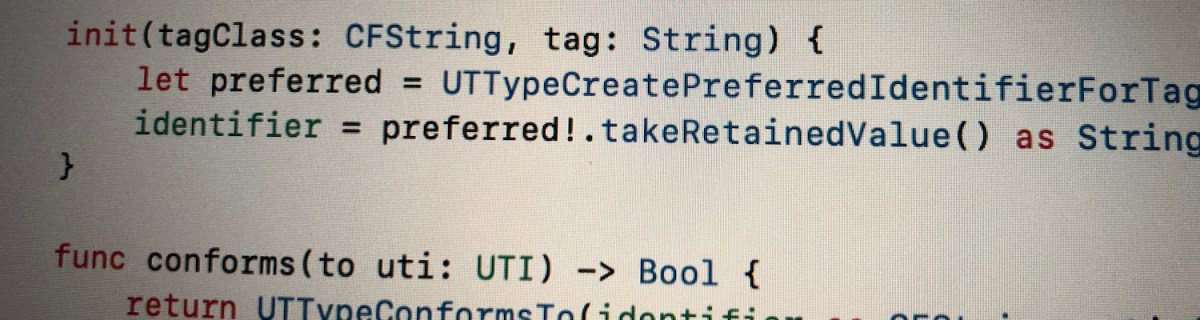
MobileCoreServices contains a long list of type identifiers and I think it does not make sense to redefine the whole list. What we can do instead is to define the ones we really need as static variables (alternative implementation could use enum as a base type). Two initialisers is all what we need, one for initialising using predefined identifier string and another one for initialising using tag class and tag. In addition to initialisers, separate function for checking conformance is also needed.

import MobileCoreServices
struct UTI {
let identifier: String
init(identifier: CFString) {
self.identifier = identifier as String
}
init(tagClass: CFString, tag: String) {
let preferred = UTTypeCreatePreferredIdentifierForTag(tagClass, tag as CFString, nil)
identifier = preferred!.takeRetainedValue() as String
}
func conforms(to uti: UTI) -> Bool {
return UTTypeConformsTo(identifier as CFString, uti.identifier as CFString)
}
static let pdf = UTI(identifier: kUTTypePDF)
static let text = UTI(identifier: kUTTypeText)
}
view raw UTI.swift hosted with ❤ by GitHub

When working with files, we can add a property to URL. This makes simple to detect the UTI of an URL. It should be noted that this returns preferred UTI and not all the UTIs the path extension belongs to.

extension URL {
var uti: UTI {
return UTI(tagClass: kUTTagClassFilenameExtension, tag: pathExtension)
}
}
let uti = UTI(tagClass: kUTTagClassFilenameExtension, tag: "pdf")
let isPDF = uti.conforms(to: .pdf)
view raw URL+UTI.swift hosted with ❤ by GitHub

Summary

Knowing about uniform type identifiers is needed when working with files. Unfortunately APIs interacting with UTIs are pretty old and a bit difficult to use in Swift. Therefore it is preferred to use a lightweight wrapper around the UTI functions.

If this was helpful, please let me know on Mastodon@toomasvahter or Twitter @toomasvahter. Feel free to subscribe to RSS feed. Thank you for reading.

Resources

Categories
Swift Xcode

Basic debugging in Xcode

Printing object description

Probably the most used command when debugging apps is po. It evaluates the expression and prints out the object description. When printing custom objects, it should be noted that the format of the result can be customised by implementing debugDescription in CustomDebugStringConvertible protocol.

Modifying code in runtime

LLDB’s expression command allows executing code when hitting a breakpoint. It is very useful for changing internal state of the app for reproducing hard to catch issues. For example, in a game there is a button combo or custom gesture what triggers a specific code path. Reproducing it can be time consuming and alternatively we can change the state of the app to always trigger it (e.g. calling a function when tapping on the screen). Another use-case is rapid prototyping. When fine-tuning animations, we can change values of the animation using a breakpoint and then triggering it from the app. Time saved by not rerunning the app after changing one value. In the example above, we are changing CAEmitterCell’s velocity property from 80 to 160.

Symbolic breakpoints

Symbolic breakpoints are helpful when stopping execution when specific function is called. Symbolic breakpoints can be added by opening breakpoint navigator in Xcode -> add button -> Symbolic breakpoint. Example above sets breakpoint to Objective-C method as QuartzCore is written in Objective-C. Example below illustrates symbolic breakpoint of a Swift function. When Objective-C symbolic breakpoint stops the execution, we can use $arg1 for printing out self.

Conditional breakpoint

Another very useful feature is setting conditional breakpoints. We can just write boolean expression to the condition field and LLDB will stop execution when it evaluates to true. Very useful when dealing with loops and trying to catch a specific case.

Summary

I would consider mentioned tips as the basic knowledge when debugging apps in Xcode. Many of those techniques can help to save tremendous amount of time as we do not need to rerun the app so often and we can skip reproducing the error condition in the app manually.

If this was helpful, please let me know on Mastodon@toomasvahter or Twitter @toomasvahter. Feel free to subscribe to RSS feed. Thank you for reading.

Resources