Categories
iOS Swift SwiftUI

Animating with keyframe animator in SwiftUI

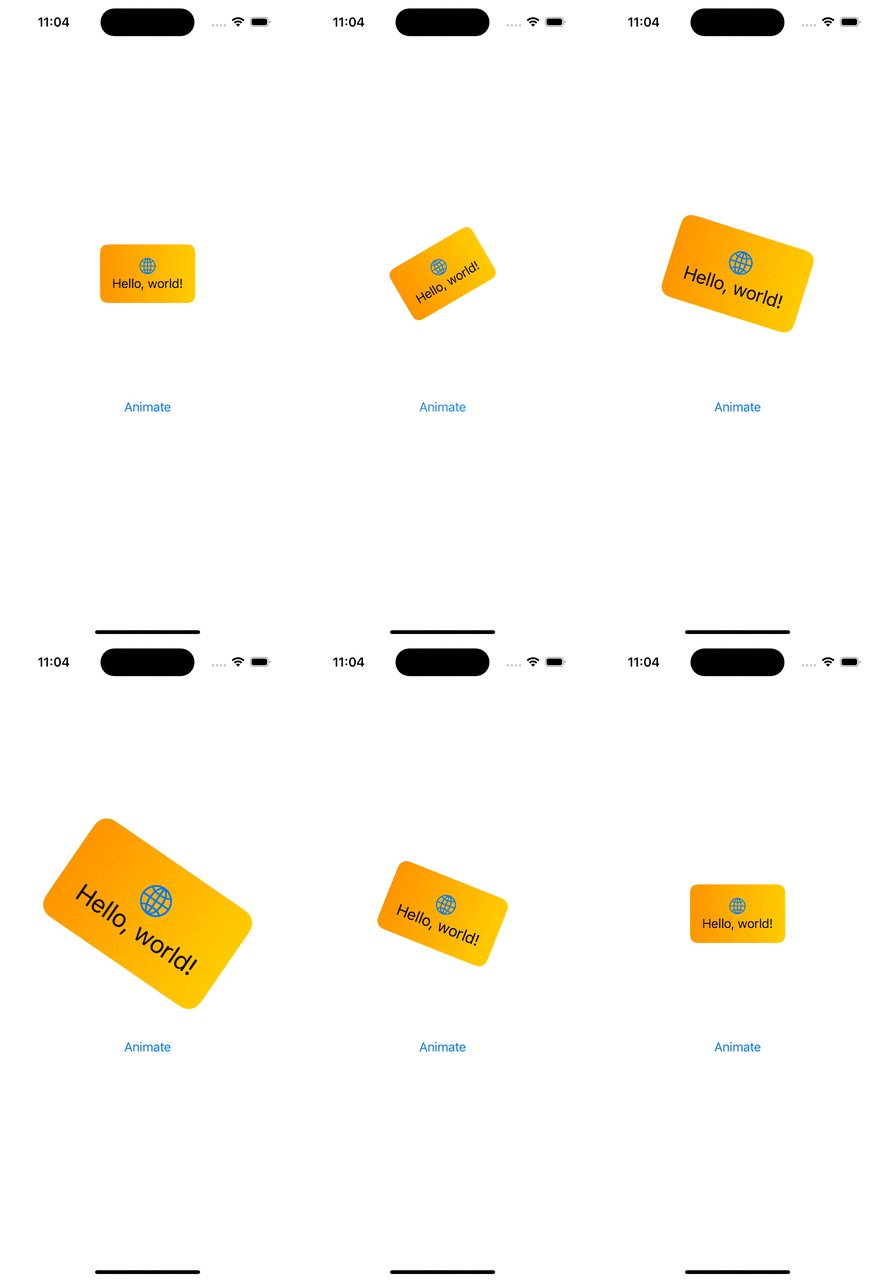
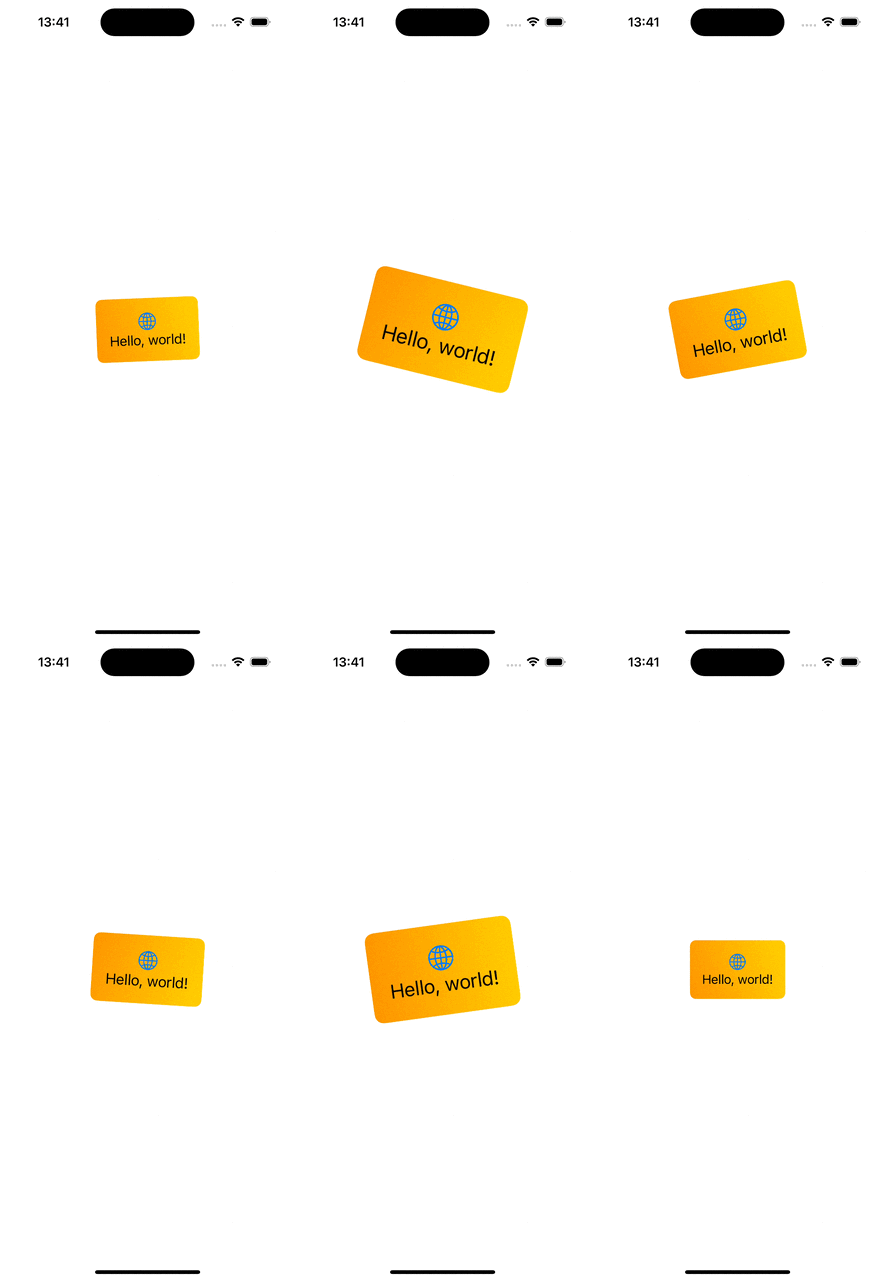
In the previous blog post, we discussed how to use the new phase animator in SwiftUI. Today, we’ll dive into KeyframeAnimator which gives us much more control of the animation. The phase animator worked by specifying different states (e.g. scale, offset etc), and the phase animator animated from one state to another. KeyframeAnimator on the other hand, allows specifying different animation tracks, where each of the track animates a property conforming to the Animatable protocol independently. The value of the property is applied to the view with the content closure of the animator. Each of the animated property is stored by a struct passed into the animator’s initialValues argument. Therefore, the very first thing to start with keyframe animations is creating a new struct which holds animated values and defines initial values. Let’s just animate rotation and scale in our example. Therefore, we can create a struct BannerAnimationValues with rotation and scale properties.

struct BannerAnimationValues {
var rotation: Angle = .zero
var scale = 1.0
}

Secondly, we use keyframeAnimator(initialValue:trigger:content:keyframes:) view modifier on the view. The view modifier defines how these values are applied to the view and when and how exactly the values are animated and interpolated.

BannerView()
.keyframeAnimator(initialValue: BannerAnimationValues(),
trigger: counter,
content: { view, value in
view
.scaleEffect(value.scale)
.rotationEffect(value.rotation)
},
keyframes: { value in
KeyframeTrack(\.scale) {
LinearKeyframe(1.0, duration: 0.5)
SpringKeyframe(2.0, duration: 0.4, spring: .snappy)
CubicKeyframe(1.0, duration: 0.6)
}
KeyframeTrack(\.rotation) {
SpringKeyframe(.degrees(-35), duration: 0.4, spring: .smooth)
SpringKeyframe(.degrees(35), duration: 0.8, spring: .smooth)
LinearKeyframe(.degrees(0), duration: 0.3)
}
})

The first argument is initialValue and we pass our struct with initial values to it. SwiftUI will then modify values of the struct based on the keyframes closure’s KeyframeTracks and keeps calling the content closure to apply new values. In the example above, we can see that the content closure applies scale and rotation effect based on the current animation values. The keyframes closure contains two tracks, since we animate two properties. The first keyframe track defines how the scale property is changed of the BannerAnimationValues struct. Here we keep the scale at 1.0 for 0.5 seconds, then animate the scale value to 2.0 with spring timing function, and finally, setting the scale back to 1.0 using cubic curve timing function. SwiftUI will handle the changes of velocities between different timing functions to keep the animation smooth. The rotation is similar, we use a spring function for setting the rotation to -35 degrees, then to 35 degrees and finally a linear timing for animating the rotation back to 0 degrees.

Some things to keep in mind with keyframe animations is that these animations should not be interrupted or changed in the middle of the animation. This is because we set exact values of the animation, and therefore it can’t retarget to a new set of values and interpolate to new values nicely. Also, the view is updated on every frame, therefore we need to keep in mind performance and not doing any expensive work while the animation is running.
If this was helpful, please let me know on Mastodon@toomasvahter or Twitter @toomasvahter. Feel free to subscribe to RSS feed. Thank you for reading.
Categories
iOS Swift SwiftUI

Animating with PhaseAnimator in SwiftUI

WWDC’23 introduced us a new view modifiers for animating views in SwiftUI. In this blog post, we are going to have a look at phase animation view modifiers. There are two view modifiers: phaseAnimator(_:content:animation:) and phaseAnimator(_:trigger:content:animation:). The first one creates an animation which runs continuously by cycling through all the animation steps. The latter is triggered once when an observed value has changed.

A multistep or multiphase animation is easiest to model using an enum.

enum BannerAnimationPhase: CaseIterable {
case initial, middle, final
var animation: Animation {
switch self {
case .initial: .easeIn
case .middle: .linear
case .final: .easeOut
}
}
var gradientStartPoint: UnitPoint {
switch self {
case .initial: .bottomLeading
case .middle: .leading
case .final: .topLeading
}
}
var rotation: Angle {
switch self {
case .initial: .degrees(-15)
case .middle: .degrees(15)
case .final: .zero
}
}
var scale: Double {
switch self {
case .initial: 1.5
case .middle: 1.7
case .final: 1.0
}
}
}

Here we have an enum with 3 animation phases. Each of the phase slightly modifies 3 values: scale, rotation and gradient start point. These properties are accessed from the phaseAnimator’s view builder, where we modify the original view based on the phase. In addition, we also configured different animations based on the current phase.

struct ContentView: View {
var body: some View {
BannerView()
.phaseAnimator(BannerAnimationPhase.allCases) { content, phase in
content
.background(LinearGradient(colors: [.orange, .yellow],
startPoint: phase.gradientStartPoint,
endPoint: .trailing))
.cornerRadius(8.0)
.scaleEffect(phase.scale)
.rotationEffect(phase.rotation)
} animation: { phase in
phase.animation
}
}
}

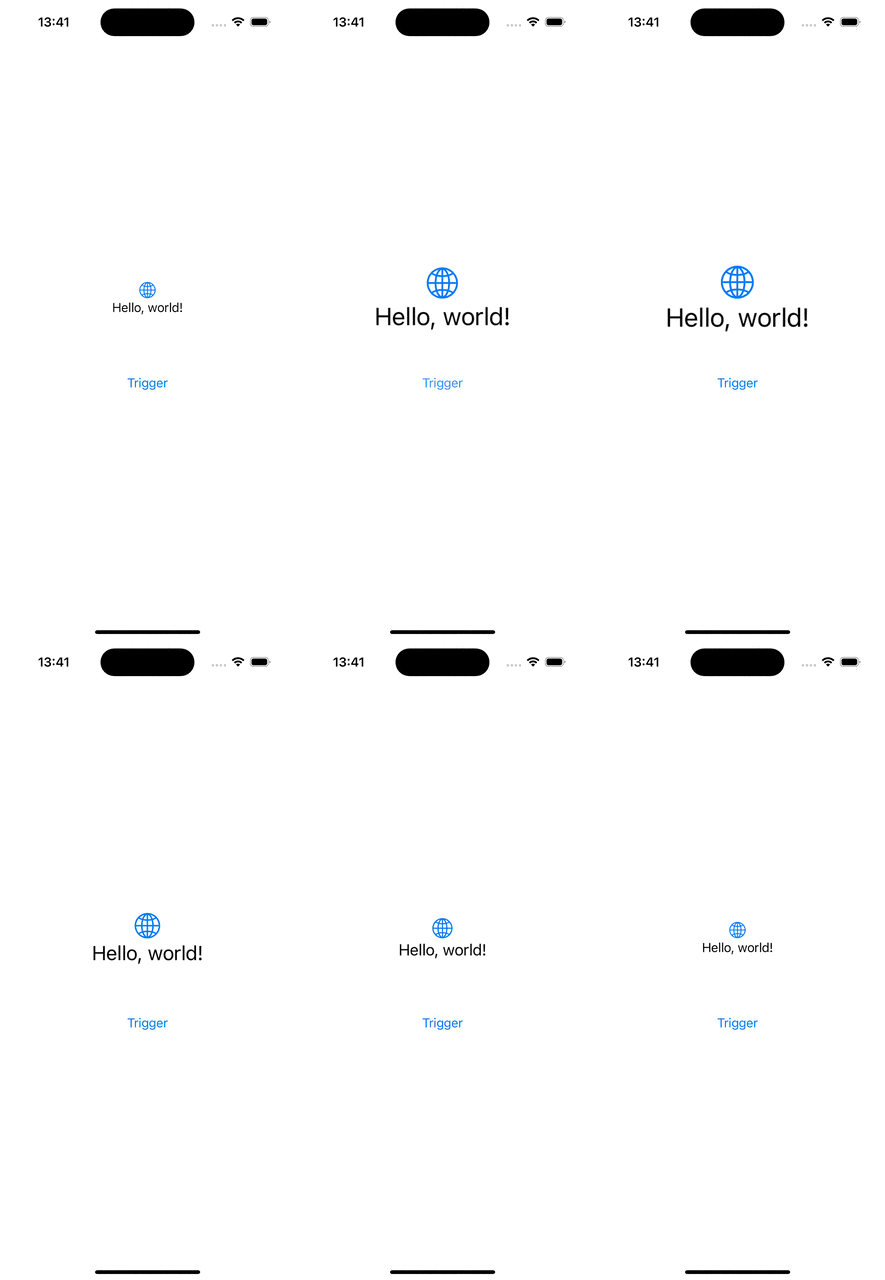
When we only want to have 2 phases for our animation, then we can use boolean values for defining the animation. Below is an example of an animation which is triggered when a value changes and the animation just scales up the banner view and then animates to the initial state – false.

BannerView()
.phaseAnimator([false, true],
trigger: counter) { content, isEnabled in
content
.scaleEffect(isEnabled ? 2.0 : 1.0)
} animation: { isEnabled in
isEnabled ? .bouncy : .easeOut(duration: 0.7)
}
Button("Trigger", action: { counter += 1 })

If this was helpful, please let me know on Mastodon@toomasvahter or Twitter @toomasvahter. Feel free to subscribe to RSS feed. Thank you for reading.
Categories
iOS Swift SwiftUI

Examples of animating SF symbols in SwiftUI

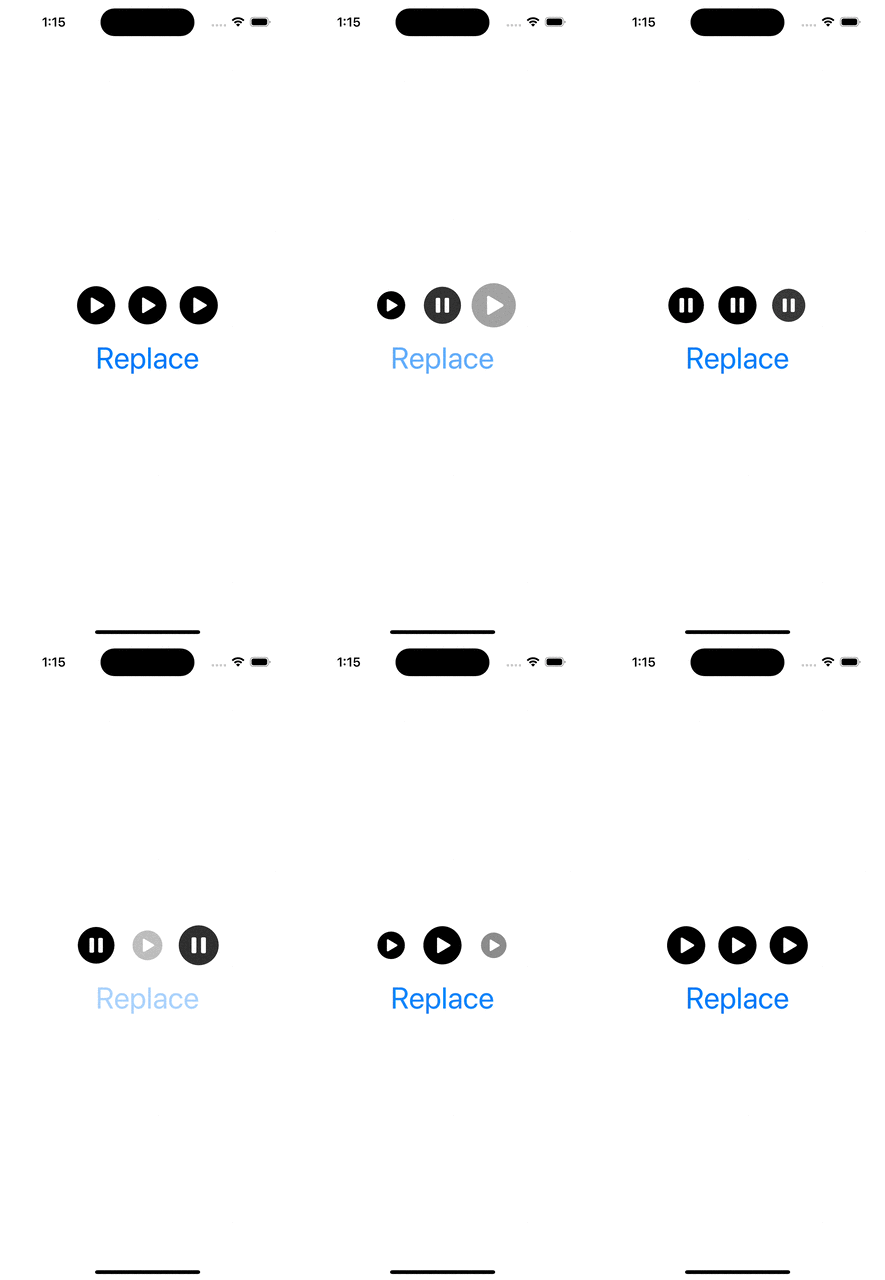
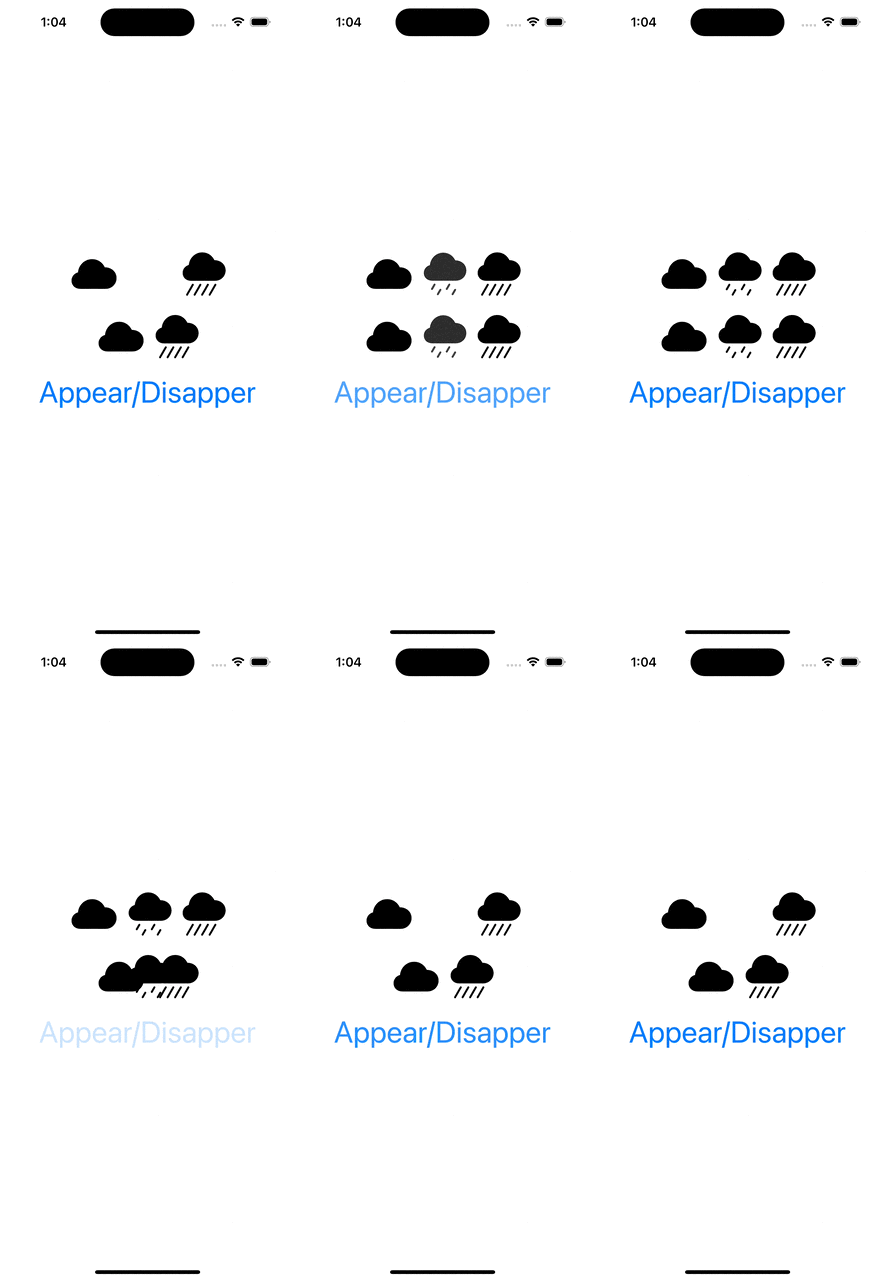
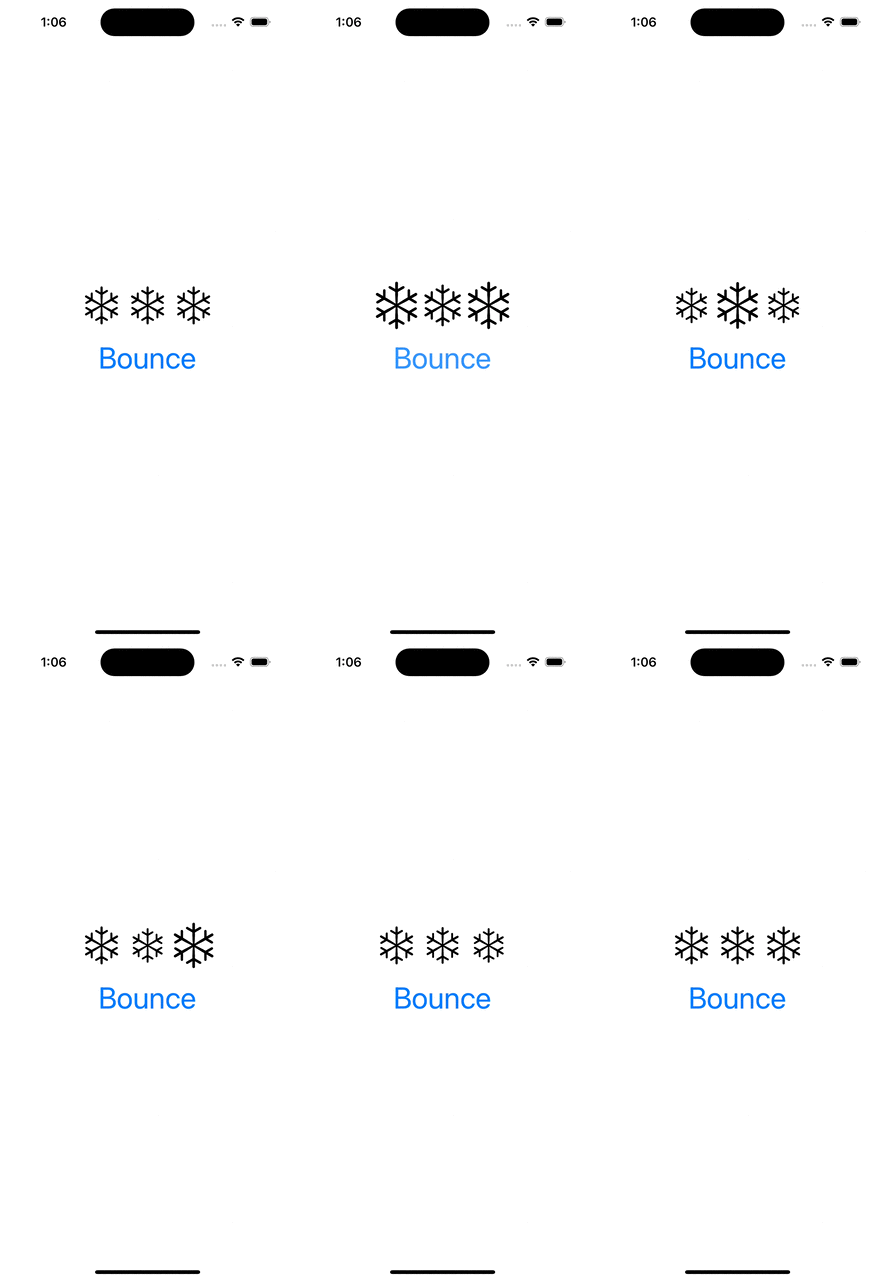
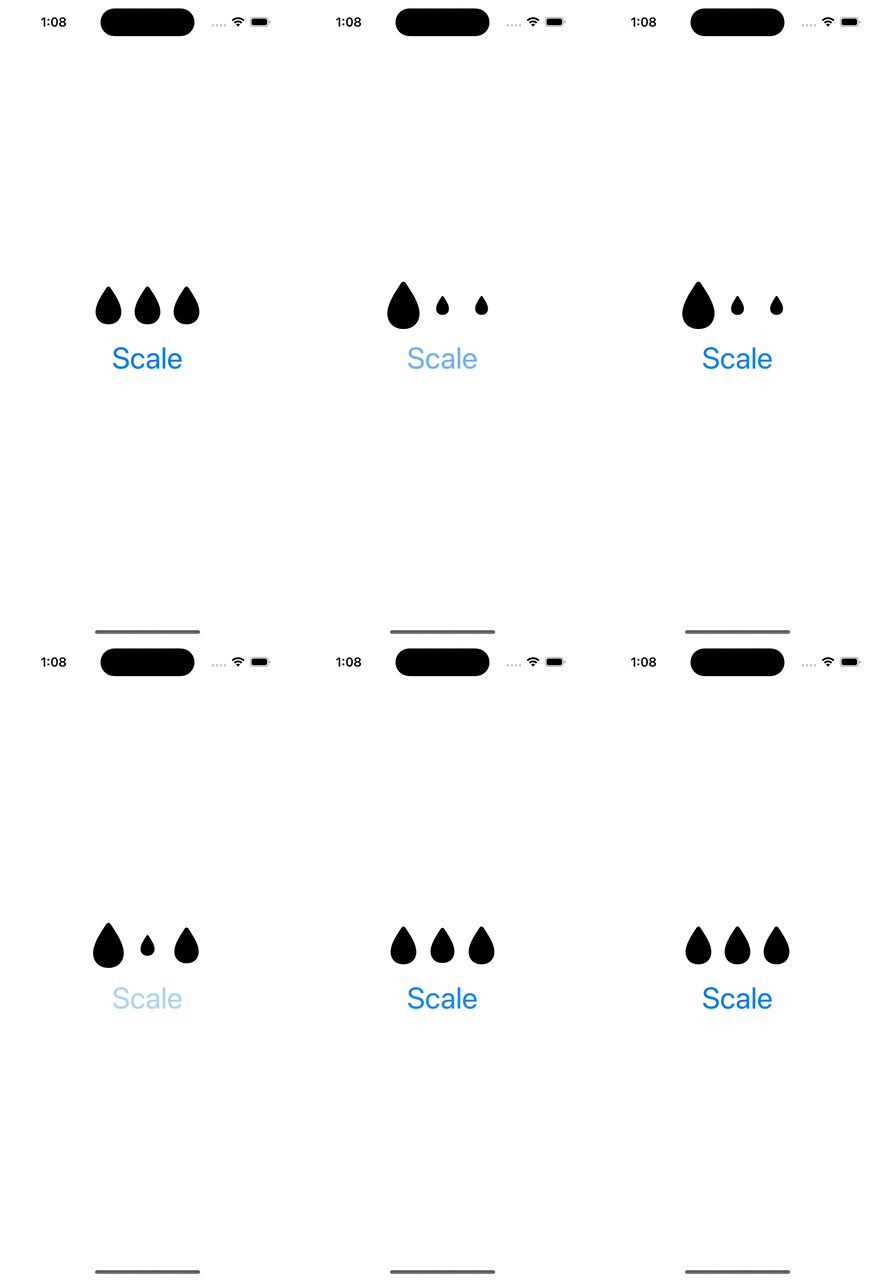
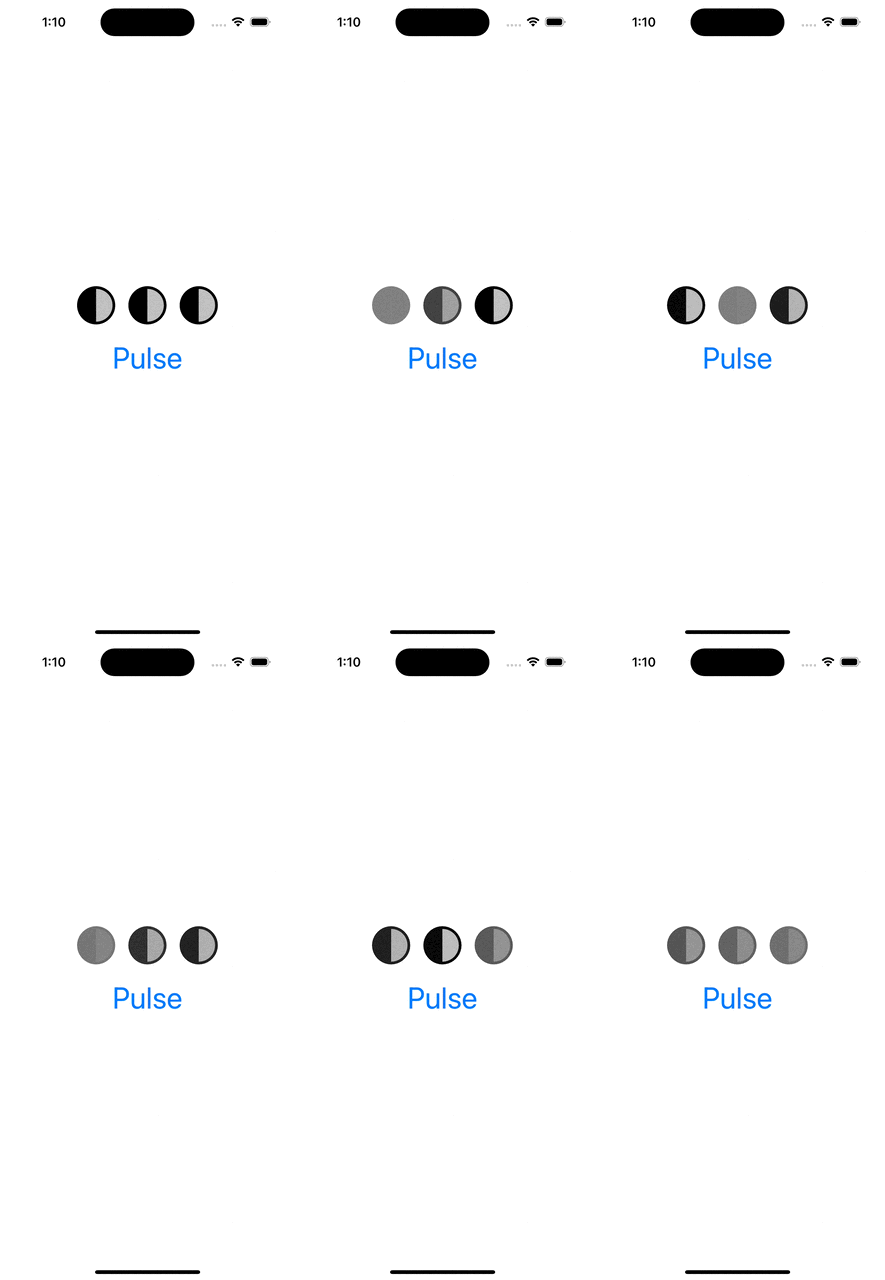
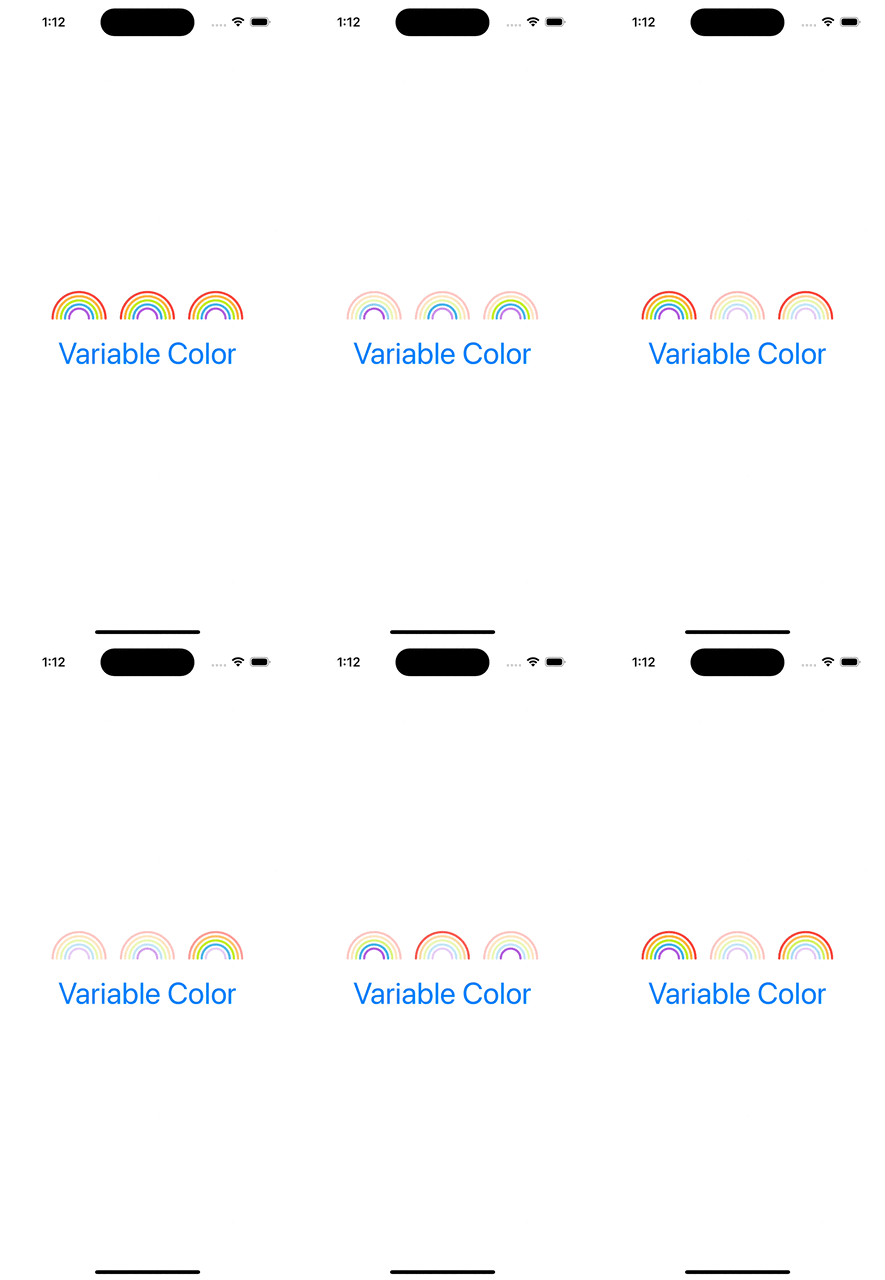
WWDC’23 introduced SF symbol animations. There are 8 different animation presets: appear, disappear, bounce, scale, pulse, variable color, and replace. Each of these presets have a dedicated use-cases. Appear animation is used when a symbol is shown in the UI for the first time. Disappear when a symbol is removed from the UI. Bounce is suitable for communicating to a user that an action was triggered, or it was completed successfully. Scale animation is suitable for highlighting elements in the UI, like when hovering on the element. It could also be used to let the user know that an action has taken a place (think about a button which has pressed down state). Pulse animation is an excellent way to show that some action is ongoing. While recording a video, the record button’s symbol pulses. Variable color animation communicates a state which changes over time (Wi-Fi signal strength). Replace animation is useful for communicating that the function of a symbol has changed. Think about a play button changing to a pause button.

Symbol animations are applied with symbolEffect(_:options:value:) for discrete effects, symbolEffect(_:options:isActive:) for indefinite effects and contentTransition(_:) and transition() view modifiers with a new symbolEffect. Discrete effects are on-off effects, whereas indefinite effects change the symbol indefinitely and need to be explicitly removed. Bounce, pulse, and variable color support discrete effects and pulse, variable color, scale, appear, disappear support indefinite effects. Appear and disappear also support transition effects, and replace supports a content transition effect. Therefore, we need to keep in mind this information when picking the view modifier.

Next, let’s look at some of the examples and how to apply these view modifiers.

Appear and Disappear

struct AppearDisappearView: View {
@State private var isDrizzleHidden = true
var body: some View {
VStack(spacing: 16) {
HStack {
Image(systemName: "cloud.fill")
Image(systemName: "cloud.drizzle.fill")
.symbolEffect(.disappear, isActive: isDrizzleHidden)
Image(systemName: "cloud.heavyrain.fill")
}
.imageScale(.large)
HStack {
Image(systemName: "cloud.fill")
if !isDrizzleHidden {
Image(systemName: "cloud.drizzle.fill")
.transition(.symbolEffect(.automatic))
}
Image(systemName: "cloud.heavyrain.fill")
}
.imageScale(.large)
Button("Appear/Disapper") {
isDrizzleHidden.toggle()
}
}
}
}

Bounce

struct BounceView: View {
@State private var value = 0
var body: some View {
VStack(spacing: 16) {
HStack {
Image(systemName: "snowflake")
.symbolEffect(.bounce, value: value)
Image(systemName: "snowflake")
.symbolEffect(.bounce, options: .speed(0.1), value: value)
Image(systemName: "snowflake")
.symbolEffect(.bounce, options: .repeat(2), value: value)
}
.imageScale(.large)
Button("Bounce") { value += 1 }
}
}
}

Scale

struct ScaleView: View {
@State private var isActive = false
var body: some View {
VStack(spacing: 16) {
HStack {
Image(systemName: "drop.fill")
.symbolEffect(.scale.up, isActive: isActive)
Image(systemName: "drop.fill")
.symbolEffect(.scale.down, options: .speed(0.1), isActive: isActive)
Image(systemName: "drop.fill")
.symbolEffect(.scale.down, options: .speed(5), isActive: isActive)
}
.imageScale(.large)
Button("Scale") { isActive.toggle() }
}
}
}
view raw ScaleView.swift hosted with ❤ by GitHub

Pulse

struct PulseView: View {
@State private var isActive = false
var body: some View {
VStack(spacing: 16) {
HStack {
Image(systemName: "moonphase.first.quarter")
.symbolEffect(.pulse, isActive: isActive)
Image(systemName: "moonphase.first.quarter")
.symbolEffect(.pulse, options: .speed(0.1), isActive: isActive)
Image(systemName: "moonphase.first.quarter")
.symbolEffect(.pulse, options: .speed(5), isActive: isActive)
}
.imageScale(.large)
Button("Pulse") { isActive.toggle() }
}
}
}
view raw PulseView.swift hosted with ❤ by GitHub

Variable Color

struct VariableColorView: View {
@State private var isActive = false
var body: some View {
VStack(spacing: 16) {
HStack {
Image(systemName: "rainbow")
.symbolEffect(.variableColor, options: .speed(0.1), isActive: isActive)
Image(systemName: "rainbow")
.symbolEffect(.variableColor.iterative, options: .speed(0.1), isActive: isActive)
Image(systemName: "rainbow")
.symbolEffect(.variableColor.iterative.reversing, options: .speed(0.1), isActive: isActive)
}
.symbolRenderingMode(.multicolor)
.imageScale(.large)
Button("Variable Color") { isActive.toggle() }
}
}
}

Replace

struct ReplaceView: View {
@State private var isActive = false
var body: some View {
VStack(spacing: 16) {
HStack {
Image(systemName: isActive ? "pause.circle.fill" : "play.circle.fill")
.contentTransition(.symbolEffect(.replace))
Image(systemName: isActive ? "pause.circle.fill" : "play.circle.fill")
.contentTransition(.symbolEffect(.replace.offUp))
Image(systemName: isActive ? "pause.circle.fill" : "play.circle.fill")
.contentTransition(.symbolEffect(.replace.upUp))
}
.imageScale(.large)
Button("Replace") { isActive.toggle() }
}
}
}

Example Project

SymbolsAnimationExample (Xcode 15 beta 6)

If this was helpful, please let me know on Mastodon@toomasvahter or Twitter @toomasvahter. Feel free to subscribe to RSS feed. Thank you for reading.
Categories
iOS macOS Swift SwiftUI

Animating a custom wave shape in SwiftUI

Shape protocol in SwiftUI is used for defining views which render custom shapes. Shapes have one required method which takes in a rect and returns a Path. In addition to view protocol, shape conforms to Animatable protocol as well. Therefore we can quite easily make our custom shape to animate from one state to another. We’ll use two parameters for defining our Wave shape: amplitude and frequency. Amplitude dictates the height of the wave and frequency the distance between wave peaks.

Animating wave shape by changing amplitude and frequency
Animating wave shape.

SwiftUI view displaying an animatable wave shape

Let’s take a look on an example view which displays custom Wave shape. We’ll use @State property wrappers for storing amplitude and frequency because we want to change those values when running the app. Those properties are updated with random values when pressing a button. The wave has blue fill color, fixed height, and basic easeInOut animation. The animation is used when amplitude and/or frequency change.

struct ContentView: View {
@State private var amplitude = 10.0
@State private var frequency = 0.1
var body: some View {
ZStack {
Wave(amplitude: amplitude, frequency: frequency)
.fill(Color.blue)
.frame(height: 300.0)
.animation(.easeInOut(duration: 3))
Button(action: toggleAnimation, label: {
Text("Animate")
})
.padding(4)
.background(Color.red)
.cornerRadius(8)
.foregroundColor(.white)
}
}
func toggleAnimation() {
amplitude = amplitude <= 15.0 ? Double.random(in: 30.0…60.0) : Double.random(in: 5.0…15.0)
frequency = frequency <= 0.2 ? Double.random(in: 0.2…0.4) : Double.random(in: 0.05…0.2)
}
}
Content view rendering a wave shape with a button starting an animation.

Animatable wave shape

Like mentioned in the introduction, the Shape protocol defines a required method which has a rect argument and returns a Path. The path starts from the top left edge. Sine function is used for calculating y coordinates for every x coordinate with a 1 point step. Right, bottom and left edges are just straight lines.

Animatable protocol defines an animatableData property and because we have two parameters (amplitude and frequency) we’ll need to use AnimatablePair type. If there would be more parameters then AnimatablePair should contain one or more AnimatablePair types (and so on). Note that values in animatableData must conform to VectorArithmetic protocol which Double type already does.

When animation is running then SwiftUI calculates amplitude and frequency values based on the current animation frame and sets it to the animatableData property. Then new Path value is calculated and rendered.

struct Wave: Shape {
var amplitude: Double
var frequency: Double
func path(in rect: CGRect) -> Path {
let sinCenterY = amplitude
let path = CGMutablePath()
path.move(to: CGPoint(x: 0, y: sinCenterY))
let width = Double(rect.width)
for x in stride(from: 0, through: width, by: 1) {
let y = sinCenterY + amplitude * sin(frequency * x)
path.addLine(to: CGPoint(x: x, y: y))
}
path.addLine(to: CGPoint(x: rect.maxX, y: rect.maxY))
path.addLine(to: CGPoint(x: rect.minX, y: rect.maxY))
path.addLine(to: CGPoint(x: Double(rect.minX), y: sinCenterY))
return Path(path)
}
var animatableData: AnimatablePair<Double, Double> {
get {
return AnimatablePair(amplitude, frequency)
}
set {
amplitude = newValue.first
frequency = newValue.second
}
}
}
view raw Wave.swift hosted with ❤ by GitHub
Animatable Wave shape.

Summary

We took a look at the Shape protocol and created a wave shape. In addition, we made the wave to animate from one amplitude and frequency state to a new state.

If this was helpful, please let me know on Mastodon@toomasvahter or Twitter @toomasvahter. Feel free to subscribe to RSS feed. Thank you for reading.
Categories
iOS Swift SwiftUI

Revealing content behind keyboard in SwiftUI

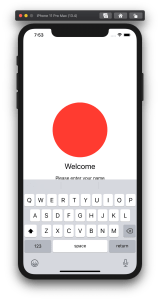
By default SwiftUI view content gets behind a keyboard when editing text. Therefore let’s create a view modifier which can be easily added to any SwiftUI view and enables revealing content behind the keyboard with animation. In the end we will fix this broken looking view where TextField is behind the keyboard.

SwiftUI view with open keyboard hiding text field.

Observing keyboard notifications

I wrote about keyboard notifications a while ago in “Observing keyboard visibility on iOS”. We’ll also create a class named KeyboardObserver and its responsibility is to observe keyboardWillChangeFrameNotification, keyboardWillShowNotification and keyboardWillHideNotification and extracting values from the notification’s userInfo. In addition, we’ll add Info struct which holds animation duration, curve and end frame. Note that user info contains more values but we are only interested in those. With this set, we can subscribe to KeyboardObserver and get notified when keyboard changes. Next step is to use those values and reserving space for keyboard in SwiftUI view.

fileprivate final class KeyboardObserver: ObservableObject {
    struct Info {
        let curve: UIView.AnimationCurve
        let duration: TimeInterval
        let endFrame: CGRect
    }
    
    private var observers = [NSObjectProtocol]()
    
    init() {
        let handler: (Notification) -> Void = { [weak self] notification in
            self?.keyboardInfo = Info(notification: notification)
        }
        let names: [Notification.Name] = [
            UIResponder.keyboardWillShowNotification,
            UIResponder.keyboardWillHideNotification,
            UIResponder.keyboardWillChangeFrameNotification
        ]
        observers = names.map({ name in
            NotificationCenter.default.addObserver(forName: name,
                                                   object: nil,
                                                   queue: .main,
                                                   using: handler)
        })
    }

    @Published var keyboardInfo = Info(curve: .linear, duration: 0, endFrame: .zero)
}

fileprivate extension KeyboardObserver.Info {
    init(notification: Notification) {
        guard let userInfo = notification.userInfo else { fatalError() }
        curve = {
            let rawValue = userInfo[UIResponder.keyboardAnimationCurveUserInfoKey] as! Int
            return UIView.AnimationCurve(rawValue: rawValue)!
        }()
        duration = userInfo[UIResponder.keyboardAnimationDurationUserInfoKey] as! TimeInterval
        endFrame = userInfo[UIResponder.keyboardFrameEndUserInfoKey] as! CGRect
    }
}

Creating view modifier

View modifiers in SwiftUI transform the original view and return a new version of the original view. In the view modifier we’ll observe KeyboardObserver and add bottom padding to the original view based on the keyboard height and current safeAreaInsets. In addition, we’ll wrap it into animation block which tells SwiftUI to animate changes.

struct KeyboardVisibility: ViewModifier {
    @ObservedObject fileprivate var keyboardObserver = KeyboardObserver()

    func body(content: Content) -> some View {
        GeometryReader { geometry in
            withAnimation() {
                content.padding(.bottom, max(0, self.keyboardObserver.keyboardInfo.endFrame.height - geometry.safeAreaInsets.bottom))
                    .animation(Animation(keyboardInfo: self.keyboardObserver.keyboardInfo))
            }
        }
    }
}

fileprivate extension Animation {
    init(keyboardInfo: KeyboardObserver.Info) {
        switch keyboardInfo.curve {
        case .easeInOut:
            self = .easeInOut(duration: keyboardInfo.duration)
        case .easeIn:
            self = .easeIn(duration: keyboardInfo.duration)
        case .easeOut:
            self = .easeOut(duration: keyboardInfo.duration)
        case .linear:
            self = .linear(duration: keyboardInfo.duration)
        @unknown default:
            self = .easeInOut(duration: keyboardInfo.duration)
        }
    }
}

The view modifier uses GeometryReader for reading safeAreaInsets. It’s important to take this into account when keyboard is open, otherwise there will be unnecessary spacing.

View modifiers can be added to a view by using modifier function and passing an instance of view modifier to it. We’ll add a convenience method for it.

extension View {
    func keyboardVisibility() -> some View {
        return modifier(KeyboardVisibility())
    }
}

Using view modifier

Next step is to adding the view modifier to a content view. The view modifier should be added to the root view and it is recommended to use ScrollView for making sure all the content is viewable when keyboard is open. It’s time to fix the view mentioned in the beginning of the post. We’ll add keyboardVisibility view modifier to the root view.

struct ContentView: View {
    @State private var text: String = ""
    
    var body: some View {
        VStack(spacing: 16) {
            Spacer()
            Ellipse().foregroundColor(.red)
                .aspectRatio(contentMode: .fit)
                .frame(height: 200)
            Text("Welcome").font(.title)
            Text("Please enter your name")
            TextField("Name", text: $text)
                .textFieldStyle(RoundedBorderTextFieldStyle())
                .padding()
            Spacer()
        }.keyboardVisibility()
    }
}

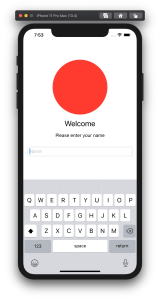
KeyboardVisibility view modifier will make sure the content view has bottom spacing equal to keyboard height and the end result looks like this.

SwiftUI view with keyboard visibility view modifier.

Summary

We created a view modifier which is easy to add to existing views. It observers keyboard notifications and animates the content view along with keyboard.

If this was helpful, please let me know on Mastodon@toomasvahter or Twitter @toomasvahter. Feel free to subscribe to RSS feed. Thank you for reading.
Example project

SwiftUIKeyboardObserver (Xcode 11.4 beta 3)

Categories
Combine iOS Swift SwiftUI

Animating view transitions in SwiftUI

One building block for navigating from one view to another is NavigationView which is a representation of UINavigationController in UIKit. This time, let’s take a look on how to transition from one SwiftUI view to another one without NavigationView.

AppFlowCoordinator managing choosing the view

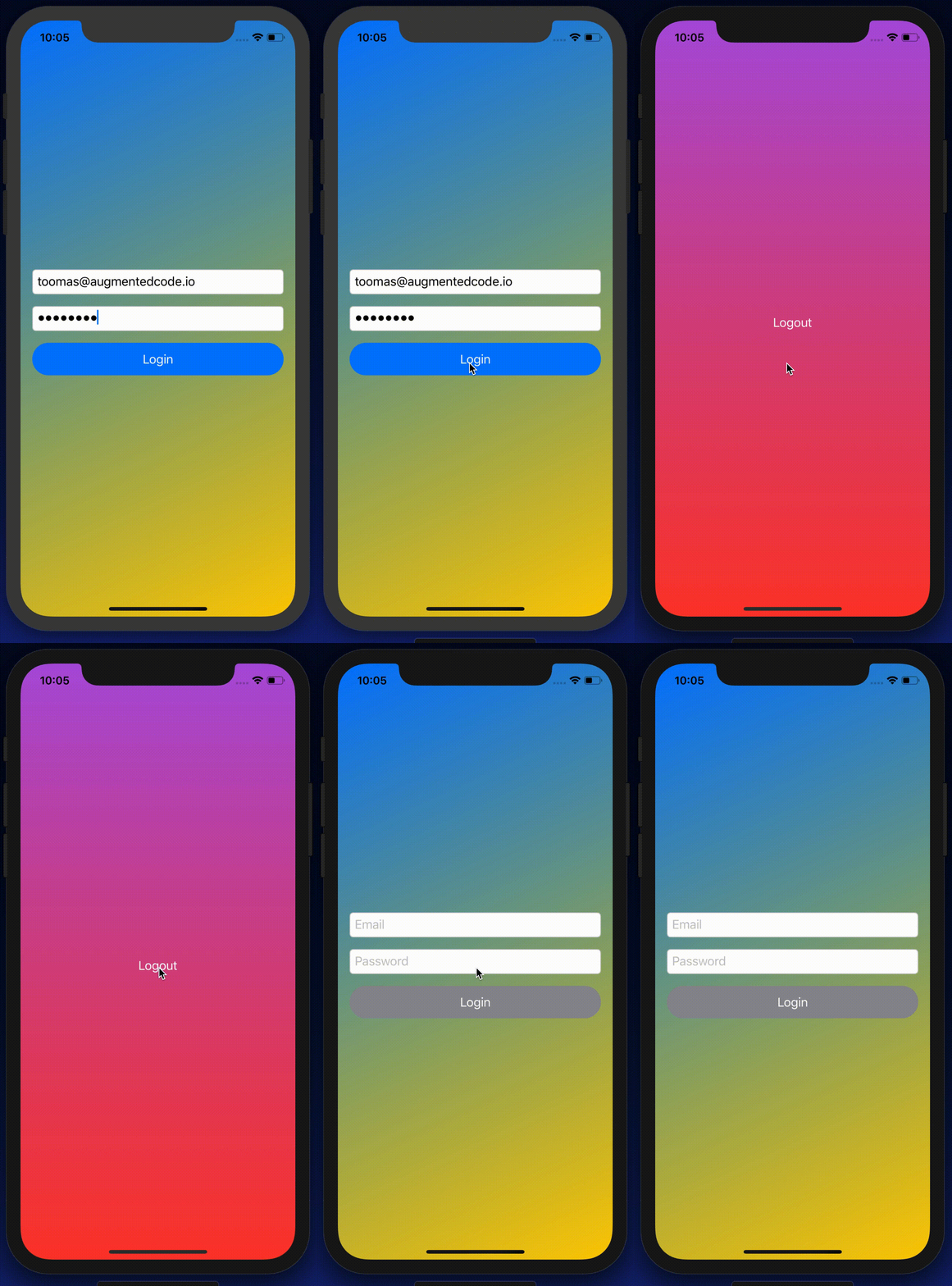
The idea is to have a root SwiftUI view with only responsibility of presenting the active view. State is stored in AppFlowCoordinator which can be accessed from other views and therefore other views can trigger navigation. Example case we’ll build, is animating transitions from login view to main view and back. As said, AppFlowCoordinator stores the information about which view should be on-screen at a given moment. All the views are represented with an enum and based on the value in enum, views are created. This coordinator is ObservableObject what makes it easy to bind to a SwiftUI view – whenever activeFlow changes, SwiftUI view is updated. The term flow is used because views can consist of stack of other views and therefore creating a flow of views.

import SwiftUI
final class AppFlowCoordinator: ObservableObject {
@Published var activeFlow: Flow = .login
func showLoginView() {
withAnimation {
activeFlow = .login
}
}
func showMainView() {
withAnimation {
activeFlow = .main
}
}
}
extension AppFlowCoordinator {
enum Flow {
case login, main
}
}
Triggering navigation using flow controller.

RootView displaying active flow

RootView selects which view is currently visible. It accesses coordinator through environment. SwiftUI requires EnvironmentObjects to be ObservableObjects, therefore this view is automatically refreshed when activeFlow changes in the AppFlowCoordinator. RootView’s body is annotated with @ViewBuilder which will enable the view to return a body with type depending on the current state (HStack is also a ViewBuilder). Other options are wrapping the views with AnyView or using Group. In our case the view types are LoginView and ContentView. Both views also define the transition animation what is used when view refresh is triggered in withAnimation closure in AppFlowCoordinator. Asymmetric enables defining different transitions when view is added and removed from the view hierarchy.

let appFlowCoordinator = AppFlowCoordinator()
let rootView = RootView().environmentObject(appFlowCoordinator)
window.rootViewController = UIHostingController(rootView: rootView)
Inserting AppFlowCoordinator to environment
struct RootView: View {
@EnvironmentObject var appFlowCoordinator: AppFlowCoordinator
@ViewBuilder
var body: some View {
ZStack {
Color.black.edgesIgnoringSafeArea(.all)
if appFlowCoordinator.activeFlow == .main {
ContentView().transition(.asymmetric(insertion: .scale, removal: .opacity))
}
else if appFlowCoordinator.activeFlow == .login {
LoginView().transition(.asymmetric(insertion: .slide, removal: .opacity))
}
else {
EmptyView()
}
}
}
}
view raw RootView.swift hosted with ❤ by GitHub
Updating currently visible flow with transition animations

Triggering navigation from SwiftUI view

Last piece we need to take a look at is how to trigger transition. As AppFlowCoordinator is in environment, any view can access the coordinator and call any of the navigation methods. When login finishes, LoginView can tell the coordinator to show the main content view.

struct LoginView: View {
@EnvironmentObject var appFlowCoordinator: AppFlowCoordinator
var body: some View {
ZStack {
Button(action: appFlowCoordinator.showMainView) {
Text("Login")
}
}
}
}
view raw LoginView.swift hosted with ❤ by GitHub
Navigating to main view from login view

Summary

We took a look on how to navigate from one SwiftUI view to another by using a coordinator object. Coordinator stored the information about which view we should currently display on screen. We saw how easy it is to trigger navigation from any of the currently visible views.

transition animation
Low FPS GIF representing the transition animation

If this was helpful, please let me know on Mastodon@toomasvahter or Twitter @toomasvahter. Feel free to subscribe to RSS feed. Thank you for reading.
Example

RootViewTransitions Xcode 11.2.1, Swift 5.1

Categories
iOS Swift UIKit

Interactive animation with UIViewPropertyAnimator on iOS

UIViewPropertyAnimator enables configuring animations which can be modified when running. Animations can be paused and progress can be changed allowing to build interactive animations. UIViewPropertyAnimations are in stopped state by default. If we want to run the animation immediately, we can use class method runningPropertyAnimator(withDuration:delay:options:animations:completion:). UIViewPropertyAnimator gives us a lot of flexibility when it comes to composing animations and controlling them. Therefore let’s build an animation consisting of rotating and moving a view out of the visible rect.

Adding a view to animate

Firstly, we need to add a view which we are going to animate using UIViewPropertyAnimator. View is a UIView subclass which just overrides layerClass and returns CAGradientLayer instead. View is positioned into initial place using auto layout.

private lazy var animatingView: UIView = {
let view = GradientView(frame: .zero)
view.gradientLayer.colors = (1…3).map({ "Gradient\($0)" }).map({ UIColor(named: $0)!.cgColor })
view.translatesAutoresizingMaskIntoConstraints = false
return view
}()
override func viewDidLoad() {
super.viewDidLoad()
view.backgroundColor = .darkGray
view.addGestureRecognizer(gestureRecognizer)
view.addSubview(animatingView)
NSLayoutConstraint.activate([
animatingView.leadingAnchor.constraint(equalTo: view.leadingAnchor, constant: 72),
animatingView.trailingAnchor.constraint(equalTo: view.trailingAnchor, constant: -72),
animatingView.topAnchor.constraint(equalTo: view.topAnchor, constant: 72),
animatingView.bottomAnchor.constraint(equalTo: view.bottomAnchor, constant: -72)
])
}

Creating animations with UIViewPropertyAnimator

UIViewPropertyAnimator has several initialisers allowing to control the used timing function. In this example we’ll just use built-in ease in and ease out timing. This just means animation pace increases in the beginning and slows down at the end of the animation. In addition to mentioned UICubicTimingParameters (ease in and ease out), there is support for UISpringTimingParameters as well. Both timing parameters can be passed in using the convenience initialiser init(duration:timingParameters:). The animation is configured to rotate the view by 90 degrees and move the view following a spline created by current point of the view and two other points. When animation ends, we reset the transform and tell auto layout to update the layout which will just move the view back to the initial position.

private func makeAnimator() -> UIViewPropertyAnimator {
let animator = UIViewPropertyAnimator(duration: 2.0, curve: .easeInOut)
let bounds = view.bounds
animator.addAnimations { [weak animatingView] in
guard let animatingView = animatingView else { return }
animatingView.transform = CGAffineTransform(rotationAngle: CGFloat.pi / 2.0)
UIView.animateKeyframes(withDuration: 2.0, delay: 0.0, options: .calculationModeCubic, animations: {
UIView.addKeyframe(withRelativeStartTime: 0.0, relativeDuration: 0.4, animations: {
animatingView.center = CGPoint(x: bounds.width * 0.8, y: bounds.height * 0.85)
})
UIView.addKeyframe(withRelativeStartTime: 0.4, relativeDuration: 0.6, animations: {
animatingView.center = CGPoint(x: bounds.width + animatingView.bounds.height, y: bounds.height * 0.6)
})
})
}
animator.addCompletion({ [weak self] (_) in
guard let self = self else { return }
self.animatingView.transform = CGAffineTransform(rotationAngle: 0.0)
self.animator = nil
self.view.setNeedsLayout()
self.view.layoutIfNeeded()
})
return animator
}
view raw Animator.swift hosted with ❤ by GitHub

Interrupting animation with UIPanGestureRecognizer

UIPanGestureRecognizer is used for interrupting the animation. When user starts dragging a finger on the screen, we capture the current animation progress and the initial point of the touch. Then, we can update the animation progress when dragging the finger to the left or right. When moving the finger back and forth, we can move the animation forward or backwards. As soon as letting the finger go, we start the animation which continues the animation from the update fractionComplete. The constant 300 is just a value defining the amount user needs to move the finger to be able to change the fractionComplete from 0.0 to 1.0.

private lazy var gestureRecognizer: UIPanGestureRecognizer = {
let recognizer = UIPanGestureRecognizer(target: self, action: #selector(updateProgress(_:)))
recognizer.maximumNumberOfTouches = 1
return recognizer
}()
@objc private func updateProgress(_ recognizer: UIPanGestureRecognizer) {
if animator == nil {
animator = makeAnimator()
}
guard let animator = animator else { return }
switch recognizer.state {
case .began:
animator.pauseAnimation()
fractionCompletedStart = animator.fractionComplete
dragStartPosition = recognizer.location(in: view)
case .changed:
animator.pauseAnimation()
let delta = recognizer.location(in: view).x – dragStartPosition.x
animator.fractionComplete = max(0.0, min(1.0, fractionCompletedStart + delta / 300.0))
case .ended:
animator.startAnimation()
default:
break
}
}

Summary

With UIViewPropertyAnimator we can build interactive animations with a very little code. Its API allows controlling the flow of the animations by pausing the animation and controlling the progress of the animation dynamically.

If this was helpful, please let me know on Mastodon@toomasvahter or Twitter @toomasvahter. Feel free to subscribe to RSS feed. Thank you for reading.
Example project

InteractiveAnimation (Xcode 10.2, Swift 5)

Resources

Categories
CoreAnimation iOS Swift UIKit

Custom non-interactive transition in iOS

In iOS view transitions can be interactive and non-interactive. In this post we are going to take a look on how to implement a custom non-interactive transition.

Setting up a custom transition

For setting up a custom non-interactive transition it is needed to create an animator object defining the transition and feeding it into UIKit. Before view controller is presented, we’ll need to change the UIModalPresentationStyle to custom, set delegate and with delegate method providing the custom animator to UIKit.

final class ViewController: UIViewController, UIViewControllerTransitioningDelegate {
@objc func showView() {
let presentedViewController = PresentedViewController()
presentedViewController.modalPresentationStyle = .custom
presentedViewController.transitioningDelegate = self
present(presentedViewController, animated: true, completion: nil)
}
private let transition = CustomTransition()
func animationController(forPresented presented: UIViewController, presenting: UIViewController, source: UIViewController) -> UIViewControllerAnimatedTransitioning? {
return transition
}
}

Custom animator

Custom animator object needs to conform to UIViewControllerContextTransitioning. It is required to implement a method defining the duration of the transition and method performing the transition. UIKit calls those methods and provides a UIViewControllerContextTransitioning object what gives contextual information about the transition (e.g. view controllers related to the transition). It is important to check isAnimated property for seeing if the transition should be animated at all. Secondly, it is required to call completeTransition() when transition has finished.
Let’s take a look on an example implementation of custom transition. In this particular case Core Animation is used for implementing animations. Several animations run in an animation group, and when it finishes, completeTransition() is called. Core Animation is used because of the need to rotate the presented view which is easy to do with CABasicAnimation. Just for keeping in mind that most of the simpler animations might be easier just to implement with UIView’s animate(withDuration:delay:options:animations:completion:).

final class CustomTransition: NSObject, CAAnimationDelegate, UIViewControllerAnimatedTransitioning {
func transitionDuration(using transitionContext: UIViewControllerContextTransitioning?) -> TimeInterval {
return 1.0
}
func animateTransition(using transitionContext: UIViewControllerContextTransitioning) {
guard let toViewController = transitionContext.viewController(forKey: .to) else { return }
transitionContext.containerView.addSubview(toViewController.view)
if transitionContext.isAnimated {
toViewController.view.frame = transitionContext.finalFrame(for: toViewController)
let opacity: CABasicAnimation = {
let animation = CABasicAnimation(keyPath: "opacity")
animation.duration = transitionDuration(using: transitionContext)
animation.fromValue = 0.0
animation.timingFunction = CAMediaTimingFunction(name: .easeIn)
animation.toValue = 1.0
return animation
}()
let rotation: CABasicAnimation = {
let animation = CABasicAnimation(keyPath: "transform.rotation")
animation.duration = transitionDuration(using: transitionContext)
animation.fromValue = 0.0
animation.toValue = 2.0 * 2.0 * Double.pi
animation.timingFunction = CAMediaTimingFunction(name: .easeIn)
return animation
}()
let scale: CABasicAnimation = {
let animation = CABasicAnimation(keyPath: "transform.scale")
animation.duration = transitionDuration(using: transitionContext)
animation.fromValue = 0.1
animation.toValue = 1.0
animation.timingFunction = CAMediaTimingFunction(name: .easeInEaseOut)
return animation
}()
let group: CAAnimationGroup = {
let group = CAAnimationGroup()
group.animations = [opacity, rotation, scale]
group.delegate = self
group.duration = transitionDuration(using: transitionContext)
return group
}()
self.transitionContext = transitionContext
toViewController.view.layer.add(group, forKey: "rotateScaleGroup")
}
else {
toViewController.view.frame = transitionContext.finalFrame(for: toViewController)
transitionContext.completeTransition(true)
}
}
private var transitionContext: UIViewControllerContextTransitioning? = nil
func animationDidStop(_ animation: CAAnimation, finished isFinished: Bool) {
transitionContext?.completeTransition(isFinished)
transitionContext = nil
}
}

Here is the end result.
CustomViewTransitionExample

Summary

In this blog post we took a look on how to use custom transitions when presenting a view controller. It was a matter of setting presentation style to custom and creating and providing an animator object to UIKit using a delegate.

Playground

CustomViewTransition (GitHub) Xcode 10, Swift 4.2

References

UIViewControllerContextTransitioning (Apple)