Recently I was asked a question about creating an app which has SwiftUI views but no navigation logic in it. Instead, UIKit controls how views are presented. It is a fair question since SwiftUI views have navigation support, but not everything is there if we need to support previous iOS versions as well, or we have a case of an app which have both UIKit and SwiftUI views. Therefore, let’s take a look at on one approach, how to handle navigation on the UIKit side but still use SwiftUI views.
UIHostingController presenting SwiftUI view
SwiftUI views are presented in UIKit views with UIHostingController which just takes in the SwiftUI view. UIHostingController is a UIViewController subclass, therefore it can be used like any other view controller in the view hierarchy. For getting things started, let’s configure SceneDelegate to use an object named FlowCoordinator which will handle navigation logic and then ask it to present a simple SwiftUI view.
This file contains hidden or bidirectional Unicode text that may be interpreted or compiled differently than what appears below. To review, open the file in an editor that reveals hidden Unicode characters.
Learn more about bidirectional Unicode characters
A simple app showing a green view which is rendered with SwiftUI but presented with UIKit.
Inserting the FlowCoordinator into SwiftUI view
The next step is that we want to allow SwiftUI view to control what is presented on the screen. For example, let’s add a button to the SwiftUI view which should present a sheet with another SwiftUI view. The button action needs to be able to talk to the flow coordinator, which controls what is presented on the screen. One way to insert the FlowCoordinator into SwiftUI environment is by conforming to ObservableObject and using the environmentObject() view modifier. Alternative is using EnvironmentValues and defining a key. For more information please check Injecting dependencies using environment values and keys in SwiftUI.
This file contains hidden or bidirectional Unicode text that may be interpreted or compiled differently than what appears below. To review, open the file in an editor that reveals hidden Unicode characters.
Learn more about bidirectional Unicode characters
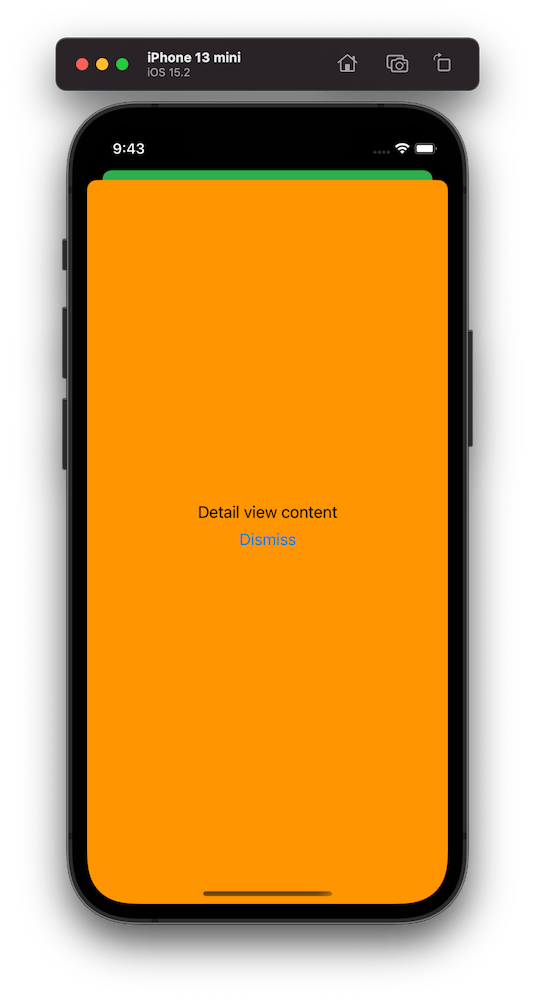
The sheet presentation code goes into the FlowCoordinator and as an example we show a DetailView which has a button for dismissing itself. Yet again, SwiftUI view just passes the handling to the FlowCoordinator.
This file contains hidden or bidirectional Unicode text that may be interpreted or compiled differently than what appears below. To review, open the file in an editor that reveals hidden Unicode characters.
Learn more about bidirectional Unicode characters
A simple app showing an orange sheet which is rendered with SwiftUI but presented with UIKit.
Summary
We created a simple sample app which uses UIKit navigation logic but renders views with SwiftUI views. This kind of setup could be useful for apps which mix UIKit and SwiftUI. But I believe that even in case of that we could still use SwiftUI navigation in sub-flows but could keep using this approach for handling root view navigation.
One building block for navigating from one view to another is NavigationView which is a representation of UINavigationController in UIKit. This time, let’s take a look on how to transition from one SwiftUI view to another one without NavigationView.
AppFlowCoordinator managing choosing the view
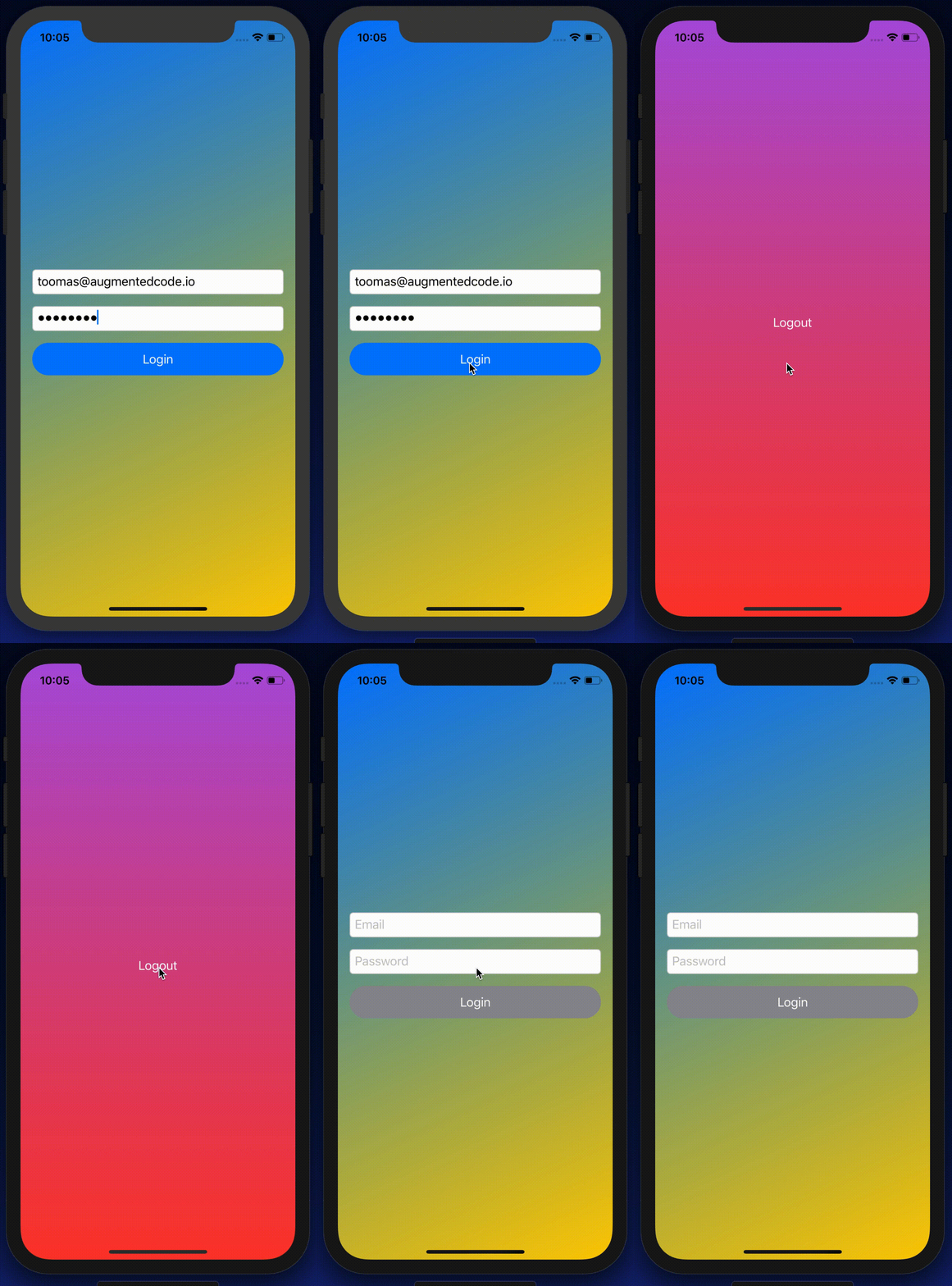
The idea is to have a root SwiftUI view with only responsibility of presenting the active view. State is stored in AppFlowCoordinator which can be accessed from other views and therefore other views can trigger navigation. Example case we’ll build, is animating transitions from login view to main view and back. As said, AppFlowCoordinator stores the information about which view should be on-screen at a given moment. All the views are represented with an enum and based on the value in enum, views are created. This coordinator is ObservableObject what makes it easy to bind to a SwiftUI view – whenever activeFlow changes, SwiftUI view is updated. The term flow is used because views can consist of stack of other views and therefore creating a flow of views.
This file contains hidden or bidirectional Unicode text that may be interpreted or compiled differently than what appears below. To review, open the file in an editor that reveals hidden Unicode characters.
Learn more about bidirectional Unicode characters
RootView selects which view is currently visible. It accesses coordinator through environment. SwiftUI requires EnvironmentObjects to be ObservableObjects, therefore this view is automatically refreshed when activeFlow changes in the AppFlowCoordinator. RootView’s body is annotated with @ViewBuilder which will enable the view to return a body with type depending on the current state (HStack is also a ViewBuilder). Other options are wrapping the views with AnyView or using Group. In our case the view types are LoginView and ContentView. Both views also define the transition animation what is used when view refresh is triggered in withAnimation closure in AppFlowCoordinator. Asymmetric enables defining different transitions when view is added and removed from the view hierarchy.
This file contains hidden or bidirectional Unicode text that may be interpreted or compiled differently than what appears below. To review, open the file in an editor that reveals hidden Unicode characters.
Learn more about bidirectional Unicode characters
This file contains hidden or bidirectional Unicode text that may be interpreted or compiled differently than what appears below. To review, open the file in an editor that reveals hidden Unicode characters.
Learn more about bidirectional Unicode characters
Updating currently visible flow with transition animations
Triggering navigation from SwiftUI view
Last piece we need to take a look at is how to trigger transition. As AppFlowCoordinator is in environment, any view can access the coordinator and call any of the navigation methods. When login finishes, LoginView can tell the coordinator to show the main content view.
This file contains hidden or bidirectional Unicode text that may be interpreted or compiled differently than what appears below. To review, open the file in an editor that reveals hidden Unicode characters.
Learn more about bidirectional Unicode characters
We took a look on how to navigate from one SwiftUI view to another by using a coordinator object. Coordinator stored the information about which view we should currently display on screen. We saw how easy it is to trigger navigation from any of the currently visible views.



 Augmented Code