Categories
Swift

Using XCTExpectFailure in XCTests

XCTExpectFailure is a function in XCTest framework which tackles the problem of managing failing tests. Test which are broken, but not ready to be fixed. An example use-case is when refactoring code which causes some tests to fail but since the whole refactoring is far for complete we might want to hold off fixing tests now because everything can change yet again. This is when we can use XCTExpectFailure function to mark the entire test or just a code block in a test as an expected failure. Every time we run tests, the test code runs but if it fails, the expected failure message is added to the test result. In addition, this failure does not fail the entire suit. This is important when there is a CI pipeline set up which requires that there are no failing tests. In reality the test is failing, but we have marked it to be OK for now. Something to keep in mind is that XCTest framework also has a XCTSkip functions. The main difference between XCTExpectFailure and XCTSkip is that the latter stops the test code execution immediately, where the former always runs the test. Therefore, XCTExpectFailure allows us to see when the test is passing again. Might be that after a lot of refactorings, the code is in a shape again where it produces expected output.

The simplest usage of XCTExpectFailure takes no arguments. If an error is thrown inside the test then the test is marked as an expected failure, but if the test does not throw any errors then XCTExpectFailure fails the test. This is due to the fact that XCTExpectFailure is strict by default strict. The strict mode means that a failure must be happening in the test or otherwise XCTExpectFailure fails the tests. When taking that refactoring example again, then that is useful for removing XCTExpectFailure calls as soon as the test starts passing. If non-strict mode is used, then the test is marked as passed if no failures are happening, although XCTExpectFailure is used within that test. An example use-case is that we’ll clean up all XCTExpectFailures at the end of the refactoring cycle when all the tests are passing again. In addition to the strict flag, there is also enabled flag which can be used for disabling the XCTExpectFailure based on environment or any other reason on run-time. Another thing what we can configure is what kind of failure is observed by passing in an issue matcher closure, where we can inspect the issue and decide if it should be considered as an expected failure or not in fine detail. An example could be that there is a very specific error thrown which we want to consider as expected failure, but all the other failures should lead to failing the test itself.

Different usages of the XCTExpectFailure are shown below.

XCTExpectFailure("Will be fixed in ticket XXX")
XCTExpectFailure("Will be fixed in ticket XXX", strict: false)
XCTExpectFailure("Will be fixed in ticket XXX", enabled: true, strict: false) {
    XCTAssertEqual(validateData(), false)
}
XCTExpectFailure("Will be fixed in ticket XXX", enabled: false, strict: false, failingBlock: {
    XCTAssertEqual(validateData(), false)
}, issueMatcher: { issue in
    issue.type == .assertionFailure
})

If this was helpful, please let me know on Mastodon@toomasvahter or Twitter @toomasvahter. Feel free to subscribe to RSS feed. Thank you for reading.

Categories
Foundation iOS macOS Swift Xcode

Creating a pre-push git hook in Swift script

Git hooks are scripts written in any scripting language and are triggered when important actions occur. Hooks are stored in the repository’s .git/hooks folder. The script needs to have an appropriate filename without a path extension and also have executable permissions. Push event is an excellent time for triggering unit-tests and making sure local changes have not broken any. Therefore we’ll look into how to create a pre-push script for an iOS project in Swift.

Quick introduction to scripts written in Swift

Setting up a simple script in Swift follows steps familiar from other languages. The script file needs to start with #!/usr/bin/swift followed by the actual script. A simple example script can look like this.

#!/usr/bin/swift
print("Example")
view raw Script.swift hosted with ❤ by GitHub
Example script written in Swift.

The command for running the script is swift Script.swift (if the filename is Script.swift). Another way is making the script executable by adding executable permissions to the file by running chmod +x Script.swift command. Then the script can be run with ./Script.swift (makes sense to drop the file extension).

Building a Xcode project for testing

The pre-push script contains of 3 steps: building the project for testing, running tests, and finally printing out the code coverage results. The first step catches build errors, the second step test failures, and the third step prints out code coverage results. Code coverage can be enabled in the scheme’s test action or adding -enableCodeCoverage YES to the xcodebuild command. Before we jump into creating a xcodebuild command with correct arguments then we’ll need to tackle the problem of calling the xcodebuild command line application from the Swift script. Command line applications can be invoked with the Foundation’s Process class. We’ll add an extension which deals with launching a specified command with zsh and printing out the standard output and error.

extension Process {
@discardableResult
static func runZshCommand(_ command: String) -> Int32 {
let process = Process()
process.launchPath = "/bin/zsh"
process.arguments = ["-c", command]
process.standardOutput = {
let pipe = Pipe()
pipe.fileHandleForReading.readabilityHandler = { handler in
guard let string = String(data: handler.availableData, encoding: .utf8), !string.isEmpty else { return }
print(string)
}
return pipe
}()
process.standardError = {
let pipe = Pipe()
pipe.fileHandleForReading.readabilityHandler = { handler in
guard let string = String(data: handler.availableData, encoding: .utf8), !string.isEmpty else { return }
print(string)
}
return pipe
}()
process.launch()
process.waitUntilExit()
(process.standardOutput as! Pipe).fileHandleForReading.readabilityHandler = nil
(process.standardError as! Pipe).fileHandleForReading.readabilityHandler = nil
return process.terminationStatus
}
}
view raw Process.swift hosted with ❤ by GitHub
Launching command line application with Process.

The next step in the script is to define the project related configuration and create the xcodebuild command. All the user defined arguments are wrapped in quotes for avoiding any issues with whitespaces. The command is pretty straight-forward. If there are any build errors then the result code is not equal to 0. Then we can use the same error code for exiting the Swift script with exit() function.

#!/usr/bin/swift
import Foundation
let projectType = "-workspace"
let projectPath = "SignalPath.xcworkspace"
let scheme = "SignalPathiOS"
let destinationDevice = "platform=iOS Simulator,name=iPhone 11 Pro Max"
let resultBundlePath = "PrePush.xcresult"
removeResultBundle(at: resultBundlePath)
print("Building for testing…")
let buildCommand = [
"xcodebuild",
"build-for-testing",
"-quiet",
projectType, projectPath.wrappedInQuotes,
"-scheme", scheme.wrappedInQuotes,
"-destination", destinationDevice.wrappedInQuotes
].joined(separator: " ")
let buildStatus = Process.runZshCommand(buildCommand)
if buildStatus != 0 {
exit(buildStatus)
}
extension String {
var wrappedInQuotes: String {
return "\"\(self)\""
}
}
Building a Xcode project for testing.

Running unit-tests

The command used for running unit-tests is fairly similar. Instead of build-without-testing we are using test-without-building argument and additionally provide a path where the result bundle is written to. This bundle contains information about the test run. Note that this path must not exist, otherwise xcodebuild stops with an error. Therefore we delete the existing file before running the command. Moreover, when there is a failure, we’ll clean up the path as well – pre-push script should not leave any temporary files.

removeResultBundle(at: resultBundlePath)
print("Running tests…")
let testCommand = [
"xcodebuild",
"test-without-building",
"-quiet",
projectType, projectPath.wrappedInQuotes,
"-scheme", scheme.wrappedInQuotes,
"-destination", destinationDevice.wrappedInQuotes,
"-resultBundlePath", resultBundlePath.wrappedInQuotes
].joined(separator: " ")
let testStatus = Process.runZshCommand(testCommand)
if testStatus != 0 {
removeResultBundle(at: resultBundlePath)
exit(testStatus)
}
func removeResultBundle(at path: String) {
guard FileManager.default.fileExists(atPath: path) else { return }
try? FileManager.default.removeItem(atPath: path)
}
Running unit-tests in a pre-built project.

Printing out code coverage

Last step is optional but it is nice to see code coverage information when pushing changes to a server. Xcode provides a command line application for viewing coverage data in human readable form. One of the options is printing out code coverage per target which gives a nice and concise overview.

let coverageCommand = [
"xcrun",
"xccov",
"view",
"–only-targets",
"–report", resultBundlePath.wrappedInQuotes
].joined(separator: " ")
Process.runZshCommand(coverageCommand)
removeResultBundle(at: resultBundlePath)
print("Success")
exit(0)
Printing out code coverage per target.

Summary

We looked into how to create a pre-push script in Swift. It called other command line applications for building the project, running the tests, and printing out code coverage information. The full script is available below, feel free to copy-paste it to your projects. The one last thing to consider is adding an alias in Terminal for easy installation: alias xcode_pre_push_add='cp ~/Dev/pre-push .git/hooks/pre-push && mate .git/hooks/pre-push' This just copies it from predefined location to the repository checkout and opens it in an editor for setting project related settings (replace mate with any editor).

#!/usr/bin/swift
import Foundation
let projectType = "-workspace"
let projectPath = "SignalPath.xcworkspace"
let scheme = "SignalPathiOS"
let destinationDevice = "platform=iOS Simulator,name=iPhone 11 Pro Max"
let resultBundlePath = "PrePush.xcresult"
print("Building for testing…")
let buildCommand = [
"xcodebuild",
"build-for-testing",
"-quiet",
projectType, projectPath.wrappedInQuotes,
"-scheme", scheme.wrappedInQuotes,
"-destination", destinationDevice.wrappedInQuotes
].joined(separator: " ")
let buildStatus = Process.runZshCommand(buildCommand)
if buildStatus != 0 {
exit(buildStatus)
}
removeResultBundle(at: resultBundlePath)
print("Running tests…")
let testCommand = [
"xcodebuild",
"test-without-building",
"-quiet",
projectType, projectPath.wrappedInQuotes,
"-scheme", scheme.wrappedInQuotes,
"-destination", destinationDevice.wrappedInQuotes,
"-resultBundlePath", resultBundlePath.wrappedInQuotes
].joined(separator: " ")
let testStatus = Process.runZshCommand(testCommand)
if testStatus != 0 {
removeResultBundle(at: resultBundlePath)
exit(testStatus)
}
let coverageCommand = [
"xcrun",
"xccov",
"view",
"–only-targets",
"–report", resultBundlePath.wrappedInQuotes
].joined(separator: " ")
Process.runZshCommand(coverageCommand)
removeResultBundle(at: resultBundlePath)
print("Success")
exit(0)
// MARK: –
extension String {
var wrappedInQuotes: String {
return "\"\(self)\""
}
}
extension Process {
@discardableResult
static func runZshCommand(_ command: String) -> Int32 {
let process = Process()
process.launchPath = "/bin/zsh"
process.arguments = ["-c", command]
process.standardOutput = {
let pipe = Pipe()
pipe.fileHandleForReading.readabilityHandler = { handler in
guard let string = String(data: handler.availableData, encoding: .utf8), !string.isEmpty else { return }
print(string)
}
return pipe
}()
process.standardError = {
let pipe = Pipe()
pipe.fileHandleForReading.readabilityHandler = { handler in
guard let string = String(data: handler.availableData, encoding: .utf8), !string.isEmpty else { return }
print(string)
}
return pipe
}()
process.launch()
process.waitUntilExit()
(process.standardOutput as! Pipe).fileHandleForReading.readabilityHandler = nil
(process.standardError as! Pipe).fileHandleForReading.readabilityHandler = nil
return process.terminationStatus
}
}
func removeResultBundle(at path: String) {
guard FileManager.default.fileExists(atPath: path) else { return }
try? FileManager.default.removeItem(atPath: path)
}
view raw pre-push.swift hosted with ❤ by GitHub
Full pre-push script for building, running, and printing code coverage.

If this was helpful, please let me know on Mastodon@toomasvahter or Twitter @toomasvahter. Feel free to subscribe to RSS feed. Thank you for reading.

Categories
iOS macOS Swift Xcode

Performance testing using XCTMetric

XCTMetric enables creating tests with measure blocks collecting information about CPU, memory and disk. In this post we’ll write UI-tests measuring a button tap what triggers writing to disk, allocating larger amount of memory and applying filters what requires CPU to do more work. It should be noted that XCTMetric can also be used in unit-tests.

Method under the test

The method we are going to write performance tests against is a simple method dealing with loading an image, writing data to disk, applying CIFilter and writing processed image to disk. In this example case, everything runs on a main thread what probably would not be a case in a real application.

@IBAction func process(_ sender: Any) {
	let image = UIImage(named: "Image")!
	imageStorage.store(image, filename: "original")
        
	let processedImage = ImageProcessor.processImage(image)
	imageStorage.store(image, filename: "processed")
	processedImageView.image = processedImage
}

XCTClockMetric for measuring taken time

XCTClockMetric is for measuring time taken by the block. Useful for catching regressions in longer running operations.

func testCalculateWithClockMetric() {
	let app = XCUIApplication()
	app.launch()
	measure(metrics: [XCTClockMetric()]) {
		app.buttons["Process"].tap()
	}
}

XCTCPUMetric for measuring CPU utilization

XCTCPUMetric measures CPU activity and output 3 different results: CPU time, CPU cycles and CPU instructions retired. CPUs have a feature called speculative execution what means that more instructions are completed than the actual program flow requires. Retired instructions are the instructions which were actually needed by the flow of the program. This feature speeds up the program execution as CPU can process data ahead of time. Example case would be if else where CPU processes both branches but only one branch is valid in the program flow.

func testCalculateWithCPUMetric() {
	let app = XCUIApplication()
	app.launch()
	measure(metrics: [XCTCPUMetric(application: app)]) {
		app.buttons["Process"].tap()
	}
}

XCTMemoryMetric for measuring allocated memory

XCTMemoryMetric measures allocated physical memory useful for testing operation allocating significant amount of memory (processing images).

func testCalculateWithMemoryMetric() {
	let app = XCUIApplication()
	app.launch()
	measure(metrics: [XCTMemoryMetric(application: app)]) {
		app.buttons["Process"].tap()
	}
}

XCTStorageMetric for measuring disk usage

XCTStorageMetric measures bytes written to the disk.

func testCalculateWithStorageMetric() {
	let app = XCUIApplication()
	app.launch()
	measure(metrics: [XCTStorageMetric(application: app)]) {
		app.buttons["Process"].tap()
	}
}

XCTOSSignpostMetric for measuring time between signposts

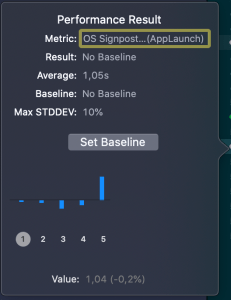
Apple provides signpost metric for application launch time for making it easy to add performance test measing launch time. In WWDC’19 session “Optimizing app launch” the suggested goal is 400 ms which is the duration of the app launch animation. XCTOSSignpostMetric has initializer for custom signpost as well.

func testLaunchPerformance() {
	if #available(macOS 10.15, iOS 13.0, tvOS 13.0, *) {
		measure(metrics: [XCTOSSignpostMetric.applicationLaunch]) {
			XCUIApplication().launch()
		}
	}
}

Summary

XCTMetric enables writing performance tests for performance critical parts of the application. We took a look at CPU, memory, storage and signpost metrics.

If this was helpful, please let me know on Mastodon@toomasvahter or Twitter @toomasvahter. Feel free to subscribe to RSS feed. Thank you for reading.

Example

MeasuringInTests (Xcode 11.3)