Categories
iOS Xcode

AnyView is everywhere in Xcode 16

Loved to see this entry in Xcode 16’s release notes:

Xcode 16 brings a new execution engine for Previews that supports a larger range of projects and configurations. Now with shared build products between Build and Run and Previews, switching between the two is instant. Performance between edits in the source code is also improved for many projects, with increases up to 30%.

It has been difficult at times to use SwiftUI previews when they sometimes just stop working with error messages leaving scratch head. Turns out, it comes with a hidden cost of Xcode 16 wrapping views with AnyView in debug builds which takes away performance. If you don’t know it only affects debug builds, one could end up on journey of trying to improve the performance for debug builds and making things worse for release builds. Not sure if this was ever mentioned in any of the WWDC videos, but feels like this kind of change should have been highlighted.

As of Xcode 16, every SwiftUI view is wrapped in an AnyView _in debug builds only_. This speeds switching between previews, simulator, and device, but subverts some List optimizations.

Add this custom build setting to the project to override the new behavior:

`SWIFT_ENABLE_OPAQUE_TYPE_ERASURE=NO`

Wrapping in Equatable is likely to make performance worse as it introduces an extra view in the hierarchy for every row.

Curt Clifton on Mastodon

Fortunately, one can turn off this if this becomes an issue in debug builds.

If this was helpful, please let me know on Mastodon@toomasvahter or Twitter @toomasvahter. Feel free to subscribe to RSS feed. Thank you for reading.

Categories
Swift Xcode

Dark Augmented Code theme for Xcode

After a couple of years, I tend to get tired of looking at the same colour scheme in Xcode. Then I spend quite a bit of time looking for a new theme and then coming back with empty hands. Material default has served me for a while, but it never felt like a perfect colour scheme for me. Therefore, I decided to take on a road of creating a new colour scheme on my own which is going to be named as “Augmented Code (Dark)”.

It is available for Xcode and iTerm 2.

Download it from here: GitHub

If this was helpful, please let me know on Mastodon@toomasvahter or Twitter @toomasvahter. Feel free to subscribe to RSS feed. Thank you for reading.

Categories
Swift Xcode

LLDB print commands for debugging in Xcode

Whoever has used Xcode for debugging has heard about the po command. This command is used for printing object descriptions. Whatever we write after po gets compiled into actual code and is executed in the context where the debugger has stopped. This is done twice, first to get the expression result and then to get the object description. It is actually an alias for the expression command: expression --object-description -- myVariable.

In addition to po, there is also a p command what is an alias to expression myVariable. The main difference is that it compiles and runs the expression once, does a type resolution, and then prints the result.

The third option for printing variables is the v command what is an alias to the frame command. It reads values from memory, does a type resolution (multiple times if, for example, the expression accesses properties) and prints the result. The main difference is that it does not compile and run any code when evaluating the expression, which makes it quick to run.

Based on this knowledge, as a long time po user, I have changed my approach a bit when debugging in Xcode. I start with the v command since it is the quickest to run. If v command does not work, switching to p and then to po.

If this was helpful, please let me know on Mastodon@toomasvahter or Twitter @toomasvahter. Feel free to subscribe to RSS feed. Thank you for reading.
Categories
Foundation iOS Swift Xcode

Using on-demand resources for securely storing API keys in iOS apps

Many apps use API keys when authenticating network requests. Although there are better ways of authenticating requests like OAuth with PKCE, but it might not always be possible. One thing what we must keep in mind is that it is fairly simple to extract strings from IPA files and therefore, if we store API keys in code, someone else can get access to these. This is of course a security issue. One of the approaches how to avoid it is using Apple’s on-demand resources with prefetching enabled. This means that as soon as we install the app, iOS will download additional resources separately and these resources can contain our API keys. This separation enables not putting any API keys into the IPA file. No one can go and inspect the IPA file any more and try to extract string constants. Let’s see how to set it up.

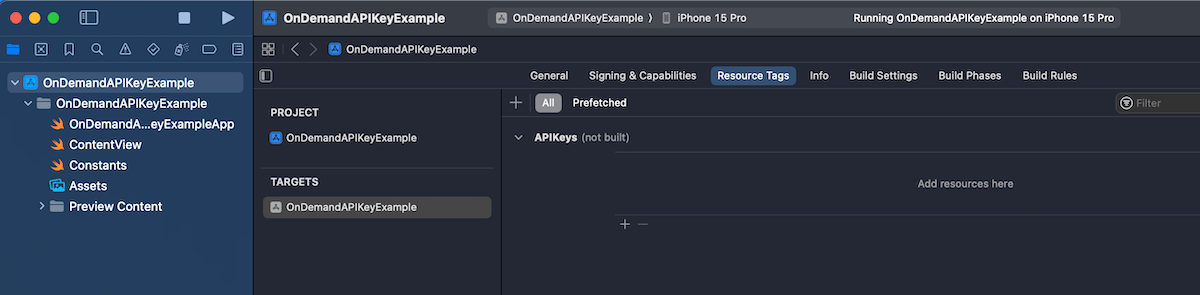
First step is that we create a prefetching enabled tag. Apple uses tags to identify on-demand resources. Open your Xcode project settings, app target and then “Resource Tags” tab. Let’s add a new resource tag named “APIKeys”.

The next step is to attach a resource to the tag. We’ll use a JSON file for our API keys, so go ahead and add a new JSON file for API keys. We’ll just create a key-value pairs in that file and assign a resource tag to the file, which can be found in the utilities area > file inspector tab. In our example, the tag has the same name as the file “APIKeys”.

So far we have created a resource tag and assigned a tag to the JSON file. The default behaviour is that the tag is treated as on-demand resource and only downloaded when it is required by the app. With API keys, it makes sense to download it along with the app binary when the user installs that app. Then on the first launch we can immediately store the API key in keychain for future usage. Prefetching can be enabled in the “Resource Tags” tab. Tap on the “Prefetched” button and drag the “APIKeys” tag under “Initial Install Tags”.

An important thing to note is that even though we have set that tag to be part of initial install tags there is still the possibility that the tag has been purged. This happens when the user installs the app and then waits a long time. In that case, the system needs to go and download it again when we want to access it. Therefore, the code accessing the tag could still take some time. Let’s see a simple function which accesses the JSON file through NSBundleResourceRequest API and makes the API keys available for the app.

enum Constants {
static func loadAPIKeys() async throws {
let request = NSBundleResourceRequest(tags: ["APIKeys"])
try await request.beginAccessingResources()
let url = Bundle.main.url(forResource: "APIKeys", withExtension: "json")!
let data = try Data(contentsOf: url)
// TODO: Store in keychain and skip NSBundleResourceRequest on next launches
APIKeys.storage = try JSONDecoder().decode([String: String].self, from: data)
request.endAccessingResources()
}
enum APIKeys {
static fileprivate(set) var storage = [String: String]()
static var mySecretAPIKey: String { storage["MyServiceX"] ?? "" }
static var mySecretAPIKey2: String { storage["MyServiceY"] ?? "" }
}
}
view raw APIKeys.swift hosted with ❤ by GitHub

With a setup like this, we need to make sure that the loadAPIkeys function is called before we access mySecretAPIKey and mySecretAPIKey2. If we have a centralized place for network requests, let’s say some networking module which wraps URLSession then that could be an excellent place where to run this async code. Another way could be delaying showing the main UI before the function completes. Personally, I would go for the former and integrate it into the networking stack.

OnDemandAPIKeyExample (GitHub, Xcode 15.0.1)

If this was helpful, please let me know on Mastodon@toomasvahter or Twitter @toomasvahter. Feel free to subscribe to RSS feed. Thank you for reading.

Categories
Swift Xcode

Changes to structured logging in Xcode 15

Apps log a lot of information to the debug console in Xcode which at some point might get overwhelming and makes it difficult to understand what is going on. The information of what we are interested in when debugging an app might get overflown with information coming from other parts of the app. Everyone who have worked on apps which log a lot to console are more than happy to learn that Xcode 15 finally supports filtering console logs. No need to launch the Console.app any more if we want to get filtered console logging, we can forget that workaround. Let’s dive in how structured logging works alongside with Xcode 15.

For getting the full benefit of the new Xcode 15 update, we should be using Apple’s structured logging APIs. The logging APIs got an update in iOS 14 with the introduction of a Logger type. Before that, we used to use os_log functions. Here is an example of how to use the Logger type. My personal preference has been extending the Logger type in each of the module (target) with convenient static variables, which enables auto-completion.

import os

extension Logger {
    static let subsystem = Bundle.main.bundleIdentifier!

    static let networking = Logger(subsystem: subsystem, category: "Networking")
    static let presentation = Logger(subsystem: subsystem, category: "Presentation")
}

Let’s add some logging to a view model, which in turn uses a service class to fetch statements. The prepare method is called from view’s task view modifier.

@Observable final class ViewModel {
    let service: StatementService

    init(service: StatementService) {
        self.service = service
    }

    private(set) var statements = [Statement]()

    func prepare() async {
        Logger.networking.debug("Starting to fetch statements")
        do {
            self.statements = try await service.fetchStatements()
            Logger.networking.notice("Successfully fetched statements")
        }
        catch {
            Logger.networking.error("Failed to load statements with error: \(error)")
        }
    }
}

The debug console view in Xcode 15 looks like this by default when running our sample app.

If we want to inspect a single log line then we can click on it and pressing space which opens a quick look window.

Here we can see all the metadata attached to the log. Note the subsystem and category lines, which come from the information passed into the Logger’s initializer.

Often we want to see some of this metadata directly in the debug console view. This can be configured using “Metadata Options” picker.

If we want to jump to the source file and location then we need to hover on the log line and a jump button appears in the bottom right corner – very handy.

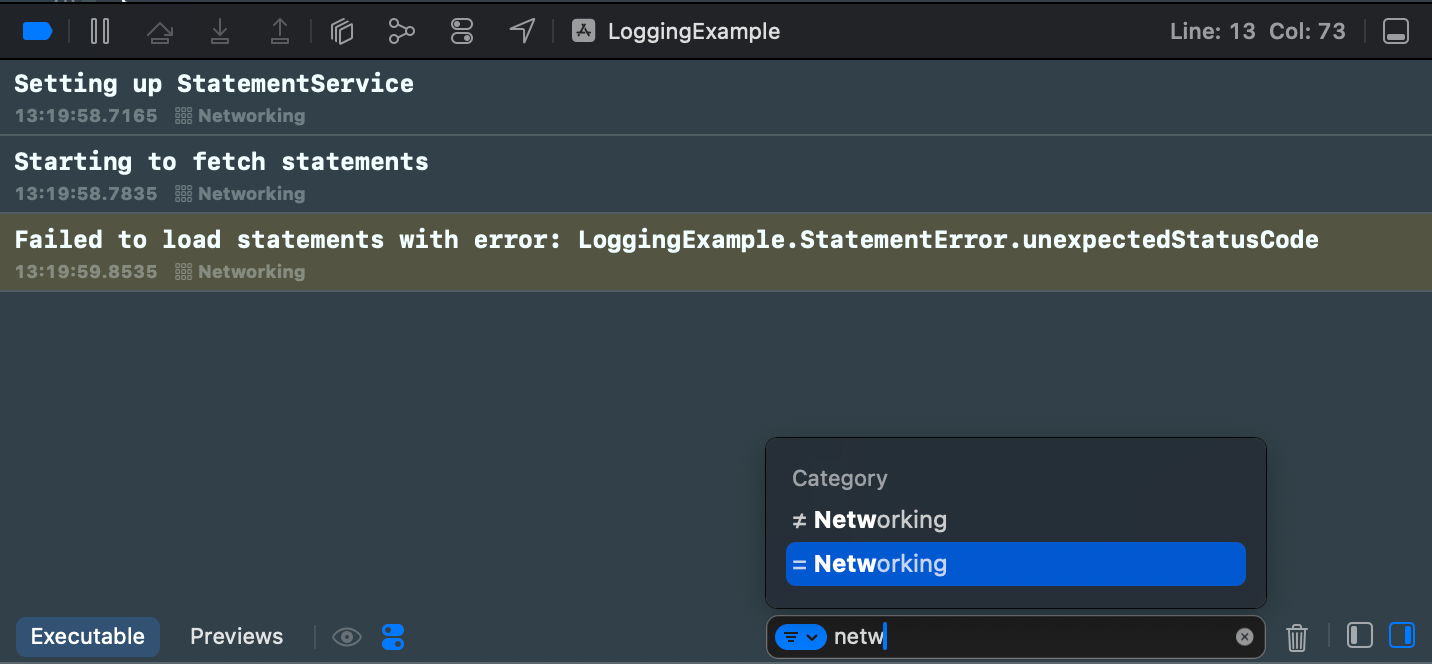
Logs can be filtered using the find bar. The find bar suggests filtering options. If I want to filter to log events which have category set to “Networking” then only thing I need to do is typing “netw” to the find bar, and already it provides me a quick way to apply this filter. Really, really handy.

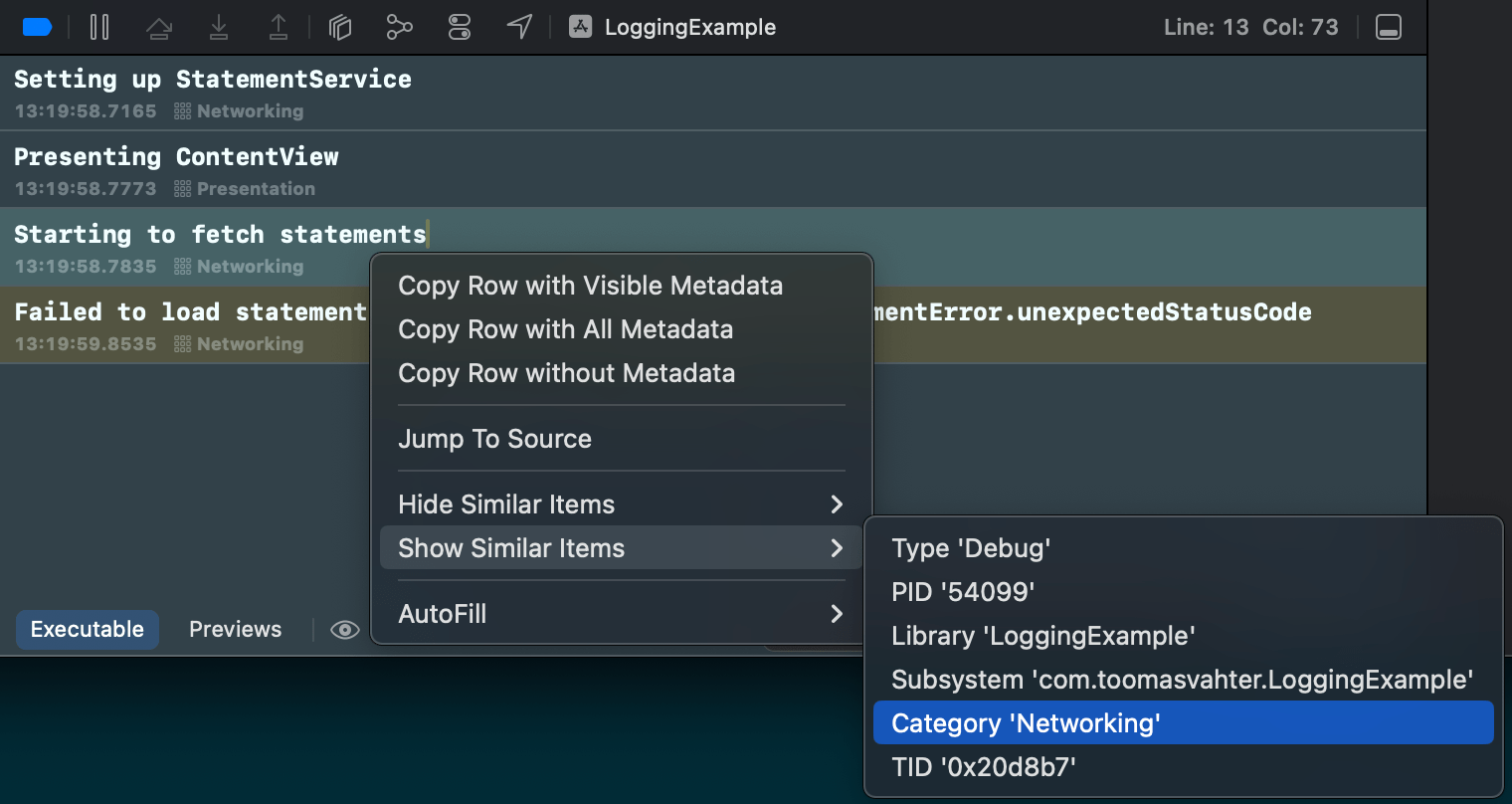
There is also a second way how to achieve the same filtering. Right-clicking a log entry and selecting Show Similar Items > Category ‘Networking’.

If this was helpful, please let me know on Mastodon@toomasvahter or Twitter @toomasvahter. Feel free to subscribe to RSS feed. Thank you for reading.

Categories
iOS Swift SwiftUI Xcode

Discovering #Preview macro in Swift

Previews are snippets of codes for creating a live preview of a view what we can see in Xcode. This enables to quickly iterate your views because we can see right away how the view looks after each of the code change. Previews are compiled alongside with the app, and therefore we can access all the other code and resources like images. If we want to use preview only resource, we can use Xcode’s development assets feature for making the resource only part of the app when rendering previews. Now when we know what previews are in general, let’s move on to creating a preview.

So far we have created a new struct which conforms to a PreviewProvider protocol if we wanted Xcode to render the view for us. Xcode 15 with Swift 5.9’s macro support introduces a #Preview macro, which replaces the old way of creating live previews. The benefit of the new macro is having to write less code to get going with live previews. Let’s compare the both approaches and have a look at an accessory view’s preview.

// Before
struct RatingsView_Previews: PreviewProvider {
static var previews: some View {
VStack {
ForEach(0…5, id: \.self) { value in
RatingsView(value: .constant(value))
}
}
.previewLayout(.sizeThatFits)
}
}
// After
#Preview(traits: .sizeThatFitsLayout) {
VStack {
ForEach(0…5, id: \.self) { value in
RatingsView(value: .constant(value))
}
}
}
view raw Preview.swift hosted with ❤ by GitHub

In the example above, we wanted to apply a trait since this view is a tiny accessory view, and therefore we would like to see it rendered as small as possible. A list of traits what we can use are listed here:

extension PreviewTrait where T == Preview.ViewTraits {
/// Preview with `.device` layout (the default).
public static var defaultLayout: PreviewTrait<Preview.ViewTraits> { get }
public static var sizeThatFitsLayout: PreviewTrait<Preview.ViewTraits> { get }
public static func fixedLayout(width: CGFloat, height: CGFloat) -> PreviewTrait<T>
public static var portrait: PreviewTrait<Preview.ViewTraits> { get }
public static var landscapeLeft: PreviewTrait<Preview.ViewTraits> { get }
public static var landscapeRight: PreviewTrait<Preview.ViewTraits> { get }
public static var portraitUpsideDown: PreviewTrait<Preview.ViewTraits> { get }
}

When working with full screen views, the preview macro can be as simple as this:

#Preview {
OnboardingView()
}

In addition to traits, we can also give a name to the preview which is displayed in the Xcode’s preview canvas. This can be useful if we create multiple previews for the same view.

A view with multiple previews with different names.

Another thing to note is that the preview canvas in Xcode also lists a pin button next to the name of the preview. Pinning previews is useful if we want to navigate to another file to make some changes and keeping the preview running. Maybe we want to change some constants which affects the layout of the view, but these constants are defined somewhere else. Then it is useful to keep the preview running and seeing how changing a constant in another view is reflected by the view using it.

There is another tip to keep in mind. We can run previews on physical devices as well. We just need to pick the physical device instead of a simulator from the device picker.

Preview canvas, which lists a physical device for preview.

Finally, let’s not forget about the great way to see all the colour scheme and dynamic type variants at the same time. There is a separate variants button for that next to the live preview and selectable preview buttons.

If this was helpful, please let me know on Mastodon@toomasvahter or Twitter @toomasvahter. Feel free to subscribe to RSS feed. Thank you for reading.

Categories
iOS Swift SwiftUI Xcode

Getting started with mocking networking in UI-tests on iOS

It is important to have stable unit-tests and UI-tests since no-one wants to encounter failures in tests which happen non-deterministically. Many of the iOS apps rely on networking, and therefore the content depends on what is fetched from servers. The last thing what we want to see is that an API outage or instability affects UI-tests. This time we’ll take a look at how to mock networking in UI-tests which differs from mocking networking in unit-tests since the whole app is going to be running as is and is controlled by a separate UI-testing runner app. A while ago I also covered unit-testing part in Testing networking code with custom URLProtocol on iOS, please take a look at that post for more information since we’ll be using the same custom URL protocol approach.

The main difference between unit-tests and UI-tests is that with unit-tests Xcode injects the unit-testing code into the app and then runs tests. UI-testing on the other hand rely on a separate test runner app which uses accessibility APIs for driving the user-interface in the app. This means that our network mocking code needs to be bundled with the app when we build it. The approach we are going to use is setting up a separate “UITestingSupport” Swift package, which is included only in debug builds. This library contains mocked data and configures the custom URL protocol and handles any network requests. Please see Linking a Swift package only in debug builds for more information on how to only link a package in debug builds.

I’ll be using a sample app “UITestingNetworking” for demonstrating how to set it up. The app has an app target and a local Swift package with a name “UITestingSupport”.

Xcode project layout with UITestingSupport package.

The first piece of the “UITestingSupport” package is a custom URLProtocol. All it does is providing a way to return either error or URLResponse and Data for a URLRequest. It is a simplified protocol. In an actual app we would want to control which requests are handled by it and which are not. Either because it is way too difficult to mock all the network request in all the tests at first, or we might also want to have some tests using an actual data coming from servers.

final class UITestingURLProcotol: URLProtocol {
override class func canInit(with request: URLRequest) -> Bool {
return true // TODO: only return true for requests we have mocked data
}
override class func canonicalRequest(for request: URLRequest) -> URLRequest {
return request
}
struct ResponseData {
let response: URLResponse
let data: Data
}
static var responseProvider: ((URLRequest) -> Result<ResponseData, Error>)?
override func startLoading() {
guard let client else { fatalError() }
if let responseProvider = Self.responseProvider {
switch responseProvider(request) {
case .success(let responseData):
client.urlProtocol(self, didReceive: responseData.response, cacheStoragePolicy: .notAllowed)
client.urlProtocol(self, didLoad: responseData.data)
client.urlProtocolDidFinishLoading(self)
case .failure(let error):
client.urlProtocol(self, didFailWithError: error)
client.urlProtocolDidFinishLoading(self)
}
}
else {
let error = NSError(domain: "UITestingURLProcotol", code: -1)
client.urlProtocol(self, didFailWithError: error)
}
}
override func stopLoading() {}
}

The second piece of the library is a UITestingNetworkHandler class which the app code will call, and it configures the custom URLProtocol and starts providing responses based on the “responseProvider” callback.

public final class UITestingNetworkHandler {
public static func register() {
URLProtocol.registerClass(UITestingURLProcotol.self)
UITestingURLProcotol.responseProvider = { request in
guard let url = request.url else { fatalError() }
switch (url.host, url.path) {
case ("augmentedcode.io", "/api/example"):
let response = HTTPURLResponse(url: url, statusCode: 200, httpVersion: nil, headerFields: nil)!
let data = "MyMockedData".data(using: .utf8)!
return .success(UITestingURLProcotol.ResponseData(response: response, data: data))
default:
fatalError("Unhandled")
}
}
}
}
Simple example of providing response for a URLRequest.

The example above just handles one network request. For larger apps we probably want to have more component based implementation here since this file would otherwise grow a lot based on how many cases we want to handle. Another thing to note is that in some tests we want to mimic network request failures and in others successful requests but with different response data. This is not shown above, but can be implemented by providing the expected configuration flag through environment variables. XCUIApplication has a launchEnvironent property what we can set and then reading that value in the UITestingNetworkHandler with Process environment property. I’m thinking something like “MyAppAPIExampleResponseType” which equals to a number or some identifier.

The last piece is to call the register code when we are running the app in UI-tests.

@main
struct UITestingNetworkingApp: App {
var body: some Scene {
WindowGroup {
ContentView()
#if DEBUG
.onAppear(perform: {
guard CommandLine.arguments.contains("–uitesting") else { return }
UITestingNetworkHandler.register()
})
#endif
}
}
}
view raw App.swift hosted with ❤ by GitHub
Calling register only in debug builds and when a launch argument is set by the runner app.

And finally, an example UI-test which taps a button which in turn fetches some data from the network and then just displays the raw data in the app.

class UITestingNetworkingUITests: XCTestCase {
override func setUpWithError() throws {
continueAfterFailure = false
}
func testExample() throws {
let app = XCUIApplication()
app.launchArguments = ["–uitesting"]
app.launch()
app.buttons["Load Data"].tap()
XCTAssertEqual(app.staticTexts.element.label, "MyMockedData")
}
}
An example UI-test which sets launch argument which enables network mocking in the app.

If this was helpful, please let me know on Mastodon@toomasvahter or Twitter @toomasvahter. Feel free to subscribe to RSS feed. Thank you for reading.

Example Project

UITestingNetworking (GitHub)

Categories
iOS Xcode

Comparing build speeds of Xcode 13 and Xcode 14b2

Xcode 14 beta 2 came with WWDC’22 and one of the highlights of the upcoming Xcode is faster builds. What’s new in Xcode mentions that Xcode 14 can be up to 25% faster, mostly due to improved parallelism. For testing this out, I looked for a large open source iOS app. WordPress for iOS is available on GitHub, and it was pretty easy to set up the local development setup.

My 16″ MBP is from 2019 and has 2,3 GHz 8-Core Intel Core i9 with 32 GB 2667 MHz DDR4 RAM. Benchmarking involved in deleting derived data, letting the Mac idle a couple of minutes to cool a bit, and then building the project. Also, I switched between Xcodes after every build. Let’s look into results.

Xcode 13.4.1Xcode 14 beta 2
293314
288317
279318
Build times for WordPress for iOS project

Results are in, and I have to admit that this is something I did not expect to see. I was expecting to see Xcode 14 doing much better compared to Xcode 13, but it is actually the other way around. Probably this project has many ways to improve the build times and making it better to use the improved parallelism in Xcode 14, but at the moment it turned out to be around 10% slower instead. Fascinating.

If this was helpful, please let me know on Mastodon@toomasvahter or Twitter @toomasvahter. Feel free to subscribe to RSS feed. Thank you for reading.

Categories
Xcode

Looking into Xcode 14 beta 1

It is a WWDC week and the first day is over. I am eager to see what Xcode 14 is about to bring and therefore let’s dive into Xcode’s release notes where I pick out some of the changes which caught my interest.

Bitcode is deprecated

Turns out that bitcode is deprecated. In the release notes we can read that bitcode for iOS, tvOS, and watchOS is turned off by default. In addition, bitcode uploads are going to be rejected when using Xcode 14. That is the one I did not expect to change, but it did.

Single 1024*1024 app icon

Whoever has dealt with app icons are going to be happy to hear that in Xcode 14 we can just use a single image for the app icon. Of course, the option is going to be there for using separate images for each of the sizes who need it.

Better parallelism in build system

Release notes mention that Xcode 14 can build targets in parallel with their Swift target dependencies. Sounds like we can hope for faster builds.

Recommended deployment targets

There are new build settings like RECOMMENDED_IPHONEOS_DEPLOYMENT_TARGET etc. Not sure yet what are the default values, since I did not find them in Xcode beta 1. But still, interesting addition.

Shell script sandboxing

There is a new build setting ENABLE_USER_SCRIPT_SANDBOXING for turning on sandboxing in shell script build phases.

LLDB swift-healthcheck

It is a frustrating when using a debugger and then any expression is resolving. Seems like there is a way to investigate these issues and possibly solve them with the new swift-healthcheck command. I am gonna definitely check it out.

Interface builder is not forgotten

The platforms State of the Union mentioned Swift and SwiftUI being the future of building apps. But on the other hand, there are multiple changes happening in Interface builder as well. More options and more supported views.

Swift packages and localization

At my work, we have struggled with Swift packages which contain localization. The only way for importing and exporting localizations was having Xcode project only for that. Happy to see that xcodebuild -importLocalizations and -exportLocalizations work with Swift packages.

Better reloading for SwiftUI previews

Many items about improving SwiftUI previews and reloading them when making edits. Sounds like there is going to be less need to trigger render preview manually. That is really nice.

Xcode Server is deprecated

As Xcode Cloud is not any more in beta, Apple is removing Xcode Server from Xcode 14.

That is a quick overview of things coming with Xcode 14. There is so much more. Feel free to dig into Xcode 14 release notes yourself as well.

If this was helpful, please let me know on Mastodon@toomasvahter or Twitter @toomasvahter. Feel free to subscribe to RSS feed. Thank you for reading.

Categories
iOS Xcode

CollectionOfOne in Swift

The Swift standard library includes a peculiar struct CollectionOfOne. It just represents a single value as a collection. Since it represents only a single value, then it is more efficient than creating an Array with a single element, which involves in allocating a buffer. Also, all the collection functions require inspecting the buffer whereas CollectionOfOne can hard-code many of these, like count which is always one. It can make a difference in performance critical code, but most of the time it does not make a real difference if we create a CollectionOfOne instance or an Array with one element.

let first = ["a", "b", "c"]
let second = CollectionOfOne("d")
print(first + second)
// ["a", "b", "c", "d"]
An example of appending a single element to an array.

If this was helpful, please let me know on Mastodon@toomasvahter or Twitter @toomasvahter. Feel free to subscribe to RSS feed. Thank you for reading.