Since iOS 11 it is easy to add swipe actions in a table view. What we need to do, is to implement UITableView delegate methods for providing actions for leading and trailing edge. Let’s jump right into it.
Default swipe actions
Swipe actions are provided by two delegate methods which return UISwipeActionsConfiguration. It should be mentioned that when returning nil in those delegates, table view will use its default set of actions. Default action is delete action and acton should be implemented in the editingStyle delegate method.
This file contains hidden or bidirectional Unicode text that may be interpreted or compiled differently than what appears below. To review, open the file in an editor that reveals hidden Unicode characters.
Learn more about bidirectional Unicode characters
Let’s leave default actions aside and see what is this configuration object swipe action delegates need to return. It just provides the set of different actions and a property of controlling if the full swipe triggers the first action or not. By default, this is turned on and full swipe triggers the first action. Action itself is represented by UIContextualAction class. This class defines handler block, title, image and background color of the action. Action can’t have both image and title, whenever image is set, title is ignored. In addition, action’s initialiser defines style: normal style means light grey background and destructive style uses red background. One needs to be aware that when adding too many actions results in having overlapping action buttons in the table view. Therefore it always makes to test and see if the amount of actions really works on the smallest display size.
This file contains hidden or bidirectional Unicode text that may be interpreted or compiled differently than what appears below. To review, open the file in an editor that reveals hidden Unicode characters.
Learn more about bidirectional Unicode characters
In summary, swipe actions are extremely simple to add using table view delegates. It is an easy way of providing important actions in an accessible manner.
UICollectionViewLayout’s responsibility is to define layout: all the cell locations and sizes. It acts like a data source object which provides layout related information to the collection view. Collection view then uses that information for creating cells and placing them on screen. This time we’ll take a look on how to create a custom circle shaped layout.
Creating UICollectionViewLayout subclass
First step for creating a custom layout is to create UICollectionViewLayout subclass. Then we need to define the size of the layout. In this simple case, all the cells will fit into the available area – therefore we can just return the collection view’s own size.
This file contains hidden or bidirectional Unicode text that may be interpreted or compiled differently than what appears below. To review, open the file in an editor that reveals hidden Unicode characters.
Learn more about bidirectional Unicode characters
When-ever user rotates the device, the size of the collection view changes, therefore we would like to reset the layout.
This file contains hidden or bidirectional Unicode text that may be interpreted or compiled differently than what appears below. To review, open the file in an editor that reveals hidden Unicode characters.
Learn more about bidirectional Unicode characters
Prepare is called whenever layout gets invalidated and it is a best place where to pre-calculate cell locations. Then it is possible to return attributes in all of the other methods querying for attributes later on. This gives us the best possible performance.
Items are placed along a circle which is centred in the collection view. As collection view can be under navigation bar, then the frame of the circle needs to take account contentOffset. Moreover, as centre points of items are on the circle, we also need to take account the item size. Calculating positions for items is just a matter of applying simple trigonometry with right-angled triangles.
This file contains hidden or bidirectional Unicode text that may be interpreted or compiled differently than what appears below. To review, open the file in an editor that reveals hidden Unicode characters.
Learn more about bidirectional Unicode characters
If we have pre-calculated attributes, then it is straight-forward to return them in the layout attributes methods. When adding or removing items, cells will move to new location with a nice animation by default.
This file contains hidden or bidirectional Unicode text that may be interpreted or compiled differently than what appears below. To review, open the file in an editor that reveals hidden Unicode characters.
Learn more about bidirectional Unicode characters
I would like to highlight the fact that content presented here is just a bare minimum for setting up custom collection view layout. UICollectionView is highly configurable.
Setting up collection view
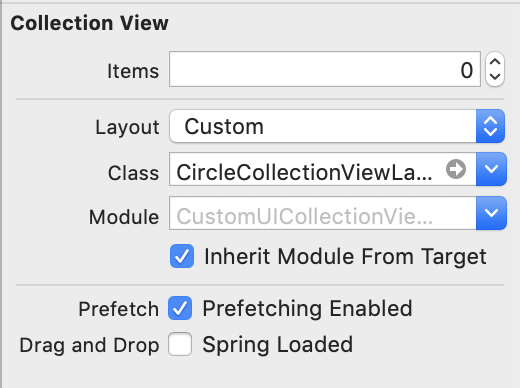
When custom collection view layout is ready, it is time to hook it up to the collection view. Custom collection view layout can be set in storyboard or when initialising collection view or collection view controller.
Setting custom layout in UIStoryBoard
Implementing a basic collection view controller for just showing one type of cells requires only a little bit of code. Data source methods provide the count of the items and sections and return configured collection view cells.
This file contains hidden or bidirectional Unicode text that may be interpreted or compiled differently than what appears below. To review, open the file in an editor that reveals hidden Unicode characters.
Learn more about bidirectional Unicode characters
Adding custom collection view layout requires subclassing UICollectionViewLayout and overriding several methods. The core idea is to provide UICollectionViewAttributes for every cell which UICollectionView will then use for creating and laying out cells.
Particle emitters are encountered the most often in games. Apple’s SpriteKit framework contains SKEmitterNode for this exact purpose. Moreover, Xcode even has a live editor for configuring SKEmitterNode. As SKEmitterNode can only be added to SKScene, it is not a good fit for apps. But no worries, apps can take advantage of CAEmitterLayer which is part of the CoreAnimation framework. CAEmitterLayer is subclass of CALayer and therefore we can add it to anywhere in our UIKit based apps. Snowboarding and skiing related apps could add a cool snow effect with a little bit of code.
CAEmitterLayer and CAEmitterCell
Particles used by CAEmitterLayer are defined by CAEmitterCell. Every emitter layer can have multiple cells and every cell can have it’s own subcells as well. Meaning every particle has an ability of emitting other particles. CAEmitterCell itself is just a definition of the particle: how it moves, looks and lives.
This file contains hidden or bidirectional Unicode text that may be interpreted or compiled differently than what appears below. To review, open the file in an editor that reveals hidden Unicode characters.
Learn more about bidirectional Unicode characters
This example presents a way of how to create a simple CAEmitterLayer what only has one cell with predefined image. Here we can see that cell defines birthrate: (particles per second), scale and its variance, lifetime in seconds, velocity, and emission direction. Emission longitude and range define a cone in which particles are emitted: if range is zero, all the particles have the same direction (emissionLongitude) and if range is 2 * pi, then particles are emitted in all the directions.
CAEmitterLayer also several different emitter shapes: circle, cuboid, line, point, rectangle, sphere (checkout the example project down below). It should be noted those shapes are defined by emitterPosition, emitterDepth, emitterSize, emitterZPosition and therefore, if you want to move emission location, update emitterPosition, not layer’s position.
Adding emitter layer
On iOS every UIView is backed by an instance of CALayer. As CAEmitterLayer is also a layer then adding it to view hierarchy is as simple as adding a sublayer to view’s backing layer.
This file contains hidden or bidirectional Unicode text that may be interpreted or compiled differently than what appears below. To review, open the file in an editor that reveals hidden Unicode characters.
Learn more about bidirectional Unicode characters
CAEmitterLayer is an efficient way of adding particle systems to any app. Setting up emitter layer required to define particle(s) and then adding the CAEmitterLayer to the view hierarchy. With a little bit of code, we can add playful touch to any app. Only if I could design an awesome looking particle emitter. 🤔
It is this time of the year when to look back. In total I published 22 blog posts and had 2765 views by 1632 people. Together with 3 posts from the 2017 I now have 25 blog posts.
In the end of the July I posted Sharing UI code with protocol extension what marked the beginning of the biweekly schedule. Since then I have tried to find a topic for every second week and write a concise post with sample code. The aim is to share the knowledge in a compact format and have some ready to use sample code what can be used in your projects. I would like to remind that all the source code is under MIT license so feel free to use as you would like to.
My hope is that at least some people found those posts useful and they learned something new. Feel free to contact me on Twitter @toomasvahter. Thank you for reading.
Loading an image and displaying it on a screen consists of several steps. Firstly, we need to load the image data into memory, then decoding it to pixel data and finally, telling GPU to display it on screen. The whole process can be as short as two lines of code: creating an instance of UIImage using the name of the image and then assigning it to an UIImageView. Simple, but not so efficient.
Memory consumption impacts
Memory management is important topic as misusing memory can lead to, in worse case, system terminating our app. In addition, using too much memory will cause high system CPU usage due to it trying to make more memory available by compressing it. Moreover, high CPU will lead to shorter battery life and no-one is happy about it.
High memory usage can be caused by keeping whole images in the memory and letting GPU to downscale it. The more efficient approach is to create a thumbnail with the size of the image view. This approach will use the minimum amount of pixel data and therefore system will use less resources.
Creating a thumbnail
For keeping resource consumption low, lets create UIImage extension for loading and creating the image at URL with specified size.
This file contains hidden or bidirectional Unicode text that may be interpreted or compiled differently than what appears below. To review, open the file in an editor that reveals hidden Unicode characters.
Learn more about bidirectional Unicode characters
Thumbnail creation consists of a couple of steps. Firstly, we create an instance of CGImageSource and tell it not to load and decode the data immediately (by setting kCGImageSourceShouldCacheImmediately to false). Instead, we pass the source into the thumbnail creation method which will immediately process the image data and scale it to the appropriate size. This approach avoids keeping the whole image in memory and instead, just uses the unscaled version.
This file contains hidden or bidirectional Unicode text that may be interpreted or compiled differently than what appears below. To review, open the file in an editor that reveals hidden Unicode characters.
Learn more about bidirectional Unicode characters
In a bit extreme example: displaying a thumbnail of a 5120 by 2880 pixels JPG image makes the app’s memory usage to be around 7 MB compared to 28 MB when the whole image is in memory. But on the other hand, we can have an app with multiple image views, each of them displaying a much larger image. Depending on the app, the difference can be huge.
Summary
We took a look at issues what can be caused by excessive use of system resources when displaying images. Then, we added an extension to UIImage for loading a larger image and scaling it to the size it is going to displayed. Small change, but has a huge impact.
Almost every app needs a way of inserting information using keyboard. When keyboard shows up, we do not want to keep content behind the keyboard hidden and instead, allow user to see it. UIResponder contains several notifications we can use to adjust the layout.
Keyboard change notifications
UIResponder contains a list of notifications and user info keys. We have notifications for reacting to visibility and frame changes (for example when rotating device). Notification’s userInfo contains a variety of information about the change. What makes this API a little bit difficult to use is parsing the user info every time we need to use those notifications. If we need to observe keyboard in several view controllers then the amount of code of setting up observation and doing type casting starts to build up. Therefore it makes more sense to have an object handling the observation and type casting user info keys.
This file contains hidden or bidirectional Unicode text that may be interpreted or compiled differently than what appears below. To review, open the file in an editor that reveals hidden Unicode characters.
Learn more about bidirectional Unicode characters
KeyboardObserver is a lightweight object observing keyboard related notifications and calling the changeHandler when any of the notifications is received. User info and notification type information is represented with struct Info. Before looking into how it is implemented, let’s take a look on the example.
This file contains hidden or bidirectional Unicode text that may be interpreted or compiled differently than what appears below. To review, open the file in an editor that reveals hidden Unicode characters.
Learn more about bidirectional Unicode characters
Here we can see that setting up observer is straight-forward and accessing end frame of the keyboard does not require any type casting. Compare it with adding observers to those notifications and then using conditional casts for getting relevant information in the view controller.
Creating a KeyboardObserver
But let’s now take a look on how it is implemented and see how much less code we need to write in the future. KeyboardObserver is initialised with a changeHandler closure like seen in the previous paragraph. Initialiser retains the handler and sets up observers for all the relevant notifications. For simplicity, we are observing all the notifications but it would also be possible to have an extra argument defining a set of Events and then observing only the notifications we really want to react to.
Type casting relies completely on promises made by UIKit. As UIKit promises that user info always contains those values, we can avoid having any optional values in the Info struct. Therefore it is simpler to use the struct later on as no unwrapping is required.
This file contains hidden or bidirectional Unicode text that may be interpreted or compiled differently than what appears below. To review, open the file in an editor that reveals hidden Unicode characters.
Learn more about bidirectional Unicode characters
We took a look on how to avoid observing multiple notifications and type casting notification user info values on the view controller level. Instead, we created a separate object handling observing and type casting and gives us a simple and concise API to work with.
Every app consists of different flows for achieving a specific goal. For example, there is a sequence of views for sign up. When sign up flow ends, we need to move to so called main view what represents the main functionality of the app. There are definitely a lot of different ways how to handle app navigation and each of the approach have their own pros and cons. With this in mind, the approach I am going to demonstrate this time, is how to use flow controllers and using responder chain to connect flows to each other.
Navigating from flow to flow
Flow controller is a UIResponder coordinating a single flow in an app. It handles showing views, injecting dependencies and storing intermediate values required to pass from one view controller to another. Navigation from one flow to another happens using responder chain. This also enables us to use sending actions to nil first responder in story boards and xib files. Using responder chain adds extra flexibility when restructuring an app or changing flows a lot. There is only a little code needed to set up new flows. It is a kind of lightweight approach to coordinator pattern where delegation is replaced with responder chain.
Setting up protocols
As a first step we define two protocols: one for defining entry points and the second one for accessing flow controllers from any responder in responder chain. Flow controllers are going to conform to specialised presenting protocol and responders (typically view controller), which trigger navigation, conform to one of the controlling protocols. FlowPresenting protocol is going to define a single function what is used for presenting a first view in the flow. I find examples to be the best way of learning new approaches, therefore let’s build a sample app with three flows: app, login and main flow.
This file contains hidden or bidirectional Unicode text that may be interpreted or compiled differently than what appears below. To review, open the file in an editor that reveals hidden Unicode characters.
Learn more about bidirectional Unicode characters
AppFlowController is the controller handling presenting new flows. It conforms to AppFlowPresenting protocol what defines entry points to all the different flows. In addition, it handles inserting active flow to responder chain which enables easy access to flow controller from any presented view controller. Finding a flow controller from responder chain is implemented using a generic function. This enables implementing new getters for other flow controllers with just one line.
This file contains hidden or bidirectional Unicode text that may be interpreted or compiled differently than what appears below. To review, open the file in an editor that reveals hidden Unicode characters.
Learn more about bidirectional Unicode characters
In the current sample app, AppFlowController is going to handle representing all of the flows in the app. This is because all the current flows are consisting of one branch in a so called tree of flows. If we would have a more complex application, other flow controllers would handle their own subset of flows and would insert those flows into responder chain (like AppFlowController is inserting LoginFlowController and MainFlowController into responder chain). This kind of architecture allows creating a tree like structure of flows and separating them from each other – there is not going to be a single controller handling all the flows.
This file contains hidden or bidirectional Unicode text that may be interpreted or compiled differently than what appears below. To review, open the file in an editor that reveals hidden Unicode characters.
Learn more about bidirectional Unicode characters
In the example app we do not use storyboard for initialising the first view (“Main Interface” field in target settings is empty). Instead, we set up a window ourself and use AppFlowController for presenting the first view. In addition, we inject a manager storing a set of dependencies view controllers might require. Having approach like this, we do not need singletons and instead, flow controllers insert dependencies into view controllers. Using dependency injection keeps the overall dependency graph nice and clean.
This file contains hidden or bidirectional Unicode text that may be interpreted or compiled differently than what appears below. To review, open the file in an editor that reveals hidden Unicode characters.
Learn more about bidirectional Unicode characters
LoginFlowController has similar set up as AppFlowController with exception of not inserting a subsequent flow into responder chain. In the sample app, login flow does not branch into several other login related flows. At the end of login flow, AppFlowController is used to present main content view. Due to generic function we added to UIResponder extension, login flow controller accessor consists of a single line.
This file contains hidden or bidirectional Unicode text that may be interpreted or compiled differently than what appears below. To review, open the file in an editor that reveals hidden Unicode characters.
Learn more about bidirectional Unicode characters
Let’s see how view controllers in the login flow trigger navigation. LoginViewController conforms to LoginFlowControlling. This makes loginFlowController accessor available and we can use it for triggering navigation. It should be noted that loginFlowController accessor returns an object conforming to LoginFlowPresenting and does not explicitly declare the type of LoginFlowController. This means that LoginViewController does not know about LoginFlowController, instead, it just knows that the returned object implements methods listed in LoginFlowPresenting protocol. Less coupling makes it easier to test and restructure app in the future.
Another important point to note here is that it is so easy to add navigation capability to any other view controller. Flow controller does not need to be injected and in the end, we just need to make two changes in the whole view controller – protocol extension takes care of adding getter to the interface and triggering navigation is just a single line of code.
This file contains hidden or bidirectional Unicode text that may be interpreted or compiled differently than what appears below. To review, open the file in an editor that reveals hidden Unicode characters.
Learn more about bidirectional Unicode characters
AccountDetailsViewController is the last view controller in the login flow and it should trigger navigation to the main flow. As seen in previous paragraph, triggering navigation requires only two changes. This is also the case here.
This file contains hidden or bidirectional Unicode text that may be interpreted or compiled differently than what appears below. To review, open the file in an editor that reveals hidden Unicode characters.
Learn more about bidirectional Unicode characters
This time we took a look on how to use flow controllers and responder chain to easily manage navigation from one view to another. In the end we implemented a scalable architecture where adding navigation trigger points just require a few changes. Scalability comes from the fact that flows can be arranged into tree like structure and there is no requirement to have a single object managing all the flows. Moreover, we added a dependency injection capability to flow controllers which make it so much easier to test components separately and not worrying about singletons.
This time we are going to take a look on how to create a form with text input using UITableView. Displaying static text in UITableView is easy but for enabling text input in UITableView and propagating the change back to a model object requires a couple of steps.
Introduction
In this example project we are going to create a table view what consists of several rows with text input. The content of the table view is defined by an object Form. Form’s responsibility is to define the items table view displays and also propagating changes back to a model object. In the end we will have a table view where user can edit properties of a model object.
Creating a model object
Model object what we are going to use is an object representing a note. It just has two properties: topic and title. Whenever topic or title changes, it is logged to the console which is enough for verifying updates to model.
This file contains hidden or bidirectional Unicode text that may be interpreted or compiled differently than what appears below. To review, open the file in an editor that reveals hidden Unicode characters.
Learn more about bidirectional Unicode characters
Like mentioned before, form is going to dictate the content of the table view by defining sections and items. In this simple case, we just have one section with two rows.
This file contains hidden or bidirectional Unicode text that may be interpreted or compiled differently than what appears below. To review, open the file in an editor that reveals hidden Unicode characters.
Learn more about bidirectional Unicode characters
TextInputFormItem represents a single row with editable text field. It defines text, placeholder and change handler. Text is used as initial value and if there is no text, table view cell will display placeholder string instead. When user changes the text in the table view row, change handler is called with the new value. This is where we are going to update the model object with a new value.
This file contains hidden or bidirectional Unicode text that may be interpreted or compiled differently than what appears below. To review, open the file in an editor that reveals hidden Unicode characters.
Learn more about bidirectional Unicode characters
FormViewController is a UITableViewController subclass and it glues Form and table view together. It uses Form for determining how many sections and items table view has. In addition, based on the item type, it chooses appropriate table view cell for it. In this simple project, we only have items of one type but it is simple to expand it further to support more cell types.
This file contains hidden or bidirectional Unicode text that may be interpreted or compiled differently than what appears below. To review, open the file in an editor that reveals hidden Unicode characters.
Learn more about bidirectional Unicode characters
For text input we are going to use a custom cell. This cell adds an editable text field to its contentView. Secondly, it handles touches began event for moving the first responder to the editable text field when users taps on the row and finally calls change handler when text in the editable text field changes.
This file contains hidden or bidirectional Unicode text that may be interpreted or compiled differently than what appears below. To review, open the file in an editor that reveals hidden Unicode characters.
Learn more about bidirectional Unicode characters
Finally it is time to create a Form. We’ll just have one section with two items: one item for Note’s topic and the other one for Note’s text. Whenever text is edited in table view, we’ll get the change callback and then we can propagate the change back to the Note.
This file contains hidden or bidirectional Unicode text that may be interpreted or compiled differently than what appears below. To review, open the file in an editor that reveals hidden Unicode characters.
Learn more about bidirectional Unicode characters
We created a table view with editable text field by subclassing UITableViewCell and adding UITextField to it. Then we created Form and used it to decouple model object from table view. Form’s items provide content for table view cells and handle propagating changes back to the model object.
If this was helpful, please let me know on Twitter @toomasvahter. Thank you for reading.
Storing data persistently on iOS is something what is needed quite often. In this post, we are going to look into how to build a persistent data store and how to store image data.
Initialising the persistent data store
Persistent data store is an object managing a folder on disk. It allows writing and reading data asynchronously.
Firstly, we need to create a folder where to store all the files. As every instance of the data store should manage its own folder, we will add an argument name to the initialiser. Then we can create a folder in user’s documents folder with that name. As writing and reading data is an expensive operation, we are going to offload the work to a concurrent DispatchQueue. Concurrent dispatch queue allows us to read multiple files at the same time (more about it a bit later).
This file contains hidden or bidirectional Unicode text that may be interpreted or compiled differently than what appears below. To review, open the file in an editor that reveals hidden Unicode characters.
Learn more about bidirectional Unicode characters
Method for storing data on disk consists of closure, identifier and completion handler. This allows us to create a closure what transforms object to data. For example, it could transform UIImage to Data. Secondly, this transformation, possibly slow operation, can be offloaded to the same thread writing the data into a file. Using closure gives us a flexible API what we can extend with convenience methods.
This file contains hidden or bidirectional Unicode text that may be interpreted or compiled differently than what appears below. To review, open the file in an editor that reveals hidden Unicode characters.
Learn more about bidirectional Unicode characters
Identifier is internally used as a filename and default implementation creates unique identifier. Therefore, when data store consumer would like to replace the current file, it can supply an identifier, otherwise new file is created.
Completion handler contains a Result enum type. Result enum consists of three cases: success, transformation failure and data writing failure. Success’ associated value is identifier, failure contains error object and transformation failure is equal to noData.
Important to note here is that the work item has barrier specified. Barrier means that when DispatchQueue starts to handle the work item, it will wait until all the previous work items have finished running. Meaning, we will never try to update a file on disk when some other request is busy reading it.
Loading data asynchronously
Load data is generic method allowing the data transformation closure to return a specific type (e.g. transforming Data to UIImage). Shortly, load data reads file from disk and transforms it into a different type. As transformation can be a lengthy task, it is yet again running on the background thread and will not cause any hiccups in the UI.
This file contains hidden or bidirectional Unicode text that may be interpreted or compiled differently than what appears below. To review, open the file in an editor that reveals hidden Unicode characters.
Learn more about bidirectional Unicode characters
This file contains hidden or bidirectional Unicode text that may be interpreted or compiled differently than what appears below. To review, open the file in an editor that reveals hidden Unicode characters.
Learn more about bidirectional Unicode characters
It is easy to extend the PersistentDataStore with convenience methods for storing a specific type of data. This allows us to hide the technical details of transforming image to data and vice-versa. Moreover, calling the method gets easier to read as data transformation closure is not visible anymore.
This file contains hidden or bidirectional Unicode text that may be interpreted or compiled differently than what appears below. To review, open the file in an editor that reveals hidden Unicode characters.
Learn more about bidirectional Unicode characters
We created a persistent data store what is performant and has a flexible API. API can be extended easily to support any other data transformation. In addition, it uses thread-safe techniques for making sure data never gets corrupted.
In the beginning of this year I blogged about how to generate random float and integers. Meanwhile, SE-0202 “Random Unification” got implemented in Swift 4.2 making my additions unnecessary. Let’s take a look how to use new API for getting random numbers.
Random integers, floats and booleans
In my own implementation I was extending range with a function named random(). Swift 4.2 took different path. Instead, it adds functions like static func random(in range: Range, using generator: inout T) -> UInt64 where T : RandomNumberGenerator to FixedWidthInteger, BinaryFloatingPoint and Bool. By default, SystemRandomNumberGenerator with cryptographically secure implementation is used as a generator. But for example if it is required to seed the generator, custom type needs to be created. This might be useful in testing where every execution should produce the same results.
In addition to getting random numbers, there is now API for shuffling a collection or getting a random element. As collections can be empty, the randomElement() function returns optional.
This file contains hidden or bidirectional Unicode text that may be interpreted or compiled differently than what appears below. To review, open the file in an editor that reveals hidden Unicode characters.
Learn more about bidirectional Unicode characters
As I mentioned before, sometimes it is needed to seed random number generator. Creating a generator what uses a seed is quite simple. First, we need a random number function what supports seeding. Therefore arcrandom() and arcrandom_uniform() are not usable in this use case. What we can use is srand48() for seeding and drand48() for getting a random double in range of 0 to 1. Using this, we can implement the required method in the RandomNumberGenerator protocol.
This file contains hidden or bidirectional Unicode text that may be interpreted or compiled differently than what appears below. To review, open the file in an editor that reveals hidden Unicode characters.
Learn more about bidirectional Unicode characters
We took a look at convenient and flexible APIs for getting and using random numbers in Swift 4.2. In addition, we created a seeded random number generator what might be useful in testing.





 Augmented Code