Categories
iOS Swift

An overview of the time profiler in Instruments

Instruments is an application bundled with Xcode. It enables to measure application performance in variety of ways. Performance is extremely important as it keeps application responsive and in other things less CPU usage also means longer battery life. Time profiler is one of the instruments which can be used for measuring your application. What it does is that it samples the application 1000 times per second and records function backtraces in each of the sample. It gives a pretty good overview of what the application was doing when the information is aggregated. On the other hand, sampling means that we do not get full information of what was going on. We can’t distinguish if a function was running a long time, or if it was called several times when it appears in several samples.

Running an app with time profiler

When profiling an application then it is recommended to run it always on the device for accurate results. Also, we’ll need to make sure to use release configuration as it contains all the compiler optimizations and reflects the App Store build. The profile action and its configuration can be seen in Product > Scheme > Manage Schemes, selecting a scheme and clicking on the edit.

Xcode edit scheme view showing build configuration setting set to release
Profile action for SignalPath scheme.

Profiling can be started with Product > Profile (command+I) which builds the application and opens Instruments. Instruments opens profiling template view where we should select Time Profiler. Clicking on the record button in the toolbar starts the application and starts profiling it. Sometimes it might be useful to enable deferred recording mode which delays the Instruments app to render recorded samples while recording is in progress. The setting for it is under Recording tab in the preferences.
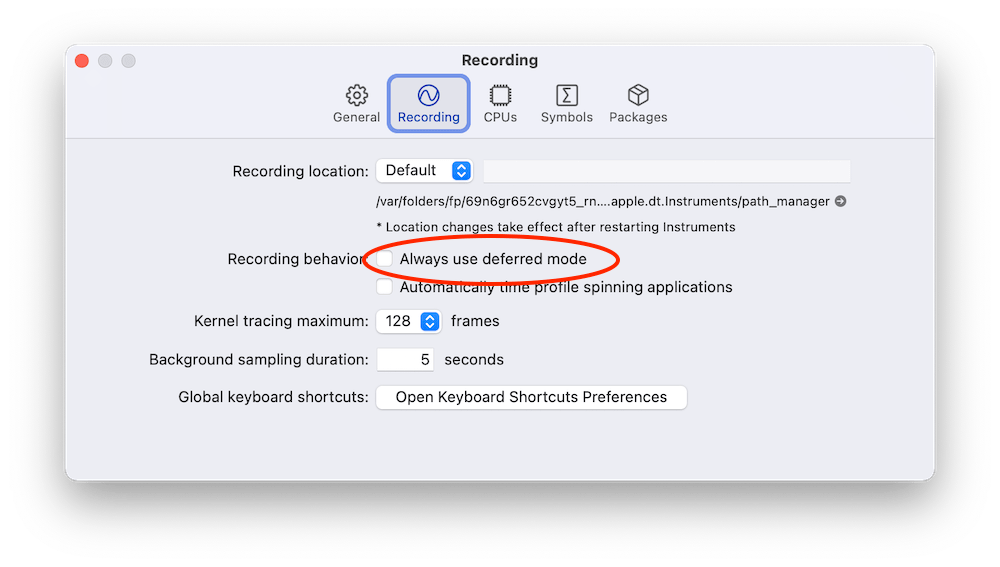
Always use deferred mode in Instruments preferences
The setting for deferred mode in Instruments preferences.

Call tree view in Instruments

While the application is running it is being sampled. In every sample Instruments captures the full backtrace of every thread. Sampled data is then aggregated and can be viewed in call tree view. Just to reiterate that sampling also means that very fast functions might not show up at all as they already stopped executing before a new sample is captured. Another thing to note is that the time in the call tree view equals to the function count in samples times the sampling time. Therefore, it is not an exact duration of the function execution. Let’s take a look at an example trace.
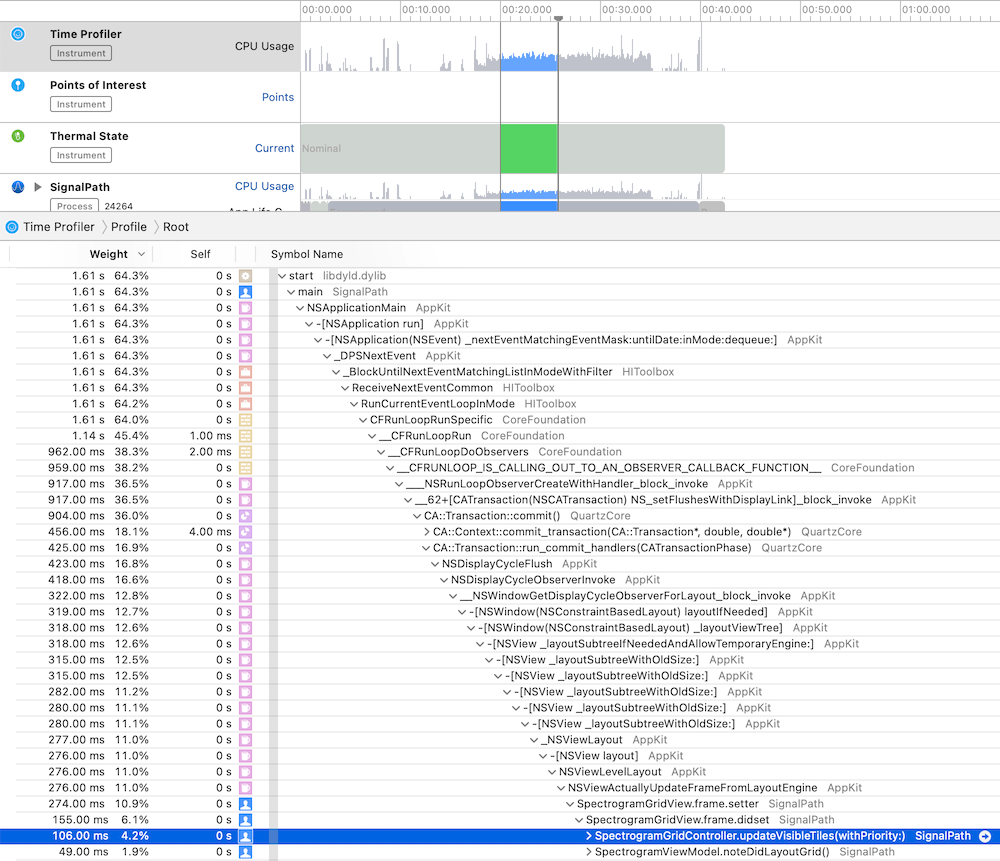
Call tree view in Instruments
Call tree view in Instruments.

The call tree view contains several columns: weight, self and symbol name. The weight shows the percentage of samples that the particular call tree appeared in. The self column shows the time spent in that method itself. This excludes time spent in other methods it called itself. In summary, the work the method did itself. Just to reiterate, time equals to sample count times sampling time. In the symbol name column we can navigate the tree and see which methods were called. There can be a lot of information. Also, the backtrace can be pretty long. For making it easier one can hold option while clicking on disclosure triangles which will trigger a smart expansion of the related backtraces. Another thing we can do is using call tree filtering options.

Call tree filtering options in Instruments
Call tree options.

“Separate by State” option divides the data into different app states: running, backgrounded etc. “Separate by Thread” shows data for every thread separately. This is on by default as this is most of the time what we want: to see what thread was doing what. “Invert Call Tree” reverses the tree view and shows backtraces which end up calling a specific method. In other words, when a function is called from several code paths, then this option enables to see all of those code paths. “Hide System Libraries” is what I typically enable for only revealing all of my own methods. “Flatten Recursion” makes recursive functions to show up once in the call stack and “Top Functions” reveals methods which require the most work.

Another useful view is the “Heaviest Stack Trace” view which displays the call stack which needed the most work.

Something to keep in mind is that from time to time we could encounter tail call elimination which is a compiler optimization. The downside is that in some cases it will make time profiler to show a function being called by a parent method of the actual calling method. In those cases we can use CFLAGS="-fno-optimize-sibling-calls" build setting which takes away the performance gain but gives more accurate backtraces. For learning more about it, I suggest watching the WWDC video Profiling in Depth which talks about it in much greater detail.

Summary

The time profiler is an excellent tool to look into the work app is doing. It gives a detail insight on the call stack level. If we know the basics of using the time profiler we can find really quickly the areas in the app which could be more performant. Better performance means less battery usage and snappier user interfaces for users.

If this was helpful, please let me know on Mastodon@toomasvahter or Twitter @toomasvahter. Feel free to subscribe to RSS feed. Thank you for reading.

Categories
iOS Swift

Code coverage for Swift Packages with Fastlane

Package.swift file in Swift packages describes the package contents including other dependencies, build targets and so on. Double-clicking a Package.swift file opens Xcode with that package and one can build and run tests. When adding continues integration to a Swift package then we would like to build, test, and also create a code coverage report. Fastlane is an excellent tool for such tasks and therefore let’s take a look on how to achieve that for packages with iOS target.

Code coverage support needs to be explicitly set and this can be done by using Swift Package Manager’s generate-xcodeproj command with having code coverage turned on. SPM then creates a Xcode project which has a slightly different scheme name with “-Package” suffix. The generated project file can then be used to run tests with Fastlane’s run_tests action. After running test we can use a tool like xcov for generating an HTML page with a code coverage report. One of the great features of the xcov is the ability to force a minimum code coverage percentage.

This approach works fine when we do not have any resource files in the package which are required for running tests. The problem is that the generate-xcodeproj command creates a project file without resource files. In those cases we would need to either use a separate standalone project or workspace file which has code coverage turned on.

Down below, we can see an example Fastfile which has a lane called “test_report” which generates a project file, runs tests and uses xcov for generating code coverage report. Additionally, it will delete the generated project file and any related folders.

require 'fileutils'
default_platform(:ios)
platform :ios do
desc "Run tests and create a unit-test report"
lane :test_report do
spm(
command: 'generate-xcodeproj',
enable_code_coverage: true
)
run_tests(
project: 'SPMPackage.xcodeproj',
scheme: 'SPMPackage-Package',
device: 'iPhone 12',
output_directory: './fastlane/UnitTests',
clean: true
)
xcov(
project: 'SPMPackage.xcodeproj',
scheme: 'SPMPackage-Package',
output_directory: './fastlane/CodeCoverage',
include_targets: 'SPMPackage.framework',
minimum_coverage_percentage: 80.0
)
if ENV['CI'] != 'true'
sh 'open ./UnitTests/report.html'
sh 'open ./CodeCoverage/index.html'
end
end
before_all do
FileUtils.remove_dir './CodeCoverage', true
FileUtils.remove_dir './UnitTests', true
end
after_all do
FileUtils.remove_dir './../SPMPackage.xcodeproj', true
end
end
view raw Fastfile.rb hosted with ❤ by GitHub

If this was helpful, please let me know on Mastodon@toomasvahter or Twitter @toomasvahter. Feel free to subscribe to RSS feed. Thank you for reading.

Categories
iOS macOS Swift

Custom string interpolation in Swift

ExpressibleByStringInterpolation is a protocol which makes it possible to compose strings with expressions evaluated at runtime. Interpolated strings are created with adding a \(some code) to a string. Those expressions are evaluated and a final string is created. This protocol, among other things, enables customizing strings what are created by those expressions. At the end of the post we have created a custom interpolation type which handles encodable and string representable types.

ExpressibleByStringInterpolation is a protocol which enables a type to be initialized with string interpolation. The protocol inherits from multiple other protocols, when going from top to down then it looks like this: ExpressibleByStringLiteral, ExpressibleByExtendedGraphemeClusterLiteral, and ExpressibleByUnicodeScalarLiteral. So it is a total of 4 levels of inheritance. That is important to know because if we add the protocol to a custom type then Xcode tells us about many functions the custom type needs to implement. Many of these functions already provide default implementation.

Let’s start with adding custom types Entry add EntryStorage. The storage type just keeps a collection of entries. The entry, for now, contains a string value, but we will expand the type in a way that the storage’s add function can be called with a string interpolation: storage.add("Entry (index)"). It will be very similar to OSLogMessage in Apple’s os framework.

struct EntryStorage {
private(set) var entries: [Entry] = []
mutating func add(_ entry: Entry) {
entries.append(entry)
}
}
struct Entry {
private(set) var value: String
}

With this set, let’s add ExpressibleByStringInterpolation conformance to the Entry type along with a custom interpolation type: EntryInterpolation. ExpressibleByStringInterpolation protocol comes with an associatedtype StringInterpolation which is by default set to DefaultStringInterpolation. If we want to use custom interpolation type then we can implement the init(stringInterpolation: EntryInterpolation) with the custom type and Swift will understand that we’ll be using our own type here. No need to add typealias StringInterpolation = EntryInterpolation (although we could for clarity). The custom EntryInterpolation type needs to conform to protocol StringInterpolationProtocol. The protocol requires us to implement an init method and a appendLiteral function. The custom type will have a property for storing multiple interpolated values because it needs to represents all the expressions in a single string. For example: "Text (expression1) more text (expression2)".

struct Entry: ExpressibleByStringInterpolation {
// typealias StringInterpolation = EntryInterpolation
private(set) var value: String
init(stringLiteral value: String) {
self.value = value
}
init(stringInterpolation: EntryInterpolation) {
self.value = stringInterpolation.values.joined()
}
}
struct EntryInterpolation: StringInterpolationProtocol {
private(set) var values: [String]
init(literalCapacity: Int, interpolationCount: Int) {
self.values = []
}
mutating func appendLiteral(_ literal: StringLiteralType) {
values.append(literal)
}
}

With this implementation we can write code which looks like this:

var entryStorage = EntryStorage()
entryStorage.add("Entry 1")

Note that the add method takes an argument of the type Entry but here we are passing a string to the function. This works because the Entry type conforms to the ExpressibleByStringLiteral protocol which the ExpressibleByStringInterpolation includes.

Now we have basics set up and we can go and add additional functions to the EntryInterpolation type. At first, we’ll add a generic function enabling us to create interpolated strings with expressions which return a type conforming to the CustomStringConvertible protocol. There are numerous types which implement this protocol and therefore we get a support of interpolating each of those. For example, Int and Array types conform to it.

extension EntryInterpolation {
mutating func appendInterpolation<T: CustomStringConvertible>(_ value: T) {
values.append(value.description)
}
}
let index = 2
let items = ["Item 1", "Item 2"]
entryStorage.add("Entry \(index): items=\(items)")
// Entry 2: items=["Item 1", "Item 2"]

Sometimes we might want to pass in encodable types directly with customizable formats. Note how the interpolated expression gets a support to the custom format argument. That is because Swift converts each of the expressions to calls to appendInterpolation which can have additional arguments.

extension EntryInterpolation {
mutating func appendInterpolation<T: Encodable>(_ value: T, jsonFormat: JSONEncoder.OutputFormatting = [.prettyPrinted, .sortedKeys]) {
let encoder = JSONEncoder()
encoder.outputFormatting = jsonFormat
let data = try? encoder.encode(value)
values.append(String(data: data ?? Data(), encoding: .utf8) ?? "invalid")
}
}
struct User: Encodable {
let name: String
let age: Int
}
let user = User(name: "Appleseed", age: 20)
entryStorage.add("Entry 3: \(user, jsonFormat: .prettyPrinted)")
entryStorage.add("Entry 3: \(user, jsonFormat: .sortedKeys)")
// Entry 3: {
// "name" : "Appleseed",
// "age" : 20
//}
//Entry 3: {"age":20,"name":"Appleseed"}

It is worth taking a look on the interface of the OSLogInterpolation type and all the appendInterpolation functions it implements. As seen so far, it is pretty easy to extend a custom interpolation type with functions like these.

If this was helpful, please let me know on Mastodon@toomasvahter or Twitter @toomasvahter. Feel free to subscribe to RSS feed. Thank you for reading.

Project

SwiftStringInterpolationPlayground (Xcode 12.4)

Categories
iOS macOS

Signal Path 2.4 for macOS, iOS and iPadOS

Signal Path version 2.4 is out. This time it is a smaller release concentrating on optimizing file accesses when playing audio or just scrolling through the file.

Download on the Mac App Store Download on the App Store

Categories
iOS macOS Swift

Building a memory cache for a file reader in Swift

In the previous blog post Reading data from a file with DispatchIO I built a small FileReader which enabled reading data from a file for random byte ranges. Signal Path uses a similar file reader but in addition it also caches read data in some interactions where there are a lot of read requests active, for example, while recording. Therefore, in this blog post we’ll build a small file data cache which stores data chunks for byte ranges. The cache needs to be performant, otherwise it would be faster to just read the data from the file if it is slow.

Defining an interface for the cache

The interface of the FileMemoryCache needs to provide a way for retrieving data, storing data, and limiting the overall memory usage.

final class FileMemoryCache {
init(byteCountLimit: Int)
/// Returns data for the byte range
func data(for byteRange: CountableRange<Int>) -> DispatchData?
/// Caches data for the byte range and evicts older data when exceeding byte count limit
func set(_ data: DispatchData, byteRange: CountableRange<Int>)
/// Removes everything from the cache
func removeAll()
}

Storing and retrieving cached data

The strategy of caching is to use a sorted array where the array is sorted by the first index of a byte range. Items in the array are structs containing a byte range and data. Having a sorted array makes it easier to merge data chunks when retrieving data for a longer byte range than the individual array items provide. As the aim is to keep it as fast as possible then data is merged only when cache is accessed which reduces the need to copy memory multiple times. The downside is that the cache can store overlapping chunks of data which reduces the efficiency. But on the other hand it is fast. Sorted array also enables to use binary search if linear search happens to be too slow with large amount of cached data chunks.

final class FileMemoryCache {
private var sortedItems = [StorageItem]()
struct StorageItem {
let byteRange: CountableRange<Int>
let data: DispatchData
}
}

Let’s start with the store method which takes a data and a byte range it corresponds to. For keeping the array sorted, we’ll use the first index of the byte range as the attribute for sorting. We’ll also make sure that the current item at the insertion index does not already contain the byte range we are trying to cache. If it does contain, we can safely ignore the current store request as the data is already cached. Additionally, we’ll check if the previous item in the array as it might also contain the byte range.

func set(_ data: DispatchData, byteRange: CountableRange<Int>) {
if let insertionIndex = sortedItems.firstIndex(where: { $0.byteRange.startIndex >= byteRange.startIndex }) {
let canDiscard: Bool = {
guard !sortedItems[insertionIndex].byteRange.contains(byteRange) else { return true }
guard insertionIndex > sortedItems.startIndex else { return false }
return sortedItems[insertionIndex.advanced(by: -1)].byteRange.contains(byteRange)
}()
if !canDiscard {
sortedItems.insert(StorageItem(byteRange: byteRange, data: data), at: insertionIndex)
}
}
else {
sortedItems.append(StorageItem(byteRange: byteRange, data: data))
}
}

When it comes to retrieving data then we’ll need to find intersecting cached data chunks and merge them if needed. Therefore, the first step is to collect cached data chunks which intersect with the requested range. For keeping it as simple as possible, will just loop over the array without using binary search and collect the items which are intersecting. The next step after that is to make sure the whole requested byte range is already present in the cache. This can be checked quite easily with IndexSet which contains indexes for every requested bytes. By removing byte indexes in intersecting ranges, the index set becomes empty. It means that every byte index is cached.

func data(for byteRange: CountableRange<Int>) -> DispatchData? {
// Find items which intersect with the search range
guard let firstIntersectingItemIndex = sortedItems.firstIndex(where: { byteRange.intersects($0.byteRange) }) else { return nil }
let intersectingItems = sortedItems[firstIntersectingItemIndex…].prefix(while: { byteRange.intersects($0.byteRange) })
// Check if the whole range is covered
var byteIndexesInCache = IndexSet(integersIn: byteRange)
intersectingItems.forEach({ byteIndexesInCache.remove(integersIn: $0.byteRange) })
guard byteIndexesInCache.isEmpty else { return nil }
// …
}

We’ll need to copy intersecting byte indexes into a final contiguous data. It could be that the whole cached data chunk can be copied over or just a part of it. After figuring out which part of the cached data chunk to copy, the next step is to calculate the byte index in the resulting memory region which starts with the zero byte index. The implementation can be seen below which includes byte range index conversions.

func data(for byteRange: CountableRange<Int>) -> DispatchData? {
// …
guard let byteRangePointer = malloc(byteRange.count) else { return nil }
for storageItem in intersectingItems {
let rangeToCopyInData: CountableRange<Int> = {
switch (byteRange.contains(storageItem.byteRange.startIndex), byteRange.contains(storageItem.byteRange.endIndex – 1)) {
case (true, true):
// Everything: |+++++++++++++|
return 0..<storageItem.byteRange.count
case (false, true):
// End: |—++++++++++|
return byteRange.startIndex – storageItem.byteRange.startIndex..<storageItem.byteRange.count
case (true, false):
// Start: |++++++++++—|
return 0..<byteRange.endIndex – storageItem.byteRange.startIndex
case (false, false):
// Middle: |—+++++++—|
return byteRange.startIndex – storageItem.byteRange.startIndex..<byteRange.endIndex – storageItem.byteRange.startIndex
}
}()
// Find the byte range in the allocated memory range where to copy the cached data section
let destinationByteIndex = storageItem.byteRange.startIndex – byteRange.startIndex + rangeToCopyInData.startIndex
let destinationPointer = byteRangePointer.advanced(by: destinationByteIndex)
let destinationBufferPointer = UnsafeMutableRawBufferPointer(start: destinationPointer, count: rangeToCopyInData.count)
storageItem.data.copyBytes(to: destinationBufferPointer, from: rangeToCopyInData)
// Ignore remaining intersections because everything is copied
if destinationByteIndex + rangeToCopyInData.count >= byteRange.endIndex {
break
}
}
let byteRangeBufferPointer = UnsafeRawBufferPointer(start: byteRangePointer, count: byteRange.count)
return DispatchData(bytesNoCopy: byteRangeBufferPointer, deallocator: .free)
}

Summary

We built a simple cache for storing data chunks for byte ranges. We used a sorted array for storing individual data chunks which made it easier to merge them into one when the cache is accessed. Make sure to check the full implementation on GitHub which also includes evicting cached data.

If this was helpful, please let me know on Mastodon@toomasvahter or Twitter @toomasvahter. Feel free to subscribe to RSS feed. Thank you for reading.

Example Project

FileReaderPlayground (Xcode 12.4)

Categories
Foundation iOS macOS Swift

Measurement, Unit, Dimension, and MeasurementFormatter on iOS

I was looking at formatters provided by Foundation framework and this time I would like to put some attention on MeasurementFormatter. Like the name says, it is used for creating localized strings of some sort of measurements. Measurements are represented by a generic struct Measurement where the generic UnitType describes the unit represented by it. Apple provides an Unit subclass Dimension which in turn has a many subclasses on its own. At the time of writing there are 22 dimensional units available with each of those having multitude of related units. For example, UnitDuration provides units for seconds, minutes, and hours. The full list of Apple provided dimensions are available in a table here: Dimension.

Using MeasurementFormatter

MeasurementFormatter is simple to use. If we change the unitStyle property then we can configure how the unit is spelled in the localized string.

let formatter = MeasurementFormatter()
let unitStyles: [Formatter.UnitStyle] = [.short, .medium, .long]
for unitStyle in unitStyles {
formatter.unitStyle = unitStyle
let measurement = Measurement(value: 9.8, unit: UnitAcceleration.gravity)
print(formatter.string(from: measurement))
}
// Prints:
// 9.8Gs
// 9.8 G
// 9.8 g-force
Basic usage of MeasurementFormatter.

MeasurementFormatter also has an unitOptions property which controls the way how the final string is composed when taking account the current locale. For example, if locale is set to en_US then UnitTemperature measurement is formatted in Fahrenheits. If locale is set to en_GB then the measurement returns Celsius.

let formatter = MeasurementFormatter()
formatter.locale = Locale(identifier: "en_US")
print(formatter.string(from: Measurement(value: 293, unit: UnitTemperature.kelvin)))
// 67.73°F
formatter.locale = Locale(identifier: "en_GB")
print(formatter.string(from: Measurement(value: 293, unit: UnitTemperature.kelvin)))
// 19.85°C
MeasurementFormatter selecting output unit based on the locale.

In case we would like to make sure the same unit is used, then we can use the providedUnit option.

let formatter = MeasurementFormatter()
formatter.unitOptions = [.providedUnit]
formatter.locale = Locale(identifier: "en_US")
print(formatter.string(from: Measurement(value: 293, unit: UnitTemperature.kelvin)))
// 293 K
Forcing the formatter to use the provided unit.

Another thing to note is that the Measurement type also supports comparing measurements and mathematical operations. For example, we can add two measurements.

let measurement1 = Measurement(value: 3.2, unit: UnitElectricCurrent.amperes)
let measurement2 = Measurement(value: 0.02, unit: UnitElectricCurrent.kiloamperes)
print(measurement1 + measurement2)
// 23.2 A
A sum of two measurements.

Creating additional units

MeasurementFormatter is built in a way that it can support custom units as well. We could create a pseudo unit for a children’s game named UnitBanana.

class UnitBanana: Dimension {
override static func baseUnit() -> Self {
return UnitBanana.banana as! Self
}
static let banana = UnitBanana(symbol: "bana", converter: UnitConverterLinear(coefficient: 1.0))
}
let formatter = MeasurementFormatter()
formatter.unitOptions = .providedUnit
print(formatter.string(from: Measurement(value: 2, unit: UnitBanana.banana)))
// 2 bana
Pseudo-unit called UnitBanana.

Summary

MeasurementFormatter and Measurement types create a powerful combination which can be used for creating localized strings of values with an unit. Next time when you need to present a value with an unit, then check out the MeasurementFormatter first.

If this was helpful, please let me know on Mastodon@toomasvahter or Twitter @toomasvahter. Feel free to subscribe to RSS feed. Thank you for reading.

Categories
CoreData iOS macOS Swift

Importing items from network to a Core Data store

Many apps use Core Data for persistence and also need to import data from a server. Imported items typically have a unique identifier which can be used for identifying them. The count of imported items can be high therefore it is preferred to batch insert the items instead of adding them one by one. Core Data framework has a specialized request for this called NSBatchInsertRequest which is available since iOS 13. If we combine batch insert with Core Data constraints then we can achieve a flow where new items are only created when the store does not have an item for the unique identifier. All the other items already available in the persistent store are updated (instead of deleting the old item and reinserting it). In this blog post let’s take a look on how it works with a sample app which displays a list of Product entities with a name and a unique serial code attributes.

Product entity with “name” and “serialCode” attributes.

Constraints on the entity can be set in the model editor. For making sure that only one Product with a serial code of X exists in the persistent store then we will need to add a constraint on the serialCode attribute. Core Data framework will then make sure that only one entity with unique serial code exists in the persistent store. Neat, no need to query the store first for existing products and manually checking for possible duplicates.

CoreData constraint set to Product entity.

With a constraint set up, let’s take a look on the batch insert. Apple added NSBatchInsertRequest to Core Data framework in iOS 13. As we added a constraint then we need to tell Core Data what to do if there is already an item for the unique serial code. If we set NSManagedObjectContext‘s merge policy to NSMergeByPropertyObjectTrumpMergePolicy before executing the batch insert then Core Data goes and updates existing items with incoming attribute values fetched from a server. If there is not an item in the store with serial code then a new item is inserted. In summary, we get a behaviour where existing items are updated and missing items are inserted when importing items from a server. The flow of fetching data from a server, running batch insert on a background context and then refreshing fetched results controller can be seen below.

final class ViewModel: ObservableObject {
func importProducts() {
ProductAPI.getAll { result in
switch result {
case .success(let products):
self.persistenceController.container.performBackgroundTask { context in
context.mergePolicy = NSMergeByPropertyObjectTrumpMergePolicy
let batchInsert = NSBatchInsertRequest(entityName: "Product", objects: products)
do {
let result = try context.execute(batchInsert) as! NSBatchInsertResult
print(result)
}
catch {
let nsError = error as NSError
// TODO: handle errors
}
DispatchQueue.main.async {
objectWillChange.send()
// TODO: handle errors
try? resultsController.performFetch()
}
}
}
}
}
}
view raw ViewModel.swift hosted with ❤ by GitHub
Import function in a view model which fetches a list of products and inserts into a persistent store.

Summary

NSBatchInsertRequest is a welcoming change which makes it easy to insert and update existing items already in the persistent store. Setting up a constraint on a unique identifier and setting merge policy on a context enables us to handle SQL upserts without much code.

If this was helpful, please let me know on Mastodon@toomasvahter or Twitter @toomasvahter. Feel free to subscribe to RSS feed. Thank you for reading.

Example Project

CoreDataBatchInsertConstraints (Xcode 12.3)

Categories
CoreData iOS macOS Swift SwiftUI UIKit

Most visited blog posts in 2020

I have been writing a new blog post at least every second week and therefore in 2020 I have published total of 27 blog posts. It is time to take a look back on the 2020 and see which blog posts were the most popular ones. I am just looking at the total count of views per blog post.

Most read posts in 2020

  1. Using CoreData with SwiftUI (January 19, 2020)
  2. Validating string in TextField with NumberFormatter in SwiftUI (April 26, 2020)
  3. Scanning text using SwiftUI and Vision on iOS (July 7, 2019)
  4. Adding custom attribute to NSAttributedString on iOS (November 10, 2019)
  5. Fetching and displaying data on Watch app in SwiftUI (February 16, 2020)
  6. Animating view transitions in SwiftUI (December 8, 2019)
  7. Text input in UITableView (November 4, 2018)
  8. NavigationLink and presentationMode environment value property for dismissing a view in SwiftUI (September 29, 2019)
  9. MVVM in SwiftUI (January 5, 2020)
  10. Dynamic user notification on Apple Watch with SwiftUI (February 2, 2020)

If this was helpful, please let me know on Mastodon@toomasvahter or Twitter @toomasvahter. Feel free to subscribe to RSS feed. Thank you for reading.

Categories
Foundation iOS Swift UIKit

Opening hyperlinks in UILabel on iOS

UILabel supports displaying attributed strings with link attributes but what it does not support is allowing to tap on hyperlinks and opening those in Safari. An Alternative way is using an UITextView which does support opening hyperlinks but on the other hand it is a more heavy view component and therefore might not be the best choice when we just need to display some text with hyperlinks. This time lets create a simple UILabel subclass which adds support for opening hyperlinks and custom hyperlink styles.

Creating NSAttributedStrings with hyperlinks

Before we jump into implementing an UILabel subclass HyperlinkLabel, let’s first take a look on how to create a NSAttributedString with hyperlinks. In the example app we will have several labels with different configurations: default and custom link styles and left, centre, right text alignments. UITextView has a linkTextAttributes property but in our UILabel subclass we’ll need to implement custom link styling ourselves. The approach we are going to take is creating a new NSAttributedString.Key value named hyperlink and adding text attributes when the attribute is present.

extension NSAttributedString.Key {
static let hyperlink = NSAttributedString.Key("hyperlink")
}

Let’s now create a convenience method which creates NSAttributedString and sets it to the HyperlinkLabel.

private extension HyperlinkLabel {
static func banner(withAlignment alignment: NSTextAlignment, customStyling: Bool, tapHandler: @escaping (URL) -> Void) -> HyperlinkLabel {
let attributedString = NSMutableAttributedString(string: "Check this webpage: %0$@. Link to %1$@ on the App Store. Finally link to %2$@.")
let replacements = [("Augmented Code", URL(string: "https://augmentedcode.io&quot;)!),
("SignalPath", URL(string: "https://geo.itunes.apple.com/us/app/signalpath/id1210488485?mt=12&quot;)!),
("GitHub", URL(string: "https://github.com/laevandus&quot;)!)]
replacements.enumerated().forEach { index, value in
let linkAttribute: NSAttributedString.Key = customStyling ? .hyperlink : .link
let attributes: [NSAttributedString.Key: Any] = [
linkAttribute: value.1
]
let urlAttributedString = NSAttributedString(string: value.0, attributes: attributes)
let range = (attributedString.string as NSString).range(of: "%\(index)$@")
attributedString.replaceCharacters(in: range, with: urlAttributedString)
}
let paragraphStyle = NSMutableParagraphStyle()
paragraphStyle.alignment = alignment
attributedString.addAttribute(.paragraphStyle, value: paragraphStyle, range: NSRange(location: 0, length: attributedString.length))
let label = HyperlinkLabel()
label.attributedText = attributedString
label.translatesAutoresizingMaskIntoConstraints = false
label.didTapOnURL = tapHandler
return label
}
}

The final NSAttributedString is created by first initializing a mutable version with a format string. The format string follows the familiar format specifiers like we used with NSString and String APIs when dealing with re-orderable arguments. Format specifiers are replaced with new instances of NSAttributedStrings where the string value equals to a hyperlink name and the URL value is stored on the NSAttributedString.Key.link or NSAttributedString.Key.hyperlink attribute. The former gives us the default link style defined by Apple and the latter our custom link style.

class ViewController: UIViewController {
@IBOutlet weak var stackView: UIStackView!
private lazy var resultLabel: UILabel = .sectionTitle("Tap on the label…")
override func viewDidLoad() {
super.viewDidLoad()
stackView.addArrangedSubview(resultLabel)
stackView.addArrangedSubview(UILabel.sectionTitle("Left alignment"))
stackView.addArrangedSubview(HyperlinkLabel.banner(withAlignment: .left, customStyling: false, tapHandler: didTap))
stackView.addArrangedSubview(HyperlinkLabel.banner(withAlignment: .left, customStyling: true, tapHandler: didTap))
stackView.addArrangedSubview(UILabel.sectionTitle("Center alignment"))
stackView.addArrangedSubview(HyperlinkLabel.banner(withAlignment: .center, customStyling: false, tapHandler: didTap))
stackView.addArrangedSubview(HyperlinkLabel.banner(withAlignment: .center, customStyling: true, tapHandler: didTap))
stackView.addArrangedSubview(UILabel.sectionTitle("Right alignment"))
stackView.addArrangedSubview(HyperlinkLabel.banner(withAlignment: .right, customStyling: false, tapHandler: didTap))
stackView.addArrangedSubview(HyperlinkLabel.banner(withAlignment: .right, customStyling: true, tapHandler: didTap))
}
private func didTap(_ url: URL) {
// In the example app we just print the result and do not open it in Safari
resultLabel.text = "Did tap on: \(url)"
}
}

Creating HyperlinkLabel which supports tapping on hyperlinks

UILabel does not provide access to its text layout and therefore it is not possible to know which hyperlink was tapped. For finding the tapped hyperlink we’ll need to use our own NSLayoutManager, NSTextStorage, and NSTextContainer. If we configure those properly we can figure out which character was tapped and therefore if it was part of the hyperlink. If it is, then we can let UIApplication to open the tapped URL. Let’s contain this in a function which gives us a configured NSTextStorage.

private func preparedTextStorage() -> NSTextStorage? {
guard let attributedText = attributedText, attributedText.length > 0 else { return nil }
// Creates and configures a text storage which matches with the UILabel's configuration.
let layoutManager = NSLayoutManager()
let textContainer = NSTextContainer(size: bounds.size)
textContainer.lineFragmentPadding = 0
let textStorage = NSTextStorage(string: "")
layoutManager.addTextContainer(textContainer)
textStorage.addLayoutManager(layoutManager)
textContainer.lineBreakMode = lineBreakMode
textContainer.size = textRect(forBounds: bounds, limitedToNumberOfLines: numberOfLines).size
textStorage.setAttributedString(attributedText)
return textStorage
}

Now we can use this function when handling UITouch events. We’ll add another private function which will take current UITouches and figure out which hyperlink was tapped. The general flow consists of creating a NSTextStorage with the function we just defined, then asking from the NSLayoutManager which character index was tapped. NSLayoutManager returns the closest character index of the touch. Therefore, we’ll need to go one step deeper and ask for the actual bounding rectangle of the glyphs representing the character and then verifying if the touch location was inside the glyph’s bounding rectangle. This is important when dealing with different text alignments and when tapping on the free space around characters. After figuring out which character was tapped we’ll need to check for the hyperlink attributes. If the tapped character has either attribute set, then we can conclude that we tapped on a hyperlink. This function can then be called in touchesEnded and if we tapped on a hyperlink, then we can open it. One thing to note is that userInteractionEnabled needs to be set to true before UILabel can handle touch events.

private func url(at touches: Set<UITouch>) -> URL? {
guard let attributedText = attributedText, attributedText.length > 0 else { return nil }
guard let touchLocation = touches.sorted(by: { $0.timestamp < $1.timestamp } ).last?.location(in: self) else { return nil }
guard let textStorage = preparedTextStorage() else { return nil }
let layoutManager = textStorage.layoutManagers[0]
let textContainer = layoutManager.textContainers[0]
let characterIndex = layoutManager.characterIndex(for: touchLocation, in: textContainer, fractionOfDistanceBetweenInsertionPoints: nil)
guard characterIndex >= 0, characterIndex != NSNotFound else { return nil }
// Glyph index is the closest to the touch, therefore also validate if we actually tapped on the glyph rect
let glyphRange = layoutManager.glyphRange(forCharacterRange: NSRange(location: characterIndex, length: 1), actualCharacterRange: nil)
let characterRect = layoutManager.boundingRect(forGlyphRange: glyphRange, in: textContainer)
guard characterRect.contains(touchLocation) else { return nil }
// Link styled by Apple
if let url = textStorage.attribute(.link, at: characterIndex, effectiveRange: nil) as? URL {
return url
}
// Custom link style
return textStorage.attribute(.hyperlink, at: characterIndex, effectiveRange: nil) as? URL
}
var didTapOnURL: (URL) -> Void = { url in
if UIApplication.shared.canOpenURL(url) {
UIApplication.shared.open(url, options: [:], completionHandler: { success in
if success {
print("Opened URL \(url) successfully")
}
else {
print("Failed to open URL \(url)")
}
})
}
else {
print("Can't open the URL: \(url)")
}
}
override func touchesEnded(_ touches: Set<UITouch>, with event: UIEvent?) {
if let url = self.url(at: touches) {
didTapOnURL(url)
}
else {
super.touchesEnded(touches, with: event)
}
}

Next thing we need to do is overriding attributedText property and handling the custom style of our custom hyperlink attribute. If the attributed text has this attribute set, then we will apply custom hyperlink text attributes. The same way as Apple’s link attribute works, when the attributed string gets displayed then custom styling is used. Secondly, we’ll set the UILabel’s font to the attributed string’s ranges which do not have a font attribute set. UILabel internally use UILabel’s font when font attributes are not set, so we want to force the same behaviour when the stored attributed string is set to our own NSTextStorage. If we do not do this, then NSAttributedString just uses its default font and the displayed string is not going to be equal to the string set to NSTextStorage. This in turn will lead to invalid character index calculations because fonts are different.

override var attributedText: NSAttributedString? {
get {
return super.attributedText
}
set {
super.attributedText = {
guard let newValue = newValue else { return nil }
// Apply custom hyperlink attributes
let text = NSMutableAttributedString(attributedString: newValue)
text.enumerateAttribute(.hyperlink, in: NSRange(location: 0, length: text.length), options: .longestEffectiveRangeNotRequired) { (value, subrange, _) in
guard let value = value else { return }
assert(value is URL)
text.addAttributes(hyperlinkAttributes, range: subrange)
}
// Fill in font attributes when not set
text.enumerateAttribute(.font, in: NSRange(location: 0, length: text.length), options: .longestEffectiveRangeNotRequired) { (value, subrange, _) in
guard value == nil, let font = font else { return }
text.addAttribute(.font, value: font, range: subrange)
}
return text
}()
}
}

Summary

We created a UILabel subclass which has a capability of opening tapped links. Useful, if we need just a label for displaying some text along with hyperlinks. Please take a look on the full implementation available here: HyperlinkLabel.

If this was helpful, please let me know on Mastodon@toomasvahter or Twitter @toomasvahter. Feel free to subscribe to RSS feed. Thank you for reading.

Project

UILabelHyperlinks (Xcode 12.3)

Categories
AppKit ImageIO iOS macOS Swift

CoreGraphics based image resizer for multiplatform apps in Swift

Just a couple of weeks ago I wrote about resizing images on iOS: Resizing UIImages with aspect fill on iOS. As I am currently building a macOS, iOS, watchOS app I realized that I need a multiplatform image resizer. As this app deals with full size photos then I need to resize those photos for avoiding excessive memory usage. Apple’s CoreGraphics framework provides APIs what are compatible with all the before mentioned platforms. Therefore, let’s revisit the image scaler created in Resizing UIImages with aspect fill on iOS and let’s refactor it to use purely multiplatform supported CGImages.

We’ll skip the part which discusses calculating a rectangle in the original image which is then resized for assuring the image is resized equally on both axes. It is important because the aspect ratio of the original image most of the time does not equal to the aspect ratio of the target size. Let’s now take a look at cropping and resizing the original image. Cropping is easy to do because CGImage already has a convenient cropping(to:) method. On the other hand, resizing requires setting up a CGContext with the same parameters as the cropped image but the pixel size must be set to the target size. When we now draw the cropped image to the context, then CoreGraphics takes care of resizing the image.


import CoreGraphics
struct ImageScaler {
static func scaleToFill(_ image: CGImage, from fromRect: CGRect = .zero, in targetSize: CGSize) -> CGImage? {
let imageSize = CGSize(width: image.width, height: image.height)
let rect = fromRect.isEmpty ? CGRect(origin: .zero, size: imageSize) : fromRect
let scaledRect = rect.scaled(toFillSize: targetSize)
return scale(image, fromRect: scaledRect, in: targetSize)
}
private static func scale(_ image: CGImage, fromRect: CGRect = .zero, in targetSize: CGSize) -> CGImage? {
let makeCroppedCGImage: (CGImage) -> CGImage? = { cgImage in
guard !fromRect.isEmpty else { return cgImage }
return cgImage.cropping(to: fromRect)
}
guard let croppedImage = makeCroppedCGImage(image) else { return nil }
let context = CGContext(data: nil,
width: Int(targetSize.width),
height: Int(targetSize.height),
bitsPerComponent: croppedImage.bitsPerComponent,
bytesPerRow: croppedImage.bytesPerRow,
space: croppedImage.colorSpace ?? CGColorSpace(name: CGColorSpace.sRGB)!,
bitmapInfo: croppedImage.bitmapInfo.rawValue)
context?.interpolationQuality = .high
context?.draw(croppedImage, in: CGRect(origin: .zero, size: targetSize))
return context?.makeImage()
}
}

I have created a multiplatform sample app which just has a single SwiftUI view shared with iOS and macOS (it is not a Mac Catalyst app). Because we use CGImages then all the code can be shared. The view just loads a full size photo, scales it, and displays it. In the example view we have resized the image by taking account the current displayScale. Depending on the displayScale value we need to make the pixel size of the CGImage larger by the factor of the displayScale. For example, if the point size is 200×200 points, displayScale is 3.0, then the pixel size of the CGImage needs to be 600×600. This will give us a nice and crisp end result when the image is rendered.


struct ContentView: View {
@Environment(\.displayScale) var displayScale: CGFloat
@StateObject var viewModel = ViewModel()
var body: some View {
VStack {
if viewModel.cgImage != nil {
Image(viewModel.cgImage!,
scale: displayScale,
orientation: .up,
label: Text("photo")
)
}
}
.padding()
.onAppear(perform: { viewModel.prepareImage(withScale: displayScale) })
}
}
extension ContentView {
final class ViewModel: ObservableObject {
static let queue = DispatchQueue(label: "com.augmentedcode.imageloader")
@Published var cgImage: CGImage?
func prepareImage(withScale displayScale: CGFloat) {
Self.queue.async {
guard let url = Bundle.main.url(forResource: "ExamplePhoto", withExtension: "jpeg") else { return }
guard let source = CGImageSourceCreateWithURL(url as CFURL, nil) else { return }
guard let image = CGImageSourceCreateImageAtIndex(source, 0, nil) else { return }
let targetSize = CGSize(width: CGFloat(200.0) * displayScale, height: CGFloat(200.0) * displayScale)
let scaledImage = ImageScaler.scaleToFill(image, in: targetSize)
DispatchQueue.main.async {
self.cgImage = scaledImage
}
}
}
}
}

Summary

CoreGraphics is available on multiple Apple platforms and it provides tools for cropping and resizing images. With just a little bit of refactoring we have turned UIImage based image scaler into CoreGraphics backed scaler which can be used on multiple platforms.

If this was helpful, please let me know on Mastodon@toomasvahter or Twitter @toomasvahter. Feel free to subscribe to RSS feed. Thank you for reading.

Project

CoreGraphicsImageScaler (Xcode 12.2)