Categories
CoreData iOS Swift SwiftUI

NSFetchedResultsController wrapper for SwiftUI view models

Although SwiftUI framework contains a @FetchRequest property wrapper, it is not possible to use it outside of SwiftUI views because it relies on accessing the managed object context from the view environment. While working on an CoreData based app which uses view models a lot within SwiftUI views, I ended up creating a wrapper class for making it easier to use NSFetchedResultsController. The wrapper class is named FetchedResultList and what it does internally is creating a NSFetchedResultsController instance, handling its delegate methods, and notifying about data changes through closures. Here is an example of a view model using the wrapper.

@MainActor final class ViewModel: ObservableObject {
private let list: FetchedResultList<Fruit>
init(context: NSManagedObjectContext = PersistenceController.shared.container.viewContext) {
list = FetchedResultList(context: context,
sortDescriptors: [
NSSortDescriptor(keyPath: \Fruit.name, ascending: true)
])
list.willChange = { [weak self] in self?.objectWillChange.send() }
}
var fruits: [Fruit] {
list.items
}
@Published var searchText: String = "" {
didSet {
if searchText.isEmpty {
list.predicate = nil
}
else {
list.predicate = NSPredicate(format: "name contains[cd] %@", searchText)
}
}
}
}
view raw Fruits.swift hosted with ❤ by GitHub

The view model conforms to ObservableObject protocol and FetchedResultList provides a willChange closure which gets called when NSFetchedResultsController’s will change delegate is called. Calling the objectWillChange publisher will signal the SwiftUI view about the data change and the view gets re-rendered. The wrapper also supports updating predicate or sort descriptors dynamically. Here, we can see how setting a searchableText property from the view will update the predicate of the wrapper class. The SwiftUI view which uses the view model looks like this:

struct FruitList: View {
@StateObject var viewModel = ViewModel()
var body: some View {
NavigationStack {
List(viewModel.fruits) { item in
NavigationLink(item.name) {
Text(verbatim: "Detail view for \(item.name)")
}
}
.navigationTitle("Fruits")
.searchable(text: $viewModel.searchText)
}
}
}
view raw Fruits.swift hosted with ❤ by GitHub

Let’s take a look at how the wrapper class is implemented. The core logic around the wrapper is creating an instance of NSFetchedResultsController, allowing to reconfigure it dynamically, handling its delegate, and notifying changes through closures. Using closures instead of conforming to ObservableObject is a conscious choice since the main use case is using the wrapper class in view models or in other controllers, and it means that propagating the data change to a SwiftUI view needs to be done manually. It is shorter to call view model’s objectWillChange in a closure than republishing wrapper’s objectWillChange to view model’s objectWillChange. Moreover, it would make more sense to use SwiftUI provided property wrapper instead of this wrapper if we would want to handle CoreData fetching in the SwiftUI view’s implementation.

@MainActor final class FetchedResultList<Result: NSManagedObject> {
private let fetchedResultsController: NSFetchedResultsController<Result>
private let observer: FetchedResultsObserver<Result>
init(context: NSManagedObjectContext, filter: NSPredicate? = nil, sortDescriptors: [NSSortDescriptor]) {
let request = NSFetchRequest<Result>(entityName: Result.entity().name ?? "<not set>")
request.predicate = filter
request.sortDescriptors = sortDescriptors.isEmpty ? nil : sortDescriptors
fetchedResultsController = NSFetchedResultsController(fetchRequest: request, managedObjectContext: context, sectionNameKeyPath: nil, cacheName: nil)
observer = FetchedResultsObserver(controller: fetchedResultsController)
observer.willChange = { [unowned self] in self.willChange?() }
observer.didChange = { [unowned self] in self.didChange?() }
refresh()
}
private func refresh() {
do {
try fetchedResultsController.performFetch()
}
catch {
Logger().error("Failed to load results")
}
}
var items: [Result] {
fetchedResultsController.fetchedObjects ?? []
}
var predicate: NSPredicate? {
get {
fetchedResultsController.fetchRequest.predicate
}
set {
fetchedResultsController.fetchRequest.predicate = newValue
refresh()
}
}
var sortDescriptors: [NSSortDescriptor] {
get {
fetchedResultsController.fetchRequest.sortDescriptors ?? []
}
set {
fetchedResultsController.fetchRequest.sortDescriptors = newValue.isEmpty ? nil : newValue
refresh()
}
}
var willChange: (() -> Void)?
var didChange: (() -> Void)?
}

The wrapper class uses private FetchedResultsObserver class which must derive from NSObject because it implements NSFetchedResultsControllerDelegate methods. This approach allows keeping the FetchedResultList class a pure Swift class and not a NSObject subclass which I like to avoid in SwiftUI apps (just a personal preference).

private final class FetchedResultsObserver<Result: NSManagedObject>: NSObject, NSFetchedResultsControllerDelegate {
var willChange: () -> Void = {}
var didChange: () -> Void = {}
init(controller: NSFetchedResultsController<Result>) {
super.init()
controller.delegate = self
}
func controllerWillChangeContent(_ controller: NSFetchedResultsController<NSFetchRequestResult>) {
willChange()
}
func controllerDidChangeContent(_ controller: NSFetchedResultsController<NSFetchRequestResult>) {
didChange()
}
}

If this was helpful, please let me know on Mastodon@toomasvahter or Twitter @toomasvahter. Feel free to subscribe to RSS feed. Thank you for reading.

Categories
CoreData iOS macOS Swift SwiftUI UIKit

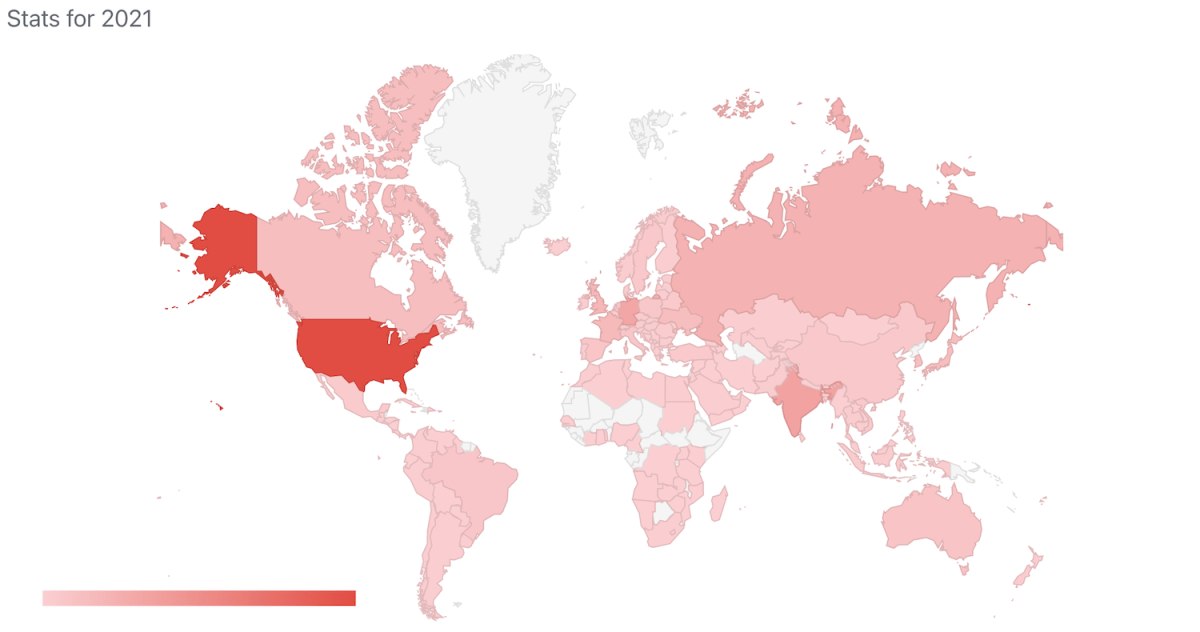
Most visited blog posts in 2021

Another year spent on writing blog posts. Let’s see which were the most read blog posts in 2021.

Top 10 written on any year

  1. Opening hyperlinks in UILabel on iOS (December 20, 2020)
  2. Using an image picker in SwiftUI (November 22, 2020)
  3. Using SwiftUI previews for UIKit views (June 7, 2020)
  4. Resizing UIImages with aspect fill on iOS (October 25, 2020)
  5. Alert and LocalizedError in SwiftUI (March 1, 2020)
  6. Adding custom attribute to NSAttributedString on iOS (November 10, 2019)
  7. Using CoreData with SwiftUI (January 19, 2020)
  8. Text input in UITableView (November 4, 2018)
  9. Adding SwiftLint to a project in Xcode (September 13, 2020)
  10. @StateObject and MVVM in SwiftUI (August 2, 2020)

Top 3 written in 2021

  1. Measurement, Unit, Dimension, and MeasurementFormatter on iOS (January 18, 2021)
  2. Running tests in Swift package with GitHub actions (April 26, 2021)
  3. Exploring AttributedString and custom attributes (June 21, 2021)
  4. Code coverage for Swift Packages with Fastlane (April 12, 2021)
  5. Sidebar layout on macOS in SwiftUI (September 13, 2021)

If this was helpful, please let me know on Mastodon@toomasvahter or Twitter @toomasvahter. Feel free to subscribe to RSS feed. Thank you for reading.

Categories
CoreData iOS macOS Swift

Importing items from network to a Core Data store

Many apps use Core Data for persistence and also need to import data from a server. Imported items typically have a unique identifier which can be used for identifying them. The count of imported items can be high therefore it is preferred to batch insert the items instead of adding them one by one. Core Data framework has a specialized request for this called NSBatchInsertRequest which is available since iOS 13. If we combine batch insert with Core Data constraints then we can achieve a flow where new items are only created when the store does not have an item for the unique identifier. All the other items already available in the persistent store are updated (instead of deleting the old item and reinserting it). In this blog post let’s take a look on how it works with a sample app which displays a list of Product entities with a name and a unique serial code attributes.

Product entity with “name” and “serialCode” attributes.

Constraints on the entity can be set in the model editor. For making sure that only one Product with a serial code of X exists in the persistent store then we will need to add a constraint on the serialCode attribute. Core Data framework will then make sure that only one entity with unique serial code exists in the persistent store. Neat, no need to query the store first for existing products and manually checking for possible duplicates.

CoreData constraint set to Product entity.

With a constraint set up, let’s take a look on the batch insert. Apple added NSBatchInsertRequest to Core Data framework in iOS 13. As we added a constraint then we need to tell Core Data what to do if there is already an item for the unique serial code. If we set NSManagedObjectContext‘s merge policy to NSMergeByPropertyObjectTrumpMergePolicy before executing the batch insert then Core Data goes and updates existing items with incoming attribute values fetched from a server. If there is not an item in the store with serial code then a new item is inserted. In summary, we get a behaviour where existing items are updated and missing items are inserted when importing items from a server. The flow of fetching data from a server, running batch insert on a background context and then refreshing fetched results controller can be seen below.

final class ViewModel: ObservableObject {
func importProducts() {
ProductAPI.getAll { result in
switch result {
case .success(let products):
self.persistenceController.container.performBackgroundTask { context in
context.mergePolicy = NSMergeByPropertyObjectTrumpMergePolicy
let batchInsert = NSBatchInsertRequest(entityName: "Product", objects: products)
do {
let result = try context.execute(batchInsert) as! NSBatchInsertResult
print(result)
}
catch {
let nsError = error as NSError
// TODO: handle errors
}
DispatchQueue.main.async {
objectWillChange.send()
// TODO: handle errors
try? resultsController.performFetch()
}
}
}
}
}
}
view raw ViewModel.swift hosted with ❤ by GitHub
Import function in a view model which fetches a list of products and inserts into a persistent store.

Summary

NSBatchInsertRequest is a welcoming change which makes it easy to insert and update existing items already in the persistent store. Setting up a constraint on a unique identifier and setting merge policy on a context enables us to handle SQL upserts without much code.

If this was helpful, please let me know on Mastodon@toomasvahter or Twitter @toomasvahter. Feel free to subscribe to RSS feed. Thank you for reading.

Example Project

CoreDataBatchInsertConstraints (Xcode 12.3)

Categories
CoreData iOS macOS Swift SwiftUI UIKit

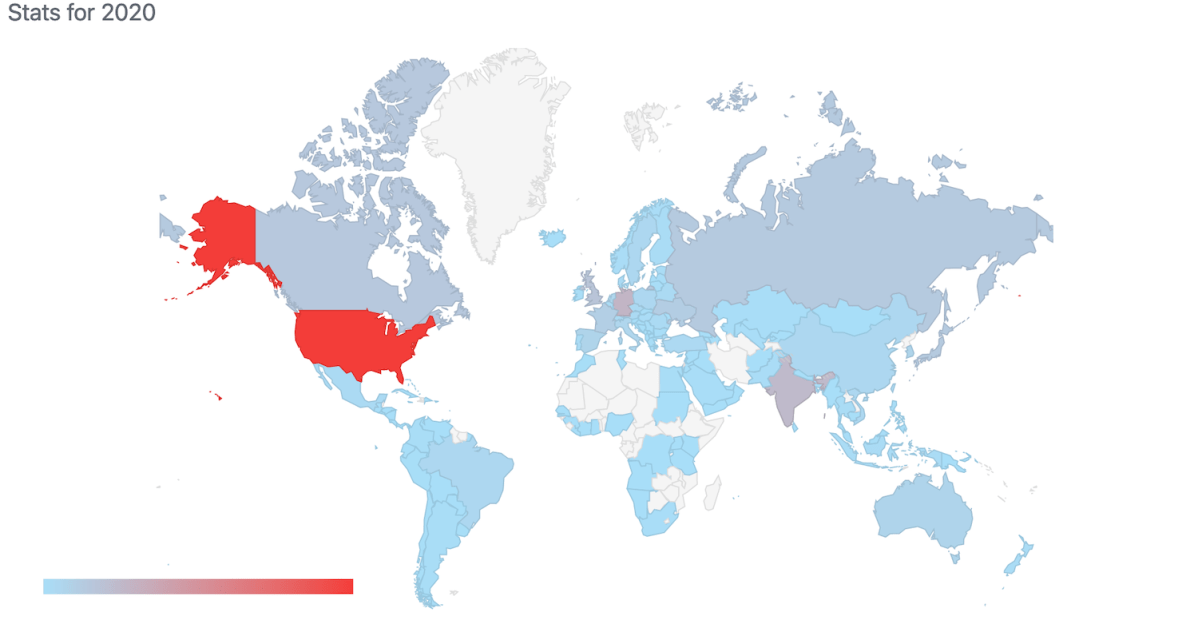
Most visited blog posts in 2020

I have been writing a new blog post at least every second week and therefore in 2020 I have published total of 27 blog posts. It is time to take a look back on the 2020 and see which blog posts were the most popular ones. I am just looking at the total count of views per blog post.

Most read posts in 2020

  1. Using CoreData with SwiftUI (January 19, 2020)
  2. Validating string in TextField with NumberFormatter in SwiftUI (April 26, 2020)
  3. Scanning text using SwiftUI and Vision on iOS (July 7, 2019)
  4. Adding custom attribute to NSAttributedString on iOS (November 10, 2019)
  5. Fetching and displaying data on Watch app in SwiftUI (February 16, 2020)
  6. Animating view transitions in SwiftUI (December 8, 2019)
  7. Text input in UITableView (November 4, 2018)
  8. NavigationLink and presentationMode environment value property for dismissing a view in SwiftUI (September 29, 2019)
  9. MVVM in SwiftUI (January 5, 2020)
  10. Dynamic user notification on Apple Watch with SwiftUI (February 2, 2020)

If this was helpful, please let me know on Mastodon@toomasvahter or Twitter @toomasvahter. Feel free to subscribe to RSS feed. Thank you for reading.

Categories
CoreData iOS macOS Swift WidgetKit

Sharing data from CoreData storage with a Widget on iOS

WWDC’20 introduced WidgetKit which is a new framework for building widgets on iOS, iPadOS, and macOS. Widgets provide a quick way for displaying content from your app either on the home screen on iOS or on the notification center on macOS. As I have an iOS app which stores data with CoreData then let’s see what it takes to share it with a widget. Note that we’ll only concentrate on sharing data between the app and the widget. For adding a widget to an existing project I would recommend taking a look at Apple’s excellent article: “Creating a Widget Extension”.

Configuring the project for sharing data with the widget

The project I have is an iOS app which keeps track of plants. Therefore, we’ll look into providing plants to a simple widget which just displays one of the plants which needs to be watered next. CoreData store contains all the plants with previous and next watering date. As widgets are meant to be lightweight extensions to your app we’ll aim at passing the minimum amount of data to the widget. WidgetKit does not provide a connectivity framework like WatchOS does because widgets are not running all the time. Therefore we will store data in a file and write the file to a shared container which the app and the widget can access. This can be done by adding app groups capability to both targets. The group name could be something like group.com.company.appname.widget. When this is set, then the url to a shared container can be created using FileManager like shown below.

extension WidgetPlantProvider {
static let sharedDataFileURL: URL = {
let appGroupIdentifier = "group.com.company.appname.widget"
if let url = FileManager.default.containerURL(forSecurityApplicationGroupIdentifier: appGroupIdentifier) {
return url.appendingPathComponent("Plants.plist")
}
else {
preconditionFailure("Expected a valid app group container")
}
}()
}
Creating an URL for shared file.

Updating the shared file

The iOS app has a class named WidgetPlantProvider which is responsible of updating the shared file and letting WidgetKit know when the data has changed. This class uses NSPersistentContainer for accessing CoreData storage and fetches dictionary representations of Plant entities. As those dictionaries contain NSDate objects then we’ll need to convert dates to double values which represent dates as seconds from the year of 1970. This enables us to archive the list of dictionaries to a data object with NSKeyedArchiver and writing the data object into the shared container. Last step is letting WidgetKit to know that timelines should be reloaded because data has changed. The implementation of the class is available below including observing managed object save notification.

final class WidgetPlantProvider {
private var cancellables = [AnyCancellable]()
private let plantContainer: PlantContainer // NSPersistentContainer subclass
init(plantContainer: PlantContainer, notificationCenter: NotificationCenter = .default) {
self.plantContainer = plantContainer
let notificationCancellable = notificationCenter.publisher(for: .NSManagedObjectContextDidSave, object: plantContainer.viewContext).sink { [weak self] _ in
self?.reloadData()
}
cancellables.append(notificationCancellable)
}
// Called when NSPersistentContainer is first loaded
func reloadData() {
plantContainer.performBackgroundTask { context in
let descriptors = [NSSortDescriptor(keyPath: \Plant.nextWateringDate, ascending: true)]
// fetchDictionaries is convenience method which creates and executes NSFetchRequest<NSDictionary> and sets resultType = .dictionaryResultType
let dictionaries = Plant.fetchDictionaries(context, sortDescriptors: descriptors, fetchLimit: 3) as! [[String: Any]]
// NSDate -> double conversion
let converted = dictionaries.map { (plantDictionary) -> [String: Any] in
return plantDictionary.mapValues { (value) -> Any in
guard let date = value as? Date else { return value }
return date.timeIntervalSince1970
}
}
do {
let needsFileReload: Bool = {
guard let storedData = try? Data(contentsOf: Self.sharedDataFileURL) else { return true }
guard let storedDictionaries = try? NSKeyedUnarchiver.unarchiveTopLevelObjectWithData(storedData) as? [NSDictionary] else { return true }
return storedDictionaries != converted as [NSDictionary]
}()
if !needsFileReload {
os_log(.debug, log: .widget, "Plants already up to date for widget")
return
}
let data = try NSKeyedArchiver.archivedData(withRootObject: converted, requiringSecureCoding: true)
try data.write(to: Self.sharedDataFileURL)
os_log(.debug, log: .widget, "Reloading widget because plants changed")
WidgetCenter.shared.reloadAllTimelines()
}
catch {
os_log(.debug, log: .widget, "Failed updating plants for widget with error %s", error.localizedDescription)
}
}
}
}
WidgetPlantProvider which stores Plant entities as dictionaries in the shared file.

Reading the shared file in the widget

Reading the file in the widget requires us to create an URL pointing at the shared container, reading the data, and converting the data to a list of plants. As the data contains a list of dictionary objects then we can take advantage of JSONDecoder and convert dictionaries to PlantRepresentation value type. PlantRepresentation struct conforms to Codable protocol which enables converting dictionary object to a JSON data representation and then decoding the JSON data to a value type. Date properties are represented as seconds from the year of 1970, then JSONDecoder’s dateDecodingStrategy must be set to DateDecodingStrategy.secondsSince1970. This approach of converting dictionary to a value type is discussed in detail in “Storing struct in UserDefaults”. An example provider type with described approach is available below.

struct Provider: TimelineProvider {
// …
func getTimeline(in context: Context, completion: @escaping (Timeline<Entry>) -> ()) {
let plants = loadPlants()
let entry = PlantEntry(date: Date(), plants: plants)
let timeline = Timeline(entries: [entry], policy: .atEnd)
completion(timeline)
}
private func loadPlants() -> [PlantRepresentation] {
do {
let data = try Data(contentsOf: Self.sharedDataFileURL)
let plantDictionaries = try NSKeyedUnarchiver.unarchiveTopLevelObjectWithData(data) as? [[String: Any]]
let decoder = JSONDecoder()
decoder.dateDecodingStrategy = .secondsSince1970
return plantDictionaries?.compactMap({ PlantRepresentation(dictionary: $0, decoder: decoder) }) ?? []
}
catch {
print(error.localizedDescription)
return []
}
}
private static var sharedDataFileURL: URL {
let identifier = "group.com.company.appname.widget"
if let url = FileManager.default.containerURL(forSecurityApplicationGroupIdentifier: identifier) {
return url.appendingPathComponent("Plants.plist")
}
else {
preconditionFailure("Expected a valid app group container")
}
}
}
// DictionaryDecodable: https://augmentedcode.io/2019/05/12/storing-struct-in-userdefaults/
struct PlantRepresentation: Identifiable, Decodable, DictionaryDecodable {
let id: String
let name: String
let lastWateringDate: Date
let nextWateringDate: Date
}
struct PlantEntry: TimelineEntry {
let date: Date
let plants: [PlantRepresentation]
}
view raw Provider.swift hosted with ❤ by GitHub
Timeline provider for a Widget which reads the data from the shared file.

Summary

We went through the steps of setting up app groups and sharing data in CoreData store with a widget. Next steps would be to use the timeline and polishing the Widget’s appearance.

If this was helpful, please let me know on Mastodon@toomasvahter or Twitter @toomasvahter. Feel free to subscribe to RSS feed. Thank you for reading.

Categories
CoreData Foundation iOS Swift UIKit

Home screen dynamic quick actions on iOS

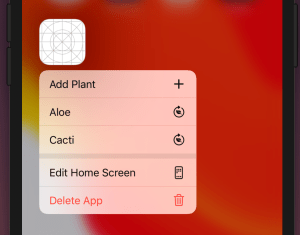
iOS apps can add quick actions which are displayed when force touching on the app’s icon. We’ll add quick actions to my open source WaterMyPlants example app. Quick actions can be static and dynamic: static actions are defined in the Info.plist and dynamic actions are configured in the code by updating UIApplication’s shortcutItems property. In the WaterMyPlants app, we’ll add one static action for adding a new plant and dynamic actions for opening added plants.

Home screen quick actions.

Static quick actions

Static quick actions are defined in the Info.plist. We need to add the UIApplicationShortcutItems key with array of dictionaries. Every dictionary in the array defines a quick action. Quick actions are required to have type and title and optionally we can add a subtitle and an icon. In the example below, we used one of the predefined icons. Predefined icons can be used by adding a key UIApplicationShortcutItemIconType with a string matching a format UIApplicationShortcutIconType<name>. Custom images are defined by the UIApplicationShortcutItemIconFile key where the string value is the name of an image in the asset catalog.

<key>UIApplicationShortcutItems</key>
<array>
<dict>
<key>UIApplicationShortcutItemType</key>
<string>com.augmentedcode.watermyplants.addplants</string>
<key>UIApplicationShortcutItemTitle</key>
<string>Add Plant</string>
<key>UIApplicationShortcutItemIconType</key>
<string>UIApplicationShortcutIconTypeAdd</string>
</dict>
</array>
view raw Infoplist hosted with ❤ by GitHub

Dynamic quick actions

Actions which depend on the data or state of the app can be added by setting the UIApplications’s shortcutItems property. Note that when adding items then we can use UIApplicationShortcutIcon‘s systemImageName initializer which enables us using any of the SF Symbols. Otherwise it is pretty much the same as defining a static quick action: setting type and title. It is useful to add an enum containing all the action types which becomes handy when we are handling actions. WaterMyPlants app uses scene delegates and therefore a good time to set dynamic quick actions is when the scene is resigning active status (see sceneWillResignActive(_:)).

func reloadShortcuts() {
let context = dependencyContainer.persistentContainer.viewContext
let plants = Plant.all(in: context).sorted(by: { $0.name < $1.name })
let items = plants.map({ (plant) -> UIApplicationShortcutItem in
return UIApplicationShortcutItem(type: UIApplicationShortcutItem.Action.showPlant.rawValue,
localizedTitle: plant.name,
localizedSubtitle: nil,
icon: UIApplicationShortcutIcon(systemImageName: "leaf.arrow.circlepath"),
userInfo: ["id": plant.id] as [String: NSSecureCoding])
})
UIApplication.shared.shortcutItems = items
}

Performing quick actions

Quick actions are handled either in the UIApplicationDelegate or in the UISceneDelegate. WaterMyPlants uses scene delegates, therefore we’ll look into how to perform actions using scene delegates. We need to keep in mind that when selecting a shortcut launches the app, then we would need to check the shortcut property in the UIScene.ConnectionOptions and use it for configuring the UI to perform the action (windowScene(_:performActionFor:completionHandler:) is not called in that case). But if the app is already running in the background, then we can handle the action in the performActionFor delegate callback.

extension UIApplicationShortcutItem {
enum Action: String {
case addPlant
case showPlant
}
}
final class SceneDelegate: UIResponder, UIWindowSceneDelegate {
func windowScene(_ windowScene: UIWindowScene, performActionFor shortcutItem: UIApplicationShortcutItem, completionHandler: @escaping (Bool) -> Void) {
guard let identifier = UIApplicationShortcutItem.Action(rawValue: shortcutItem.type) else { fatalError("Unknown shortcut") }
switch identifier {
case .addPlant:
flowCoordinator?.plantListViewModel.isPresentingAddPlant = true
case .showPlant:
print("show plant: \(String(describing: shortcutItem.userInfo))")
}
completionHandler(true)
}
func scene(_ scene: UIScene, willConnectTo session: UISceneSession, options connectionOptions: UIScene.ConnectionOptions) {
// …
// Triggering the add plant shortcut when launching the app
if connectionOptions.shortcutItem?.type == UIApplicationShortcutItem.Action.addPlant.rawValue {
viewModel.isPresentingAddPlant = true
}
// Setting up a view with the view model configured to show add plant view
}
}

Summary

We added home screen quick actions to the WaterMyPlants app. We looked into how to add static and dynamic quick actions and how to perform the selected action.

If this was helpful, please let me know on Mastodon@toomasvahter or Twitter @toomasvahter. Feel free to subscribe to RSS feed. Thank you for reading.

Project

WaterMyPlants (GitHub) Xcode 11.5

Pull request #3

Categories
Combine CoreData iOS Swift SwiftUI WatchOS

Fetching and displaying data on Watch app in SwiftUI

In previous post “Dynamic user notification on Apple Watch with SwiftUI” I was looking into how to add WatchOS app to an existing project and how to create dynamic notifications. This time, I am gonna cover basics how to fetch data from companion iOS app’s CoreData storage using WatchConnectivity framework and displaying the data in SwiftUI view.

Creating session between iOS and WatchOS app

iOS app uses CoreData for storing a list of plants with last and next watering dates. In the current setup, there is no web service and everything is stored locally on device. How to get the data in persistent store to WatchOS app?

We will use WatchConnectivity framework for making iOS and WatchOS app to be aware of each other. Connection is created by activating WCSession both in iOS and WatchOS app. Therefore the first step is to add a class managing WCSession to iOS project, let’s call it WatchConnectivityProvider (later, we’ll add similar class to WatchOS app as well). It’s main responsibility is to set up WCSession and handling WCSessionDelegate which includes fetching data from CoreData store. Therefore, one of the arguments is going to be NSPersistentContainer which gives us access to CoreData stack (access to the performBackgroundTask function).

final class WatchConnectivityProvider: NSObject, WCSessionDelegate {
    private let persistentContainer: NSPersistentContainer
    private let session: WCSession
    
    init(session: WCSession = .default, persistentContainer: NSPersistentContainer) {
        self.persistentContainer = persistentContainer
        self.session = session
        super.init()
        session.delegate = self
    }

WCSession is activated by calling function activate() which will asynchronously activates it. The response of the activitation is returned by session(_:activationDidCompleteWith:error:) delegate method.

func connect() {
	guard WCSession.isSupported() else {
		os_log(.debug, log: .watch, "watch session is not supported")
		return
	}
	os_log(.debug, log: .watch, "activating watch session")
	session.activate()
}
func session(_ session: WCSession, 
             activationDidCompleteWith activationState: WCSessionActivationState, 
             error: Error?) {
	os_log(.debug, 
               log: .watch, 
               "did finish activating session %lu (error: %s)", 
               activationState == .activated, 
               error?.localizedDescription ?? "none") 
}

We’ll add similar class, but with different name, “PhoneConnectivityProvider” to WatchOS extension target. When both classes are created, we’ll need to initialise and call connect. This could be done in SceneDelegate (iOS) and ExtensionDelegate (WatchOS). Note that in iOS app we’ll need to implement two required delegate methods and for now, we can just log when those get called.

func sessionDidBecomeInactive(_ session: WCSession) {
	os_log(.debug, log: .watch, "session became inactive")
}
    
func sessionDidDeactivate(_ session: WCSession) {
	os_log(.debug, log: .watch, "session deactivated")
}

For testing the session we’ll first build and run iOS app and then WatchOS app. If everything goes well, Xcode logs message: “did finish activating session 1 (error: none)”. Meaning, session is up and running and we can send messages between apps. Side note, do not forget to build and run the app where changes were made.

Fetching plants from iOS app

As communication between iOS and WatchOS app relies on dictionaries, then step 1 is to define a set of shared keys what both apps use. This reduces the risk of mistyping keys. Therefore, let’s add a new file and include it in both iOS app target and WatchOS extension target.

struct WatchCommunication {
    static let requestKey = "request"
    static let responseKey = "response"
    
    enum Content: String {
        case allPlants
    }
}

Step 2 is implementing a refreshAllPlants(completionHandler) function in PhoneConnectivityProvider (WatchOS app extension target) which sends a message to iOS app and waits for array of plants. WCSession has a function sendMessage(_:replyHandler:errorHandler:) which we can use for sending a dictionary to iOS app and wait for reply handler. We’ll define the message to have key WatchCommunication.requestKey and the value is raw value of WatchCommunication.Content.allPlants enum case. This schema can be easily expanded later on by adding more cases to the enum. In reply handler we expect to have an array of dictionaries describing all the plants. Let’s take a look on the full implementation for a moment and then discuss how dictionary was converted to Plant value type.

func refreshAllPlants(withCompletionHandler completionHandler: @escaping ([Plant]?) -> Void) {
	guard session.activationState == .activated else {
		os_log(.debug, log: .phone, "session is not active")
		completionHandler(nil)
		return
	}
	let message = [WatchRequest.contentKey: WatchRequest.Content.allPlants.rawValue]
	session.sendMessage(message, replyHandler: { (payload) in
		let plantDictionaries = payload[WatchCommunication.requestKey] as? [[String: Any]]
		os_log(.debug, log: .phone, "received %lu plants", plantDictionaries?.count ?? 0)
            
		let decoder = JSONDecoder()
		decoder.dateDecodingStrategy = .secondsSince1970
		let plants = plantDictionaries?.compactMap({ Plant(dictionary: $0, decoder: decoder) })
		DispatchQueue.main.async {
			completionHandler(plants)
		}
	}, errorHandler: { error in
		os_log(.debug, log: .phone, "sending message failed: %s", error.localizedDescription)
	})
}

iOS app deals with CoreData and Plant type is NSManagedObject subclass. WatchOS app extension defines its own Plant value type because it does not have CoreData stack. For converting dictionary to value type we can use approach described in “Storing struct in UserDefault”. Only addition is configuring the JSONDecoder to use dateDecodingStrategy secondsSince1970. Reason is that we’ll going to store dates as seconds since 1970. Converting dictionary to value type involves using JSONSerialization and it supports only NSString, NSNumber, NSArray, NSDictionary, or NSNull.

// Plant value type in WatchOS app extension
struct Plant: Identifiable, Decodable, DictionaryDecodable {
    let id: String
    let name: String
    let lastWateringDate: Date
    let nextWateringDate: Date
}
// Plant class in iOS app
final class Plant: NSManagedObject, Identifiable {
    @NSManaged var id: String
    @NSManaged var name: String
    
    @NSManaged var lastWateringDate: Date
    @NSManaged var nextWateringDate: Date
}

Step 3 is handling the message on the iOS app side and providing data for WatchOS app. What we need to do is implementing session delegate and fetching dictionary data from CoreData store. Let’s take a look on the full implementation and then break it down.

func session(_ session: WCSession, didReceiveMessage message: [String: Any], replyHandler: @escaping ([String: Any]) -> Void) {
	os_log(.debug, log: .watch, "did receive message: %s", message[WatchCommunication.requestKey] as? String ?? "unknown")
	guard let contentString = message[WatchCommunication.requestKey] as? String , let content = WatchCommunication.Content(rawValue: contentString) else {
		replyHandler([:])
		return
	}
	switch content {
	case .allPlants:
		persistentContainer.performBackgroundTask { (managedObjectContext) in            
			let all = Plant.allPlantsDictionaryRepresentation() as! [[String: Any]]
			// Replace Date with Double
			let converted = all.map { (plantDictionary) -> [String: Any] in
				plantDictionary.mapValues { (value) -> Any in
					if let date = value as? Date {
						return date.timeIntervalSince1970
					}
					else {
						return value
					}
				}
			}                
			let response = [WatchCommunication.responseKey: converted]
			replyHandler(response)
		}
	}
}

The first step is to look into the received dictionary and see which content is being asked by the WatchOS app. Then we’ll access persistent store, fetch dictionary representations of Plant, convert Date to seconds since 1970 (enabling WatchOS app to use JSONSerialization on the dictionary) and then sending the data back to WatchOS app. Note that getting Plants as dictionary is very simple with CoreData: we’ll make a fetch request with result type NSDictionary and set resultType property to .dictionaryResultType. For larger models we could also provide set of properties we need (propertiesToFetch) but at the moment, every property is added to the dictionary.

extension Plant {
	static let entityName = "Plant"
    
	static func makeDictionaryRequest() -> NSFetchRequest<NSDictionary> {
		return NSFetchRequest<NSDictionary>(entityName: entityName)
	}
	static func allPlantsDictionaryRepresentation() -> [NSDictionary] {
		let request = makeDictionaryRequest()
		request.resultType = .dictionaryResultType
		do {
			return try request.execute()
		}
		catch let nsError as NSError {
			os_log(.debug, log: .plants, "failed fetching all plants with error %s %s", nsError, nsError.userInfo)
			return []
		}
	}
}

Setting up UI in WatchOS app using SwiftUI

WatchOS app template in Xcode is hooked up in a way where Storyboard initialises HostingController which is responsible of providing initial SwiftUI view.

class HostingController: WKHostingController<PlantListView> {
    lazy private(set) var connectivityProvider: PhoneConnectivityProvider = {
        let provider = PhoneConnectivityProvider()
        provider.connect()
        return provider
    }()
    
    private lazy var listViewModel = PlantListViewModel(connectivityProvider: connectivityProvider)
    
    override var body: PlantListView {
        return PlantListView(viewModel: listViewModel)
    }
}

PlantListView is a simple view showing a list of plants. It’s view model handles refreshing plants using the PhoneConnectivityProvider’s refreshAllPlants(withCompletionHandler:). SwiftUI view updates automatically when view model changes. This is because view model’s plants property uses @Published property wrapper, view model is ObservableObject and SwiftUI view uses ObservedObject property wrapper for view model (read more about refreshing SwiftUI view in MVVM in SwiftUI). Note that view model refreshes content as soon as SwiftUI view appears.

final class PlantListViewModel: ObservableObject {
    private let connectivityProvider: PhoneConnectivityProvider
    
    init(plants: [Plant] = [], connectivityProvider: PhoneConnectivityProvider) {
        self.plants = plants
        self.connectivityProvider = connectivityProvider
        refresh()
    }
    @Published private(set) var plants: [Plant]
    
    func refresh() {
        connectivityProvider.refreshAllPlants { [weak self] (plants) in
            guard let plants = plants else { return }
            self?.plants = plants
        }
    }    
}
struct PlantListView: View {
    @ObservedObject var viewModel: PlantListViewModel
    
    var body: some View {
        VStack {
            List(self.viewModel.plants) { plant in
                PlantCell(viewModel: PlantCellViewModel(plant: plant))
            }
        }.onAppear {
            self.viewModel.refresh()
        }
    }
}

PlantListView uses PlantCell for displaying individual views. PlantCell has two labels and makes itself as wide as possible.

struct PlantCell: View {
    let viewModel: PlantCellViewModel
    
    var body: some View {
        VStack(spacing: 4) {
            Text(viewModel.title).font(.headline).multilineTextAlignment(.center)
            Text(viewModel.subtitle).font(.footnote).multilineTextAlignment(.center)
        }.padding(8)
            .frame(minWidth: 0, maxWidth: .greatestFiniteMagnitude)
    }
}
struct PlantCellViewModel {
    let plant: Plant
    
    var title: String {
        return plant.name
    }
    
    private static let dateFormatter: DateFormatter = {
        let formatter = DateFormatter()
        formatter.dateFormat = DateFormatter.dateFormat(fromTemplate: "dMMMM", options: 0, locale: .current)
        return formatter
    }()
    
    var subtitle: String {
        let format = NSLocalizedString("PlantCellView_NextWatering", comment: "Next watering date.")
        return String(format: format, Self.dateFormatter.string(from: plant.nextWateringDate))
    }
}

Summary

We added WCSessions to both iOS and WatchOS app and implemented delegate methods handling session and received messages. Then, we defined simple communication schema for communication and implemented refresh plants method in the WatchOS app and CoreData integration on the iOS app side. When data access was created, we added SwiftUI view displaying list of plants in the WatchOS app.

If this was helpful, please let me know on Mastodon@toomasvahter or Twitter @toomasvahter. Feel free to subscribe to RSS feed. Thank you for reading.

Example Project

WaterMyPlants (GitHub)

Categories
Combine CoreData Foundation Generics iOS Swift SwiftUI Xcode

Using CoreData with SwiftUI

CoreData is Apple’s object graph and persistence framework. It provides data sources for synchronising data with view. Let’s take a look on how to use those data sources in SwiftUI views. Starting with NSFetchedResultsController what is used for list and collection views, after that observing NSManagedObject directly from SwiftUI view and lastly subscribing to managed object context notifications.

NSFetchedResultsController

NSFetchedResultsController is used for providing data in table and collection views. It supports sorting and filtering data and arranging data into sections. We can use delegate for getting change callbacks. NSFetchedResultsControllerDelegate contains several methods:

// Diffable data source (new in iOS 13)
optional func controller(_ controller: NSFetchedResultsController<NSFetchRequestResult>, didChangeContentWith snapshot: NSDiffableDataSourceSnapshot)
optional func controller(_ controller: NSFetchedResultsController<NSFetchRequestResult>, didChangeContentWith diff: CollectionDifference<NSManagedObjectID>)
// Manually updating table view and collection view
optional func controller(_ controller: NSFetchedResultsController<NSFetchRequestResult>, didChange anObject: Any, at indexPath: IndexPath?, for type: NSFetchedResultsChangeType, newIndexPath: IndexPath?)
optional func controller(_ controller: NSFetchedResultsController<NSFetchRequestResult>, didChange sectionInfo: NSFetchedResultsSectionInfo, atSectionIndex sectionIndex: Int, for type: NSFetchedResultsChangeType)
optional func controllerWillChangeContent(_ controller: NSFetchedResultsController<NSFetchRequestResult>)
optional func controllerDidChangeContent(_ controller: NSFetchedResultsController<NSFetchRequestResult>)

In SwiftUI we are not going to directly manipulate views. Only what we need to do is letting SwiftUI view know that data is about to change. Let’s take a look on simple app with list of items stored by CoreData. Data is represented by ColorItem where only stored value is hex string of the color (e.g. #AA22BB).

final class ColorItem: NSManagedObject {
@NSManaged var hex: String
}
view raw ColorItem.swift hosted with ❤ by GitHub

ColorItems are managed by ContentView’s view model. View model creates NSFetchedResultsController, performs fetch and provides array of fetched ColorItems to the SwiftUI’s List. In addition, view model is delegate of the NSFetchedResultsController (requires view model to be NSObject subclass). As view model is ObservableObject, we can very easily let SwiftUI view know that it should refresh. We need to do two things: firstly, implementing controllerWillChangeContent delegate method and calling send() on objectWillChange publisher. Secondly, view model property must use @ObservedObject property wrapper in SwiftUI view. Result is that SwiftUI view subscribes to objectWillChange publisher and refreshes whenever publisher emits an event.

extension ContentView {
final class ViewModel: NSObject, NSFetchedResultsControllerDelegate, ObservableObject {
private let colorController: NSFetchedResultsController<ColorItem>
init(managedObjectContext: NSManagedObjectContext) {
let sortDescriptors = [NSSortDescriptor(keyPath: \ColorItem.hex, ascending: true)]
colorController = ColorItem.resultsController(context: managedObjectContext, sortDescriptors: sortDescriptors)
super.init()
colorController.delegate = self
try? colorController.performFetch()
}
func controllerWillChangeContent(_ controller: NSFetchedResultsController<NSFetchRequestResult>) {
objectWillChange.send()
}
var colors: [ColorItem] {
return colorController.fetchedObjects ?? []
}
}
}
extension ColorItem {
static func resultsController(context: NSManagedObjectContext, sortDescriptors: [NSSortDescriptor] = []) -> NSFetchedResultsController<ColorItem> {
let request = NSFetchRequest<ColorItem>(entityName: "ColorItem")
request.sortDescriptors = sortDescriptors.isEmpty ? nil : sortDescriptors
return NSFetchedResultsController(fetchRequest: request, managedObjectContext: context, sectionNameKeyPath: nil, cacheName: nil)
}
}

And finally let’s see the ContentView implementation. NSManagedObject has objectID property what we can use in List for identifying every ColorItem. Cell is custom view what we’ll take a look at next.

struct ContentView: View {
@ObservedObject var viewModel: ViewModel
var body: some View {
NavigationView {
VStack {
List(viewModel.colors, id: \.objectID) { (colorItem) in
Cell(colorItem: colorItem)
}
}.navigationBarTitle("Colors")
}
}
}

NSManagedObject

NSManagedObject implements ObservableObject protocol and therefore it is possible to use it together with @ObservedObject property wrapper and getting SwiftUI view refreshed automatically when any of the ColorItem properties change. NSFetchedResultsController required a little bit of code for setting up delegate but that is not the case with NSManagedObject.

struct Cell: View {
@ObservedObject var colorItem: ColorItem
var body: some View {
HStack {
Text(verbatim: colorItem.hex)
Spacer()
Rectangle().foregroundColor(Color(colorItem.uiColor)).frame(minWidth: 50, maxWidth: 50)
}
}
}
view raw Cell.swift hosted with ❤ by GitHub

In addition, if there are cases where we would like to observe specific property, then Combine provides publisher for key path. Because NSManagedObject supports key-value observing we can use the publisher and subscribe to individual property changes.

let cancellable = color.publisher(for: \.hex).sink { (string) in
print(string)
}

Subscribing to CoreData notifications

When we need to observe changes in persistent store we can observe notifications sent by the framework. As NotificationCenter supports publishers, we can subscribe to it, unpack data from notification and do something with the data. For making this easier we can introduce a separate type. It will unpack the user info dictionary and filter by type. This allows to easily observe, for example, ColorItem insertions. Or, if we would like to receive every possible change, we can specify NSManagedObject as the generic type.

private var cancellables = [AnyCancellable]()
let cancellable = NotificationCenter.default.publisher(for: .NSManagedObjectContextObjectsDidChange, object: managedObjectContext)
.compactMap({ ManagedObjectContextChanges<ColorItem>(notification: $0) }).sink { (changes) in
print(changes)
}
cancellables.append(cancellable)
struct ManagedObjectContextChanges<T: NSManagedObject> {
let inserted: Set<T>
let deleted: Set<T>
let updated: Set<T>
init?(notification: Notification) {
let unpack: (String) -> Set<T> = { key in
let managedObjects = (notification.userInfo?[key] as? Set<NSManagedObject>) ?? []
return Set(managedObjects.compactMap({ $0 as? T }))
}
deleted = unpack(NSDeletedObjectsKey)
inserted = unpack(NSInsertedObjectsKey)
updated = unpack(NSUpdatedObjectsKey).union(unpack(NSRefreshedObjectsKey))
if deleted.isEmpty, inserted.isEmpty, updated.isEmpty {
return nil
}
}
}

Summary

We took a look at how to use NSFetchedResultsController and NSManagedObject in SwiftUI views. We saw that integrating NSFetchedResultsController requires only a little bit of code and using NSManagedObject even less. In addition, we looked at subscribing to CoreData notifications and unpacking notification payload.

If this was helpful, please let me know on Mastodon@toomasvahter or Twitter @toomasvahter. Feel free to subscribe to RSS feed. Thank you for reading.

Example project

CoreDataCombineSwiftUI (Xcode 11.3)

Categories
CoreData Swift

Storing data with CoreData

CoreData is a framework for managing object graphs and storing them on disk. It is much more than just offering a persistent storage, therefore the rich API it provides, is meant to be used app-wide. In this blog post we’ll look into how to initialise CoreData storage, store some data in it and fetching it.

Core data model

First step is to add a Core Data model which will describe model objects, their relationships and properties. In Xcode we’ll go to File -> New -> File… and then select Data Model.
adding_core_data_model

We are going to continue working on sample app named Planets (from previous post). It needs an entity named Planet which has 3 properties: name, url and position (defines sort order in the app). By default Core Data will autogenerate a model object for our entity Planet we just defined. Therefore all we need to do is creating an entity and adding three properties to the entity.
core_data_model

Initialising CoreData stack

The simplest way for initialising Core Data stack is to use NSPersistentContainer and initialising it with a name of the Core Data model file we just created in the previous step. After creating the container, it needs to be loaded which will read the Core Data model file and sets up a persistent store.

convenience init(name: String)
func loadPersistentStores(completionHandler block: @escaping (NSPersistentStoreDescription, Error?) -> Void)

In the sample app we are going to use subclass of NSPersistentContainer named CoreDataStore which contains extra methods used in a moment.

Storing data

Adding data contains of two steps: making changes in NSManagedObjectContext and then saving it. NSManagedObjectContext is a scratch pad where to make changes in your object graph. All the changes will be stored in memory until save is called.
For adding a new entity we will use a method in our CoreDataStore.

func insertNewEntity(named name: String) -> NSManagedObject {
return NSEntityDescription.insertNewObject(forEntityName: name, into: viewContext)
}

This will add a new empty entity to managed object context. After that, we’ll fill properties with appropriate values and then call save.
func tryStoringDefaultPlanets() {
// dataStore is an instance of NSPersistentContainer subclass CoreDataStore.
guard dataStore.count(for: "Planet") == 0 else { return }
// Insert new entities into managed object context.
let names = ["Mercury", "Venus", "Earth", "Mars", "Jupiter", "Saturn", "Uranus", "Neptune"]
let paths = ["https://en.wikipedia.org/wiki/Mercury_(planet)&quot;, "https://en.wikipedia.org/wiki/Venus&quot;, "https://en.wikipedia.org/wiki/Earth&quot;, "https://en.wikipedia.org/wiki/Mars&quot;, "https://en.wikipedia.org/wiki/Jupiter&quot;, "https://en.wikipedia.org/wiki/Saturn&quot;, "https://en.wikipedia.org/wiki/Uranus&quot;, "https://en.wikipedia.org/wiki/Neptune"%5D
zip(names, paths).enumerated().forEach { (offset, element) in
guard let planet = dataStore.insertNewEntity(named: "Planet") as? Planet else { return }
planet.position = Int64(offset)
planet.name = element.0
planet.url = URL(string: element.1)
}
// Save changes in the managed object context what at the moment contains added Planets.
dataStore.save()
}

Fetching data

In our sample app, there is a simple table view displaying a list of planets. For displaying data efficiently, Core Data has a class NSFetchedResultsController. It uses NSFetchRequest objects for fetching, sorting and filtering results. Our class CoreDataStore has a convenience method for creating fetched results controller for any type of entities and PlanetManager has a getter for returning controller for Planet entities.

final class CoreDataStore: NSPersistentContainer {
func fetchedResultsController(named name: String, sortDescriptors: [NSSortDescriptor], predicate: NSPredicate? = nil, sectionNameKeyPath: String? = nil) -> NSFetchedResultsController<NSFetchRequestResult> {
let request = NSFetchRequest<NSFetchRequestResult>(entityName: name)
if let predicate = predicate {
request.predicate = predicate
}
request.sortDescriptors = sortDescriptors.isEmpty ? nil : sortDescriptors
return NSFetchedResultsController(fetchRequest: request, managedObjectContext: viewContext, sectionNameKeyPath: sectionNameKeyPath, cacheName: nil)
}
}
final class PlanetManager {
lazy var planetsController: NSFetchedResultsController<Planet> = {
let descriptors = [NSSortDescriptor(key: "position", ascending: true)]
return dataStore.fetchedResultsController(named: "Planet", sortDescriptors: descriptors) as! NSFetchedResultsController<Planet>
}()
}

Let’s see how to hook up fetched results controller to table view controller. Before fetched controller is used for fetching data, it needs to perform a fetch. For a simple list view it is pretty straight-forward: getting count and fetching an object for index path.
private func fetchPlanets() {
do {
try planetsController.performFetch()
tableView.reloadData()
}
catch {
NSLog("Fetching failed with error \(error as NSError).")
}
}
override func numberOfSections(in tableView: UITableView) -> Int {
return 1
}
override func tableView(_ tableView: UITableView, numberOfRowsInSection section: Int) -> Int {
return planetsController.sections?[0].numberOfObjects ?? 0
}
override func tableView(_ tableView: UITableView, cellForRowAt indexPath: IndexPath) -> UITableViewCell {
let cell = tableView.dequeueReusableCell(withIdentifier: "PlanetCellIdentifier", for: indexPath)
cell.accessoryType = .disclosureIndicator
cell.textLabel?.text = planetsController.object(at: indexPath).name
return cell
}
override func tableView(_ tableView: UITableView, didSelectRowAt indexPath: IndexPath) {
scenePresenter?.presentDetailedInfo(for: planetsController.object(at: indexPath))
}

Summary

In this blog post we looked into how to initialise Core Data stack with NSPersistentContainer, storing some data in it with NSManagedObjectContext and fetching results with NSFetchedResultsController. It is the most basic usage of CoreData and covers a tiny bit what Core Data can do. Apple has a pretty good documentation what covers much more compared to what was described here (see links to Core Data classes in the previous sections).

Example

Planets (GitHub)

References

CoreData (Apple)