Categories
Foundation iOS Swift UIKit

Opening hyperlinks in UILabel on iOS

UILabel supports displaying attributed strings with link attributes but what it does not support is allowing to tap on hyperlinks and opening those in Safari. An Alternative way is using an UITextView which does support opening hyperlinks but on the other hand it is a more heavy view component and therefore might not be the best choice when we just need to display some text with hyperlinks. This time lets create a simple UILabel subclass which adds support for opening hyperlinks and custom hyperlink styles.

Creating NSAttributedStrings with hyperlinks

Before we jump into implementing an UILabel subclass HyperlinkLabel, let’s first take a look on how to create a NSAttributedString with hyperlinks. In the example app we will have several labels with different configurations: default and custom link styles and left, centre, right text alignments. UITextView has a linkTextAttributes property but in our UILabel subclass we’ll need to implement custom link styling ourselves. The approach we are going to take is creating a new NSAttributedString.Key value named hyperlink and adding text attributes when the attribute is present.

extension NSAttributedString.Key {
static let hyperlink = NSAttributedString.Key("hyperlink")
}

Let’s now create a convenience method which creates NSAttributedString and sets it to the HyperlinkLabel.

private extension HyperlinkLabel {
static func banner(withAlignment alignment: NSTextAlignment, customStyling: Bool, tapHandler: @escaping (URL) -> Void) -> HyperlinkLabel {
let attributedString = NSMutableAttributedString(string: "Check this webpage: %0$@. Link to %1$@ on the App Store. Finally link to %2$@.")
let replacements = [("Augmented Code", URL(string: "https://augmentedcode.io")!),
("SignalPath", URL(string: "https://geo.itunes.apple.com/us/app/signalpath/id1210488485?mt=12")!),
("GitHub", URL(string: "https://github.com/laevandus")!)]
replacements.enumerated().forEach { index, value in
let linkAttribute: NSAttributedString.Key = customStyling ? .hyperlink : .link
let attributes: [NSAttributedString.Key: Any] = [
linkAttribute: value.1
]
let urlAttributedString = NSAttributedString(string: value.0, attributes: attributes)
let range = (attributedString.string as NSString).range(of: "%\(index)$@")
attributedString.replaceCharacters(in: range, with: urlAttributedString)
}
let paragraphStyle = NSMutableParagraphStyle()
paragraphStyle.alignment = alignment
attributedString.addAttribute(.paragraphStyle, value: paragraphStyle, range: NSRange(location: 0, length: attributedString.length))
let label = HyperlinkLabel()
label.attributedText = attributedString
label.translatesAutoresizingMaskIntoConstraints = false
label.didTapOnURL = tapHandler
return label
}
}

The final NSAttributedString is created by first initializing a mutable version with a format string. The format string follows the familiar format specifiers like we used with NSString and String APIs when dealing with re-orderable arguments. Format specifiers are replaced with new instances of NSAttributedStrings where the string value equals to a hyperlink name and the URL value is stored on the NSAttributedString.Key.link or NSAttributedString.Key.hyperlink attribute. The former gives us the default link style defined by Apple and the latter our custom link style.

class ViewController: UIViewController {
@IBOutlet weak var stackView: UIStackView!
private lazy var resultLabel: UILabel = .sectionTitle("Tap on the label…")
override func viewDidLoad() {
super.viewDidLoad()
stackView.addArrangedSubview(resultLabel)
stackView.addArrangedSubview(UILabel.sectionTitle("Left alignment"))
stackView.addArrangedSubview(HyperlinkLabel.banner(withAlignment: .left, customStyling: false, tapHandler: didTap))
stackView.addArrangedSubview(HyperlinkLabel.banner(withAlignment: .left, customStyling: true, tapHandler: didTap))
stackView.addArrangedSubview(UILabel.sectionTitle("Center alignment"))
stackView.addArrangedSubview(HyperlinkLabel.banner(withAlignment: .center, customStyling: false, tapHandler: didTap))
stackView.addArrangedSubview(HyperlinkLabel.banner(withAlignment: .center, customStyling: true, tapHandler: didTap))
stackView.addArrangedSubview(UILabel.sectionTitle("Right alignment"))
stackView.addArrangedSubview(HyperlinkLabel.banner(withAlignment: .right, customStyling: false, tapHandler: didTap))
stackView.addArrangedSubview(HyperlinkLabel.banner(withAlignment: .right, customStyling: true, tapHandler: didTap))
}
private func didTap(_ url: URL) {
// In the example app we just print the result and do not open it in Safari
resultLabel.text = "Did tap on: \(url)"
}
}

Creating HyperlinkLabel which supports tapping on hyperlinks

UILabel does not provide access to its text layout and therefore it is not possible to know which hyperlink was tapped. For finding the tapped hyperlink we’ll need to use our own NSLayoutManager, NSTextStorage, and NSTextContainer. If we configure those properly we can figure out which character was tapped and therefore if it was part of the hyperlink. If it is, then we can let UIApplication to open the tapped URL. Let’s contain this in a function which gives us a configured NSTextStorage.

private func preparedTextStorage() -> NSTextStorage? {
guard let attributedText = attributedText, attributedText.length > 0 else { return nil }
// Creates and configures a text storage which matches with the UILabel's configuration.
let layoutManager = NSLayoutManager()
let textContainer = NSTextContainer(size: bounds.size)
textContainer.lineFragmentPadding = 0
let textStorage = NSTextStorage(string: "")
layoutManager.addTextContainer(textContainer)
textStorage.addLayoutManager(layoutManager)
textContainer.lineBreakMode = lineBreakMode
textContainer.size = textRect(forBounds: bounds, limitedToNumberOfLines: numberOfLines).size
textStorage.setAttributedString(attributedText)
return textStorage
}

Now we can use this function when handling UITouch events. We’ll add another private function which will take current UITouches and figure out which hyperlink was tapped. The general flow consists of creating a NSTextStorage with the function we just defined, then asking from the NSLayoutManager which character index was tapped. NSLayoutManager returns the closest character index of the touch. Therefore, we’ll need to go one step deeper and ask for the actual bounding rectangle of the glyphs representing the character and then verifying if the touch location was inside the glyph’s bounding rectangle. This is important when dealing with different text alignments and when tapping on the free space around characters. After figuring out which character was tapped we’ll need to check for the hyperlink attributes. If the tapped character has either attribute set, then we can conclude that we tapped on a hyperlink. This function can then be called in touchesEnded and if we tapped on a hyperlink, then we can open it. One thing to note is that userInteractionEnabled needs to be set to true before UILabel can handle touch events.

private func url(at touches: Set<UITouch>) -> URL? {
guard let attributedText = attributedText, attributedText.length > 0 else { return nil }
guard let touchLocation = touches.sorted(by: { $0.timestamp < $1.timestamp } ).last?.location(in: self) else { return nil }
guard let textStorage = preparedTextStorage() else { return nil }
let layoutManager = textStorage.layoutManagers[0]
let textContainer = layoutManager.textContainers[0]
let characterIndex = layoutManager.characterIndex(for: touchLocation, in: textContainer, fractionOfDistanceBetweenInsertionPoints: nil)
guard characterIndex >= 0, characterIndex != NSNotFound else { return nil }
// Glyph index is the closest to the touch, therefore also validate if we actually tapped on the glyph rect
let glyphRange = layoutManager.glyphRange(forCharacterRange: NSRange(location: characterIndex, length: 1), actualCharacterRange: nil)
let characterRect = layoutManager.boundingRect(forGlyphRange: glyphRange, in: textContainer)
guard characterRect.contains(touchLocation) else { return nil }
// Link styled by Apple
if let url = textStorage.attribute(.link, at: characterIndex, effectiveRange: nil) as? URL {
return url
}
// Custom link style
return textStorage.attribute(.hyperlink, at: characterIndex, effectiveRange: nil) as? URL
}
var didTapOnURL: (URL) -> Void = { url in
if UIApplication.shared.canOpenURL(url) {
UIApplication.shared.open(url, options: [:], completionHandler: { success in
if success {
print("Opened URL \(url) successfully")
}
else {
print("Failed to open URL \(url)")
}
})
}
else {
print("Can't open the URL: \(url)")
}
}
override func touchesEnded(_ touches: Set<UITouch>, with event: UIEvent?) {
if let url = self.url(at: touches) {
didTapOnURL(url)
}
else {
super.touchesEnded(touches, with: event)
}
}

Next thing we need to do is overriding attributedText property and handling the custom style of our custom hyperlink attribute. If the attributed text has this attribute set, then we will apply custom hyperlink text attributes. The same way as Apple’s link attribute works, when the attributed string gets displayed then custom styling is used. Secondly, we’ll set the UILabel’s font to the attributed string’s ranges which do not have a font attribute set. UILabel internally use UILabel’s font when font attributes are not set, so we want to force the same behaviour when the stored attributed string is set to our own NSTextStorage. If we do not do this, then NSAttributedString just uses its default font and the displayed string is not going to be equal to the string set to NSTextStorage. This in turn will lead to invalid character index calculations because fonts are different.

override var attributedText: NSAttributedString? {
get {
return super.attributedText
}
set {
super.attributedText = {
guard let newValue = newValue else { return nil }
// Apply custom hyperlink attributes
let text = NSMutableAttributedString(attributedString: newValue)
text.enumerateAttribute(.hyperlink, in: NSRange(location: 0, length: text.length), options: .longestEffectiveRangeNotRequired) { (value, subrange, _) in
guard let value = value else { return }
assert(value is URL)
text.addAttributes(hyperlinkAttributes, range: subrange)
}
// Fill in font attributes when not set
text.enumerateAttribute(.font, in: NSRange(location: 0, length: text.length), options: .longestEffectiveRangeNotRequired) { (value, subrange, _) in
guard value == nil, let font = font else { return }
text.addAttribute(.font, value: font, range: subrange)
}
return text
}()
}
}

Summary

We created a UILabel subclass which has a capability of opening tapped links. Useful, if we need just a label for displaying some text along with hyperlinks. Please take a look on the full implementation available here: HyperlinkLabel.

If this was helpful, please let me know on Mastodon@toomasvahter or Twitter @toomasvahter. Feel free to subscribe to RSS feed. Thank you for reading.

Project

UILabelHyperlinks (Xcode 12.3)

Categories
Combine Foundation iOS Swift SwiftUI

Observing a KVO compatible model in SwiftUI and MVVM

In model-view-view model (MVVM) architecture the view model observes the model and provides data for the view by transforming it when needed. When the user interacts with the view and changes the data in it then the view model’s responsibility is to propagate those mutations back to the model object. Therefore, the important part in MVVM is how to manage data flows between objects. This time we’ll take a look on observing key-value observing (KVO) compatible model objects with Combine framework in SwiftUI view. The example view what we’ll build looks like this:

SwiftUI view with text fields for setting first name, last name, and street address. Under that is a label with recipient, postal address, and package contents descriptions. Under that is a button for adding more items to the package.
SwiftUI view which enables editing package related information and displays a summary of the package.

Model layer

The model object represents a package which contains information about the recipient, the sender, and the contents. The recipient and the sender are represented by a Person object which includes a first name, a last name, and a postal address. The contents is an array of immutable PackageContent objects. In Swift, we can use KVO by specifying @objc and dynamic modifiers on properties. Dynamic means that method dispatch is using objective-c runtime and therefore all the types must be representable in objective-c runtime. This immediately adds restrictions to the types we can use. When writing pure Swift code I do not recommend using KVO but sometimes we just need to use it. One example is NSManagedObject from the CoreData framework. But in this app we are not dealing with NSManagedObject but with a simple NSObject subclass instead.

final class Package: NSObject {
@objc dynamic var recipient = Person()
@objc dynamic var sender = Person()
@objc dynamic var contents = [PackageContent]()
}
final class Person: NSObject {
@objc dynamic var firstName: String = ""
@objc dynamic var lastName: String = ""
@objc dynamic var postalAddress = CNPostalAddress()
}
final class PackageContent: NSObject {
init(title: String, weight: Int) {
self.title = title
self.weight = weight
}
let title: String
let weight: Int
}
KVO compatible model object.

View Layer

The view object is responsible for describing the UI and rendering data represented by the view model. We have a simple form for modifying the recipient’s first name, last name, and the street name (for keeping this UI simple I left out all the other postal address related properties). At the bottom of the view we have a text object which just describes the package and a button for adding new items to the package’s contents. Whenever any of the package’s properties change, the view needs to reload. View reload is done through the @StateObject property wrapper (read mode about observing view models in MVVM in SwiftUI and @StateObject and MVVM in SwiftUI).

struct ContentView: View {
@StateObject var viewModel = ViewModel(package: .makeExample())
var body: some View {
ScrollView {
VStack(spacing: 16) {
Text("Recipient")
.font(.headline)
InputView(title: "First name",
value: $viewModel.recipientFirstName)
InputView(title: "Last name",
value: $viewModel.recipientLastName)
Text("Address")
.font(.headline)
InputView(title: "Street",
placeholder: "e.g. 37 Christie St",
value: viewModel.street)
Text("Summary")
.font(.headline)
Text(viewModel.summary)
.frame(maxWidth: .infinity, alignment: .leading)
Button("Add item", action: viewModel.addRandomItem)
}
.padding()
}
}
}

View Model layer

The view model’s responsibility is to observe the model object and propagating view changes to the model. It acts as a transformation layer where we can transform any data in the model to anything suitable for displaying. In the example below we are reading CNPostalAddress and only returning street name and reading multiple properties and returning a summary string. View models make it easy to contain such logic and also make it more easy to test.

Foundation framework defines a publisher named NSObject.KeyValueObservingPublisher which can be used for observing KVO compatible properties. One of the approaches is to use this publisher and then bind the model changes to the view model’s own property. Combine framework provides a convenient assign operator which takes a target publisher as an argument. Convenient because we can connect it with @Published properties in the view model. @Published properties automatically notify the ObservableObject’s objectWillChange publisher which is observed by a SwiftUI view. As soon as the property changes, SwiftUI view picks up the change and reloads itself. Note that we’ll also need to propagate changes back to the model when user updates the view and therfore the @Published property. This can be achieved by connecting property’s publisher with dropFirst, removeDuplicates and assign publishers where the latter assigns the value to the model object. Drop first is used for ignoring the initial value of the property. One downside is that now we can have the same information both in the view model and in the model. But on the other hand it makes the data streams easy to read and no need to have extra observation for triggering the view reload by manually calling send() on the objectWillChange publisher.

@Published var recipientFirstName: String = ""
// Model -> View Model
package.recipient.publisher(for: \.firstName)
.assign(to: &$recipientFirstName)
// View Model -> Model
$recipientFirstName.dropFirst()
.removeDuplicates()
.assign(to: \.firstName, on: package.recipient)
.store(in: &cancellables)
view raw ViewModel.swift hosted with ❤ by GitHub
Observing model and view changes.

Another approach what we can use is providing properties in the view model which return a Binding. This allows us to write the transformation code inside the get and set closures. This is what we have done with the street property. Note that we’ll still need to observe the model as the model can change at any point. Binding just provides a way of accessing the value. Therefore, we’ll need to set up an observation and calling send() on the objectWillChange publisher.

// Observing changes
package.recipient.publisher(for: \.postalAddress)
.notifyObjectWillChange(objectWillChange)
.store(in: &cancellables)
// Providing a binding for the view
var street: Binding<String> {
let package = self.package
return Binding<String>(
get: {
package.recipient.postalAddress.street
},
set: { newValue in
let postalAddress = package.recipient.postalAddress.mutableCopy() as! CNMutablePostalAddress
postalAddress.street = newValue
package.recipient.postalAddress = postalAddress
}
)
}
extension Publisher where Self.Failure == Never {
public func notifyObjectWillChange(_ objectWillChange: ObservableObjectPublisher) -> AnyCancellable {
return self.sink { _ in
objectWillChange.send()
}
}
}
view raw ViewModel.swift hosted with ❤ by GitHub
Providing a binding for the view.

If we go back to the SwiftUI view and connect all the properties then the full implementation of the view model looks like this:

extension ContentView {
final class ViewModel: ObservableObject {
private let package: Package
private var cancellables = [AnyCancellable]()
init(package: Package) {
self.package = package
// Model -> View Model
package.recipient.publisher(for: \.firstName)
.assign(to: &$recipientFirstName)
package.recipient.publisher(for: \.lastName)
.assign(to: &$recipientLastName)
package.recipient.publisher(for: \.postalAddress)
.notifyObjectWillChange(objectWillChange)
.store(in: &cancellables)
package.publisher(for: \.contents)
.notifyObjectWillChange(objectWillChange)
.store(in: &cancellables)
// View Model -> Model
$recipientFirstName.dropFirst()
.removeDuplicates()
.assign(to: \.firstName, on: package.recipient)
.store(in: &cancellables)
$recipientLastName.dropFirst()
.removeDuplicates()
.assign(to: \.lastName, on: package.recipient)
.store(in: &cancellables)
}
// Example of using published property
@Published var recipientFirstName: String = ""
@Published var recipientLastName: String = ""
// Example of using bindings for propagating values
var street: Binding<String> {
let package = self.package
return Binding<String>(
get: {
package.recipient.postalAddress.street
},
set: { newValue in
let postalAddress = package.recipient.postalAddress.mutableCopy() as! CNMutablePostalAddress
postalAddress.street = newValue
package.recipient.postalAddress = postalAddress
}
)
}
var summary: String {
let contents = package.contents
.map({ "\($0.title) \($0.weight)" })
.joined(separator: ", ")
return """
Recipient: \(package.recipient.firstName) \(package.recipient.lastName)
Postal address: \(CNPostalAddressFormatter().string(from: package.recipient.postalAddress))
Contents: \(contents)
"""
}
func addRandomItem() {
let weight = Int.random(in: 200…300)
let item = PackageContent(title: "Light bulb", weight: weight)
package.contents.append(item)
}
}
}
view raw ViewModel.swift hosted with ❤ by GitHub
View model implementation for the view.

Summary

Key-value observing is getting less and less used after the introduction of Combine and SwiftUI. But there are still times when we need to connect good old KVO compatible NSObject subclasses with a SwiftUI view. Therefore, it is good to know how to handle KVO in SwiftUI views as well.

If this was helpful, please let me know on Mastodon@toomasvahter or Twitter @toomasvahter. Feel free to subscribe to RSS feed. Thank you for reading.

Project

SwiftUIMVVMKVOObserving (GitHub, Xcode 12.1)

Categories
Foundation iOS macOS Swift Xcode

Creating a pre-push git hook in Swift script

Git hooks are scripts written in any scripting language and are triggered when important actions occur. Hooks are stored in the repository’s .git/hooks folder. The script needs to have an appropriate filename without a path extension and also have executable permissions. Push event is an excellent time for triggering unit-tests and making sure local changes have not broken any. Therefore we’ll look into how to create a pre-push script for an iOS project in Swift.

Quick introduction to scripts written in Swift

Setting up a simple script in Swift follows steps familiar from other languages. The script file needs to start with #!/usr/bin/swift followed by the actual script. A simple example script can look like this.

#!/usr/bin/swift
print("Example")
view raw Script.swift hosted with ❤ by GitHub
Example script written in Swift.

The command for running the script is swift Script.swift (if the filename is Script.swift). Another way is making the script executable by adding executable permissions to the file by running chmod +x Script.swift command. Then the script can be run with ./Script.swift (makes sense to drop the file extension).

Building a Xcode project for testing

The pre-push script contains of 3 steps: building the project for testing, running tests, and finally printing out the code coverage results. The first step catches build errors, the second step test failures, and the third step prints out code coverage results. Code coverage can be enabled in the scheme’s test action or adding -enableCodeCoverage YES to the xcodebuild command. Before we jump into creating a xcodebuild command with correct arguments then we’ll need to tackle the problem of calling the xcodebuild command line application from the Swift script. Command line applications can be invoked with the Foundation’s Process class. We’ll add an extension which deals with launching a specified command with zsh and printing out the standard output and error.

extension Process {
@discardableResult
static func runZshCommand(_ command: String) -> Int32 {
let process = Process()
process.launchPath = "/bin/zsh"
process.arguments = ["-c", command]
process.standardOutput = {
let pipe = Pipe()
pipe.fileHandleForReading.readabilityHandler = { handler in
guard let string = String(data: handler.availableData, encoding: .utf8), !string.isEmpty else { return }
print(string)
}
return pipe
}()
process.standardError = {
let pipe = Pipe()
pipe.fileHandleForReading.readabilityHandler = { handler in
guard let string = String(data: handler.availableData, encoding: .utf8), !string.isEmpty else { return }
print(string)
}
return pipe
}()
process.launch()
process.waitUntilExit()
(process.standardOutput as! Pipe).fileHandleForReading.readabilityHandler = nil
(process.standardError as! Pipe).fileHandleForReading.readabilityHandler = nil
return process.terminationStatus
}
}
view raw Process.swift hosted with ❤ by GitHub
Launching command line application with Process.

The next step in the script is to define the project related configuration and create the xcodebuild command. All the user defined arguments are wrapped in quotes for avoiding any issues with whitespaces. The command is pretty straight-forward. If there are any build errors then the result code is not equal to 0. Then we can use the same error code for exiting the Swift script with exit() function.

#!/usr/bin/swift
import Foundation
let projectType = "-workspace"
let projectPath = "SignalPath.xcworkspace"
let scheme = "SignalPathiOS"
let destinationDevice = "platform=iOS Simulator,name=iPhone 11 Pro Max"
let resultBundlePath = "PrePush.xcresult"
removeResultBundle(at: resultBundlePath)
print("Building for testing…")
let buildCommand = [
"xcodebuild",
"build-for-testing",
"-quiet",
projectType, projectPath.wrappedInQuotes,
"-scheme", scheme.wrappedInQuotes,
"-destination", destinationDevice.wrappedInQuotes
].joined(separator: " ")
let buildStatus = Process.runZshCommand(buildCommand)
if buildStatus != 0 {
exit(buildStatus)
}
extension String {
var wrappedInQuotes: String {
return "\"\(self)\""
}
}
Building a Xcode project for testing.

Running unit-tests

The command used for running unit-tests is fairly similar. Instead of build-without-testing we are using test-without-building argument and additionally provide a path where the result bundle is written to. This bundle contains information about the test run. Note that this path must not exist, otherwise xcodebuild stops with an error. Therefore we delete the existing file before running the command. Moreover, when there is a failure, we’ll clean up the path as well – pre-push script should not leave any temporary files.

removeResultBundle(at: resultBundlePath)
print("Running tests…")
let testCommand = [
"xcodebuild",
"test-without-building",
"-quiet",
projectType, projectPath.wrappedInQuotes,
"-scheme", scheme.wrappedInQuotes,
"-destination", destinationDevice.wrappedInQuotes,
"-resultBundlePath", resultBundlePath.wrappedInQuotes
].joined(separator: " ")
let testStatus = Process.runZshCommand(testCommand)
if testStatus != 0 {
removeResultBundle(at: resultBundlePath)
exit(testStatus)
}
func removeResultBundle(at path: String) {
guard FileManager.default.fileExists(atPath: path) else { return }
try? FileManager.default.removeItem(atPath: path)
}
Running unit-tests in a pre-built project.

Printing out code coverage

Last step is optional but it is nice to see code coverage information when pushing changes to a server. Xcode provides a command line application for viewing coverage data in human readable form. One of the options is printing out code coverage per target which gives a nice and concise overview.

let coverageCommand = [
"xcrun",
"xccov",
"view",
"–only-targets",
"–report", resultBundlePath.wrappedInQuotes
].joined(separator: " ")
Process.runZshCommand(coverageCommand)
removeResultBundle(at: resultBundlePath)
print("Success")
exit(0)
Printing out code coverage per target.

Summary

We looked into how to create a pre-push script in Swift. It called other command line applications for building the project, running the tests, and printing out code coverage information. The full script is available below, feel free to copy-paste it to your projects. The one last thing to consider is adding an alias in Terminal for easy installation: alias xcode_pre_push_add='cp ~/Dev/pre-push .git/hooks/pre-push && mate .git/hooks/pre-push' This just copies it from predefined location to the repository checkout and opens it in an editor for setting project related settings (replace mate with any editor).

#!/usr/bin/swift
import Foundation
let projectType = "-workspace"
let projectPath = "SignalPath.xcworkspace"
let scheme = "SignalPathiOS"
let destinationDevice = "platform=iOS Simulator,name=iPhone 11 Pro Max"
let resultBundlePath = "PrePush.xcresult"
print("Building for testing…")
let buildCommand = [
"xcodebuild",
"build-for-testing",
"-quiet",
projectType, projectPath.wrappedInQuotes,
"-scheme", scheme.wrappedInQuotes,
"-destination", destinationDevice.wrappedInQuotes
].joined(separator: " ")
let buildStatus = Process.runZshCommand(buildCommand)
if buildStatus != 0 {
exit(buildStatus)
}
removeResultBundle(at: resultBundlePath)
print("Running tests…")
let testCommand = [
"xcodebuild",
"test-without-building",
"-quiet",
projectType, projectPath.wrappedInQuotes,
"-scheme", scheme.wrappedInQuotes,
"-destination", destinationDevice.wrappedInQuotes,
"-resultBundlePath", resultBundlePath.wrappedInQuotes
].joined(separator: " ")
let testStatus = Process.runZshCommand(testCommand)
if testStatus != 0 {
removeResultBundle(at: resultBundlePath)
exit(testStatus)
}
let coverageCommand = [
"xcrun",
"xccov",
"view",
"–only-targets",
"–report", resultBundlePath.wrappedInQuotes
].joined(separator: " ")
Process.runZshCommand(coverageCommand)
removeResultBundle(at: resultBundlePath)
print("Success")
exit(0)
// MARK: –
extension String {
var wrappedInQuotes: String {
return "\"\(self)\""
}
}
extension Process {
@discardableResult
static func runZshCommand(_ command: String) -> Int32 {
let process = Process()
process.launchPath = "/bin/zsh"
process.arguments = ["-c", command]
process.standardOutput = {
let pipe = Pipe()
pipe.fileHandleForReading.readabilityHandler = { handler in
guard let string = String(data: handler.availableData, encoding: .utf8), !string.isEmpty else { return }
print(string)
}
return pipe
}()
process.standardError = {
let pipe = Pipe()
pipe.fileHandleForReading.readabilityHandler = { handler in
guard let string = String(data: handler.availableData, encoding: .utf8), !string.isEmpty else { return }
print(string)
}
return pipe
}()
process.launch()
process.waitUntilExit()
(process.standardOutput as! Pipe).fileHandleForReading.readabilityHandler = nil
(process.standardError as! Pipe).fileHandleForReading.readabilityHandler = nil
return process.terminationStatus
}
}
func removeResultBundle(at path: String) {
guard FileManager.default.fileExists(atPath: path) else { return }
try? FileManager.default.removeItem(atPath: path)
}
view raw pre-push.swift hosted with ❤ by GitHub
Full pre-push script for building, running, and printing code coverage.

If this was helpful, please let me know on Mastodon@toomasvahter or Twitter @toomasvahter. Feel free to subscribe to RSS feed. Thank you for reading.

Categories
CoreData Foundation iOS Swift UIKit

Home screen dynamic quick actions on iOS

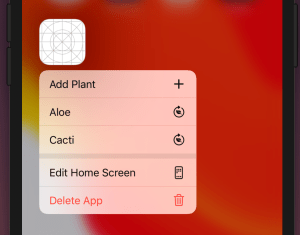
iOS apps can add quick actions which are displayed when force touching on the app’s icon. We’ll add quick actions to my open source WaterMyPlants example app. Quick actions can be static and dynamic: static actions are defined in the Info.plist and dynamic actions are configured in the code by updating UIApplication’s shortcutItems property. In the WaterMyPlants app, we’ll add one static action for adding a new plant and dynamic actions for opening added plants.

Home screen quick actions.

Static quick actions

Static quick actions are defined in the Info.plist. We need to add the UIApplicationShortcutItems key with array of dictionaries. Every dictionary in the array defines a quick action. Quick actions are required to have type and title and optionally we can add a subtitle and an icon. In the example below, we used one of the predefined icons. Predefined icons can be used by adding a key UIApplicationShortcutItemIconType with a string matching a format UIApplicationShortcutIconType<name>. Custom images are defined by the UIApplicationShortcutItemIconFile key where the string value is the name of an image in the asset catalog.

<key>UIApplicationShortcutItems</key>
<array>
<dict>
<key>UIApplicationShortcutItemType</key>
<string>com.augmentedcode.watermyplants.addplants</string>
<key>UIApplicationShortcutItemTitle</key>
<string>Add Plant</string>
<key>UIApplicationShortcutItemIconType</key>
<string>UIApplicationShortcutIconTypeAdd</string>
</dict>
</array>
view raw Infoplist hosted with ❤ by GitHub

Dynamic quick actions

Actions which depend on the data or state of the app can be added by setting the UIApplications’s shortcutItems property. Note that when adding items then we can use UIApplicationShortcutIcon‘s systemImageName initializer which enables us using any of the SF Symbols. Otherwise it is pretty much the same as defining a static quick action: setting type and title. It is useful to add an enum containing all the action types which becomes handy when we are handling actions. WaterMyPlants app uses scene delegates and therefore a good time to set dynamic quick actions is when the scene is resigning active status (see sceneWillResignActive(_:)).

func reloadShortcuts() {
let context = dependencyContainer.persistentContainer.viewContext
let plants = Plant.all(in: context).sorted(by: { $0.name < $1.name })
let items = plants.map({ (plant) -> UIApplicationShortcutItem in
return UIApplicationShortcutItem(type: UIApplicationShortcutItem.Action.showPlant.rawValue,
localizedTitle: plant.name,
localizedSubtitle: nil,
icon: UIApplicationShortcutIcon(systemImageName: "leaf.arrow.circlepath"),
userInfo: ["id": plant.id] as [String: NSSecureCoding])
})
UIApplication.shared.shortcutItems = items
}

Performing quick actions

Quick actions are handled either in the UIApplicationDelegate or in the UISceneDelegate. WaterMyPlants uses scene delegates, therefore we’ll look into how to perform actions using scene delegates. We need to keep in mind that when selecting a shortcut launches the app, then we would need to check the shortcut property in the UIScene.ConnectionOptions and use it for configuring the UI to perform the action (windowScene(_:performActionFor:completionHandler:) is not called in that case). But if the app is already running in the background, then we can handle the action in the performActionFor delegate callback.

extension UIApplicationShortcutItem {
enum Action: String {
case addPlant
case showPlant
}
}
final class SceneDelegate: UIResponder, UIWindowSceneDelegate {
func windowScene(_ windowScene: UIWindowScene, performActionFor shortcutItem: UIApplicationShortcutItem, completionHandler: @escaping (Bool) -> Void) {
guard let identifier = UIApplicationShortcutItem.Action(rawValue: shortcutItem.type) else { fatalError("Unknown shortcut") }
switch identifier {
case .addPlant:
flowCoordinator?.plantListViewModel.isPresentingAddPlant = true
case .showPlant:
print("show plant: \(String(describing: shortcutItem.userInfo))")
}
completionHandler(true)
}
func scene(_ scene: UIScene, willConnectTo session: UISceneSession, options connectionOptions: UIScene.ConnectionOptions) {
// …
// Triggering the add plant shortcut when launching the app
if connectionOptions.shortcutItem?.type == UIApplicationShortcutItem.Action.addPlant.rawValue {
viewModel.isPresentingAddPlant = true
}
// Setting up a view with the view model configured to show add plant view
}
}

Summary

We added home screen quick actions to the WaterMyPlants app. We looked into how to add static and dynamic quick actions and how to perform the selected action.

If this was helpful, please let me know on Mastodon@toomasvahter or Twitter @toomasvahter. Feel free to subscribe to RSS feed. Thank you for reading.

Project

WaterMyPlants (GitHub) Xcode 11.5

Pull request #3

Categories
Combine Foundation iOS Swift SwiftUI Xcode

Validating string in TextField with NumberFormatter in SwiftUI

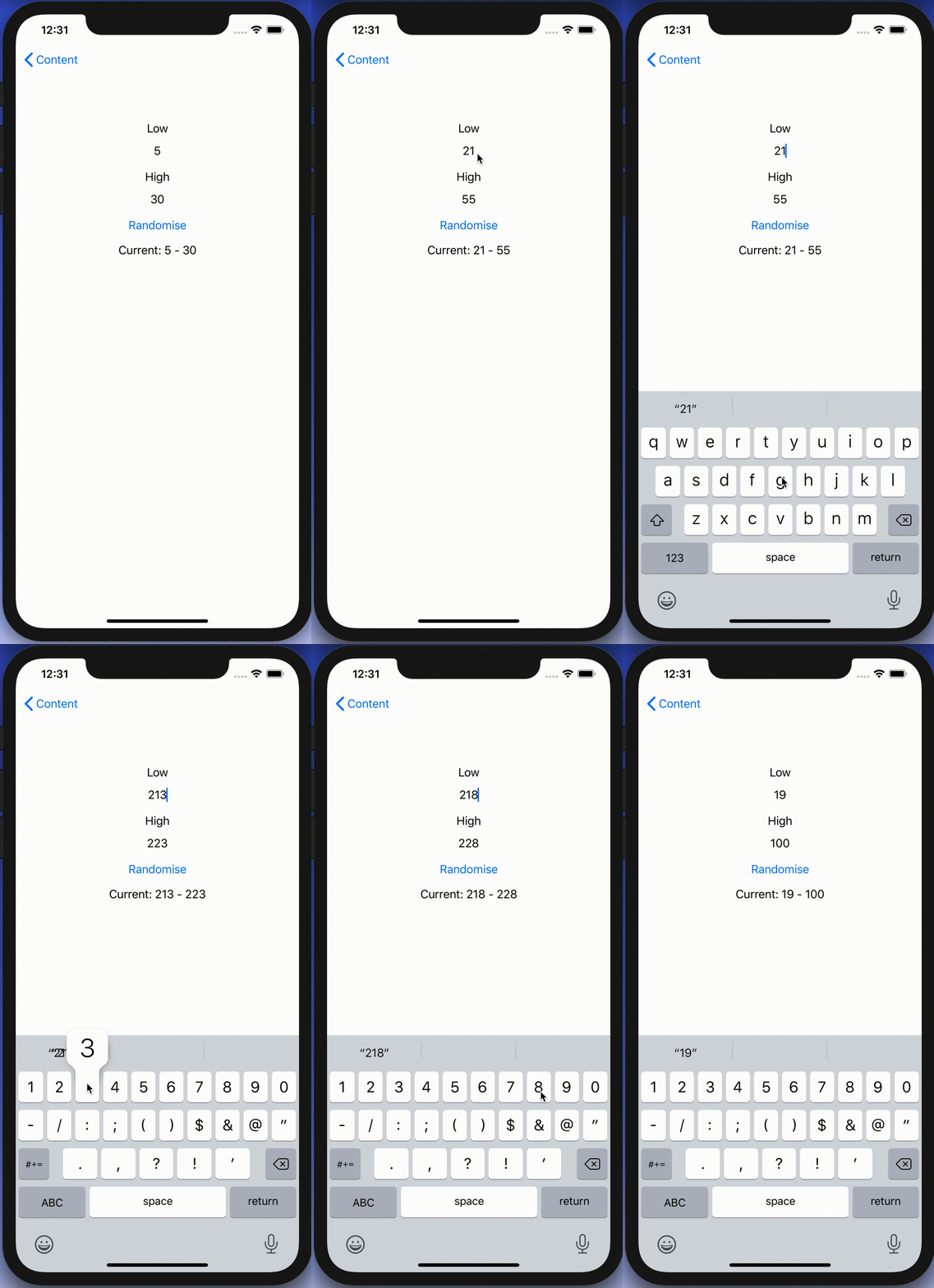
I was looking into creating a view which has TextField with NumberFormatter. Typed text would show up in a separate label and when trying to enter non-numbers, the TextField would reject those characters. Although TextField component in SwiftUI has generic initialiser init(_:value:formatter:onEditingChanged:onCommit:) it does not seem to do what we need. Value binding does not update while typing, non-number characters are not discarded, and string is not reloaded when view reloads with different model data. Therefore, I decided to create a wrapper around TextField which deals with transforming numbers to strings and implements all the before mentioned features.

End result after creating a custom NumberTextField.

Content view with temperature limits

Example use-case is basic view for editing temperature limits where model type will force high value to be at least 10 units higher compared to low value. The model type also have separate properties for getting NSNumber instances what we use later (such conversion could also happen on SwiftUI level).

struct TemperatureLimits {
var low: Int = 5 {
didSet {
let high = max(self.high, low + 10)
guard self.high != high else { return }
self.high = high
}
}
var high: Int = 30 {
didSet {
let low = min(self.low, high – 10)
guard self.low != low else { return }
self.low = low
}
}
var lowNumber: NSNumber {
get { NSNumber(value: low) }
set { low = newValue.intValue }
}
var highNumber: NSNumber {
get { NSNumber(value: high) }
set { high = newValue.intValue }
}
}
Model type storing temperature limits which are forced to have 10 unit difference.

Content view has text fields, button for randomising limits and label for displaying current values. NumberTextField is a custom view which implements all the features what we listed in the beginning of the post.

import Combine
import SwiftUI
struct FormatterView: View {
@State var limits: TemperatureLimits
var body: some View {
VStack(spacing: 16) {
VStack {
Text("Low")
NumberTextField("Low", value: $limits.lowNumber, formatter: NumberFormatter.decimal)
}
VStack {
Text("High")
NumberTextField("High", value: $limits.highNumber, formatter: NumberFormatter.decimal)
}
Button(action: {
self.limits.low = Int.random(in: 0…40)
self.limits.high = Int.random(in: 50…100)
}, label: {
Text("Randomise")
})
Text("Current: \(limits.low) – \(limits.high)")
Spacer()
}.padding()
.multilineTextAlignment(.center)
}
}
extension NumberFormatter {
static var decimal: NumberFormatter {
let formatter = NumberFormatter()
formatter.allowsFloats = false
return formatter
}
}
View with custom NumberTextFields bound to temperature limits.

Creating NumberTextField with NSNumber binding and NumberFormatter

NumberTextField is a wrapper around TextField and internally handles NSNumber to String and String to NSNumber transformations. Transformations happen inside a separate class called StringTransformer which stores editable string in @Published property. @Published property is first populated with string value by transforming NSNumber to String using the formatter. Changes made by user are captured by subscribing to stringValue publisher (@Published properties provide publishers). String to NSNumber transformation is tried when user edits the string: if successful, NSNumber is send back to model using the value binding, if fails, stringValue is set back to previous value. Note that dropFirst skips initial update when setting up sink and receive operator is used for scheduling updates at later time when SwiftUI has finished current layout update cycle.

struct NumberTextField: View {
init(_ title: String, value: Binding<NSNumber>, formatter: NumberFormatter) {
self.title = title
self.stringTransformer = StringTransformer(value, formatter: formatter)
}
private let title: String
@ObservedObject private var stringTransformer: StringTransformer
var body: some View {
TextField(title, text: $stringTransformer.stringValue)
}
}
fileprivate extension NumberTextField {
final class StringTransformer: ObservableObject {
private var cancellable: AnyCancellable?
init(_ value: Binding<NSNumber>, formatter: NumberFormatter) {
// NSNumber -> String
stringValue = formatter.string(from: value.wrappedValue) ?? ""
// String -> NSNumber
cancellable = $stringValue.dropFirst().receive(on: RunLoop.main)
.sink(receiveValue: { [weak self] (editingString) in
if let number = formatter.number(from: editingString) {
value.wrappedValue = number
}
else if !editingString.isEmpty {
// Force current model value when editing value is invalid (invalid value or out of range).
self?.stringValue = formatter.string(from: value.wrappedValue) ?? ""
}
})
}
@Published var stringValue: String = ""
}
}
NumberTextField transforming NSNumber to String using NumberFormatter and vice versa.

Summary

TextField’s formatter initialiser does not seem to be operating as expected and therefore we built a custom view. It handles number to string transformations and refreshes the view when string can’t be transformed to number. Hopefully future SwiftUI iterations will fix the init(_:value:formatter:onEditingChanged:onCommit:) initialiser and NumberTextField is not needed at all.

If this was helpful, please let me know on Mastodon@toomasvahter or Twitter @toomasvahter. Feel free to subscribe to RSS feed. Thank you for reading.

Example project

SwiftUIFormattedTextField (Xcode 11.4.1)

Categories
Foundation iOS Swift SwiftUI Xcode

Alert and LocalizedError in SwiftUI

Everything can’t go exactly as planned and therefore, at some point, there is a need for presenting localized error messages to the user. Let’s take a look at how to add custom error type what provides error description, failure reason and recovery suggestion and presenting it in SwiftUI view.

Adding custom error type

Custom error type is needed when we want to propagate errors using Swift’s error handling mechanism. Custom error types need to, at minimum, conform to Error protocol which defines localizedDescription property. If we would like to provide more information to users, including recovery suggestions, then we need to use LocalizedError instead. LocalizedError inherits from Error and defines additional properties which are intended for describing the error further. Note that LocalizedError is very similar to NSError: errorDescription, failureReason, recoverySuggestion, helpAnchor are all represented by NSError.UserInfoKey.

In the example app we’ll use LoginError currently definiing only one error: incorrectPassword.

enum LoginError: LocalizedError {
    case incorrectPassword // invalidUserName etc
    
    var errorDescription: String? {
        switch self {
        case .incorrectPassword:
            return "Failed logging in account"
        }
    }
    
    var failureReason: String? {
        switch self {
        case .incorrectPassword:
            return "Entered password was incorrect"
        }
    }
    
    var recoverySuggestion: String? {
        switch self {
        case .incorrectPassword:
            return "Please try again with different password"
        }
    }
}

Presenting error in SwiftUI

Custom error defined, the next step is to present the error using SwiftUI’s alert view modifier: alert(isPresented:content:). Alert view modifier requires boolean binding and Alert container defining title, optional message, and buttons. In the example below, error is handled by the view model and Alert itself is created using convenience initializer which we’ll look at a bit later. Convenience initializer makes the view implementation more readable and reduces code duplication.

struct ContentView: View {
    @ObservedObject var viewModel: ContentViewModel
    
    var body: some View {
        VStack(spacing: 16) {
            Text("Alert Views")
            Button(action: viewModel.showAlertView) {
                Text("Show Alert View")
            }
        }.alert(isPresented: viewModel.isPresentingAlert, content: {
            Alert(localizedError: viewModel.activeError!)
        })
    }
}

Alert view modifier requires a boolean binding controlling if the alert is visible or not. When alert is dismissed, SwiftUI automatically calls the binding with false, indicating that the alert should not be visible anymore. Note that force unwrap is safe here because view model makes sure isPresentingAlert never returns true when underlying error is nil.

final class ContentViewModel: ObservableObject {
    @Published private(set) var activeError: LocalizedError?

    var isPresentingAlert: Binding<Bool> {
        return Binding<Bool>(get: {
            return self.activeError != nil
        }, set: { newValue in
            guard !newValue else { return }
            self.activeError = nil
        })
    }
        
    func showAlertView() {
        activeError = LoginError.incorrectPassword
    }
}

Boolean binding is created manually and implemented in such way that when activeError is set, isPresentingAlert returns true. When alert is dismissed, set will clear the current active error. This approach makes it simple to handle any errors conforming to LocalizedError in the view model. Like mentioned before, LocalizedError enables us to add detailed information about the alert and we can use that when creating the Alert. Let’s take a look on it next.

extension Alert {
    init(localizedError: LocalizedError) {
        self = Alert(nsError: localizedError as NSError)
    }
    
    init(nsError: NSError) {
        let message: Text? = {
            let message = [nsError.localizedFailureReason, nsError.localizedRecoverySuggestion].compactMap({ $0 }).joined(separator: "\n\n")
            return message.isEmpty ? nil : Text(message)
        }()
        self = Alert(title: Text(nsError.localizedDescription),
                     message: message,
                     dismissButton: .default(Text("OK")))
    }
}

Alert’s extension has initializers both for LocalizedError and NSError. NSError is used a lot in Objective-C frameworks so there is high probability that we need to present NSError in the future as well. Here, we can use Swift language’s built-in support of converting Swift error type to NSError and therefore we can implement convenience method only once for NSError. LocalizedError can be bridged to NSError and Swift compiler takes care of keeping the information about the error. In this implementation, I decided to include both the failureReason and recoverySuggestion when creating the message for Alert. This enables custom error types to choose how much information they provide (choosing which properties return text). Moreover, it is better to show as much information about the error as possible.

LoginError.incorrectPassword presented by Alert in SwiftUI

Summary

We created a custom error type and used LocalizedError instead of Error for making it suitable for displaying as an alert. We looked into how to use alert view modifier and MVVM together and introduced design pattern for easy alert presentation. If you need action sheet, then follow similar steps but use actionSheet view modifier with ActionSheet container.

If this was helpful, please let me know on Mastodon@toomasvahter or Twitter @toomasvahter. Feel free to subscribe to RSS feed. Thank you for reading.

Example project

SwiftUIAlertView (Xcode 11.4 beta 2)

Categories
Combine CoreData Foundation Generics iOS Swift SwiftUI Xcode

Using CoreData with SwiftUI

CoreData is Apple’s object graph and persistence framework. It provides data sources for synchronising data with view. Let’s take a look on how to use those data sources in SwiftUI views. Starting with NSFetchedResultsController what is used for list and collection views, after that observing NSManagedObject directly from SwiftUI view and lastly subscribing to managed object context notifications.

NSFetchedResultsController

NSFetchedResultsController is used for providing data in table and collection views. It supports sorting and filtering data and arranging data into sections. We can use delegate for getting change callbacks. NSFetchedResultsControllerDelegate contains several methods:

// Diffable data source (new in iOS 13)
optional func controller(_ controller: NSFetchedResultsController<NSFetchRequestResult>, didChangeContentWith snapshot: NSDiffableDataSourceSnapshot)
optional func controller(_ controller: NSFetchedResultsController<NSFetchRequestResult>, didChangeContentWith diff: CollectionDifference<NSManagedObjectID>)
// Manually updating table view and collection view
optional func controller(_ controller: NSFetchedResultsController<NSFetchRequestResult>, didChange anObject: Any, at indexPath: IndexPath?, for type: NSFetchedResultsChangeType, newIndexPath: IndexPath?)
optional func controller(_ controller: NSFetchedResultsController<NSFetchRequestResult>, didChange sectionInfo: NSFetchedResultsSectionInfo, atSectionIndex sectionIndex: Int, for type: NSFetchedResultsChangeType)
optional func controllerWillChangeContent(_ controller: NSFetchedResultsController<NSFetchRequestResult>)
optional func controllerDidChangeContent(_ controller: NSFetchedResultsController<NSFetchRequestResult>)

In SwiftUI we are not going to directly manipulate views. Only what we need to do is letting SwiftUI view know that data is about to change. Let’s take a look on simple app with list of items stored by CoreData. Data is represented by ColorItem where only stored value is hex string of the color (e.g. #AA22BB).

final class ColorItem: NSManagedObject {
@NSManaged var hex: String
}
view raw ColorItem.swift hosted with ❤ by GitHub

ColorItems are managed by ContentView’s view model. View model creates NSFetchedResultsController, performs fetch and provides array of fetched ColorItems to the SwiftUI’s List. In addition, view model is delegate of the NSFetchedResultsController (requires view model to be NSObject subclass). As view model is ObservableObject, we can very easily let SwiftUI view know that it should refresh. We need to do two things: firstly, implementing controllerWillChangeContent delegate method and calling send() on objectWillChange publisher. Secondly, view model property must use @ObservedObject property wrapper in SwiftUI view. Result is that SwiftUI view subscribes to objectWillChange publisher and refreshes whenever publisher emits an event.

extension ContentView {
final class ViewModel: NSObject, NSFetchedResultsControllerDelegate, ObservableObject {
private let colorController: NSFetchedResultsController<ColorItem>
init(managedObjectContext: NSManagedObjectContext) {
let sortDescriptors = [NSSortDescriptor(keyPath: \ColorItem.hex, ascending: true)]
colorController = ColorItem.resultsController(context: managedObjectContext, sortDescriptors: sortDescriptors)
super.init()
colorController.delegate = self
try? colorController.performFetch()
}
func controllerWillChangeContent(_ controller: NSFetchedResultsController<NSFetchRequestResult>) {
objectWillChange.send()
}
var colors: [ColorItem] {
return colorController.fetchedObjects ?? []
}
}
}
extension ColorItem {
static func resultsController(context: NSManagedObjectContext, sortDescriptors: [NSSortDescriptor] = []) -> NSFetchedResultsController<ColorItem> {
let request = NSFetchRequest<ColorItem>(entityName: "ColorItem")
request.sortDescriptors = sortDescriptors.isEmpty ? nil : sortDescriptors
return NSFetchedResultsController(fetchRequest: request, managedObjectContext: context, sectionNameKeyPath: nil, cacheName: nil)
}
}

And finally let’s see the ContentView implementation. NSManagedObject has objectID property what we can use in List for identifying every ColorItem. Cell is custom view what we’ll take a look at next.

struct ContentView: View {
@ObservedObject var viewModel: ViewModel
var body: some View {
NavigationView {
VStack {
List(viewModel.colors, id: \.objectID) { (colorItem) in
Cell(colorItem: colorItem)
}
}.navigationBarTitle("Colors")
}
}
}

NSManagedObject

NSManagedObject implements ObservableObject protocol and therefore it is possible to use it together with @ObservedObject property wrapper and getting SwiftUI view refreshed automatically when any of the ColorItem properties change. NSFetchedResultsController required a little bit of code for setting up delegate but that is not the case with NSManagedObject.

struct Cell: View {
@ObservedObject var colorItem: ColorItem
var body: some View {
HStack {
Text(verbatim: colorItem.hex)
Spacer()
Rectangle().foregroundColor(Color(colorItem.uiColor)).frame(minWidth: 50, maxWidth: 50)
}
}
}
view raw Cell.swift hosted with ❤ by GitHub

In addition, if there are cases where we would like to observe specific property, then Combine provides publisher for key path. Because NSManagedObject supports key-value observing we can use the publisher and subscribe to individual property changes.

let cancellable = color.publisher(for: \.hex).sink { (string) in
print(string)
}

Subscribing to CoreData notifications

When we need to observe changes in persistent store we can observe notifications sent by the framework. As NotificationCenter supports publishers, we can subscribe to it, unpack data from notification and do something with the data. For making this easier we can introduce a separate type. It will unpack the user info dictionary and filter by type. This allows to easily observe, for example, ColorItem insertions. Or, if we would like to receive every possible change, we can specify NSManagedObject as the generic type.

private var cancellables = [AnyCancellable]()
let cancellable = NotificationCenter.default.publisher(for: .NSManagedObjectContextObjectsDidChange, object: managedObjectContext)
.compactMap({ ManagedObjectContextChanges<ColorItem>(notification: $0) }).sink { (changes) in
print(changes)
}
cancellables.append(cancellable)
struct ManagedObjectContextChanges<T: NSManagedObject> {
let inserted: Set<T>
let deleted: Set<T>
let updated: Set<T>
init?(notification: Notification) {
let unpack: (String) -> Set<T> = { key in
let managedObjects = (notification.userInfo?[key] as? Set<NSManagedObject>) ?? []
return Set(managedObjects.compactMap({ $0 as? T }))
}
deleted = unpack(NSDeletedObjectsKey)
inserted = unpack(NSInsertedObjectsKey)
updated = unpack(NSUpdatedObjectsKey).union(unpack(NSRefreshedObjectsKey))
if deleted.isEmpty, inserted.isEmpty, updated.isEmpty {
return nil
}
}
}

Summary

We took a look at how to use NSFetchedResultsController and NSManagedObject in SwiftUI views. We saw that integrating NSFetchedResultsController requires only a little bit of code and using NSManagedObject even less. In addition, we looked at subscribing to CoreData notifications and unpacking notification payload.

If this was helpful, please let me know on Mastodon@toomasvahter or Twitter @toomasvahter. Feel free to subscribe to RSS feed. Thank you for reading.

Example project

CoreDataCombineSwiftUI (Xcode 11.3)

Categories
Combine Foundation iOS Swift SwiftUI

MVVM in SwiftUI

Let’s build a simple app using MVVM (model-view-view model) where every SwiftUI view has its own view model. It’s going to be an app with two views: list of movies and add a movie view what utilises Form view. Added movies are stored in MovieStore which is shared by the two view models. We will use environment for sharing the MovieStore. It will be read from the environment when we need to create AddMovieView with its view model.

Movie and MovieStore representing data

Movie is a small struct and just stores the title and rating. Title and rating are mutable as we are going to update those in AddMovieView. We also conform to protocol Identifiable because we are going to use List view for showing all the movies. List needs a way of identifiyng the content and its the simplest way of satisfiying the requirement.

struct Movie: Equatable, Identifiable {
    let id = UUID()
    var fullTitle: String
    var givenRating: Rating = .notSeen
}

extension Movie {
    enum Rating: Int, CaseIterable {
        case notSeen, terrible, poor, decent, good, excellent
    }
}

MovieStore is also a pretty simple although in a more sophisticated app it would contain much more logic: persistence, deleting etc. We use Published property wrapper which automatically provides a publisher we can use to subscribe against.

final class MovieStore {
    @Published private(set) var allMovies = [Movie]()
    
    func add(_ movie: Movie) {
        allMovies.append(movie)
    }
}

For inserting shared MovieStore to environment, we’ll use custom EnvironmentKey. Custom key is just an object conforming to EnvironmentKey protocol. We need to provide the type and default value.

struct MovieStoreKey: EnvironmentKey {
    typealias Value = MovieStore
    static var defaultValue = MovieStore()
}

extension EnvironmentValues {
    var movieStore: MovieStore {
        get {
            return self[MovieStoreKey]
        }
        set {
            self[MovieStoreKey] = newValue
        }
    }
}

If we do not insert our own instance of MovieStore to the environment, the instance returned by defaultValue is used. Typically we would like to use a specific instance initialised outside of the view hierarchy. Therefore let’s take a look how to do that next.

SceneDelegate and MovieScene presentation

MovieStore dependency is passed into view models with initialiser. We’ll use the instance stored in SceneDelegate. Yet again, in a real app, it would probably live in a separate dependency container or in something similar. MovieListView is the first view we need to present, therefore we’ll initialise view model, view and insert instance of MovieStore to environment for later use (movieStore keypath is the one we just defined in EnvironmentValues‘ extension).

final class SceneDelegate: UIResponder, UIWindowSceneDelegate {
    var window: UIWindow?
    private let movieStore = MovieStore()

    func scene(_ scene: UIScene, willConnectTo session: UISceneSession, options connectionOptions: UIScene.ConnectionOptions) {
        let viewModel = MovieListView.ViewModel(movieStore: movieStore)
        let contentView = MovieListView(viewModel: viewModel).environment(\.movieStore, movieStore)
        
        guard let windowScene = scene as? UIWindowScene else { return }
        let window = UIWindow(windowScene: windowScene)
        window.rootViewController = UIHostingController(rootView: contentView)
        self.window = window
        window.makeKeyAndVisible()
    }
}

MovieListView and its ViewModel

We still haven’t taken a look on MovieListView and its view model, let’s do it now. View model conforms to protocol ObservableObject and uses @Published property wrappers. ObservableObject’s default implementation provides objectWillChange publisher. @Published property wrapper automatically fires the publisher when the property value is about to change. On MovieListView we have declared view model property with @ObservedObject property wrapper. This will make the view to subscribe to objectWillChange publisher and will refresh the view when-ever objectWillChange fires.

extension MovieListView {
    final class ViewModel: ObservableObject {
        private let movieStore: MovieStore
        private var cancellables = [AnyCancellable]()
        
        init(movieStore: MovieStore) {
            self.movieStore = movieStore
            cancellables.append(movieStore.$allMovies.assign(to: \.movies, on: self))
        }
        
        @Published private(set) var movies = [Movie]()
        @Published var isPresentingAddMovie = false
    }
}
struct MovieListView: View {
    @Environment(\.self) var environment
    @ObservedObject var viewModel: ViewModel
    
    var body: some View {
        NavigationView {
            List(self.viewModel.movies) { movie in
                Text(movie.fullTitle)
            }.navigationBarTitle("Movies")
                .navigationBarItems(trailing: navigationBarTrailingItem)
        }
    }
    
    private var navigationBarTrailingItem: some View {
        Button(action: {
            self.viewModel.isPresentingAddMovie = true
        }, label: {
            Image(systemName: "plus").frame(minWidth: 32, minHeight: 32)
        }).sheet(isPresented: self.$viewModel.isPresentingAddMovie) {
            self.makeAddMovieView()
        }
    }
    
    private func makeAddMovieView() -> AddMovieView {
        let movieStore = environment[MovieStoreKey]
        let viewModel = AddMovieView.ViewModel(movieStore: movieStore)
        return AddMovieView(viewModel: viewModel)
    }
}

Changes in MovieStore are observed by subscribing to allMovies subscriber and then assigning the new list of movies to view model’s own property. Note that assignment is triggered on subscribing and when changes happen: like KVO with initial option. Only downside is that now the list is duplicated but that’s OK. We would need to do that anyway when we would like to sort or filter the list later on.

AddMovieView and its view model are created when user taps on the plus button in the navigation bar. Environment property wrapper can be used to get the whole environment or any of the values using a specific key. In current case I went for accessing the whole environment object and then getting MovieStore using a MovieStoreKey later when needed. Then the MovieStore is not available in the whole view scope and only when creating the AddMovieView. Other option would be to use @Environment(\.movieStore) var movieStore instead.

AddMovieView and its ViewModel

AddMovieView’s view model is initialised with MovieStore and internally it represents and instance of Movie. Published property wrapper is used similarly like in MovieListView’s view model. The model object is a private property and instead of direct access, two bindings are provded for TextField and Picker. Binding represents a two way connection between the view and model. In addition, there is canSave property what is used for enabling the save button in the navigation bar. Save button should be enabled only when title is filled. To recap the view update flow: TextField or Picker will use Binding to update private property newMovie. As newMovie property uses @Published property wrapper, it will fire ObservableObject’s objectWillChange publisher. SwiftUI automatically subscribes to objectWillChange because view model’s property uses @ObservedObject.

extension AddMovieView {
    class ViewModel: ObservableObject {
        private let movieStore: MovieStore
        
        init(movieStore: MovieStore) {
            self.movieStore = movieStore
        }
        
        @Published private var newMovie = Movie(fullTitle: "")
        
        lazy var title = Binding<String>(get: {
            self.newMovie.fullTitle
        }, set: {
            self.newMovie.fullTitle = $0
        })
        
        lazy var rating = Binding<Movie.Rating>(get: {
            self.newMovie.givenRating
        }, set: {
            self.newMovie.givenRating = $0
        })
        
        var canSave: Bool {
            return !newMovie.fullTitle.isEmpty
        }
        
        func save() {
            movieStore.add(newMovie)
        }
    }
}

struct AddMovieView: View {
    @Environment(\.presentationMode) private var presentationMode
    @ObservedObject var viewModel: ViewModel
    
    var body: some View {
        NavigationView {
            Form {
                titleSection
                ratingSection
            }.navigationBarTitle("Add Movie", displayMode: .inline)
                .navigationBarItems(leading: leadingBarItem, trailing: trailingBarItem)
                .navigationViewStyle(StackNavigationViewStyle())
            
        }
    }
    
    private var titleSection: some View {
        Section() {
            TextField("Title", text: viewModel.title)
        }
    }

    private var ratingSection: some View {
        Section() {
            Picker(LocalizedStringKey("Rating"), selection: viewModel.rating) {
                ForEach(Movie.Rating.allCases, id: \.rawValue) {
                    Text($0.localizedName).tag($0)
                }
            }
        }
    }
    
    private var leadingBarItem: some View {
        Button(action: { self.presentationMode.wrappedValue.dismiss() }, label: {
            Text("Cancel")
        })
    }
    
    private var trailingBarItem: some View {
        Button(action: {
            self.viewModel.save()
            self.presentationMode.wrappedValue.dismiss()
        }, label: {
            Text("Save").disabled(!self.viewModel.canSave)
        })
    }
}

Summary

We created a simple app with two views. Both views had its own view model and both view models used the same dependency: MovieStore. One view model triggered changes in MovieStore and those changes were observed by the other view model. In addition, we looked into how to use SwiftUI’s environment and how to trigger view updates from view models.

If this was helpful, please let me know on Mastodon@toomasvahter or Twitter @toomasvahter. Feel free to subscribe to RSS feed. Thank you for reading.

Example

SwiftUICombineMVVMExample (GitHub, Xcode 11.3, Swift 5)

Categories
Foundation iOS Swift UIKit

Adding custom attribute to NSAttributedString on iOS

NSAttributedString is used for displaying rich text on Apple platforms. There are many attributes available for styling the text. Let’s see how to add new attribute and how to draw it in UITextView.

Drawing custom attribute

Defining a new attribute is just a matter of extending NSAttributedString.Key and defining a new static variable. Difficult part is actually drawing the custom attribute. Apple’s documentation says that best way for it is to subclass NSLayoutManager and overriding drawGlyphs(forGlyphRange:at:). This is what we are doing here as well. Whenever glyphs are drawn, we check if the glyph range contains the custom attribute, if it does, then we get the rects for glyphs containing the custom attribute. When we know rects, we can draw the custom styling. In this case, we’ll mimic tokens in text and therefore go for rectangle with rounded corners. Should be noted that enumerating custom attribute, longestEffectiveRangeNotRequired should be specified. Otherwise, if we have two different tokens next to each-other, then this attribute is considered as one.

UITextView has by default text container inset set. For being able to draw the custom styling exactly behind the text, this offset must be taken account. Easiest is to propagate insets to layout manager what we are doing here.

extension NSAttributedString.Key {
    static let token = NSAttributedString.Key("Token")
}

final class TokenLayoutManager: NSLayoutManager {
    var textContainerOriginOffset: CGSize = .zero
    
    override func drawGlyphs(forGlyphRange glyphsToShow: NSRange, at origin: CGPoint) {
        let characterRange = self.characterRange(forGlyphRange: glyphsToShow, actualGlyphRange: nil)
        textStorage?.enumerateAttribute(.token, in: characterRange, options: .longestEffectiveRangeNotRequired, using: { (value, subrange, _) in
            guard let token = value as? String, !token.isEmpty else { return }
            let tokenGlypeRange = glyphRange(forCharacterRange: subrange, actualCharacterRange: nil)
            drawToken(forGlyphRange: tokenGlypeRange)
        })
        super.drawGlyphs(forGlyphRange: glyphsToShow, at: origin)
    }
    
    private func drawToken(forGlyphRange tokenGlypeRange: NSRange) {
        guard let textContainer = textContainer(forGlyphAt: tokenGlypeRange.location, effectiveRange: nil) else { return }
        let withinRange = NSRange(location: NSNotFound, length: 0)
        enumerateEnclosingRects(forGlyphRange: tokenGlypeRange, withinSelectedGlyphRange: withinRange, in: textContainer) { (rect, _) in
            let tokenRect = rect.offsetBy(dx: self.textContainerOriginOffset.width, dy: self.textContainerOriginOffset.height)
            UIColor(hue: 175.0/360.0, saturation: 0.24, brightness: 0.88, alpha: 1).setFill()
            UIBezierPath(roundedRect: tokenRect, cornerRadius: 4).fill()
        }
    }
}

Using custom layout manager in UITextView requires a little bit of setup what we can put into UITextView’s subclass.

final class TokenTextView: UITextView {
    init(frame: CGRect) {
        let layoutManager = TokenLayoutManager()
        let textStorage = NSTextStorage()
        textStorage.addLayoutManager(layoutManager)
        let textContainer = NSTextContainer()
        textContainer.heightTracksTextView = true
        textContainer.widthTracksTextView = true
        layoutManager.addTextContainer(textContainer)
        super.init(frame: frame, textContainer: textContainer)
        updateLayoutManager()
    }
    
    required init?(coder: NSCoder) {
        fatalError("init(coder:) has not been implemented")
    }
    
    override var textContainerInset: UIEdgeInsets {
        didSet {
            updateLayoutManager()
        }
    }
    
    private func updateLayoutManager() {
        guard let layoutManager = layoutManager as? TokenLayoutManager else { return }
        layoutManager.textContainerOriginOffset = CGSize(width: textContainerInset.left, height: textContainerInset.top)
        layoutManager.invalidateDisplay(forCharacterRange: NSRange(location: 0, length: attributedText.length))
    }
}
let textView = TokenTextView(frame: .zero)
textView.translatesAutoresizingMaskIntoConstraints = false
view.addSubview(textView)
NSLayoutConstraint.activate([
    textView.leadingAnchor.constraint(equalTo: view.safeAreaLayoutGuide.leadingAnchor, constant: 16),
    textView.trailingAnchor.constraint(equalTo: view.safeAreaLayoutGuide.trailingAnchor, constant: -16),
    textView.topAnchor.constraint(equalTo: view.safeAreaLayoutGuide.topAnchor, constant: 16),
    textView.bottomAnchor.constraint(equalTo: view.safeAreaLayoutGuide.bottomAnchor, constant: -16)
])
        
let string = "The quick brown fox jumps over the lazy dog"
let attributedString = NSMutableAttributedString(string: string)
let value = "value"
attributedString.addAttribute(.token, value: value, range: NSRange(location: 4, length: 5))
textView.attributedText = attributedString

Summary

We defined a new attribute by extending NSAttributedString.Key. Then we created a new NSLayoutManager subclass and added custom styling to the attribute. Lastly, we configured the UITextView to use custom layout manager and set text with custom attribute to it.

If this was helpful, please let me know on Mastodon@toomasvahter or Twitter @toomasvahter. Feel free to subscribe to RSS feed. Thank you for reading.

Example project

NSAttributedStringCustomAttribute Xcode 11.2, Swift 5.1

Categories
Foundation Generics iOS macOS Swift

Persistent reusable container for item collections in Swift

Let’s build a container where we can store collections of items conforming to a protocol. All the collections are identified by a case in enum. For making the container reusable, we’ll use protocols as requirements on keys and items in collections. Moreover, the container should be archivable and unarchivable.

Creating a reusable container

Container’s implementation wraps a dictionary and adds methods for conveniently adding an item for key. Key must implement Hashable and RawRepresentable: then it can be used in Dictionary and converting it to representation suitable for storing on disk.

Every item needs to implement ContainerItem protocol what requires to implement methods used when archiving and unarchiving the item. Thanks to Codable protocol in Swift, it is very simple to transform the item to data and back. ContainerItem provides default implementations for its own methods when the type is conforming to Codable. Therefore, when some type wants to implement ContainerItem, then it only needs to conform to ContainerItem and Codable and default implementations will do the rest.

final class Container<Key: Hashable & RawRepresentable> {
private var storage = [Key: [ContainerItem]]() {
didSet {
didChange()
}
}
init(content: [Key: [ContainerItem]] = [:]) {
storage = content
}
func add(_ item: ContainerItem, key: Key) {
if var current = storage[key] {
current.append(item)
storage[key] = current
}
else {
storage[key] = [item]
}
}
func items<T: ContainerItem>(forKey key: Key) -> [T] {
guard let all = storage[key] else { return [] }
return all as! [T]
}
var didChange: () -> Void = {}
}
protocol ContainerItem {
init?(jsonData: Data)
var jsonDataRepresentation: Data { get }
}
extension ContainerItem where Self: Codable {
init?(jsonData: Data) {
guard let object = try? JSONDecoder().decode(Self.self, from: jsonData) else { return nil }
self = object
}
var jsonDataRepresentation: Data {
return try! JSONEncoder().encode(self)
}
}
Reusable container storing collections of items

Archiving and unarchiving the container and it’s content

Let’s first extend the container with write method. As enum cases are used as keys in dictionary, then let’s implement write method for enums what have String as RawValue. (what should be a preferred way in this use case as its provides the most readable representation of the key). We can then map dictionary entries so that key is converted to String and value to array of JSON data objects. NSKeyedArchiver provides a simple way of storing Dictionary with archivable types (like String and array of Data).

For initialising the container from data on disk, we need to make sure that we convert JSON data back to the correct type. Therefore we can extend the container for this specific enum case and converting data back to the correct type. When using enums it is easy to switch over the possible cases and then converting list of data objects to list of known types.

struct EventItem: ContainerItem, Codable {
let date: Date
let title: String
let description: String
}
struct NoteItem: ContainerItem, Codable {
let text: String
}
enum CalendarKeys: String {
case homeEvents, workEvents, notes
}
extension Container where Key == CalendarKeys {
convenience init(contentsOfURL url: URL) throws {
let data = try Data(contentsOf: url)
let contents = try NSKeyedUnarchiver.unarchiveTopLevelObjectWithData(data) as! [Key.RawValue: [Data]]
let converted = contents.compactMap({ (keyValuePair) -> (Key, [ContainerItem])? in
guard let key = Key(rawValue: keyValuePair.key) else { return nil }
switch key {
case .homeEvents, .workEvents:
return (key, keyValuePair.value.compactMap({ EventItem(jsonData: $0) }))
case .notes:
return (key, keyValuePair.value.compactMap({ NoteItem(jsonData: $0) }))
}
})
self.init(content: Dictionary(uniqueKeysWithValues: converted))
}
}
extension Container where Key.RawValue == String {
func write(to url: URL) throws {
let converted = storage.map { (keyValuePair) -> (String, [Data]) in
return (keyValuePair.key.rawValue, keyValuePair.value.map({ $0.jsonDataRepresentation }))
}
let data = try NSKeyedArchiver.archivedData(withRootObject: Dictionary(uniqueKeysWithValues: converted), requiringSecureCoding: false)
try data.write(to: url, options: .atomicWrite)
}
}
Providing methods for archiving and unarchiving

Summary

Wrapping dictionary with another type can be useful inmany cases where we have a known list of keys. Specialising generic types is an efficient way of adding more features to it and keeping type information intact. Thanks to Codable protocol we were able to make types archivable and unarchivable.

let container = Container<CalendarKeys>()
let event1 = EventItem(date: Date(), title: "title1", description: "description1")
container.add(event1, key: .homeEvents)
let event2 = EventItem(date: Date(), title: "title2", description: "description2")
container.add(event2, key: .workEvents)
let note1 = NoteItem(text: "text3")
container.add(note1, key: .notes)
let homeEvents: [EventItem] = container.items(forKey: .homeEvents)
let workEvents: [EventItem] = container.items(forKey: .workEvents)
let notes: [NoteItem] = container.items(forKey: .notes)
let url = URL(fileURLWithPath: NSTemporaryDirectory()).appendingPathComponent("Test")
do {
try container.write(to: url)
}
catch {
print(error as NSError)
}
do {
let restoredContainer = try Container<CalendarKeys>(contentsOfURL: url)
let homeEvents: [EventItem] = restoredContainer.items(forKey: .homeEvents)
let workEvents: [EventItem] = restoredContainer.items(forKey: .workEvents)
let notes: [NoteItem] = restoredContainer.items(forKey: .notes)
print("Home events: ", homeEvents)
print("Work events: ", workEvents)
print("Notes: ", notes)
}
catch {
print(error as NSError)
}
Example usage of the container

If this was helpful, please let me know on Mastodon@toomasvahter or Twitter @toomasvahter. Feel free to subscribe to RSS feed. Thank you for reading.

Example

PersistentGenericContainer (Xcode 11.1)