In the previous blog post Reading data from a file with DispatchIO I built a small FileReader which enabled reading data from a file for random byte ranges. Signal Path uses a similar file reader but in addition it also caches read data in some interactions where there are a lot of read requests active, for example, while recording. Therefore, in this blog post we’ll build a small file data cache which stores data chunks for byte ranges. The cache needs to be performant, otherwise it would be faster to just read the data from the file if it is slow.
Defining an interface for the cache
The interface of the FileMemoryCache needs to provide a way for retrieving data, storing data, and limiting the overall memory usage.
This file contains hidden or bidirectional Unicode text that may be interpreted or compiled differently than what appears below. To review, open the file in an editor that reveals hidden Unicode characters.
Learn more about bidirectional Unicode characters
The strategy of caching is to use a sorted array where the array is sorted by the first index of a byte range. Items in the array are structs containing a byte range and data. Having a sorted array makes it easier to merge data chunks when retrieving data for a longer byte range than the individual array items provide. As the aim is to keep it as fast as possible then data is merged only when cache is accessed which reduces the need to copy memory multiple times. The downside is that the cache can store overlapping chunks of data which reduces the efficiency. But on the other hand it is fast. Sorted array also enables to use binary search if linear search happens to be too slow with large amount of cached data chunks.
This file contains hidden or bidirectional Unicode text that may be interpreted or compiled differently than what appears below. To review, open the file in an editor that reveals hidden Unicode characters.
Learn more about bidirectional Unicode characters
Let’s start with the store method which takes a data and a byte range it corresponds to. For keeping the array sorted, we’ll use the first index of the byte range as the attribute for sorting. We’ll also make sure that the current item at the insertion index does not already contain the byte range we are trying to cache. If it does contain, we can safely ignore the current store request as the data is already cached. Additionally, we’ll check if the previous item in the array as it might also contain the byte range.
This file contains hidden or bidirectional Unicode text that may be interpreted or compiled differently than what appears below. To review, open the file in an editor that reveals hidden Unicode characters.
Learn more about bidirectional Unicode characters
When it comes to retrieving data then we’ll need to find intersecting cached data chunks and merge them if needed. Therefore, the first step is to collect cached data chunks which intersect with the requested range. For keeping it as simple as possible, will just loop over the array without using binary search and collect the items which are intersecting. The next step after that is to make sure the whole requested byte range is already present in the cache. This can be checked quite easily with IndexSet which contains indexes for every requested bytes. By removing byte indexes in intersecting ranges, the index set becomes empty. It means that every byte index is cached.
This file contains hidden or bidirectional Unicode text that may be interpreted or compiled differently than what appears below. To review, open the file in an editor that reveals hidden Unicode characters.
Learn more about bidirectional Unicode characters
We’ll need to copy intersecting byte indexes into a final contiguous data. It could be that the whole cached data chunk can be copied over or just a part of it. After figuring out which part of the cached data chunk to copy, the next step is to calculate the byte index in the resulting memory region which starts with the zero byte index. The implementation can be seen below which includes byte range index conversions.
This file contains hidden or bidirectional Unicode text that may be interpreted or compiled differently than what appears below. To review, open the file in an editor that reveals hidden Unicode characters.
Learn more about bidirectional Unicode characters
We built a simple cache for storing data chunks for byte ranges. We used a sorted array for storing individual data chunks which made it easier to merge them into one when the cache is accessed. Make sure to check the full implementation on GitHub which also includes evicting cached data.
I was looking at formatters provided by Foundation framework and this time I would like to put some attention on MeasurementFormatter. Like the name says, it is used for creating localized strings of some sort of measurements. Measurements are represented by a generic struct Measurement where the generic UnitType describes the unit represented by it. Apple provides an Unit subclass Dimension which in turn has a many subclasses on its own. At the time of writing there are 22 dimensional units available with each of those having multitude of related units. For example, UnitDuration provides units for seconds, minutes, and hours. The full list of Apple provided dimensions are available in a table here: Dimension.
Using MeasurementFormatter
MeasurementFormatter is simple to use. If we change the unitStyle property then we can configure how the unit is spelled in the localized string.
This file contains hidden or bidirectional Unicode text that may be interpreted or compiled differently than what appears below. To review, open the file in an editor that reveals hidden Unicode characters.
Learn more about bidirectional Unicode characters
MeasurementFormatter also has an unitOptions property which controls the way how the final string is composed when taking account the current locale. For example, if locale is set to en_US then UnitTemperature measurement is formatted in Fahrenheits. If locale is set to en_GB then the measurement returns Celsius.
This file contains hidden or bidirectional Unicode text that may be interpreted or compiled differently than what appears below. To review, open the file in an editor that reveals hidden Unicode characters.
Learn more about bidirectional Unicode characters
MeasurementFormatter selecting output unit based on the locale.
In case we would like to make sure the same unit is used, then we can use the providedUnit option.
This file contains hidden or bidirectional Unicode text that may be interpreted or compiled differently than what appears below. To review, open the file in an editor that reveals hidden Unicode characters.
Learn more about bidirectional Unicode characters
Another thing to note is that the Measurement type also supports comparing measurements and mathematical operations. For example, we can add two measurements.
This file contains hidden or bidirectional Unicode text that may be interpreted or compiled differently than what appears below. To review, open the file in an editor that reveals hidden Unicode characters.
Learn more about bidirectional Unicode characters
MeasurementFormatter is built in a way that it can support custom units as well. We could create a pseudo unit for a children’s game named UnitBanana.
This file contains hidden or bidirectional Unicode text that may be interpreted or compiled differently than what appears below. To review, open the file in an editor that reveals hidden Unicode characters.
Learn more about bidirectional Unicode characters
MeasurementFormatter and Measurement types create a powerful combination which can be used for creating localized strings of values with an unit. Next time when you need to present a value with an unit, then check out the MeasurementFormatter first.
Many apps use Core Data for persistence and also need to import data from a server. Imported items typically have a unique identifier which can be used for identifying them. The count of imported items can be high therefore it is preferred to batch insert the items instead of adding them one by one. Core Data framework has a specialized request for this called NSBatchInsertRequest which is available since iOS 13. If we combine batch insert with Core Data constraints then we can achieve a flow where new items are only created when the store does not have an item for the unique identifier. All the other items already available in the persistent store are updated (instead of deleting the old item and reinserting it). In this blog post let’s take a look on how it works with a sample app which displays a list of Product entities with a name and a unique serial code attributes.
Product entity with “name” and “serialCode” attributes.
Constraints on the entity can be set in the model editor. For making sure that only one Product with a serial code of X exists in the persistent store then we will need to add a constraint on the serialCode attribute. Core Data framework will then make sure that only one entity with unique serial code exists in the persistent store. Neat, no need to query the store first for existing products and manually checking for possible duplicates.
CoreData constraint set to Product entity.
With a constraint set up, let’s take a look on the batch insert. Apple added NSBatchInsertRequest to Core Data framework in iOS 13. As we added a constraint then we need to tell Core Data what to do if there is already an item for the unique serial code. If we set NSManagedObjectContext‘s merge policy to NSMergeByPropertyObjectTrumpMergePolicy before executing the batch insert then Core Data goes and updates existing items with incoming attribute values fetched from a server. If there is not an item in the store with serial code then a new item is inserted. In summary, we get a behaviour where existing items are updated and missing items are inserted when importing items from a server. The flow of fetching data from a server, running batch insert on a background context and then refreshing fetched results controller can be seen below.
This file contains hidden or bidirectional Unicode text that may be interpreted or compiled differently than what appears below. To review, open the file in an editor that reveals hidden Unicode characters.
Learn more about bidirectional Unicode characters
Import function in a view model which fetches a list of products and inserts into a persistent store.
Summary
NSBatchInsertRequest is a welcoming change which makes it easy to insert and update existing items already in the persistent store. Setting up a constraint on a unique identifier and setting merge policy on a context enables us to handle SQL upserts without much code.
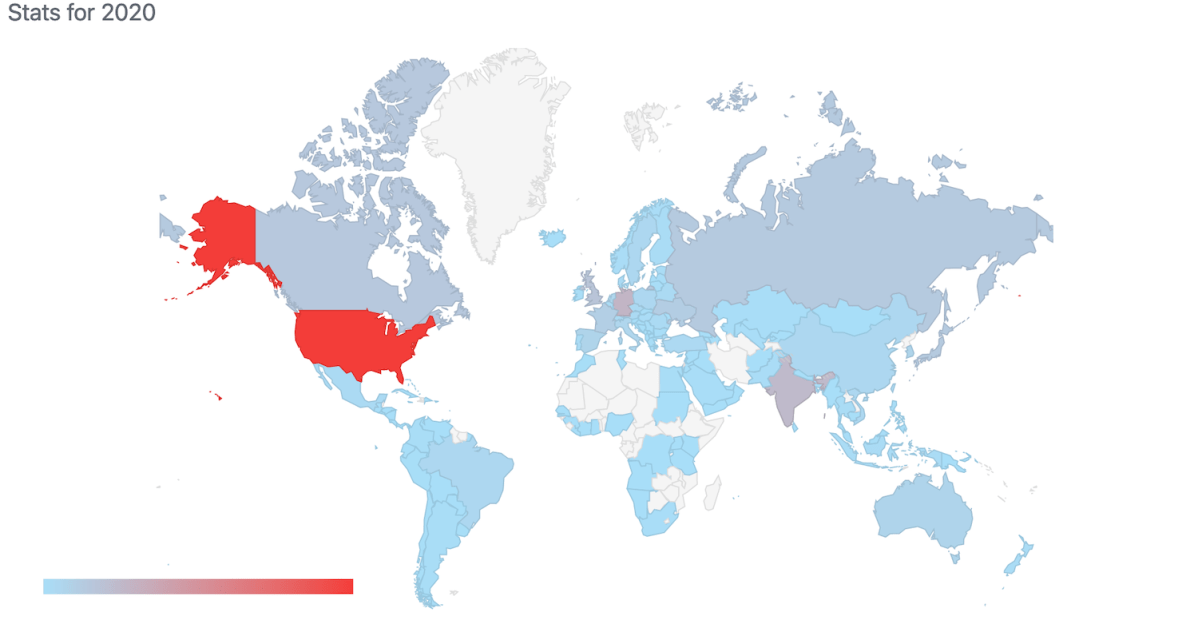
I have been writing a new blog post at least every second week and therefore in 2020 I have published total of 27 blog posts. It is time to take a look back on the 2020 and see which blog posts were the most popular ones. I am just looking at the total count of views per blog post.
Just a couple of weeks ago I wrote about resizing images on iOS: Resizing UIImages with aspect fill on iOS. As I am currently building a macOS, iOS, watchOS app I realized that I need a multiplatform image resizer. As this app deals with full size photos then I need to resize those photos for avoiding excessive memory usage. Apple’s CoreGraphics framework provides APIs what are compatible with all the before mentioned platforms. Therefore, let’s revisit the image scaler created in Resizing UIImages with aspect fill on iOS and let’s refactor it to use purely multiplatform supported CGImages.
We’ll skip the part which discusses calculating a rectangle in the original image which is then resized for assuring the image is resized equally on both axes. It is important because the aspect ratio of the original image most of the time does not equal to the aspect ratio of the target size. Let’s now take a look at cropping and resizing the original image. Cropping is easy to do because CGImage already has a convenient cropping(to:) method. On the other hand, resizing requires setting up a CGContext with the same parameters as the cropped image but the pixel size must be set to the target size. When we now draw the cropped image to the context, then CoreGraphics takes care of resizing the image.
This file contains hidden or bidirectional Unicode text that may be interpreted or compiled differently than what appears below. To review, open the file in an editor that reveals hidden Unicode characters. Learn more about bidirectional Unicode characters
I have created a multiplatform sample app which just has a single SwiftUI view shared with iOS and macOS (it is not a Mac Catalyst app). Because we use CGImages then all the code can be shared. The view just loads a full size photo, scales it, and displays it. In the example view we have resized the image by taking account the current displayScale. Depending on the displayScale value we need to make the pixel size of the CGImage larger by the factor of the displayScale. For example, if the point size is 200×200 points, displayScale is 3.0, then the pixel size of the CGImage needs to be 600×600. This will give us a nice and crisp end result when the image is rendered.
This file contains hidden or bidirectional Unicode text that may be interpreted or compiled differently than what appears below. To review, open the file in an editor that reveals hidden Unicode characters. Learn more about bidirectional Unicode characters
CoreGraphics is available on multiple Apple platforms and it provides tools for cropping and resizing images. With just a little bit of refactoring we have turned UIImage based image scaler into CoreGraphics backed scaler which can be used on multiple platforms.
Jazzy is an excellent tool for generating API documentation for Swift and Objective-C projects. Let’s take a look how to generate and publish API documentation in GitHub with Jazzy.
Installing Jazzy
Installation: sudo gem install jazzy
Jazzy config file for a Swift package
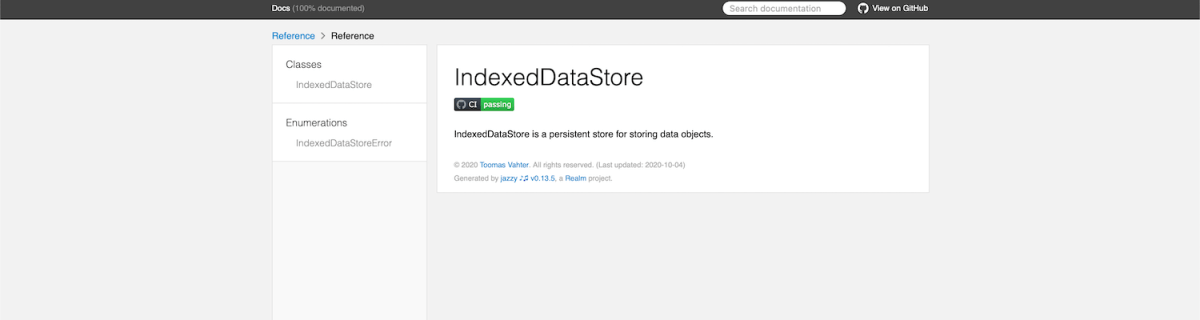
Configuration options can be passed into Jazzy directly with the command or adding them to the a file, by default it is .jazzy.yaml. We’ll use the default path as then we can run Jazzy without any command line arguments: the configuration is read from the configuration file. For seeing all the available configuration options run jazzy config -h. Just note that the configuration file expects snakecase (build-tool-arguments becomes build_tool_arguments). Let’s take a look on Swift package IndexedDataStore which can be built both for macOS and iOS. It has some additional functions for iOS and therefore it is preferred to build iOS target when running Jazzy. Otherwise API documentation would not contain those public functions meant for iOS. Typically Swift package is built using swift build command. The current state is that there is no easy way for just specifying the target OS to the swift build command. What we can do instead is using xcodebuild command which knows how to build Swift packages as well. We’ll just need to specify the scheme, sdk, and destination arguments. If we now run jazzy command without any arguments, it will read the configuration file, and generate API documentation which includes functions which require UIKit.
This file contains hidden or bidirectional Unicode text that may be interpreted or compiled differently than what appears below. To review, open the file in an editor that reveals hidden Unicode characters.
Learn more about bidirectional Unicode characters
Configuration file for Jazzy which builds documentation for iOS.
GitHub action for publish API documentation
Thankfully there is a GitHub action available for publishing API documentation with Jazzy. We can set up a GitHub action with a name PublishDocumentation and store it in the repository’s .github/workflows folder.
This file contains hidden or bidirectional Unicode text that may be interpreted or compiled differently than what appears below. To review, open the file in an editor that reveals hidden Unicode characters.
Learn more about bidirectional Unicode characters
GitHub action which publishes API documentation to GitHub pages.
The GitHub action is triggered either manually or when publishing a release. Manual trigger is called workflow_dispatch and when it is set, GitHub webpage will display a “Run workflow” button. This is very handy when testing GitHub actions. Another thing to note is that publish-jazzy-docs requires repository access because it needs to write the documentation files to the gh-pages branch. For giving repository access we’ll need to set up personal access token with repo scope. Secondly, we’ll need to paste the created token to the repository’s secrets. In this example, we have added a secret named ACCESS_TOKEN and the value is the personal access token. Now, if we have committed and pushed the GitHub action then we can open the repository on GitHub.com, navigate to actions, selecting PublishDocumentation, and using Run workspace button for triggering the wokrflow. If everything goes well, then the workspace creates a gh-pages branch which in turn creates a new GitHub page. In this case the URL to the new GitHub page looks like: https://laevandus.github.io/IndexedDataStore/ (link). This is what we wanted to achieve, API documentation publiched on GitHub.
Summary
We set up Jazzy for a Swift package and used it to generate API documentation. Generated API documentation was published to a GitHub page.
Shape protocol in SwiftUI is used for defining views which render custom shapes. Shapes have one required method which takes in a rect and returns a Path. In addition to view protocol, shape conforms to Animatable protocol as well. Therefore we can quite easily make our custom shape to animate from one state to another. We’ll use two parameters for defining our Wave shape: amplitude and frequency. Amplitude dictates the height of the wave and frequency the distance between wave peaks.
Animating wave shape.
SwiftUI view displaying an animatable wave shape
Let’s take a look on an example view which displays custom Wave shape. We’ll use @State property wrappers for storing amplitude and frequency because we want to change those values when running the app. Those properties are updated with random values when pressing a button. The wave has blue fill color, fixed height, and basic easeInOut animation. The animation is used when amplitude and/or frequency change.
This file contains hidden or bidirectional Unicode text that may be interpreted or compiled differently than what appears below. To review, open the file in an editor that reveals hidden Unicode characters.
Learn more about bidirectional Unicode characters
Content view rendering a wave shape with a button starting an animation.
Animatable wave shape
Like mentioned in the introduction, the Shape protocol defines a required method which has a rect argument and returns a Path. The path starts from the top left edge. Sine function is used for calculating y coordinates for every x coordinate with a 1 point step. Right, bottom and left edges are just straight lines.
Animatable protocol defines an animatableData property and because we have two parameters (amplitude and frequency) we’ll need to use AnimatablePair type. If there would be more parameters then AnimatablePair should contain one or more AnimatablePair types (and so on). Note that values in animatableData must conform to VectorArithmetic protocol which Double type already does.
When animation is running then SwiftUI calculates amplitude and frequency values based on the current animation frame and sets it to the animatableData property. Then new Path value is calculated and rendered.
This file contains hidden or bidirectional Unicode text that may be interpreted or compiled differently than what appears below. To review, open the file in an editor that reveals hidden Unicode characters.
Learn more about bidirectional Unicode characters
We took a look at the Shape protocol and created a wave shape. In addition, we made the wave to animate from one amplitude and frequency state to a new state.
SwiftLint is a tool for validating the style and conventions in Swift files. It is easy to integrate to a project. Minimum set up consists of installing SwiftLint and adding a build phase to your app target in Xcode. SwiftLint comes with a default list of rules, but if you would like to change the rules then it is required to create a configuration file in yaml. Let’s take a look on how to install, add build step, and use a separate configuration file with a custom set of rules.
SwiftLint is available in homebrew so the easies way is to install it with brew install swiftlint command. Next step is to add the build phase to a target. I am gonna use one of my example app which is available on GitHub: SwiftPackageAppWorkspace. This project uses a workspace and includes an app project and Swift package.
This file contains hidden or bidirectional Unicode text that may be interpreted or compiled differently than what appears below. To review, open the file in an editor that reveals hidden Unicode characters.
Learn more about bidirectional Unicode characters
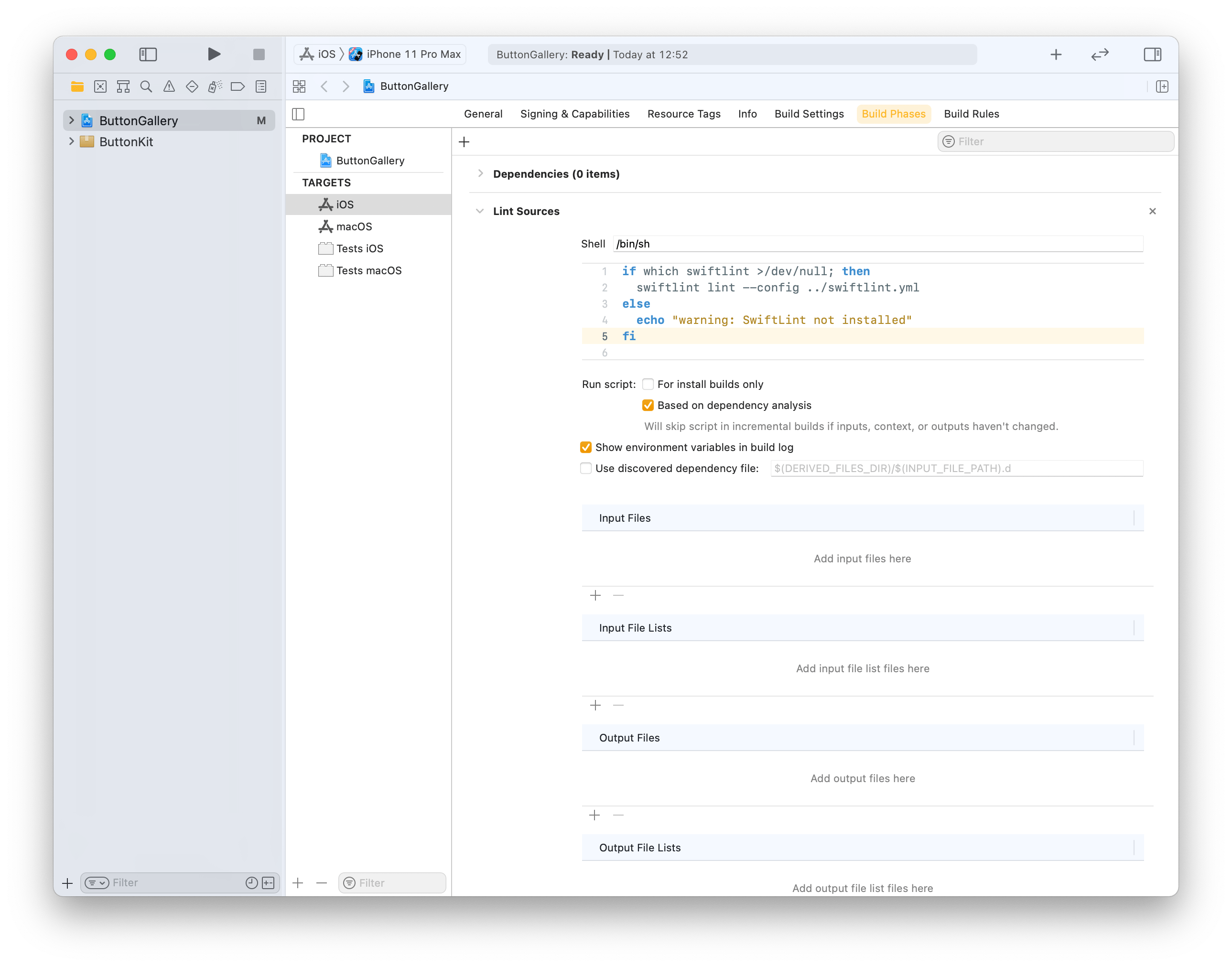
Click on the ButtonGallery project in the file navigator, then on the iOS target and build phases. Will use the + button for adding a new run script phase. Note that we already use the config argument for letting SwiftLint know where the config file exists (by default SwiftLint looks for .swiftlint.yml file in the same folder the project file is).
This file contains hidden or bidirectional Unicode text that may be interpreted or compiled differently than what appears below. To review, open the file in an editor that reveals hidden Unicode characters.
Learn more about bidirectional Unicode characters
Build phase calling swiftlint with custom configuration file in one folder up from the .xcodeproj.
Build phase which triggers swiftlint with custom configuration.
Last step is to add a custom configuration file to the repository checkout. We’ll add it to the checkout’s root folder which is the parent folder of the ButtonGallery.xcodeproj. I have went through the full list of rules available for SwiftLint and picked the ones which match with my coding style. SwiftLint has a list of default rules. The list of evaluated rules can be expanded with opt_in_rules and rules from default list can be disabled with disabled_rules list. Also I prefer to have else on a newline so I added statement_position configuration with statement_mode: uncuddled_else. Included defines a list of folder paths relative to the .xcodeproj calling swiftlint.
This file contains hidden or bidirectional Unicode text that may be interpreted or compiled differently than what appears below. To review, open the file in an editor that reveals hidden Unicode characters.
Learn more about bidirectional Unicode characters
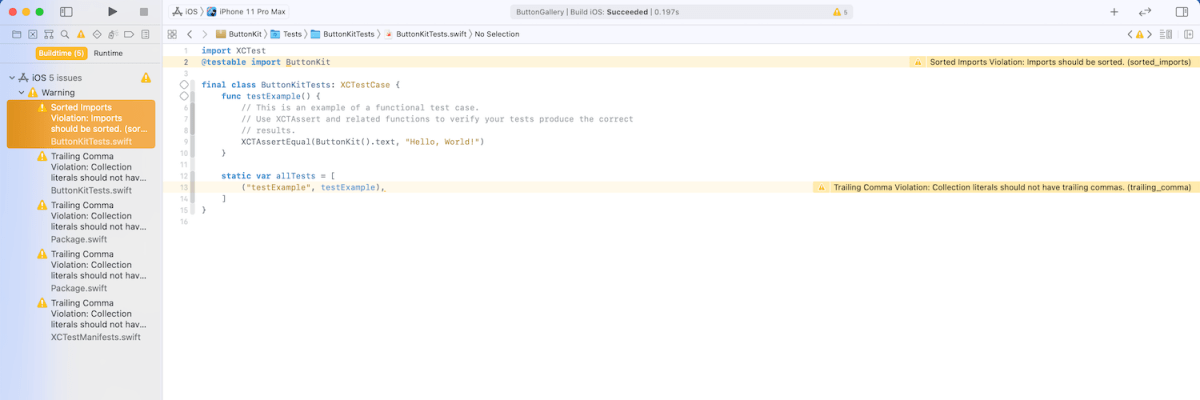
The next time the target is built it will run SwiftLint with custom configuration and show warnings and/or errors in Xcode.
Warnings generated by SwiftLint in the example project.
Summary
SwiftLint is easy to set up and helps to keep the code style consistent in projects. In additional to style SwiftLint is capable of suggesting different coding conventions like use enum instead of struct with only static functions. For making it easy to add custom configuration to new project I have set up a command alias in ~/.zshrc which looks like this: alias xcode_lint_add='cp ~/Dev/swiftlint.yml swiftlint.yml && mate swiftlint.yml' Run xcode_lint_add in the root of the cloned project.
Git hooks are scripts written in any scripting language and are triggered when important actions occur. Hooks are stored in the repository’s .git/hooks folder. The script needs to have an appropriate filename without a path extension and also have executable permissions. Push event is an excellent time for triggering unit-tests and making sure local changes have not broken any. Therefore we’ll look into how to create a pre-push script for an iOS project in Swift.
Quick introduction to scripts written in Swift
Setting up a simple script in Swift follows steps familiar from other languages. The script file needs to start with #!/usr/bin/swift followed by the actual script. A simple example script can look like this.
This file contains hidden or bidirectional Unicode text that may be interpreted or compiled differently than what appears below. To review, open the file in an editor that reveals hidden Unicode characters.
Learn more about bidirectional Unicode characters
The command for running the script is swift Script.swift (if the filename is Script.swift). Another way is making the script executable by adding executable permissions to the file by running chmod +x Script.swift command. Then the script can be run with ./Script.swift (makes sense to drop the file extension).
Building a Xcode project for testing
The pre-push script contains of 3 steps: building the project for testing, running tests, and finally printing out the code coverage results. The first step catches build errors, the second step test failures, and the third step prints out code coverage results. Code coverage can be enabled in the scheme’s test action or adding -enableCodeCoverage YES to the xcodebuild command. Before we jump into creating a xcodebuild command with correct arguments then we’ll need to tackle the problem of calling the xcodebuild command line application from the Swift script. Command line applications can be invoked with the Foundation’s Process class. We’ll add an extension which deals with launching a specified command with zsh and printing out the standard output and error.
This file contains hidden or bidirectional Unicode text that may be interpreted or compiled differently than what appears below. To review, open the file in an editor that reveals hidden Unicode characters.
Learn more about bidirectional Unicode characters
The next step in the script is to define the project related configuration and create the xcodebuild command. All the user defined arguments are wrapped in quotes for avoiding any issues with whitespaces. The command is pretty straight-forward. If there are any build errors then the result code is not equal to 0. Then we can use the same error code for exiting the Swift script with exit() function.
This file contains hidden or bidirectional Unicode text that may be interpreted or compiled differently than what appears below. To review, open the file in an editor that reveals hidden Unicode characters.
Learn more about bidirectional Unicode characters
The command used for running unit-tests is fairly similar. Instead of build-without-testing we are using test-without-building argument and additionally provide a path where the result bundle is written to. This bundle contains information about the test run. Note that this path must not exist, otherwise xcodebuild stops with an error. Therefore we delete the existing file before running the command. Moreover, when there is a failure, we’ll clean up the path as well – pre-push script should not leave any temporary files.
This file contains hidden or bidirectional Unicode text that may be interpreted or compiled differently than what appears below. To review, open the file in an editor that reveals hidden Unicode characters.
Learn more about bidirectional Unicode characters
Last step is optional but it is nice to see code coverage information when pushing changes to a server. Xcode provides a command line application for viewing coverage data in human readable form. One of the options is printing out code coverage per target which gives a nice and concise overview.
This file contains hidden or bidirectional Unicode text that may be interpreted or compiled differently than what appears below. To review, open the file in an editor that reveals hidden Unicode characters.
Learn more about bidirectional Unicode characters
We looked into how to create a pre-push script in Swift. It called other command line applications for building the project, running the tests, and printing out code coverage information. The full script is available below, feel free to copy-paste it to your projects. The one last thing to consider is adding an alias in Terminal for easy installation: alias xcode_pre_push_add='cp ~/Dev/pre-push .git/hooks/pre-push && mate .git/hooks/pre-push' This just copies it from predefined location to the repository checkout and opens it in an editor for setting project related settings (replace mate with any editor).
This file contains hidden or bidirectional Unicode text that may be interpreted or compiled differently than what appears below. To review, open the file in an editor that reveals hidden Unicode characters.
Learn more about bidirectional Unicode characters
WWDC’20 introduced WidgetKit which is a new framework for building widgets on iOS, iPadOS, and macOS. Widgets provide a quick way for displaying content from your app either on the home screen on iOS or on the notification center on macOS. As I have an iOS app which stores data with CoreData then let’s see what it takes to share it with a widget. Note that we’ll only concentrate on sharing data between the app and the widget. For adding a widget to an existing project I would recommend taking a look at Apple’s excellent article: “Creating a Widget Extension”.
Configuring the project for sharing data with the widget
The project I have is an iOS app which keeps track of plants. Therefore, we’ll look into providing plants to a simple widget which just displays one of the plants which needs to be watered next. CoreData store contains all the plants with previous and next watering date. As widgets are meant to be lightweight extensions to your app we’ll aim at passing the minimum amount of data to the widget. WidgetKit does not provide a connectivity framework like WatchOS does because widgets are not running all the time. Therefore we will store data in a file and write the file to a shared container which the app and the widget can access. This can be done by adding app groups capability to both targets. The group name could be something like group.com.company.appname.widget. When this is set, then the url to a shared container can be created using FileManager like shown below.
This file contains hidden or bidirectional Unicode text that may be interpreted or compiled differently than what appears below. To review, open the file in an editor that reveals hidden Unicode characters.
Learn more about bidirectional Unicode characters
The iOS app has a class named WidgetPlantProvider which is responsible of updating the shared file and letting WidgetKit know when the data has changed. This class uses NSPersistentContainer for accessing CoreData storage and fetches dictionary representations of Plant entities. As those dictionaries contain NSDate objects then we’ll need to convert dates to double values which represent dates as seconds from the year of 1970. This enables us to archive the list of dictionaries to a data object with NSKeyedArchiver and writing the data object into the shared container. Last step is letting WidgetKit to know that timelines should be reloaded because data has changed. The implementation of the class is available below including observing managed object save notification.
This file contains hidden or bidirectional Unicode text that may be interpreted or compiled differently than what appears below. To review, open the file in an editor that reveals hidden Unicode characters.
Learn more about bidirectional Unicode characters
WidgetPlantProvider which stores Plant entities as dictionaries in the shared file.
Reading the shared file in the widget
Reading the file in the widget requires us to create an URL pointing at the shared container, reading the data, and converting the data to a list of plants. As the data contains a list of dictionary objects then we can take advantage of JSONDecoder and convert dictionaries to PlantRepresentation value type. PlantRepresentation struct conforms to Codable protocol which enables converting dictionary object to a JSON data representation and then decoding the JSON data to a value type. Date properties are represented as seconds from the year of 1970, then JSONDecoder’s dateDecodingStrategy must be set to DateDecodingStrategy.secondsSince1970. This approach of converting dictionary to a value type is discussed in detail in “Storing struct in UserDefaults”. An example provider type with described approach is available below.
This file contains hidden or bidirectional Unicode text that may be interpreted or compiled differently than what appears below. To review, open the file in an editor that reveals hidden Unicode characters.
Learn more about bidirectional Unicode characters
Timeline provider for a Widget which reads the data from the shared file.
Summary
We went through the steps of setting up app groups and sharing data in CoreData store with a widget. Next steps would be to use the timeline and polishing the Widget’s appearance.










 Augmented Code