Categories
Foundation iOS macOS Swift Xcode

Creating a pre-push git hook in Swift script

Git hooks are scripts written in any scripting language and are triggered when important actions occur. Hooks are stored in the repository’s .git/hooks folder. The script needs to have an appropriate filename without a path extension and also have executable permissions. Push event is an excellent time for triggering unit-tests and making sure local changes have not broken any. Therefore we’ll look into how to create a pre-push script for an iOS project in Swift.

Quick introduction to scripts written in Swift

Setting up a simple script in Swift follows steps familiar from other languages. The script file needs to start with #!/usr/bin/swift followed by the actual script. A simple example script can look like this.

#!/usr/bin/swift
print("Example")
view raw Script.swift hosted with ❤ by GitHub
Example script written in Swift.

The command for running the script is swift Script.swift (if the filename is Script.swift). Another way is making the script executable by adding executable permissions to the file by running chmod +x Script.swift command. Then the script can be run with ./Script.swift (makes sense to drop the file extension).

Building a Xcode project for testing

The pre-push script contains of 3 steps: building the project for testing, running tests, and finally printing out the code coverage results. The first step catches build errors, the second step test failures, and the third step prints out code coverage results. Code coverage can be enabled in the scheme’s test action or adding -enableCodeCoverage YES to the xcodebuild command. Before we jump into creating a xcodebuild command with correct arguments then we’ll need to tackle the problem of calling the xcodebuild command line application from the Swift script. Command line applications can be invoked with the Foundation’s Process class. We’ll add an extension which deals with launching a specified command with zsh and printing out the standard output and error.

extension Process {
@discardableResult
static func runZshCommand(_ command: String) -> Int32 {
let process = Process()
process.launchPath = "/bin/zsh"
process.arguments = ["-c", command]
process.standardOutput = {
let pipe = Pipe()
pipe.fileHandleForReading.readabilityHandler = { handler in
guard let string = String(data: handler.availableData, encoding: .utf8), !string.isEmpty else { return }
print(string)
}
return pipe
}()
process.standardError = {
let pipe = Pipe()
pipe.fileHandleForReading.readabilityHandler = { handler in
guard let string = String(data: handler.availableData, encoding: .utf8), !string.isEmpty else { return }
print(string)
}
return pipe
}()
process.launch()
process.waitUntilExit()
(process.standardOutput as! Pipe).fileHandleForReading.readabilityHandler = nil
(process.standardError as! Pipe).fileHandleForReading.readabilityHandler = nil
return process.terminationStatus
}
}
view raw Process.swift hosted with ❤ by GitHub
Launching command line application with Process.

The next step in the script is to define the project related configuration and create the xcodebuild command. All the user defined arguments are wrapped in quotes for avoiding any issues with whitespaces. The command is pretty straight-forward. If there are any build errors then the result code is not equal to 0. Then we can use the same error code for exiting the Swift script with exit() function.

#!/usr/bin/swift
import Foundation
let projectType = "-workspace"
let projectPath = "SignalPath.xcworkspace"
let scheme = "SignalPathiOS"
let destinationDevice = "platform=iOS Simulator,name=iPhone 11 Pro Max"
let resultBundlePath = "PrePush.xcresult"
removeResultBundle(at: resultBundlePath)
print("Building for testing…")
let buildCommand = [
"xcodebuild",
"build-for-testing",
"-quiet",
projectType, projectPath.wrappedInQuotes,
"-scheme", scheme.wrappedInQuotes,
"-destination", destinationDevice.wrappedInQuotes
].joined(separator: " ")
let buildStatus = Process.runZshCommand(buildCommand)
if buildStatus != 0 {
exit(buildStatus)
}
extension String {
var wrappedInQuotes: String {
return "\"\(self)\""
}
}
Building a Xcode project for testing.

Running unit-tests

The command used for running unit-tests is fairly similar. Instead of build-without-testing we are using test-without-building argument and additionally provide a path where the result bundle is written to. This bundle contains information about the test run. Note that this path must not exist, otherwise xcodebuild stops with an error. Therefore we delete the existing file before running the command. Moreover, when there is a failure, we’ll clean up the path as well – pre-push script should not leave any temporary files.

removeResultBundle(at: resultBundlePath)
print("Running tests…")
let testCommand = [
"xcodebuild",
"test-without-building",
"-quiet",
projectType, projectPath.wrappedInQuotes,
"-scheme", scheme.wrappedInQuotes,
"-destination", destinationDevice.wrappedInQuotes,
"-resultBundlePath", resultBundlePath.wrappedInQuotes
].joined(separator: " ")
let testStatus = Process.runZshCommand(testCommand)
if testStatus != 0 {
removeResultBundle(at: resultBundlePath)
exit(testStatus)
}
func removeResultBundle(at path: String) {
guard FileManager.default.fileExists(atPath: path) else { return }
try? FileManager.default.removeItem(atPath: path)
}
Running unit-tests in a pre-built project.

Printing out code coverage

Last step is optional but it is nice to see code coverage information when pushing changes to a server. Xcode provides a command line application for viewing coverage data in human readable form. One of the options is printing out code coverage per target which gives a nice and concise overview.

let coverageCommand = [
"xcrun",
"xccov",
"view",
"–only-targets",
"–report", resultBundlePath.wrappedInQuotes
].joined(separator: " ")
Process.runZshCommand(coverageCommand)
removeResultBundle(at: resultBundlePath)
print("Success")
exit(0)
Printing out code coverage per target.

Summary

We looked into how to create a pre-push script in Swift. It called other command line applications for building the project, running the tests, and printing out code coverage information. The full script is available below, feel free to copy-paste it to your projects. The one last thing to consider is adding an alias in Terminal for easy installation: alias xcode_pre_push_add='cp ~/Dev/pre-push .git/hooks/pre-push && mate .git/hooks/pre-push' This just copies it from predefined location to the repository checkout and opens it in an editor for setting project related settings (replace mate with any editor).

#!/usr/bin/swift
import Foundation
let projectType = "-workspace"
let projectPath = "SignalPath.xcworkspace"
let scheme = "SignalPathiOS"
let destinationDevice = "platform=iOS Simulator,name=iPhone 11 Pro Max"
let resultBundlePath = "PrePush.xcresult"
print("Building for testing…")
let buildCommand = [
"xcodebuild",
"build-for-testing",
"-quiet",
projectType, projectPath.wrappedInQuotes,
"-scheme", scheme.wrappedInQuotes,
"-destination", destinationDevice.wrappedInQuotes
].joined(separator: " ")
let buildStatus = Process.runZshCommand(buildCommand)
if buildStatus != 0 {
exit(buildStatus)
}
removeResultBundle(at: resultBundlePath)
print("Running tests…")
let testCommand = [
"xcodebuild",
"test-without-building",
"-quiet",
projectType, projectPath.wrappedInQuotes,
"-scheme", scheme.wrappedInQuotes,
"-destination", destinationDevice.wrappedInQuotes,
"-resultBundlePath", resultBundlePath.wrappedInQuotes
].joined(separator: " ")
let testStatus = Process.runZshCommand(testCommand)
if testStatus != 0 {
removeResultBundle(at: resultBundlePath)
exit(testStatus)
}
let coverageCommand = [
"xcrun",
"xccov",
"view",
"–only-targets",
"–report", resultBundlePath.wrappedInQuotes
].joined(separator: " ")
Process.runZshCommand(coverageCommand)
removeResultBundle(at: resultBundlePath)
print("Success")
exit(0)
// MARK: –
extension String {
var wrappedInQuotes: String {
return "\"\(self)\""
}
}
extension Process {
@discardableResult
static func runZshCommand(_ command: String) -> Int32 {
let process = Process()
process.launchPath = "/bin/zsh"
process.arguments = ["-c", command]
process.standardOutput = {
let pipe = Pipe()
pipe.fileHandleForReading.readabilityHandler = { handler in
guard let string = String(data: handler.availableData, encoding: .utf8), !string.isEmpty else { return }
print(string)
}
return pipe
}()
process.standardError = {
let pipe = Pipe()
pipe.fileHandleForReading.readabilityHandler = { handler in
guard let string = String(data: handler.availableData, encoding: .utf8), !string.isEmpty else { return }
print(string)
}
return pipe
}()
process.launch()
process.waitUntilExit()
(process.standardOutput as! Pipe).fileHandleForReading.readabilityHandler = nil
(process.standardError as! Pipe).fileHandleForReading.readabilityHandler = nil
return process.terminationStatus
}
}
func removeResultBundle(at path: String) {
guard FileManager.default.fileExists(atPath: path) else { return }
try? FileManager.default.removeItem(atPath: path)
}
view raw pre-push.swift hosted with ❤ by GitHub
Full pre-push script for building, running, and printing code coverage.

If this was helpful, please let me know on Mastodon@toomasvahter or Twitter @toomasvahter. Feel free to subscribe to RSS feed. Thank you for reading.

Categories
CoreData iOS macOS Swift WidgetKit

Sharing data from CoreData storage with a Widget on iOS

WWDC’20 introduced WidgetKit which is a new framework for building widgets on iOS, iPadOS, and macOS. Widgets provide a quick way for displaying content from your app either on the home screen on iOS or on the notification center on macOS. As I have an iOS app which stores data with CoreData then let’s see what it takes to share it with a widget. Note that we’ll only concentrate on sharing data between the app and the widget. For adding a widget to an existing project I would recommend taking a look at Apple’s excellent article: “Creating a Widget Extension”.

Configuring the project for sharing data with the widget

The project I have is an iOS app which keeps track of plants. Therefore, we’ll look into providing plants to a simple widget which just displays one of the plants which needs to be watered next. CoreData store contains all the plants with previous and next watering date. As widgets are meant to be lightweight extensions to your app we’ll aim at passing the minimum amount of data to the widget. WidgetKit does not provide a connectivity framework like WatchOS does because widgets are not running all the time. Therefore we will store data in a file and write the file to a shared container which the app and the widget can access. This can be done by adding app groups capability to both targets. The group name could be something like group.com.company.appname.widget. When this is set, then the url to a shared container can be created using FileManager like shown below.

extension WidgetPlantProvider {
static let sharedDataFileURL: URL = {
let appGroupIdentifier = "group.com.company.appname.widget"
if let url = FileManager.default.containerURL(forSecurityApplicationGroupIdentifier: appGroupIdentifier) {
return url.appendingPathComponent("Plants.plist")
}
else {
preconditionFailure("Expected a valid app group container")
}
}()
}
Creating an URL for shared file.

Updating the shared file

The iOS app has a class named WidgetPlantProvider which is responsible of updating the shared file and letting WidgetKit know when the data has changed. This class uses NSPersistentContainer for accessing CoreData storage and fetches dictionary representations of Plant entities. As those dictionaries contain NSDate objects then we’ll need to convert dates to double values which represent dates as seconds from the year of 1970. This enables us to archive the list of dictionaries to a data object with NSKeyedArchiver and writing the data object into the shared container. Last step is letting WidgetKit to know that timelines should be reloaded because data has changed. The implementation of the class is available below including observing managed object save notification.

final class WidgetPlantProvider {
private var cancellables = [AnyCancellable]()
private let plantContainer: PlantContainer // NSPersistentContainer subclass
init(plantContainer: PlantContainer, notificationCenter: NotificationCenter = .default) {
self.plantContainer = plantContainer
let notificationCancellable = notificationCenter.publisher(for: .NSManagedObjectContextDidSave, object: plantContainer.viewContext).sink { [weak self] _ in
self?.reloadData()
}
cancellables.append(notificationCancellable)
}
// Called when NSPersistentContainer is first loaded
func reloadData() {
plantContainer.performBackgroundTask { context in
let descriptors = [NSSortDescriptor(keyPath: \Plant.nextWateringDate, ascending: true)]
// fetchDictionaries is convenience method which creates and executes NSFetchRequest<NSDictionary> and sets resultType = .dictionaryResultType
let dictionaries = Plant.fetchDictionaries(context, sortDescriptors: descriptors, fetchLimit: 3) as! [[String: Any]]
// NSDate -> double conversion
let converted = dictionaries.map { (plantDictionary) -> [String: Any] in
return plantDictionary.mapValues { (value) -> Any in
guard let date = value as? Date else { return value }
return date.timeIntervalSince1970
}
}
do {
let needsFileReload: Bool = {
guard let storedData = try? Data(contentsOf: Self.sharedDataFileURL) else { return true }
guard let storedDictionaries = try? NSKeyedUnarchiver.unarchiveTopLevelObjectWithData(storedData) as? [NSDictionary] else { return true }
return storedDictionaries != converted as [NSDictionary]
}()
if !needsFileReload {
os_log(.debug, log: .widget, "Plants already up to date for widget")
return
}
let data = try NSKeyedArchiver.archivedData(withRootObject: converted, requiringSecureCoding: true)
try data.write(to: Self.sharedDataFileURL)
os_log(.debug, log: .widget, "Reloading widget because plants changed")
WidgetCenter.shared.reloadAllTimelines()
}
catch {
os_log(.debug, log: .widget, "Failed updating plants for widget with error %s", error.localizedDescription)
}
}
}
}
WidgetPlantProvider which stores Plant entities as dictionaries in the shared file.

Reading the shared file in the widget

Reading the file in the widget requires us to create an URL pointing at the shared container, reading the data, and converting the data to a list of plants. As the data contains a list of dictionary objects then we can take advantage of JSONDecoder and convert dictionaries to PlantRepresentation value type. PlantRepresentation struct conforms to Codable protocol which enables converting dictionary object to a JSON data representation and then decoding the JSON data to a value type. Date properties are represented as seconds from the year of 1970, then JSONDecoder’s dateDecodingStrategy must be set to DateDecodingStrategy.secondsSince1970. This approach of converting dictionary to a value type is discussed in detail in “Storing struct in UserDefaults”. An example provider type with described approach is available below.

struct Provider: TimelineProvider {
// …
func getTimeline(in context: Context, completion: @escaping (Timeline<Entry>) -> ()) {
let plants = loadPlants()
let entry = PlantEntry(date: Date(), plants: plants)
let timeline = Timeline(entries: [entry], policy: .atEnd)
completion(timeline)
}
private func loadPlants() -> [PlantRepresentation] {
do {
let data = try Data(contentsOf: Self.sharedDataFileURL)
let plantDictionaries = try NSKeyedUnarchiver.unarchiveTopLevelObjectWithData(data) as? [[String: Any]]
let decoder = JSONDecoder()
decoder.dateDecodingStrategy = .secondsSince1970
return plantDictionaries?.compactMap({ PlantRepresentation(dictionary: $0, decoder: decoder) }) ?? []
}
catch {
print(error.localizedDescription)
return []
}
}
private static var sharedDataFileURL: URL {
let identifier = "group.com.company.appname.widget"
if let url = FileManager.default.containerURL(forSecurityApplicationGroupIdentifier: identifier) {
return url.appendingPathComponent("Plants.plist")
}
else {
preconditionFailure("Expected a valid app group container")
}
}
}
// DictionaryDecodable: https://augmentedcode.io/2019/05/12/storing-struct-in-userdefaults/
struct PlantRepresentation: Identifiable, Decodable, DictionaryDecodable {
let id: String
let name: String
let lastWateringDate: Date
let nextWateringDate: Date
}
struct PlantEntry: TimelineEntry {
let date: Date
let plants: [PlantRepresentation]
}
view raw Provider.swift hosted with ❤ by GitHub
Timeline provider for a Widget which reads the data from the shared file.

Summary

We went through the steps of setting up app groups and sharing data in CoreData store with a widget. Next steps would be to use the timeline and polishing the Widget’s appearance.

If this was helpful, please let me know on Mastodon@toomasvahter or Twitter @toomasvahter. Feel free to subscribe to RSS feed. Thank you for reading.

Categories
iOS macOS Swift SwiftUI

@StateObject and MVVM in SwiftUI

A while ago I wrote about using MVVM in a SwiftUI project. During the WWDC’20 Apple announced @StateObject property wrapper which is a nice addition in the context of MVVM. @StateObject makes sure that only one instance is created per a view structure. This enables us to use @StateObject property wrappers for class type view models which eliminates the need of managing the view model’s lifecycle ourselves.

Comparing @StateObject and @ObservableObject for view model property

The most common flow in MVVM is creating and configuring a view model, which includes injecting dependencies, and then passing it into a view. This creates a question in SwiftUI: how to manage the lifecycle of the view model when view hierarchy renders and view structs are recreated. @StateObject property wrapper is going to solve this question in a nice and concise way. Let’s consider an example code.

import SwiftUI
struct ContentView: View {
@EnvironmentObject var dependencyContainer: DependencyContainer
@StateObject var viewModel = ContentViewModel()
var body: some View {
VStack(alignment: .center) {
VStack(spacing: 32) {
Text(viewModel.refreshTimestamp)
Button(action: viewModel.refresh, label: {
Text("Refresh")
})
}
Spacer()
BottomBarView(viewModel: BottomBarViewModel(entryStore: dependencyContainer.entryStore))
}
}
}
ContentView which has a subview.

ContentView is a simple view which has a view model managing the view state and DependencyContainer used for injecting a dependency to the BottomBarViewModel when it is created. As we can see, ContentView’s view model is managed by @StateObject property wrapper. This means that ContentViewModel is created once although ContentView can be recreated several times. BottomBarView has a little bit more complex setup where the view model requires external dependency managed by the DependencyContainer. Therefore, we’ll need to create the view model with a dependency and then initialize BottomBarView with it. BottomBarView’s view model property is also annotated with @StateObject property wrapper.

import Combine
import SwiftUI
struct BottomBarView: View {
@StateObject var viewModel: BottomBarViewModel
var body: some View {
Text(viewModel.text)
}
}
final class BottomBarViewModel: ObservableObject {
@Published var text: String = ""
private var cancellables = [AnyCancellable]()
private let entryStore: EntryStore
init(entryStore: EntryStore) {
self.entryStore = entryStore
print(self, #function)
cancellables.append(Timer.publish(every: 2, on: .main, in: .default).autoconnect().sink { [weak self] (_) in
self?.text = "Random number: \(Int.random(in: 0..<100))"
})
}
}
BottomBarView and its view model.

Magical aspect here is that when the ContentView’s body is accessed multiple times then BottomBarViewModel is not recreated when the BottomBarView struct is initialized. Exactly what we need – view will manage the lifecycle of its view model. This can be verified by adding a print to view model initializers and logging when ContentView’s body is accessed. Here is example log which compares BottomBarView’s view model property when it is annotated with @StateObject or @ObservableObject. Note how view model is not created multiple times when BottomBarView uses @StateObject.

BottomBarView uses @StateObject for its view model property
SwiftUIStateObject.ContentViewModel init()
1 ContentView.body accessed
SwiftUIStateObject.BottomBarViewModel init(entryStore:)
Triggering ContentView refresh
2 ContentView.body accessed
Triggering ContentView refresh
3 ContentView.body accessed

BottomBarView uses @ObservableObject for its view model property
SwiftUIStateObject.ContentViewModel init()
1 ContentView.body accessed
SwiftUIStateObject.BottomBarViewModel init(entryStore:)
Triggering ContentView refresh
2 ContentView.body accessed
SwiftUIStateObject.BottomBarViewModel init(entryStore:)
Triggering ContentView refresh
3 ContentView.body accessed
SwiftUIStateObject.BottomBarViewModel init(entryStore:)

Summary

WWDC’20 brought us @StateObject which simplifies handling view model’s lifecycle in apps using MVVM design pattern.

If you are looking more information about the MVVM design pattern then please check: MVVM in SwiftUI and MVVM and @dynamicMemberLookup in Swift.

If this was helpful, please let me know on Mastodon@toomasvahter or Twitter @toomasvahter. Feel free to subscribe to RSS feed. Thank you for reading.

Example

SwiftUIStateObject (GitHub) Xcode 12.0 beta 3

Categories
iOS Swift Swift Package Xcode

Creating and publishing a Swift package

In the previous post we looked into how to separate code with local Swift packages within a project. This time let’s create a Swift package, publish it on GitHub, and add it to a separate project. We’ll create a package which extends UIImage and enables calculating color contrast ratios. Color contrast is important factor for keeping text readable in apps.

Creating a Swift package

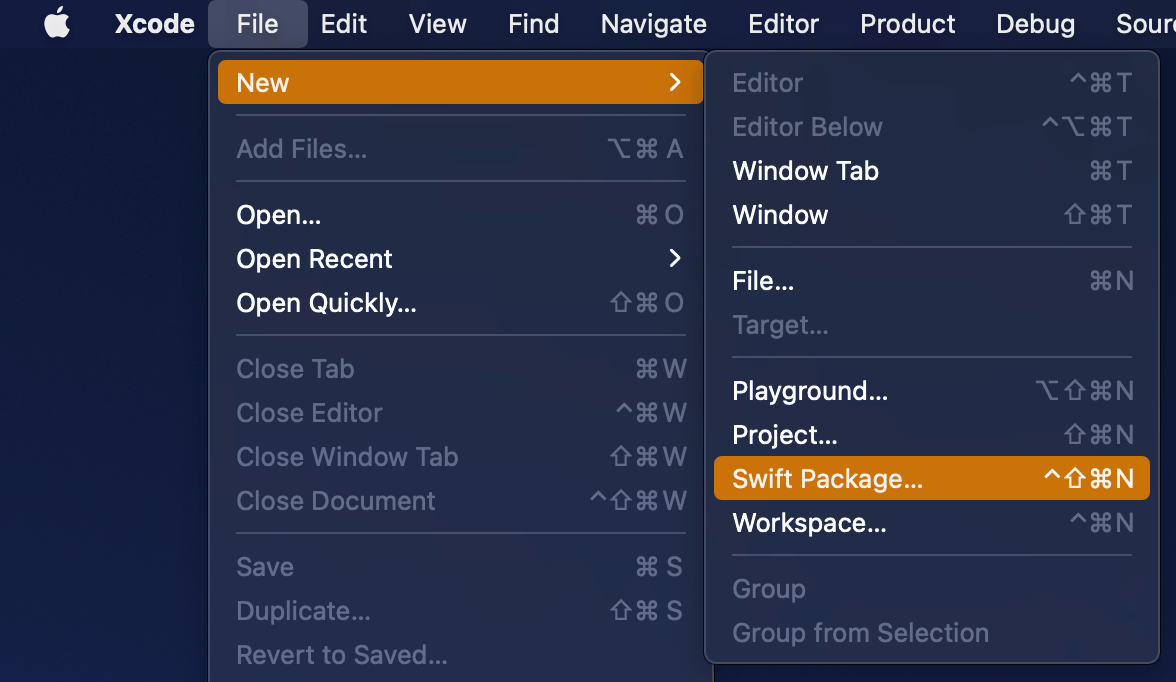
Open Xcode and select “Swift Package” item from the File > New menu. We’ll set the name of the package to “ColorContrastRatio”.

Selecting a new Swift Package.
Saving a new Swift package.

Xcode’s template of new Swift packages is configured to have a basic hello world example with an unit-test. Before we change the package’s implementation, we’ll add minimum platform versions to the Package.swift file, in other words, minimum deployment target.

// swift-tools-version:5.3
// The swift-tools-version declares the minimum version of Swift required to build this package.
import PackageDescription
let package = Package(
name: "ColorContrastRatio",
platforms: [
.iOS(.v13), .macOS(.v10_15)
],
products: [
// Products define the executables and libraries a package produces, and make them visible to other packages.
.library(
name: "ColorContrastRatio",
targets: ["ColorContrastRatio"]),
],
targets: [
// Targets are the basic building blocks of a package. A target can define a module or a test suite.
// Targets can depend on other targets in this package, and on products in packages this package depends on.
.target(
name: "ColorContrastRatio",
dependencies: []),
.testTarget(
name: "ColorContrastRatioTests",
dependencies: ["ColorContrastRatio"]),
]
)
view raw Package.swift hosted with ❤ by GitHub

Next step is to implement functionality of the package. We’ll keep the package simple and make it UIKit only which can be built for iOS and macCatalyst apps. Package is adding an UIColor extension and providing functionality for calculating relative luminance and contrast ratio. Functionality is set, next step is to publish it.

import UIKit
/*
Contrast ratio is calculated using the proceedure here:
https://www.w3.org/TR/WCAG20-TECHS/G17.html#G17-procedure
*/
public extension UIColor {
/// Relative luminance of the color.
var relativeLuminance: CGFloat {
var red: CGFloat = 0
var green: CGFloat = 0
var blue: CGFloat = 0
guard getRed(&red, green: &green, blue: &blue, alpha: nil) else { return 1.0 }
let convert: (CGFloat) -> CGFloat = { component in
guard component > 0.03928 else { return component / 12.92 }
return pow(((component + 0.055) / 1.055), 2.4)
}
return 0.2126 * convert(red) + 0.7152 * convert(green) + 0.0722 * convert(blue)
}
/// Returns contrast ratio with other color.
/// – Parameter otherColor: UIColor in RGB color space.
/// – Returns: Contrast ratio of two colors.
func contrastRatio(_ otherColor: UIColor) -> CGFloat {
let luminance1 = relativeLuminance
let luminance2 = otherColor.relativeLuminance
return (min(luminance1, luminance2) + 0.05) / (max(luminance1, luminance2) + 0.05)
}
}

Publishing a Swift package

First step is to go to GitHub and adding a new repository. I chose to include an automatically created license file, cloned the repository on my mac and then moved the code we added in the previous step to that checkout, then committed and pushed. Alternative is to add a remote to your local git repository. Either way is fine as long as our project ends up on GitHub. In addition, will add a tag which will mark the first release 0.1.0. Tags can be added by running those commands in Terminal:

git tag -a 0.1.0 -m “0.1 release of the package”

git push origin 0.1.0

Another option is creating a tag in the GitHub’s web interface: releasing projects on GitHub.

Adding the published Swift package to another project

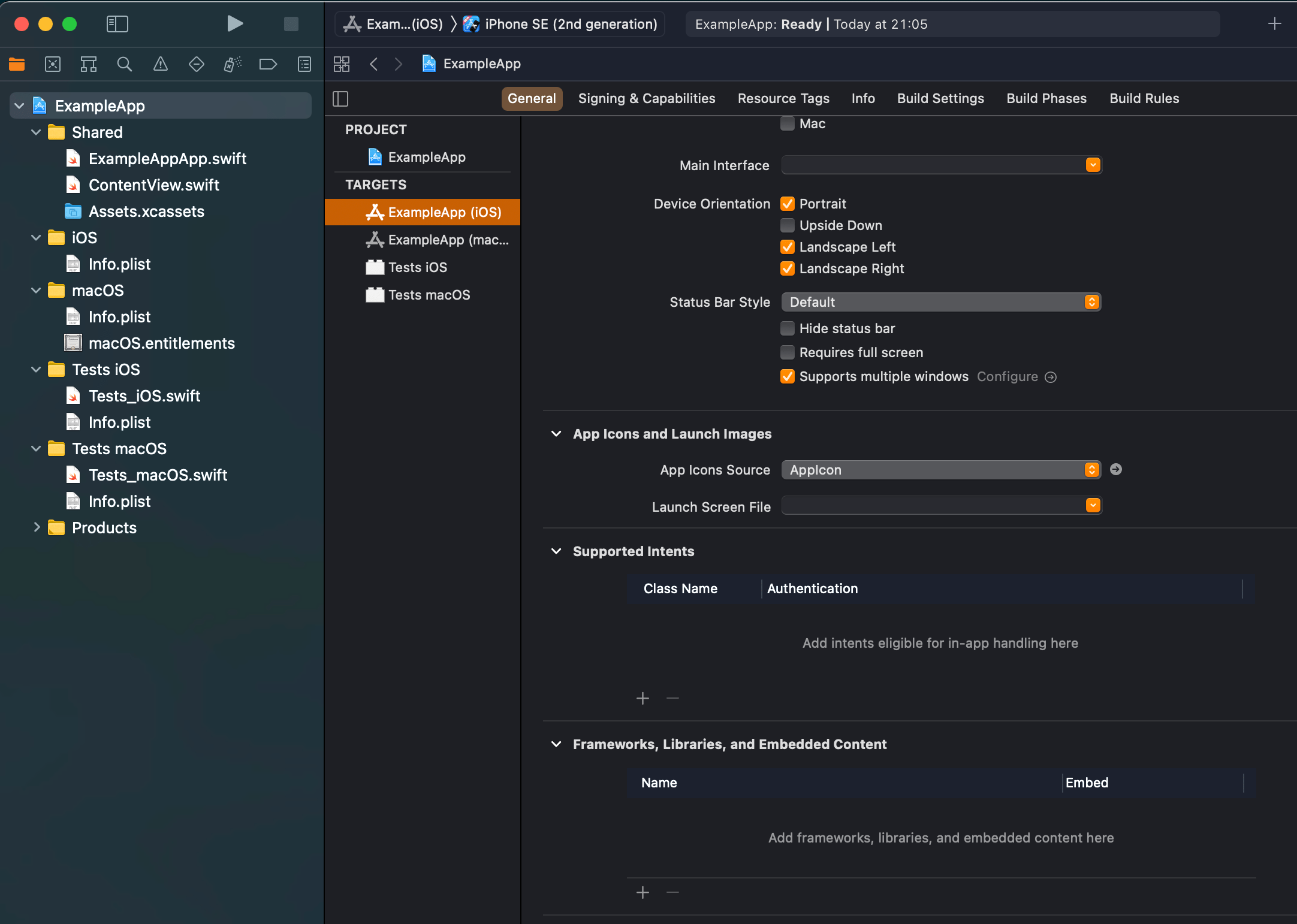
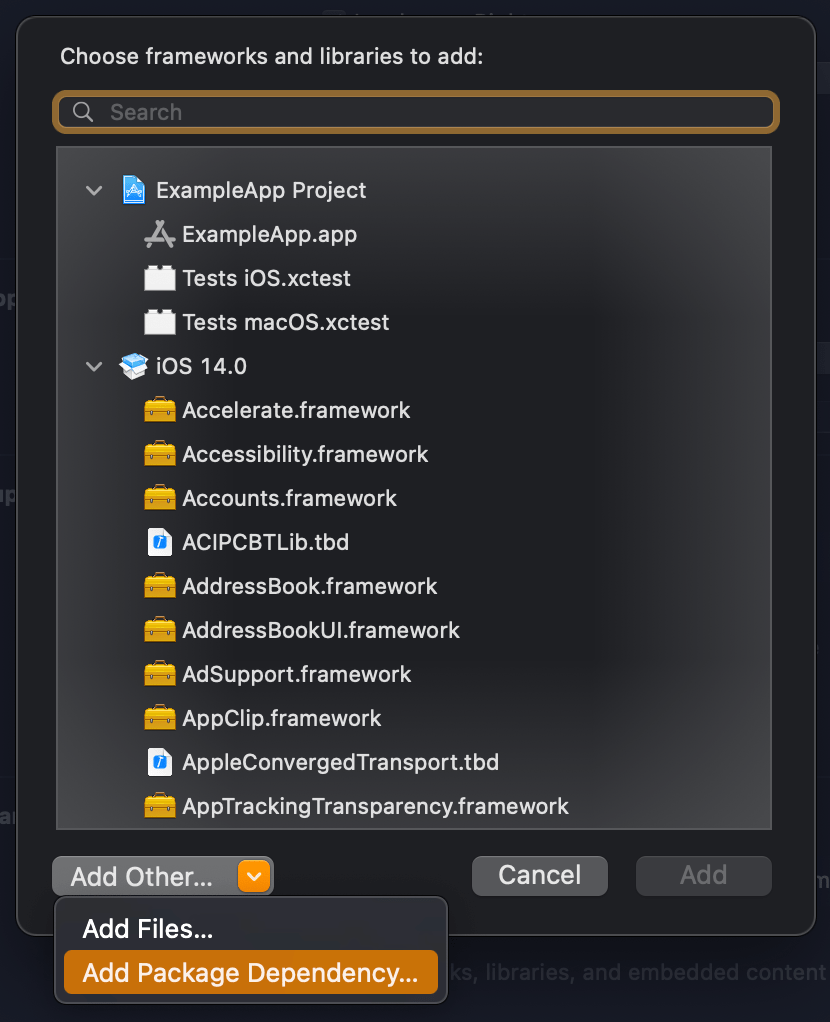
We published our package on GitHub and it requires only a few steps for adding it to an existing project. In an existing project, open the target settings and click on the plus button in the “Frameworks, Libraries, and Embedded Content”. In the opened view, click on the “Add Other” and select “Add Package Dependency”. Then we can paste the package’s GitHub url (https://github.com/laevandus/ColorContrastRatio) to the search field and complete the flow. From then on, it is just a matter of importing the new package and using it in the main project. Described steps are shown below:

Selecting the target where to the package is added.
Selecting “Add Package Dependency” which allows adding Swift package.
Searching for the Swift package by url.
Setting the package update rule.
Choosing products from the package.
Finished example application using the Swift package’s color contrast ratio function.
import ColorContrastRatio
import SwiftUI
struct ContentView: View {
var body: some View {
VStack {
Text("Luminance for red color").padding()
Rectangle()
.frame(width: 50, height: 50)
.fixedSize()
.foregroundColor(.red)
Text("\(UIColor.red.relativeLuminance)")
}
}
}

Summary

We created a Swift package and a repository on GitHub. Then we proceed with making the first release by adding a git tag. After that, we went ahead and added the package to another example project.

If this was helpful, please let me know on Mastodon@toomasvahter or Twitter @toomasvahter. Feel free to subscribe to RSS feed. Thank you for reading.
Resources

ColorContrastRatio (GitHub, Swift Package)

Swift Packages (Apple)

Categories
iOS macOS Swift Swift Package SwiftUI Xcode

Separating code with Swift packages in Xcode

Xcode 12 comes with Swift toolchain 5.3 which brings resource and localisation support to Swift packages. Nice thing is that Swift package support only depends on the toolchain’s version and does not have additional OS requirements. At the same time, let’s keep in mind that OS requirements come from the code we actually add to the package. This means that it is a good time to start using Swift packages for separating code into separate libraries and stop using separate framework projects in a workspace. Additional benefit is that, if needed, it is pretty easy to move the package out of the workspace and creating a sharable package what can be publish and reused in other projects. But for now, let’s take a look on how to set up a new workspace with an app project and a Swift package which represents a design library with custom button style.

File structure of the workspace

The app project will have a name “ButtonGallery” and the Swift package will have a name “ButtonKit”. But first, let’s create a folder named “SwiftPackageAppWorkspace” which is the root folder of the project. The app project and the Swift package will go to that folder in separate folders.

Adding the workspace, the app project, and the Swift package

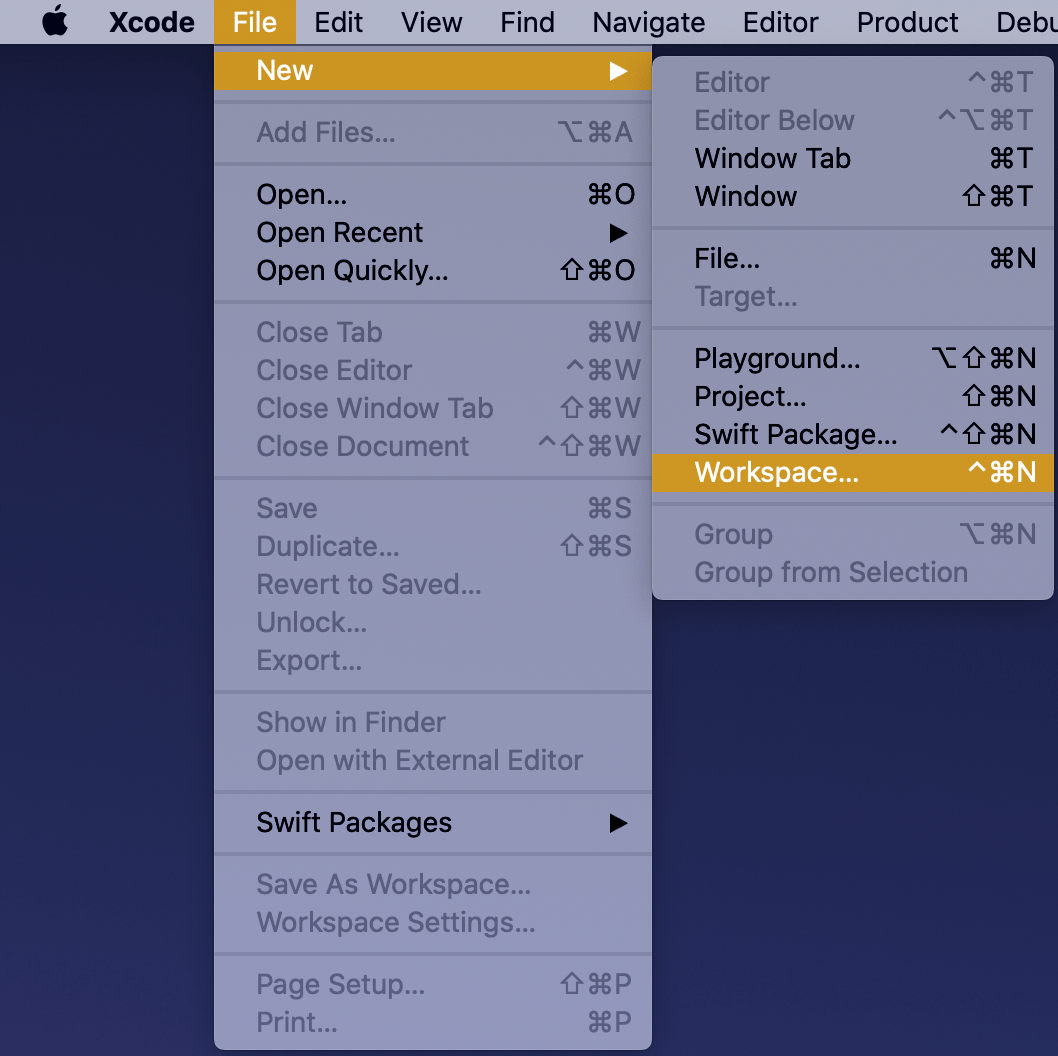
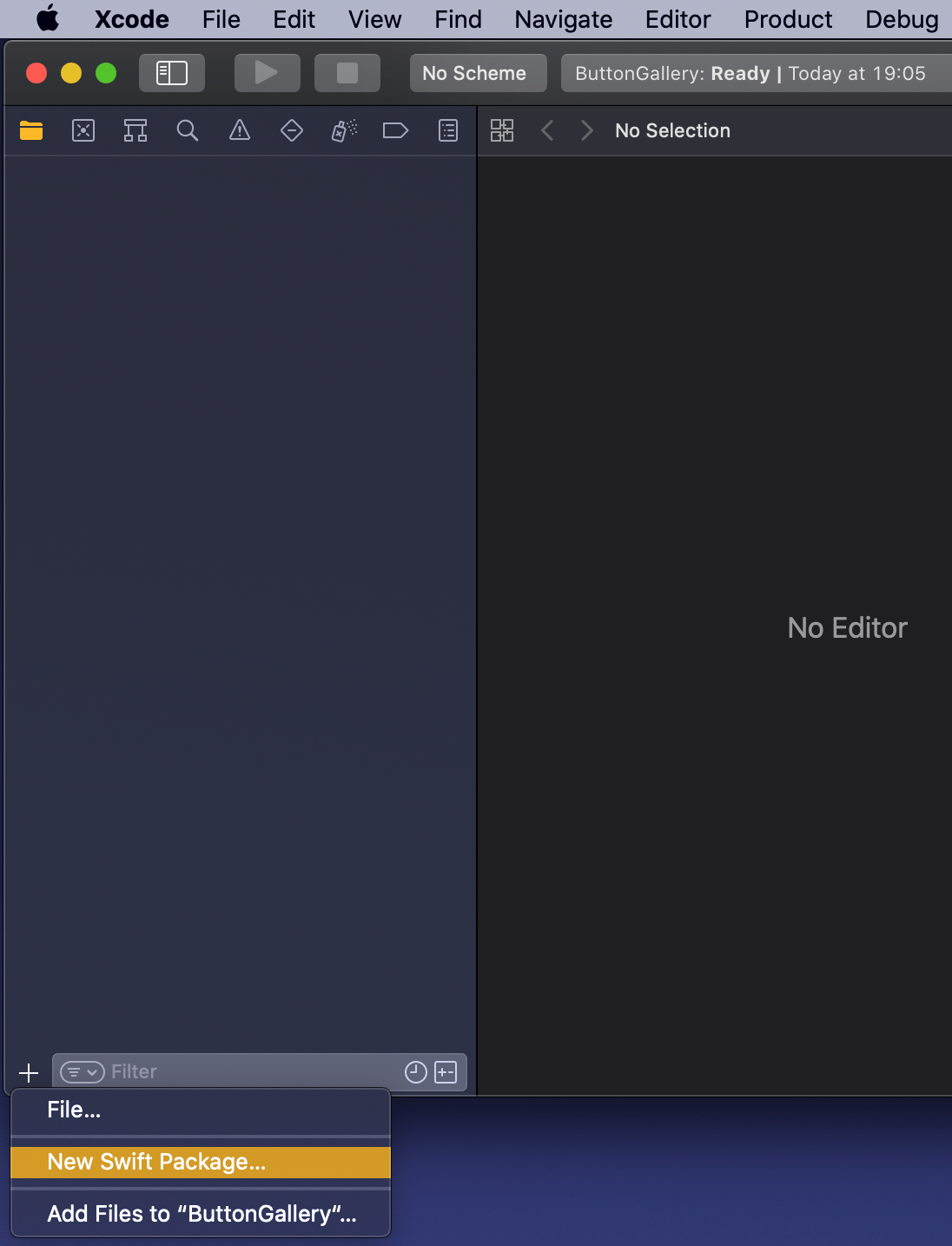
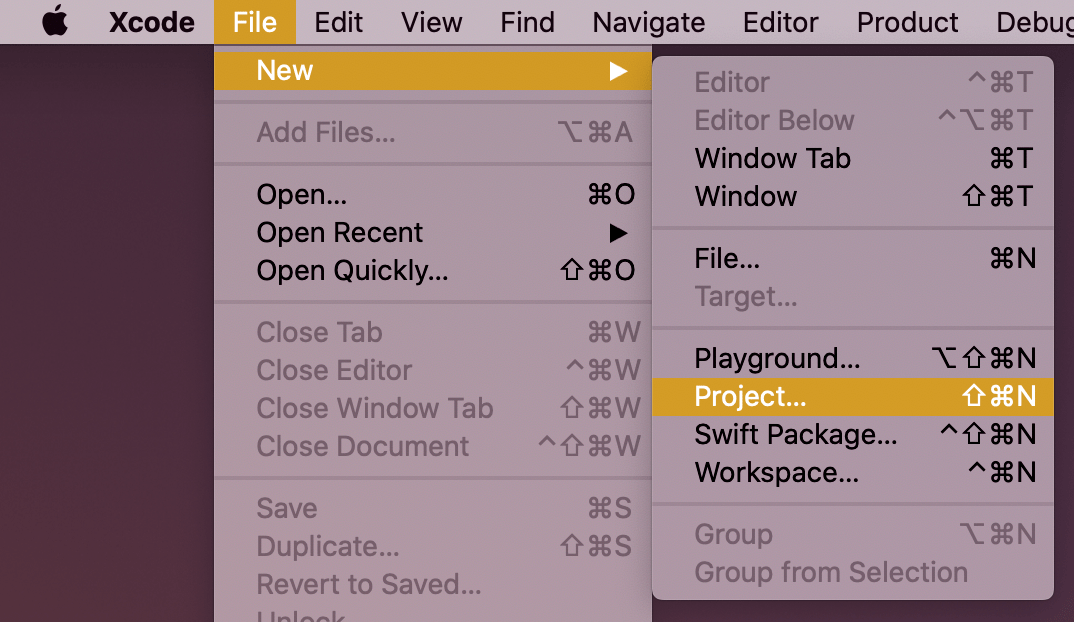
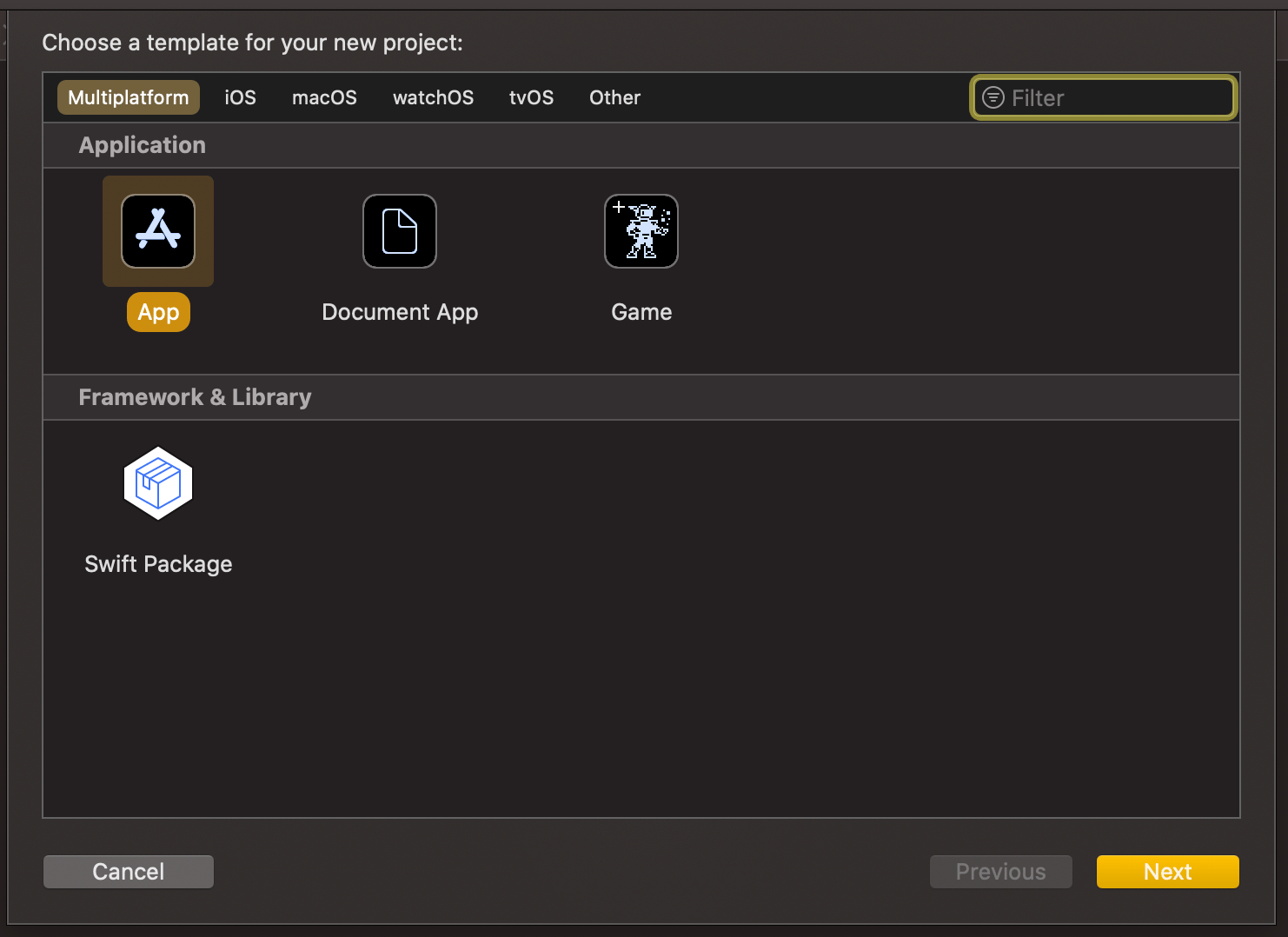
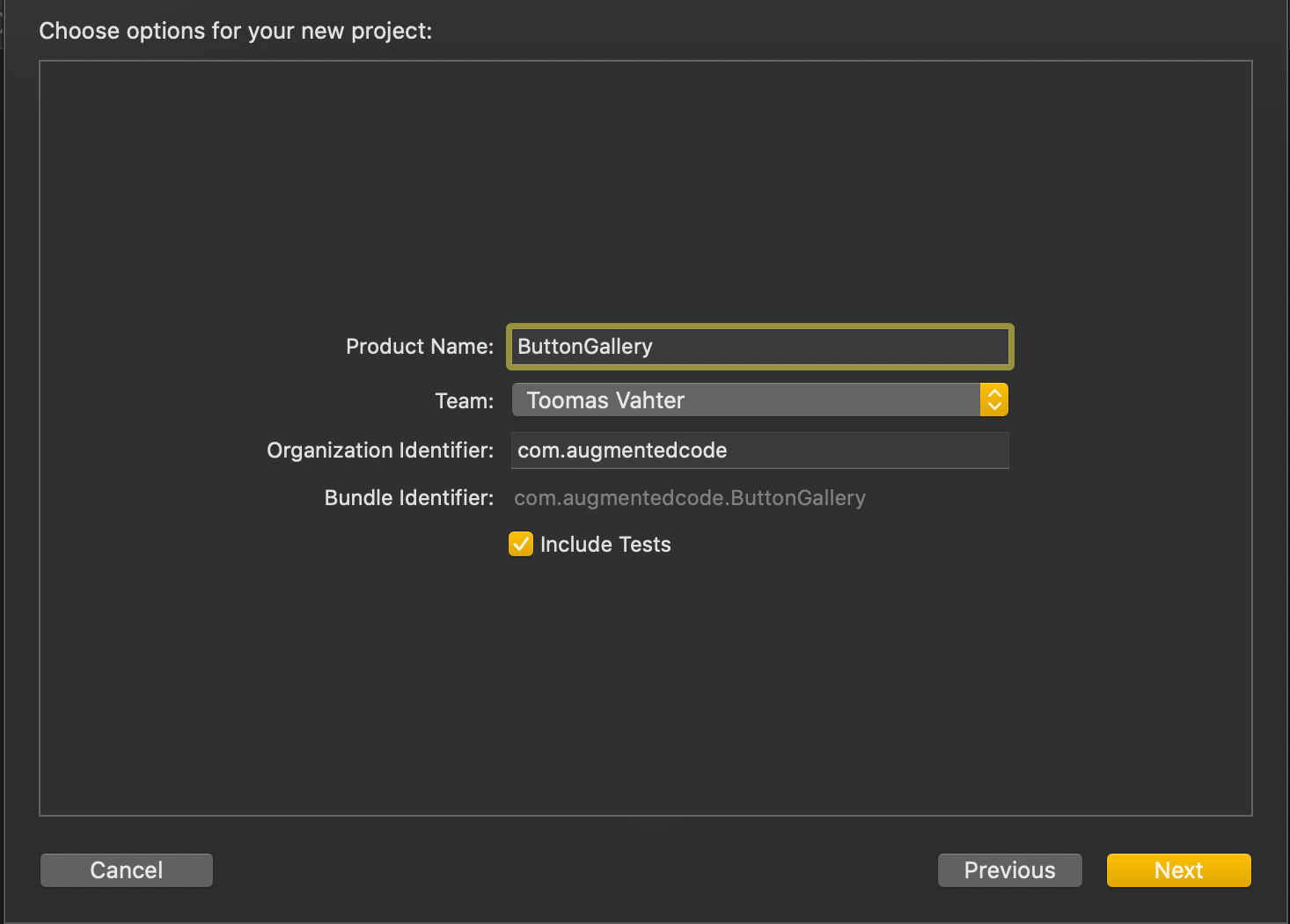
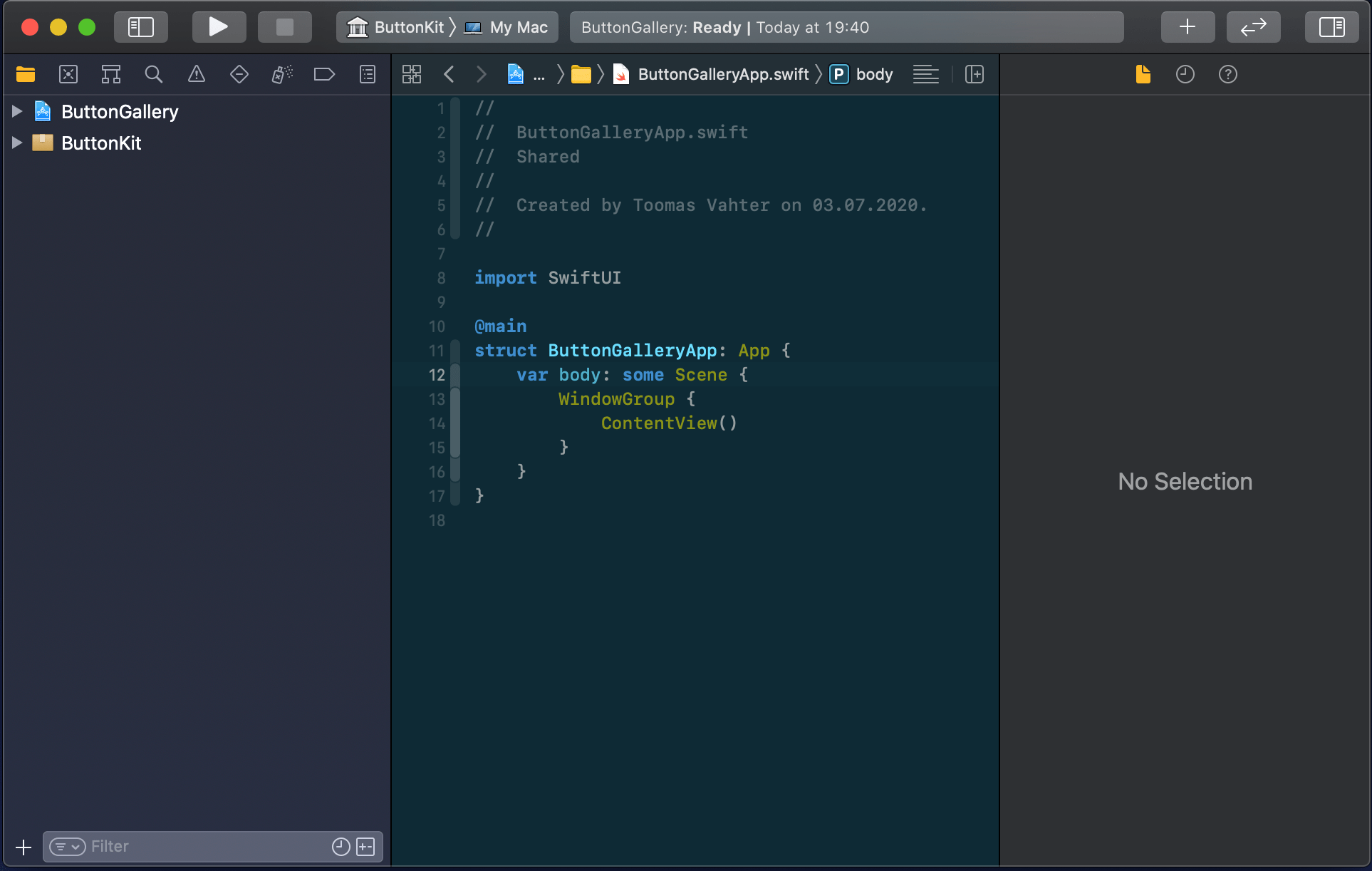
New workspace can be created by selecting the Workspace menu item in File>New menu in the Xcode. Save the workspace in the “SwiftPackageAppWorkspace” folder what we created just before. Xcode opens the created workspace after clicking on save and then the next step is to add a new Swift package. Easiest is to use the plus button at the bottom of the left corner, selecting “New Swift Package”, and saving the package in the “SwiftPackageAppWorkspace” folder. Uncheck the option on the save panel for creating a git repository because the git repository should be added in the “SwiftPackageAppWorkspace” instead (we skipped this step). Third step is to add the app project by using File>New menu. Xcode also offers an option to add the new project to the workspace. Therefore make sure “Add to” and “Group” have the workspace selected on the save panel. Described steps are shown below.

Selecting a new workspace in the main menu.
Using the plus button in the workspace for creating a new package.
Saving Swift package in the root folder.
Adding a new Xcode project.
Selecting template for the project.
Adding a name to the app project.
Saving a new app project and adding to an existing workspace.
Workspace with a Swift package and an app project.

Linking the Swift package in the app project

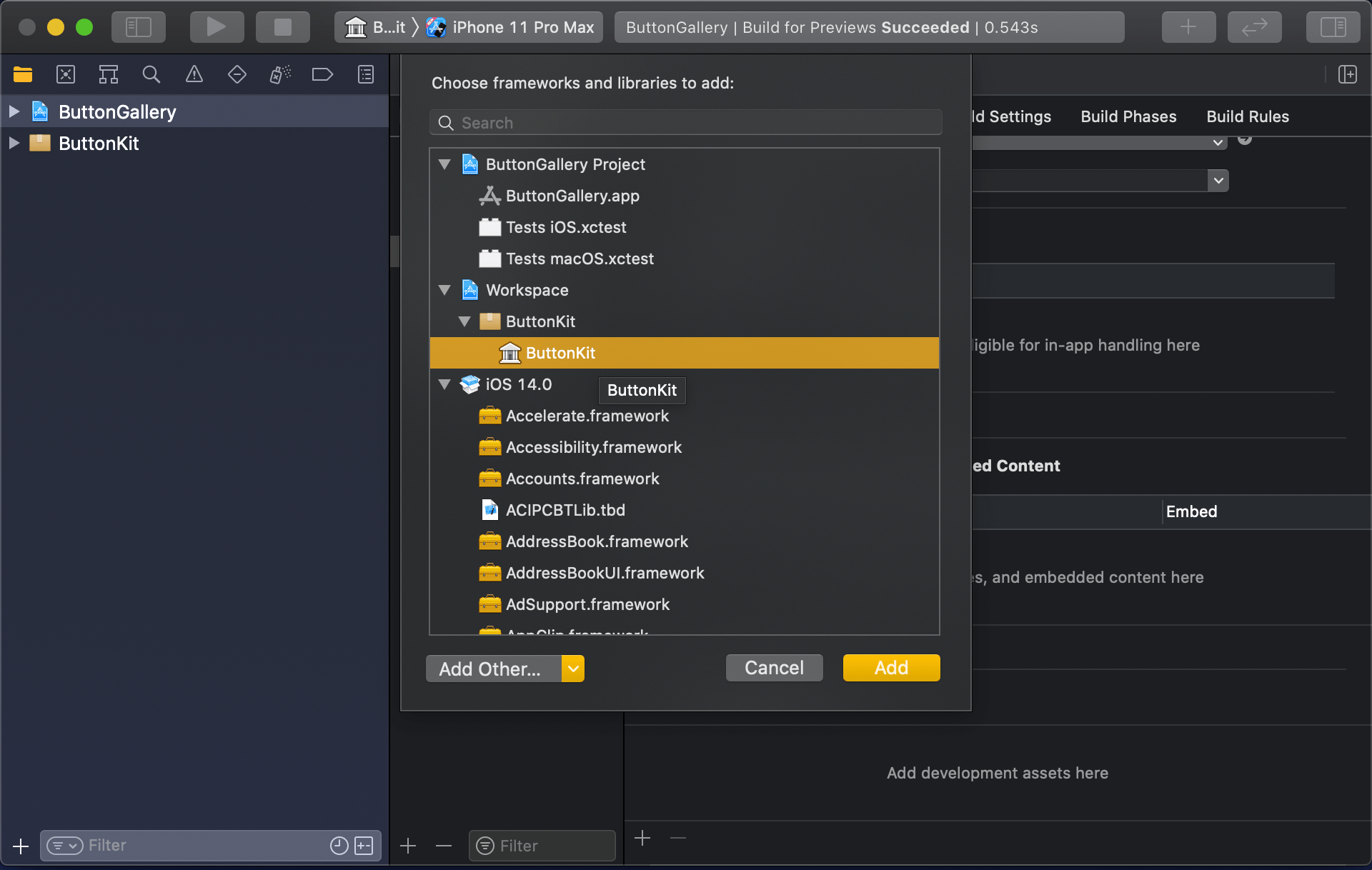
Swift package needs to be added to the app target: select “ButtonGallery” in the project navigator, click on the iOS target, General, and then on the plus button in the “Frameworks, Libraries, and Embedded Content” section, select the “ButtonKit” library.

Navigating to iOS target’s general settings.
Linking with the ButtonKit.

Now the workspace is configured but there is not any useful code in the “ButtonKit”. Let’s fix that next and add a FunkyButtonStyle.swift to the package and set minimum platforms in the package manifest because we’ll use SwiftUI in the implementation and it has minimum platform requirements. Because FunkyButtonStyle is in a separate module and by default access control is set to internal, then we’ll need to make it public before it can be imported to the app target.

// swift-tools-version:5.3
import PackageDescription
let package = Package(
name: "ButtonKit",
platforms: [
.iOS(.v14), .macOS(.v10_15)
],
products: [
.library(
name: "ButtonKit",
targets: ["ButtonKit"]),
],
targets: [
.target(
name: "ButtonKit", dependencies: []),
.testTarget(name: "ButtonKitTests", dependencies: ["ButtonKit"]),
]
)
view raw Package.swift hosted with ❤ by GitHub
import SwiftUI
public struct FunkyButtonStyle: ButtonStyle {
public init() {}
public func makeBody(configuration: Self.Configuration) -> some View {
configuration.label.padding()
.background(Color.red)
.cornerRadius(16)
.foregroundColor(.white)
}
}
import ButtonKit
import SwiftUI
struct ContentView: View {
var body: some View {
Button("Title", action: tap).buttonStyle(FunkyButtonStyle())
}
func tap() {
print("Tapped")
}
}
ContentView in the app target which imports ButtonKit and uses its FunkyButtonStyle.

Summary

We created a new workspace what contains a Swift package and an app project. We looked into how to provide functionality in the package and making it available for the main app target.

If this was helpful, please let me know on Mastodon@toomasvahter or Twitter @toomasvahter. Feel free to subscribe to RSS feed. Thank you for reading.

Project

SwiftPackageAppWorkspace (Xcode 12b1)

Categories
iOS Swift SwiftUI

Picker and segmented control in SwiftUI on iOS

Picker is used for presenting a selection consisting of multiple options. UISegmentedControl which is known from UIKit is just a different picker style in SwiftUI. Let’s take a quick look on how to create a form with two items: picker with default style and picker with segmented style.

Creating a from

Form should be typically presented in a NavigationView which enables picker to present a list of items on a separate view in the navigation stack. Using the code below, we can create a form view which has a familiar visual style.

var body: some View {
NavigationView {
Form {
Section {
makeFruitPicker()
makePlanetPicker()
}.navigationBarTitle("Pickers")
}
}.navigationViewStyle(StackNavigationViewStyle())
}
Form view in navigation view for enabling navigation stack.
Example app presenting a form with pickers.

Setting up a picker and providing data with enum

Creating a picker requires specifying a title, a binding for selection, and function for providing a content. In the example below, we are using ForEach for creating views on demand. The number of options is defined by the number of items in the array. Each string is also used as identification of the view provided by the ForEach.

@State private var selectedPlanet = ""
let planets = ["Mercury", "Venus", "Earth", "Mars", "Jupiter", "Saturn", "Neptune", "Uranus"]
func makePlanetPicker() -> some View {
Picker("Planets", selection: $selectedPlanet) {
ForEach(planets, id: \.self) { planet in
Text(planet)
}.navigationBarTitle("Planets")
}
}
Creating a picker with a list of items.

Picker with SegmentedPickerStyle

An enum which is conforming to CaseIterable protocol is a convenient way for defining data for a picker. In the example below, data is identified by enum case’s rawValue and each view has a tag equal to enum’s case. Without a tag, selection would not be displayed because there would not be a connection between the selection binding and the view returned by ForEach.

enum Fruit: String, CaseIterable {
case apple, orange, pear
}
func makeFruitPicker() -> some View {
Picker("Fruits", selection: $selectedFruit) {
ForEach(Fruit.allCases, id: \.rawValue) { fruit in
Text(fruit.rawValue).tag(fruit)
}
}.pickerStyle(SegmentedPickerStyle())
}
Picker displayed with segmented control style.

Summary

Creating a form view which uses the familiar style from iOS requires only a little bit of code in SwiftUI. Adding pickers and segmented controls, which are used a lot in forms, are pretty easy to set up.

If this was helpful, please let me know on Mastodon@toomasvahter or Twitter @toomasvahter. Feel free to subscribe to RSS feed. Thank you for reading.
Categories
iOS Swift SwiftUI UIKit

Using SwiftUI previews for UIKit views

SwiftUI provides wrappers for UIViewController and UIView on iOS. Same wrappers are also available for AppKit views on macOS. Let’s see how to use those wrappers for rendering UIKit views in SwiftUI previews and therefore benefiting from seeing changes immediately. Note that even when a project can’t support SwiftUI views because of the minimum deployment target, then this is still something what can be used when compiling the project with debug settings. Preview related code should only be compiled in debug builds and is never meant to be compiled in release builds. Before we jump in, there are two very useful shortcuts for keeping in mind: option+command+return for toggling previews and option+command+p for refreshing previews.

UIViewControllerRepresentable for wrapping UIViewControllers

UIViewControllerRepresentable is a protocol which can be used for wrapping UIViewController and representing it in SwiftUI. We can add a struct which conforms to that protocol and then creating an instance of the view controller in the makeUIViewController method. Second step is to add another struct which implements PreviewProvider protocol and which is used by Xcode for rendering previews. In simple cases we can get away only with such implementation but in more complex view controllers we would need to set up dependencies and generate example data for the preview. If need to do this, then all that code can be added to the makeUIViewController method.

import UIKit
import SwiftUI
final class ContentViewController: UIViewController {
override func loadView() {
self.view = UIView()
self.view.backgroundColor = .systemBackground
}
override func viewDidLoad() {
super.viewDidLoad()
let stackView = UIStackView(frame: .zero)
stackView.translatesAutoresizingMaskIntoConstraints = false
view.addSubview(stackView)
NSLayoutConstraint.activate([
stackView.leadingAnchor.constraint(equalTo: view.leadingAnchor, constant: 16),
stackView.trailingAnchor.constraint(equalTo: view.trailingAnchor, constant: -16),
stackView.topAnchor.constraint(equalTo: view.topAnchor, constant: 16)
])
let label = UILabel(frame: .zero)
label.translatesAutoresizingMaskIntoConstraints = false
stackView.addArrangedSubview(label)
label.textColor = .systemRed
label.text = "Red text"
}
}
// MARK: SwiftUI Preview
#if DEBUG
struct ContentViewControllerContainerView: UIViewControllerRepresentable {
typealias UIViewControllerType = ContentViewController
func makeUIViewController(context: Context) -> UIViewControllerType {
return ContentViewController()
}
func updateUIViewController(_ uiViewController: UIViewControllerType, context: Context) {}
}
struct ContentViewController_Previews: PreviewProvider {
static var previews: some View {
ContentViewControllerContainerView().colorScheme(.light) // or .dark
}
}
#endif
Wrapping UIViewController with UIViewControllerRepresentable.
UIViewController shown using SwiftUI

UIViewRepresentable for wrapping UIViews

UIViewRepresentable follows the same flow. In the example below, we use Group for showing two views with fixed size and different appearances at the same time.

import SwiftUI
import UIKit
final class BackgroundView: UIView {
override init(frame: CGRect) {
super.init(frame: .zero)
backgroundColor = .systemBackground
layer.cornerRadius = 32
layer.borderColor = UIColor.systemBlue.cgColor
layer.borderWidth = 14
}
required init?(coder: NSCoder) {
fatalError("init(coder:) has not been implemented")
}
}
// MARK: SwiftUI Preview
#if DEBUG
struct BackgroundViewContainer: UIViewRepresentable {
typealias UIViewType = BackgroundView
func makeUIView(context: Context) -> UIViewType {
return BackgroundView(frame: .zero)
}
func updateUIView(_ uiView: BackgroundView, context: Context) {}
}
struct BackgroundViewContainer_Previews: PreviewProvider {
static var previews: some View {
Group {
BackgroundViewContainer().colorScheme(.light)
BackgroundViewContainer().colorScheme(.dark)
}.previewLayout(.fixed(width: 200, height: 200))
}
}
#endif
Wrapping UIView subclass with UIViewRepresentable.
Multiple UIViews shown in SwiftUI preview at the same time.

Summary

We looked into how to wrap view controllers and views for SwiftUI previews. Previews only required a little bit of code and therefore it is something what we can use for improving our workflows when working with UIKit views.

If this was helpful, please let me know on Mastodon@toomasvahter or Twitter @toomasvahter. Feel free to subscribe to RSS feed. Thank you for reading.
Project

UIKitInSwiftUIPreview (Xcode 11.5)

Categories
CoreData Foundation iOS Swift UIKit

Home screen dynamic quick actions on iOS

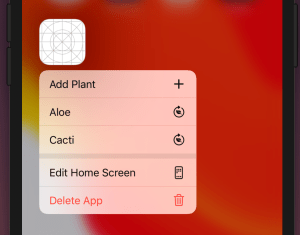
iOS apps can add quick actions which are displayed when force touching on the app’s icon. We’ll add quick actions to my open source WaterMyPlants example app. Quick actions can be static and dynamic: static actions are defined in the Info.plist and dynamic actions are configured in the code by updating UIApplication’s shortcutItems property. In the WaterMyPlants app, we’ll add one static action for adding a new plant and dynamic actions for opening added plants.

Home screen quick actions.

Static quick actions

Static quick actions are defined in the Info.plist. We need to add the UIApplicationShortcutItems key with array of dictionaries. Every dictionary in the array defines a quick action. Quick actions are required to have type and title and optionally we can add a subtitle and an icon. In the example below, we used one of the predefined icons. Predefined icons can be used by adding a key UIApplicationShortcutItemIconType with a string matching a format UIApplicationShortcutIconType<name>. Custom images are defined by the UIApplicationShortcutItemIconFile key where the string value is the name of an image in the asset catalog.

<key>UIApplicationShortcutItems</key>
<array>
<dict>
<key>UIApplicationShortcutItemType</key>
<string>com.augmentedcode.watermyplants.addplants</string>
<key>UIApplicationShortcutItemTitle</key>
<string>Add Plant</string>
<key>UIApplicationShortcutItemIconType</key>
<string>UIApplicationShortcutIconTypeAdd</string>
</dict>
</array>
view raw Infoplist hosted with ❤ by GitHub

Dynamic quick actions

Actions which depend on the data or state of the app can be added by setting the UIApplications’s shortcutItems property. Note that when adding items then we can use UIApplicationShortcutIcon‘s systemImageName initializer which enables us using any of the SF Symbols. Otherwise it is pretty much the same as defining a static quick action: setting type and title. It is useful to add an enum containing all the action types which becomes handy when we are handling actions. WaterMyPlants app uses scene delegates and therefore a good time to set dynamic quick actions is when the scene is resigning active status (see sceneWillResignActive(_:)).

func reloadShortcuts() {
let context = dependencyContainer.persistentContainer.viewContext
let plants = Plant.all(in: context).sorted(by: { $0.name < $1.name })
let items = plants.map({ (plant) -> UIApplicationShortcutItem in
return UIApplicationShortcutItem(type: UIApplicationShortcutItem.Action.showPlant.rawValue,
localizedTitle: plant.name,
localizedSubtitle: nil,
icon: UIApplicationShortcutIcon(systemImageName: "leaf.arrow.circlepath"),
userInfo: ["id": plant.id] as [String: NSSecureCoding])
})
UIApplication.shared.shortcutItems = items
}

Performing quick actions

Quick actions are handled either in the UIApplicationDelegate or in the UISceneDelegate. WaterMyPlants uses scene delegates, therefore we’ll look into how to perform actions using scene delegates. We need to keep in mind that when selecting a shortcut launches the app, then we would need to check the shortcut property in the UIScene.ConnectionOptions and use it for configuring the UI to perform the action (windowScene(_:performActionFor:completionHandler:) is not called in that case). But if the app is already running in the background, then we can handle the action in the performActionFor delegate callback.

extension UIApplicationShortcutItem {
enum Action: String {
case addPlant
case showPlant
}
}
final class SceneDelegate: UIResponder, UIWindowSceneDelegate {
func windowScene(_ windowScene: UIWindowScene, performActionFor shortcutItem: UIApplicationShortcutItem, completionHandler: @escaping (Bool) -> Void) {
guard let identifier = UIApplicationShortcutItem.Action(rawValue: shortcutItem.type) else { fatalError("Unknown shortcut") }
switch identifier {
case .addPlant:
flowCoordinator?.plantListViewModel.isPresentingAddPlant = true
case .showPlant:
print("show plant: \(String(describing: shortcutItem.userInfo))")
}
completionHandler(true)
}
func scene(_ scene: UIScene, willConnectTo session: UISceneSession, options connectionOptions: UIScene.ConnectionOptions) {
// …
// Triggering the add plant shortcut when launching the app
if connectionOptions.shortcutItem?.type == UIApplicationShortcutItem.Action.addPlant.rawValue {
viewModel.isPresentingAddPlant = true
}
// Setting up a view with the view model configured to show add plant view
}
}

Summary

We added home screen quick actions to the WaterMyPlants app. We looked into how to add static and dynamic quick actions and how to perform the selected action.

If this was helpful, please let me know on Mastodon@toomasvahter or Twitter @toomasvahter. Feel free to subscribe to RSS feed. Thank you for reading.

Project

WaterMyPlants (GitHub) Xcode 11.5

Pull request #3

Categories
AppKit iOS macOS SignalPath Swift SwiftUI UIKit

Signal Path 2.0 for iOS and macOS is available now!

I am happy to announce that Signal Path 2.0 is available now for macOS and iOS. Signal Path uses Apple’s universal purchase offering – buy it once for both platforms.

Signal Path 2.0 on the App Store

Past, present, and future

I spent a lot of time architecting both apps in a way that they reuse as much functionality as possible: from Metal pipelines to view models powering the UI. Most of the UI is written in SwiftUI, but there are a couple of views using UIKit (iOS) and AppKit (macOS) directly. Now when the groundwork is done, every next release will offer the same core functionality on both platforms and also integrating OS specific features. Future is bright, give Signal Path a try!

What is Signal Path

Signal Path is the most performant spectrum viewing app with beautiful user interface. You can record audio spectrums using microphone or open large recordings containing I/Q data. Read more about Signal Path.

Categories
iOS Swift SwiftUI

Setting an equal width to text views in SwiftUI

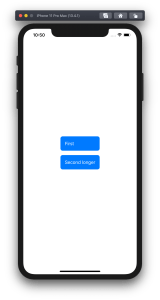
Let’s take a look on how to set an equal width to multiple views where the width equals to the widest Text() view in SwiftUI. SwiftUI does not have an easy to use view modifier for this at the moment, therefore we’ll add one ourselves. Example use case is displaying two text bubbles with width equaling to the widest bubble.

Creating a content view with text bubbles

The content view contains two TextBubble views with different text. The minimum width for both Text() values are stored in the @State property. The property is updated by custom equalWidth() view modifiers in TextBubble views using bindings. In other words, the view modifier updates the minimum width based on the text in a TextBubble view and uses the calculated value for both TextBubble views.

struct ContentView: View {
@State private var textMinWidth: CGFloat?
var body: some View {
VStack(spacing: 16) {
TextBubble(text: "First", minTextWidth: $textMinWidth)
TextBubble(text: "Second longer", minTextWidth: $textMinWidth)
}
}
}
struct TextBubble: View {
let text: String
let minTextWidth: Binding<CGFloat?>
var body: some View {
Text(text).equalWidth(minTextWidth) // custom view modifier
.foregroundColor(Color.white)
.padding()
.background(Color.blue)
.cornerRadius(8)
}
}
ContentView with equal widths view modifier.
ContentView without equal widths view modifier.

A view modifier applying equal widths

PreferenceKeys in SwiftUI are used for propagating values from child views to ancestor views. This is what we are using here as well: TextBubble views are reading their size using a GeometryReader and then setting the width of the text to our custom EqualWidthPreferenceKey. The background view modifier is used for layering GeometryReader behind the content view which avoids GeometryReader to affect the layout. Transparent color view is only used for producing a value for the preference key which is then set to the binding in the preference key change callback. The frame view modifier reads the value and makes the returned view wider if needed.

struct EqualWidthPreferenceKey: PreferenceKey {
typealias Value = CGFloat
static var defaultValue: CGFloat = 0
static func reduce(value: inout CGFloat, nextValue: () -> CGFloat) {
value = nextValue()
}
}
struct EqualWidth: ViewModifier {
let width: Binding<CGFloat?>
func body(content: Content) -> some View {
content.frame(width: width.wrappedValue, alignment: .leading)
.background(GeometryReader { proxy in
Color.clear.preference(key: EqualWidthPreferenceKey.self, value: proxy.size.width)
}).onPreferenceChange(EqualWidthPreferenceKey.self) { (value) in
self.width.wrappedValue = max(self.width.wrappedValue ?? 0, value)
}
}
}
extension View {
func equalWidth(_ width: Binding<CGFloat?>) -> some View {
return modifier(EqualWidth(width: width))
}
}

Summary

We created a view modifier which reads a view width and propagates the value to other views using a preference key, a binding, and a @State property.

If this was helpful, please let me know on Mastodon@toomasvahter or Twitter @toomasvahter. Feel free to subscribe to RSS feed. Thank you for reading.