Categories
CoreData iOS Swift SwiftUI

NSFetchedResultsController wrapper for SwiftUI view models

Although SwiftUI framework contains a @FetchRequest property wrapper, it is not possible to use it outside of SwiftUI views because it relies on accessing the managed object context from the view environment. While working on an CoreData based app which uses view models a lot within SwiftUI views, I ended up creating a wrapper class for making it easier to use NSFetchedResultsController. The wrapper class is named FetchedResultList and what it does internally is creating a NSFetchedResultsController instance, handling its delegate methods, and notifying about data changes through closures. Here is an example of a view model using the wrapper.

@MainActor final class ViewModel: ObservableObject {
private let list: FetchedResultList<Fruit>
init(context: NSManagedObjectContext = PersistenceController.shared.container.viewContext) {
list = FetchedResultList(context: context,
sortDescriptors: [
NSSortDescriptor(keyPath: \Fruit.name, ascending: true)
])
list.willChange = { [weak self] in self?.objectWillChange.send() }
}
var fruits: [Fruit] {
list.items
}
@Published var searchText: String = "" {
didSet {
if searchText.isEmpty {
list.predicate = nil
}
else {
list.predicate = NSPredicate(format: "name contains[cd] %@", searchText)
}
}
}
}
view raw Fruits.swift hosted with ❤ by GitHub

The view model conforms to ObservableObject protocol and FetchedResultList provides a willChange closure which gets called when NSFetchedResultsController’s will change delegate is called. Calling the objectWillChange publisher will signal the SwiftUI view about the data change and the view gets re-rendered. The wrapper also supports updating predicate or sort descriptors dynamically. Here, we can see how setting a searchableText property from the view will update the predicate of the wrapper class. The SwiftUI view which uses the view model looks like this:

struct FruitList: View {
@StateObject var viewModel = ViewModel()
var body: some View {
NavigationStack {
List(viewModel.fruits) { item in
NavigationLink(item.name) {
Text(verbatim: "Detail view for \(item.name)")
}
}
.navigationTitle("Fruits")
.searchable(text: $viewModel.searchText)
}
}
}
view raw Fruits.swift hosted with ❤ by GitHub

Let’s take a look at how the wrapper class is implemented. The core logic around the wrapper is creating an instance of NSFetchedResultsController, allowing to reconfigure it dynamically, handling its delegate, and notifying changes through closures. Using closures instead of conforming to ObservableObject is a conscious choice since the main use case is using the wrapper class in view models or in other controllers, and it means that propagating the data change to a SwiftUI view needs to be done manually. It is shorter to call view model’s objectWillChange in a closure than republishing wrapper’s objectWillChange to view model’s objectWillChange. Moreover, it would make more sense to use SwiftUI provided property wrapper instead of this wrapper if we would want to handle CoreData fetching in the SwiftUI view’s implementation.

@MainActor final class FetchedResultList<Result: NSManagedObject> {
private let fetchedResultsController: NSFetchedResultsController<Result>
private let observer: FetchedResultsObserver<Result>
init(context: NSManagedObjectContext, filter: NSPredicate? = nil, sortDescriptors: [NSSortDescriptor]) {
let request = NSFetchRequest<Result>(entityName: Result.entity().name ?? "<not set>")
request.predicate = filter
request.sortDescriptors = sortDescriptors.isEmpty ? nil : sortDescriptors
fetchedResultsController = NSFetchedResultsController(fetchRequest: request, managedObjectContext: context, sectionNameKeyPath: nil, cacheName: nil)
observer = FetchedResultsObserver(controller: fetchedResultsController)
observer.willChange = { [unowned self] in self.willChange?() }
observer.didChange = { [unowned self] in self.didChange?() }
refresh()
}
private func refresh() {
do {
try fetchedResultsController.performFetch()
}
catch {
Logger().error("Failed to load results")
}
}
var items: [Result] {
fetchedResultsController.fetchedObjects ?? []
}
var predicate: NSPredicate? {
get {
fetchedResultsController.fetchRequest.predicate
}
set {
fetchedResultsController.fetchRequest.predicate = newValue
refresh()
}
}
var sortDescriptors: [NSSortDescriptor] {
get {
fetchedResultsController.fetchRequest.sortDescriptors ?? []
}
set {
fetchedResultsController.fetchRequest.sortDescriptors = newValue.isEmpty ? nil : newValue
refresh()
}
}
var willChange: (() -> Void)?
var didChange: (() -> Void)?
}

The wrapper class uses private FetchedResultsObserver class which must derive from NSObject because it implements NSFetchedResultsControllerDelegate methods. This approach allows keeping the FetchedResultList class a pure Swift class and not a NSObject subclass which I like to avoid in SwiftUI apps (just a personal preference).

private final class FetchedResultsObserver<Result: NSManagedObject>: NSObject, NSFetchedResultsControllerDelegate {
var willChange: () -> Void = {}
var didChange: () -> Void = {}
init(controller: NSFetchedResultsController<Result>) {
super.init()
controller.delegate = self
}
func controllerWillChangeContent(_ controller: NSFetchedResultsController<NSFetchRequestResult>) {
willChange()
}
func controllerDidChangeContent(_ controller: NSFetchedResultsController<NSFetchRequestResult>) {
didChange()
}
}

If this was helpful, please let me know on Mastodon@toomasvahter or Twitter @toomasvahter. Feel free to subscribe to RSS feed. Thank you for reading.

Categories
iOS Swift SwiftUI

Grid view in SwiftUI

SwiftUI framework got a new addition in iOS 16 named Grid which is enables creating grid layouts in a quick way. The main difference between using Grid instead of combining HStack and VStack is that all the cells will get the same size. SwiftUI will create all the cells, measure the size, and apply the largest size to all the cells. Here is an example of a grid which in addition to cells have additional accessory views.

struct ContentView: View {
var body: some View {
Grid(alignment: .center,
horizontalSpacing: 16,
verticalSpacing: 8) {
Separator(title: "Today")
.gridCellUnsizedAxes(.horizontal)
GridRow {
Text("Finals")
Cell(title: "Archery", imageName: "figure.archery")
Cell(title: "Badminton", imageName: "figure.badminton")
}
Separator(title: "Tomorrow")
.gridCellUnsizedAxes(.horizontal)
GridRow(alignment: .bottom) {
Text("Qualifications")
Cell(title: "Bowling", imageName: "figure.archery")
Cell(title: "Golf", imageName: "figure.golf")
Cell(title: "Handball", imageName: "figure.handball")
}
}
}
}
view raw Grid.swift hosted with ❤ by GitHub

In the example above we can see how Grid is created: first we have the Grid container view with one or multiple GridRow views which represents a single row of cells. If we want to decorate the grid with accessory views, we can just add more views which are not wrapped into GridRow. Separator view is just a view which displays text and a divider. The gridCellUnsizedAxes() allows controlling how these accessory views are laid out. Separator contains a Divider, which is a flexible view and wants to take as much space it could. By applying the view modifier we can disable this behaviour and the width of the accessory view is not limited by the number of columns in the grid.

If this was helpful, please let me know on Mastodon@toomasvahter or Twitter @toomasvahter. Feel free to subscribe to RSS feed. Thank you for reading.

Categories
iOS Swift SwiftUI

Presenting multiple sheets in SwiftUI

SwiftUI has multiple view modifiers for presenting sheets. If we just want to present a modal view, then we can use one of these:

func sheet<Content>(
isPresented: Binding<Bool>,
onDismiss: (() -> Void)? = nil,
content: @escaping () -> Content
) -> some View where Content : View
func sheet<Item, Content>(
item: Binding<Item?>,
onDismiss: (() -> Void)? = nil,
content: @escaping (Item) -> Content
) -> some View where Item : Identifiable, Content : View
view raw Sheets.swift hosted with ❤ by GitHub

The first requires a boolean binding, whereas the second an identifiable item. When dealing with views which need to present different views in a sheet, then the latter can be easily expanded to support that. We can create an enum, conform it to Identifiable and then add an optional @State property which selects the view we should be presenting. The Identifiable protocol requires implementing an id property, which we can easily do by reusing rawValue property of an enum with raw types. If we put all of this together, then we can write something like this:

struct ContentView: View {
enum Sheet: String, Identifiable {
case addItem, settings
var id: String { rawValue }
}
@State private var sheet: Sheet?
var body: some View {
VStack {
Button("Add Item", action: { sheet = .addItem })
Button("Settings", action: { sheet = .settings })
}
.sheet(item: $sheet, content: makeSheet)
}
@ViewBuilder
func makeSheet(_ sheet: Sheet) -> some View {
switch sheet {
case .addItem:
AddItemView()
case .settings:
SettingsView()
}
}
}

In the example above, I also separated the sheet view creation by having a separate function with an argument of type ContentView.Sheet. Since the function returns views with different types, then it needs to be annotated with @ViewBuilder. All in all it is a pretty concise and gives a nice call site where we just assign a sheet identifier to the sheet property.

If this was helpful, please let me know on Mastodon@toomasvahter or Twitter @toomasvahter. Feel free to subscribe to RSS feed. Thank you for reading.

Categories
iOS Swift SwiftUI

Wrapping delegates for @MainActor consumers in Swift

Sometimes we need to handle delegates in a class which has the @MainActor annotation. Often it can be a view model where we expect that code runs on the main thread. Therefore, view models have the @MainActor annotation, since we want that their methods run on the main thread when interacting with other async code. In an example below, we’ll be looking into integrating a delegate based ImageBatchLoader class which calls delegate methods on a background thread. The end goal is to handle the delegate in a view model and making sure it runs on the main thread.

final class ImageBatchLoader {
weak var delegate: ImageBatchLoaderDelegate?
init(delegate: ImageBatchLoaderDelegate) {
self.delegate = delegate
}
func start() {
DispatchQueue.global().async {
self.delegate?.imageLoader(self, didLoadBatch: [UIImage()])
}
}
}
protocol ImageBatchLoaderDelegate: AnyObject {
func imageLoader(_ imageLoader: ImageBatchLoader, didLoadBatch batch: [UIImage])
}
An example ImageBatchLoader with stubbed out start method.

This is an example of a class which uses delegates and calls delegate methods from background threads. If we have a view model with @MainActor annotation, then we just can’t conform to that delegate since the delegate does not use any async-await support. Xcode would show a warning saying that the protocol is non-isolated. A protocol would be isolated if it would have, for example, @MainActor annotation as well for that protocol. Let’s say this is not possible and it is a third party code instead.

The solution I have personally settled with is creating a wrapper class which conforms to that delegate and then uses main thread bound closures to notify when any of the delegate callbacks happen.

final class ImageBatchLoaderHandler: ImageBatchLoaderDelegate {
var didLoadBatch: @MainActor ([UIImage]) -> Void = { _ in }
func imageLoader(_ imageLoader: ImageBatchLoader, didLoadBatch batch: [UIImage]) {
print("isMainThread", Thread.isMainThread, #function)
Task {
await didLoadBatch(batch)
}
}
}

Here we can see a class which conforms to the ImageBatchLoaderDelegate and provides a didLoadBatch closure which has an @MainActor annotation. Since we use @MainActor and tap into the async-await concurrency, then we need an async context as well, which the Task provides.

@MainActor final class ViewModel: ObservableObject {
private let imageLoader: ImageBatchLoader
private let imageLoaderHandler: ImageBatchLoaderHandler
init() {
imageLoaderHandler = ImageBatchLoaderHandler()
imageLoader = ImageBatchLoader(delegate: imageLoaderHandler)
imageLoaderHandler.didLoadBatch = handleBatch
imageLoader.start()
}
func handleBatch(_ batch: [UIImage]) {
print("isMainThread", Thread.isMainThread, #function)
// redacted
}
}
view raw ViewModel.swift hosted with ❤ by GitHub

Finally we have hooked up the image loader, its handler and also forwarding the didLoadBatch to a separate function which is part of the view model. With a little bit of code, we achieved what we wanted: listening to delegate callbacks and forwarding them to the view model on the main thread. If we ran the code we would see that the delegate callback runs on a background thread but the view model method runs on the main thread.

isMainThread false imageLoader(_:didLoadBatch:)
isMainThread true handleBatch(_:)

If this was helpful, please let me know on Mastodon@toomasvahter or Twitter @toomasvahter. Feel free to subscribe to RSS feed. Thank you for reading.

Categories
iOS Swift SwiftUI

Accessing UIHostingController from a SwiftUI view

While I was working on a mixed UIKit and SwiftUI project, I needed a way to access the UIHostingController within the SwiftUI view so that I could use it for interacting with other UIKit methods. This blog post tackles the problem and provides a simple solution how to implement it.

The approach we are taking is using the SwiftUI environment and inserting an object into the environment, which then keeps a weak reference to the view controller hosting the SwiftUI view. Using the SwiftUI view environment has a benefit of allowing multiple other SwiftUI views within the hierarchy to use it as well. In the end, we would like to write something like this:

// Presenting the detail view using UIKit presentation methods
let hostingController = DetailView().embeddedInHostingController()
presentingViewController.present(hostingController, animated: true)
// The view which needs access to the view controller hosting it
struct DetailView: View {
@EnvironmentObject var hostingProvider: ViewControllerProvider
var body: some View {
VStack {
Text("Detail")
Button("Access View Controller") {
let viewController = hostingProvider.viewController
// … do something with the view controller
}
}
}
}

In the snippet above, we use a custom embeddedInHostingController() function which inserts a new ViewControllerProvider type the to the environment. Let’s take a closer look how this function and type are implemented.

extension View {
func embeddedInHostingController() -> UIHostingController<some View> {
let provider = ViewControllerProvider()
let hostingAccessingView = environmentObject(provider)
let hostingController = UIHostingController(rootView: hostingAccessingView)
provider.viewController = hostingController
return hostingController
}
}
final class ViewControllerProvider: ObservableObject {
fileprivate(set) weak var viewController: UIViewController?
}

The ViewControllerProvider class keeps a weak reference to the view controller. Since UIHostingController is a subclass of UIViewController we can just use UIViewController as a type. The embedded function creates an instance of the provider and a hosting controller, inserts the provider into the SwiftUI view environment and then sets the weak property which we can access later.

If this was helpful, please let me know on Mastodon@toomasvahter or Twitter @toomasvahter. Feel free to subscribe to RSS feed. Thank you for reading.

Categories
iOS Swift SwiftUI

Wrapping a long-running function with async-await in Swift

In this blog post, we are going to take a look at a case where we have a long-running synchronous function, and we want to wrap this with an async version. The aim is that the long-running function runs on a background thread instead and keeps the UI snappy. We’ll be using structured concurrency features. In the example code, we’ll also add print statements to see what thread the code is running on.

struct ImageProcessor {
func syncProcessData(_ imageData: Data) -> UIImage {
print(#function, "started", Thread.isMainThread, Thread.current)
Thread.sleep(forTimeInterval: 10) // simulates a blocking operation
print(#function, "finished", Thread.isMainThread, Thread.current)
return UIImage(systemName: "sun.max")!
}
}
A synchronous function blocking the current thread for 10 seconds.

The very first step is adding an async version, which is a matter of wrapping it with a Task.

struct ImageProcessor {
func process(_ imageData: Data) async -> UIImage {
print(#function, Thread.isMainThread, Thread.current)
let image = await Task {
syncProcessData(imageData)
}.value
print(#function, Thread.isMainThread, Thread.current)
return image
}
}
An async process function wrapping a synchronous long-running function.

What happens inside the function is that we created a new Task object which defines the work we want to run. Since we want to return an instance of UIImage as part of this function, we need to wait until the created task finishes. Therefore, we access the return value of the task using the value property which is an async property. Since it is async, we need to use the await keyword which tells the runtime that the function flow could be suspended here. As the process function is async then this function can only be called from an async context. For example, this function is called from another task. Then the task is added as a child task to the calling, parent, task. OK, so let’s use this code in a view model used by a SwiftUI view.

@MainActor
final class ViewModel: ObservableObject {
let imageProcessor = ImageProcessor()
@Published var currentImage: UIImage?
func applyEffectsToImage() {
print(#function, Thread.isMainThread, Thread.current)
Task {
print(#function, Thread.isMainThread, Thread.current)
let imageData = Data()
currentImage = await imageProcessor.process(imageData)
}
}
}
view raw ViewModel.swift hosted with ❤ by GitHub
A view model which triggers the asynchronous work.

Above is a view model which is used by a SwiftUI view. The applyEffectsToImage() function is called by a button and the published image is displayed by the view. This view model is a main actor which means that all the properties and functions will run on the main thread. Since we want to call an async process function, we need to create an async context. This is where the Task comes into the play again. If we do not have an async context and create a task then that task will run on the actor it was created on. In this case, it runs on the main thread. But if the task creates a child task then that task will run on a background thread. In the example above, the task’s closure runs on the main thread until the closure is suspended when calling an async process function.

If we take a look at which threads are used, then it looks like this:

applyEffectsToImage() true <_NSMainThread: 0x600000908300>{number = 1, name = main}
process(_:) false <NSThread: 0x600000901040>{number = 4, name = (null)}
syncProcessData(_:) started false <NSThread: 0x600000979100>{number = 7, name = (null)}
syncProcessData(_:) finished false <NSThread: 0x600000979100>{number = 7, name = (null)}
process(_:) false <NSThread: 0x600000979100>{number = 7, name = (null)}

Here we can see that the task in the view model runs on the main actor and therefore on the main thread. Methods in the image processor run on the background threads instead – exactly what we wanted. The long-running function does not block the main thread.

If this was helpful, please let me know on Mastodon@toomasvahter or Twitter @toomasvahter. Feel free to subscribe to RSS feed. Thank you for reading.
Categories
iOS Swift SwiftUI Xcode

Getting started with mocking networking in UI-tests on iOS

It is important to have stable unit-tests and UI-tests since no-one wants to encounter failures in tests which happen non-deterministically. Many of the iOS apps rely on networking, and therefore the content depends on what is fetched from servers. The last thing what we want to see is that an API outage or instability affects UI-tests. This time we’ll take a look at how to mock networking in UI-tests which differs from mocking networking in unit-tests since the whole app is going to be running as is and is controlled by a separate UI-testing runner app. A while ago I also covered unit-testing part in Testing networking code with custom URLProtocol on iOS, please take a look at that post for more information since we’ll be using the same custom URL protocol approach.

The main difference between unit-tests and UI-tests is that with unit-tests Xcode injects the unit-testing code into the app and then runs tests. UI-testing on the other hand rely on a separate test runner app which uses accessibility APIs for driving the user-interface in the app. This means that our network mocking code needs to be bundled with the app when we build it. The approach we are going to use is setting up a separate “UITestingSupport” Swift package, which is included only in debug builds. This library contains mocked data and configures the custom URL protocol and handles any network requests. Please see Linking a Swift package only in debug builds for more information on how to only link a package in debug builds.

I’ll be using a sample app “UITestingNetworking” for demonstrating how to set it up. The app has an app target and a local Swift package with a name “UITestingSupport”.

Xcode project layout with UITestingSupport package.

The first piece of the “UITestingSupport” package is a custom URLProtocol. All it does is providing a way to return either error or URLResponse and Data for a URLRequest. It is a simplified protocol. In an actual app we would want to control which requests are handled by it and which are not. Either because it is way too difficult to mock all the network request in all the tests at first, or we might also want to have some tests using an actual data coming from servers.

final class UITestingURLProcotol: URLProtocol {
override class func canInit(with request: URLRequest) -> Bool {
return true // TODO: only return true for requests we have mocked data
}
override class func canonicalRequest(for request: URLRequest) -> URLRequest {
return request
}
struct ResponseData {
let response: URLResponse
let data: Data
}
static var responseProvider: ((URLRequest) -> Result<ResponseData, Error>)?
override func startLoading() {
guard let client else { fatalError() }
if let responseProvider = Self.responseProvider {
switch responseProvider(request) {
case .success(let responseData):
client.urlProtocol(self, didReceive: responseData.response, cacheStoragePolicy: .notAllowed)
client.urlProtocol(self, didLoad: responseData.data)
client.urlProtocolDidFinishLoading(self)
case .failure(let error):
client.urlProtocol(self, didFailWithError: error)
client.urlProtocolDidFinishLoading(self)
}
}
else {
let error = NSError(domain: "UITestingURLProcotol", code: -1)
client.urlProtocol(self, didFailWithError: error)
}
}
override func stopLoading() {}
}

The second piece of the library is a UITestingNetworkHandler class which the app code will call, and it configures the custom URLProtocol and starts providing responses based on the “responseProvider” callback.

public final class UITestingNetworkHandler {
public static func register() {
URLProtocol.registerClass(UITestingURLProcotol.self)
UITestingURLProcotol.responseProvider = { request in
guard let url = request.url else { fatalError() }
switch (url.host, url.path) {
case ("augmentedcode.io", "/api/example"):
let response = HTTPURLResponse(url: url, statusCode: 200, httpVersion: nil, headerFields: nil)!
let data = "MyMockedData".data(using: .utf8)!
return .success(UITestingURLProcotol.ResponseData(response: response, data: data))
default:
fatalError("Unhandled")
}
}
}
}
Simple example of providing response for a URLRequest.

The example above just handles one network request. For larger apps we probably want to have more component based implementation here since this file would otherwise grow a lot based on how many cases we want to handle. Another thing to note is that in some tests we want to mimic network request failures and in others successful requests but with different response data. This is not shown above, but can be implemented by providing the expected configuration flag through environment variables. XCUIApplication has a launchEnvironent property what we can set and then reading that value in the UITestingNetworkHandler with Process environment property. I’m thinking something like “MyAppAPIExampleResponseType” which equals to a number or some identifier.

The last piece is to call the register code when we are running the app in UI-tests.

@main
struct UITestingNetworkingApp: App {
var body: some Scene {
WindowGroup {
ContentView()
#if DEBUG
.onAppear(perform: {
guard CommandLine.arguments.contains("–uitesting") else { return }
UITestingNetworkHandler.register()
})
#endif
}
}
}
view raw App.swift hosted with ❤ by GitHub
Calling register only in debug builds and when a launch argument is set by the runner app.

And finally, an example UI-test which taps a button which in turn fetches some data from the network and then just displays the raw data in the app.

class UITestingNetworkingUITests: XCTestCase {
override func setUpWithError() throws {
continueAfterFailure = false
}
func testExample() throws {
let app = XCUIApplication()
app.launchArguments = ["–uitesting"]
app.launch()
app.buttons["Load Data"].tap()
XCTAssertEqual(app.staticTexts.element.label, "MyMockedData")
}
}
An example UI-test which sets launch argument which enables network mocking in the app.

If this was helpful, please let me know on Mastodon@toomasvahter or Twitter @toomasvahter. Feel free to subscribe to RSS feed. Thank you for reading.

Example Project

UITestingNetworking (GitHub)

Categories
Swift SwiftUI Xcode

LibraryContentProvider in Xcode

LibraryContentProvider protocol in Xcode is a way for adding custom views and view modifiers to the Xcode library, which enables drag and dropping them to the SwiftUI preview. Xcode automatically looks for types implementing the protocol and then adds items to the library. It takes so little code that it makes sense to do it if you are using the library for building views.

As an example, we’ll add a custom SwiftUI view SubtitledButton to the library.

struct SubtitledButton: View {
let title: LocalizedStringKey
let subtitle: LocalizedStringKey
let action: () -> Void
var body: some View {
Button(action: action, label: {
VStack(spacing: 4) {
Text(title)
Text(subtitle)
.font(.footnote)
}
})
}
}

The only thing we need to do is creating a new type which conforms to LibraryContentProvider and then returning the button as a LibraryItem.

struct LibraryContent: LibraryContentProvider {
var views: [LibraryItem] {
return [
LibraryItem(SubtitledButton(title: "Title",
subtitle: "Subtitle",
action: {}),
title: "SubtitledButton",
category: .control)
]
}
}

After adding the new type, Xcode updates the library automatically.

Xcode library view with SubtitledButton showing up.
Xcode library with SubtitledButton.

If this was helpful, please let me know on Mastodon@toomasvahter or Twitter @toomasvahter. Feel free to subscribe to RSS feed. Thank you for reading.

Categories
iOS Swift SwiftUI UIKit

UIKit navigation with SwiftUI views

Recently I was asked a question about creating an app which has SwiftUI views but no navigation logic in it. Instead, UIKit controls how views are presented. It is a fair question since SwiftUI views have navigation support, but not everything is there if we need to support previous iOS versions as well, or we have a case of an app which have both UIKit and SwiftUI views. Therefore, let’s take a look at on one approach, how to handle navigation on the UIKit side but still use SwiftUI views.

UIHostingController presenting SwiftUI view

SwiftUI views are presented in UIKit views with UIHostingController which just takes in the SwiftUI view. UIHostingController is a UIViewController subclass, therefore it can be used like any other view controller in the view hierarchy. For getting things started, let’s configure SceneDelegate to use an object named FlowCoordinator which will handle navigation logic and then ask it to present a simple SwiftUI view.

final class SceneDelegate: UIResponder, UIWindowSceneDelegate {
var window: UIWindow?
private lazy var flowController = FlowCoordinator(window: window!)
func scene(_ scene: UIScene, willConnectTo session: UISceneSession, options connectionOptions: UIScene.ConnectionOptions) {
guard let windowScene = scene as? UIWindowScene else { return }
window = UIWindow(windowScene: windowScene)
flowController.showRootView()
window?.makeKeyAndVisible()
}
}
final class FlowCoordinator {
private let window: UIWindow
init(window: UIWindow) {
self.window = window
}
func showRootView() {
let swiftUIView = ContentView()
let hostingView = UIHostingController(rootView: swiftUIView)
window.rootViewController = UINavigationController(rootViewController: hostingView)
}
}
struct ContentView: View {
var body: some View {
VStack {
Text("Hello, World!")
}.frame(maxWidth: .infinity, maxHeight: .infinity)
.background(.green)
}
}
A simple iOS app showing a green view which is rendered with SwiftUI but presented with UIKit
A simple app showing a green view which is rendered with SwiftUI but presented with UIKit.

Inserting the FlowCoordinator into SwiftUI view

The next step is that we want to allow SwiftUI view to control what is presented on the screen. For example, let’s add a button to the SwiftUI view which should present a sheet with another SwiftUI view. The button action needs to be able to talk to the flow coordinator, which controls what is presented on the screen. One way to insert the FlowCoordinator into SwiftUI environment is by conforming to ObservableObject and using the environmentObject() view modifier. Alternative is using EnvironmentValues and defining a key. For more information please check Injecting dependencies using environment values and keys in SwiftUI.

final class FlowCoordinator: ObservableObject {}
let swiftUIView = ContentView()
.environmentObject(self) // self is FlowCoordinator
struct ContentView: View {
@EnvironmentObject var flowController: FlowCoordinator
var body: some View {
VStack(spacing: 8) {
Text("Root view")
Button("Present Sheet", action: flowController.showDetailView)

Presenting a sheet

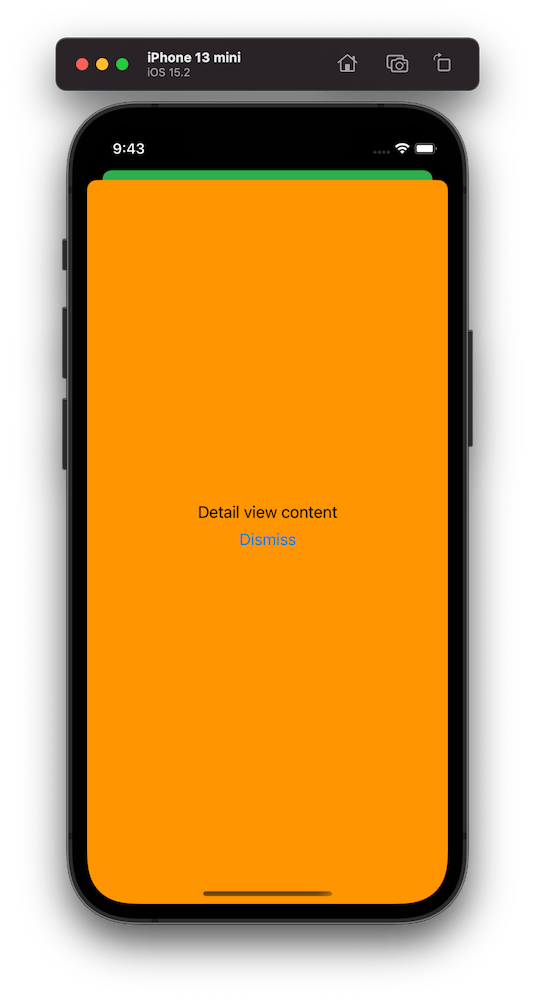
The sheet presentation code goes into the FlowCoordinator and as an example we show a DetailView which has a button for dismissing itself. Yet again, SwiftUI view just passes the handling to the FlowCoordinator.

final class FlowCoordinator: ObservableObject {
// …
func showDetailView() {
let detailView = DetailView()
.environmentObject(self)
let viewController = UIHostingController(rootView: detailView)
window.rootViewController?.present(viewController, animated: true, completion: nil)
}
func closeDetailView() {
// Needs to be more sophisticated later when there are more views
window.rootViewController?.presentedViewController?.dismiss(animated: true, completion: nil)
}
}
struct DetailView: View {
@EnvironmentObject var flowController: FlowCoordinator
var body: some View {
VStack(spacing: 8) {
Text("Detail view content")
Button("Dismiss", action: flowController.closeDetailView)
}.frame(maxWidth: .infinity, maxHeight: .infinity)
.background(.orange)
}
}
A simple iOS app showing an orange sheet which is rendered with SwiftUI but presented with UIKit
A simple app showing an orange sheet which is rendered with SwiftUI but presented with UIKit.

Summary

We created a simple sample app which uses UIKit navigation logic but renders views with SwiftUI views. This kind of setup could be useful for apps which mix UIKit and SwiftUI. But I believe that even in case of that we could still use SwiftUI navigation in sub-flows but could keep using this approach for handling root view navigation.

Example Project

UIKitNavigationWithSwiftUIViews (Xcode 13.2.1)

If this was helpful, please let me know on Mastodon@toomasvahter or Twitter @toomasvahter. Feel free to subscribe to RSS feed. Thank you for reading.

Categories
iOS Swift SwiftUI UIKit

Using a multi component picker in a SwiftUI form

SwiftUI has a Picker view available with multiple different styles. One example of when it falls short is when we want to use a multi component picker with wheel style. One way how to try to achieve this is using a HStack with two Picker views, but it does not work very well, especially when trying to show it inside a Form view. So what else we can do? If something can’t be done in SwiftUI then we can use UIKit instead.

In my case, I wanted to create a picker which allows picking a date duration. It would have one wheel for selecting a number and the other wheel for selecting either days, weeks or months.

Screenshot of a SwiftUI form with a two component wheel picker where left wheel selects a number and right wheel selects days, weeks or months.

Firstly, let’s create a tiny struct which is going to hold the state of this picker. It needs to store a numeric value and the unit: days, weeks, months. Let’s name it as DateDuration. Since we want to iterate over the DateDuration.Unit, we’ll conform it to CaseIterable protocol.

struct DateDuration {
let value: Int
let unit: Unit
enum Unit: String, CaseIterable {
case days, weeks, months
}
}

UIPickerView in UIKit can do everything we want, therefore we’ll need to wrap it into a SwiftUI view. This can be done by creating a new type which conforms to UIViewRepresentable protocol. Also, we need a binding which holds the value of the current selection: when the user changes it, the binding communicates the changes back and vice-versa. Additionally, we’ll add properties for configuring values and units. UIPickerView us created and configured in the makeUIView(context:) function. UIPickerView is driven by a data source and a delegate, which means we require a coordinator object as well. Coordinator is part of the UIViewRepresentable protocol.

struct DateDurationPicker: UIViewRepresentable {
let selection: Binding<DateDuration>
let values: [Int]
let units: [DateDuration.Unit]
func makeUIView(context: Context) -> UIPickerView {
let pickerView = UIPickerView(frame: .zero)
pickerView.translatesAutoresizingMaskIntoConstraints = false
pickerView.delegate = context.coordinator
pickerView.dataSource = context.coordinator
return pickerView
}
// …
}

Coordinator is created in the makeCoordinator() function. It is going to do most of the work by providing data to the UIPickerView and handling the current selection. Therefore, we’ll store the selection binding, values, and units in the Coordinator class as well.

struct DateDurationPicker: UIViewRepresentable {
// …
func makeCoordinator() -> Coordinator {
return Coordinator(selection: selection, values: values, units: units)
}
final class Coordinator: NSObject, UIPickerViewDataSource, UIPickerViewDelegate {
let selection: Binding<DateDuration>
let values: [Int]
let units: [DateDuration.Unit]
init(selection: Binding<DateDuration>, values: [Int], units: [DateDuration.Unit]) {
self.selection = selection
self.values = values
self.units = units
}
// …
}
}

The last missing piece is implementing UIPickerViewDataSource and UIPickerViewDelegate methods in the Coordinator class. This is pretty straight-forward to do. We’ll need to display two components where the first component is the list of values and the second component is the unit: days, weeks, months. When the user selects a new value, we’ll change the DateDuration value of the binding.

func numberOfComponents(in pickerView: UIPickerView) -> Int {
return 2
}
func pickerView(_ pickerView: UIPickerView, numberOfRowsInComponent component: Int) -> Int {
return component == 0 ? values.count : units.count
}
func pickerView(_ pickerView: UIPickerView, titleForRow row: Int, forComponent component: Int) -> String? {
if component == 0 {
return "\(values[row])"
}
else {
return units[row].rawValue
}
}
func pickerView(_ pickerView: UIPickerView, didSelectRow row: Int, inComponent component: Int) {
let valueIndex = pickerView.selectedRow(inComponent: 0)
let unitIndex = pickerView.selectedRow(inComponent: 1)
selection.wrappedValue = DateDuration(value: values[valueIndex], unit: units[unitIndex])
}

Finally, let’s hook it up in an example view.

struct ContentView: View {
@StateObject var viewModel = ViewModel()
var body: some View {
NavigationView {
Form {
Section {
// …
DateDurationPicker(
selection: $viewModel.selection,
values: Array(1..<100),
units: DateDuration.Unit.allCases
)
// …
}
}
.navigationTitle("Reminders")
}
}
}
extension ContentView {
final class ViewModel: ObservableObject {
@Published var selection = DateDuration(value: 1, unit: .days)
// …
}
}

Example Project

SwiftUIDateDurationPicker (GitHub, Xcode 13.2.1)

If this was helpful, please let me know on Mastodon@toomasvahter or Twitter @toomasvahter. Feel free to subscribe to RSS feed. Thank you for reading.