Categories
iOS macOS Swift SwiftUI

@StateObject and MVVM in SwiftUI

A while ago I wrote about using MVVM in a SwiftUI project. During the WWDC’20 Apple announced @StateObject property wrapper which is a nice addition in the context of MVVM. @StateObject makes sure that only one instance is created per a view structure. This enables us to use @StateObject property wrappers for class type view models which eliminates the need of managing the view model’s lifecycle ourselves.

Comparing @StateObject and @ObservableObject for view model property

The most common flow in MVVM is creating and configuring a view model, which includes injecting dependencies, and then passing it into a view. This creates a question in SwiftUI: how to manage the lifecycle of the view model when view hierarchy renders and view structs are recreated. @StateObject property wrapper is going to solve this question in a nice and concise way. Let’s consider an example code.

import SwiftUI
struct ContentView: View {
@EnvironmentObject var dependencyContainer: DependencyContainer
@StateObject var viewModel = ContentViewModel()
var body: some View {
VStack(alignment: .center) {
VStack(spacing: 32) {
Text(viewModel.refreshTimestamp)
Button(action: viewModel.refresh, label: {
Text("Refresh")
})
}
Spacer()
BottomBarView(viewModel: BottomBarViewModel(entryStore: dependencyContainer.entryStore))
}
}
}
ContentView which has a subview.

ContentView is a simple view which has a view model managing the view state and DependencyContainer used for injecting a dependency to the BottomBarViewModel when it is created. As we can see, ContentView’s view model is managed by @StateObject property wrapper. This means that ContentViewModel is created once although ContentView can be recreated several times. BottomBarView has a little bit more complex setup where the view model requires external dependency managed by the DependencyContainer. Therefore, we’ll need to create the view model with a dependency and then initialize BottomBarView with it. BottomBarView’s view model property is also annotated with @StateObject property wrapper.

import Combine
import SwiftUI
struct BottomBarView: View {
@StateObject var viewModel: BottomBarViewModel
var body: some View {
Text(viewModel.text)
}
}
final class BottomBarViewModel: ObservableObject {
@Published var text: String = ""
private var cancellables = [AnyCancellable]()
private let entryStore: EntryStore
init(entryStore: EntryStore) {
self.entryStore = entryStore
print(self, #function)
cancellables.append(Timer.publish(every: 2, on: .main, in: .default).autoconnect().sink { [weak self] (_) in
self?.text = "Random number: \(Int.random(in: 0..<100))"
})
}
}
BottomBarView and its view model.

Magical aspect here is that when the ContentView’s body is accessed multiple times then BottomBarViewModel is not recreated when the BottomBarView struct is initialized. Exactly what we need – view will manage the lifecycle of its view model. This can be verified by adding a print to view model initializers and logging when ContentView’s body is accessed. Here is example log which compares BottomBarView’s view model property when it is annotated with @StateObject or @ObservableObject. Note how view model is not created multiple times when BottomBarView uses @StateObject.

BottomBarView uses @StateObject for its view model property
SwiftUIStateObject.ContentViewModel init()
1 ContentView.body accessed
SwiftUIStateObject.BottomBarViewModel init(entryStore:)
Triggering ContentView refresh
2 ContentView.body accessed
Triggering ContentView refresh
3 ContentView.body accessed

BottomBarView uses @ObservableObject for its view model property
SwiftUIStateObject.ContentViewModel init()
1 ContentView.body accessed
SwiftUIStateObject.BottomBarViewModel init(entryStore:)
Triggering ContentView refresh
2 ContentView.body accessed
SwiftUIStateObject.BottomBarViewModel init(entryStore:)
Triggering ContentView refresh
3 ContentView.body accessed
SwiftUIStateObject.BottomBarViewModel init(entryStore:)

Summary

WWDC’20 brought us @StateObject which simplifies handling view model’s lifecycle in apps using MVVM design pattern.

If you are looking more information about the MVVM design pattern then please check: MVVM in SwiftUI and MVVM and @dynamicMemberLookup in Swift.

If this was helpful, please let me know on Mastodon@toomasvahter or Twitter @toomasvahter. Feel free to subscribe to RSS feed. Thank you for reading.

Example

SwiftUIStateObject (GitHub) Xcode 12.0 beta 3

Categories
iOS macOS Swift Swift Package SwiftUI Xcode

Separating code with Swift packages in Xcode

Xcode 12 comes with Swift toolchain 5.3 which brings resource and localisation support to Swift packages. Nice thing is that Swift package support only depends on the toolchain’s version and does not have additional OS requirements. At the same time, let’s keep in mind that OS requirements come from the code we actually add to the package. This means that it is a good time to start using Swift packages for separating code into separate libraries and stop using separate framework projects in a workspace. Additional benefit is that, if needed, it is pretty easy to move the package out of the workspace and creating a sharable package what can be publish and reused in other projects. But for now, let’s take a look on how to set up a new workspace with an app project and a Swift package which represents a design library with custom button style.

File structure of the workspace

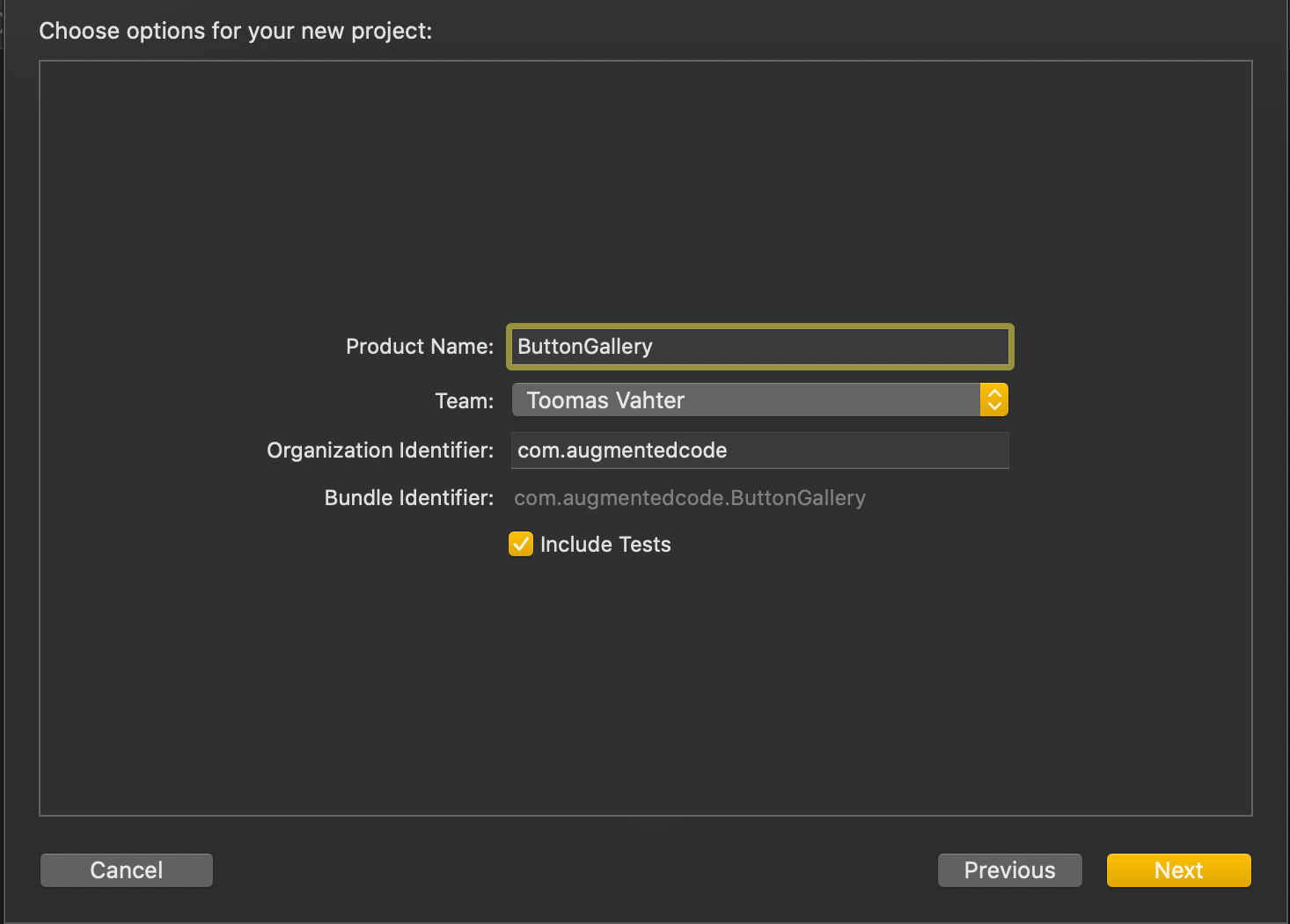
The app project will have a name “ButtonGallery” and the Swift package will have a name “ButtonKit”. But first, let’s create a folder named “SwiftPackageAppWorkspace” which is the root folder of the project. The app project and the Swift package will go to that folder in separate folders.

Adding the workspace, the app project, and the Swift package

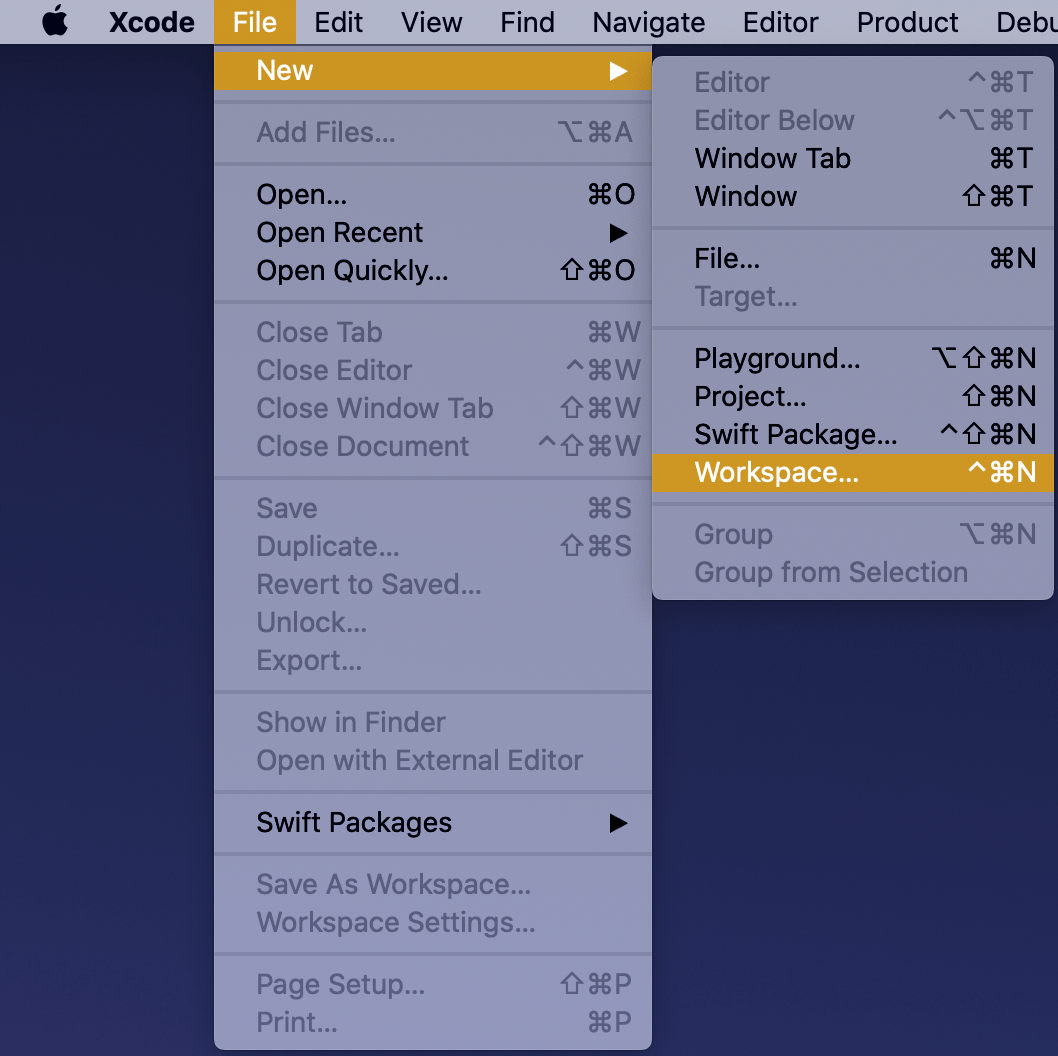
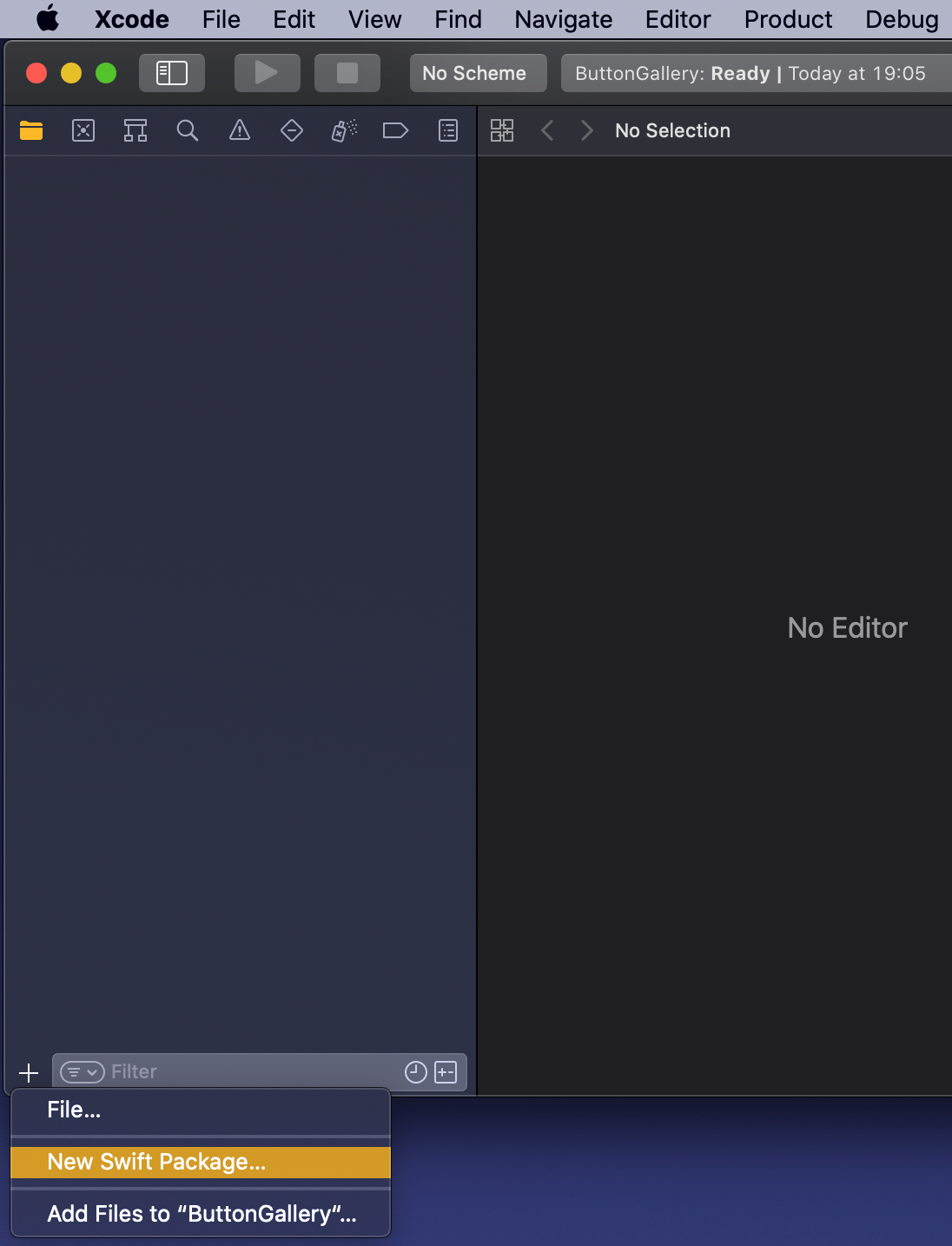
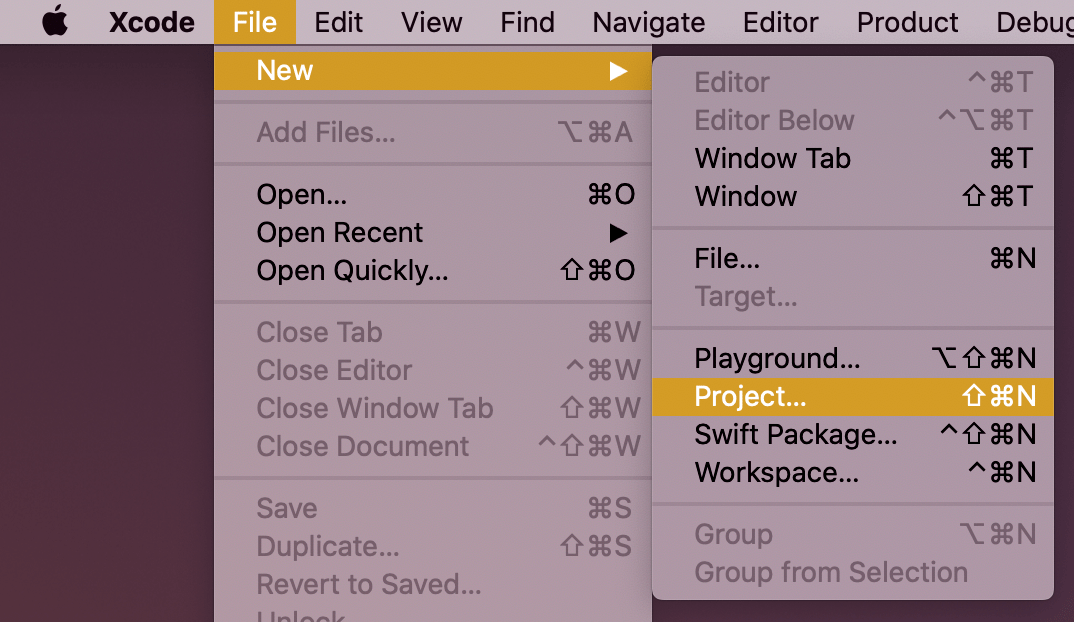
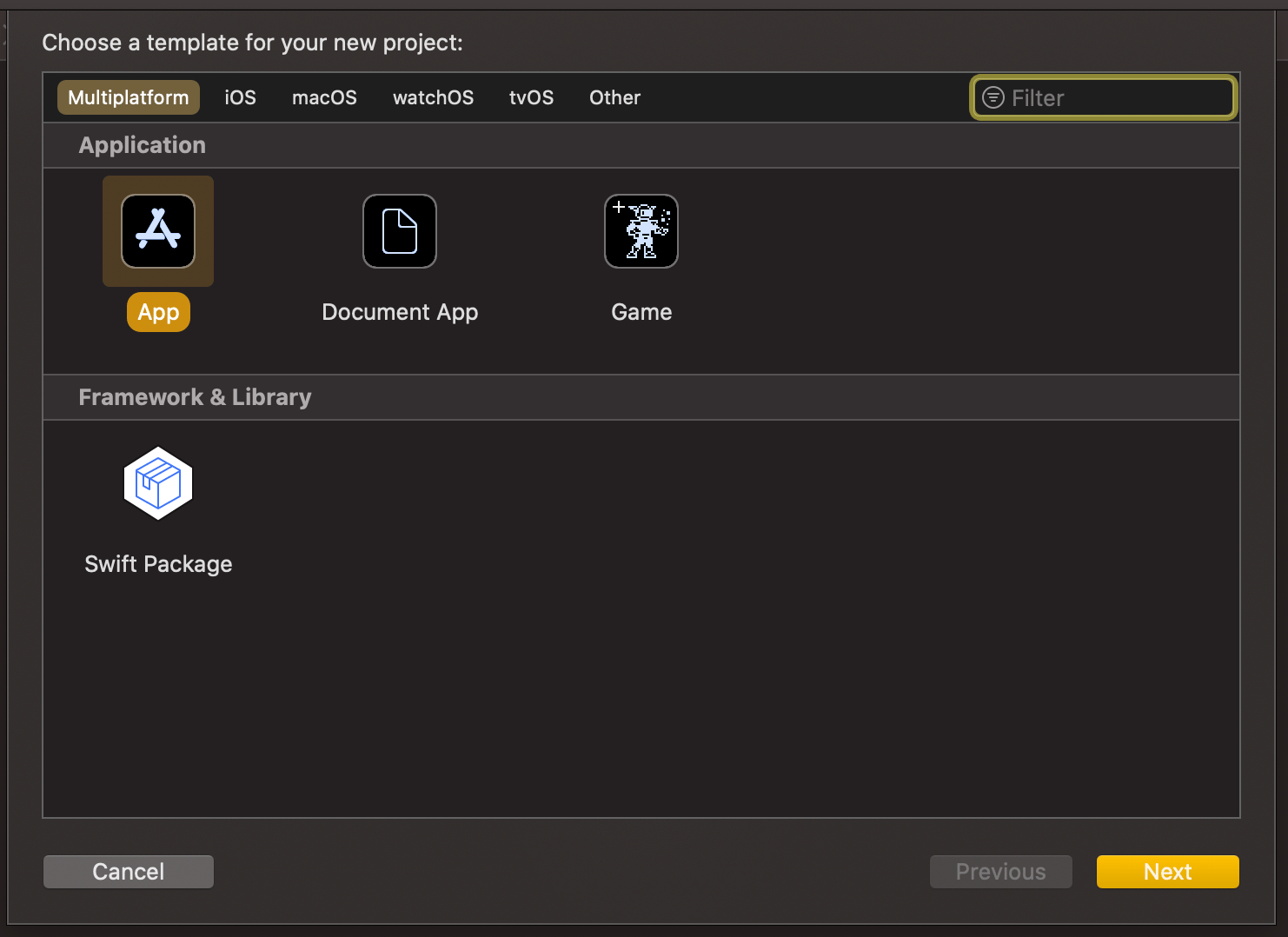
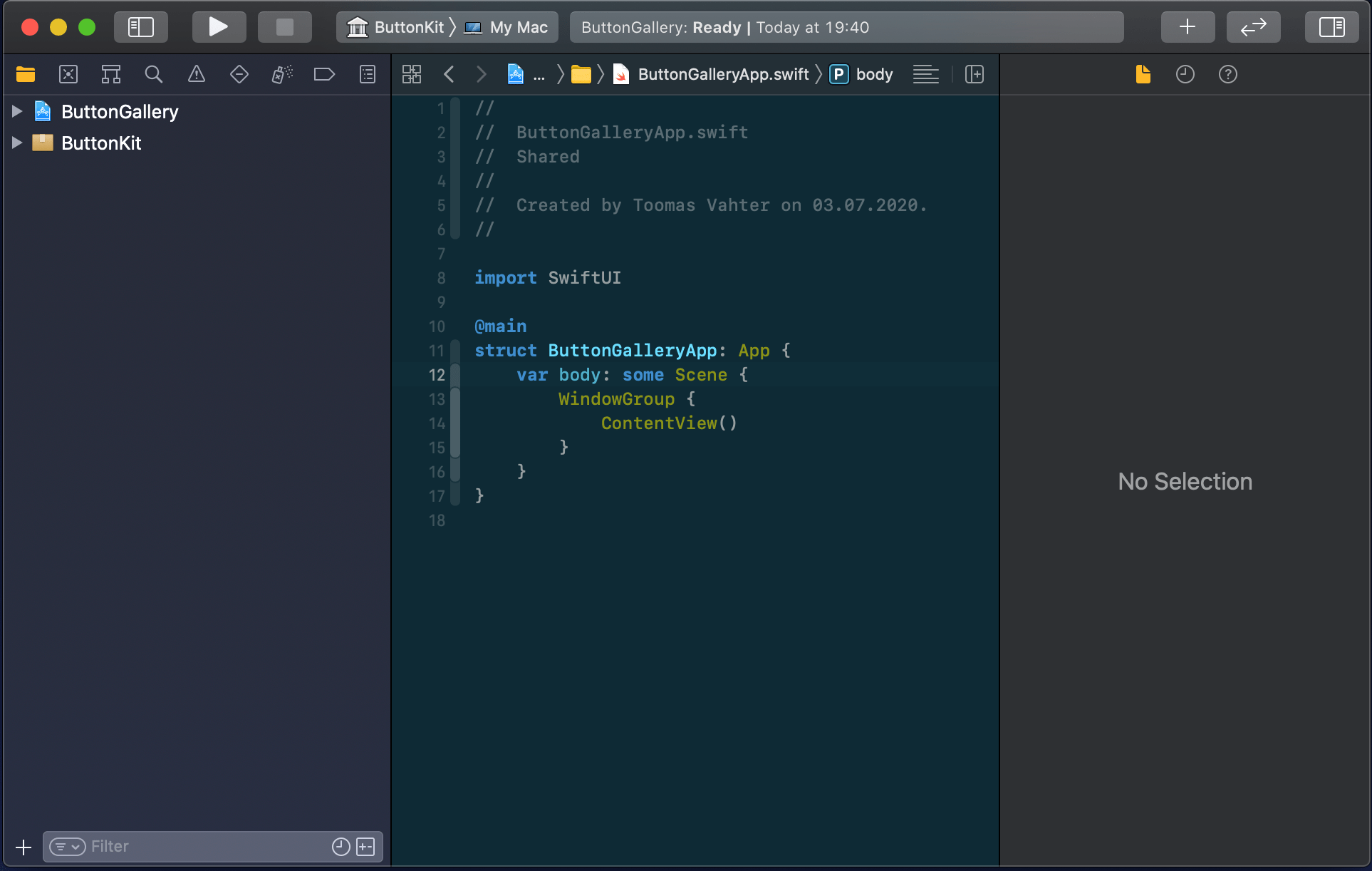
New workspace can be created by selecting the Workspace menu item in File>New menu in the Xcode. Save the workspace in the “SwiftPackageAppWorkspace” folder what we created just before. Xcode opens the created workspace after clicking on save and then the next step is to add a new Swift package. Easiest is to use the plus button at the bottom of the left corner, selecting “New Swift Package”, and saving the package in the “SwiftPackageAppWorkspace” folder. Uncheck the option on the save panel for creating a git repository because the git repository should be added in the “SwiftPackageAppWorkspace” instead (we skipped this step). Third step is to add the app project by using File>New menu. Xcode also offers an option to add the new project to the workspace. Therefore make sure “Add to” and “Group” have the workspace selected on the save panel. Described steps are shown below.

Selecting a new workspace in the main menu.
Using the plus button in the workspace for creating a new package.
Saving Swift package in the root folder.
Adding a new Xcode project.
Selecting template for the project.
Adding a name to the app project.
Saving a new app project and adding to an existing workspace.
Workspace with a Swift package and an app project.

Linking the Swift package in the app project

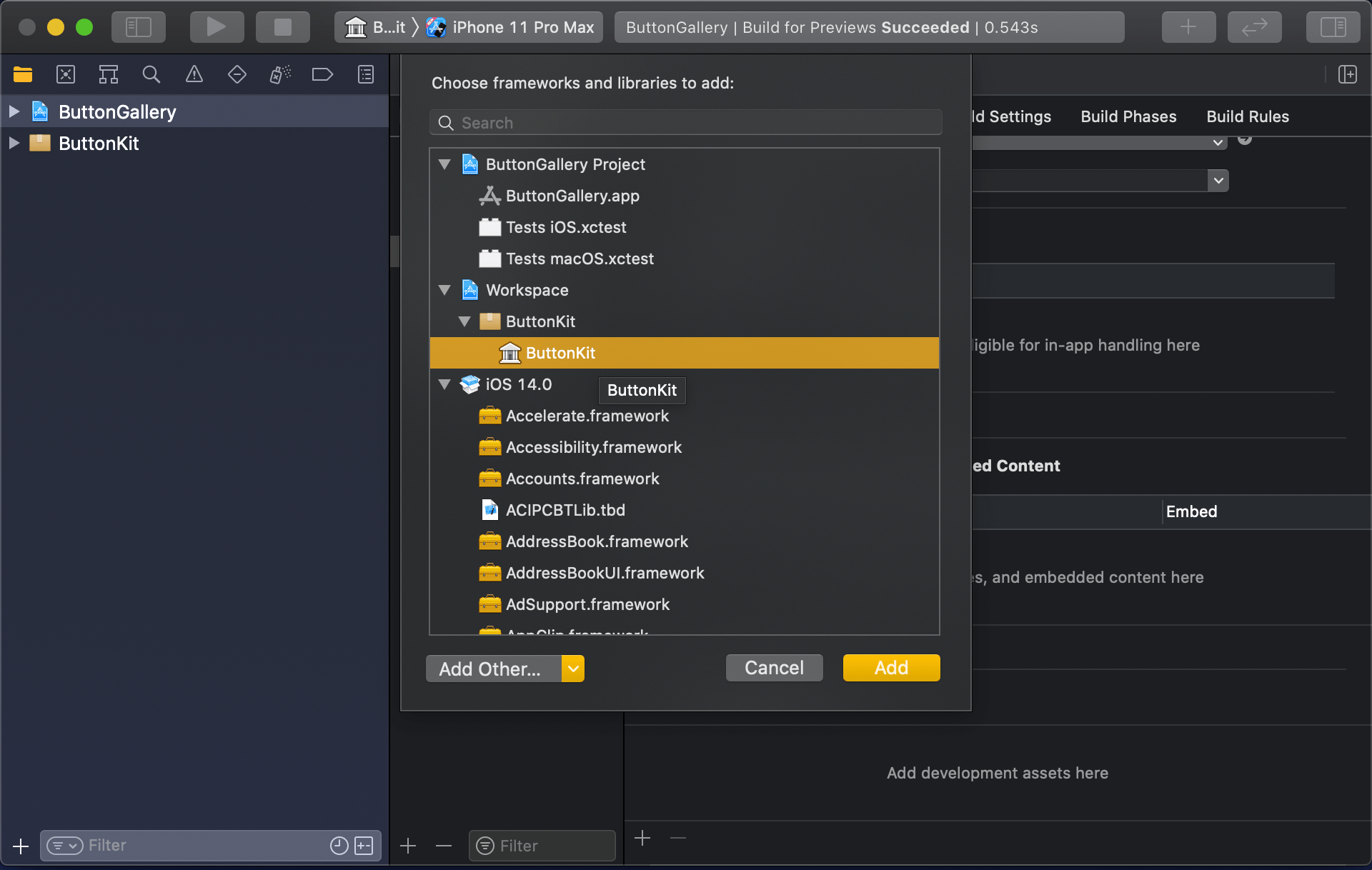
Swift package needs to be added to the app target: select “ButtonGallery” in the project navigator, click on the iOS target, General, and then on the plus button in the “Frameworks, Libraries, and Embedded Content” section, select the “ButtonKit” library.

Navigating to iOS target’s general settings.
Linking with the ButtonKit.

Now the workspace is configured but there is not any useful code in the “ButtonKit”. Let’s fix that next and add a FunkyButtonStyle.swift to the package and set minimum platforms in the package manifest because we’ll use SwiftUI in the implementation and it has minimum platform requirements. Because FunkyButtonStyle is in a separate module and by default access control is set to internal, then we’ll need to make it public before it can be imported to the app target.

// swift-tools-version:5.3
import PackageDescription
let package = Package(
name: "ButtonKit",
platforms: [
.iOS(.v14), .macOS(.v10_15)
],
products: [
.library(
name: "ButtonKit",
targets: ["ButtonKit"]),
],
targets: [
.target(
name: "ButtonKit", dependencies: []),
.testTarget(name: "ButtonKitTests", dependencies: ["ButtonKit"]),
]
)
view raw Package.swift hosted with ❤ by GitHub
import SwiftUI
public struct FunkyButtonStyle: ButtonStyle {
public init() {}
public func makeBody(configuration: Self.Configuration) -> some View {
configuration.label.padding()
.background(Color.red)
.cornerRadius(16)
.foregroundColor(.white)
}
}
import ButtonKit
import SwiftUI
struct ContentView: View {
var body: some View {
Button("Title", action: tap).buttonStyle(FunkyButtonStyle())
}
func tap() {
print("Tapped")
}
}
ContentView in the app target which imports ButtonKit and uses its FunkyButtonStyle.

Summary

We created a new workspace what contains a Swift package and an app project. We looked into how to provide functionality in the package and making it available for the main app target.

If this was helpful, please let me know on Mastodon@toomasvahter or Twitter @toomasvahter. Feel free to subscribe to RSS feed. Thank you for reading.

Project

SwiftPackageAppWorkspace (Xcode 12b1)

Categories
AppKit iOS macOS SignalPath Swift SwiftUI UIKit

Signal Path 2.0 for iOS and macOS is available now!

I am happy to announce that Signal Path 2.0 is available now for macOS and iOS. Signal Path uses Apple’s universal purchase offering – buy it once for both platforms.

Signal Path 2.0 on the App Store

Past, present, and future

I spent a lot of time architecting both apps in a way that they reuse as much functionality as possible: from Metal pipelines to view models powering the UI. Most of the UI is written in SwiftUI, but there are a couple of views using UIKit (iOS) and AppKit (macOS) directly. Now when the groundwork is done, every next release will offer the same core functionality on both platforms and also integrating OS specific features. Future is bright, give Signal Path a try!

What is Signal Path

Signal Path is the most performant spectrum viewing app with beautiful user interface. You can record audio spectrums using microphone or open large recordings containing I/Q data. Read more about Signal Path.

Categories
iOS macOS Swift Xcode

Performance testing using XCTMetric

XCTMetric enables creating tests with measure blocks collecting information about CPU, memory and disk. In this post we’ll write UI-tests measuring a button tap what triggers writing to disk, allocating larger amount of memory and applying filters what requires CPU to do more work. It should be noted that XCTMetric can also be used in unit-tests.

Method under the test

The method we are going to write performance tests against is a simple method dealing with loading an image, writing data to disk, applying CIFilter and writing processed image to disk. In this example case, everything runs on a main thread what probably would not be a case in a real application.

@IBAction func process(_ sender: Any) {
	let image = UIImage(named: "Image")!
	imageStorage.store(image, filename: "original")
        
	let processedImage = ImageProcessor.processImage(image)
	imageStorage.store(image, filename: "processed")
	processedImageView.image = processedImage
}

XCTClockMetric for measuring taken time

XCTClockMetric is for measuring time taken by the block. Useful for catching regressions in longer running operations.

func testCalculateWithClockMetric() {
	let app = XCUIApplication()
	app.launch()
	measure(metrics: [XCTClockMetric()]) {
		app.buttons["Process"].tap()
	}
}

XCTCPUMetric for measuring CPU utilization

XCTCPUMetric measures CPU activity and output 3 different results: CPU time, CPU cycles and CPU instructions retired. CPUs have a feature called speculative execution what means that more instructions are completed than the actual program flow requires. Retired instructions are the instructions which were actually needed by the flow of the program. This feature speeds up the program execution as CPU can process data ahead of time. Example case would be if else where CPU processes both branches but only one branch is valid in the program flow.

func testCalculateWithCPUMetric() {
	let app = XCUIApplication()
	app.launch()
	measure(metrics: [XCTCPUMetric(application: app)]) {
		app.buttons["Process"].tap()
	}
}

XCTMemoryMetric for measuring allocated memory

XCTMemoryMetric measures allocated physical memory useful for testing operation allocating significant amount of memory (processing images).

func testCalculateWithMemoryMetric() {
	let app = XCUIApplication()
	app.launch()
	measure(metrics: [XCTMemoryMetric(application: app)]) {
		app.buttons["Process"].tap()
	}
}

XCTStorageMetric for measuring disk usage

XCTStorageMetric measures bytes written to the disk.

func testCalculateWithStorageMetric() {
	let app = XCUIApplication()
	app.launch()
	measure(metrics: [XCTStorageMetric(application: app)]) {
		app.buttons["Process"].tap()
	}
}

XCTOSSignpostMetric for measuring time between signposts

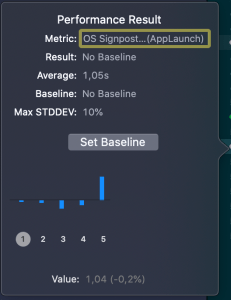
Apple provides signpost metric for application launch time for making it easy to add performance test measing launch time. In WWDC’19 session “Optimizing app launch” the suggested goal is 400 ms which is the duration of the app launch animation. XCTOSSignpostMetric has initializer for custom signpost as well.

func testLaunchPerformance() {
	if #available(macOS 10.15, iOS 13.0, tvOS 13.0, *) {
		measure(metrics: [XCTOSSignpostMetric.applicationLaunch]) {
			XCUIApplication().launch()
		}
	}
}

Summary

XCTMetric enables writing performance tests for performance critical parts of the application. We took a look at CPU, memory, storage and signpost metrics.

If this was helpful, please let me know on Mastodon@toomasvahter or Twitter @toomasvahter. Feel free to subscribe to RSS feed. Thank you for reading.

Example

MeasuringInTests (Xcode 11.3)

Categories
macOS Swift SwiftUI

Injecting dependencies using environment values and keys in SwiftUI

Instead of initializing SwiftUI views with dependencies, SwiftUI also offers other ways for injecting dependencies. This time let’s take a look on EnvironmentKey which defines a key for inserting objects to environment and vise-versa. We need to create a EnvironmentKey, adding an object to environment and then getting the object in SwiftUI view.

Creating EnvironmentKey and extending EnvironmentValues

Example object we use is DependencyManager what in real app can contains loads of dependencies. EnvironmentKey is a protocol in SwiftUI what requires to define associated type and default value. Default value is used when we have not explicitly inserted an instance of DependencyManager to the environment, more about it a little bit later. EnvironmentValues is a struct containing a collection of environment objects. We’ll add a property to EnvironmentValues which later will be used by @Environment property wrapper and also when setting an instance of the object to the environment.

import Foundation
import SwiftUI
struct DependencyManager {
let identifier: String
let urlSession = URLSession.shared
}
struct DependencyManagerKey: EnvironmentKey {
typealias Value = DependencyManager
static var defaultValue = DependencyManager(identifier: "Default created by environment")
}
extension EnvironmentValues {
var dependencyManager: DependencyManager {
get {
return self[DependencyManagerKey.self]
}
set {
self[DependencyManagerKey.self] = newValue
}
}
}
Custom EnvironmentKey and EnvironmentValues extension for accessing dependencies

Inserting objects to environment

If we would like to insert a DependencyManager to the Environment, we can use func environment(_ keyPath: WritableKeyPath, _ value: V) -> some View using our DependencyManagerKey and an instance created by us. If we do not insert our own, SwiftUI will use the instance returned by defaultValue when the key is first time accessed.

// Setting non-default instance of DependencyManager, otherwise default instance is used created in DependencyManagerKey
let dependencyManager = DependencyManager(identifier: "Scene delegate created")
let contentView = ContentView().environment(\.dependencyManager, dependencyManager)
Setting instance of DependencyManager to SwiftUI environment

Getting objects from environment

Objects can be read from the environment using @Environment property wrapper and specifing the EnvironmentKey.

import SwiftUI
struct ContentView: View {
@Environment(\.dependencyManager) var dependencyManager: DependencyManager
var body: some View {
Text(dependencyManager.identifier)
}
}
Accessing the instance of DependencyManager in environment

Summary

We created an environment key and inserted an object into environment. We looked into how SwiftUI handles default values for environment objects and used @Environment property wrapper for getting the instance from the environment using the created key.

If this was helpful, please let me know on Mastodon@toomasvahter or Twitter @toomasvahter. Feel free to subscribe to RSS feed. Thank you for reading.

Categories
Foundation Generics iOS macOS Swift

Persistent reusable container for item collections in Swift

Let’s build a container where we can store collections of items conforming to a protocol. All the collections are identified by a case in enum. For making the container reusable, we’ll use protocols as requirements on keys and items in collections. Moreover, the container should be archivable and unarchivable.

Creating a reusable container

Container’s implementation wraps a dictionary and adds methods for conveniently adding an item for key. Key must implement Hashable and RawRepresentable: then it can be used in Dictionary and converting it to representation suitable for storing on disk.

Every item needs to implement ContainerItem protocol what requires to implement methods used when archiving and unarchiving the item. Thanks to Codable protocol in Swift, it is very simple to transform the item to data and back. ContainerItem provides default implementations for its own methods when the type is conforming to Codable. Therefore, when some type wants to implement ContainerItem, then it only needs to conform to ContainerItem and Codable and default implementations will do the rest.

final class Container<Key: Hashable & RawRepresentable> {
private var storage = [Key: [ContainerItem]]() {
didSet {
didChange()
}
}
init(content: [Key: [ContainerItem]] = [:]) {
storage = content
}
func add(_ item: ContainerItem, key: Key) {
if var current = storage[key] {
current.append(item)
storage[key] = current
}
else {
storage[key] = [item]
}
}
func items<T: ContainerItem>(forKey key: Key) -> [T] {
guard let all = storage[key] else { return [] }
return all as! [T]
}
var didChange: () -> Void = {}
}
protocol ContainerItem {
init?(jsonData: Data)
var jsonDataRepresentation: Data { get }
}
extension ContainerItem where Self: Codable {
init?(jsonData: Data) {
guard let object = try? JSONDecoder().decode(Self.self, from: jsonData) else { return nil }
self = object
}
var jsonDataRepresentation: Data {
return try! JSONEncoder().encode(self)
}
}
Reusable container storing collections of items

Archiving and unarchiving the container and it’s content

Let’s first extend the container with write method. As enum cases are used as keys in dictionary, then let’s implement write method for enums what have String as RawValue. (what should be a preferred way in this use case as its provides the most readable representation of the key). We can then map dictionary entries so that key is converted to String and value to array of JSON data objects. NSKeyedArchiver provides a simple way of storing Dictionary with archivable types (like String and array of Data).

For initialising the container from data on disk, we need to make sure that we convert JSON data back to the correct type. Therefore we can extend the container for this specific enum case and converting data back to the correct type. When using enums it is easy to switch over the possible cases and then converting list of data objects to list of known types.

struct EventItem: ContainerItem, Codable {
let date: Date
let title: String
let description: String
}
struct NoteItem: ContainerItem, Codable {
let text: String
}
enum CalendarKeys: String {
case homeEvents, workEvents, notes
}
extension Container where Key == CalendarKeys {
convenience init(contentsOfURL url: URL) throws {
let data = try Data(contentsOf: url)
let contents = try NSKeyedUnarchiver.unarchiveTopLevelObjectWithData(data) as! [Key.RawValue: [Data]]
let converted = contents.compactMap({ (keyValuePair) -> (Key, [ContainerItem])? in
guard let key = Key(rawValue: keyValuePair.key) else { return nil }
switch key {
case .homeEvents, .workEvents:
return (key, keyValuePair.value.compactMap({ EventItem(jsonData: $0) }))
case .notes:
return (key, keyValuePair.value.compactMap({ NoteItem(jsonData: $0) }))
}
})
self.init(content: Dictionary(uniqueKeysWithValues: converted))
}
}
extension Container where Key.RawValue == String {
func write(to url: URL) throws {
let converted = storage.map { (keyValuePair) -> (String, [Data]) in
return (keyValuePair.key.rawValue, keyValuePair.value.map({ $0.jsonDataRepresentation }))
}
let data = try NSKeyedArchiver.archivedData(withRootObject: Dictionary(uniqueKeysWithValues: converted), requiringSecureCoding: false)
try data.write(to: url, options: .atomicWrite)
}
}
Providing methods for archiving and unarchiving

Summary

Wrapping dictionary with another type can be useful inmany cases where we have a known list of keys. Specialising generic types is an efficient way of adding more features to it and keeping type information intact. Thanks to Codable protocol we were able to make types archivable and unarchivable.

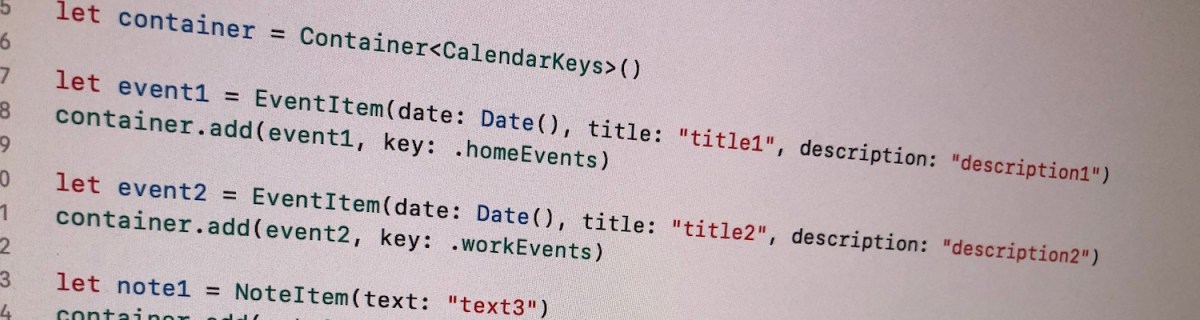
let container = Container<CalendarKeys>()
let event1 = EventItem(date: Date(), title: "title1", description: "description1")
container.add(event1, key: .homeEvents)
let event2 = EventItem(date: Date(), title: "title2", description: "description2")
container.add(event2, key: .workEvents)
let note1 = NoteItem(text: "text3")
container.add(note1, key: .notes)
let homeEvents: [EventItem] = container.items(forKey: .homeEvents)
let workEvents: [EventItem] = container.items(forKey: .workEvents)
let notes: [NoteItem] = container.items(forKey: .notes)
let url = URL(fileURLWithPath: NSTemporaryDirectory()).appendingPathComponent("Test")
do {
try container.write(to: url)
}
catch {
print(error as NSError)
}
do {
let restoredContainer = try Container<CalendarKeys>(contentsOfURL: url)
let homeEvents: [EventItem] = restoredContainer.items(forKey: .homeEvents)
let workEvents: [EventItem] = restoredContainer.items(forKey: .workEvents)
let notes: [NoteItem] = restoredContainer.items(forKey: .notes)
print("Home events: ", homeEvents)
print("Work events: ", workEvents)
print("Notes: ", notes)
}
catch {
print(error as NSError)
}
Example usage of the container

If this was helpful, please let me know on Mastodon@toomasvahter or Twitter @toomasvahter. Feel free to subscribe to RSS feed. Thank you for reading.

Example

PersistentGenericContainer (Xcode 11.1)

Categories
iOS LinkPresentation macOS Swift UIKit

Loading URL previews using LinkPresentation framework in Swift

iOS and macOS got a new framework in WWDC’19 named LinkPresentation. LinkPresentation enables fetching URL previews.

Adding LPLinkView for presenting preview

LPLinkView is a view subclass meant for rendering LPLinkMetadata. LPLinkMetadata contains information about the link: title, icon, image, video.

import LinkPresentation
let linkView = LPLinkView(metadata: LPLinkMetadata())
linkView.translatesAutoresizingMaskIntoConstraints = false
stackView.insertArrangedSubview(linkView, at: 0)
Adding LPLinkView to stack view

Fetching previews with LPMetadataProvider

Instances of LPLinkMetadata are fetched using LPLinkMetadataProvider for a given url. LPLinkMetadata is conforming to NSSecureCoding what enables a way of converting it to Data and storing the metadata on disk. Next time we need metadata for this url, we can use a locally cached data instead. Archiving and unarchiving is done with help of NSKeyedArchiver and NSKeyedUnarchiver and in the example archived data is stored in UserDefaults. In real apps it makes sense to store the data in separate files instead and not polluting UserDefaults with preview data.

private let metadataStorage = MetadataStorage()
private lazy var metadataProvider = LPMetadataProvider()
private weak var linkView: LPLinkView?
@IBAction func loadPreview(_ sender: UIButton) {
if let text = textField.text, let url = URL(string: text) {
// Avoid fetching LPLinkMetadata every time and archieve it disk
if let metadata = metadataStorage.metadata(for: url) {
linkView?.metadata = metadata
return
}
metadataProvider.startFetchingMetadata(for: url) { [weak self] (metadata, error) in
if let error = error {
print(error)
}
else if let metadata = metadata {
DispatchQueue.main.async { [weak self] in
self?.metadataStorage.store(metadata)
self?.linkView?.metadata = metadata
}
}
}
}
}
Fetching and caching LPMetadata
struct MetadataStorage {
private let storage = UserDefaults.standard
func store(_ metadata: LPLinkMetadata) {
do {
let data = try NSKeyedArchiver.archivedData(withRootObject: metadata, requiringSecureCoding: true)
var metadatas = storage.dictionary(forKey: "Metadata") as? [String: Data] ?? [String: Data]()
while metadatas.count > 10 {
metadatas.removeValue(forKey: metadatas.randomElement()!.key)
}
metadatas[metadata.originalURL!.absoluteString] = data
storage.set(metadatas, forKey: "Metadata")
}
catch {
print("Failed storing metadata with error \(error as NSError)")
}
}
func metadata(for url: URL) -> LPLinkMetadata? {
guard let metadatas = storage.dictionary(forKey: "Metadata") as? [String: Data] else { return nil }
guard let data = metadatas[url.absoluteString] else { return nil }
do {
return try NSKeyedUnarchiver.unarchivedObject(ofClass: LPLinkMetadata.self, from: data)
}
catch {
print("Failed to unarchive metadata with error \(error as NSError)")
return nil
}
}
}
Local LPMetadata storage using UserDefaults as storage

Summary

LinkPresentation framework adds a easy way of fetching previews for web pages. It provides a LPLinkView class making it extremely easy to render the preview.

If this was helpful, please let me know on Mastodon@toomasvahter or Twitter @toomasvahter. Feel free to subscribe to RSS feed. Thank you for reading.

Example Project

LinkPresentationView (Xcode 11 GM)