Categories
Combine Foundation iOS Swift SwiftUI Xcode

Validating string in TextField with NumberFormatter in SwiftUI

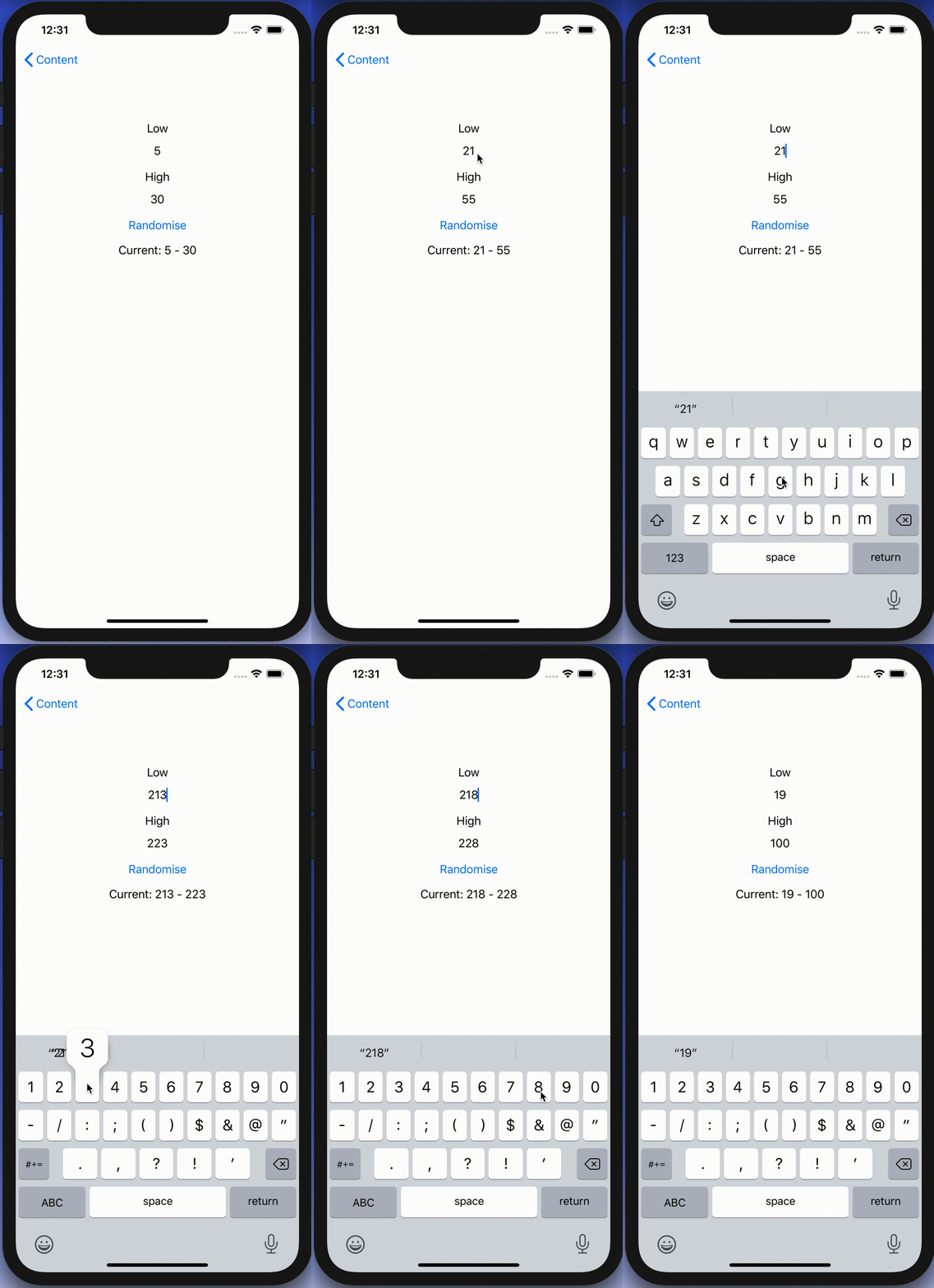
I was looking into creating a view which has TextField with NumberFormatter. Typed text would show up in a separate label and when trying to enter non-numbers, the TextField would reject those characters. Although TextField component in SwiftUI has generic initialiser init(_:value:formatter:onEditingChanged:onCommit:) it does not seem to do what we need. Value binding does not update while typing, non-number characters are not discarded, and string is not reloaded when view reloads with different model data. Therefore, I decided to create a wrapper around TextField which deals with transforming numbers to strings and implements all the before mentioned features.

End result after creating a custom NumberTextField.

Content view with temperature limits

Example use-case is basic view for editing temperature limits where model type will force high value to be at least 10 units higher compared to low value. The model type also have separate properties for getting NSNumber instances what we use later (such conversion could also happen on SwiftUI level).

struct TemperatureLimits {
var low: Int = 5 {
didSet {
let high = max(self.high, low + 10)
guard self.high != high else { return }
self.high = high
}
}
var high: Int = 30 {
didSet {
let low = min(self.low, high – 10)
guard self.low != low else { return }
self.low = low
}
}
var lowNumber: NSNumber {
get { NSNumber(value: low) }
set { low = newValue.intValue }
}
var highNumber: NSNumber {
get { NSNumber(value: high) }
set { high = newValue.intValue }
}
}
Model type storing temperature limits which are forced to have 10 unit difference.

Content view has text fields, button for randomising limits and label for displaying current values. NumberTextField is a custom view which implements all the features what we listed in the beginning of the post.

import Combine
import SwiftUI
struct FormatterView: View {
@State var limits: TemperatureLimits
var body: some View {
VStack(spacing: 16) {
VStack {
Text("Low")
NumberTextField("Low", value: $limits.lowNumber, formatter: NumberFormatter.decimal)
}
VStack {
Text("High")
NumberTextField("High", value: $limits.highNumber, formatter: NumberFormatter.decimal)
}
Button(action: {
self.limits.low = Int.random(in: 0…40)
self.limits.high = Int.random(in: 50…100)
}, label: {
Text("Randomise")
})
Text("Current: \(limits.low) – \(limits.high)")
Spacer()
}.padding()
.multilineTextAlignment(.center)
}
}
extension NumberFormatter {
static var decimal: NumberFormatter {
let formatter = NumberFormatter()
formatter.allowsFloats = false
return formatter
}
}
View with custom NumberTextFields bound to temperature limits.

Creating NumberTextField with NSNumber binding and NumberFormatter

NumberTextField is a wrapper around TextField and internally handles NSNumber to String and String to NSNumber transformations. Transformations happen inside a separate class called StringTransformer which stores editable string in @Published property. @Published property is first populated with string value by transforming NSNumber to String using the formatter. Changes made by user are captured by subscribing to stringValue publisher (@Published properties provide publishers). String to NSNumber transformation is tried when user edits the string: if successful, NSNumber is send back to model using the value binding, if fails, stringValue is set back to previous value. Note that dropFirst skips initial update when setting up sink and receive operator is used for scheduling updates at later time when SwiftUI has finished current layout update cycle.

struct NumberTextField: View {
init(_ title: String, value: Binding<NSNumber>, formatter: NumberFormatter) {
self.title = title
self.stringTransformer = StringTransformer(value, formatter: formatter)
}
private let title: String
@ObservedObject private var stringTransformer: StringTransformer
var body: some View {
TextField(title, text: $stringTransformer.stringValue)
}
}
fileprivate extension NumberTextField {
final class StringTransformer: ObservableObject {
private var cancellable: AnyCancellable?
init(_ value: Binding<NSNumber>, formatter: NumberFormatter) {
// NSNumber -> String
stringValue = formatter.string(from: value.wrappedValue) ?? ""
// String -> NSNumber
cancellable = $stringValue.dropFirst().receive(on: RunLoop.main)
.sink(receiveValue: { [weak self] (editingString) in
if let number = formatter.number(from: editingString) {
value.wrappedValue = number
}
else if !editingString.isEmpty {
// Force current model value when editing value is invalid (invalid value or out of range).
self?.stringValue = formatter.string(from: value.wrappedValue) ?? ""
}
})
}
@Published var stringValue: String = ""
}
}
NumberTextField transforming NSNumber to String using NumberFormatter and vice versa.

Summary

TextField’s formatter initialiser does not seem to be operating as expected and therefore we built a custom view. It handles number to string transformations and refreshes the view when string can’t be transformed to number. Hopefully future SwiftUI iterations will fix the init(_:value:formatter:onEditingChanged:onCommit:) initialiser and NumberTextField is not needed at all.

If this was helpful, please let me know on Mastodon@toomasvahter or Twitter @toomasvahter. Feel free to subscribe to RSS feed. Thank you for reading.

Example project

SwiftUIFormattedTextField (Xcode 11.4.1)

Categories
iOS Swift Xcode

Getting started with device framed screenshots for iOS App Store using fastlane

Creating screenshots manually for App Store is time consuming because of the number of devices and localisations. Moreover, as soon as UI changes we would need to update screenshots again. Therefore, it is best to automate the process. One way is to use fastlane and creating nice device framed screenshots with additional localised text. This time we’ll see how to add fastlane to existing project, setting up UI-testing target, scheme for App Store screenshot tests, and framing screenshots with additional text.

End result of a framed screenshot with additional text.

Installing required tools

First step is installing fastlane and as frameit command requires imagemagick, let’s install it now as well. When using homebrew installation goes as: brew install fastlane imagemagick.

Adding UI-testing target

Fastlane uses UI-tests for displaying views and then capturing screenshots. If project does not have UI-testing target set up, then this is the first step. In Xcode, open add target view (File > New > Target), choose UI-Testing Bundle and add it to the project. In our case the testing target’s name is FastlaneAppStoreScreenshotsUITests.

Support files for capturing screenshots

First thing we’ll do with fastlane is running the fastlane snapshot init command in the project folder. It will generate 2 files: Snapfile and SnapshotHelper.swift. First one contains configuration for snapshot command: devices, locales etc. Helper file we’ll move to UI-testing target: first drag it to testing target folder (FastlaneAppStoreScreenshotsUITests) and then to Xcode’s file navigator. Make sure to add it to the UI-testing target. Create subfolder named fastlane and move Snapfile to there. We’ll modify it a little bit later.

Project structure after adding UI-testing target and supporting SnapshotHelper.swift

Adding UI-test case for screenshots

We are going to define tests generating App Store screenshots in a separate XCTestCase. In Xcode, add a new UI-test case class (File > New File > UI-Test Case Class) and name it to AppStoreScreenshotUITests.

Best is when it is possible to record a UI-test which does not need any special configuration: launch the app, tap here and there, take a screeshot. In more complicated apps, we need to use launch arguments and configuring the app when it launches based on the launch arguments. In document based apps it might be needed to bundle example files in the app and then using launch arguments for choosing the file to open when running the test.

Firstly, let’s add 3 UI-tests which will cover 3 different views and calling the function snapshot(“file_name”) which is part of the SnapshotHelper.swift and handles creating screenshots and storing them in the folder specified by Snapfile.

final class AppStoreScreenshotUITests: XCTestCase {
    private var app: XCUIApplication!
    
    override func setUpWithError() throws {
        continueAfterFailure = false
        app = XCUIApplication()
        // Example of passing in launch arguments which can be read in the app
        // by calling CommandLine.arguments.contains("--uitesting")
        // app.launchArguments.append("--uitesting")
        setupSnapshot(app)
        app.launch()
    }

    override func tearDownWithError() throws {
        app = nil
    }

    func testScreenshot1() throws {
        snapshot("1-mainview")
    }
    
    func testScreenshot2() throws {
        XCTAssertTrue(app.buttons["Button1"].waitForExistence(timeout: 10))
        app.buttons["Button1"].tap()
        snapshot("2-sheet1")
    }
    
    func testScreenshot3() throws {
        XCTAssertTrue(app.buttons["Button2"].waitForExistence(timeout: 10))
        app.buttons["Button2"].tap()
        snapshot("3-sheet2")
    }
}

Separate scheme for App Store screenshots

UI-tests are set up for App Store screenshots, next is to add a separate scheme and adding those tests to the Test action. This scheme is the one fastlane is going to use for running tests.

For adding a new scheme, open manage schemes view (Product > Scheme > Manage Schemes). Click on the + button, select the app target and name it to AppStoreScreenshots.

AppStoreScreenshots scheme in Manage Scheme view.

After that, select the scheme and click on the Edit, open Test action and select only App Store tests. Also make sure the Shared checkbox is selected for allowing fastlane to run it.

Selecting tests in Test action for AppStoreScreenshots schemes.

Configuring Snapfile

Snapfile contains configuration for the snapshot command. There we define all the devices, locales, scheme name, location where to store generated screenshots etc. For getting started, we can start with one locale and two devices. We also need to select the scheme we added before.

devices([
   "iPhone X",
   "iPhone 11 Pro Max"
])
languages([
  "en-US",
])
scheme("AppStoreScreenshots")
output_directory("./AppStoreScreenshots")
clear_previous_screenshots(true)

Configuring Fastfile

App Store screen generation contains of two main steps: capturing screenshots and framing those. Fastfile allows us to create custom commands, lanes, and it is useful of adding one for app store screenshots. Create a file named Fastfile and add it to previously created Fastlane folder.

default_platform(:ios)

platform :ios do
  desc 'Generate App Store screenshots'
  lane :app_store_screenshots do
    capture_screenshots(
      clean: true
    )
    frame_screenshots
  end
end

Running fastlane app_store_screenshots will then generate screenshots and create framed versions as well. If you run it now, you’ll get screenshots with and without device frames.

Adding titles and keyword to framed screenshots

Now we have nice framed screenshots, only what is missing is adding some text to all the screenshots. If we ran fastlane app_store_screenshots in the previous step we can see that AppStoreScreenshots folder has appeared and taken screenshots are in the en-US folder. Adding text and background to each of the screenshot requires a couple of steps.

First we’ll create Framefile.json file in the AppStoreScreenshots folder which contains of configuration for frameit.

{
	"device_frame_version": "latest",
	"default": {
		"keyword": {
			"font": "./Fonts/SF-Pro-Display-Medium.otf",
			"color": "#FFFFFF"
		},
		"title": {
			"font": "./Fonts/SF-Pro-Display-Medium.otf",
			"color": "#FFFFFF"
		},
		"padding": 50,
		"show_complete_frame": false,
		"stack_title": true,
		"use_platform": "IOS"
	},
	"data": [ 
		{
			"filter": "mainview",
			"background": "./AppStoreBackgroundPortrait1.jpg"
		},
		{
			"filter": "sheet1",
			"background": "./AppStoreBackgroundPortrait2.jpg"
		},
		{
			"filter": "sheet2",
			"background": "./AppStoreBackgroundPortrait3.jpg"
		}
	]
}

Default dictionary contains shared settings for every frame operation. We can customise by adding data array which contains screenshot specific configuration (more). Filter in data dictionaries are used for matching the configuration to screenshot files (filenames used in UI-tests). In this example we have different backgrounds for every screenshot (background files are in the same AppStoreScreenshots folder). Fonts are configured by adding a path to Framefile.json and storing fonts in a subfolder.

Localised titles and keywords are handled with strings files. We’ll need to add title.strings and keyword.strings to the locale folder, in our case, en-US. Keys in strings files work the same way as filters in Framefile.json, therefore partial match with filename works. Example strings file for title.strings is shown here:

"mainview" = "Title1";
"sheet1" = "Title2";
"sheet2" = "Title3";

I suggest creating strings files with Xcode making sure the file encoding is correct. If we run the fastlane app_store_screenshots command again, we’ll get nice framed screenshots with additional text.

Summary

Automating App Store screenshots with fastlane is not difficult to set up. The most difficult part in this process is writing UI-tests and providing proper data in the app which is highly app specific.

If this was helpful, please let me know on Mastodon@toomasvahter or Twitter @toomasvahter. Feel free to subscribe to RSS feed. Thank you for reading.

Example project

FastlaneAppStoreScreenshots (Xcode 11.4)

Categories
iOS Swift SwiftUI

Revealing content behind keyboard in SwiftUI

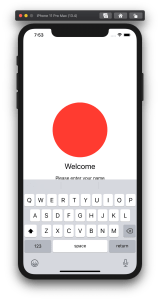
By default SwiftUI view content gets behind a keyboard when editing text. Therefore let’s create a view modifier which can be easily added to any SwiftUI view and enables revealing content behind the keyboard with animation. In the end we will fix this broken looking view where TextField is behind the keyboard.

SwiftUI view with open keyboard hiding text field.

Observing keyboard notifications

I wrote about keyboard notifications a while ago in “Observing keyboard visibility on iOS”. We’ll also create a class named KeyboardObserver and its responsibility is to observe keyboardWillChangeFrameNotification, keyboardWillShowNotification and keyboardWillHideNotification and extracting values from the notification’s userInfo. In addition, we’ll add Info struct which holds animation duration, curve and end frame. Note that user info contains more values but we are only interested in those. With this set, we can subscribe to KeyboardObserver and get notified when keyboard changes. Next step is to use those values and reserving space for keyboard in SwiftUI view.

fileprivate final class KeyboardObserver: ObservableObject {
    struct Info {
        let curve: UIView.AnimationCurve
        let duration: TimeInterval
        let endFrame: CGRect
    }
    
    private var observers = [NSObjectProtocol]()
    
    init() {
        let handler: (Notification) -> Void = { [weak self] notification in
            self?.keyboardInfo = Info(notification: notification)
        }
        let names: [Notification.Name] = [
            UIResponder.keyboardWillShowNotification,
            UIResponder.keyboardWillHideNotification,
            UIResponder.keyboardWillChangeFrameNotification
        ]
        observers = names.map({ name in
            NotificationCenter.default.addObserver(forName: name,
                                                   object: nil,
                                                   queue: .main,
                                                   using: handler)
        })
    }

    @Published var keyboardInfo = Info(curve: .linear, duration: 0, endFrame: .zero)
}

fileprivate extension KeyboardObserver.Info {
    init(notification: Notification) {
        guard let userInfo = notification.userInfo else { fatalError() }
        curve = {
            let rawValue = userInfo[UIResponder.keyboardAnimationCurveUserInfoKey] as! Int
            return UIView.AnimationCurve(rawValue: rawValue)!
        }()
        duration = userInfo[UIResponder.keyboardAnimationDurationUserInfoKey] as! TimeInterval
        endFrame = userInfo[UIResponder.keyboardFrameEndUserInfoKey] as! CGRect
    }
}

Creating view modifier

View modifiers in SwiftUI transform the original view and return a new version of the original view. In the view modifier we’ll observe KeyboardObserver and add bottom padding to the original view based on the keyboard height and current safeAreaInsets. In addition, we’ll wrap it into animation block which tells SwiftUI to animate changes.

struct KeyboardVisibility: ViewModifier {
    @ObservedObject fileprivate var keyboardObserver = KeyboardObserver()

    func body(content: Content) -> some View {
        GeometryReader { geometry in
            withAnimation() {
                content.padding(.bottom, max(0, self.keyboardObserver.keyboardInfo.endFrame.height - geometry.safeAreaInsets.bottom))
                    .animation(Animation(keyboardInfo: self.keyboardObserver.keyboardInfo))
            }
        }
    }
}

fileprivate extension Animation {
    init(keyboardInfo: KeyboardObserver.Info) {
        switch keyboardInfo.curve {
        case .easeInOut:
            self = .easeInOut(duration: keyboardInfo.duration)
        case .easeIn:
            self = .easeIn(duration: keyboardInfo.duration)
        case .easeOut:
            self = .easeOut(duration: keyboardInfo.duration)
        case .linear:
            self = .linear(duration: keyboardInfo.duration)
        @unknown default:
            self = .easeInOut(duration: keyboardInfo.duration)
        }
    }
}

The view modifier uses GeometryReader for reading safeAreaInsets. It’s important to take this into account when keyboard is open, otherwise there will be unnecessary spacing.

View modifiers can be added to a view by using modifier function and passing an instance of view modifier to it. We’ll add a convenience method for it.

extension View {
    func keyboardVisibility() -> some View {
        return modifier(KeyboardVisibility())
    }
}

Using view modifier

Next step is to adding the view modifier to a content view. The view modifier should be added to the root view and it is recommended to use ScrollView for making sure all the content is viewable when keyboard is open. It’s time to fix the view mentioned in the beginning of the post. We’ll add keyboardVisibility view modifier to the root view.

struct ContentView: View {
    @State private var text: String = ""
    
    var body: some View {
        VStack(spacing: 16) {
            Spacer()
            Ellipse().foregroundColor(.red)
                .aspectRatio(contentMode: .fit)
                .frame(height: 200)
            Text("Welcome").font(.title)
            Text("Please enter your name")
            TextField("Name", text: $text)
                .textFieldStyle(RoundedBorderTextFieldStyle())
                .padding()
            Spacer()
        }.keyboardVisibility()
    }
}

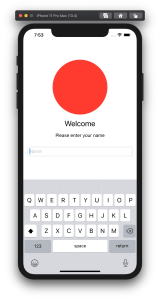
KeyboardVisibility view modifier will make sure the content view has bottom spacing equal to keyboard height and the end result looks like this.

SwiftUI view with keyboard visibility view modifier.

Summary

We created a view modifier which is easy to add to existing views. It observers keyboard notifications and animates the content view along with keyboard.

If this was helpful, please let me know on Mastodon@toomasvahter or Twitter @toomasvahter. Feel free to subscribe to RSS feed. Thank you for reading.

Example project

SwiftUIKeyboardObserver (Xcode 11.4 beta 3)

Categories
iOS Swift SwiftUI

MVVM and @dynamicMemberLookup in Swift

View models in MVVM are responsible of making the model suitable for presenting by a view. Quite often model objects themselves have properties which can be directly presented by the view. SE-0195 added dynamic member lookup types. Using @dynamicMemberLookup we can add all the model object’s properties to the view model itself. Result, model.name is also accessible by calling name on the view model.

View model with @dynamicMemberLookup

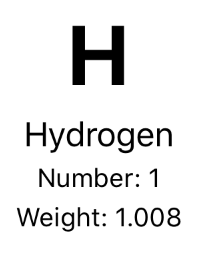
Example app presents chemical element: symbol, name, atomic number, and atomic weight. Model object’s properties which can be displayed without transformations are symbol and name. Atomic number and weight are transformed and label is prepended to a value.

View presenting properties of a chemical element.
struct ChemicalElement {
    let name: String // Hydrogen
    let symbol: String // H
    let atomicNumber: Int // 1
    let atomicWeight: Double // 1.008
}

View model is initialised with an instance of chemical element. What we would like to have is accessing all the data by asking it from view model: viewModel.name, viewModel.symbol, viewModel.numberDescription, viewModel.weightDescription. Dynamic member lookup enables us adding all the model object’s properties to the view model with only some lines of code. It makes a real difference if the model and view model have a way more data than in the current example.

struct ContentView: View {
    let viewModel: ContentViewModel
    
    var body: some View {
        VStack(spacing: 4) {
            Text(viewModel.symbol).font(.system(size: 42)).fontWeight(.bold)
            VStack(spacing: 4) {
                Text(viewModel.name)
                Group {
                    Text(viewModel.numberDescription)
                    Text(viewModel.weightDescription)
                }.font(.footnote)
            }
        }
    }
}

Let’s take a look on the view model. When view model is annotated with @dynamicMemerLookup, we’ll just need to implement one method. This is what is used to passing through model object’s data directly to the view. That is all we need to do for exposing model object’s properties on the view model level.

@dynamicMemberLookup
struct ContentViewModel {
    private let chemicalElement: ChemicalElement
    
    init(chemicalElement: ChemicalElement) {
        self.chemicalElement = element
    }
    
    subscript<T>(dynamicMember keyPath: KeyPath<ChemicalElement, T>) -> T {
        return chemicalElement[keyPath: keyPath]
    }
    
    var numberDescription: String {
        return "Number: \(chemicalElement.atomicNumber)"
    }
    
    var weightDescription: String {
        return "Weight: \(chemicalElement.atomicWeight)"
    }
}

Summary

Dynamic member lookup in Swift is useful addition to MVVM pattern when there is need to expose model’s properties directly to the view. When working with models with many properties, it is very useful.

Please also take a look on MVVM in SwiftUI.

If this was helpful, please let me know on Mastodon@toomasvahter or Twitter @toomasvahter. Feel free to subscribe to RSS feed. Thank you for reading.

Categories
Foundation iOS Swift SwiftUI Xcode

Alert and LocalizedError in SwiftUI

Everything can’t go exactly as planned and therefore, at some point, there is a need for presenting localized error messages to the user. Let’s take a look at how to add custom error type what provides error description, failure reason and recovery suggestion and presenting it in SwiftUI view.

Adding custom error type

Custom error type is needed when we want to propagate errors using Swift’s error handling mechanism. Custom error types need to, at minimum, conform to Error protocol which defines localizedDescription property. If we would like to provide more information to users, including recovery suggestions, then we need to use LocalizedError instead. LocalizedError inherits from Error and defines additional properties which are intended for describing the error further. Note that LocalizedError is very similar to NSError: errorDescription, failureReason, recoverySuggestion, helpAnchor are all represented by NSError.UserInfoKey.

In the example app we’ll use LoginError currently definiing only one error: incorrectPassword.

enum LoginError: LocalizedError {
    case incorrectPassword // invalidUserName etc
    
    var errorDescription: String? {
        switch self {
        case .incorrectPassword:
            return "Failed logging in account"
        }
    }
    
    var failureReason: String? {
        switch self {
        case .incorrectPassword:
            return "Entered password was incorrect"
        }
    }
    
    var recoverySuggestion: String? {
        switch self {
        case .incorrectPassword:
            return "Please try again with different password"
        }
    }
}

Presenting error in SwiftUI

Custom error defined, the next step is to present the error using SwiftUI’s alert view modifier: alert(isPresented:content:). Alert view modifier requires boolean binding and Alert container defining title, optional message, and buttons. In the example below, error is handled by the view model and Alert itself is created using convenience initializer which we’ll look at a bit later. Convenience initializer makes the view implementation more readable and reduces code duplication.

struct ContentView: View {
    @ObservedObject var viewModel: ContentViewModel
    
    var body: some View {
        VStack(spacing: 16) {
            Text("Alert Views")
            Button(action: viewModel.showAlertView) {
                Text("Show Alert View")
            }
        }.alert(isPresented: viewModel.isPresentingAlert, content: {
            Alert(localizedError: viewModel.activeError!)
        })
    }
}

Alert view modifier requires a boolean binding controlling if the alert is visible or not. When alert is dismissed, SwiftUI automatically calls the binding with false, indicating that the alert should not be visible anymore. Note that force unwrap is safe here because view model makes sure isPresentingAlert never returns true when underlying error is nil.

final class ContentViewModel: ObservableObject {
    @Published private(set) var activeError: LocalizedError?

    var isPresentingAlert: Binding<Bool> {
        return Binding<Bool>(get: {
            return self.activeError != nil
        }, set: { newValue in
            guard !newValue else { return }
            self.activeError = nil
        })
    }
        
    func showAlertView() {
        activeError = LoginError.incorrectPassword
    }
}

Boolean binding is created manually and implemented in such way that when activeError is set, isPresentingAlert returns true. When alert is dismissed, set will clear the current active error. This approach makes it simple to handle any errors conforming to LocalizedError in the view model. Like mentioned before, LocalizedError enables us to add detailed information about the alert and we can use that when creating the Alert. Let’s take a look on it next.

extension Alert {
    init(localizedError: LocalizedError) {
        self = Alert(nsError: localizedError as NSError)
    }
    
    init(nsError: NSError) {
        let message: Text? = {
            let message = [nsError.localizedFailureReason, nsError.localizedRecoverySuggestion].compactMap({ $0 }).joined(separator: "\n\n")
            return message.isEmpty ? nil : Text(message)
        }()
        self = Alert(title: Text(nsError.localizedDescription),
                     message: message,
                     dismissButton: .default(Text("OK")))
    }
}

Alert’s extension has initializers both for LocalizedError and NSError. NSError is used a lot in Objective-C frameworks so there is high probability that we need to present NSError in the future as well. Here, we can use Swift language’s built-in support of converting Swift error type to NSError and therefore we can implement convenience method only once for NSError. LocalizedError can be bridged to NSError and Swift compiler takes care of keeping the information about the error. In this implementation, I decided to include both the failureReason and recoverySuggestion when creating the message for Alert. This enables custom error types to choose how much information they provide (choosing which properties return text). Moreover, it is better to show as much information about the error as possible.

LoginError.incorrectPassword presented by Alert in SwiftUI

Summary

We created a custom error type and used LocalizedError instead of Error for making it suitable for displaying as an alert. We looked into how to use alert view modifier and MVVM together and introduced design pattern for easy alert presentation. If you need action sheet, then follow similar steps but use actionSheet view modifier with ActionSheet container.

If this was helpful, please let me know on Mastodon@toomasvahter or Twitter @toomasvahter. Feel free to subscribe to RSS feed. Thank you for reading.

Example project

SwiftUIAlertView (Xcode 11.4 beta 2)

Categories
Combine CoreData iOS Swift SwiftUI WatchOS

Fetching and displaying data on Watch app in SwiftUI

In previous post “Dynamic user notification on Apple Watch with SwiftUI” I was looking into how to add WatchOS app to an existing project and how to create dynamic notifications. This time, I am gonna cover basics how to fetch data from companion iOS app’s CoreData storage using WatchConnectivity framework and displaying the data in SwiftUI view.

Creating session between iOS and WatchOS app

iOS app uses CoreData for storing a list of plants with last and next watering dates. In the current setup, there is no web service and everything is stored locally on device. How to get the data in persistent store to WatchOS app?

We will use WatchConnectivity framework for making iOS and WatchOS app to be aware of each other. Connection is created by activating WCSession both in iOS and WatchOS app. Therefore the first step is to add a class managing WCSession to iOS project, let’s call it WatchConnectivityProvider (later, we’ll add similar class to WatchOS app as well). It’s main responsibility is to set up WCSession and handling WCSessionDelegate which includes fetching data from CoreData store. Therefore, one of the arguments is going to be NSPersistentContainer which gives us access to CoreData stack (access to the performBackgroundTask function).

final class WatchConnectivityProvider: NSObject, WCSessionDelegate {
    private let persistentContainer: NSPersistentContainer
    private let session: WCSession
    
    init(session: WCSession = .default, persistentContainer: NSPersistentContainer) {
        self.persistentContainer = persistentContainer
        self.session = session
        super.init()
        session.delegate = self
    }

WCSession is activated by calling function activate() which will asynchronously activates it. The response of the activitation is returned by session(_:activationDidCompleteWith:error:) delegate method.

func connect() {
	guard WCSession.isSupported() else {
		os_log(.debug, log: .watch, "watch session is not supported")
		return
	}
	os_log(.debug, log: .watch, "activating watch session")
	session.activate()
}
func session(_ session: WCSession, 
             activationDidCompleteWith activationState: WCSessionActivationState, 
             error: Error?) {
	os_log(.debug, 
               log: .watch, 
               "did finish activating session %lu (error: %s)", 
               activationState == .activated, 
               error?.localizedDescription ?? "none") 
}

We’ll add similar class, but with different name, “PhoneConnectivityProvider” to WatchOS extension target. When both classes are created, we’ll need to initialise and call connect. This could be done in SceneDelegate (iOS) and ExtensionDelegate (WatchOS). Note that in iOS app we’ll need to implement two required delegate methods and for now, we can just log when those get called.

func sessionDidBecomeInactive(_ session: WCSession) {
	os_log(.debug, log: .watch, "session became inactive")
}
    
func sessionDidDeactivate(_ session: WCSession) {
	os_log(.debug, log: .watch, "session deactivated")
}

For testing the session we’ll first build and run iOS app and then WatchOS app. If everything goes well, Xcode logs message: “did finish activating session 1 (error: none)”. Meaning, session is up and running and we can send messages between apps. Side note, do not forget to build and run the app where changes were made.

Fetching plants from iOS app

As communication between iOS and WatchOS app relies on dictionaries, then step 1 is to define a set of shared keys what both apps use. This reduces the risk of mistyping keys. Therefore, let’s add a new file and include it in both iOS app target and WatchOS extension target.

struct WatchCommunication {
    static let requestKey = "request"
    static let responseKey = "response"
    
    enum Content: String {
        case allPlants
    }
}

Step 2 is implementing a refreshAllPlants(completionHandler) function in PhoneConnectivityProvider (WatchOS app extension target) which sends a message to iOS app and waits for array of plants. WCSession has a function sendMessage(_:replyHandler:errorHandler:) which we can use for sending a dictionary to iOS app and wait for reply handler. We’ll define the message to have key WatchCommunication.requestKey and the value is raw value of WatchCommunication.Content.allPlants enum case. This schema can be easily expanded later on by adding more cases to the enum. In reply handler we expect to have an array of dictionaries describing all the plants. Let’s take a look on the full implementation for a moment and then discuss how dictionary was converted to Plant value type.

func refreshAllPlants(withCompletionHandler completionHandler: @escaping ([Plant]?) -> Void) {
	guard session.activationState == .activated else {
		os_log(.debug, log: .phone, "session is not active")
		completionHandler(nil)
		return
	}
	let message = [WatchRequest.contentKey: WatchRequest.Content.allPlants.rawValue]
	session.sendMessage(message, replyHandler: { (payload) in
		let plantDictionaries = payload[WatchCommunication.requestKey] as? [[String: Any]]
		os_log(.debug, log: .phone, "received %lu plants", plantDictionaries?.count ?? 0)
            
		let decoder = JSONDecoder()
		decoder.dateDecodingStrategy = .secondsSince1970
		let plants = plantDictionaries?.compactMap({ Plant(dictionary: $0, decoder: decoder) })
		DispatchQueue.main.async {
			completionHandler(plants)
		}
	}, errorHandler: { error in
		os_log(.debug, log: .phone, "sending message failed: %s", error.localizedDescription)
	})
}

iOS app deals with CoreData and Plant type is NSManagedObject subclass. WatchOS app extension defines its own Plant value type because it does not have CoreData stack. For converting dictionary to value type we can use approach described in “Storing struct in UserDefault”. Only addition is configuring the JSONDecoder to use dateDecodingStrategy secondsSince1970. Reason is that we’ll going to store dates as seconds since 1970. Converting dictionary to value type involves using JSONSerialization and it supports only NSString, NSNumber, NSArray, NSDictionary, or NSNull.

// Plant value type in WatchOS app extension
struct Plant: Identifiable, Decodable, DictionaryDecodable {
    let id: String
    let name: String
    let lastWateringDate: Date
    let nextWateringDate: Date
}
// Plant class in iOS app
final class Plant: NSManagedObject, Identifiable {
    @NSManaged var id: String
    @NSManaged var name: String
    
    @NSManaged var lastWateringDate: Date
    @NSManaged var nextWateringDate: Date
}

Step 3 is handling the message on the iOS app side and providing data for WatchOS app. What we need to do is implementing session delegate and fetching dictionary data from CoreData store. Let’s take a look on the full implementation and then break it down.

func session(_ session: WCSession, didReceiveMessage message: [String: Any], replyHandler: @escaping ([String: Any]) -> Void) {
	os_log(.debug, log: .watch, "did receive message: %s", message[WatchCommunication.requestKey] as? String ?? "unknown")
	guard let contentString = message[WatchCommunication.requestKey] as? String , let content = WatchCommunication.Content(rawValue: contentString) else {
		replyHandler([:])
		return
	}
	switch content {
	case .allPlants:
		persistentContainer.performBackgroundTask { (managedObjectContext) in            
			let all = Plant.allPlantsDictionaryRepresentation() as! [[String: Any]]
			// Replace Date with Double
			let converted = all.map { (plantDictionary) -> [String: Any] in
				plantDictionary.mapValues { (value) -> Any in
					if let date = value as? Date {
						return date.timeIntervalSince1970
					}
					else {
						return value
					}
				}
			}                
			let response = [WatchCommunication.responseKey: converted]
			replyHandler(response)
		}
	}
}

The first step is to look into the received dictionary and see which content is being asked by the WatchOS app. Then we’ll access persistent store, fetch dictionary representations of Plant, convert Date to seconds since 1970 (enabling WatchOS app to use JSONSerialization on the dictionary) and then sending the data back to WatchOS app. Note that getting Plants as dictionary is very simple with CoreData: we’ll make a fetch request with result type NSDictionary and set resultType property to .dictionaryResultType. For larger models we could also provide set of properties we need (propertiesToFetch) but at the moment, every property is added to the dictionary.

extension Plant {
	static let entityName = "Plant"
    
	static func makeDictionaryRequest() -> NSFetchRequest<NSDictionary> {
		return NSFetchRequest<NSDictionary>(entityName: entityName)
	}
	static func allPlantsDictionaryRepresentation() -> [NSDictionary] {
		let request = makeDictionaryRequest()
		request.resultType = .dictionaryResultType
		do {
			return try request.execute()
		}
		catch let nsError as NSError {
			os_log(.debug, log: .plants, "failed fetching all plants with error %s %s", nsError, nsError.userInfo)
			return []
		}
	}
}

Setting up UI in WatchOS app using SwiftUI

WatchOS app template in Xcode is hooked up in a way where Storyboard initialises HostingController which is responsible of providing initial SwiftUI view.

class HostingController: WKHostingController<PlantListView> {
    lazy private(set) var connectivityProvider: PhoneConnectivityProvider = {
        let provider = PhoneConnectivityProvider()
        provider.connect()
        return provider
    }()
    
    private lazy var listViewModel = PlantListViewModel(connectivityProvider: connectivityProvider)
    
    override var body: PlantListView {
        return PlantListView(viewModel: listViewModel)
    }
}

PlantListView is a simple view showing a list of plants. It’s view model handles refreshing plants using the PhoneConnectivityProvider’s refreshAllPlants(withCompletionHandler:). SwiftUI view updates automatically when view model changes. This is because view model’s plants property uses @Published property wrapper, view model is ObservableObject and SwiftUI view uses ObservedObject property wrapper for view model (read more about refreshing SwiftUI view in MVVM in SwiftUI). Note that view model refreshes content as soon as SwiftUI view appears.

final class PlantListViewModel: ObservableObject {
    private let connectivityProvider: PhoneConnectivityProvider
    
    init(plants: [Plant] = [], connectivityProvider: PhoneConnectivityProvider) {
        self.plants = plants
        self.connectivityProvider = connectivityProvider
        refresh()
    }
    @Published private(set) var plants: [Plant]
    
    func refresh() {
        connectivityProvider.refreshAllPlants { [weak self] (plants) in
            guard let plants = plants else { return }
            self?.plants = plants
        }
    }    
}
struct PlantListView: View {
    @ObservedObject var viewModel: PlantListViewModel
    
    var body: some View {
        VStack {
            List(self.viewModel.plants) { plant in
                PlantCell(viewModel: PlantCellViewModel(plant: plant))
            }
        }.onAppear {
            self.viewModel.refresh()
        }
    }
}

PlantListView uses PlantCell for displaying individual views. PlantCell has two labels and makes itself as wide as possible.

struct PlantCell: View {
    let viewModel: PlantCellViewModel
    
    var body: some View {
        VStack(spacing: 4) {
            Text(viewModel.title).font(.headline).multilineTextAlignment(.center)
            Text(viewModel.subtitle).font(.footnote).multilineTextAlignment(.center)
        }.padding(8)
            .frame(minWidth: 0, maxWidth: .greatestFiniteMagnitude)
    }
}
struct PlantCellViewModel {
    let plant: Plant
    
    var title: String {
        return plant.name
    }
    
    private static let dateFormatter: DateFormatter = {
        let formatter = DateFormatter()
        formatter.dateFormat = DateFormatter.dateFormat(fromTemplate: "dMMMM", options: 0, locale: .current)
        return formatter
    }()
    
    var subtitle: String {
        let format = NSLocalizedString("PlantCellView_NextWatering", comment: "Next watering date.")
        return String(format: format, Self.dateFormatter.string(from: plant.nextWateringDate))
    }
}

Summary

We added WCSessions to both iOS and WatchOS app and implemented delegate methods handling session and received messages. Then, we defined simple communication schema for communication and implemented refresh plants method in the WatchOS app and CoreData integration on the iOS app side. When data access was created, we added SwiftUI view displaying list of plants in the WatchOS app.

If this was helpful, please let me know on Mastodon@toomasvahter or Twitter @toomasvahter. Feel free to subscribe to RSS feed. Thank you for reading.

Example Project

WaterMyPlants (GitHub)

Categories
iOS Swift SwiftUI WatchOS

Dynamic user notification on Apple Watch with SwiftUI

Apps which integrate push or local notifications can customise notifications on Apple Watch. Let’s go through steps required for adding dynamic notifications on Apple Watch. Sample use case is an app which reminds when a plant needs watering. We’ll only concentrate on adding dynamic notification view and leave out sending local notifications from the iOS app.

Adding build target for rich notifications on Apple Watch

If Apple Watch app does not exist in the project the first step is to add it. In Xcode, we’ll add a new build target and configure it to include notification scene. In Xcode, open new target view: File>Target and select Watch App for iOS App template.

Watch App for iOS App template in File>Target.

Make sure SwiftUI is selected in the user interface selection and “Include Notification Scene” is also selected. We’ll embed it in the companion app so make sure current iOS app target is set to “Embed in Companion App”. As a side note, since iOS 13 and WatchOS 6, Apple Watch apps can be independent as well.

Watch App for iOS app build target configuration with notification scene.

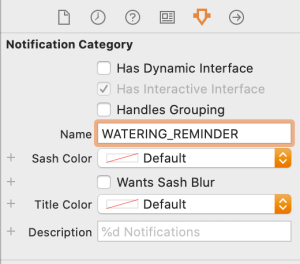
Click on Finish and then Xcode will ask about activating the new scheme, click on active. It will just select the new target and we can build it right away. When inspecting the project, Xcode added two targets: watch app and extension. App contains storyboard and extension contains all the code. Storyboard is wired up so that the scene displays HostingController which is WKHostingController subclass and is responsible of hosting your SwiftUI view in the Apple Watch app. In addition, there are scenes for static and dynamic notifications. We are interested in creating dynamic notifications and in the Storyboard we can see that the dynamic view is provided by NotificationController (subclass of WKUserNotificationHostingController) which hosts SwiftUI view for the notification. There we can provide the custom interface for our user notification. Dynamic notification view is selected if the notification category matches with the one defined in the Storyboard.

If you need more information how to set up Xcode project please check: “Setting Up a watchOS Project”.

Parsing notification payload and setting up dynamic notification view

NotificationController’s responsibility is to consume user notification’s payload and configuring the SwiftUI view with it. User notification is provided by didReceive function and there we can extract the information needed for showing the view. When it comes to locally testing the dynamic view, we can add required data to the PushNotificationPayload.apns file. As we show information about plants, let’s add example plant object to the file. Also, we change category to something meaningful. Make sure to update Storyboard when setting new category.

{
    "aps": {
        "alert": {
            "body": "Test message",
            "title": "Optional title",
            "subtitle": "Optional subtitle"
        },
        "category": "WATERING_REMINDER",
        "thread-id": "plantid123"
    },
    
    "plant": {
        "id": "plantid123",
        "name": "Aloe",
        "lastDate": 1579937802,
        "nextDate": 1580515200
    }
}
Notification category in Storyboard for defining the connection to dynamic notification view.

Plant related information is available when accessing UNNotification’s request.content.userInfo. We can use Decodable and JSONDecoder for converting Dictionary representing the plant into value type. As JSONDecoder requires JSON data then we can first use JSONSerialization and then passing the JSON data to JSONDecoder. Alternatively we could also manually read values from the userInfo dictionary and then creating the value type. Note that we use view model for providing data to SwiftUI view and not the Plant type directly.

struct Plant: Decodable {
    let id: String
    let name: String
    let lastDate: Date
    let nextDate: Date
}

do {
	let plantInfo = notification.request.content.userInfo["plant"] as! [String: Any]
	let data = try JSONSerialization.data(withJSONObject: plantInfo, options: [])
	let decoder = JSONDecoder()
	decoder.dateDecodingStrategy = .secondsSince1970
	let plant = try decoder.decode(Plant.self, from: data)
	viewModel = NotificationViewModel(plant: plant)
}
catch let nsError as NSError {
	print(nsError.localizedDescription)
}

In addition, we would like to add 3 actions user can take: marking the plant as watered, deferring the reminder for couple of hours, or scheduling it for tomorrow. Actions are represented with instances of UNNotificationAction and when user taps on any of those, UNUserNotificationCenter’s delegate method is called with the identifier in the companion iOS app (userNotificationCenter(_:didReceive:withCompletionHandler:)).

let doneTitle = NSLocalizedString("NotificationAction_Done", comment: "Done button title in notification.")
let laterTitle = NSLocalizedString("NotificationAction_Later", comment: "Later button title in notification.")
let tomorrowTitle = NSLocalizedString("NotificationAction_Tomorrow", comment: "Tomorrow button title in notification.")
notificationActions = [
	UNNotificationAction(identifier: "water_done", title: doneTitle, options: []),
	UNNotificationAction(identifier: "water_later", title: laterTitle, options: []),
	UNNotificationAction(identifier: "water_tomorrow", title: tomorrowTitle, options: [])
]

The full implementation of the NotificationController becomes like this (including the creation of SwiftUI):

final class NotificationController: WKUserNotificationHostingController<NotificationView> {
    private var viewModel: NotificationViewModel?
    
    override var body: NotificationView {
        return NotificationView(viewModel: viewModel!)
    }
    
    override func didReceive(_ notification: UNNotification) {
        do {
            let plantInfo = notification.request.content.userInfo["plant"] as! [String: Any]
            let data = try JSONSerialization.data(withJSONObject: plantInfo, options: [])
            let decoder = JSONDecoder()
            decoder.dateDecodingStrategy = .secondsSince1970
            let plant = try decoder.decode(Plant.self, from: data)
            viewModel = NotificationViewModel(plant: plant)
        }
        catch let nsError as NSError {
            print(nsError.localizedDescription)
        }
        
        let doneTitle = NSLocalizedString("NotificationAction_Done", comment: "Done button title in notification.")
        let laterTitle = NSLocalizedString("NotificationAction_Later", comment: "Later button title in notification.")
        let tomorrowTitle = NSLocalizedString("NotificationAction_Tomorrow", comment: "Tomorrow button title in notification.")
        notificationActions = [
            UNNotificationAction(identifier: "water_done", title: doneTitle, options: []),
            UNNotificationAction(identifier: "water_later", title: laterTitle, options: []),
            UNNotificationAction(identifier: "water_tomorrow", title: tomorrowTitle, options: [])
        ]
    }
}

NotificationView presenting the dynamic notification

Previously mentioned view model NotificationViewModel provides text for NotificationView and it looks pretty simple, mainly dealing with creating strings with formatted dates. As we only want to show day and month then we need to create dateFormat using current locale.

struct NotificationViewModel {
    private let plant: Plant
    
    init(plant: Plant) {
        self.plant = plant
    }
    
    var title: String {
        return plant.name
    }
    
    var subtitle: String {
        return NSLocalizedString("NotificationView_Subtitle", comment: "Notification suggestion text")
    }
    
    private let dateFormatter: DateFormatter = {
        let formatter = DateFormatter()
        formatter.dateFormat = DateFormatter.dateFormat(fromTemplate: "dMMMM", options: 0, locale: .current)
        return formatter
    }()
    
    var lastWatering: String {
        let format = NSLocalizedString("NotificationView_LastWatering", comment: "Last watering date.")
        return String(format: format, dateFormatter.string(from: plant.lastDate))
    }
    
    var nextWatering: String {
        let format = NSLocalizedString("NotificationView_NextWatering", comment: "Next watering date.")
        return String(format: format, dateFormatter.string(from: plant.nextDate))
    }
}

SwiftUI view is also pretty simple with containing 4 text labels and one divider.

struct NotificationView: View {
    let viewModel: NotificationViewModel
    
    var body: some View {
        VStack {
            Text(viewModel.title).font(.title)
            Text(viewModel.subtitle).font(.subheadline)
            Divider()
            Text(viewModel.lastWatering).font(.body).multilineTextAlignment(.center)
            Text(viewModel.nextWatering).font(.body).multilineTextAlignment(.center)
        }
    }
}
Dynamic notification with 4 labels and divider.
Buttons in dynamic notification.

Summary

We added Apple Watch app to an existing iOS app and implemented dynamic notification view for one notification category. We looked into how to parse data associated with the user notification, create SwiftUI view and add action buttons. Next steps would be to handle notification actions in the companion iOS app based on the notification button identifier.

If this was helpful, please let me know on Mastodon@toomasvahter or Twitter @toomasvahter. Feel free to subscribe to RSS feed. Thank you for reading.

Example project

WaterMyPlants (GitHub)

Categories
Combine CoreData Foundation Generics iOS Swift SwiftUI Xcode

Using CoreData with SwiftUI

CoreData is Apple’s object graph and persistence framework. It provides data sources for synchronising data with view. Let’s take a look on how to use those data sources in SwiftUI views. Starting with NSFetchedResultsController what is used for list and collection views, after that observing NSManagedObject directly from SwiftUI view and lastly subscribing to managed object context notifications.

NSFetchedResultsController

NSFetchedResultsController is used for providing data in table and collection views. It supports sorting and filtering data and arranging data into sections. We can use delegate for getting change callbacks. NSFetchedResultsControllerDelegate contains several methods:

// Diffable data source (new in iOS 13)
optional func controller(_ controller: NSFetchedResultsController<NSFetchRequestResult>, didChangeContentWith snapshot: NSDiffableDataSourceSnapshot)
optional func controller(_ controller: NSFetchedResultsController<NSFetchRequestResult>, didChangeContentWith diff: CollectionDifference<NSManagedObjectID>)
// Manually updating table view and collection view
optional func controller(_ controller: NSFetchedResultsController<NSFetchRequestResult>, didChange anObject: Any, at indexPath: IndexPath?, for type: NSFetchedResultsChangeType, newIndexPath: IndexPath?)
optional func controller(_ controller: NSFetchedResultsController<NSFetchRequestResult>, didChange sectionInfo: NSFetchedResultsSectionInfo, atSectionIndex sectionIndex: Int, for type: NSFetchedResultsChangeType)
optional func controllerWillChangeContent(_ controller: NSFetchedResultsController<NSFetchRequestResult>)
optional func controllerDidChangeContent(_ controller: NSFetchedResultsController<NSFetchRequestResult>)

In SwiftUI we are not going to directly manipulate views. Only what we need to do is letting SwiftUI view know that data is about to change. Let’s take a look on simple app with list of items stored by CoreData. Data is represented by ColorItem where only stored value is hex string of the color (e.g. #AA22BB).

final class ColorItem: NSManagedObject {
@NSManaged var hex: String
}
view raw ColorItem.swift hosted with ❤ by GitHub

ColorItems are managed by ContentView’s view model. View model creates NSFetchedResultsController, performs fetch and provides array of fetched ColorItems to the SwiftUI’s List. In addition, view model is delegate of the NSFetchedResultsController (requires view model to be NSObject subclass). As view model is ObservableObject, we can very easily let SwiftUI view know that it should refresh. We need to do two things: firstly, implementing controllerWillChangeContent delegate method and calling send() on objectWillChange publisher. Secondly, view model property must use @ObservedObject property wrapper in SwiftUI view. Result is that SwiftUI view subscribes to objectWillChange publisher and refreshes whenever publisher emits an event.

extension ContentView {
final class ViewModel: NSObject, NSFetchedResultsControllerDelegate, ObservableObject {
private let colorController: NSFetchedResultsController<ColorItem>
init(managedObjectContext: NSManagedObjectContext) {
let sortDescriptors = [NSSortDescriptor(keyPath: \ColorItem.hex, ascending: true)]
colorController = ColorItem.resultsController(context: managedObjectContext, sortDescriptors: sortDescriptors)
super.init()
colorController.delegate = self
try? colorController.performFetch()
}
func controllerWillChangeContent(_ controller: NSFetchedResultsController<NSFetchRequestResult>) {
objectWillChange.send()
}
var colors: [ColorItem] {
return colorController.fetchedObjects ?? []
}
}
}
extension ColorItem {
static func resultsController(context: NSManagedObjectContext, sortDescriptors: [NSSortDescriptor] = []) -> NSFetchedResultsController<ColorItem> {
let request = NSFetchRequest<ColorItem>(entityName: "ColorItem")
request.sortDescriptors = sortDescriptors.isEmpty ? nil : sortDescriptors
return NSFetchedResultsController(fetchRequest: request, managedObjectContext: context, sectionNameKeyPath: nil, cacheName: nil)
}
}

And finally let’s see the ContentView implementation. NSManagedObject has objectID property what we can use in List for identifying every ColorItem. Cell is custom view what we’ll take a look at next.

struct ContentView: View {
@ObservedObject var viewModel: ViewModel
var body: some View {
NavigationView {
VStack {
List(viewModel.colors, id: \.objectID) { (colorItem) in
Cell(colorItem: colorItem)
}
}.navigationBarTitle("Colors")
}
}
}

NSManagedObject

NSManagedObject implements ObservableObject protocol and therefore it is possible to use it together with @ObservedObject property wrapper and getting SwiftUI view refreshed automatically when any of the ColorItem properties change. NSFetchedResultsController required a little bit of code for setting up delegate but that is not the case with NSManagedObject.

struct Cell: View {
@ObservedObject var colorItem: ColorItem
var body: some View {
HStack {
Text(verbatim: colorItem.hex)
Spacer()
Rectangle().foregroundColor(Color(colorItem.uiColor)).frame(minWidth: 50, maxWidth: 50)
}
}
}
view raw Cell.swift hosted with ❤ by GitHub

In addition, if there are cases where we would like to observe specific property, then Combine provides publisher for key path. Because NSManagedObject supports key-value observing we can use the publisher and subscribe to individual property changes.

let cancellable = color.publisher(for: \.hex).sink { (string) in
print(string)
}

Subscribing to CoreData notifications

When we need to observe changes in persistent store we can observe notifications sent by the framework. As NotificationCenter supports publishers, we can subscribe to it, unpack data from notification and do something with the data. For making this easier we can introduce a separate type. It will unpack the user info dictionary and filter by type. This allows to easily observe, for example, ColorItem insertions. Or, if we would like to receive every possible change, we can specify NSManagedObject as the generic type.

private var cancellables = [AnyCancellable]()
let cancellable = NotificationCenter.default.publisher(for: .NSManagedObjectContextObjectsDidChange, object: managedObjectContext)
.compactMap({ ManagedObjectContextChanges<ColorItem>(notification: $0) }).sink { (changes) in
print(changes)
}
cancellables.append(cancellable)
struct ManagedObjectContextChanges<T: NSManagedObject> {
let inserted: Set<T>
let deleted: Set<T>
let updated: Set<T>
init?(notification: Notification) {
let unpack: (String) -> Set<T> = { key in
let managedObjects = (notification.userInfo?[key] as? Set<NSManagedObject>) ?? []
return Set(managedObjects.compactMap({ $0 as? T }))
}
deleted = unpack(NSDeletedObjectsKey)
inserted = unpack(NSInsertedObjectsKey)
updated = unpack(NSUpdatedObjectsKey).union(unpack(NSRefreshedObjectsKey))
if deleted.isEmpty, inserted.isEmpty, updated.isEmpty {
return nil
}
}
}

Summary

We took a look at how to use NSFetchedResultsController and NSManagedObject in SwiftUI views. We saw that integrating NSFetchedResultsController requires only a little bit of code and using NSManagedObject even less. In addition, we looked at subscribing to CoreData notifications and unpacking notification payload.

If this was helpful, please let me know on Mastodon@toomasvahter or Twitter @toomasvahter. Feel free to subscribe to RSS feed. Thank you for reading.

Example project

CoreDataCombineSwiftUI (Xcode 11.3)

Categories
Combine Foundation iOS Swift SwiftUI

MVVM in SwiftUI

Let’s build a simple app using MVVM (model-view-view model) where every SwiftUI view has its own view model. It’s going to be an app with two views: list of movies and add a movie view what utilises Form view. Added movies are stored in MovieStore which is shared by the two view models. We will use environment for sharing the MovieStore. It will be read from the environment when we need to create AddMovieView with its view model.

Movie and MovieStore representing data

Movie is a small struct and just stores the title and rating. Title and rating are mutable as we are going to update those in AddMovieView. We also conform to protocol Identifiable because we are going to use List view for showing all the movies. List needs a way of identifiyng the content and its the simplest way of satisfiying the requirement.

struct Movie: Equatable, Identifiable {
    let id = UUID()
    var fullTitle: String
    var givenRating: Rating = .notSeen
}

extension Movie {
    enum Rating: Int, CaseIterable {
        case notSeen, terrible, poor, decent, good, excellent
    }
}

MovieStore is also a pretty simple although in a more sophisticated app it would contain much more logic: persistence, deleting etc. We use Published property wrapper which automatically provides a publisher we can use to subscribe against.

final class MovieStore {
    @Published private(set) var allMovies = [Movie]()
    
    func add(_ movie: Movie) {
        allMovies.append(movie)
    }
}

For inserting shared MovieStore to environment, we’ll use custom EnvironmentKey. Custom key is just an object conforming to EnvironmentKey protocol. We need to provide the type and default value.

struct MovieStoreKey: EnvironmentKey {
    typealias Value = MovieStore
    static var defaultValue = MovieStore()
}

extension EnvironmentValues {
    var movieStore: MovieStore {
        get {
            return self[MovieStoreKey]
        }
        set {
            self[MovieStoreKey] = newValue
        }
    }
}

If we do not insert our own instance of MovieStore to the environment, the instance returned by defaultValue is used. Typically we would like to use a specific instance initialised outside of the view hierarchy. Therefore let’s take a look how to do that next.

SceneDelegate and MovieScene presentation

MovieStore dependency is passed into view models with initialiser. We’ll use the instance stored in SceneDelegate. Yet again, in a real app, it would probably live in a separate dependency container or in something similar. MovieListView is the first view we need to present, therefore we’ll initialise view model, view and insert instance of MovieStore to environment for later use (movieStore keypath is the one we just defined in EnvironmentValues‘ extension).

final class SceneDelegate: UIResponder, UIWindowSceneDelegate {
    var window: UIWindow?
    private let movieStore = MovieStore()

    func scene(_ scene: UIScene, willConnectTo session: UISceneSession, options connectionOptions: UIScene.ConnectionOptions) {
        let viewModel = MovieListView.ViewModel(movieStore: movieStore)
        let contentView = MovieListView(viewModel: viewModel).environment(\.movieStore, movieStore)
        
        guard let windowScene = scene as? UIWindowScene else { return }
        let window = UIWindow(windowScene: windowScene)
        window.rootViewController = UIHostingController(rootView: contentView)
        self.window = window
        window.makeKeyAndVisible()
    }
}

MovieListView and its ViewModel

We still haven’t taken a look on MovieListView and its view model, let’s do it now. View model conforms to protocol ObservableObject and uses @Published property wrappers. ObservableObject’s default implementation provides objectWillChange publisher. @Published property wrapper automatically fires the publisher when the property value is about to change. On MovieListView we have declared view model property with @ObservedObject property wrapper. This will make the view to subscribe to objectWillChange publisher and will refresh the view when-ever objectWillChange fires.

extension MovieListView {
    final class ViewModel: ObservableObject {
        private let movieStore: MovieStore
        private var cancellables = [AnyCancellable]()
        
        init(movieStore: MovieStore) {
            self.movieStore = movieStore
            cancellables.append(movieStore.$allMovies.assign(to: \.movies, on: self))
        }
        
        @Published private(set) var movies = [Movie]()
        @Published var isPresentingAddMovie = false
    }
}
struct MovieListView: View {
    @Environment(\.self) var environment
    @ObservedObject var viewModel: ViewModel
    
    var body: some View {
        NavigationView {
            List(self.viewModel.movies) { movie in
                Text(movie.fullTitle)
            }.navigationBarTitle("Movies")
                .navigationBarItems(trailing: navigationBarTrailingItem)
        }
    }
    
    private var navigationBarTrailingItem: some View {
        Button(action: {
            self.viewModel.isPresentingAddMovie = true
        }, label: {
            Image(systemName: "plus").frame(minWidth: 32, minHeight: 32)
        }).sheet(isPresented: self.$viewModel.isPresentingAddMovie) {
            self.makeAddMovieView()
        }
    }
    
    private func makeAddMovieView() -> AddMovieView {
        let movieStore = environment[MovieStoreKey]
        let viewModel = AddMovieView.ViewModel(movieStore: movieStore)
        return AddMovieView(viewModel: viewModel)
    }
}

Changes in MovieStore are observed by subscribing to allMovies subscriber and then assigning the new list of movies to view model’s own property. Note that assignment is triggered on subscribing and when changes happen: like KVO with initial option. Only downside is that now the list is duplicated but that’s OK. We would need to do that anyway when we would like to sort or filter the list later on.

AddMovieView and its view model are created when user taps on the plus button in the navigation bar. Environment property wrapper can be used to get the whole environment or any of the values using a specific key. In current case I went for accessing the whole environment object and then getting MovieStore using a MovieStoreKey later when needed. Then the MovieStore is not available in the whole view scope and only when creating the AddMovieView. Other option would be to use @Environment(\.movieStore) var movieStore instead.

AddMovieView and its ViewModel

AddMovieView’s view model is initialised with MovieStore and internally it represents and instance of Movie. Published property wrapper is used similarly like in MovieListView’s view model. The model object is a private property and instead of direct access, two bindings are provded for TextField and Picker. Binding represents a two way connection between the view and model. In addition, there is canSave property what is used for enabling the save button in the navigation bar. Save button should be enabled only when title is filled. To recap the view update flow: TextField or Picker will use Binding to update private property newMovie. As newMovie property uses @Published property wrapper, it will fire ObservableObject’s objectWillChange publisher. SwiftUI automatically subscribes to objectWillChange because view model’s property uses @ObservedObject.

extension AddMovieView {
    class ViewModel: ObservableObject {
        private let movieStore: MovieStore
        
        init(movieStore: MovieStore) {
            self.movieStore = movieStore
        }
        
        @Published private var newMovie = Movie(fullTitle: "")
        
        lazy var title = Binding<String>(get: {
            self.newMovie.fullTitle
        }, set: {
            self.newMovie.fullTitle = $0
        })
        
        lazy var rating = Binding<Movie.Rating>(get: {
            self.newMovie.givenRating
        }, set: {
            self.newMovie.givenRating = $0
        })
        
        var canSave: Bool {
            return !newMovie.fullTitle.isEmpty
        }
        
        func save() {
            movieStore.add(newMovie)
        }
    }
}

struct AddMovieView: View {
    @Environment(\.presentationMode) private var presentationMode
    @ObservedObject var viewModel: ViewModel
    
    var body: some View {
        NavigationView {
            Form {
                titleSection
                ratingSection
            }.navigationBarTitle("Add Movie", displayMode: .inline)
                .navigationBarItems(leading: leadingBarItem, trailing: trailingBarItem)
                .navigationViewStyle(StackNavigationViewStyle())
            
        }
    }
    
    private var titleSection: some View {
        Section() {
            TextField("Title", text: viewModel.title)
        }
    }

    private var ratingSection: some View {
        Section() {
            Picker(LocalizedStringKey("Rating"), selection: viewModel.rating) {
                ForEach(Movie.Rating.allCases, id: \.rawValue) {
                    Text($0.localizedName).tag($0)
                }
            }
        }
    }
    
    private var leadingBarItem: some View {
        Button(action: { self.presentationMode.wrappedValue.dismiss() }, label: {
            Text("Cancel")
        })
    }
    
    private var trailingBarItem: some View {
        Button(action: {
            self.viewModel.save()
            self.presentationMode.wrappedValue.dismiss()
        }, label: {
            Text("Save").disabled(!self.viewModel.canSave)
        })
    }
}

Summary

We created a simple app with two views. Both views had its own view model and both view models used the same dependency: MovieStore. One view model triggered changes in MovieStore and those changes were observed by the other view model. In addition, we looked into how to use SwiftUI’s environment and how to trigger view updates from view models.

If this was helpful, please let me know on Mastodon@toomasvahter or Twitter @toomasvahter. Feel free to subscribe to RSS feed. Thank you for reading.

Example

SwiftUICombineMVVMExample (GitHub, Xcode 11.3, Swift 5)

Categories
iOS Swift UIKit

Most visited blog posts in 2019

Thank you to everyone who visted my blog and I really hope that you learnt something new. I am trying to keep my blog post short and having sample code what can be used instantly. But now, its time to take a look back on all the blog posts I wrote in 2019. This year I kept following my schedule of publishing a blog post every second week. This means that in this year I published 27 blog post covering wide variaty of topics from UIKit to SwiftUI, SpriteKit, VisionKit, CryptoKit, app architecture and so on. I finally managed to get noticed by iOS Dev Weekly and the issue 430 contained my post Adding custom attribute to NSAttributedString on iOS. Really happy about it!
All in all, I am very happy to see how my blog grew in 2019. Total view count grew more than 5 times compared to 2018 (started blogging in late 2017).

Let’s take a look on stats from 2019 and list blog posts by the number of vists in 2019. The first list contains blog posts written in 2019 and the second list contains all the other blog posts people read in 2019.

Most read posts written in 2019

Most read posts written before 2019

Have a great coming year! I’ll keep publishing new blog posts every second week so follow me on Twitter @toomasvahter or subscribe to RSS feed. Thank you!