Categories
iOS macOS Swift Xcode

Performance testing using XCTMetric

XCTMetric enables creating tests with measure blocks collecting information about CPU, memory and disk. In this post we’ll write UI-tests measuring a button tap what triggers writing to disk, allocating larger amount of memory and applying filters what requires CPU to do more work. It should be noted that XCTMetric can also be used in unit-tests.

Method under the test

The method we are going to write performance tests against is a simple method dealing with loading an image, writing data to disk, applying CIFilter and writing processed image to disk. In this example case, everything runs on a main thread what probably would not be a case in a real application.

@IBAction func process(_ sender: Any) {
	let image = UIImage(named: "Image")!
	imageStorage.store(image, filename: "original")
        
	let processedImage = ImageProcessor.processImage(image)
	imageStorage.store(image, filename: "processed")
	processedImageView.image = processedImage
}

XCTClockMetric for measuring taken time

XCTClockMetric is for measuring time taken by the block. Useful for catching regressions in longer running operations.

func testCalculateWithClockMetric() {
	let app = XCUIApplication()
	app.launch()
	measure(metrics: [XCTClockMetric()]) {
		app.buttons["Process"].tap()
	}
}

XCTCPUMetric for measuring CPU utilization

XCTCPUMetric measures CPU activity and output 3 different results: CPU time, CPU cycles and CPU instructions retired. CPUs have a feature called speculative execution what means that more instructions are completed than the actual program flow requires. Retired instructions are the instructions which were actually needed by the flow of the program. This feature speeds up the program execution as CPU can process data ahead of time. Example case would be if else where CPU processes both branches but only one branch is valid in the program flow.

func testCalculateWithCPUMetric() {
	let app = XCUIApplication()
	app.launch()
	measure(metrics: [XCTCPUMetric(application: app)]) {
		app.buttons["Process"].tap()
	}
}

XCTMemoryMetric for measuring allocated memory

XCTMemoryMetric measures allocated physical memory useful for testing operation allocating significant amount of memory (processing images).

func testCalculateWithMemoryMetric() {
	let app = XCUIApplication()
	app.launch()
	measure(metrics: [XCTMemoryMetric(application: app)]) {
		app.buttons["Process"].tap()
	}
}

XCTStorageMetric for measuring disk usage

XCTStorageMetric measures bytes written to the disk.

func testCalculateWithStorageMetric() {
	let app = XCUIApplication()
	app.launch()
	measure(metrics: [XCTStorageMetric(application: app)]) {
		app.buttons["Process"].tap()
	}
}

XCTOSSignpostMetric for measuring time between signposts

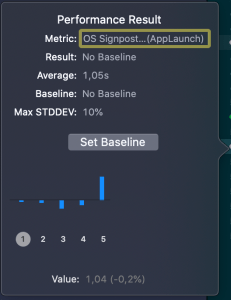
Apple provides signpost metric for application launch time for making it easy to add performance test measing launch time. In WWDC’19 session “Optimizing app launch” the suggested goal is 400 ms which is the duration of the app launch animation. XCTOSSignpostMetric has initializer for custom signpost as well.

func testLaunchPerformance() {
	if #available(macOS 10.15, iOS 13.0, tvOS 13.0, *) {
		measure(metrics: [XCTOSSignpostMetric.applicationLaunch]) {
			XCUIApplication().launch()
		}
	}
}
Summary

XCTMetric enables writing performance tests for performance critical parts of the application. We took a look at CPU, memory, storage and signpost metrics.

If this was helpful, please let me know on Mastodon@toomasvahter or Twitter @toomasvahter. Feel free to subscribe to RSS feed. Thank you for reading.

Example

MeasuringInTests (Xcode 11.3)

Categories
Combine iOS Swift SwiftUI

Animating view transitions in SwiftUI

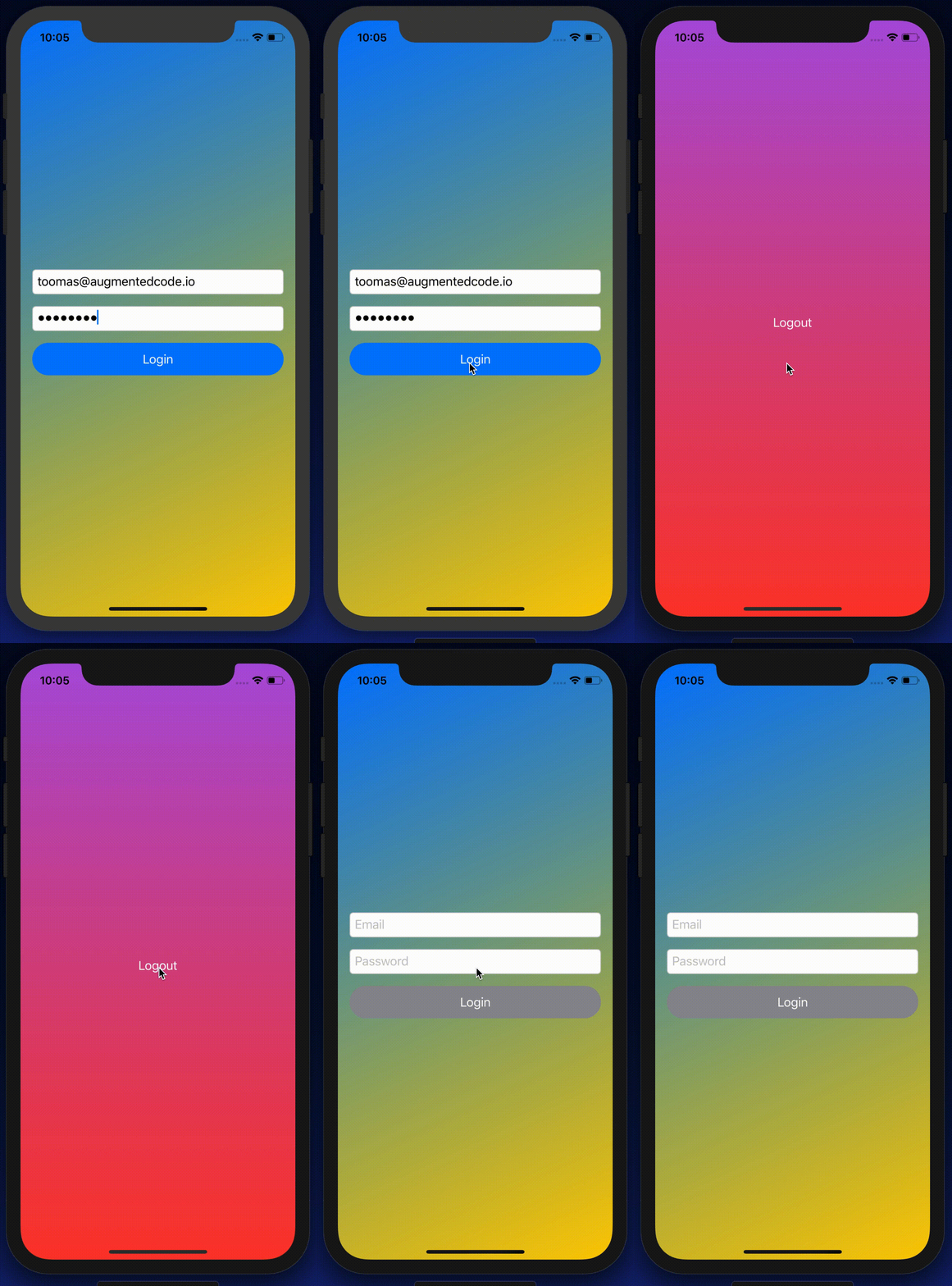
One building block for navigating from one view to another is NavigationView which is a representation of UINavigationController in UIKit. This time, let’s take a look on how to transition from one SwiftUI view to another one without NavigationView.

AppFlowCoordinator managing choosing the view

The idea is to have a root SwiftUI view with only responsibility of presenting the active view. State is stored in AppFlowCoordinator which can be accessed from other views and therefore other views can trigger navigation. Example case we’ll build, is animating transitions from login view to main view and back. As said, AppFlowCoordinator stores the information about which view should be on-screen at a given moment. All the views are represented with an enum and based on the value in enum, views are created. This coordinator is ObservableObject what makes it easy to bind to a SwiftUI view – whenever activeFlow changes, SwiftUI view is updated. The term flow is used because views can consist of stack of other views and therefore creating a flow of views.

import SwiftUI
final class AppFlowCoordinator: ObservableObject {
@Published var activeFlow: Flow = .login
func showLoginView() {
withAnimation {
activeFlow = .login
}
}
func showMainView() {
withAnimation {
activeFlow = .main
}
}
}
extension AppFlowCoordinator {
enum Flow {
case login, main
}
}
Triggering navigation using flow controller.

RootView displaying active flow

RootView selects which view is currently visible. It accesses coordinator through environment. SwiftUI requires EnvironmentObjects to be ObservableObjects, therefore this view is automatically refreshed when activeFlow changes in the AppFlowCoordinator. RootView’s body is annotated with @ViewBuilder which will enable the view to return a body with type depending on the current state (HStack is also a ViewBuilder). Other options are wrapping the views with AnyView or using Group. In our case the view types are LoginView and ContentView. Both views also define the transition animation what is used when view refresh is triggered in withAnimation closure in AppFlowCoordinator. Asymmetric enables defining different transitions when view is added and removed from the view hierarchy.

let appFlowCoordinator = AppFlowCoordinator()
let rootView = RootView().environmentObject(appFlowCoordinator)
window.rootViewController = UIHostingController(rootView: rootView)
Inserting AppFlowCoordinator to environment
struct RootView: View {
@EnvironmentObject var appFlowCoordinator: AppFlowCoordinator
@ViewBuilder
var body: some View {
ZStack {
Color.black.edgesIgnoringSafeArea(.all)
if appFlowCoordinator.activeFlow == .main {
ContentView().transition(.asymmetric(insertion: .scale, removal: .opacity))
}
else if appFlowCoordinator.activeFlow == .login {
LoginView().transition(.asymmetric(insertion: .slide, removal: .opacity))
}
else {
EmptyView()
}
}
}
}
view raw RootView.swift hosted with ❤ by GitHub
Updating currently visible flow with transition animations

Triggering navigation from SwiftUI view

Last piece we need to take a look at is how to trigger transition. As AppFlowCoordinator is in environment, any view can access the coordinator and call any of the navigation methods. When login finishes, LoginView can tell the coordinator to show the main content view.

struct LoginView: View {
@EnvironmentObject var appFlowCoordinator: AppFlowCoordinator
var body: some View {
ZStack {
Button(action: appFlowCoordinator.showMainView) {
Text("Login")
}
}
}
}
view raw LoginView.swift hosted with ❤ by GitHub
Navigating to main view from login view

Summary

We took a look on how to navigate from one SwiftUI view to another by using a coordinator object. Coordinator stored the information about which view we should currently display on screen. We saw how easy it is to trigger navigation from any of the currently visible views.

transition animation
Low FPS GIF representing the transition animation

If this was helpful, please let me know on Mastodon@toomasvahter or Twitter @toomasvahter. Feel free to subscribe to RSS feed. Thank you for reading.

Example

RootViewTransitions Xcode 11.2.1, Swift 5.1

Categories
macOS Swift SwiftUI

Injecting dependencies using environment values and keys in SwiftUI

Instead of initializing SwiftUI views with dependencies, SwiftUI also offers other ways for injecting dependencies. This time let’s take a look on EnvironmentKey which defines a key for inserting objects to environment and vise-versa. We need to create a EnvironmentKey, adding an object to environment and then getting the object in SwiftUI view.

Creating EnvironmentKey and extending EnvironmentValues

Example object we use is DependencyManager what in real app can contains loads of dependencies. EnvironmentKey is a protocol in SwiftUI what requires to define associated type and default value. Default value is used when we have not explicitly inserted an instance of DependencyManager to the environment, more about it a little bit later. EnvironmentValues is a struct containing a collection of environment objects. We’ll add a property to EnvironmentValues which later will be used by @Environment property wrapper and also when setting an instance of the object to the environment.

import Foundation
import SwiftUI
struct DependencyManager {
let identifier: String
let urlSession = URLSession.shared
}
struct DependencyManagerKey: EnvironmentKey {
typealias Value = DependencyManager
static var defaultValue = DependencyManager(identifier: "Default created by environment")
}
extension EnvironmentValues {
var dependencyManager: DependencyManager {
get {
return self[DependencyManagerKey.self]
}
set {
self[DependencyManagerKey.self] = newValue
}
}
}
Custom EnvironmentKey and EnvironmentValues extension for accessing dependencies

Inserting objects to environment

If we would like to insert a DependencyManager to the Environment, we can use func environment(_ keyPath: WritableKeyPath, _ value: V) -> some View using our DependencyManagerKey and an instance created by us. If we do not insert our own, SwiftUI will use the instance returned by defaultValue when the key is first time accessed.

// Setting non-default instance of DependencyManager, otherwise default instance is used created in DependencyManagerKey
let dependencyManager = DependencyManager(identifier: "Scene delegate created")
let contentView = ContentView().environment(\.dependencyManager, dependencyManager)
Setting instance of DependencyManager to SwiftUI environment

Getting objects from environment

Objects can be read from the environment using @Environment property wrapper and specifing the EnvironmentKey.

import SwiftUI
struct ContentView: View {
@Environment(\.dependencyManager) var dependencyManager: DependencyManager
var body: some View {
Text(dependencyManager.identifier)
}
}
Accessing the instance of DependencyManager in environment

Summary

We created an environment key and inserted an object into environment. We looked into how SwiftUI handles default values for environment objects and used @Environment property wrapper for getting the instance from the environment using the created key.

If this was helpful, please let me know on Mastodon@toomasvahter or Twitter @toomasvahter. Feel free to subscribe to RSS feed. Thank you for reading.

Categories
Foundation iOS Swift UIKit

Adding custom attribute to NSAttributedString on iOS

NSAttributedString is used for displaying rich text on Apple platforms. There are many attributes available for styling the text. Let’s see how to add new attribute and how to draw it in UITextView.

Drawing custom attribute

Defining a new attribute is just a matter of extending NSAttributedString.Key and defining a new static variable. Difficult part is actually drawing the custom attribute. Apple’s documentation says that best way for it is to subclass NSLayoutManager and overriding drawGlyphs(forGlyphRange:at:). This is what we are doing here as well. Whenever glyphs are drawn, we check if the glyph range contains the custom attribute, if it does, then we get the rects for glyphs containing the custom attribute. When we know rects, we can draw the custom styling. In this case, we’ll mimic tokens in text and therefore go for rectangle with rounded corners. Should be noted that enumerating custom attribute, longestEffectiveRangeNotRequired should be specified. Otherwise, if we have two different tokens next to each-other, then this attribute is considered as one.

UITextView has by default text container inset set. For being able to draw the custom styling exactly behind the text, this offset must be taken account. Easiest is to propagate insets to layout manager what we are doing here.

extension NSAttributedString.Key {
    static let token = NSAttributedString.Key("Token")
}

final class TokenLayoutManager: NSLayoutManager {
    var textContainerOriginOffset: CGSize = .zero
    
    override func drawGlyphs(forGlyphRange glyphsToShow: NSRange, at origin: CGPoint) {
        let characterRange = self.characterRange(forGlyphRange: glyphsToShow, actualGlyphRange: nil)
        textStorage?.enumerateAttribute(.token, in: characterRange, options: .longestEffectiveRangeNotRequired, using: { (value, subrange, _) in
            guard let token = value as? String, !token.isEmpty else { return }
            let tokenGlypeRange = glyphRange(forCharacterRange: subrange, actualCharacterRange: nil)
            drawToken(forGlyphRange: tokenGlypeRange)
        })
        super.drawGlyphs(forGlyphRange: glyphsToShow, at: origin)
    }
    
    private func drawToken(forGlyphRange tokenGlypeRange: NSRange) {
        guard let textContainer = textContainer(forGlyphAt: tokenGlypeRange.location, effectiveRange: nil) else { return }
        let withinRange = NSRange(location: NSNotFound, length: 0)
        enumerateEnclosingRects(forGlyphRange: tokenGlypeRange, withinSelectedGlyphRange: withinRange, in: textContainer) { (rect, _) in
            let tokenRect = rect.offsetBy(dx: self.textContainerOriginOffset.width, dy: self.textContainerOriginOffset.height)
            UIColor(hue: 175.0/360.0, saturation: 0.24, brightness: 0.88, alpha: 1).setFill()
            UIBezierPath(roundedRect: tokenRect, cornerRadius: 4).fill()
        }
    }
}

Using custom layout manager in UITextView requires a little bit of setup what we can put into UITextView’s subclass.

final class TokenTextView: UITextView {
    init(frame: CGRect) {
        let layoutManager = TokenLayoutManager()
        let textStorage = NSTextStorage()
        textStorage.addLayoutManager(layoutManager)
        let textContainer = NSTextContainer()
        textContainer.heightTracksTextView = true
        textContainer.widthTracksTextView = true
        layoutManager.addTextContainer(textContainer)
        super.init(frame: frame, textContainer: textContainer)
        updateLayoutManager()
    }
    
    required init?(coder: NSCoder) {
        fatalError("init(coder:) has not been implemented")
    }
    
    override var textContainerInset: UIEdgeInsets {
        didSet {
            updateLayoutManager()
        }
    }
    
    private func updateLayoutManager() {
        guard let layoutManager = layoutManager as? TokenLayoutManager else { return }
        layoutManager.textContainerOriginOffset = CGSize(width: textContainerInset.left, height: textContainerInset.top)
        layoutManager.invalidateDisplay(forCharacterRange: NSRange(location: 0, length: attributedText.length))
    }
}
let textView = TokenTextView(frame: .zero)
textView.translatesAutoresizingMaskIntoConstraints = false
view.addSubview(textView)
NSLayoutConstraint.activate([
    textView.leadingAnchor.constraint(equalTo: view.safeAreaLayoutGuide.leadingAnchor, constant: 16),
    textView.trailingAnchor.constraint(equalTo: view.safeAreaLayoutGuide.trailingAnchor, constant: -16),
    textView.topAnchor.constraint(equalTo: view.safeAreaLayoutGuide.topAnchor, constant: 16),
    textView.bottomAnchor.constraint(equalTo: view.safeAreaLayoutGuide.bottomAnchor, constant: -16)
])
        
let string = "The quick brown fox jumps over the lazy dog"
let attributedString = NSMutableAttributedString(string: string)
let value = "value"
attributedString.addAttribute(.token, value: value, range: NSRange(location: 4, length: 5))
textView.attributedText = attributedString

Summary

We defined a new attribute by extending NSAttributedString.Key. Then we created a new NSLayoutManager subclass and added custom styling to the attribute. Lastly, we configured the UITextView to use custom layout manager and set text with custom attribute to it.

If this was helpful, please let me know on Mastodon@toomasvahter or Twitter @toomasvahter. Feel free to subscribe to RSS feed. Thank you for reading.

Example project

NSAttributedStringCustomAttribute Xcode 11.2, Swift 5.1

Categories
Foundation Generics iOS macOS Swift

Persistent reusable container for item collections in Swift

Let’s build a container where we can store collections of items conforming to a protocol. All the collections are identified by a case in enum. For making the container reusable, we’ll use protocols as requirements on keys and items in collections. Moreover, the container should be archivable and unarchivable.

Creating a reusable container

Container’s implementation wraps a dictionary and adds methods for conveniently adding an item for key. Key must implement Hashable and RawRepresentable: then it can be used in Dictionary and converting it to representation suitable for storing on disk.

Every item needs to implement ContainerItem protocol what requires to implement methods used when archiving and unarchiving the item. Thanks to Codable protocol in Swift, it is very simple to transform the item to data and back. ContainerItem provides default implementations for its own methods when the type is conforming to Codable. Therefore, when some type wants to implement ContainerItem, then it only needs to conform to ContainerItem and Codable and default implementations will do the rest.

final class Container<Key: Hashable & RawRepresentable> {
private var storage = [Key: [ContainerItem]]() {
didSet {
didChange()
}
}
init(content: [Key: [ContainerItem]] = [:]) {
storage = content
}
func add(_ item: ContainerItem, key: Key) {
if var current = storage[key] {
current.append(item)
storage[key] = current
}
else {
storage[key] = [item]
}
}
func items<T: ContainerItem>(forKey key: Key) -> [T] {
guard let all = storage[key] else { return [] }
return all as! [T]
}
var didChange: () -> Void = {}
}
protocol ContainerItem {
init?(jsonData: Data)
var jsonDataRepresentation: Data { get }
}
extension ContainerItem where Self: Codable {
init?(jsonData: Data) {
guard let object = try? JSONDecoder().decode(Self.self, from: jsonData) else { return nil }
self = object
}
var jsonDataRepresentation: Data {
return try! JSONEncoder().encode(self)
}
}
Reusable container storing collections of items

Archiving and unarchiving the container and it’s content

Let’s first extend the container with write method. As enum cases are used as keys in dictionary, then let’s implement write method for enums what have String as RawValue. (what should be a preferred way in this use case as its provides the most readable representation of the key). We can then map dictionary entries so that key is converted to String and value to array of JSON data objects. NSKeyedArchiver provides a simple way of storing Dictionary with archivable types (like String and array of Data).

For initialising the container from data on disk, we need to make sure that we convert JSON data back to the correct type. Therefore we can extend the container for this specific enum case and converting data back to the correct type. When using enums it is easy to switch over the possible cases and then converting list of data objects to list of known types.

struct EventItem: ContainerItem, Codable {
let date: Date
let title: String
let description: String
}
struct NoteItem: ContainerItem, Codable {
let text: String
}
enum CalendarKeys: String {
case homeEvents, workEvents, notes
}
extension Container where Key == CalendarKeys {
convenience init(contentsOfURL url: URL) throws {
let data = try Data(contentsOf: url)
let contents = try NSKeyedUnarchiver.unarchiveTopLevelObjectWithData(data) as! [Key.RawValue: [Data]]
let converted = contents.compactMap({ (keyValuePair) -> (Key, [ContainerItem])? in
guard let key = Key(rawValue: keyValuePair.key) else { return nil }
switch key {
case .homeEvents, .workEvents:
return (key, keyValuePair.value.compactMap({ EventItem(jsonData: $0) }))
case .notes:
return (key, keyValuePair.value.compactMap({ NoteItem(jsonData: $0) }))
}
})
self.init(content: Dictionary(uniqueKeysWithValues: converted))
}
}
extension Container where Key.RawValue == String {
func write(to url: URL) throws {
let converted = storage.map { (keyValuePair) -> (String, [Data]) in
return (keyValuePair.key.rawValue, keyValuePair.value.map({ $0.jsonDataRepresentation }))
}
let data = try NSKeyedArchiver.archivedData(withRootObject: Dictionary(uniqueKeysWithValues: converted), requiringSecureCoding: false)
try data.write(to: url, options: .atomicWrite)
}
}
Providing methods for archiving and unarchiving

Summary

Wrapping dictionary with another type can be useful inmany cases where we have a known list of keys. Specialising generic types is an efficient way of adding more features to it and keeping type information intact. Thanks to Codable protocol we were able to make types archivable and unarchivable.

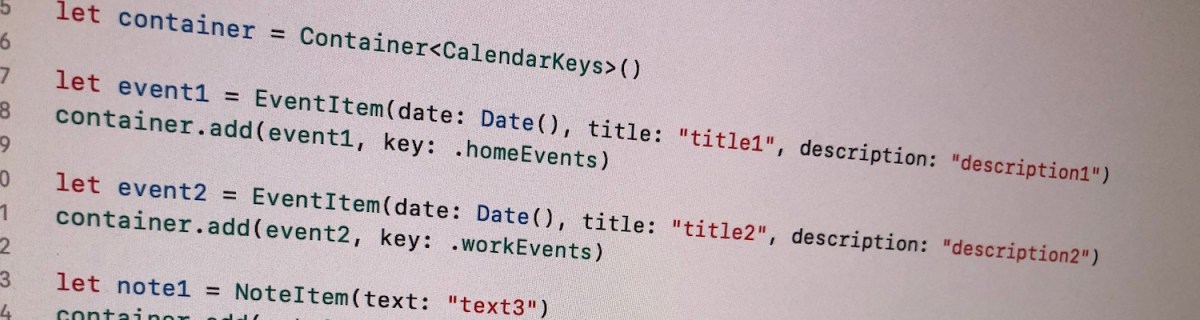
let container = Container<CalendarKeys>()
let event1 = EventItem(date: Date(), title: "title1", description: "description1")
container.add(event1, key: .homeEvents)
let event2 = EventItem(date: Date(), title: "title2", description: "description2")
container.add(event2, key: .workEvents)
let note1 = NoteItem(text: "text3")
container.add(note1, key: .notes)
let homeEvents: [EventItem] = container.items(forKey: .homeEvents)
let workEvents: [EventItem] = container.items(forKey: .workEvents)
let notes: [NoteItem] = container.items(forKey: .notes)
let url = URL(fileURLWithPath: NSTemporaryDirectory()).appendingPathComponent("Test")
do {
try container.write(to: url)
}
catch {
print(error as NSError)
}
do {
let restoredContainer = try Container<CalendarKeys>(contentsOfURL: url)
let homeEvents: [EventItem] = restoredContainer.items(forKey: .homeEvents)
let workEvents: [EventItem] = restoredContainer.items(forKey: .workEvents)
let notes: [NoteItem] = restoredContainer.items(forKey: .notes)
print("Home events: ", homeEvents)
print("Work events: ", workEvents)
print("Notes: ", notes)
}
catch {
print(error as NSError)
}
Example usage of the container

If this was helpful, please let me know on Mastodon@toomasvahter or Twitter @toomasvahter. Feel free to subscribe to RSS feed. Thank you for reading.

Example

PersistentGenericContainer (Xcode 11.1)

Categories
Foundation iOS Swift UIKit

Embedding a view in UIScrollView on iOS

This time we are going to look into how to embed custom view in UIScrollView and setting up autolayout constraints for different scenarios.

Setting up view controller with scroll view

We’ll gonna create a new view controller what contains UIScrollView as it’s subview. UIScrollView will cover the whole view area. Everything is set up in code as it is easier to represent the steps needed. It is easy to use those steps and setting up constraints in interface builder.

override func loadView() {
self.view = UIView(frame: .zero)
let scrollView: UIScrollView = {
let scrollView = UIScrollView(frame: .zero)
scrollView.backgroundColor = .white
scrollView.translatesAutoresizingMaskIntoConstraints = false
return scrollView
}()
view.addSubview(scrollView)
NSLayoutConstraint.activate([
scrollView.leadingAnchor.constraint(equalTo: view.leadingAnchor),
scrollView.trailingAnchor.constraint(equalTo: view.trailingAnchor),
scrollView.topAnchor.constraint(equalTo: view.topAnchor),
scrollView.bottomAnchor.constraint(equalTo: view.bottomAnchor)
])
}
Adding scroll view to parent view

Case 1: Vertically scrollable view

Most common case is to have scroll view with vertically scrollable content. Embedded view’s leading, trailing, top and bottom layout anchors should be equal to scroll view’s content layout margin’s corresponding anchors. For making the view only scrollable in vertical axis, embedded view’s width should match with scroll view’s width. This is achieved by adding an extra width constraint to the embedded view. Width constraint should make the view width equal to scroll view’s width. When setting view’s up in interface builder, make sure to add at least one subview to the embedded view what has intrinsic content size (label, button etc) (also add constraints). Otherwise interface builder does not know what size the embedded view has.

let customView = CustomView(frame: .zero) // view with intrinsicContentSize
customView.translatesAutoresizingMaskIntoConstraints = false
scrollView.addSubview(customView)
NSLayoutConstraint.activate([
customView.leadingAnchor.constraint(equalTo: scrollView.contentLayoutGuide.leadingAnchor),
customView.trailingAnchor.constraint(equalTo: scrollView.contentLayoutGuide.trailingAnchor),
customView.topAnchor.constraint(equalTo: scrollView.contentLayoutGuide.topAnchor),
customView.bottomAnchor.constraint(equalTo: scrollView.contentLayoutGuide.bottomAnchor),
customView.widthAnchor.constraint(equalTo: scrollView.widthAnchor)
})
Vertically scrollable embedded view

Case 2: Horizontally scrollable view

Horizontally scrollable view follows the same setup except instead of width constraint, we’ll add height constraint instead. When setting up the height constraint, scroll view’s safeAreaLayoutGuide’s heightAnchor should be used. This layout guide ignores the portion of the view what is covered by navigation bars, tab bars, toolbars, and other views.

let customView = CustomView(frame: .zero) // view with intrinsicContentSize
customView.translatesAutoresizingMaskIntoConstraints = false
scrollView.addSubview(customView)
NSLayoutConstraint.activate([
customView.leadingAnchor.constraint(equalTo: scrollView.contentLayoutGuide.leadingAnchor),
customView.trailingAnchor.constraint(equalTo: scrollView.contentLayoutGuide.trailingAnchor),
customView.topAnchor.constraint(equalTo: scrollView.contentLayoutGuide.topAnchor),
customView.bottomAnchor.constraint(equalTo: scrollView.contentLayoutGuide.bottomAnchor),
customView.heightAnchor.constraint(equalTo: scrollView.safeAreaLayoutGuide.heightAnchor)
])
Horizontally scrollable embedded view

Case 3: Vertically and horizontally scrollable view

For making the embedded view to be scrollable in horizontal and vertical axis, we’ll only add leading, trailing, top and bottom constraints to scroll view’s contentLayoutGuide’s corresponding anchors. Embedded view should define intrinsicContentSize as this size is used by scroll view for knowing what size the view wants to be. This kind of layout is probably usable only for fixed size view’s. For example, building a custom grid view where the row and column count define the size of the view.

let customView = CustomView(frame: .zero) // view with intrinsicContentSize
customView.translatesAutoresizingMaskIntoConstraints = false
scrollView.addSubview(customView)
NSLayoutConstraint.activate([
customView.leadingAnchor.constraint(equalTo: scrollView.contentLayoutGuide.leadingAnchor),
customView.trailingAnchor.constraint(equalTo: scrollView.contentLayoutGuide.trailingAnchor),
customView.topAnchor.constraint(equalTo: scrollView.contentLayoutGuide.topAnchor),
customView.bottomAnchor.constraint(equalTo: scrollView.contentLayoutGuide.bottomAnchor)
])
Vertically and horizontally scrollable embedded view

Summary

We took a look on how to add constraints to embedded view in scroll view for getting a specific scrolling behaviour. In one sentence: leading, trailing, top, and bottom constraints to contentLayoutGuide and adding width or height constraint when necessary.

If this was helpful, please let me know on Mastodon@toomasvahter or Twitter @toomasvahter. Feel free to subscribe to RSS feed. Thank you for reading.

Example

UIScrollViewExample (Xcode 11.0)

Categories
Foundation iOS Swift

Replacing multiple text tokens in Swift

Let’s see how to replace multiple tokens in string. As an example problem to solve we will use this string:
The quick <color_1> <animal_1> jumps over the lazy <animal_2>

String extension for replacing tokens

Token’s format is < text _ numbers > what can be turned into regular expression: <[:alpha:]+_{1}[:digit:]+>.

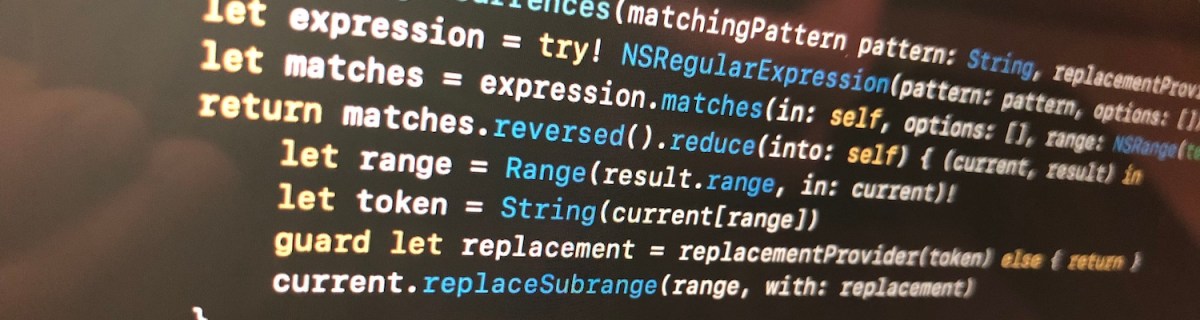
We’ll extend string and add a function what takes in regular expression and closure responsible of providing replacement strings. For finding tokens, we’ll use NSRegularExpression and get all the matches in the string. Next step is to reverse enumerate matches and replace tokens. Reverse enumerating is required it ensures that token ranges are constant. If we would start replacing from the first match, then all the succeeding ranges should be shifted based on the length difference of all the preceding tokens and replacements. In this case reduce is convenient because we can enumerate all the matches and then mutating the copy of the initial string with very few lines. Another aspect to note is that NSRegularExpression uses NSRange instead of <a rel="noreferrer noopener" aria-label="RangeRange<String.Index>. Therefore we need to convert ranges from one type to another making sure character indexes match.
This function can now be used with custom logic when providing replacements. For example: we can have a simple mapping or even returning the same replacement string.

let text = "The quick <color_1> <animal_1> jumps over the lazy <animal_2>"
let replacementMap = ["<animal_1>": "fox", "<animal_2>": "dog", "<color_1>": "brown"]
extension String {
func replacingOccurrences(matchingPattern pattern: String, replacementProvider: (String) -> String?) -> String {
let expression = try! NSRegularExpression(pattern: pattern, options: [])
let matches = expression.matches(in: self, options: [], range: NSRange(startIndex..<endIndex, in: self))
return matches.reversed().reduce(into: self) { (current, result) in
let range = Range(result.range, in: current)!
let token = String(current[range])
guard let replacement = replacementProvider(token) else { return }
current.replaceSubrange(range, with: replacement)
}
}
}
let finalString1 = text.replacingOccurrences(matchingPattern: "<[:alpha:]+_{1}[:digit:]+>", replacementProvider: { replacementMap[$0] })
let finalString2 = text.replacingOccurrences(matchingPattern: "<[:alpha:]+_{1}[:digit:]+>", replacementProvider: { _ in "REPLACEMENT" })
print(text)
print(finalString1) // The quick brown fox jumps over the lazy dog
print(finalString2) // The quick REPLACEMENT REPLACEMENT jumps over the lazy REPLACEMENT
String extension replacing tokens matching a pattern.

Summary

When we would like to do multiple replacements in a string, then one of the approaches is to get all the replacement ranges and then reverse enumerating the ranges and making replacements. In this way we can avoid having complex code trying to adjust based on the length difference of the source and replacement string.

If this was helpful, please let me know on Mastodon@toomasvahter or Twitter @toomasvahter. Feel free to subscribe to RSS feed. Thank you for reading.

Categories
Swift SwiftUI

NavigationLink and presentationMode environment value property for dismissing a view in SwiftUI

How to navigate to a new view in SwiftUI and then dismissing it? Let’s set up a main view in NavigationView and NavigationLink for opening detail view. NavigationLink is a button triggering a navigation to a specified view. Detail view will contain a button for navigating back to the first view. But how do we dismiss presented detail view?

Reading environment and dismissing the detail view

SwiftUI provides a dynamic view property named Environment. It can be used for reading values from the view’s environment. Presentation mode is one of those values we can read. This is how we get access to PresentationMode structure what has isPresented property and function for dismissing the view. Therefore, we need to add dynamic view property to our detail view and then calling dismiss() when the button is tapped

import SwiftUI
struct ContentView: View {
var body: some View {
NavigationView {
VStack(spacing: 8) {
Text("Hello World")
NavigationLink("Go to Detail View", destination: DetailView())
}.navigationBarTitle(Text("View 1"))
}
}
}
Content shown in navigation view
import SwiftUI
struct DetailView: View {
@Environment(\.presentationMode) var presentationMode
var body: some View {
VStack(spacing: 8) {
Text("Detail view")
Button("Go Back", action: {
self.presentationMode.wrappedValue.dismiss()
})
}
}
}
Detail view with button for navigation back to the content view

Summary

SwiftUI has a dynamic view property Environment what we can use for getting more knowledge about the environment view is presented (locale, displayScale etc). One of the environment values is PresentationMode what we can use for dismissing the detail view.

If this was helpful, please let me know on Mastodon@toomasvahter or Twitter @toomasvahter. Feel free to subscribe to RSS feed. Thank you for reading.

Categories
iOS LinkPresentation macOS Swift UIKit

Loading URL previews using LinkPresentation framework in Swift

iOS and macOS got a new framework in WWDC’19 named LinkPresentation. LinkPresentation enables fetching URL previews.

Adding LPLinkView for presenting preview

LPLinkView is a view subclass meant for rendering LPLinkMetadata. LPLinkMetadata contains information about the link: title, icon, image, video.

import LinkPresentation
let linkView = LPLinkView(metadata: LPLinkMetadata())
linkView.translatesAutoresizingMaskIntoConstraints = false
stackView.insertArrangedSubview(linkView, at: 0)
Adding LPLinkView to stack view

Fetching previews with LPMetadataProvider

Instances of LPLinkMetadata are fetched using LPLinkMetadataProvider for a given url. LPLinkMetadata is conforming to NSSecureCoding what enables a way of converting it to Data and storing the metadata on disk. Next time we need metadata for this url, we can use a locally cached data instead. Archiving and unarchiving is done with help of NSKeyedArchiver and NSKeyedUnarchiver and in the example archived data is stored in UserDefaults. In real apps it makes sense to store the data in separate files instead and not polluting UserDefaults with preview data.

private let metadataStorage = MetadataStorage()
private lazy var metadataProvider = LPMetadataProvider()
private weak var linkView: LPLinkView?
@IBAction func loadPreview(_ sender: UIButton) {
if let text = textField.text, let url = URL(string: text) {
// Avoid fetching LPLinkMetadata every time and archieve it disk
if let metadata = metadataStorage.metadata(for: url) {
linkView?.metadata = metadata
return
}
metadataProvider.startFetchingMetadata(for: url) { [weak self] (metadata, error) in
if let error = error {
print(error)
}
else if let metadata = metadata {
DispatchQueue.main.async { [weak self] in
self?.metadataStorage.store(metadata)
self?.linkView?.metadata = metadata
}
}
}
}
}
Fetching and caching LPMetadata
struct MetadataStorage {
private let storage = UserDefaults.standard
func store(_ metadata: LPLinkMetadata) {
do {
let data = try NSKeyedArchiver.archivedData(withRootObject: metadata, requiringSecureCoding: true)
var metadatas = storage.dictionary(forKey: "Metadata") as? [String: Data] ?? [String: Data]()
while metadatas.count > 10 {
metadatas.removeValue(forKey: metadatas.randomElement()!.key)
}
metadatas[metadata.originalURL!.absoluteString] = data
storage.set(metadatas, forKey: "Metadata")
}
catch {
print("Failed storing metadata with error \(error as NSError)")
}
}
func metadata(for url: URL) -> LPLinkMetadata? {
guard let metadatas = storage.dictionary(forKey: "Metadata") as? [String: Data] else { return nil }
guard let data = metadatas[url.absoluteString] else { return nil }
do {
return try NSKeyedUnarchiver.unarchivedObject(ofClass: LPLinkMetadata.self, from: data)
}
catch {
print("Failed to unarchive metadata with error \(error as NSError)")
return nil
}
}
}
Local LPMetadata storage using UserDefaults as storage

Summary

LinkPresentation framework adds a easy way of fetching previews for web pages. It provides a LPLinkView class making it extremely easy to render the preview.

If this was helpful, please let me know on Mastodon@toomasvahter or Twitter @toomasvahter. Feel free to subscribe to RSS feed. Thank you for reading.

Example Project

LinkPresentationView (Xcode 11 GM)

Categories
Combine ImageIO iOS Swift SwiftUI

Animating GIFs and APNGs with CGAnimateImageAtURLWithBlock in SwiftUI

This year Apple added CGAnimateImageAtURLWithBlock and CGAnimateImageDataWithBlock for animating GIFs and APNGs on all the platforms to the ImageIO framework. We can pass in URL or data and get callbacks when animation changes the current frame. In Xcode 11 beta 7 implicit bridging to Swift is disabled for those APIs and therefore we need to create a small wrapper around it in Objective-C.

Creating ImageFrameScheduler for managing CGAnimateImageAtURLWithBlock in Objective-C

Calling CGAnimateImageAtURLWithBlock starts the animation immediately. When animation frame changes, the handler block is called with frame index, current animation frame image and stop argument. When setting stop to YES, we can stop the animation. With this in mind we can create ImageFrameScheduler what takes in URL and has methods for starting and stopping the animation. Then we can expose this class to Swift and use it for managing the animation.

#import <CoreGraphics/CoreGraphics.h>
#import <Foundation/Foundation.h>
NS_ASSUME_NONNULL_BEGIN
@interface ImageFrameScheduler: NSObject
– (instancetype)initWithURL:(NSURL *)imageURL;
@property (readonly) NSURL *imageURL;
– (BOOL)startWithFrameHandler:(void (^)(NSInteger, CGImageRef))handler;
– (void)stop;
@end
NS_ASSUME_NONNULL_END
#import "ImageFrameScheduler.h"
#import "ImageIO/CGImageAnimation.h" // Xcode 11 beta 7 – CGImageAnimation.h is not in umbrella header IOImage.h
@interface ImageFrameScheduler()
@property (readwrite) NSURL *imageURL;
@property (getter=isStopping) BOOL stopping;
@end
@implementation ImageFrameScheduler
– (instancetype)initWithURL:(NSURL *)imageURL {
if (self = [super init]) {
self.imageURL = imageURL;
}
return self;
}
– (BOOL)startWithFrameHandler:(void (^)(NSInteger, CGImageRef))handler {
__weak ImageFrameScheduler *weakSelf = self;
OSStatus status = CGAnimateImageAtURLWithBlock((CFURLRef)self.imageURL, nil, ^(size_t index, CGImageRef _Nonnull image, bool* _Nonnull stop) {
handler(index, image);
*stop = weakSelf.isStopping;
});
// See CGImageAnimationStatus for errors
return status == noErr;
}
– (void)stop {
self.stopping = YES;
}
@end

ImageAnimator conforming to ObservableObject in Swift

When updating views in SwiftUI, we can use ObservableObject protocol and @Published property wrapper what enables SwiftUI to get notified when the ObservableObject changes. This means that we need a model object written in Swift what stores our Objective-C class ImageFrameScheduler and exposes the current animation frame when animation is running. Whenever we update the property internally, property wrapper will take care of notifying SwiftUI to update the view.

import Combine
import UIKit
final class ImageAnimator: ObservableObject {
private let scheduler: ImageFrameScheduler
init(imageURL: URL) {
self.scheduler = ImageFrameScheduler(url: imageURL)
}
@Published var image: CGImage?
func startAnimating() {
let isRunning = scheduler.start { [weak self] (index, image) in
self?.image = image
}
if isRunning == false {
print("Failed animate image at url \(scheduler.imageURL)")
}
}
func stopAnimating() {
scheduler.stop()
}
}

ContentView displaying animation frames in SwiftUI

Integrating ImageAnimator with ContentView is now pretty straight-forward, we check if animation frame image is available and display it. Animation is started when SwiftUI appears and stopped when it disappears.

import SwiftUI
struct ContentView: View {
@ObservedObject var imageAnimator: ImageAnimator
var body: some View {
ZStack {
if imageAnimator.image != nil {
Image(imageAnimator.image!, scale: 1.0, label: Text("Gif"))
}
else {
Text("Paused")
}
}.onAppear {
self.imageAnimator.startAnimating()
}.onDisappear {
self.imageAnimator.stopAnimating()
}
}
}

Summary

Although CGAnimateImageAtURLWithBlock and CGAnimateImageDataWithBlock are not directly usable in Swift, we can get away from it by adding a simple wrapper class in Objective-C. ImageFrameScheduler could be used in non-SwiftUI views by updating UIImageView when frame changes. In SwiftUI, views can use ImageAnimator for storing the current animation frame and using @Published property wrapper for letting SwiftUI view to know when to refresh.

If this was helpful, please let me know on Mastodon@toomasvahter or Twitter @toomasvahter. Feel free to subscribe to RSS feed. Thank you for reading.

Example Project

AnimateImageData (Xcode 11b7)