Categories
Foundation iOS Swift SwiftUI Xcode

Alert and LocalizedError in SwiftUI

Everything can’t go exactly as planned and therefore, at some point, there is a need for presenting localized error messages to the user. Let’s take a look at how to add custom error type what provides error description, failure reason and recovery suggestion and presenting it in SwiftUI view.

Adding custom error type

Custom error type is needed when we want to propagate errors using Swift’s error handling mechanism. Custom error types need to, at minimum, conform to Error protocol which defines localizedDescription property. If we would like to provide more information to users, including recovery suggestions, then we need to use LocalizedError instead. LocalizedError inherits from Error and defines additional properties which are intended for describing the error further. Note that LocalizedError is very similar to NSError: errorDescription, failureReason, recoverySuggestion, helpAnchor are all represented by NSError.UserInfoKey.

In the example app we’ll use LoginError currently definiing only one error: incorrectPassword.

enum LoginError: LocalizedError {
    case incorrectPassword // invalidUserName etc
    
    var errorDescription: String? {
        switch self {
        case .incorrectPassword:
            return "Failed logging in account"
        }
    }
    
    var failureReason: String? {
        switch self {
        case .incorrectPassword:
            return "Entered password was incorrect"
        }
    }
    
    var recoverySuggestion: String? {
        switch self {
        case .incorrectPassword:
            return "Please try again with different password"
        }
    }
}

Presenting error in SwiftUI

Custom error defined, the next step is to present the error using SwiftUI’s alert view modifier: alert(isPresented:content:). Alert view modifier requires boolean binding and Alert container defining title, optional message, and buttons. In the example below, error is handled by the view model and Alert itself is created using convenience initializer which we’ll look at a bit later. Convenience initializer makes the view implementation more readable and reduces code duplication.

struct ContentView: View {
    @ObservedObject var viewModel: ContentViewModel
    
    var body: some View {
        VStack(spacing: 16) {
            Text("Alert Views")
            Button(action: viewModel.showAlertView) {
                Text("Show Alert View")
            }
        }.alert(isPresented: viewModel.isPresentingAlert, content: {
            Alert(localizedError: viewModel.activeError!)
        })
    }
}

Alert view modifier requires a boolean binding controlling if the alert is visible or not. When alert is dismissed, SwiftUI automatically calls the binding with false, indicating that the alert should not be visible anymore. Note that force unwrap is safe here because view model makes sure isPresentingAlert never returns true when underlying error is nil.

final class ContentViewModel: ObservableObject {
    @Published private(set) var activeError: LocalizedError?

    var isPresentingAlert: Binding<Bool> {
        return Binding<Bool>(get: {
            return self.activeError != nil
        }, set: { newValue in
            guard !newValue else { return }
            self.activeError = nil
        })
    }
        
    func showAlertView() {
        activeError = LoginError.incorrectPassword
    }
}

Boolean binding is created manually and implemented in such way that when activeError is set, isPresentingAlert returns true. When alert is dismissed, set will clear the current active error. This approach makes it simple to handle any errors conforming to LocalizedError in the view model. Like mentioned before, LocalizedError enables us to add detailed information about the alert and we can use that when creating the Alert. Let’s take a look on it next.

extension Alert {
    init(localizedError: LocalizedError) {
        self = Alert(nsError: localizedError as NSError)
    }
    
    init(nsError: NSError) {
        let message: Text? = {
            let message = [nsError.localizedFailureReason, nsError.localizedRecoverySuggestion].compactMap({ $0 }).joined(separator: "\n\n")
            return message.isEmpty ? nil : Text(message)
        }()
        self = Alert(title: Text(nsError.localizedDescription),
                     message: message,
                     dismissButton: .default(Text("OK")))
    }
}

Alert’s extension has initializers both for LocalizedError and NSError. NSError is used a lot in Objective-C frameworks so there is high probability that we need to present NSError in the future as well. Here, we can use Swift language’s built-in support of converting Swift error type to NSError and therefore we can implement convenience method only once for NSError. LocalizedError can be bridged to NSError and Swift compiler takes care of keeping the information about the error. In this implementation, I decided to include both the failureReason and recoverySuggestion when creating the message for Alert. This enables custom error types to choose how much information they provide (choosing which properties return text). Moreover, it is better to show as much information about the error as possible.

LoginError.incorrectPassword presented by Alert in SwiftUI

Summary

We created a custom error type and used LocalizedError instead of Error for making it suitable for displaying as an alert. We looked into how to use alert view modifier and MVVM together and introduced design pattern for easy alert presentation. If you need action sheet, then follow similar steps but use actionSheet view modifier with ActionSheet container.

If this was helpful, please let me know on Mastodon@toomasvahter or Twitter @toomasvahter. Feel free to subscribe to RSS feed. Thank you for reading.

Example project

SwiftUIAlertView (Xcode 11.4 beta 2)

Categories
iOS Swift SwiftUI WatchOS

Dynamic user notification on Apple Watch with SwiftUI

Apps which integrate push or local notifications can customise notifications on Apple Watch. Let’s go through steps required for adding dynamic notifications on Apple Watch. Sample use case is an app which reminds when a plant needs watering. We’ll only concentrate on adding dynamic notification view and leave out sending local notifications from the iOS app.

Adding build target for rich notifications on Apple Watch

If Apple Watch app does not exist in the project the first step is to add it. In Xcode, we’ll add a new build target and configure it to include notification scene. In Xcode, open new target view: File>Target and select Watch App for iOS App template.

Watch App for iOS App template in File>Target.

Make sure SwiftUI is selected in the user interface selection and “Include Notification Scene” is also selected. We’ll embed it in the companion app so make sure current iOS app target is set to “Embed in Companion App”. As a side note, since iOS 13 and WatchOS 6, Apple Watch apps can be independent as well.

Watch App for iOS app build target configuration with notification scene.

Click on Finish and then Xcode will ask about activating the new scheme, click on active. It will just select the new target and we can build it right away. When inspecting the project, Xcode added two targets: watch app and extension. App contains storyboard and extension contains all the code. Storyboard is wired up so that the scene displays HostingController which is WKHostingController subclass and is responsible of hosting your SwiftUI view in the Apple Watch app. In addition, there are scenes for static and dynamic notifications. We are interested in creating dynamic notifications and in the Storyboard we can see that the dynamic view is provided by NotificationController (subclass of WKUserNotificationHostingController) which hosts SwiftUI view for the notification. There we can provide the custom interface for our user notification. Dynamic notification view is selected if the notification category matches with the one defined in the Storyboard.

If you need more information how to set up Xcode project please check: “Setting Up a watchOS Project”.

Parsing notification payload and setting up dynamic notification view

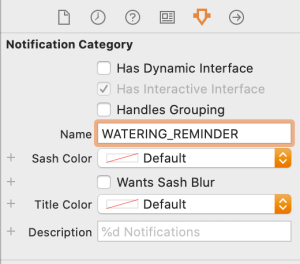
NotificationController’s responsibility is to consume user notification’s payload and configuring the SwiftUI view with it. User notification is provided by didReceive function and there we can extract the information needed for showing the view. When it comes to locally testing the dynamic view, we can add required data to the PushNotificationPayload.apns file. As we show information about plants, let’s add example plant object to the file. Also, we change category to something meaningful. Make sure to update Storyboard when setting new category.

{
    "aps": {
        "alert": {
            "body": "Test message",
            "title": "Optional title",
            "subtitle": "Optional subtitle"
        },
        "category": "WATERING_REMINDER",
        "thread-id": "plantid123"
    },
    
    "plant": {
        "id": "plantid123",
        "name": "Aloe",
        "lastDate": 1579937802,
        "nextDate": 1580515200
    }
}
Notification category in Storyboard for defining the connection to dynamic notification view.

Plant related information is available when accessing UNNotification’s request.content.userInfo. We can use Decodable and JSONDecoder for converting Dictionary representing the plant into value type. As JSONDecoder requires JSON data then we can first use JSONSerialization and then passing the JSON data to JSONDecoder. Alternatively we could also manually read values from the userInfo dictionary and then creating the value type. Note that we use view model for providing data to SwiftUI view and not the Plant type directly.

struct Plant: Decodable {
    let id: String
    let name: String
    let lastDate: Date
    let nextDate: Date
}

do {
	let plantInfo = notification.request.content.userInfo["plant"] as! [String: Any]
	let data = try JSONSerialization.data(withJSONObject: plantInfo, options: [])
	let decoder = JSONDecoder()
	decoder.dateDecodingStrategy = .secondsSince1970
	let plant = try decoder.decode(Plant.self, from: data)
	viewModel = NotificationViewModel(plant: plant)
}
catch let nsError as NSError {
	print(nsError.localizedDescription)
}

In addition, we would like to add 3 actions user can take: marking the plant as watered, deferring the reminder for couple of hours, or scheduling it for tomorrow. Actions are represented with instances of UNNotificationAction and when user taps on any of those, UNUserNotificationCenter’s delegate method is called with the identifier in the companion iOS app (userNotificationCenter(_:didReceive:withCompletionHandler:)).

let doneTitle = NSLocalizedString("NotificationAction_Done", comment: "Done button title in notification.")
let laterTitle = NSLocalizedString("NotificationAction_Later", comment: "Later button title in notification.")
let tomorrowTitle = NSLocalizedString("NotificationAction_Tomorrow", comment: "Tomorrow button title in notification.")
notificationActions = [
	UNNotificationAction(identifier: "water_done", title: doneTitle, options: []),
	UNNotificationAction(identifier: "water_later", title: laterTitle, options: []),
	UNNotificationAction(identifier: "water_tomorrow", title: tomorrowTitle, options: [])
]

The full implementation of the NotificationController becomes like this (including the creation of SwiftUI):

final class NotificationController: WKUserNotificationHostingController<NotificationView> {
    private var viewModel: NotificationViewModel?
    
    override var body: NotificationView {
        return NotificationView(viewModel: viewModel!)
    }
    
    override func didReceive(_ notification: UNNotification) {
        do {
            let plantInfo = notification.request.content.userInfo["plant"] as! [String: Any]
            let data = try JSONSerialization.data(withJSONObject: plantInfo, options: [])
            let decoder = JSONDecoder()
            decoder.dateDecodingStrategy = .secondsSince1970
            let plant = try decoder.decode(Plant.self, from: data)
            viewModel = NotificationViewModel(plant: plant)
        }
        catch let nsError as NSError {
            print(nsError.localizedDescription)
        }
        
        let doneTitle = NSLocalizedString("NotificationAction_Done", comment: "Done button title in notification.")
        let laterTitle = NSLocalizedString("NotificationAction_Later", comment: "Later button title in notification.")
        let tomorrowTitle = NSLocalizedString("NotificationAction_Tomorrow", comment: "Tomorrow button title in notification.")
        notificationActions = [
            UNNotificationAction(identifier: "water_done", title: doneTitle, options: []),
            UNNotificationAction(identifier: "water_later", title: laterTitle, options: []),
            UNNotificationAction(identifier: "water_tomorrow", title: tomorrowTitle, options: [])
        ]
    }
}

NotificationView presenting the dynamic notification

Previously mentioned view model NotificationViewModel provides text for NotificationView and it looks pretty simple, mainly dealing with creating strings with formatted dates. As we only want to show day and month then we need to create dateFormat using current locale.

struct NotificationViewModel {
    private let plant: Plant
    
    init(plant: Plant) {
        self.plant = plant
    }
    
    var title: String {
        return plant.name
    }
    
    var subtitle: String {
        return NSLocalizedString("NotificationView_Subtitle", comment: "Notification suggestion text")
    }
    
    private let dateFormatter: DateFormatter = {
        let formatter = DateFormatter()
        formatter.dateFormat = DateFormatter.dateFormat(fromTemplate: "dMMMM", options: 0, locale: .current)
        return formatter
    }()
    
    var lastWatering: String {
        let format = NSLocalizedString("NotificationView_LastWatering", comment: "Last watering date.")
        return String(format: format, dateFormatter.string(from: plant.lastDate))
    }
    
    var nextWatering: String {
        let format = NSLocalizedString("NotificationView_NextWatering", comment: "Next watering date.")
        return String(format: format, dateFormatter.string(from: plant.nextDate))
    }
}

SwiftUI view is also pretty simple with containing 4 text labels and one divider.

struct NotificationView: View {
    let viewModel: NotificationViewModel
    
    var body: some View {
        VStack {
            Text(viewModel.title).font(.title)
            Text(viewModel.subtitle).font(.subheadline)
            Divider()
            Text(viewModel.lastWatering).font(.body).multilineTextAlignment(.center)
            Text(viewModel.nextWatering).font(.body).multilineTextAlignment(.center)
        }
    }
}
Dynamic notification with 4 labels and divider.
Buttons in dynamic notification.

Summary

We added Apple Watch app to an existing iOS app and implemented dynamic notification view for one notification category. We looked into how to parse data associated with the user notification, create SwiftUI view and add action buttons. Next steps would be to handle notification actions in the companion iOS app based on the notification button identifier.

If this was helpful, please let me know on Mastodon@toomasvahter or Twitter @toomasvahter. Feel free to subscribe to RSS feed. Thank you for reading.

Example project

WaterMyPlants (GitHub)

Categories
Combine CoreData Foundation Generics iOS Swift SwiftUI Xcode

Using CoreData with SwiftUI

CoreData is Apple’s object graph and persistence framework. It provides data sources for synchronising data with view. Let’s take a look on how to use those data sources in SwiftUI views. Starting with NSFetchedResultsController what is used for list and collection views, after that observing NSManagedObject directly from SwiftUI view and lastly subscribing to managed object context notifications.

NSFetchedResultsController

NSFetchedResultsController is used for providing data in table and collection views. It supports sorting and filtering data and arranging data into sections. We can use delegate for getting change callbacks. NSFetchedResultsControllerDelegate contains several methods:

// Diffable data source (new in iOS 13)
optional func controller(_ controller: NSFetchedResultsController<NSFetchRequestResult>, didChangeContentWith snapshot: NSDiffableDataSourceSnapshot)
optional func controller(_ controller: NSFetchedResultsController<NSFetchRequestResult>, didChangeContentWith diff: CollectionDifference<NSManagedObjectID>)
// Manually updating table view and collection view
optional func controller(_ controller: NSFetchedResultsController<NSFetchRequestResult>, didChange anObject: Any, at indexPath: IndexPath?, for type: NSFetchedResultsChangeType, newIndexPath: IndexPath?)
optional func controller(_ controller: NSFetchedResultsController<NSFetchRequestResult>, didChange sectionInfo: NSFetchedResultsSectionInfo, atSectionIndex sectionIndex: Int, for type: NSFetchedResultsChangeType)
optional func controllerWillChangeContent(_ controller: NSFetchedResultsController<NSFetchRequestResult>)
optional func controllerDidChangeContent(_ controller: NSFetchedResultsController<NSFetchRequestResult>)

In SwiftUI we are not going to directly manipulate views. Only what we need to do is letting SwiftUI view know that data is about to change. Let’s take a look on simple app with list of items stored by CoreData. Data is represented by ColorItem where only stored value is hex string of the color (e.g. #AA22BB).

final class ColorItem: NSManagedObject {
@NSManaged var hex: String
}
view raw ColorItem.swift hosted with ❤ by GitHub

ColorItems are managed by ContentView’s view model. View model creates NSFetchedResultsController, performs fetch and provides array of fetched ColorItems to the SwiftUI’s List. In addition, view model is delegate of the NSFetchedResultsController (requires view model to be NSObject subclass). As view model is ObservableObject, we can very easily let SwiftUI view know that it should refresh. We need to do two things: firstly, implementing controllerWillChangeContent delegate method and calling send() on objectWillChange publisher. Secondly, view model property must use @ObservedObject property wrapper in SwiftUI view. Result is that SwiftUI view subscribes to objectWillChange publisher and refreshes whenever publisher emits an event.

extension ContentView {
final class ViewModel: NSObject, NSFetchedResultsControllerDelegate, ObservableObject {
private let colorController: NSFetchedResultsController<ColorItem>
init(managedObjectContext: NSManagedObjectContext) {
let sortDescriptors = [NSSortDescriptor(keyPath: \ColorItem.hex, ascending: true)]
colorController = ColorItem.resultsController(context: managedObjectContext, sortDescriptors: sortDescriptors)
super.init()
colorController.delegate = self
try? colorController.performFetch()
}
func controllerWillChangeContent(_ controller: NSFetchedResultsController<NSFetchRequestResult>) {
objectWillChange.send()
}
var colors: [ColorItem] {
return colorController.fetchedObjects ?? []
}
}
}
extension ColorItem {
static func resultsController(context: NSManagedObjectContext, sortDescriptors: [NSSortDescriptor] = []) -> NSFetchedResultsController<ColorItem> {
let request = NSFetchRequest<ColorItem>(entityName: "ColorItem")
request.sortDescriptors = sortDescriptors.isEmpty ? nil : sortDescriptors
return NSFetchedResultsController(fetchRequest: request, managedObjectContext: context, sectionNameKeyPath: nil, cacheName: nil)
}
}

And finally let’s see the ContentView implementation. NSManagedObject has objectID property what we can use in List for identifying every ColorItem. Cell is custom view what we’ll take a look at next.

struct ContentView: View {
@ObservedObject var viewModel: ViewModel
var body: some View {
NavigationView {
VStack {
List(viewModel.colors, id: \.objectID) { (colorItem) in
Cell(colorItem: colorItem)
}
}.navigationBarTitle("Colors")
}
}
}

NSManagedObject

NSManagedObject implements ObservableObject protocol and therefore it is possible to use it together with @ObservedObject property wrapper and getting SwiftUI view refreshed automatically when any of the ColorItem properties change. NSFetchedResultsController required a little bit of code for setting up delegate but that is not the case with NSManagedObject.

struct Cell: View {
@ObservedObject var colorItem: ColorItem
var body: some View {
HStack {
Text(verbatim: colorItem.hex)
Spacer()
Rectangle().foregroundColor(Color(colorItem.uiColor)).frame(minWidth: 50, maxWidth: 50)
}
}
}
view raw Cell.swift hosted with ❤ by GitHub

In addition, if there are cases where we would like to observe specific property, then Combine provides publisher for key path. Because NSManagedObject supports key-value observing we can use the publisher and subscribe to individual property changes.

let cancellable = color.publisher(for: \.hex).sink { (string) in
print(string)
}

Subscribing to CoreData notifications

When we need to observe changes in persistent store we can observe notifications sent by the framework. As NotificationCenter supports publishers, we can subscribe to it, unpack data from notification and do something with the data. For making this easier we can introduce a separate type. It will unpack the user info dictionary and filter by type. This allows to easily observe, for example, ColorItem insertions. Or, if we would like to receive every possible change, we can specify NSManagedObject as the generic type.

private var cancellables = [AnyCancellable]()
let cancellable = NotificationCenter.default.publisher(for: .NSManagedObjectContextObjectsDidChange, object: managedObjectContext)
.compactMap({ ManagedObjectContextChanges<ColorItem>(notification: $0) }).sink { (changes) in
print(changes)
}
cancellables.append(cancellable)
struct ManagedObjectContextChanges<T: NSManagedObject> {
let inserted: Set<T>
let deleted: Set<T>
let updated: Set<T>
init?(notification: Notification) {
let unpack: (String) -> Set<T> = { key in
let managedObjects = (notification.userInfo?[key] as? Set<NSManagedObject>) ?? []
return Set(managedObjects.compactMap({ $0 as? T }))
}
deleted = unpack(NSDeletedObjectsKey)
inserted = unpack(NSInsertedObjectsKey)
updated = unpack(NSUpdatedObjectsKey).union(unpack(NSRefreshedObjectsKey))
if deleted.isEmpty, inserted.isEmpty, updated.isEmpty {
return nil
}
}
}

Summary

We took a look at how to use NSFetchedResultsController and NSManagedObject in SwiftUI views. We saw that integrating NSFetchedResultsController requires only a little bit of code and using NSManagedObject even less. In addition, we looked at subscribing to CoreData notifications and unpacking notification payload.

If this was helpful, please let me know on Mastodon@toomasvahter or Twitter @toomasvahter. Feel free to subscribe to RSS feed. Thank you for reading.

Example project

CoreDataCombineSwiftUI (Xcode 11.3)

Categories
Combine Foundation iOS Swift SwiftUI

MVVM in SwiftUI

Let’s build a simple app using MVVM (model-view-view model) where every SwiftUI view has its own view model. It’s going to be an app with two views: list of movies and add a movie view what utilises Form view. Added movies are stored in MovieStore which is shared by the two view models. We will use environment for sharing the MovieStore. It will be read from the environment when we need to create AddMovieView with its view model.

Movie and MovieStore representing data

Movie is a small struct and just stores the title and rating. Title and rating are mutable as we are going to update those in AddMovieView. We also conform to protocol Identifiable because we are going to use List view for showing all the movies. List needs a way of identifiyng the content and its the simplest way of satisfiying the requirement.

struct Movie: Equatable, Identifiable {
    let id = UUID()
    var fullTitle: String
    var givenRating: Rating = .notSeen
}

extension Movie {
    enum Rating: Int, CaseIterable {
        case notSeen, terrible, poor, decent, good, excellent
    }
}

MovieStore is also a pretty simple although in a more sophisticated app it would contain much more logic: persistence, deleting etc. We use Published property wrapper which automatically provides a publisher we can use to subscribe against.

final class MovieStore {
    @Published private(set) var allMovies = [Movie]()
    
    func add(_ movie: Movie) {
        allMovies.append(movie)
    }
}

For inserting shared MovieStore to environment, we’ll use custom EnvironmentKey. Custom key is just an object conforming to EnvironmentKey protocol. We need to provide the type and default value.

struct MovieStoreKey: EnvironmentKey {
    typealias Value = MovieStore
    static var defaultValue = MovieStore()
}

extension EnvironmentValues {
    var movieStore: MovieStore {
        get {
            return self[MovieStoreKey]
        }
        set {
            self[MovieStoreKey] = newValue
        }
    }
}

If we do not insert our own instance of MovieStore to the environment, the instance returned by defaultValue is used. Typically we would like to use a specific instance initialised outside of the view hierarchy. Therefore let’s take a look how to do that next.

SceneDelegate and MovieScene presentation

MovieStore dependency is passed into view models with initialiser. We’ll use the instance stored in SceneDelegate. Yet again, in a real app, it would probably live in a separate dependency container or in something similar. MovieListView is the first view we need to present, therefore we’ll initialise view model, view and insert instance of MovieStore to environment for later use (movieStore keypath is the one we just defined in EnvironmentValues‘ extension).

final class SceneDelegate: UIResponder, UIWindowSceneDelegate {
    var window: UIWindow?
    private let movieStore = MovieStore()

    func scene(_ scene: UIScene, willConnectTo session: UISceneSession, options connectionOptions: UIScene.ConnectionOptions) {
        let viewModel = MovieListView.ViewModel(movieStore: movieStore)
        let contentView = MovieListView(viewModel: viewModel).environment(\.movieStore, movieStore)
        
        guard let windowScene = scene as? UIWindowScene else { return }
        let window = UIWindow(windowScene: windowScene)
        window.rootViewController = UIHostingController(rootView: contentView)
        self.window = window
        window.makeKeyAndVisible()
    }
}

MovieListView and its ViewModel

We still haven’t taken a look on MovieListView and its view model, let’s do it now. View model conforms to protocol ObservableObject and uses @Published property wrappers. ObservableObject’s default implementation provides objectWillChange publisher. @Published property wrapper automatically fires the publisher when the property value is about to change. On MovieListView we have declared view model property with @ObservedObject property wrapper. This will make the view to subscribe to objectWillChange publisher and will refresh the view when-ever objectWillChange fires.

extension MovieListView {
    final class ViewModel: ObservableObject {
        private let movieStore: MovieStore
        private var cancellables = [AnyCancellable]()
        
        init(movieStore: MovieStore) {
            self.movieStore = movieStore
            cancellables.append(movieStore.$allMovies.assign(to: \.movies, on: self))
        }
        
        @Published private(set) var movies = [Movie]()
        @Published var isPresentingAddMovie = false
    }
}
struct MovieListView: View {
    @Environment(\.self) var environment
    @ObservedObject var viewModel: ViewModel
    
    var body: some View {
        NavigationView {
            List(self.viewModel.movies) { movie in
                Text(movie.fullTitle)
            }.navigationBarTitle("Movies")
                .navigationBarItems(trailing: navigationBarTrailingItem)
        }
    }
    
    private var navigationBarTrailingItem: some View {
        Button(action: {
            self.viewModel.isPresentingAddMovie = true
        }, label: {
            Image(systemName: "plus").frame(minWidth: 32, minHeight: 32)
        }).sheet(isPresented: self.$viewModel.isPresentingAddMovie) {
            self.makeAddMovieView()
        }
    }
    
    private func makeAddMovieView() -> AddMovieView {
        let movieStore = environment[MovieStoreKey]
        let viewModel = AddMovieView.ViewModel(movieStore: movieStore)
        return AddMovieView(viewModel: viewModel)
    }
}

Changes in MovieStore are observed by subscribing to allMovies subscriber and then assigning the new list of movies to view model’s own property. Note that assignment is triggered on subscribing and when changes happen: like KVO with initial option. Only downside is that now the list is duplicated but that’s OK. We would need to do that anyway when we would like to sort or filter the list later on.

AddMovieView and its view model are created when user taps on the plus button in the navigation bar. Environment property wrapper can be used to get the whole environment or any of the values using a specific key. In current case I went for accessing the whole environment object and then getting MovieStore using a MovieStoreKey later when needed. Then the MovieStore is not available in the whole view scope and only when creating the AddMovieView. Other option would be to use @Environment(\.movieStore) var movieStore instead.

AddMovieView and its ViewModel

AddMovieView’s view model is initialised with MovieStore and internally it represents and instance of Movie. Published property wrapper is used similarly like in MovieListView’s view model. The model object is a private property and instead of direct access, two bindings are provded for TextField and Picker. Binding represents a two way connection between the view and model. In addition, there is canSave property what is used for enabling the save button in the navigation bar. Save button should be enabled only when title is filled. To recap the view update flow: TextField or Picker will use Binding to update private property newMovie. As newMovie property uses @Published property wrapper, it will fire ObservableObject’s objectWillChange publisher. SwiftUI automatically subscribes to objectWillChange because view model’s property uses @ObservedObject.

extension AddMovieView {
    class ViewModel: ObservableObject {
        private let movieStore: MovieStore
        
        init(movieStore: MovieStore) {
            self.movieStore = movieStore
        }
        
        @Published private var newMovie = Movie(fullTitle: "")
        
        lazy var title = Binding<String>(get: {
            self.newMovie.fullTitle
        }, set: {
            self.newMovie.fullTitle = $0
        })
        
        lazy var rating = Binding<Movie.Rating>(get: {
            self.newMovie.givenRating
        }, set: {
            self.newMovie.givenRating = $0
        })
        
        var canSave: Bool {
            return !newMovie.fullTitle.isEmpty
        }
        
        func save() {
            movieStore.add(newMovie)
        }
    }
}

struct AddMovieView: View {
    @Environment(\.presentationMode) private var presentationMode
    @ObservedObject var viewModel: ViewModel
    
    var body: some View {
        NavigationView {
            Form {
                titleSection
                ratingSection
            }.navigationBarTitle("Add Movie", displayMode: .inline)
                .navigationBarItems(leading: leadingBarItem, trailing: trailingBarItem)
                .navigationViewStyle(StackNavigationViewStyle())
            
        }
    }
    
    private var titleSection: some View {
        Section() {
            TextField("Title", text: viewModel.title)
        }
    }

    private var ratingSection: some View {
        Section() {
            Picker(LocalizedStringKey("Rating"), selection: viewModel.rating) {
                ForEach(Movie.Rating.allCases, id: \.rawValue) {
                    Text($0.localizedName).tag($0)
                }
            }
        }
    }
    
    private var leadingBarItem: some View {
        Button(action: { self.presentationMode.wrappedValue.dismiss() }, label: {
            Text("Cancel")
        })
    }
    
    private var trailingBarItem: some View {
        Button(action: {
            self.viewModel.save()
            self.presentationMode.wrappedValue.dismiss()
        }, label: {
            Text("Save").disabled(!self.viewModel.canSave)
        })
    }
}

Summary

We created a simple app with two views. Both views had its own view model and both view models used the same dependency: MovieStore. One view model triggered changes in MovieStore and those changes were observed by the other view model. In addition, we looked into how to use SwiftUI’s environment and how to trigger view updates from view models.

If this was helpful, please let me know on Mastodon@toomasvahter or Twitter @toomasvahter. Feel free to subscribe to RSS feed. Thank you for reading.

Example

SwiftUICombineMVVMExample (GitHub, Xcode 11.3, Swift 5)

Categories
Combine iOS Swift SwiftUI

Animating view transitions in SwiftUI

One building block for navigating from one view to another is NavigationView which is a representation of UINavigationController in UIKit. This time, let’s take a look on how to transition from one SwiftUI view to another one without NavigationView.

AppFlowCoordinator managing choosing the view

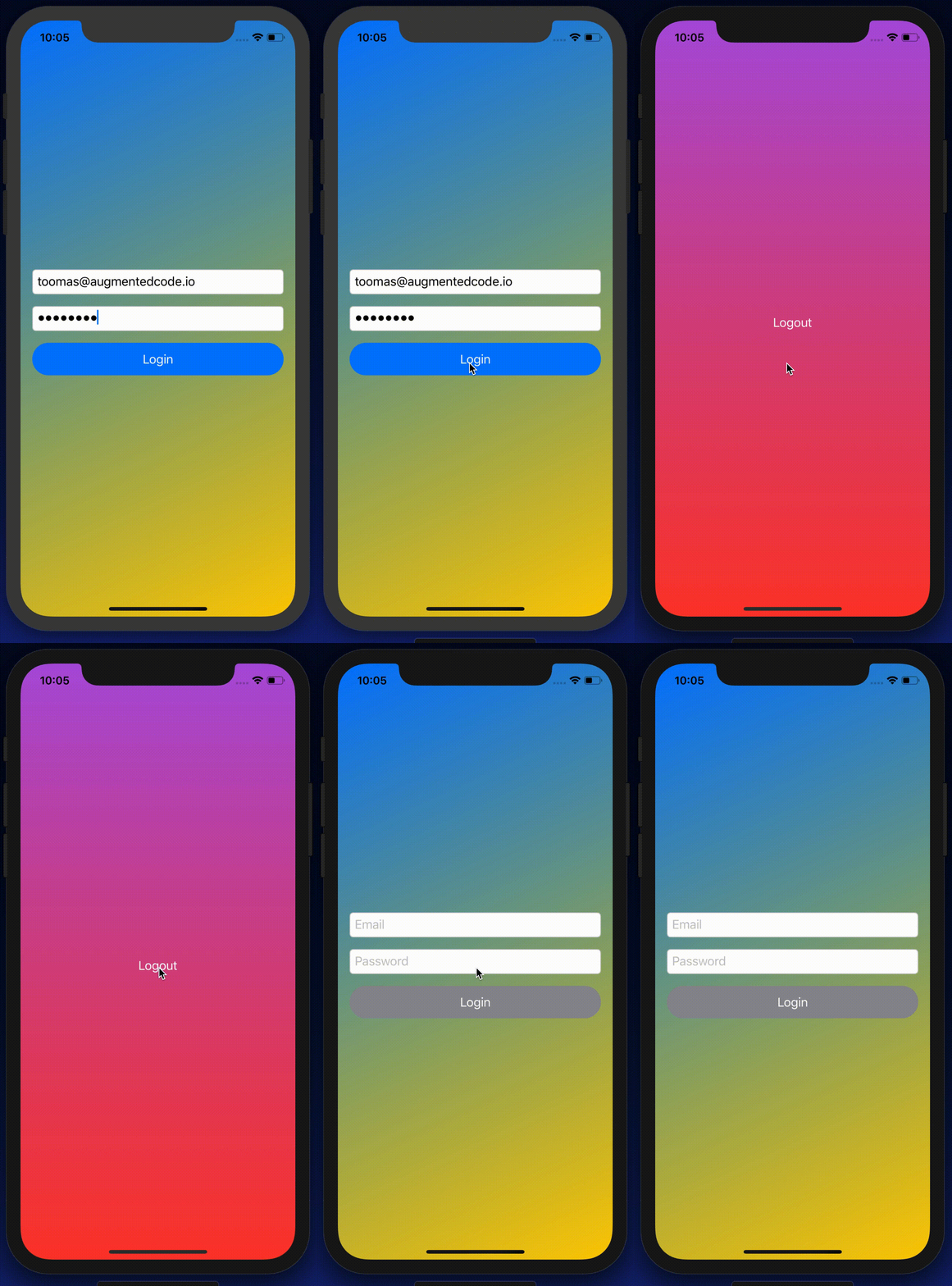
The idea is to have a root SwiftUI view with only responsibility of presenting the active view. State is stored in AppFlowCoordinator which can be accessed from other views and therefore other views can trigger navigation. Example case we’ll build, is animating transitions from login view to main view and back. As said, AppFlowCoordinator stores the information about which view should be on-screen at a given moment. All the views are represented with an enum and based on the value in enum, views are created. This coordinator is ObservableObject what makes it easy to bind to a SwiftUI view – whenever activeFlow changes, SwiftUI view is updated. The term flow is used because views can consist of stack of other views and therefore creating a flow of views.

import SwiftUI
final class AppFlowCoordinator: ObservableObject {
@Published var activeFlow: Flow = .login
func showLoginView() {
withAnimation {
activeFlow = .login
}
}
func showMainView() {
withAnimation {
activeFlow = .main
}
}
}
extension AppFlowCoordinator {
enum Flow {
case login, main
}
}
Triggering navigation using flow controller.

RootView displaying active flow

RootView selects which view is currently visible. It accesses coordinator through environment. SwiftUI requires EnvironmentObjects to be ObservableObjects, therefore this view is automatically refreshed when activeFlow changes in the AppFlowCoordinator. RootView’s body is annotated with @ViewBuilder which will enable the view to return a body with type depending on the current state (HStack is also a ViewBuilder). Other options are wrapping the views with AnyView or using Group. In our case the view types are LoginView and ContentView. Both views also define the transition animation what is used when view refresh is triggered in withAnimation closure in AppFlowCoordinator. Asymmetric enables defining different transitions when view is added and removed from the view hierarchy.

let appFlowCoordinator = AppFlowCoordinator()
let rootView = RootView().environmentObject(appFlowCoordinator)
window.rootViewController = UIHostingController(rootView: rootView)
Inserting AppFlowCoordinator to environment
struct RootView: View {
@EnvironmentObject var appFlowCoordinator: AppFlowCoordinator
@ViewBuilder
var body: some View {
ZStack {
Color.black.edgesIgnoringSafeArea(.all)
if appFlowCoordinator.activeFlow == .main {
ContentView().transition(.asymmetric(insertion: .scale, removal: .opacity))
}
else if appFlowCoordinator.activeFlow == .login {
LoginView().transition(.asymmetric(insertion: .slide, removal: .opacity))
}
else {
EmptyView()
}
}
}
}
view raw RootView.swift hosted with ❤ by GitHub
Updating currently visible flow with transition animations

Triggering navigation from SwiftUI view

Last piece we need to take a look at is how to trigger transition. As AppFlowCoordinator is in environment, any view can access the coordinator and call any of the navigation methods. When login finishes, LoginView can tell the coordinator to show the main content view.

struct LoginView: View {
@EnvironmentObject var appFlowCoordinator: AppFlowCoordinator
var body: some View {
ZStack {
Button(action: appFlowCoordinator.showMainView) {
Text("Login")
}
}
}
}
view raw LoginView.swift hosted with ❤ by GitHub
Navigating to main view from login view

Summary

We took a look on how to navigate from one SwiftUI view to another by using a coordinator object. Coordinator stored the information about which view we should currently display on screen. We saw how easy it is to trigger navigation from any of the currently visible views.

transition animation
Low FPS GIF representing the transition animation

If this was helpful, please let me know on Mastodon@toomasvahter or Twitter @toomasvahter. Feel free to subscribe to RSS feed. Thank you for reading.

Example

RootViewTransitions Xcode 11.2.1, Swift 5.1

Categories
macOS Swift SwiftUI

Injecting dependencies using environment values and keys in SwiftUI

Instead of initializing SwiftUI views with dependencies, SwiftUI also offers other ways for injecting dependencies. This time let’s take a look on EnvironmentKey which defines a key for inserting objects to environment and vise-versa. We need to create a EnvironmentKey, adding an object to environment and then getting the object in SwiftUI view.

Creating EnvironmentKey and extending EnvironmentValues

Example object we use is DependencyManager what in real app can contains loads of dependencies. EnvironmentKey is a protocol in SwiftUI what requires to define associated type and default value. Default value is used when we have not explicitly inserted an instance of DependencyManager to the environment, more about it a little bit later. EnvironmentValues is a struct containing a collection of environment objects. We’ll add a property to EnvironmentValues which later will be used by @Environment property wrapper and also when setting an instance of the object to the environment.

import Foundation
import SwiftUI
struct DependencyManager {
let identifier: String
let urlSession = URLSession.shared
}
struct DependencyManagerKey: EnvironmentKey {
typealias Value = DependencyManager
static var defaultValue = DependencyManager(identifier: "Default created by environment")
}
extension EnvironmentValues {
var dependencyManager: DependencyManager {
get {
return self[DependencyManagerKey.self]
}
set {
self[DependencyManagerKey.self] = newValue
}
}
}
Custom EnvironmentKey and EnvironmentValues extension for accessing dependencies

Inserting objects to environment

If we would like to insert a DependencyManager to the Environment, we can use func environment(_ keyPath: WritableKeyPath, _ value: V) -> some View using our DependencyManagerKey and an instance created by us. If we do not insert our own, SwiftUI will use the instance returned by defaultValue when the key is first time accessed.

// Setting non-default instance of DependencyManager, otherwise default instance is used created in DependencyManagerKey
let dependencyManager = DependencyManager(identifier: "Scene delegate created")
let contentView = ContentView().environment(\.dependencyManager, dependencyManager)
Setting instance of DependencyManager to SwiftUI environment

Getting objects from environment

Objects can be read from the environment using @Environment property wrapper and specifing the EnvironmentKey.

import SwiftUI
struct ContentView: View {
@Environment(\.dependencyManager) var dependencyManager: DependencyManager
var body: some View {
Text(dependencyManager.identifier)
}
}
Accessing the instance of DependencyManager in environment

Summary

We created an environment key and inserted an object into environment. We looked into how SwiftUI handles default values for environment objects and used @Environment property wrapper for getting the instance from the environment using the created key.

If this was helpful, please let me know on Mastodon@toomasvahter or Twitter @toomasvahter. Feel free to subscribe to RSS feed. Thank you for reading.

Categories
Combine ImageIO iOS Swift SwiftUI

Animating GIFs and APNGs with CGAnimateImageAtURLWithBlock in SwiftUI

This year Apple added CGAnimateImageAtURLWithBlock and CGAnimateImageDataWithBlock for animating GIFs and APNGs on all the platforms to the ImageIO framework. We can pass in URL or data and get callbacks when animation changes the current frame. In Xcode 11 beta 7 implicit bridging to Swift is disabled for those APIs and therefore we need to create a small wrapper around it in Objective-C.

Creating ImageFrameScheduler for managing CGAnimateImageAtURLWithBlock in Objective-C

Calling CGAnimateImageAtURLWithBlock starts the animation immediately. When animation frame changes, the handler block is called with frame index, current animation frame image and stop argument. When setting stop to YES, we can stop the animation. With this in mind we can create ImageFrameScheduler what takes in URL and has methods for starting and stopping the animation. Then we can expose this class to Swift and use it for managing the animation.

#import <CoreGraphics/CoreGraphics.h>
#import <Foundation/Foundation.h>
NS_ASSUME_NONNULL_BEGIN
@interface ImageFrameScheduler: NSObject
– (instancetype)initWithURL:(NSURL *)imageURL;
@property (readonly) NSURL *imageURL;
– (BOOL)startWithFrameHandler:(void (^)(NSInteger, CGImageRef))handler;
– (void)stop;
@end
NS_ASSUME_NONNULL_END
#import "ImageFrameScheduler.h"
#import "ImageIO/CGImageAnimation.h" // Xcode 11 beta 7 – CGImageAnimation.h is not in umbrella header IOImage.h
@interface ImageFrameScheduler()
@property (readwrite) NSURL *imageURL;
@property (getter=isStopping) BOOL stopping;
@end
@implementation ImageFrameScheduler
– (instancetype)initWithURL:(NSURL *)imageURL {
if (self = [super init]) {
self.imageURL = imageURL;
}
return self;
}
– (BOOL)startWithFrameHandler:(void (^)(NSInteger, CGImageRef))handler {
__weak ImageFrameScheduler *weakSelf = self;
OSStatus status = CGAnimateImageAtURLWithBlock((CFURLRef)self.imageURL, nil, ^(size_t index, CGImageRef _Nonnull image, bool* _Nonnull stop) {
handler(index, image);
*stop = weakSelf.isStopping;
});
// See CGImageAnimationStatus for errors
return status == noErr;
}
– (void)stop {
self.stopping = YES;
}
@end

ImageAnimator conforming to ObservableObject in Swift

When updating views in SwiftUI, we can use ObservableObject protocol and @Published property wrapper what enables SwiftUI to get notified when the ObservableObject changes. This means that we need a model object written in Swift what stores our Objective-C class ImageFrameScheduler and exposes the current animation frame when animation is running. Whenever we update the property internally, property wrapper will take care of notifying SwiftUI to update the view.

import Combine
import UIKit
final class ImageAnimator: ObservableObject {
private let scheduler: ImageFrameScheduler
init(imageURL: URL) {
self.scheduler = ImageFrameScheduler(url: imageURL)
}
@Published var image: CGImage?
func startAnimating() {
let isRunning = scheduler.start { [weak self] (index, image) in
self?.image = image
}
if isRunning == false {
print("Failed animate image at url \(scheduler.imageURL)")
}
}
func stopAnimating() {
scheduler.stop()
}
}

ContentView displaying animation frames in SwiftUI

Integrating ImageAnimator with ContentView is now pretty straight-forward, we check if animation frame image is available and display it. Animation is started when SwiftUI appears and stopped when it disappears.

import SwiftUI
struct ContentView: View {
@ObservedObject var imageAnimator: ImageAnimator
var body: some View {
ZStack {
if imageAnimator.image != nil {
Image(imageAnimator.image!, scale: 1.0, label: Text("Gif"))
}
else {
Text("Paused")
}
}.onAppear {
self.imageAnimator.startAnimating()
}.onDisappear {
self.imageAnimator.stopAnimating()
}
}
}

Summary

Although CGAnimateImageAtURLWithBlock and CGAnimateImageDataWithBlock are not directly usable in Swift, we can get away from it by adding a simple wrapper class in Objective-C. ImageFrameScheduler could be used in non-SwiftUI views by updating UIImageView when frame changes. In SwiftUI, views can use ImageAnimator for storing the current animation frame and using @Published property wrapper for letting SwiftUI view to know when to refresh.

If this was helpful, please let me know on Mastodon@toomasvahter or Twitter @toomasvahter. Feel free to subscribe to RSS feed. Thank you for reading.

Example Project

AnimateImageData (Xcode 11b7)

Categories
Swift SwiftUI UIKit Vision

Scanning text using SwiftUI and Vision on iOS

Apple’s Vision framework contains computer vision related functionality and with iOS 13 it can detect text on images as well. Moreover, Apple added a new framework VisionKit what makes it easy to integrate document scanning functionality. For demonstrating the usage of it, let’s build a simple UI what can present the scanner and display scanned text.

Cropping text area when scanning documents

Scanning text with Vision

VisionKit has VNDocumentCameraViewController and when presented, it allows scanning documents and cropping scanned documents. It uses delegate for publishing scanned documents via an instance of VNDocumentCameraScan. This object contains all the taken images (documents). Next, we can use VNImageRequestHandler in Vision for detecting text on those images.

final class TextRecognizer {
    let cameraScan: VNDocumentCameraScan
    
    init(cameraScan: VNDocumentCameraScan) {
        self.cameraScan = cameraScan
    }
    
    private let queue = DispatchQueue(label: "com.augmentedcode.scan", qos: .default, attributes: [], autoreleaseFrequency: .workItem)
    
    func recognizeText(withCompletionHandler completionHandler: @escaping ([String]) -> Void) {
        queue.async {
            let images = (0..<self.cameraScan.pageCount).compactMap({ self.cameraScan.imageOfPage(at: $0).cgImage })
            let imagesAndRequests = images.map({ (image: $0, request: VNRecognizeTextRequest()) })
            let textPerPage = imagesAndRequests.map { image, request -> String in
                let handler = VNImageRequestHandler(cgImage: image, options: [:])
                do {
                    try handler.perform([request])
                    guard let observations = request.results as? [VNRecognizedTextObservation] else { return "" }
                    return observations.compactMap({ $0.topCandidates(1).first?.string }).joined(separator: "\n")
                }
                catch {
                    print(error)
                    return ""
                }
            }
            DispatchQueue.main.async {            
                completionHandler(textPerPage)
            }
        }
    }
}

Presenting document scanner with SwiftUI

As VNDocumentCameraViewController is UIKit view controller we can’t directly present it in SwiftUI. For making this work, we’ll need to use a separate value type conforming to UIViewControllerRepresentable protocol. UIViewControllerRepresentable is the glue between SwiftUI and UIKit and enables us to present UIKit views. This protocol requires us to define the class of the view controller and then implementing makeUIViewController(context:) and updateUIViewController(_:context:). In addition, we’ll also create coordinator what is going to be VNDocumentCameraViewController’s delegate. SwiftUI uses UIViewRepresentableContext for holding onto the coordinator and managing the view controller updates behind the scenes. Our case is pretty simple, we just use completion handler for passing back scanned text or nil when it was closed or error occurred. No need to update the view controller itself, only to pass data from it back to SwiftUI.

struct ScannerView: UIViewControllerRepresentable {
    private let completionHandler: ([String]?) -> Void
    
    init(completion: @escaping ([String]?) -> Void) {
        self.completionHandler = completion
    }
    
    typealias UIViewControllerType = VNDocumentCameraViewController
    
    func makeUIViewController(context: UIViewControllerRepresentableContext<ScannerView>) -> VNDocumentCameraViewController {
        let viewController = VNDocumentCameraViewController()
        viewController.delegate = context.coordinator
        return viewController
    }
    
    func updateUIViewController(_ uiViewController: VNDocumentCameraViewController, context: UIViewControllerRepresentableContext<ScannerView>) {}
    
    func makeCoordinator() -> Coordinator {
        return Coordinator(completion: completionHandler)
    }
    
    final class Coordinator: NSObject, VNDocumentCameraViewControllerDelegate {
        private let completionHandler: ([String]?) -> Void
        
        init(completion: @escaping ([String]?) -> Void) {
            self.completionHandler = completion
        }
        
        func documentCameraViewController(_ controller: VNDocumentCameraViewController, didFinishWith scan: VNDocumentCameraScan) {
            print("Document camera view controller did finish with ", scan)
            let recognizer = TextRecognizer(cameraScan: scan)
            recognizer.recognizeText(withCompletionHandler: completionHandler)
        }
        
        func documentCameraViewControllerDidCancel(_ controller: VNDocumentCameraViewController) {
            completionHandler(nil)
        }
        
        func documentCameraViewController(_ controller: VNDocumentCameraViewController, didFailWithError error: Error) {
            print("Document camera view controller did finish with error ", error)
            completionHandler(nil)
        }
    }
}

ContentView is the main SwiftUI view presenting the content for our very simple UI with static text, button and scanned text. When pressing on the button, we’ll set isShowingScannerSheet property to true. As it is @State property, then this change triggers SwiftUI update and sheet modifier will take care of presenting ScannerView with VNDocumentCameraViewController. When view controller finishes, completion handler is called and we will update the text property and set isShowingScannerSheet to false which triggers tearing down the modal during the next update.

struct ContentView: View {
    private let buttonInsets = EdgeInsets(top: 8, leading: 16, bottom: 8, trailing: 16)
    
    var body: some View {
        VStack(spacing: 32) {
            Text("Vision Kit Example")
            Button(action: openCamera) {
                Text("Scan").foregroundColor(.white)
            }.padding(buttonInsets)
                .background(Color.blue)
                .cornerRadius(3.0)
            Text(text).lineLimit(nil)
        }.sheet(isPresented: self.$isShowingScannerSheet) { self.makeScannerView() }
    }
    
    @State private var isShowingScannerSheet = false
    @State private var text: String = ""
    
    private func openCamera() {
        isShowingScannerSheet = true
    }
    
    private func makeScannerView() -> ScannerView {
        ScannerView(completion: { textPerPage in
            if let text = textPerPage?.joined(separator: "\n").trimmingCharacters(in: .whitespacesAndNewlines) {
                self.text = text
            }
            self.isShowingScannerSheet = false
        })
    }
}

Summary

With the new addition of VisionKit and text recognition APIs, it is extremely easy to add support of scanning text using camera.

If this was helpful, please let me know on Mastodon@toomasvahter or Twitter @toomasvahter. Feel free to subscribe to RSS feed. Thank you for reading.

Example

VisionKitExample (Xcode 11)

Categories
Combine iOS Swift SwiftUI

Creating chat view with Combine and SwiftUI

Let’s build a conversation view which shows a list of messages and has input text field with send button. Sent and received messages are managed by Conversation object. Conversation object manages a Session object which is simulating networking stack. This kind of setup allows us to look into how to propagate received messages from Session object to Conversation and then to the list view. We’ll jump into using types Combine and SwiftUI provide therefore if you need more information, definitely watch WWDC videos about Combine and SwiftUI.

Data layer

In the UI we are going to show a list of messages, therefore let’s define a struct for a Message. We’ll make the Message to conform to protocol defined in SwiftUI – Identifiable. We can add conformance by adding id property with type UUID what provides us unique identifier whenever we create a message. Identification is used by SwiftUI to identify messages and finding changes in the messages list.

struct Message: Identifiable {
let id = UUID()
let sender: String
let text: String
}
view raw .swift hosted with ❤ by GitHub

Session is owned by Conversation and simulates a networking stack dealing with sending and receiving messages. This like a place were we could use delegate pattern for forwarding received messages back to the Conversation. Instead of delegation pattern, we can use Combine’s PassthroughSubject. It enables us to publish new messages which we can then collect on the Conversation side. Great, but let’s see how to receive messages which are published by PassthroughSubject.

struct Session {
let messageFeed = PassthroughSubject<Message, Never>()
func send(_ message: Message) {
DispatchQueue.main.asyncAfter(deadline: .now() + .milliseconds(100)) {
self.messageFeed.send(message)
self.simulateReceivingMessages()
}
}
private func simulateReceivingMessages() {
DispatchQueue.main.asyncAfter(deadline: .now() + .milliseconds(200)) {
let receivedMessage = Message(sender: "Person B", text: UUID().uuidString)
self.messageFeed.send(receivedMessage)
}
}
}
view raw .swift hosted with ❤ by GitHub

Conversation is responsible of receiving messages from the Session and keeping the current history: list of messages. For receiving messages published by Session, we can use a subscriber called sink, which just gives access to values flowing through the channel. Subscribers are added directly to publishers, then publisher sends a subscription object back to the subscriber what subscriber can use for communicating with publisher. Here, communicating means requesting values from publisher. To recap: Session owns PassthroughSubject what Conversation starts to listen by attaching subscriber to it.

Conversation conforms to SwiftUI’s ObservableObject. When marking properties with @Published property wrapper, changes in those properties trigger updates in SwiftUI.

final class Conversation: ObservableObject {
private let session = Session()
private var messageSubscriber: AnyCancellable?
init() {
messageSubscriber = session.messageFeed.sink { [weak self] (receivedMessage) in
self?.messages.append(receivedMessage)
}
}
@Published private(set) var messages = [Message]()
func send(_ message: Message) {
session.send(message)
}
}
view raw .swift hosted with ❤ by GitHub

Creating simple list view

In SwiftUI, views are described by value types conforming to View protocol. Every view return their content in the body property. Our UI is simple enough and requires to add navigation view, list and then input view. List is the table view construct which creates new rows whenever it needs to. As we made Message to conform to Identifiable, then we can pass the messages directly to the List.

struct ContentView: View {
@ObjectBinding var conversation: Conversation
var body: some View {
NavigationView {
VStack {
List(self.conversation.messages) { message in
Text(message.text)
}
InputView(conversation: self.conversation)
}.navigationBarTitle(Text("Conversation"))
}
}
}
view raw .swift hosted with ❤ by GitHub

Input view contains text field and button for sending the entered message. Input text is local state owned by the view itself. @State is a property wrapper and internally it creates a separate storage where the input text is stored and read during view updates.

import Combine
import SwiftUI
struct InputView: View {
let conversation: Conversation
@State private var inputText = ""
var body: some View {
HStack {
TextField("", text: $inputText)
.padding(6)
.background(Color.white)
Button(action: sendMessage) {
Text("Send")
}
}.padding(12).background(Color.init(white: 0.75))
}
private func sendMessage() {
self.conversation.send(Message(sender: "PersonA", text: self.inputText))
self.inputText = ""
}
}
view raw .swift hosted with ❤ by GitHub

Now we have a the whole picture put together. Conversation object manages messages and lets SwiftUI know when it changes by using @Published property wrapper. When property wrapper dispatches change to SwiftUI, it compares the changes in the view hierarchy and updates only what is needed.

Summary

We created a basic list view what displays messages in the conversation object. We used simple constructs for passing on the data down from the Session to the SwiftUI layer. The aim of the sample project was to try out some of the ways Combine and SwiftUI allow us to build views.

If this was helpful, please let me know on Mastodon@toomasvahter or Twitter @toomasvahter. Feel free to subscribe to RSS feed. Thank you for reading.

Example

ConversationInSwiftUI (Xcode 11, Swift 5.1)

Resources